Remove Person from Photo
Erase anyone from your photos in seconds. Just describe who to remove.
Type 'remove the person on the right' or 'delete the stranger in the red shirt' and EditThisPic's AI erases them in 20-40 seconds, reconstructing what was behind them. For groups, tap a marker on the specific person first. Solo subjects against simple backgrounds work with description alone. Free to try, no account needed.


How it works
Upload your photo
Drop your image into EditThisPic. JPG, PNG, WebP up to 7MB. Works best when the person you want to remove has a simple background behind them—sky, grass, water, or plain walls.
Describe who to remove
Type your instruction: 'remove the person on the right' or 'delete the man in the blue shirt.' Be specific about position, clothing, or features if there are multiple people. The AI understands descriptions like 'the tall person' or 'the one waving.'
Copy one of these to get started:
remove the person on the right and fill with natural beach background
remove the person behind me and show the scenery
remove the person at the far left end of the group and extend the background
delete the man in the red jacket and fill with the park background
4 more prompts
Tap a marker on the specific person, then 'remove the marked person and reconstruct the background'
remove the partial figure at the edge and extend the scenery
Tap the person, then 'remove only this person and fill the gap naturally'
remove the person blocking the monument and show the full landmark
Review the result
Check where the person was. Zoom in to verify the AI filled the space naturally. Look for ghosting, outline remnants, or color mismatches. Pay attention to edges where the person overlapped with others or objects.
Refine with markers if needed
If the AI removed the wrong person or left remnants, tap a marker directly on who you want removed and regenerate. Markers are essential for group photos where multiple people could match your description.
Download your cleaned photo
Once satisfied, download the edited image. If the background still looks off, try 'blend the area where the person was' to smooth any remaining artifacts.
"Finally got my ex out of my favorite vacation photos. Took two tries but the results are perfect." @lisa_travels
See it in action
Stranger removed from beach vacation
Random person walked into the frame during a sunset shot. One prompt, gone.
remove the person on the right and fill with natural beach background
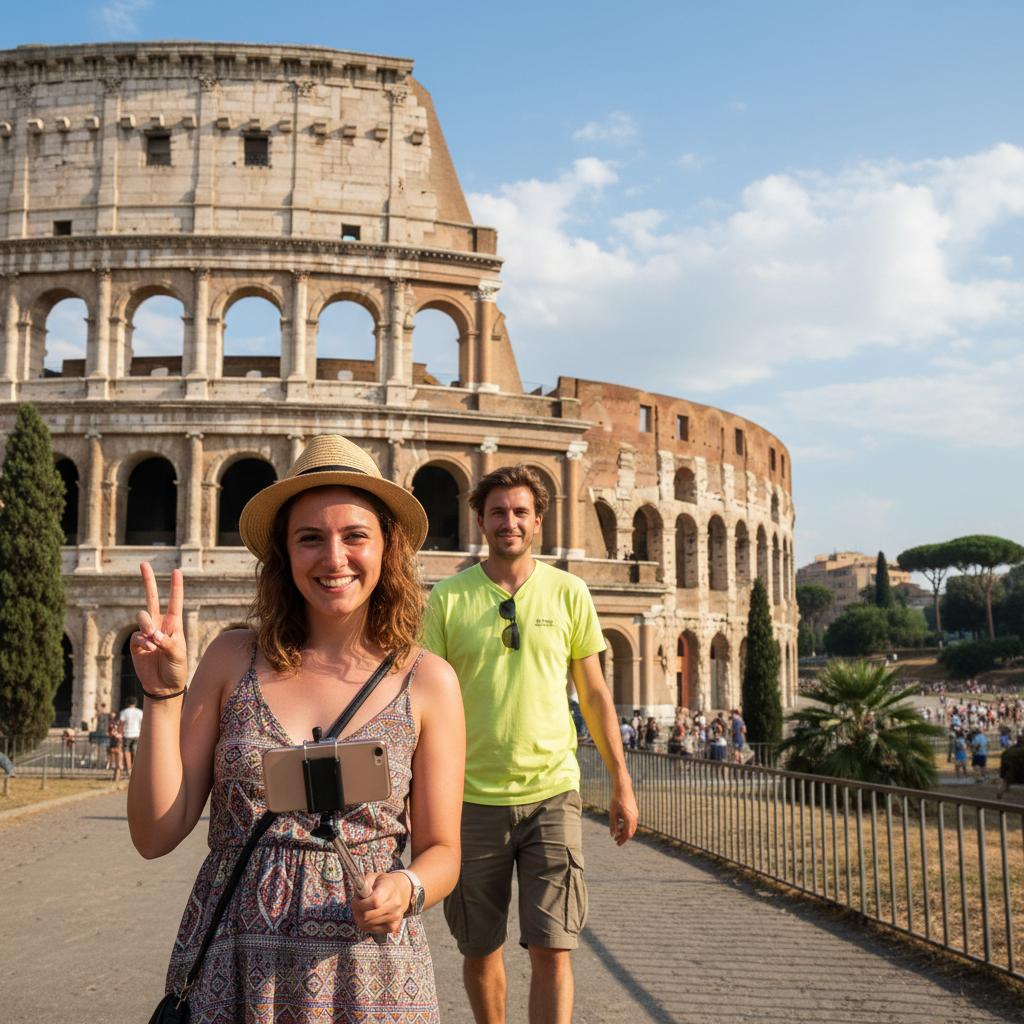
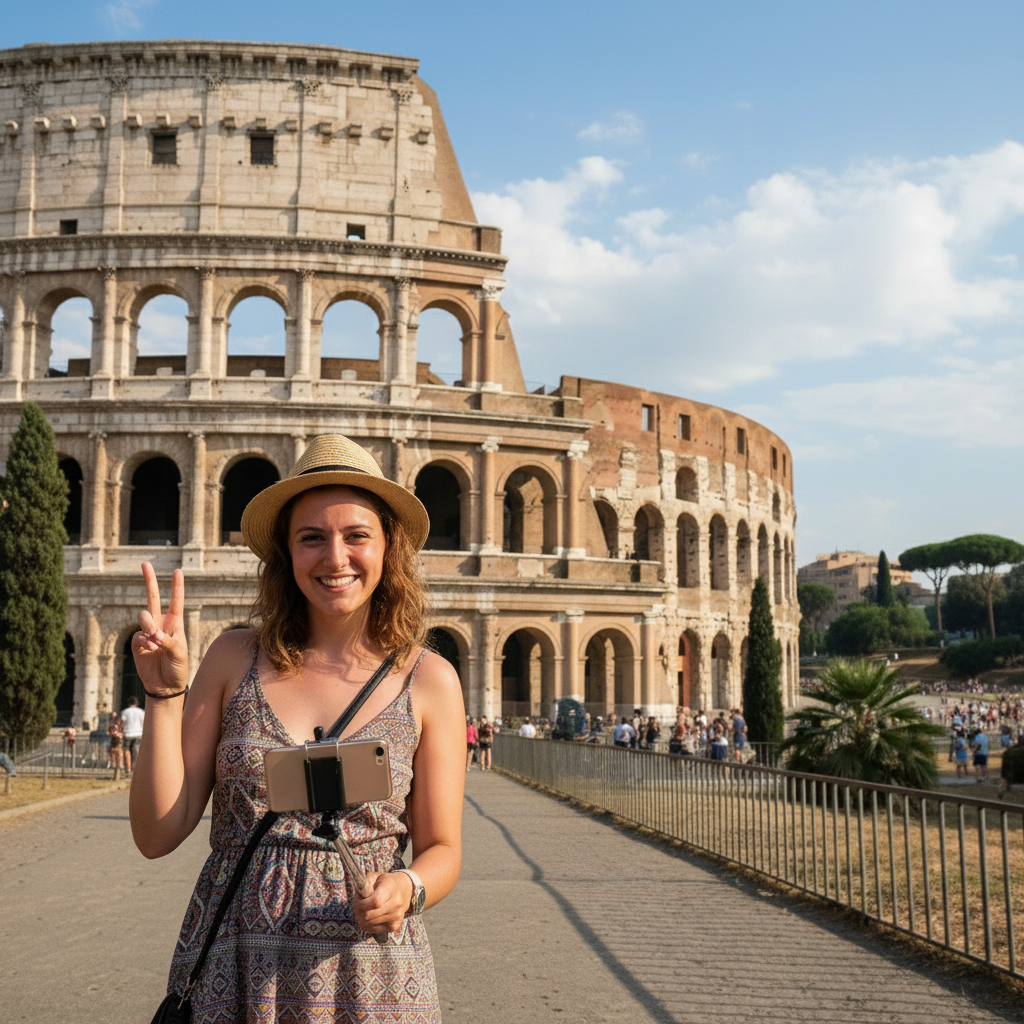
Photobomber removed from tourist photo
Someone walked behind while taking a landmark photo. Removed cleanly.
remove the person behind me and show the landmark
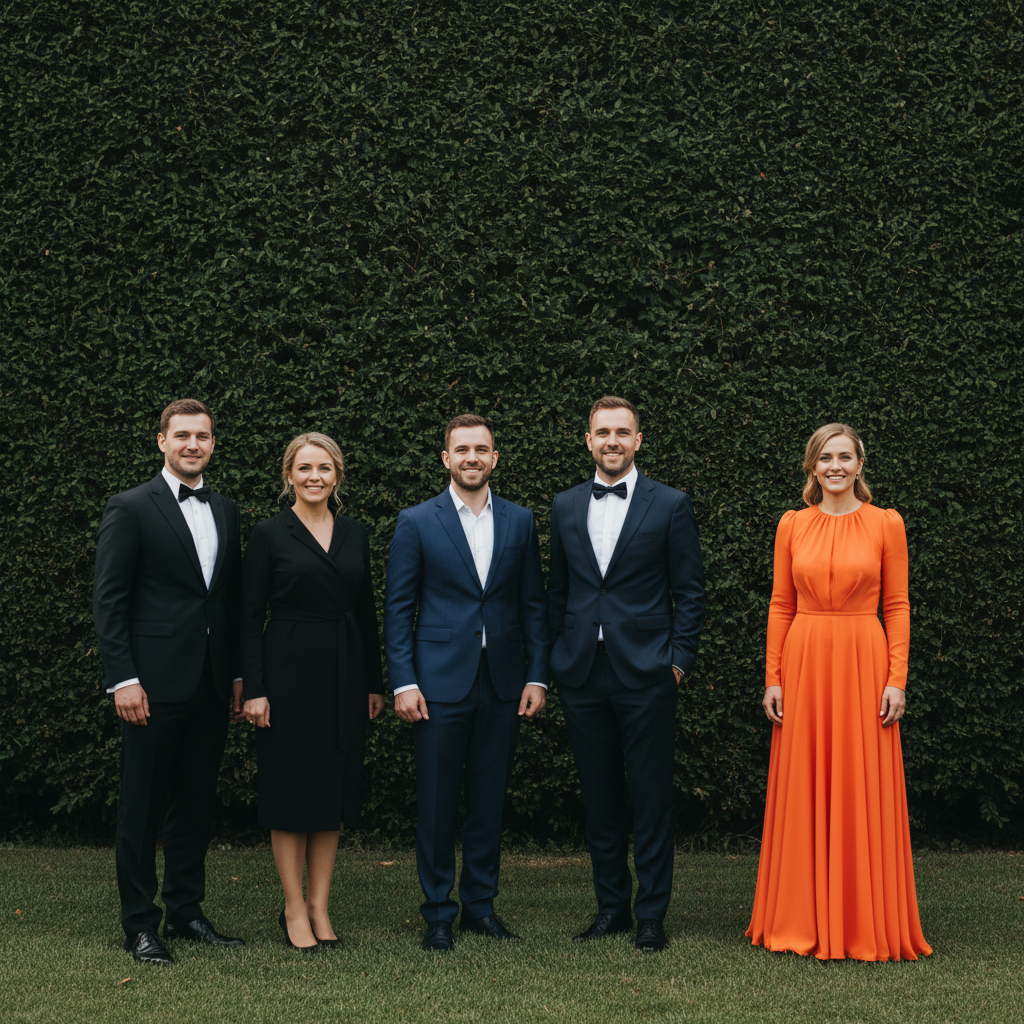
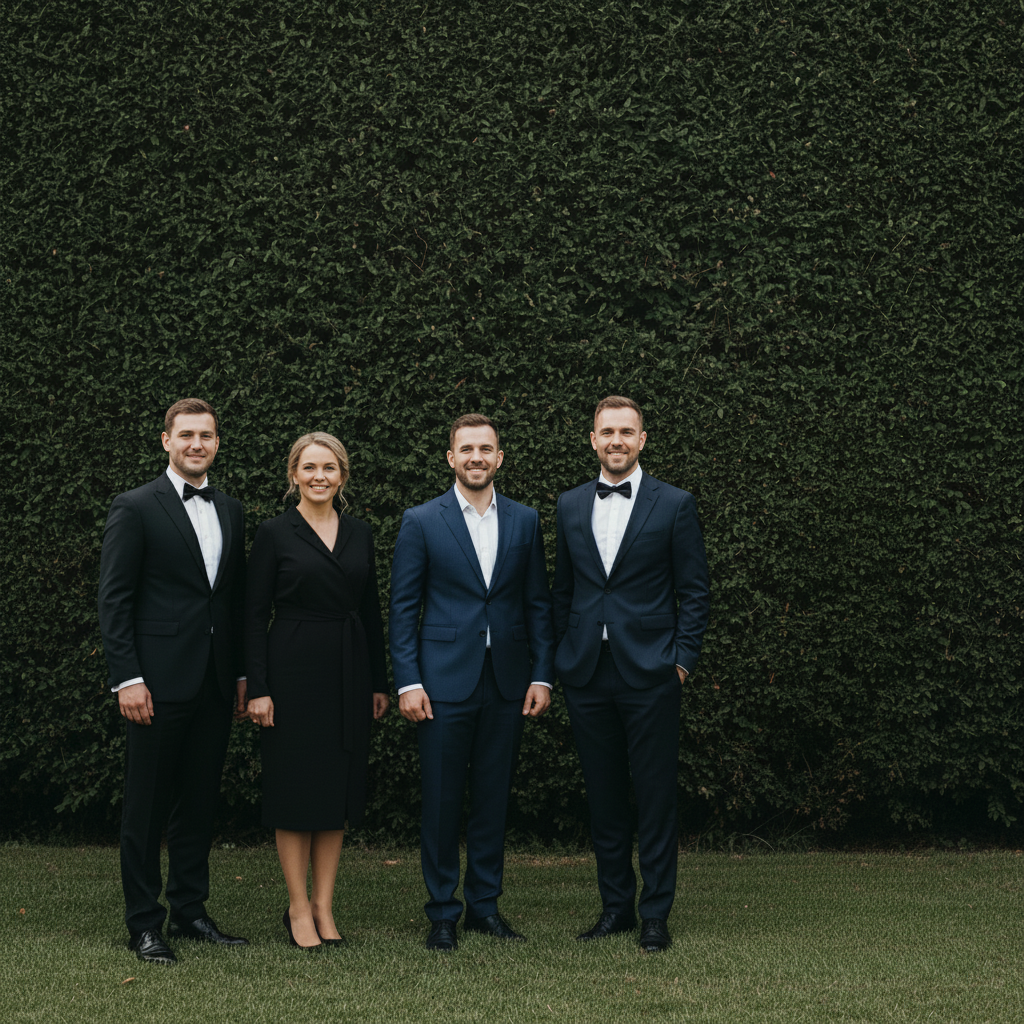
Ex removed from wedding lineup
Needed to remove someone from the end of a wedding party lineup.
remove the person at the far right end and extend the hedge background
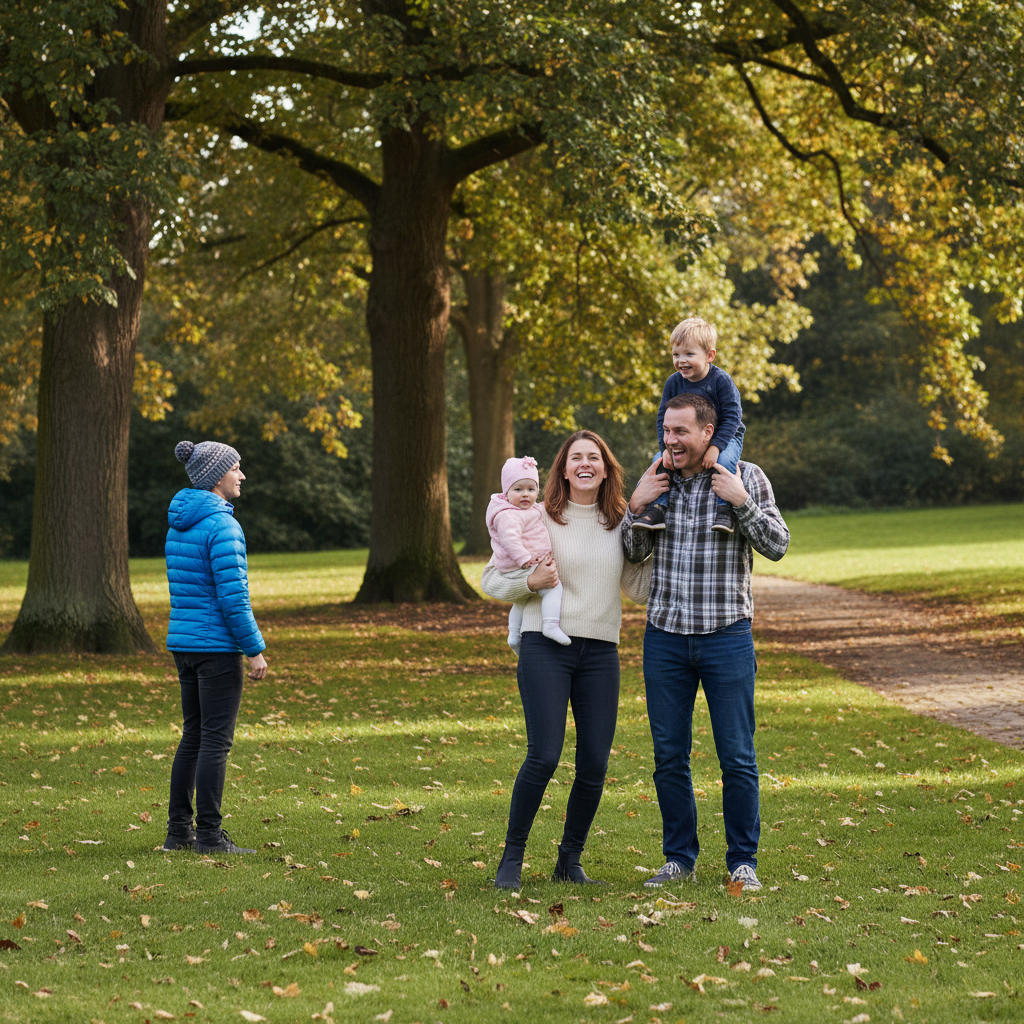
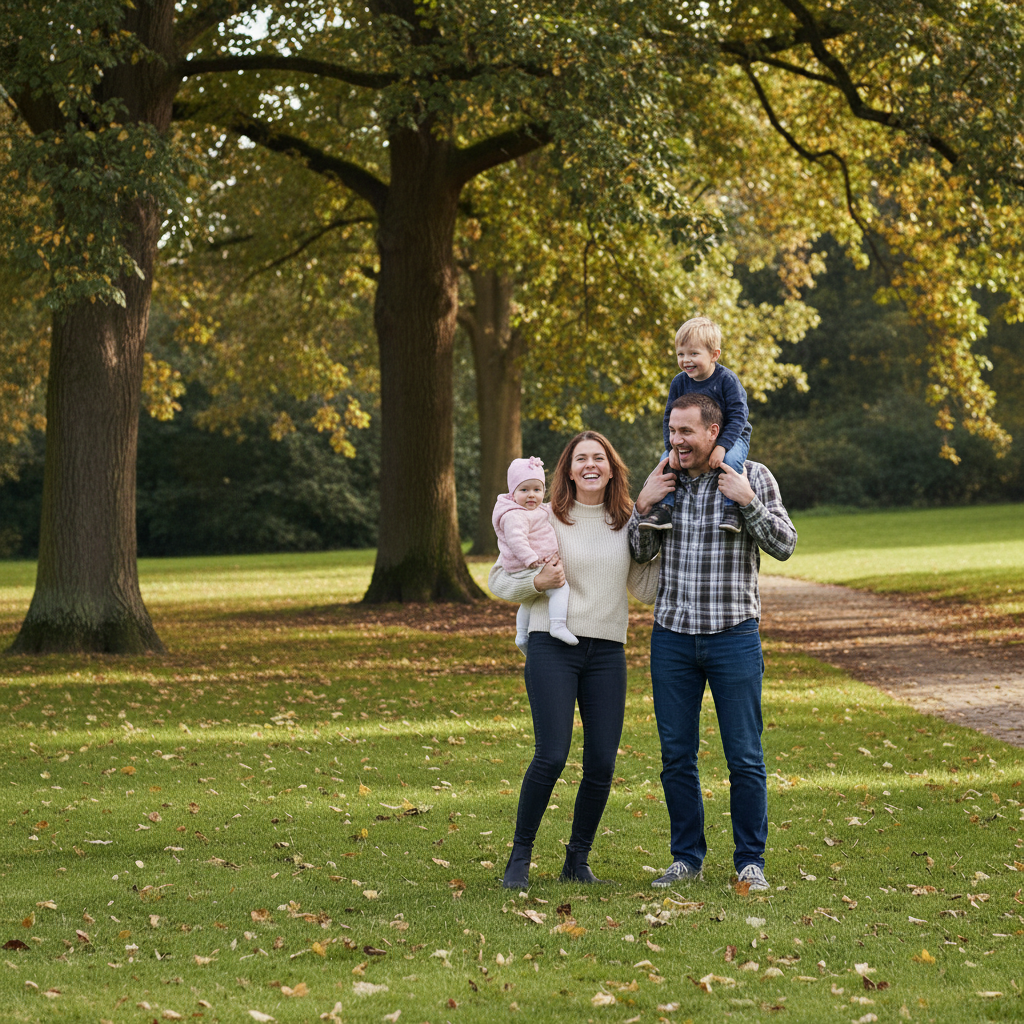
Stranger removed from family portrait
Someone wandered into frame during a family photo at the park.
delete the person in the blue jacket on the left and show the trees
If something looks off
AI removed the wrong person
Why: Multiple people in frame - AI couldn't determine which one you meant
Tap a marker on the specific person, then 'remove the marked person'
💡 For groups, always mark. For solo shots, description alone works.
Ghost outline or shadow where person was
Why: The AI removed the person but their shadow or faint edge remained. Shadows are processed separately.
remove the remaining shadow and blend with the background
💡 Include shadows in your original prompt: 'remove the person and their shadow'
Background looks smeared or blurry
Why: The AI couldn't accurately reconstruct what was behind the person. Complex backgrounds are harder.
regenerate the background area with more detail and texture
💡 People against simple backgrounds (sky, grass, walls) fill most cleanly
Part of the person remains (hand, foot, clothing edge)
Why: The person extended beyond what the AI detected, or overlapped with another subject.
Tap a marker on the remaining piece and say 'remove this too'
💡 Large or overlapping removals often need two passes. That's normal.
Nearby person got distorted
Why: The removed person was too close to someone you wanted to keep. The AI affected both.
Tap a marker ONLY on the person to remove and say 'remove only the marked person, keep the others intact'
💡 When people overlap or stand close, precise markers are essential
Color mismatch in filled area
Why: The AI estimated the background color incorrectly, creating a visible patch.
blend the filled area to match the surrounding colors naturally
💡 Specify the expected background: 'fill with the green grass' or 'show the blue sky'
Person's reflection in glass or water still visible
Why: Reflections are separate from the person—the AI may not connect them automatically.
remove the reflection in the water and blend naturally
💡 Explicitly mention reflections: 'remove the person and their reflection'
Quick answers
Do I need to mark the person or can I just describe them?
For a single person against a simple background, just describe them: 'remove the person on the right' or 'delete the man in the blue shirt.' For group photos with multiple people, tap a marker on the specific person first, then describe. The marker tells the AI exactly who you mean when description alone would be ambiguous.
Can I remove someone from the middle of a group photo?
Yes, but it's more challenging. The AI needs to reconstruct what's behind them AND merge the people on either side naturally. For best results, place a marker on the person and use 'remove the marked person and close the gap naturally.' People at the edges of groups are easiest to remove.
Will removing a person look natural or obvious?
It depends on the background. Simple backgrounds like sky, grass, water, or plain walls reconstruct almost perfectly. Busy patterns or architectural details may show some artifacts. The AI is very good at matching textures and lighting, but complex scenes may need refinement.
Can I remove multiple people at once?
Yes. Say 'remove all the people in the background' or 'delete everyone except the person in the center.' For selective removal, mark each person you want removed and use 'remove all marked people.' Complex multi-person removals may need additional passes.
What if the person is partially behind another person?
Overlapping removals are tricky. The AI may affect both people. Use markers precisely on the visible parts of the person you want removed, and add 'keep the person in front intact.' You may need to do touch-up work on the remaining person's edges.
Does it work on old or low-quality photos?
Yes, but results depend on photo quality. Low-resolution or heavily compressed images may show more artifacts after removal. The AI does its best to match the existing quality level. Consider using 'enhance photo quality' as a follow-up step.
Ready to remove someone from your photo?
Free to try. No signup required.