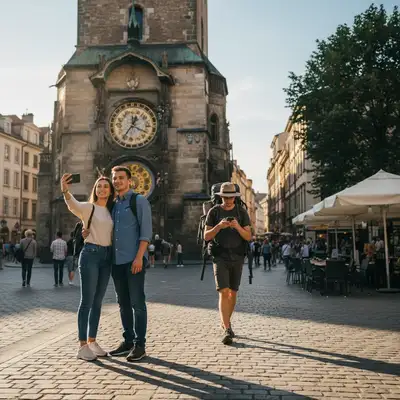
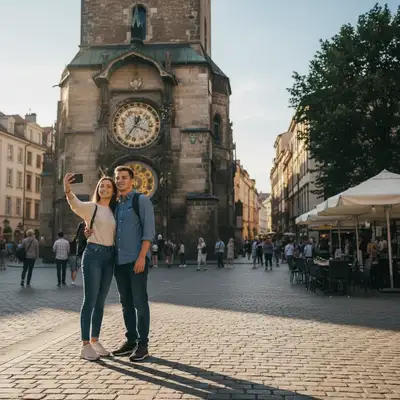
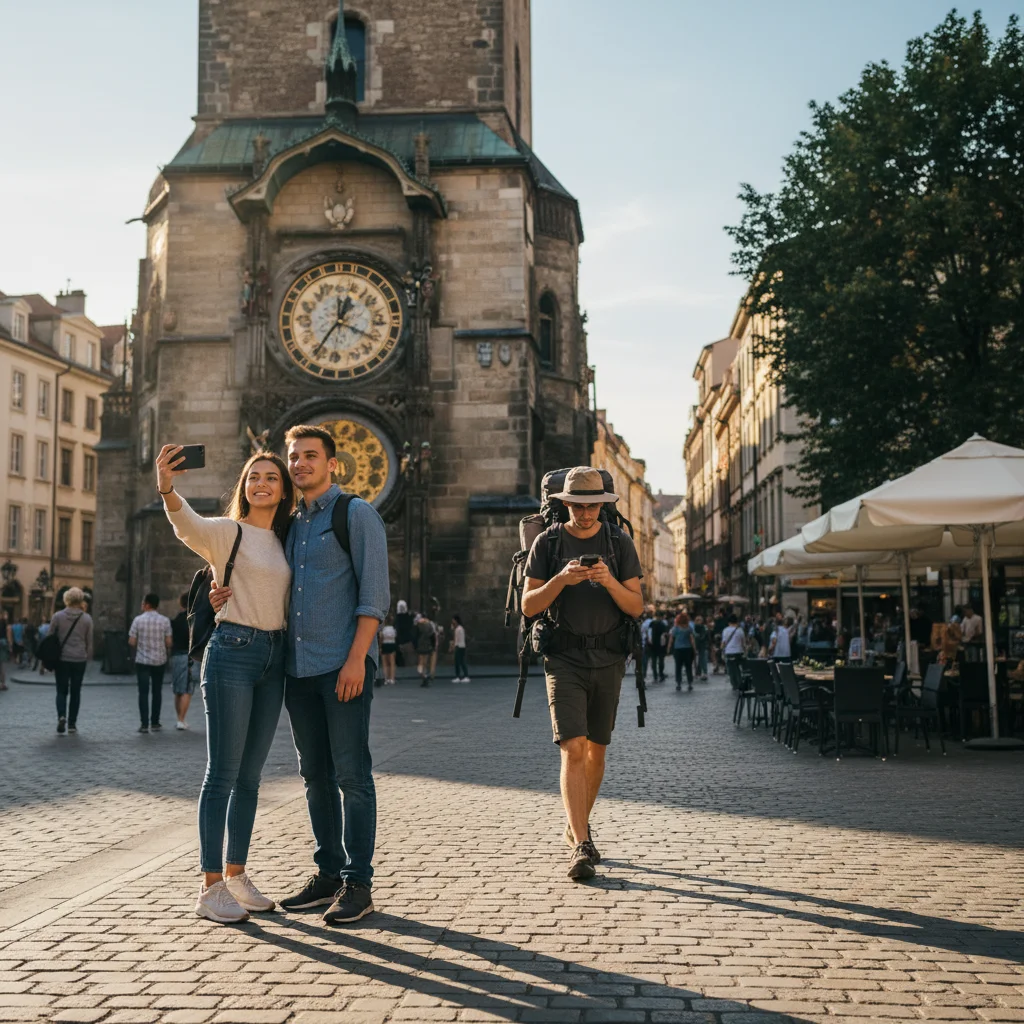
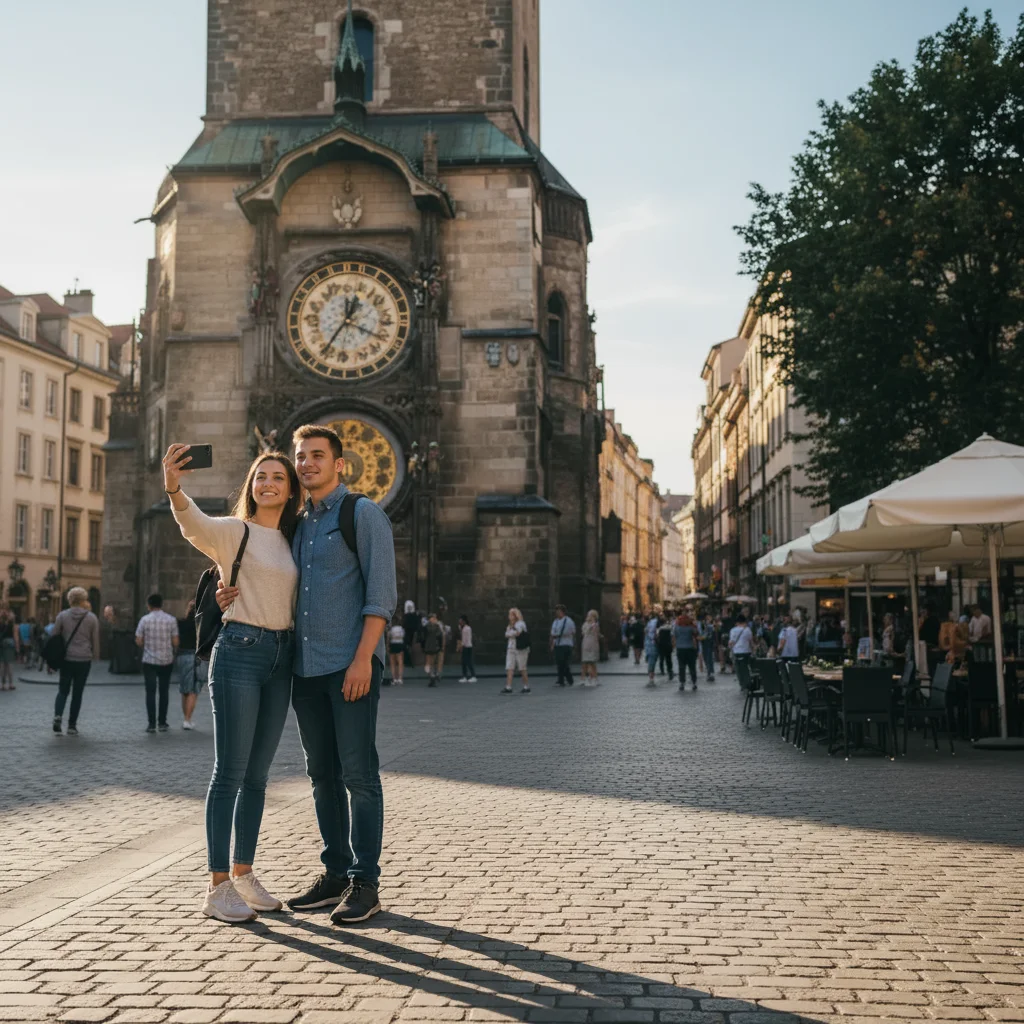
Remove Photobomber from Photo
Someone walked into your shot? Remove them in seconds.
Type 'remove the person on the right' or 'delete the stranger in the background' and EditThisPic's AI erases them in 15-30 seconds, filling the space with the scene behind them. No selection tools needed. Works on beaches, landmarks, events, and crowded places. Free to try, no account required.
How it works
Upload your photo
Drop your image into EditThisPic. JPG, PNG, WebP up to 7MB. Works best when the photobomber is clearly visible and not overlapping your main subjects.
Describe who to remove
Type your instruction: 'remove the person on the right' or 'delete the stranger in the red shirt behind us.' Be specific about position or clothing. The AI understands 'photobomber,' 'stranger,' and 'person in background.'
Copy one of these to get started:
remove the person on the right edge and fill with the background
remove the stranger in the red shirt behind us
delete the person walking in the background and show the scene
remove all the strangers in the background, keep only us in front
3 more prompts
remove the arm/hand reaching into the frame on the left
remove the blurry person in the background on the left
remove the tourists behind us and show just the landmark
Review the result
Check where the photobomber was. Zoom in to verify the background was reconstructed naturally. Look for any ghosting, floating limbs, or unnatural fills.
Refine with markers if needed
If the AI removed the wrong person or left traces, tap a marker on exactly who you want removed. This tells the AI 'this specific person, not the others.'
"A tourist walked right into my proposal photo. EditThisPic saved the moment!" @mike_engaged
See it in action
Tourist removed from Eiffel Tower photo
Random stranger walked right into the shot. One prompt, perfect photo.
remove the person on the right and fill with the tower background
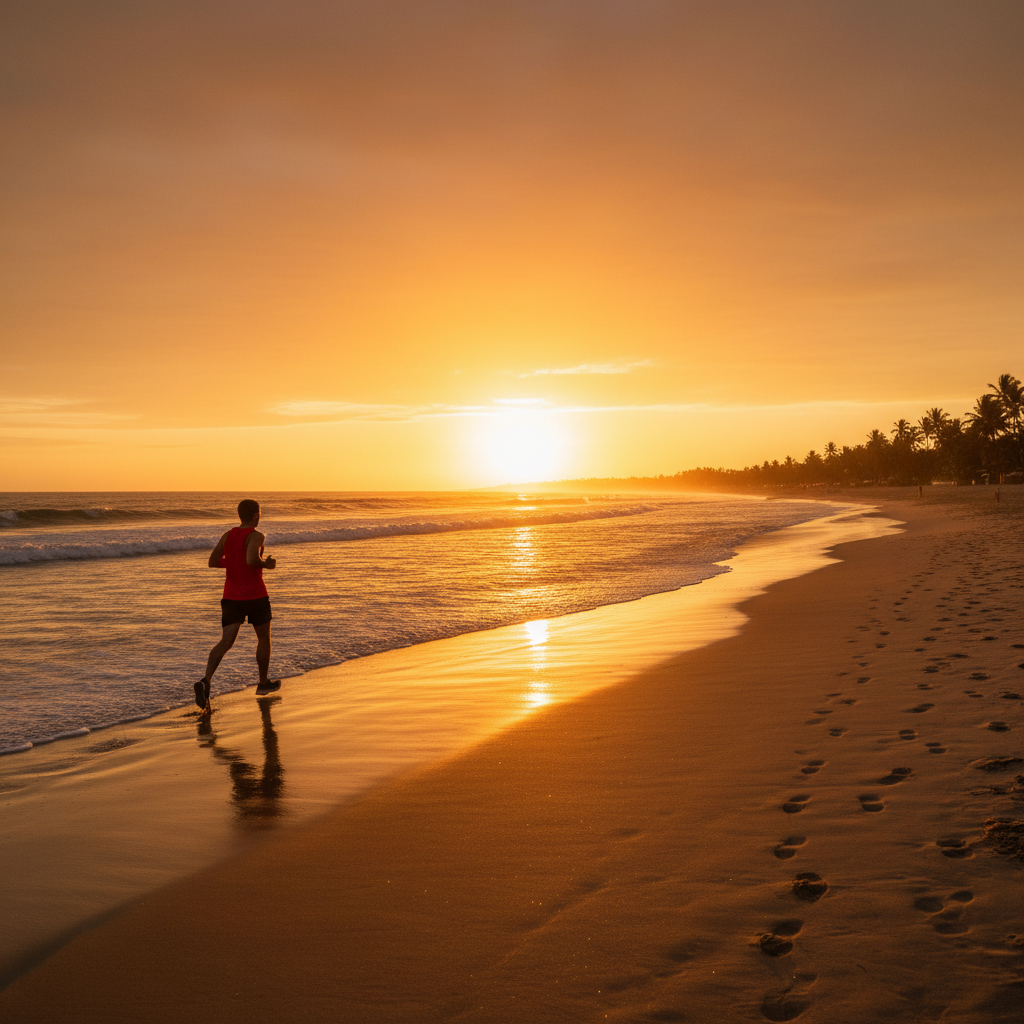
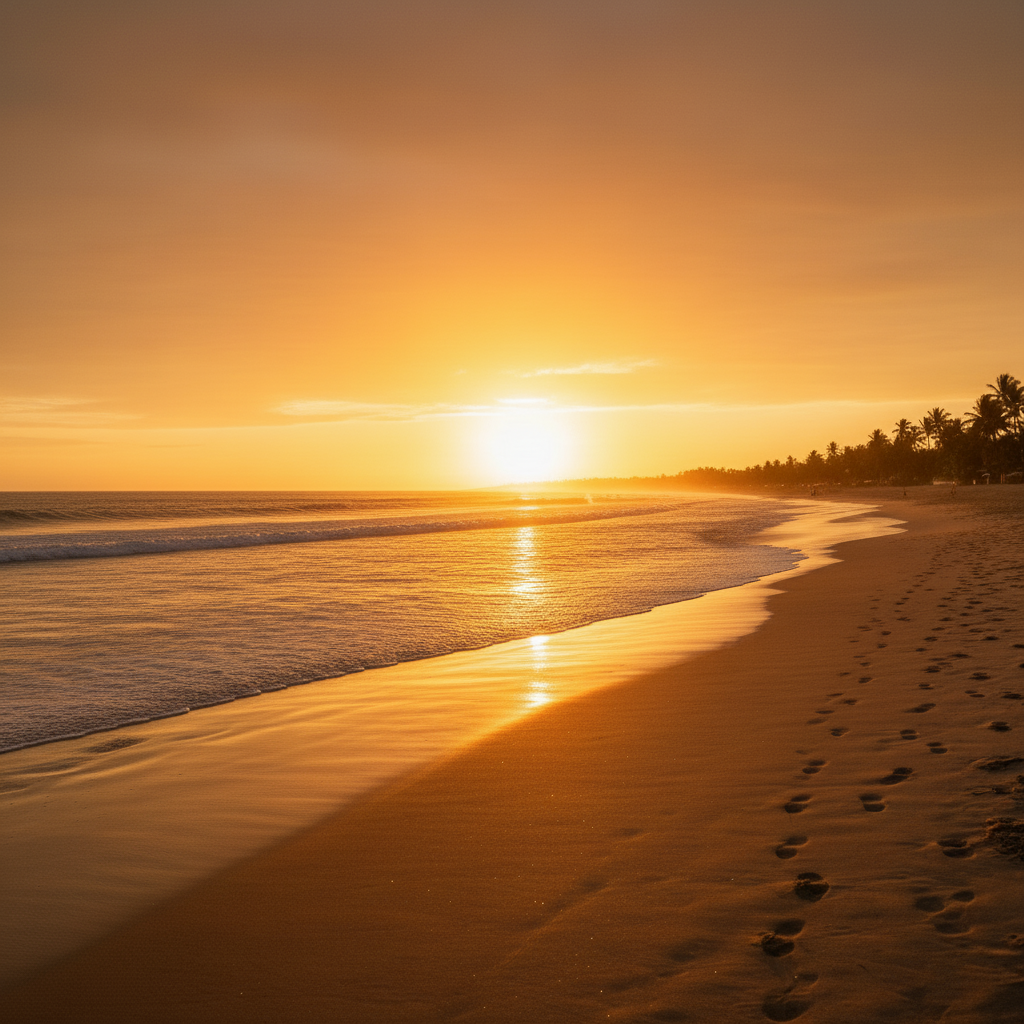
Beach photobomber erased
Someone running through the background of a sunset beach shot.
remove the person running in the background
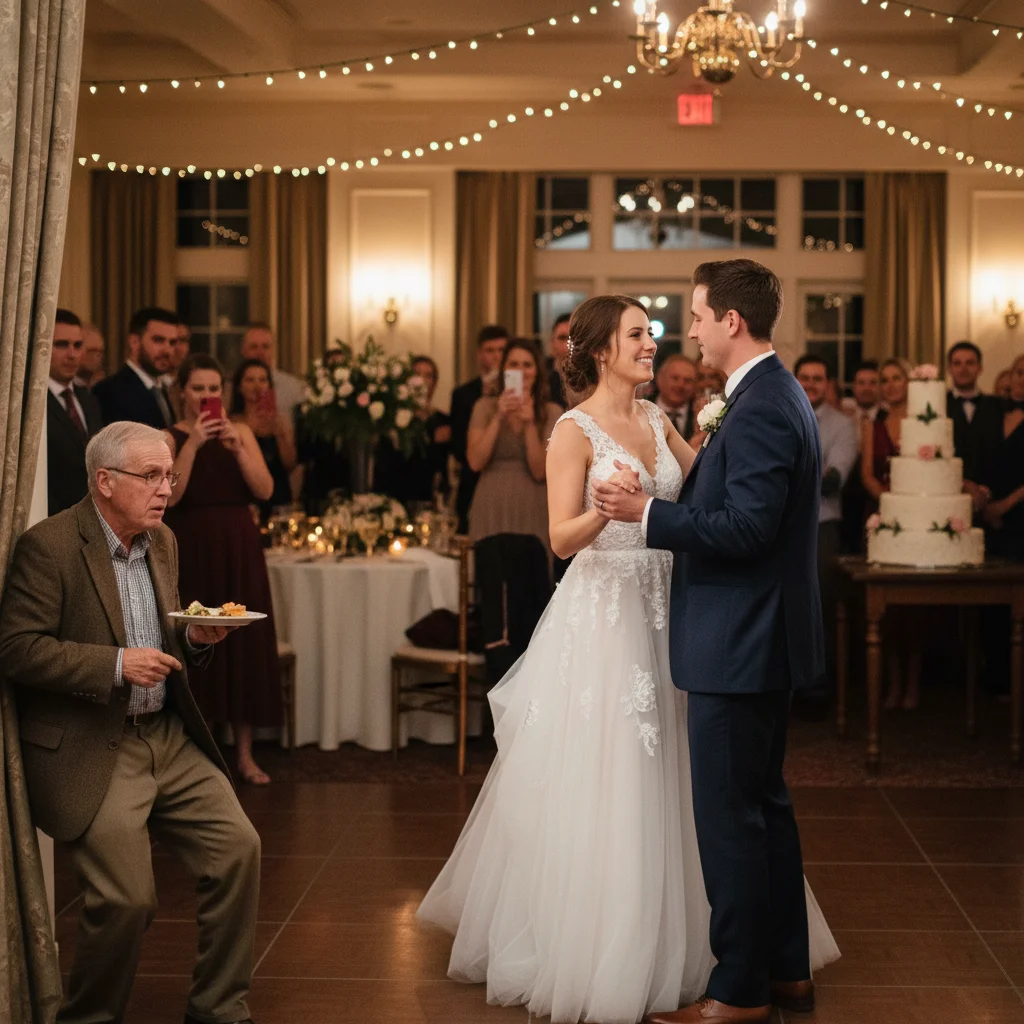
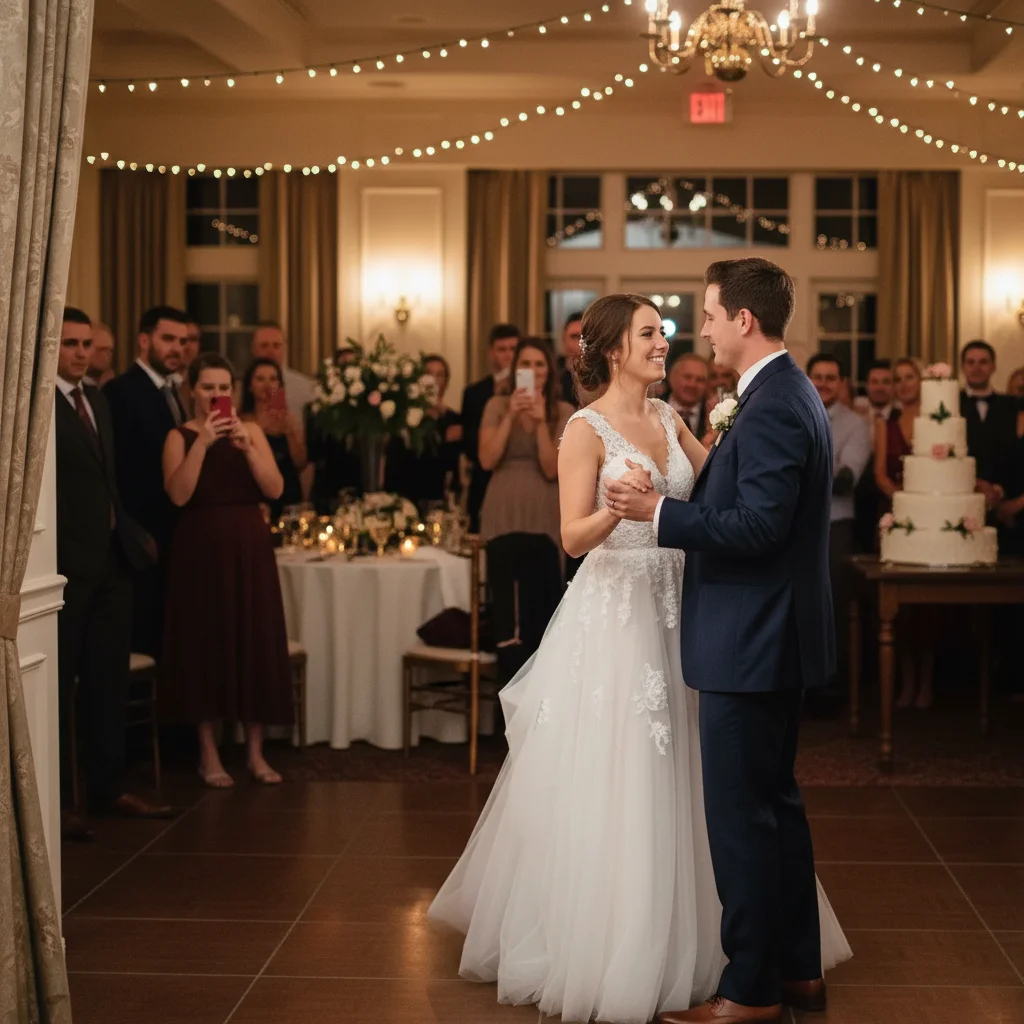
Wedding guest removed from couple shot
Uncle Bob wandered into the first dance photo. AI saved the day.
remove the man on the far left edge
If something looks off
AI removed the wrong person
Why: Multiple people in frame, and the AI couldn't tell which one you meant from description alone.
Tap a marker on the exact person you want removed, then say 'remove this person'
💡 Markers tell the AI 'I mean THIS person specifically.' Essential when people are grouped together.
Shadow or reflection of photobomber remains
Why: Shadows and reflections are separate from the person. The AI removed them but not their shadow.
remove the remaining shadow on the ground where the person was
💡 Mention shadows in your original prompt: 'remove the person and their shadow'
Fill looks obviously fake or blurry
Why: Complex background behind the photobomber was hard to reconstruct—crowds, patterns, or intricate architecture.
regenerate the background area with more natural detail
💡 Photobombers against simple backgrounds (sky, water, plain walls) fill more naturally
Part of the person remains (arm, leg, bag)
Why: The person extended beyond what the AI detected, or their belongings weren't included.
Tap a marker on the remaining body part and say 'remove this too'
💡 If someone's holding something or wearing a backpack, it may need separate removal
My subject got partially removed too
Why: The photobomber was too close to or overlapping with your main subject.
Use markers to highlight ONLY the photobomber, then regenerate
💡 When people overlap, precise markers are essential. Zoom in and mark carefully.
Quick answers
Do I need to mark the photobomber before removing them?
Usually no! Describe them: 'remove the person in red on the right' or 'delete the stranger behind us.' The AI understands positions and clothing colors. Only use markers when multiple people are close together and you need to specify exactly who.
What if the photobomber is partially behind my main subject?
It gets trickier but still works. Use markers to highlight exactly the parts of the photobomber you want removed. The AI will preserve your main subject while removing the person behind them. May need refinement.
Can I remove multiple photobombers at once?
Yes! Say 'remove all the strangers in the background' or 'delete everyone except the two people in front.' For large groups, you may need multiple passes or refinements.
Will it work on blurry background people?
Absolutely. Blurry photobombers are actually easier to remove since the AI doesn't need to reconstruct fine details. The filled area will match the blur level of the background.
What about photobombers in formal photos (wedding, graduation)?
Works great for these. Remove relatives who walked into shots, waiters in the background, or anyone who shouldn't be there. Just be specific about which person to remove.
Ready to save your photos from photobombers?
Free to try. No signup required.