Fix a Wedding Photo with AI
Last updated
Rescue blurry, washed-out, or harshly lit wedding photos in under 30 seconds.
Drop your photo here
"Fix this wedding photo: balance the harsh shadows and highlights from venue lighting, sharpen faces gently, restore natural skin tones, brighten the dress without losing detail, keep the romantic mood intact, photographic quality."
Free to try · no sign-up · photos are never shared
Release to upload
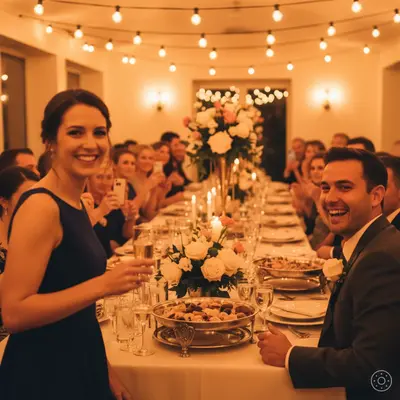
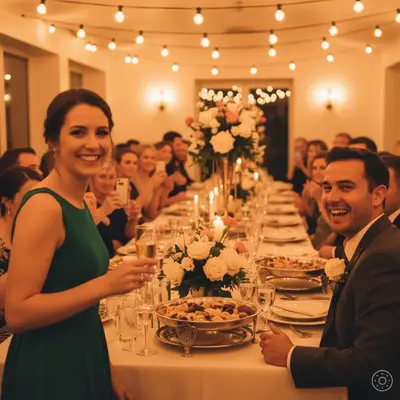
Built for newlyweds, parents, and wedding photographers
EditThisPic gives wedding couples and guests a way to rescue meaningful photos that the photographer couldn't fix or didn't catch. Mixed venue lighting, flash blowouts, and motion blur all softened in under a minute.
Tools for AI Wedding Photo Fixer
How to Fix a Wedding Photo with AI
-
Open EditThisPic
Go to editthispic.com on your phone or laptop. No app, no login.
-
Upload your wedding photo
Drop in any wedding photo - reception, ceremony, first dance, or candid guest shots.
-
Type the prompt
Try: 'fix this wedding photo, balance harsh lighting, sharpen faces, restore natural skin tones, recover dress detail'.
-
Generate
EditThisPic returns a fixed photo in about 25 seconds. Balanced lighting, sharper faces, recovered detail.
-
Download and share
Save the result for the wedding album, print, or share with family.
Copy-Paste Prompts for AI Wedding Photo Fixer
Real Examples
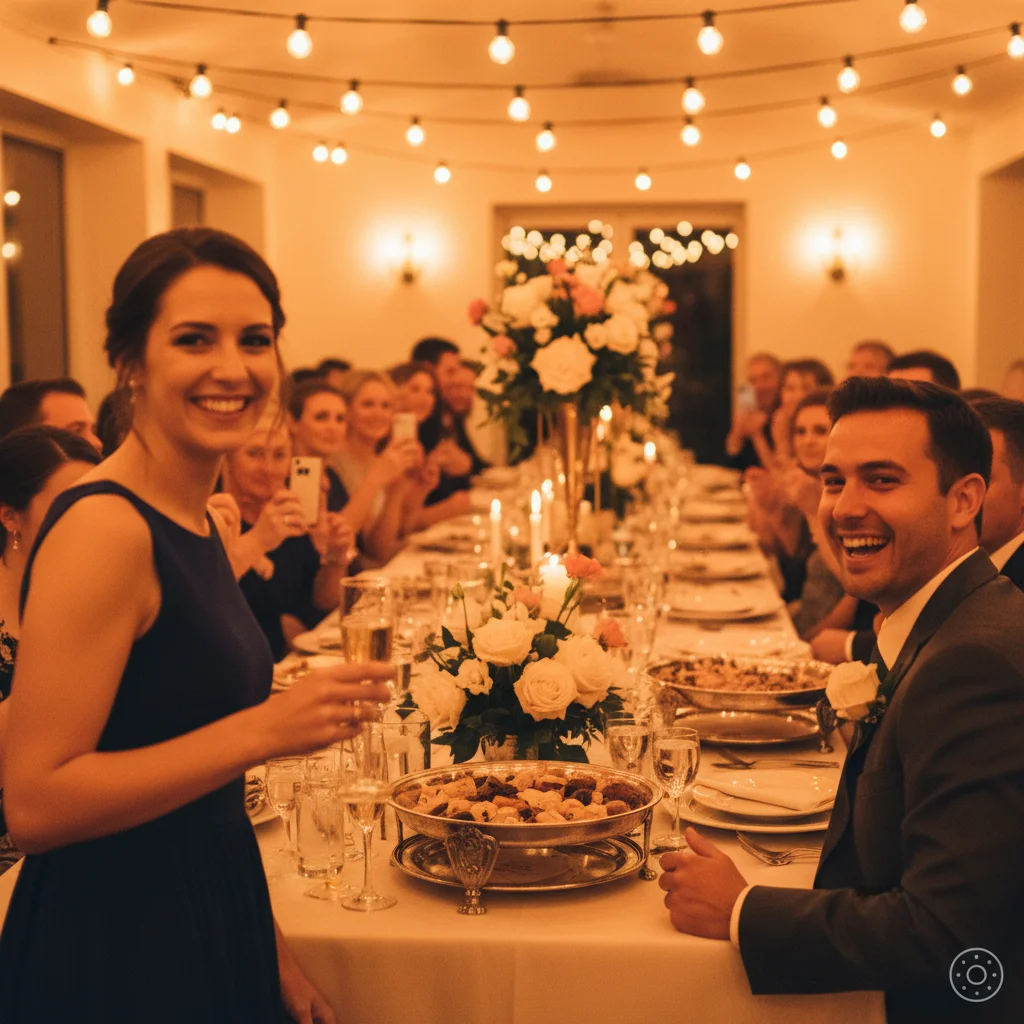
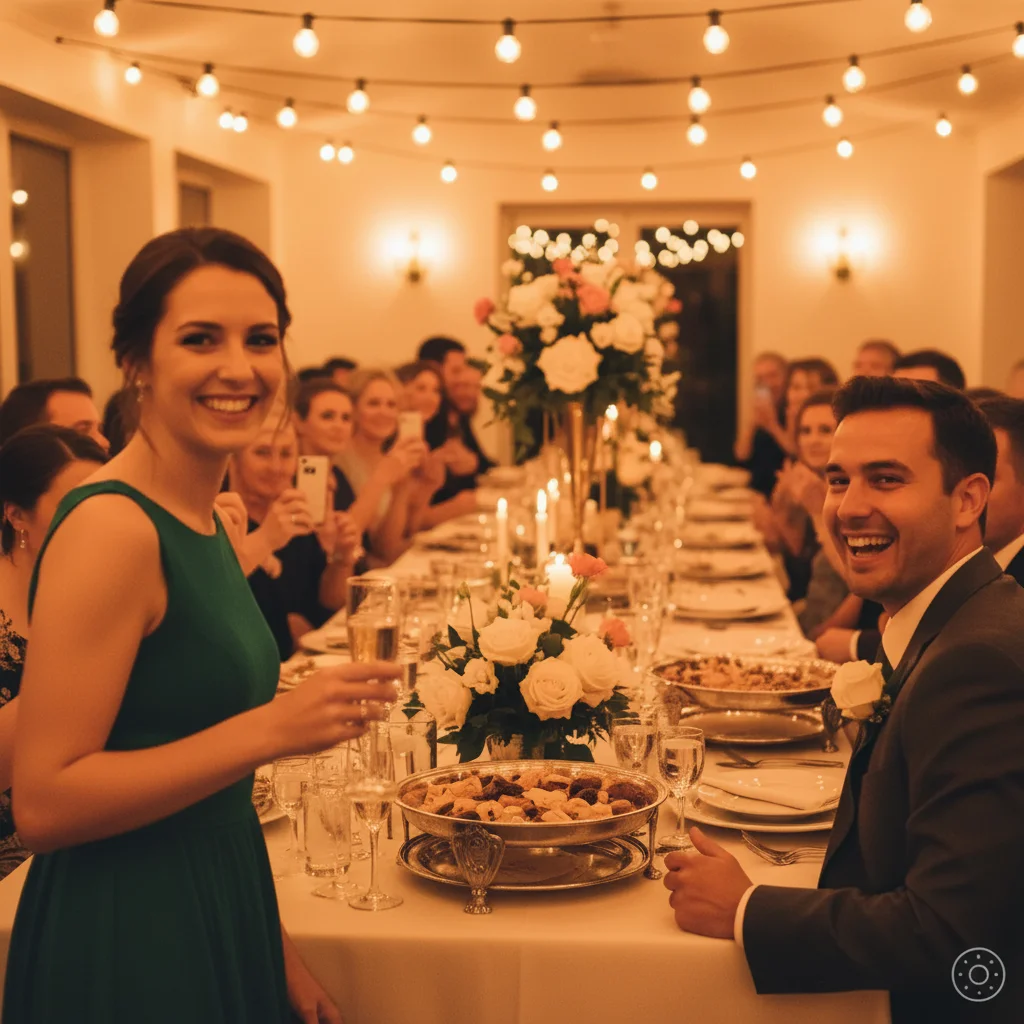
Reception photo rescue
A guest uploaded a phone photo from the reception with orange tungsten lighting. EditThisPic balanced the colors, sharpened the bride's face, and made the dress look white again.
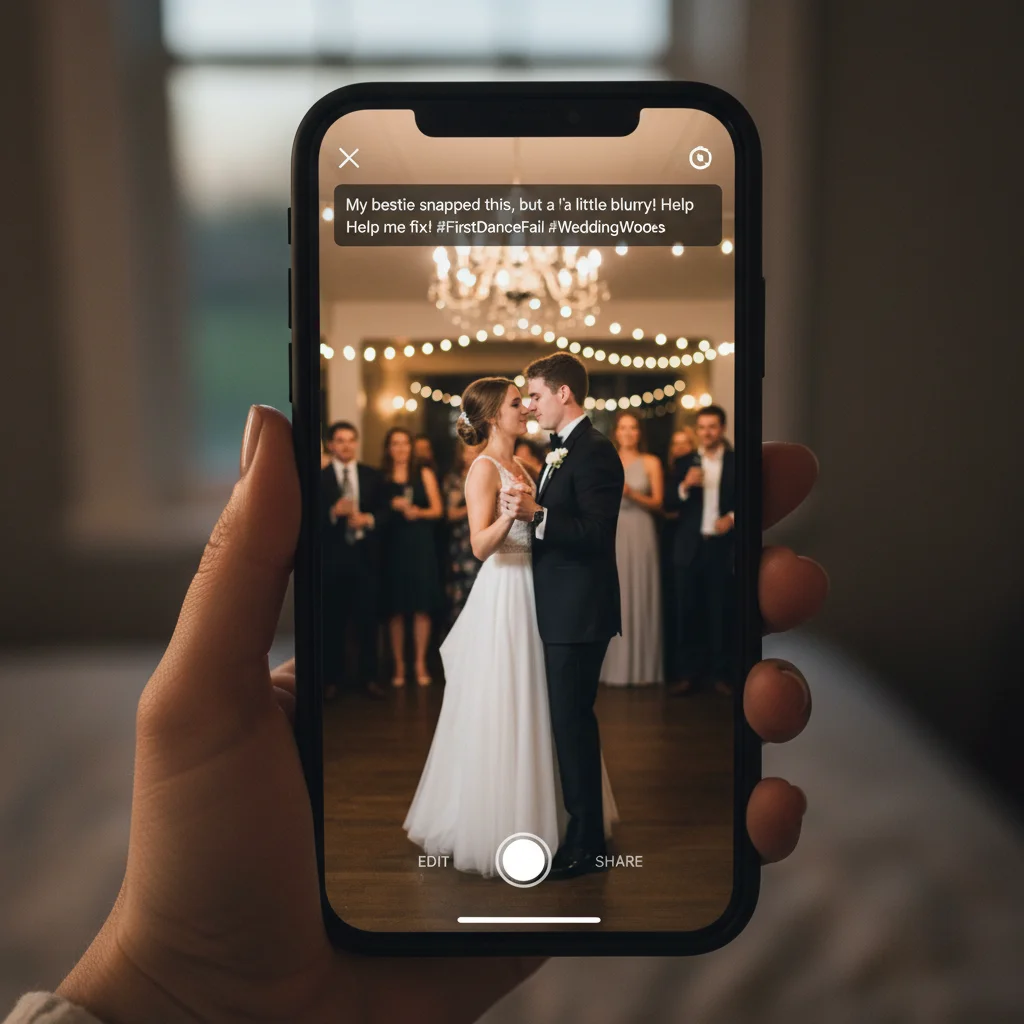
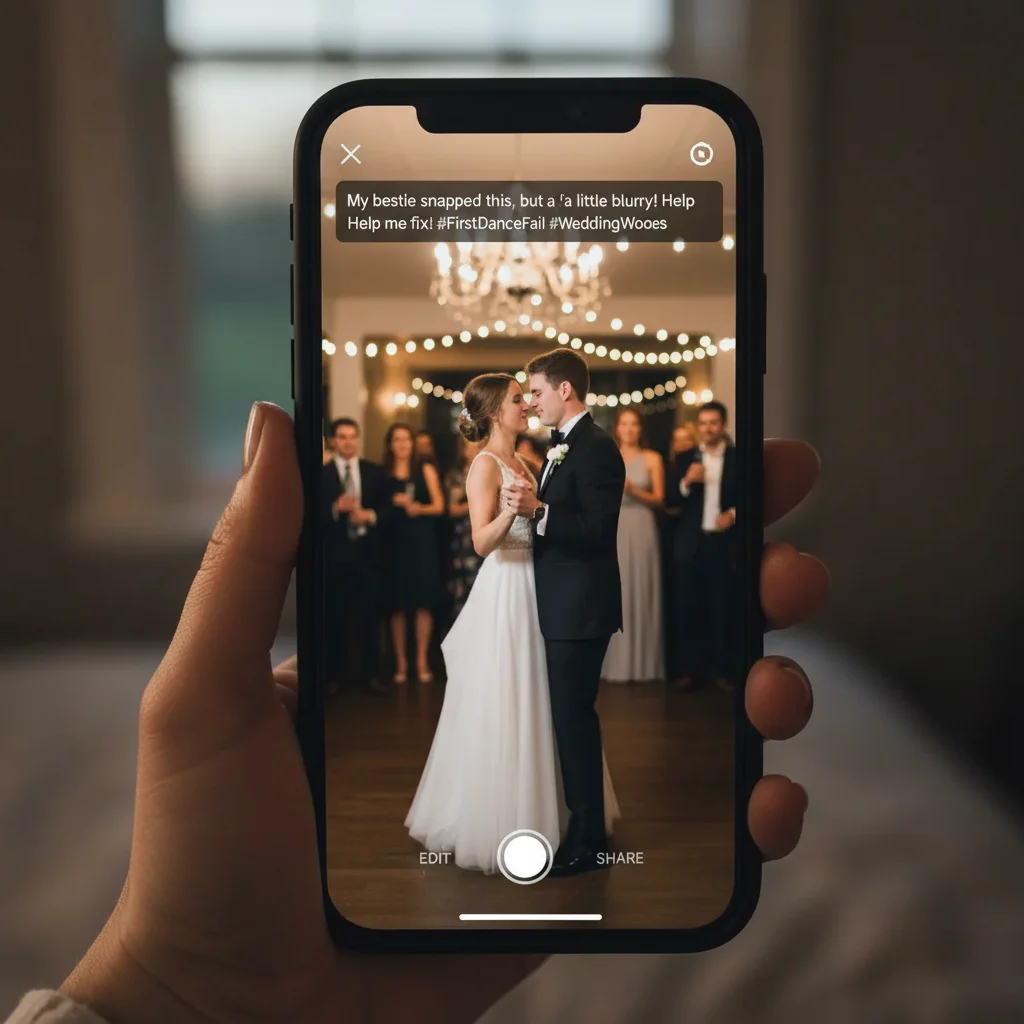
First dance blur fix
A bride uploaded a slightly blurry first dance photo from a friend's phone. The fix sharpened the couple's silhouette while keeping the romantic ambient feel.
Blown-out dress recovery
A photographer uploaded a flash photo where the dress detail was blown out. EditThisPic recovered the lace pattern and beadwork.
When Things Go Wrong
Result looks too 'AI processed'
Bride's dress still looks gray
Skin tones look orange after fix
Background looks too sharp now
Frequently Asked Questions
How do I fix a wedding photo with AI?
Upload your wedding photo to EditThisPic, type a prompt like 'fix this wedding photo, balance lighting, sharpen faces, recover dress detail', and download the result in about 25 seconds. Free, no signup. Works for blur, harsh lighting, blown-out highlights, and color casts.
Can AI fix a blurry wedding photo?
Yes. EditThisPic can gently sharpen faces and reduce mild motion blur in wedding photos. Severe blur (where you can't see facial features at all) is hard to recover, but most reception and first dance blur can be softened back to printable.
Is the wedding photo fixer free?
Yes. EditThisPic is free to preview. No signup and no credit card needed to start, and purchased downloads are clean. Fix as many wedding photos as you want.
How do I fix orange wedding reception photos?
Reception venues use tungsten lighting that creates an orange cast. Add 'balance orange tungsten lighting, restore natural skin tones, keep romantic candlelit mood' to your prompt. The AI will neutralize the orange while keeping the warmth.
Can AI recover a blown-out wedding dress?
Yes, partially. If the dress is fully white pixels with no data, recovery is impossible. But most flash blowouts retain some texture in the fabric. Add 'recover lace and beadwork detail in white dress' to your prompt and the AI will restore as much as possible.
How do I fix harsh outdoor wedding photos?
Midday sun creates harsh shadows on faces and burns out skies. Use the prompt 'fix harsh outdoor wedding photo, soften shadows on faces, recover sky detail, balance contrast'. The result balances both the bright sky and the shaded faces.
Can I fix the color in old wedding photos from the 80s or 90s?
Yes. Old wedding photos often yellow with age. Use 'restore old wedding photo, remove yellow fading, restore natural color, gentle face sharpening, keep vintage character'. The AI removes the age yellowing without erasing the vintage feel.
Will the fixed photo print well?
Yes. EditThisPic outputs at high resolution suitable for wedding album printing up to 8x10 or 11x14. For larger prints, start with a high-resolution upload and the result scales accordingly.
Will my photographer know I edited their photos?
Most photographers do not mind clients touching up personal copies. The fixes are subtle enhancements (lighting, sharpness, color) not heavy reworks. If you plan to share publicly or compete with the photographer's commercial use, ask first.
Are my wedding photos stored?
No. EditThisPic processes your image in your browser session and does not save or train on your photos. The image is deleted shortly after processing.
Popular use cases
Ready to rescue your wedding photos?
Free to preview. No signup required. Clean paid downloads.
Start Editing