Free • No signup Colorize Photo · Free

AI Photo Colorizer

Describe the colors you want and AI brings your black and white photo to life. No manual painting needed.

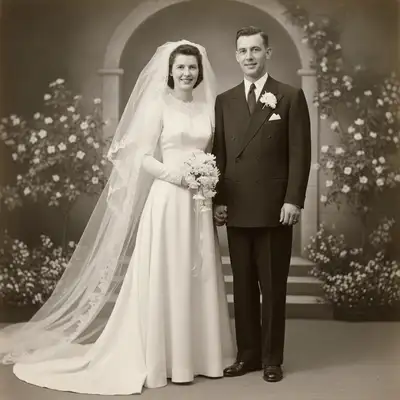
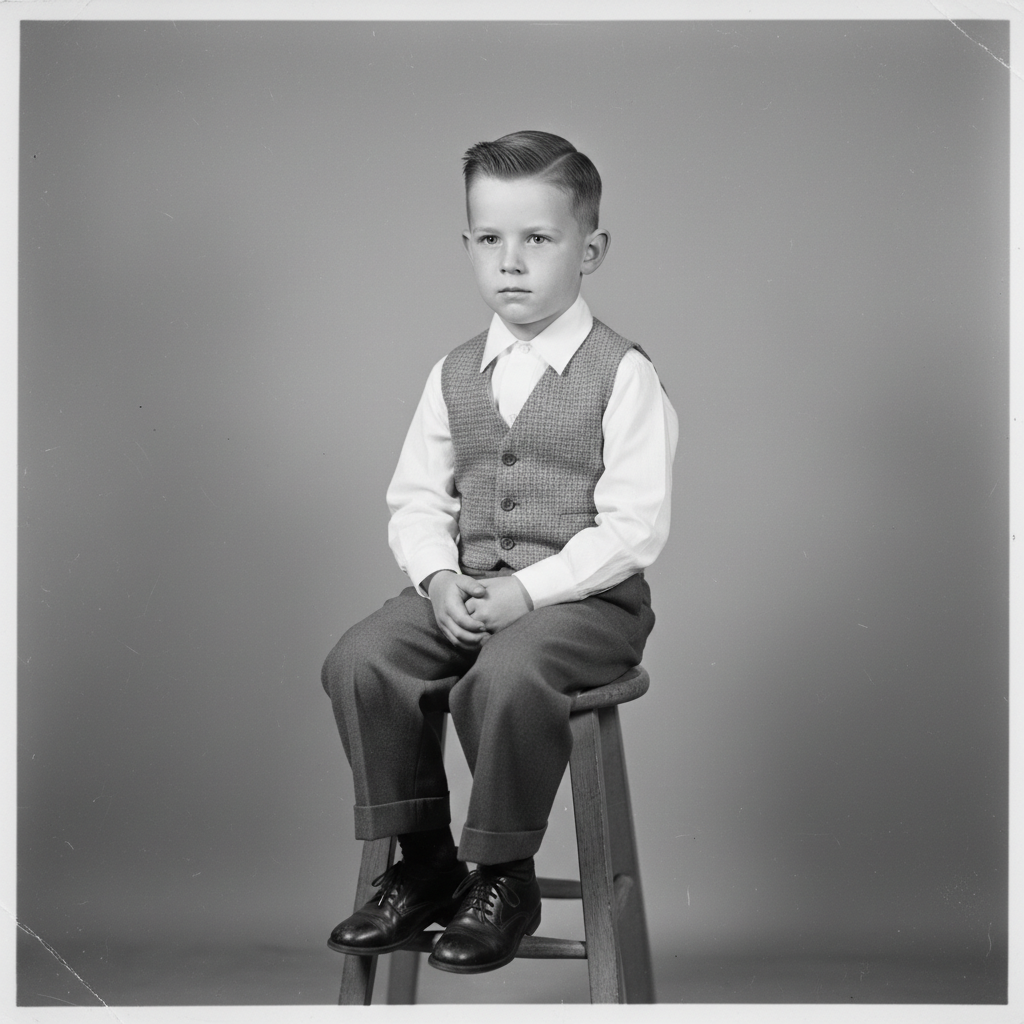
Black and white 1940s portrait of a woman
Before
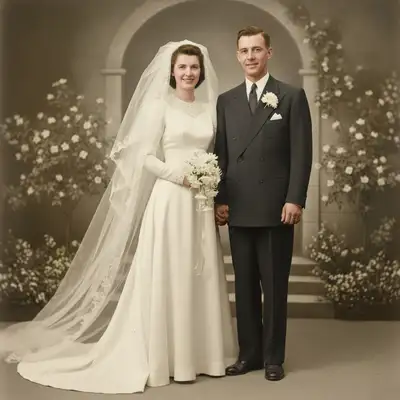
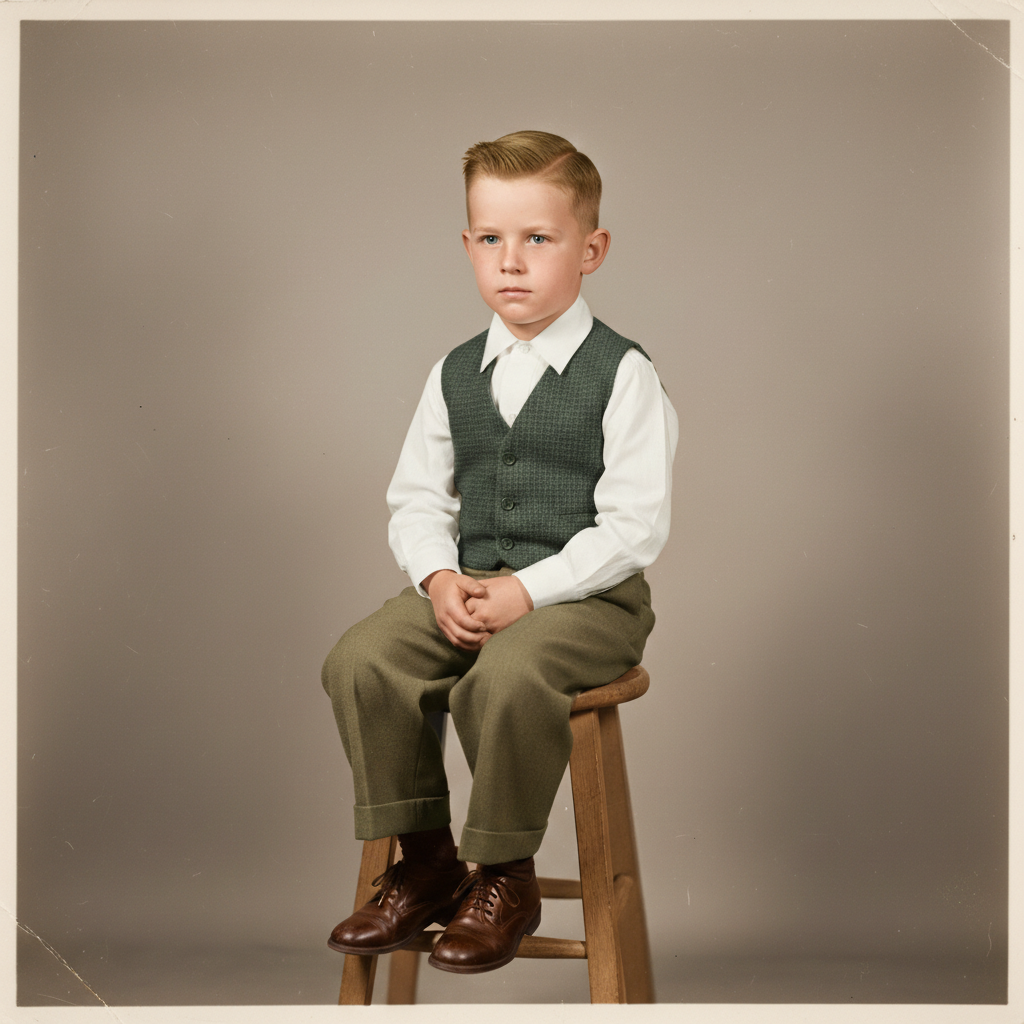
Same portrait colorized with realistic skin tones and natural colors
After

AI Photo Colorizer

Upload photo to colorize photo

Free • Results in 30 seconds • No signup

Release to upload

FreeNo signupNo watermark
Popular use cases:
  • black and white photo colorization
  • vintage photo color
  • historical photo restoration
  • family heritage photos
  • old portrait colorizing
  • genealogy photo enhancement
  • archival photo processing
  • memorial photo colorization

Cost
Free No signup required
Time
Instant results in 15-30 seconds
Works on
Any device - browser, phone, tablet, desktop
Powered by
AI-powered photo editing
Scenario Prompt Time
Automatic colorization colorize with realistic natural colors 30s
Guided colors colorize with blue sky, green grass, warm skin tones 35s
Historical accuracy colorize with era-appropriate 1940s colors 40s

How it works

  1. Upload your photo

    Drop your black and white image into EditThisPic. JPG, PNG, WebP up to 7MB. Higher resolution scans produce better colorization—scan at 300 DPI or higher when possible.

    Expect: Simple portraits: 30-40 seconds. Complex scenes with many elements: 40-55 seconds and may benefit from color guidance.
  2. Describe the colorization you want

    Type 'colorize this photo with realistic natural colors' for automatic colorization, or guide specific elements: 'colorize this photo, make the sky blue, the grass green, and keep the skin tones warm and natural.' The AI understands color context—no painting or selection needed.

    Tip: If you know what colors were real, mention them: 'the uniform was olive green and the flag was red, white, and blue' gives historically accurate results.

    Copy one of these to get started:

    Automatic realistic colorization colorize this black and white photo with realistic natural colors, warm skin tones, and accurate scenery
    Vintage portrait colorization colorize this vintage portrait with natural skin tones, subtle lip color, and period-appropriate clothing colors
    Landscape with specific colors colorize this landscape photo with blue sky, green grass and trees, and warm golden sunlight
    Historical military photo colorize this military photo with olive green uniforms, brown leather boots, and historically accurate equipment colors
    3 more prompts
    Family gathering colorization colorize this family photo with varied natural skin tones, different colored outfits for each person, and warm indoor lighting
    Street scene with many elements colorize this old street scene with red brick buildings, grey pavement, green awnings, and warm afternoon lighting
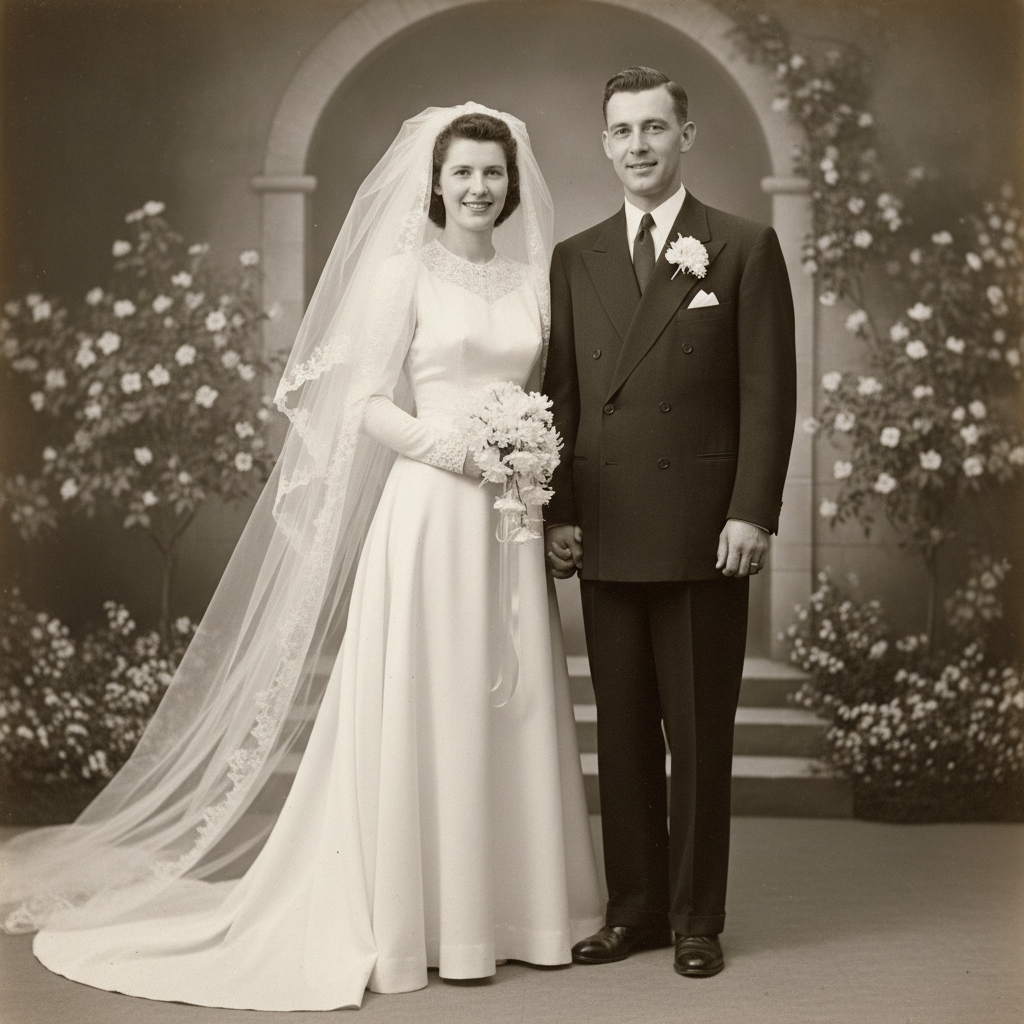
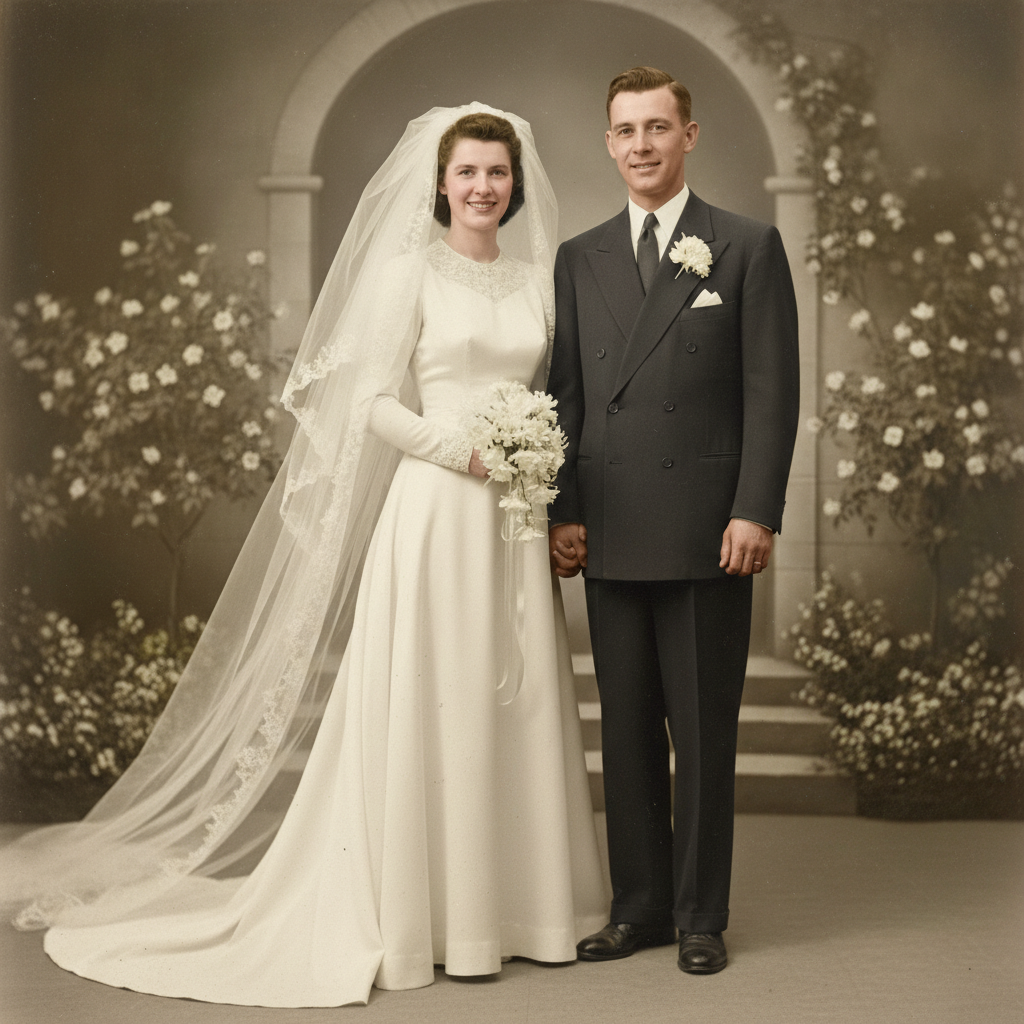
    Wedding photo from old era colorize this vintage wedding photo with a white wedding dress, dark suit for the groom, natural skin tones, and soft warm lighting
  3. Review the colorization

    Check that skin tones look natural, clothing colors are consistent, and the overall palette feels authentic. Look at transitions between different colored areas—they should blend smoothly without sharp color boundaries.

  4. Refine with markers if needed

    If a specific element got the wrong color—like a shirt that should be red but came out brown—tap a marker on it and describe the correction. Most colorizations look great on the first try.

    Tip: Markers are for precision refinement only. Try without them first—you usually won't need them.
Try it free

AI Photo Colorizer

Upload photo to colorize photo

Free • Results in 30 seconds • No signup

Release to upload

Free • No signup

See it in action

Black and white 1940s portrait of a woman
Before
->
Same portrait colorized with realistic skin tones and natural colors
After

Vintage portrait brought to life in color

A black and white portrait from the 1940s colorized with realistic skin tones and natural-looking colors.

Prompt: colorize this black and white photo with realistic natural colors, warm skin tones, and accurate scenery
Black and white 1950s city street scene
Before
->
Same street scene colorized with warm brick tones and period-accurate colors
After

Historical street scene colorized

A black and white city street scene from the 1950s given full color treatment with period-accurate details.

Prompt: colorize this old street scene with red brick buildings, grey pavement, green awnings, and warm afternoon lighting

Detailed Guides by Scenario

📷

Family Heritage & Genealogy

Bring old family photos to life with realistic color for albums, reunions, or genealogy projects.

Common Scenarios

  • Colorizing grandparents' wedding photos for a family reunion display
  • Restoring color to faded heritage portraits for a genealogy project
  • Creating colorized prints of family photos as gifts for relatives

Best Practices

  • Scan physical prints at 300 DPI or higher for the sharpest colorization results
  • If you know real clothing or hair colors, mention them in the prompt for accuracy
  • Try 'period-appropriate colors from the 1940s' to match the era of the photo
📷

Historical & Military Photos

Add historically accurate color to military, archival, and documentary photographs.

Common Scenarios

  • Colorizing military service photos with accurate uniform colors
  • Adding color to historical street scenes or landmarks for educational use
  • Restoring wartime photographs for museum exhibits or personal collections

Best Practices

  • Research the era's uniform colors and mention them specifically in your prompt
  • Use 'muted, era-appropriate colors' to avoid overly modern-looking results
  • For architectural photos, name building materials: 'red brick, slate roof, green copper dome'
📷

Creative & Social Media

Use AI colorization creatively for social media content, artistic projects, or before-and-after posts.

Common Scenarios

  • Creating a before-and-after colorization post for social media engagement
  • Colorizing old photos for a throwback or nostalgia-themed project
  • Adding artistic color interpretations to black and white photography

Best Practices

  • For social content, the before-and-after comparison itself is the hook — save both versions
  • Experiment with non-realistic colors for artistic effect: 'colorize with a warm sepia and teal palette'
  • Try multiple colorizations of the same photo with different color guides to find the best look

If something looks off

AI changed the wrong area or something I didn't want changed

Why: The AI couldn't determine which element to color differently from description alone. This happens when multiple similar objects are in the photo.

Try: Tap a marker on the specific element you want to recolor, then regenerate with the color instruction

Tip: Markers tell the AI 'I mean THIS element specifically.' Use them when description alone is ambiguous.

Skin tones look unnatural or have a color cast

Why: The AI picked an incorrect base skin tone, often influenced by surrounding colors or lighting in the original photo.

Try: colorize this photo with warm, natural skin tones that look realistic, avoid any green or blue tint on the skin

Tip: Explicitly mentioning 'avoid green or blue tint on skin' prevents the most common colorization artifacts.

Colors bleed between adjacent areas

Why: Boundaries between objects are ambiguous in the grayscale image, causing the AI to extend one color into neighboring areas.

Try: Tap markers on the boundary between the two areas and regenerate: keep these two areas as separate colors

Tip: Color bleeding is most common where two similar gray tones meet. Markers on the boundary fix it instantly.

Overall color palette looks too modern for the era

Why: The AI applied vibrant modern colors instead of the muted, warmer tones typical of the photo's historical period.

Try: colorize this photo with muted, era-appropriate colors from the 1940s, avoid neon or overly saturated hues

Tip: Mentioning the specific decade helps: '1940s color palette' produces more authentic results than just 'realistic.'

Some areas remain gray or weren't colorized

Why: Uniform gray areas with low contrast can be overlooked by the AI, especially in shadows or flat surfaces.

Try: Tap markers on the gray areas that need color and regenerate: colorize these remaining gray areas

Tip: Background areas and shadows are most commonly missed. A targeted second pass handles them quickly.

Quick answers

Do I need to paint or select areas before colorizing?

No! Just type 'colorize this photo with realistic colors' and the AI adds color to the entire image automatically. Only use markers if a specific element got the wrong color—tap it and describe the correction.

How do I colorize a black and white photo for free?

Upload your black and white photo to EditThisPic and type 'colorize this photo with realistic natural colors.' The AI adds color to skin, clothing, scenery, and backgrounds in 30-45 seconds. You can guide specific colors too. Free to use, no account required.

Is there a free AI photo colorizer that doesn't require login?

Yes, EditThisPic colorizes photos for free with no account needed. Upload your black and white image, describe what you want, and download the colorized result. No watermarks on outputs. Works on portraits, landscapes, and historical photos.

Can I control which colors the AI uses?

Yes! Add specific color instructions: 'make the dress blue and the background green' or 'use olive green for the uniform.' The AI follows your guidance while keeping everything else naturally colored. You can control as many or as few elements as you want.

Can I colorize photo on my phone?

Yes. EditThisPic works in any mobile browser — iPhone, Android, tablet. No app download needed.

What photo formats does the AI photo colorizer support?

JPG, PNG, WebP, and HEIC. Upload any common photo format and EditThisPic handles the rest.

How long does it take to colorize photo?

Usually 15-30 seconds. Upload your photo, describe what you want, and the AI delivers the result.

Do I need to create an account to colorize photo?

No. You can try your first edit without signing up. An account is only needed to save edits and manage a subscription.

What is the best free AI photo colorizer online?

EditThisPic is a free AI photo colorizer that works in your browser. Upload a black and white photo, type 'colorize with realistic natural colors,' and download the result in seconds. No account, no watermark, and you can guide specific colors if you know what they should be.

How do I add color to old photos without Photoshop?

Use EditThisPic instead of manually painting colors in Photoshop. Upload your black and white photo and type 'colorize this photo with realistic natural colors.' The AI automatically adds appropriate colors to skin, clothing, sky, and scenery. No software or retouching skills needed.

Can AI convert black and white photos to color automatically?

Yes. EditThisPic's AI analyzes the grayscale values, detects objects like skin, sky, grass, and clothing, and applies realistic colors automatically. Type 'colorize this photo' for fully automatic results, or guide specific elements like 'make the uniform olive green' for historical accuracy.

Ready to colorize your photos?

Free to try. No signup required.