Free • No signup Restore Photo · Free

AI Photo Restorer

Describe the damage and AI restores your old photo to its original quality. No retouching skills needed.
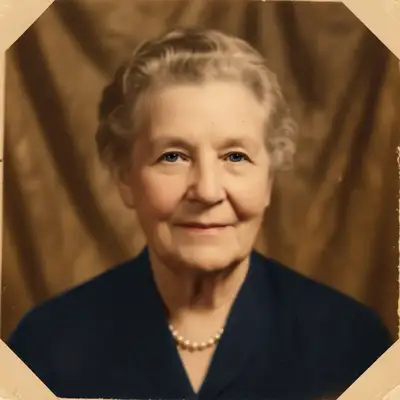
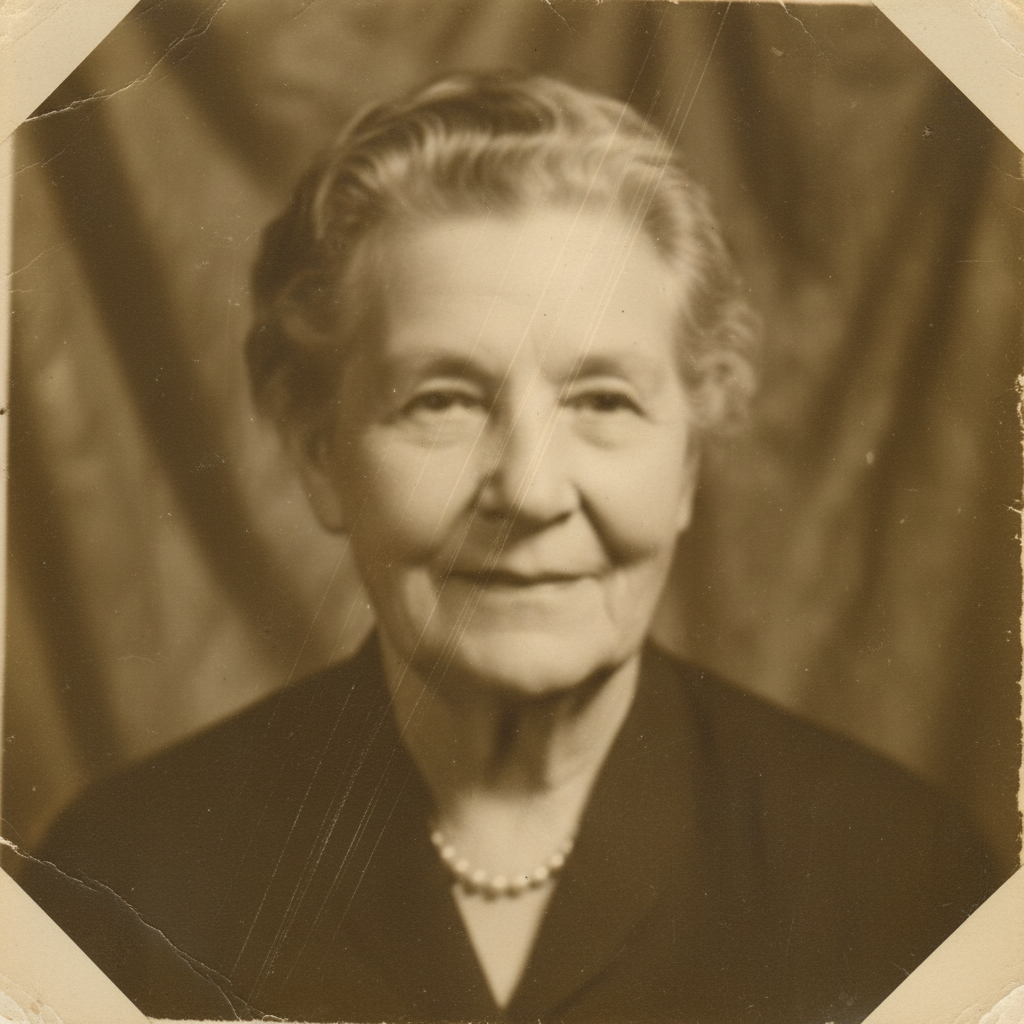
Scratched and yellowed 1960s family photo
Before
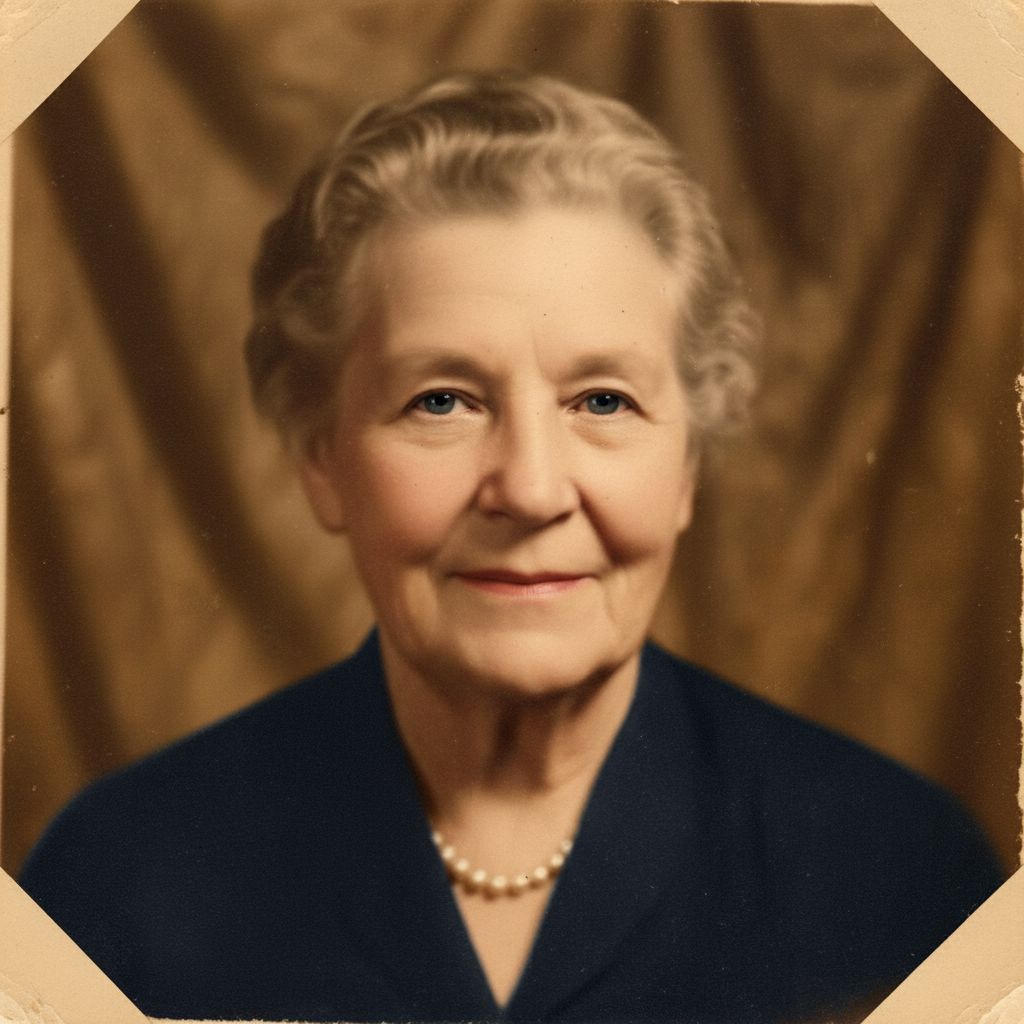
Same family photo restored with scratches removed and colors corrected
After

AI Photo Restorer

Upload photo to restore photo

Free • Results in 30 seconds • No signup

Release to upload

FreeNo signupNo watermark
Popular use cases:
  • old photo restoration
  • family photo repair
  • vintage photo fix
  • damaged photo recovery
  • scanned print restoration
  • heritage photo preservation
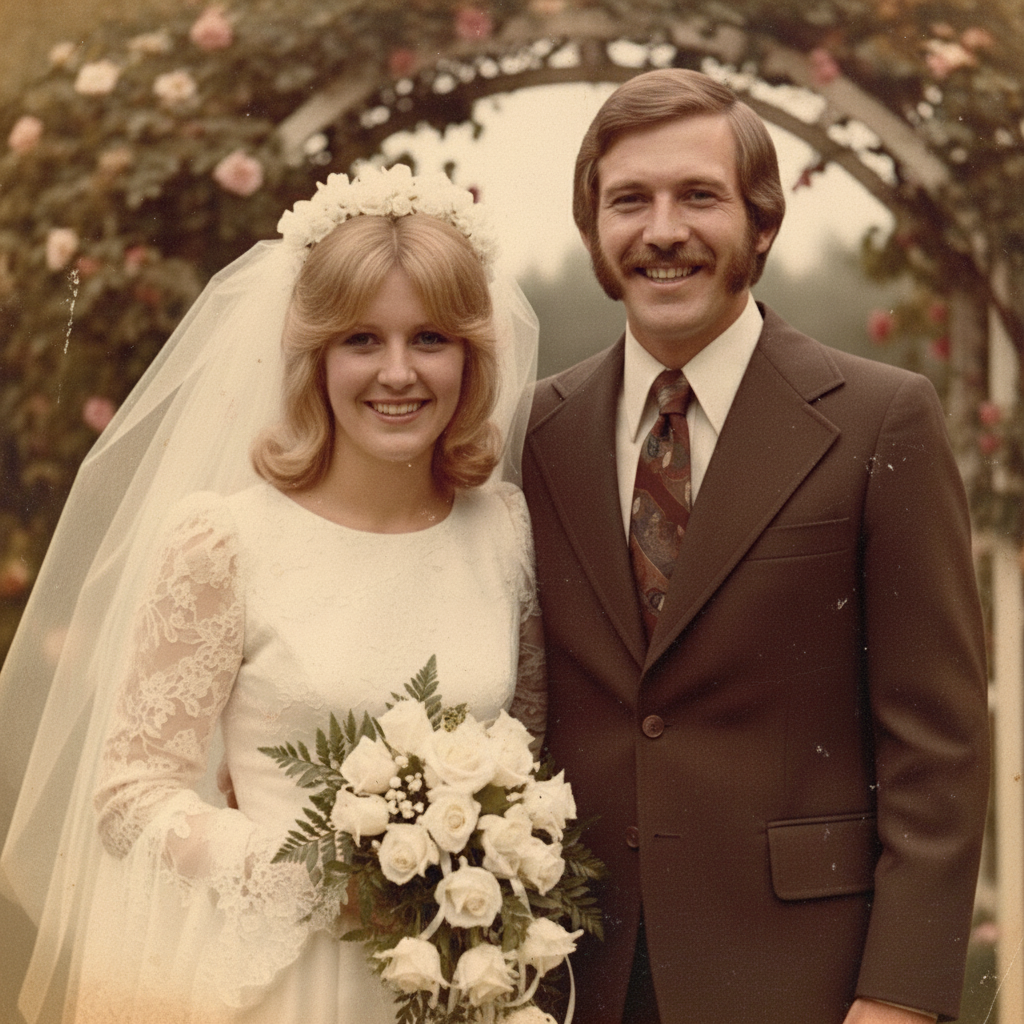
  • wedding photo repair
  • memorial photo restoration

Cost
Free No signup required
Time
Instant results in 15-30 seconds
Works on
Any device - browser, phone, tablet, desktop
Powered by
AI-powered photo editing
Scenario Prompt Time
Fix scratches and fading restore this photo, fix scratches and fading 30s
Repair water damage repair the water damage and stains on this photo 45s
Full restoration fully restore: fix scratches, stains, fading, sharpen faces 50s

How it works

  1. Upload your photo

    Drop your old or damaged image into EditThisPic. JPG, PNG, WebP up to 7MB. Scan your print at the highest resolution available—more detail in the scan means better restoration.

    Expect: Minor scratches and fading: 30-40 seconds. Heavy damage with tears and stains: 45-60 seconds and may need 2-3 refinements.
  2. Describe the damage to fix

    Type what you need: 'restore this old photo, fix the scratches and fading' or 'repair the torn areas and remove water stains.' Be specific about the damage—scratches, tears, fading, yellowing, stains. The AI understands these concepts without you tracing anything.

    Tip: Mention the era or style if you know it: 'restore this 1960s family photo' helps the AI match the appropriate look and toning.

    Copy one of these to get started:

    General old photo restoration restore this old photo, fix all scratches, remove yellowing, and sharpen the details
    Fix scratched photo remove all the scratches and scuff marks from this photo and restore it to clean condition
    Repair water-damaged photo repair the water damage and stains on this photo, restore the missing details in the damaged areas
    Fix faded and washed-out colors restore the faded colors in this old photo, bring back the original vibrancy while keeping it authentic
    3 more prompts
    Repair torn or creased photo repair the torn edges and creases in this photo, fill in the missing areas naturally
    Remove mold or foxing spots remove the brown spots and mold marks from this old photo and restore the clear image underneath
    Full professional restoration fully restore this damaged vintage photo: fix scratches, remove stains, correct fading, and sharpen faces
  3. Review the restoration

    Check that scratches are gone, tears are filled naturally, and colors look authentic to the era. Zoom in on faces to verify they look correct—restoration should preserve the original people, not alter their appearance.

  4. Refine with markers if needed

    If specific damage spots remain—like a stubborn stain or a crack across a face—tap markers on those spots and regenerate. Most restorations work well on the first try, but heavy damage may need targeted refinement.

    Tip: Markers are for precision refinement only. Try without them first—the AI handles most damage automatically.
Try it free

AI Photo Restorer

Upload photo to restore photo

Free • Results in 30 seconds • No signup

Release to upload

Free • No signup

See it in action

Scratched and yellowed 1960s family photo
Before
->
Same family photo restored with scratches removed and colors corrected
After

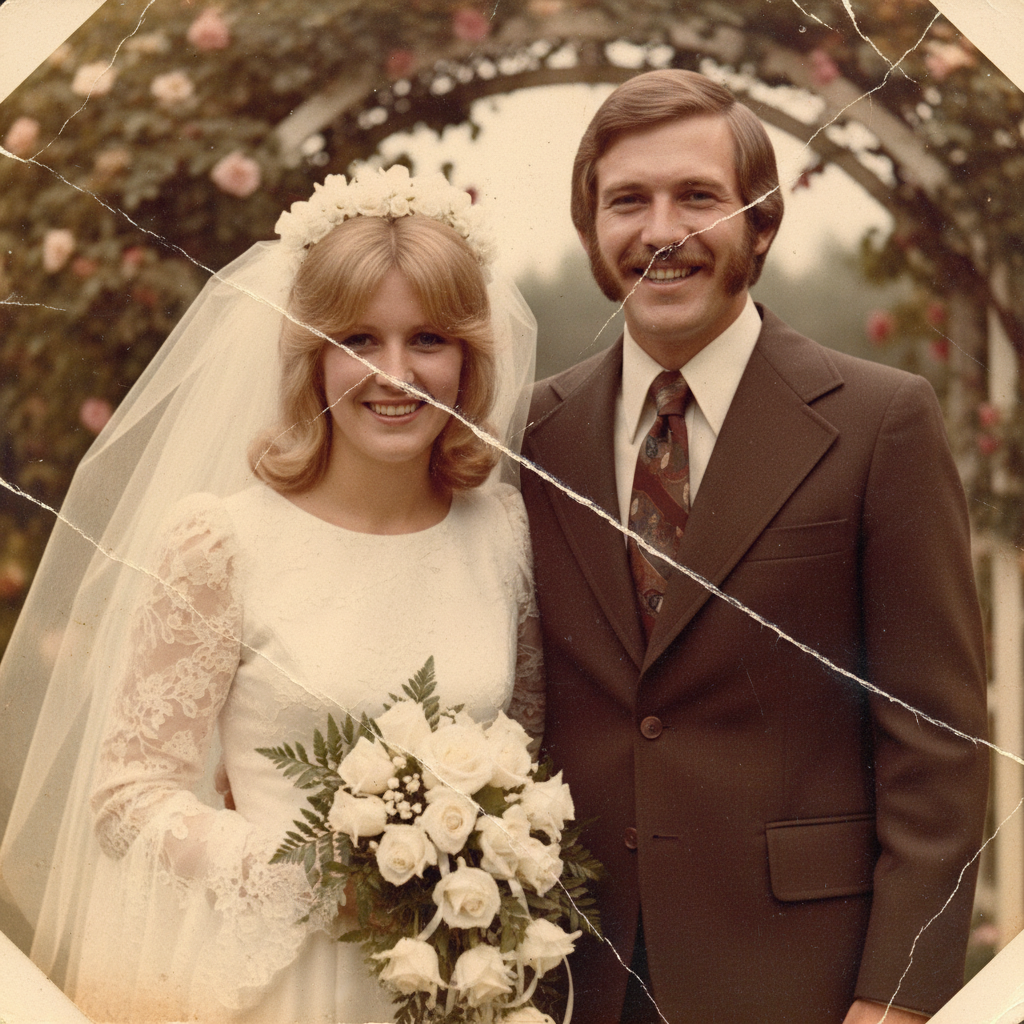
Scratched vintage photo restored

A heavily scratched 1960s family photo restored to clean, clear condition with one prompt.

Prompt: restore this old photo, fix all scratches, remove yellowing, and sharpen the details
Portrait with water damage stains on lower half
Before
->
Same portrait fully restored with water damage repaired
After

Water-damaged portrait repaired

A portrait with water stains and damage across the lower half restored to clean condition.

Prompt: repair the water damage and stains on this photo, restore the missing details in the damaged areas

Detailed Guides by Scenario

📷

Family Photo Restoration

Bring old family photos back to life — fix decades of physical damage from scratches, fading, yellowing, and water stains on irreplaceable memories.

Common Scenarios

  • Restoring a grandparent's wedding photo that has scratches and yellowing from storage
  • Fixing a water-damaged family portrait that survived a flood or leak
  • Recovering a faded childhood photo that has lost its original color and sharpness

Best Practices

  • Scan old prints at the highest DPI your scanner supports before uploading for best results
  • Describe the specific damage — 'fix the scratches across the faces and remove yellowing' gives better results than a generic prompt
  • For severely damaged photos, work in stages: fix the biggest issue first, then refine smaller details
📷

Heritage & Memorial Photo Preservation

Digitally preserve historical photographs and memorial images — repair damage and restore clarity for archives, tributes, and genealogy projects.

Common Scenarios

  • Restoring a memorial photo of a loved one for a funeral display or tribute
  • Preserving historical photos from a family archive or genealogy project
  • Repairing vintage military portraits or immigration documents with photo damage

Best Practices

  • Mention the era or style if known: 'restore this 1940s military portrait' helps the AI match appropriate toning
  • For memorial photos, add 'preserve the original faces exactly' to prioritize likeness over perfect repair
  • Process the highest-resolution scan available — more detail gives the AI better material to work with
📷

Scanned Print & Damaged Photo Recovery

Turn damaged scanned prints into clean digital images — remove physical artifacts like creases, torn edges, mold spots, and foxing from scanned photographs.

Common Scenarios

  • Cleaning up a scanned print with crease lines and fold marks from storage
  • Removing brown foxing spots and mold marks from a photo stored in a damp environment
  • Repairing torn edges and missing corners on a scanned photograph

Best Practices

  • Scan the photo on a flatbed scanner rather than photographing it with a phone to avoid glare and perspective distortion
  • If the photo has multiple types of damage, list each one in the prompt so the AI addresses them all
  • For torn photos, describe what should be in the missing area if you know — 'fill the torn corner with more of the garden background'

If something looks off

AI changed the wrong area or something I didn't want changed

Why: The AI couldn't determine exactly which damage you meant from description alone. This happens when there are multiple types of damage in different areas.

Try: Tap a marker on the specific damaged area you want fixed, then regenerate with the same prompt

Tip: Markers tell the AI 'I mean THIS damage specifically.' Use them when description alone is ambiguous.

Faces look altered or don't resemble the original person

Why: Heavy damage over faces makes it hard for the AI to preserve the original likeness while repairing.

Try: restore this photo but preserve the original faces exactly as they are, only fix the damage around and on the faces

Tip: Adding 'preserve the original faces' explicitly prioritizes likeness over perfect damage repair.

Restored areas look blurry compared to undamaged parts

Why: The AI filled in damaged areas but matched the damage-level detail rather than the sharp areas of the photo.

Try: restore this photo and ensure repaired areas are as sharp and detailed as the undamaged parts

Tip: Run a second pass focused on sharpening: 'sharpen the restored areas to match the rest of the photo.'

Colors look too modern or unnatural for the era

Why: The AI applied modern color grading instead of matching the original vintage color palette.

Try: restore this photo with era-appropriate colors, keep the vintage look while fixing damage only

Tip: Mention the decade: 'keep the 1950s color palette' gives the AI a clear reference for authentic toning.

Some scratches or damage spots remain after restoration

Why: Minor damage blending with the image content can be missed in a single pass, especially fine scratches over detailed areas.

Try: Tap markers on remaining scratches and regenerate: remove these remaining scratches and restore cleanly

Tip: Targeted marker passes on stubborn spots are more effective than re-running the full restoration.

Quick answers

Do I need to trace over the scratches or damage before describing what to fix?

No! Just describe the damage: 'fix the scratches and fading' or 'repair the water stains.' The AI detects and repairs damage automatically. Only use markers if specific damage spots are missed on the first try—tap the remaining spots and regenerate.

How do I restore an old photo for free?

Upload your old photo to EditThisPic and type 'restore this old photo, fix scratches and fading.' The AI repairs damage, corrects colors, and sharpens details in 30-45 seconds. Works on scanned prints, faded snapshots, and damaged photographs. Free to use, no account required.

Is there a free AI photo restorer that doesn't require login?

Yes, EditThisPic restores photos for free with no account needed. Upload your damaged photo, describe the damage, and download the restored result. No watermarks on outputs. Handles scratches, tears, fading, water damage, and yellowing.

What is the best free AI tool for restoring old photos?

EditThisPic handles the full range of photo damage — scratches, tears, fading, water stains, yellowing, and mold spots — by description alone. Unlike Photoshop's manual clone stamp and healing brush, you just describe what needs fixing and the AI repairs it automatically. Free, no login, results in 30-45 seconds.

Can AI restore severely damaged photos with missing sections?

Yes, the AI can reconstruct missing areas based on surrounding context. For torn edges, holes, and missing sections, describe what's damaged and the AI fills in plausible detail. Very large missing sections may need 2-3 refinement passes for the best result.

Can I restore photo on my phone?

Yes. EditThisPic works in any mobile browser — iPhone, Android, tablet. No app download needed.

What photo formats does the AI photo restorer support?

JPG, PNG, WebP, and HEIC. Upload any common photo format and EditThisPic handles the rest.

How long does it take to restore photo?

Usually 15-30 seconds. Upload your photo, describe what you want, and the AI delivers the result.

Do I need to create an account to restore photo?

No. You can try your first edit without signing up. An account is only needed to save edits and manage a subscription.

Ready to restore your old photos?

Free to try. No signup required.