Free • No signup Remove Photo scratches · Free

AI Photo Scratch Remover

Just describe the scratches. AI removes them without manual clone stamping or selection.

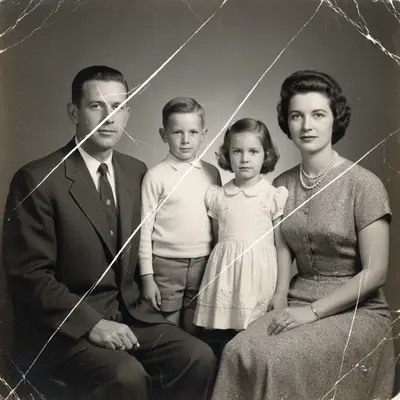
1950s family portrait with white scratches across faces
Before
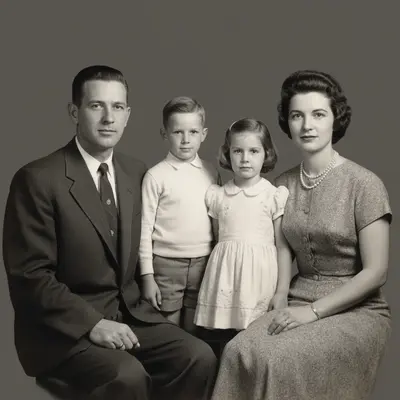
Restored family portrait with all scratches removed
After

Remove Scratches from Photo

Upload photo to remove photo scratches

Free • Results in 30 seconds • No signup

Release to upload

FreeNo signupNo watermark
Popular use cases:
  • old photo restoration
  • scanned photo repair
  • vintage photo repair
  • family photo restoration
  • damaged photo recovery
  • photo scanning cleanup
  • historical photo preservation
  • heirloom photo repair

Cost
Free No signup required
Time
Instant results in 15-30 seconds
Works on
Any device - browser, phone, tablet, desktop
Powered by
AI-powered photo editing
Scenario Prompt Time
All scratches remove all scratches and scratch marks from the entire photo completely 20s
White scratch lines remove the white scratch lines running across the photo and fill seamlessly 25s
Hairline scratches fix all fine hairline scratches throughout the photo while preserving original texture 30s
Scan lines remove vertical scratch lines and scan artifacts from the scanned photo 25s

How it works

  1. Upload your scratched photo

    Upload a sharp photo of the vehicle from a clear angle. Natural daylight and minimal reflections help the AI handle photo scratches accurately. JPG, PNG, WebP up to 7MB.

    Expect: Light scratches: 20-30 seconds. Heavy damage across entire photo: may need 2-3 passes focusing on different areas.
  2. Describe the scratch damage

    Type your instruction: 'remove all scratches from the photo' or 'fix the white scratch lines across the face.' Be specific about what type of damage—fine hairline scratches, deep gouges, or scan lines. No marking needed—the AI detects scratches automatically and fills them with matching texture from surrounding areas.

    Tip: Include location details like 'scratches on the face' or 'vertical scratches on the left side' if damage is concentrated in one area for better targeting.

    Copy one of these to get started:

    Remove all scratches remove all scratches and scratch marks from the entire photo completely
    Fix white scratch lines remove the white scratch lines running across the photo and fill seamlessly
    Hairline scratches fix all fine hairline scratches throughout the photo while preserving original texture
    Vertical scan lines remove vertical scratch lines and scan artifacts from the scanned photo
    3 more prompts
    Face scratches remove scratches from faces and skin areas, blend naturally with surrounding texture
    Deep gouges fix deep scratch gouges by filling with matching color and texture from nearby areas
    Corner damage remove scratches and damage concentrated in the corners and edges of the photo
  3. Generate and review

    Click Generate and watch the AI analyze the damage. It identifies scratch patterns, fills each scratch with texture matching surrounding areas, blends edges seamlessly, and preserves original photo detail. Zoom in to verify scratches are completely gone and fills look natural.

  4. Refine with markers for stubborn scratches

    If some scratches remain or if the AI missed damage in complex areas, tap markers on those specific scratches and regenerate. This helps the AI focus on problem areas it may have missed on the first pass.

    Tip: For photos with both scratches and other damage (tears, stains), fix scratches first, then address other damage in separate edits.
Try it free

Remove Scratches from Photo

Upload photo to remove photo scratches

Free • Results in 30 seconds • No signup

Release to upload

Free • No signup

"Found my grandparents' wedding photo completely scratched. One prompt fixed 30+ years of damage. Looks like it was taken yesterday." @familyhistory

See it in action

1950s family portrait with white scratches across faces
Before
->
Restored family portrait with all scratches removed
After

1950s family photo restoration

Removed multiple white scratches crossing faces and background in a vintage family portrait. The AI filled each scratch with matching skin tone and texture.

Prompt: remove all scratches and scratch marks from the entire photo completely
Scanned 1970s photo with vertical scratch artifacts
Before
->
Clean scanned photo with vertical lines removed
After

Scanned photo with vertical lines

Fixed scanner artifacts and vertical scratch lines from a poorly scanned old photograph. One prompt removed all the scan damage.

Prompt: remove vertical scratch lines and scan artifacts from the scanned photo

Detailed Guides by Scenario

📷

Professional Photography

Remove unwanted photo scratches from professional photo shoots, client deliverables, and stock photography to achieve clean, polished results.

Common Scenarios

  • Client portrait sessions where the photo scratches appeared unexpectedly in frame
  • Stock photography that needs the photo scratches removed for broader commercial appeal
  • Product photography with distracting photo scratches in the background

Best Practices

  • Zoom in and place a marker directly on the photo scratches for the most accurate removal
  • Run a second pass if any faint outlines or shadows remain after the first edit
  • Describe the desired background fill — e.g., 'replace the photo scratches with clean wall' for predictable results
📷

Real Estate & Property Listings

Clean up property photos by removing photo scratches that distract buyers and lower perceived home value.

Common Scenarios

  • Listing photos where the photo scratches clutters the frame and makes rooms look smaller
  • Exterior shots with photo scratches that hurt curb appeal
  • Open house photos that need the photo scratches removed before uploading to MLS

Best Practices

  • Shoot the space first, then edit — AI removal works better than awkward staging workarounds
  • After removing the photo scratches, check that floor lines and wall edges still look straight
  • Process all listing photos in one session so lighting and style stay consistent
📷

Personal & Social Media

Fix personal photos by removing photo scratches before sharing on social media, printing, or gifting.

Common Scenarios

  • Vacation photos where the photo scratches appeared in an otherwise perfect shot
  • Family photos with photo scratches that distract from the people in the frame
  • Profile pictures and dating app photos that need the photo scratches cleaned out

Best Practices

  • Save the original photo first — edit a copy so you can always go back
  • For group photos, mark the photo scratches carefully to avoid affecting nearby people
  • If the first result isn't perfect, try rewording your prompt with more detail about the background

If something looks off

AI changed the wrong area or something I didn't want changed

Why: The AI couldn't determine exactly which area you meant from description alone.

Try: Tap a marker on the specific area you want to change, then regenerate with the same prompt

Tip: Markers tell the AI 'I mean THIS one specifically.' Use them when description alone is ambiguous.

AI removed important photo details thinking they were scratches

Why: The AI confused thin lines in the actual photo (like wires, hair strands, or architectural details) with damage.

Try: Be more specific: 'remove only the white damage scratches, preserve all photo detail like hair and lines'

Tip: If the photo has lots of thin legitimate details, describe the scratches by color or direction to help the AI distinguish.

Scratches removed but fills look blurry or smudged

Why: The AI filled scratches but didn't have enough surrounding detail to match texture accurately, creating soft blurry fills.

Try: Try: 'remove scratches and fill with sharp matching texture from surrounding areas, no blur'

Tip: Mentioning 'sharp' and 'matching texture' helps the AI create cleaner fills that match the photo quality.

Some scratches remain after first attempt

Why: Very faint scratches or damage in complex textured areas may be missed on the first pass if they blend with photo detail.

Try: Mark remaining scratches and use: 'remove these specific marked scratch lines completely'

Tip: Markers help the AI focus on stubborn scratches it missed. You may need 2-3 passes for heavily damaged photos.

Filled scratch areas don't match surrounding color

Why: The AI filled the scratch but didn't sample the correct adjacent area for color matching, creating visible patches.

Try: Regenerate with: 'remove scratches by sampling and matching color from the immediate surrounding areas'

Tip: Emphasizing 'immediate surrounding areas' helps the AI use the closest matching pixels for fills.

Scratch removal worked but photo looks softer overall

Why: The AI may have applied slight blur to blend scratch fills, affecting the entire image sharpness.

Try: Try: 'remove scratches with sharp fills, maintain all original photo sharpness and detail'

Tip: Specifically mentioning 'maintain sharpness' prevents the AI from softening the entire image during repair.

Quick answers

Do I need to mark scratches before describing?

No! Just describe what you want: 'remove all scratches from the photo' or 'fix the white scratch lines.' The AI detects scratches automatically. Only use markers if some scratches remain after the first attempt or if you need to point out very faint damage the AI might miss.

How do I remove scratches from old photos for free?

Upload your scratched photo to EditThisPic and type 'remove all scratches and scratch marks from the entire photo completely.' The AI finds all scratches, fills them with matching texture and color in 20-30 seconds. Free to try with no signup, no watermark, and no credit card required.

Is there a free scratch remover that doesn't require login?

Yes. EditThisPic removes scratches without requiring an account. Just upload your damaged photo, describe the scratch removal you need, and download the restored result. No email, no signup, completely free for your first edit.

Can this fix severely scratched photos?

Yes, but heavily damaged photos may need 2-3 editing passes. First pass: 'remove all major scratches.' Review the result. Second pass: mark remaining damage and regenerate. The AI can fix even severe damage, but working in stages produces better results than trying to fix everything at once.

Does this work on color photos and black-and-white photos?

Yes. The AI handles both color and black-and-white photographs. It matches the texture and tone of surrounding areas whether that's color or grayscale. Scratch removal works the same way regardless of photo type.

Is EditThisPic's AI photo scratches remover really free?

Yes — you get 1 free edit per week, no account needed. For unlimited edits, plans start at $3.99/month.

Can I remove photo scratches on my phone?

Yes. EditThisPic works in any mobile browser — iPhone, Android, tablet. No app download needed.

What photo formats does the AI photo scratches remover support?

JPG, PNG, WebP, and HEIC. Upload any common photo format and EditThisPic handles the rest.

Ready to fix your scratched photos?

Free to try. No signup required.