Do I need to mark the scratches before describing?
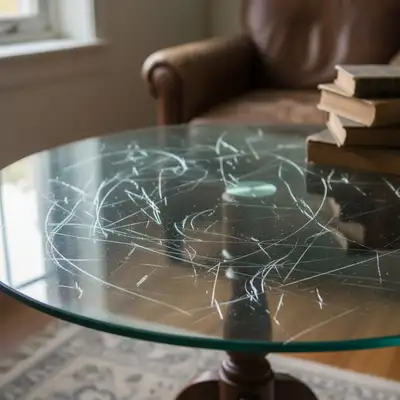
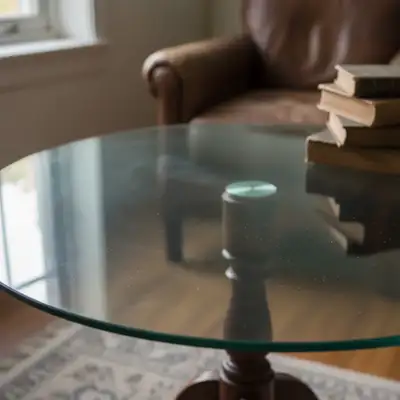
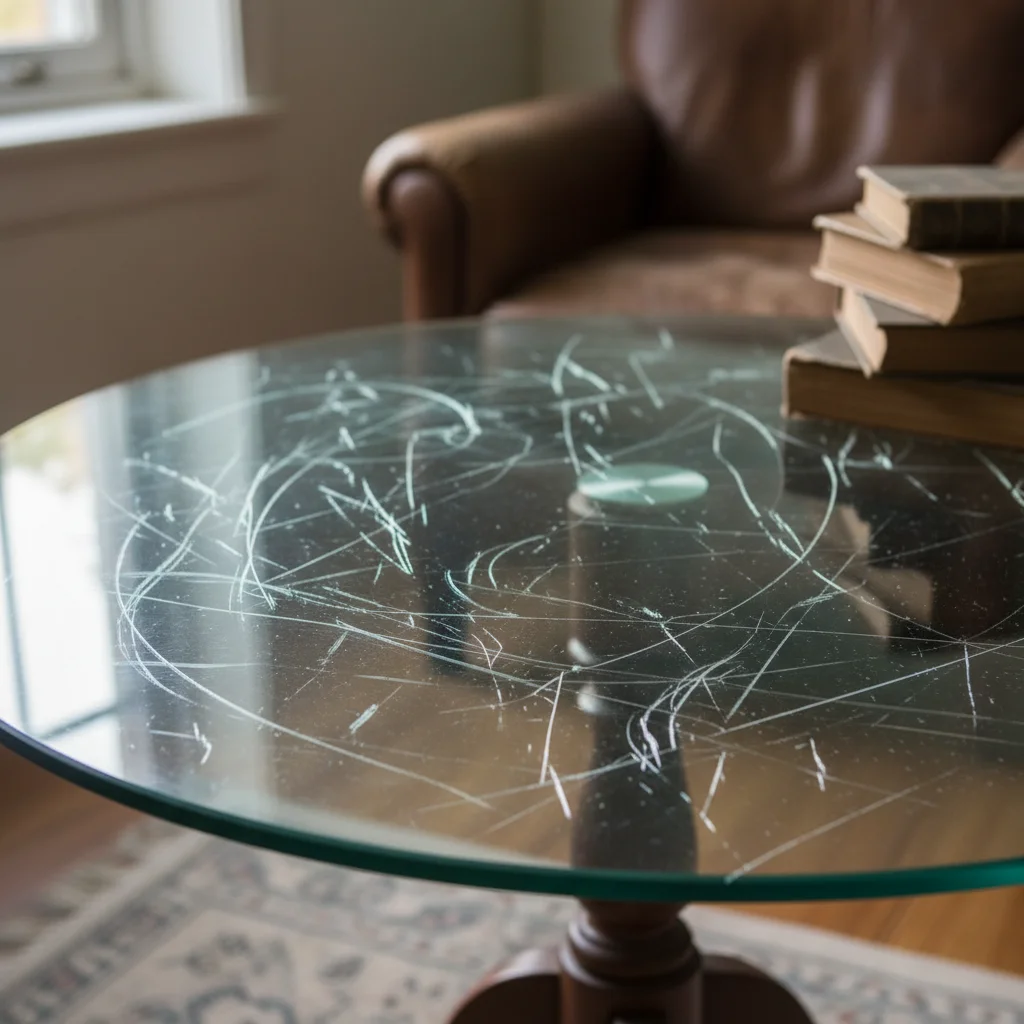
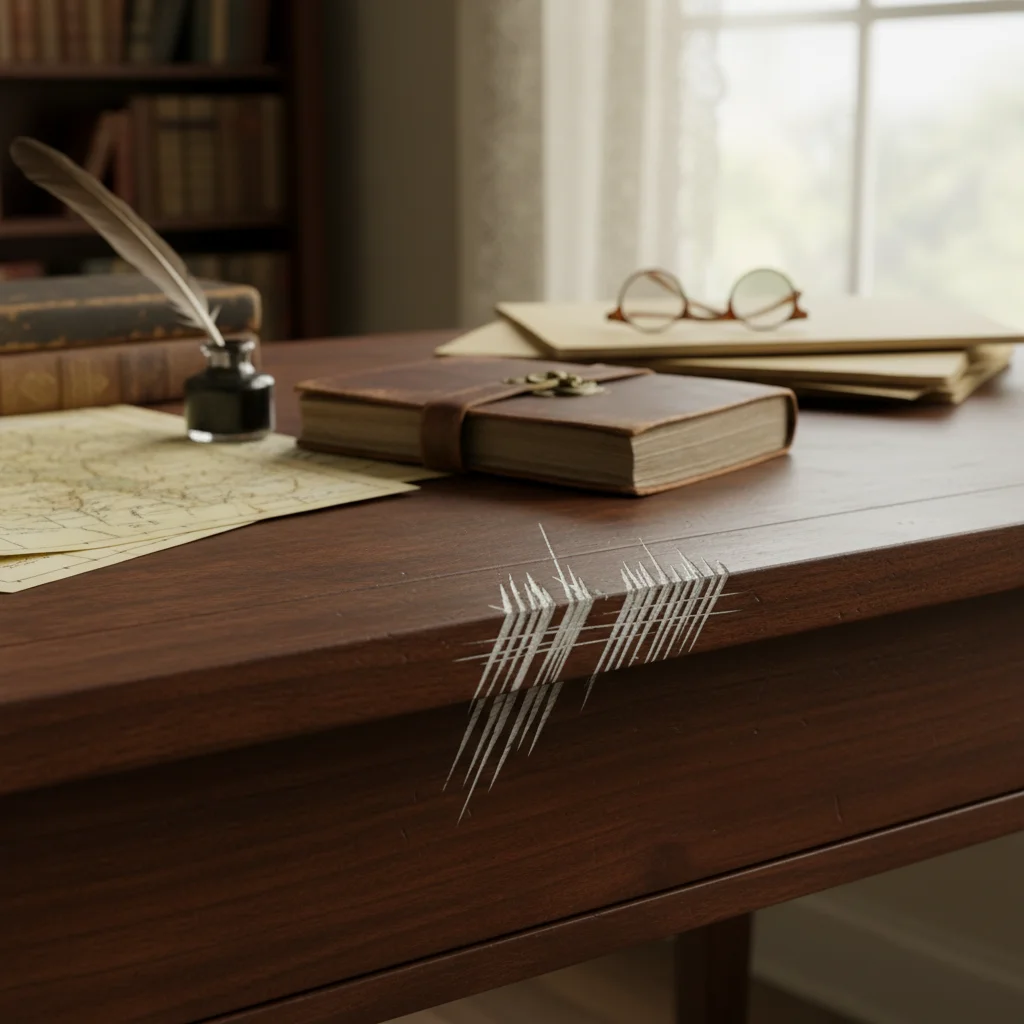
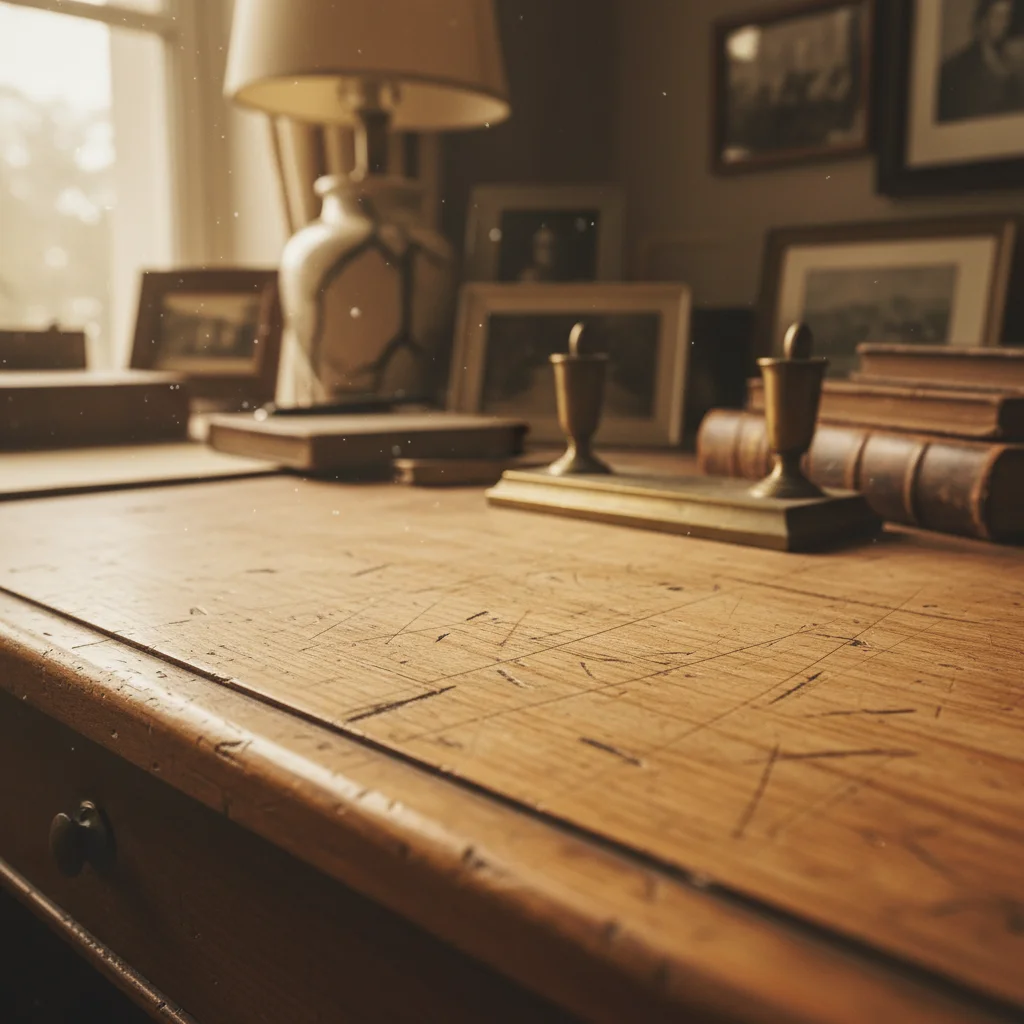
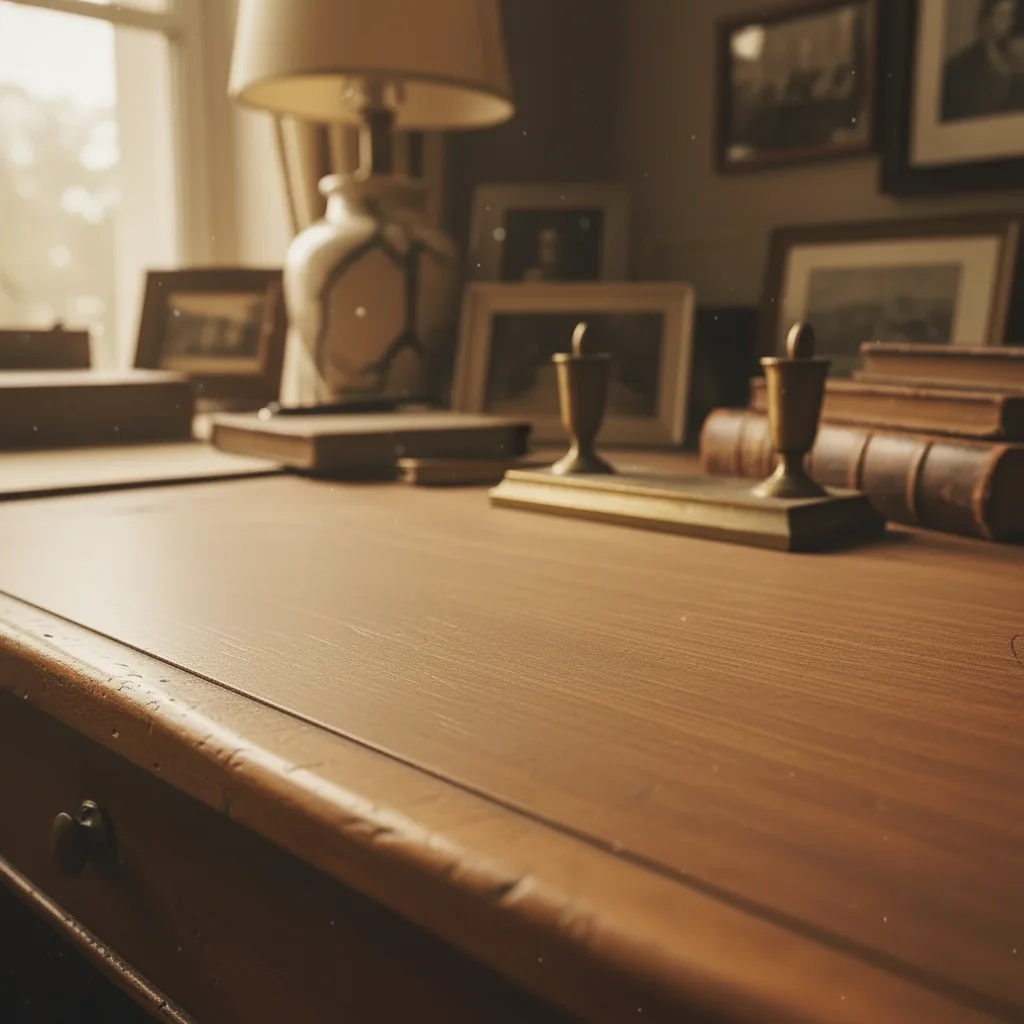
No! Just describe what you want: 'remove the scratches' or 'fix the scratch marks.' The AI detects scratches automatically - they have a distinctive linear pattern.
Can this fix deep scratches that removed image content?
Yes, but results depend on how much content is missing. The AI reconstructs scratched areas based on surrounding context. Light scratches on simple backgrounds restore perfectly. Deep scratches across faces or complex details may need multiple passes.
Does this work on scanned physical photos?
Absolutely! Scanned prints are the most common use case. The AI handles surface scratches from handling, storage damage, and age-related wear. Scan at the highest resolution possible for best scratch removal results.
Can I remove scratches from very old or faded photos?
Yes! The AI works on photos of any age. For best results with faded images, consider using 'remove scratches and enhance overall image quality' to address both issues together. Severely degraded photos may need multiple editing passes.
What about creases or fold marks?
Creases work similarly to scratches. Use 'remove the crease marks' or 'fix the fold lines' in your prompt. Deep creases with color loss may need the AI to reconstruct more content, similar to deep scratches.
Is EditThisPic's AI scratches remover really free?
Yes — you get 1 free edit per week, no account needed. Credit packs start at $4.99 for 10 edits.
Can I remove scratches on my phone?
Yes. EditThisPic works in any mobile browser — iPhone, Android, tablet. No app download needed.
What photo formats does the AI scratches remover support?
JPG, PNG, WebP, and HEIC. Upload any common photo format and EditThisPic handles the rest.
What is the best free tool to remove scratches from photos?
EditThisPic is a free AI scratch remover that works directly in your browser. Upload a scratched photo, type 'remove the scratches and restore the image,' and the AI repairs the damage in seconds. No account and no software to install, and purchased downloads are clean.
How do I fix scratched photos without Photoshop?
Use EditThisPic instead of Photoshop's clone stamp tool. Upload your scratched photo and type 'remove the scratches and restore the damaged areas.' The AI does in seconds what would take hours of manual retouching in Photoshop. No software download or subscription needed.
Can AI repair old damaged photos with scratches and creases?
Yes. EditThisPic's AI handles scratches, creases, fold marks, and surface damage on old photos. Type 'repair all the scratches and creases on this old photo' and the AI reconstructs the missing content based on surrounding image data. Works on scanned prints from any era.
How much does EditThisPic cost?
You get 1 free edit per week — no account needed. After that, one-time credit packs start at $4.99 for 10 edits, valid 12 months, no subscription. Power users who edit daily can pick Studio Membership, a monthly workspace at $49.99/mo for 300 edits. Purchased downloads are clean with no watermark.