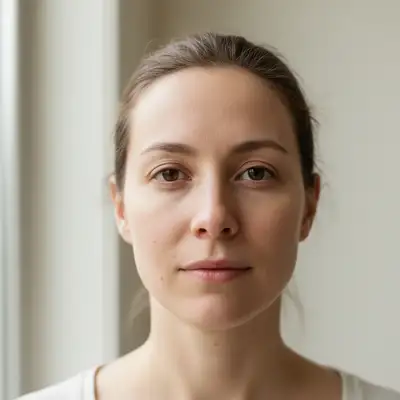
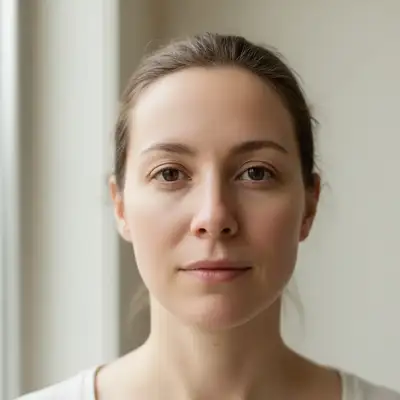
Smooth skin, remove blemishes, whiten teeth, erase wrinkles, and brighten eyes — describe what you want and AI retouches your portrait in under a minute. No Photoshop skills needed.
FreeNo signupNo watermark
Drop your photo here
"smooth skin texture, remove any visible blemishes, and whiten teeth slightly — keep it looking natural and not over-edited"
Drag & drop, or paste · JPG · PNG · WEBP
Free to try · no sign-up · never used for AI training
✦Free · No signup · Nothing to install
Release to upload
Free • No signup
Before→After
Quick Answer
EditThisPic is a free AI face beautifier and portrait retoucher. Upload any selfie, headshot, or portrait, describe the retouch in plain English — smooth skin, remove blemishes, whiten teeth, erase wrinkles — and get a natural-looking result in under 60 seconds. No signup required to preview, and purchased downloads are clean.
Unlike Facetune or manual Photoshop retouching — which require manual painting, layer masks, or careful selection brushes — EditThisPic lets you describe the retouch in plain English and the AI executes it precisely. No tools to learn, no sliders to calibrate, no risk of over-editing.
Quick portrait polish for social media — smooth skin, clear blemishes, and brighten eyes so you look like yourself on a great day, not like a filtered version.
Common scenarios
A casual selfie taken in mixed indoor lighting where the skin looks uneven and a blemish is visible
A vacation photo where the face is slightly shiny and the eyes look tired from travel
A group selfie where you want to gently retouch only your own face without changing the image composition
Best practices
Add 'subtle' or 'natural-looking' to your prompt — over-smoothing makes skin look plastic, not polished
Tackle one issue at a time for best results: 'remove the blemish on my chin and smooth skin texture slightly'
For eye brightening, specify: 'whiten the whites of the eyes and reduce the red tones' for a rested look
Sample prompts
Smooth the skin texture slightly and remove the blemish on the chin — keep it looking natural, not filteredBrighten the whites of the eyes and gently reduce dark circles without changing the face shape
🖼️
Portrait Retouch
Targeted retouching for professional portraits and family photos — remove wrinkles, even out skin tone, and whiten teeth without losing the natural character of the subject.
Common scenarios
A family portrait where the lighting was harsh and everyone's skin looks uneven or shiny
A formal portrait where visible wrinkles and fine lines are distracting from the subject's expression
A photo where teeth appear slightly yellow under indoor lighting and the subject wants a cleaner smile
Best practices
Always add 'preserve the natural likeness and expressions' when retouching other people's portraits
For wrinkle softening, use 'reduce' not 'remove' — subtle softening looks real, full removal looks unnatural
Whiten teeth with 'brighten the teeth naturally — avoid pure white, aim for a realistic shade'
Work in passes: skin smoothing first, then specific fixes (blemishes, wrinkles, teeth) in follow-up edits
Sample prompts
Soften the fine lines and wrinkles subtly, smooth skin texture, and whiten the teeth slightly — preserve the natural lookEven out the skin tone, reduce redness, and remove visible blemishes while keeping the portrait looking authentic
💼
Professional Headshot
Clean up LinkedIn, corporate, or bio headshots — consistent skin retouching, eye brightening, and polished presentation without expensive retouching services.
Common scenarios
A headshot taken at a company event where the subject's skin looks blotchy under fluorescent lighting
A remote-work headshot taken at home where tired eyes and under-eye circles make the subject look less alert
A headshot where stretch marks or skin texture on the neck and décolletage area are distracting
Best practices
Specify the professional context: 'retouch for a LinkedIn headshot — clean and natural, not heavily filtered'
Address under-eye dark circles explicitly: 'reduce the dark circles and puffiness under the eyes'
Keep background changes separate from skin retouching — do retouching first, then background cleanup if needed
For consistent skin tone, use: 'even out skin tone and reduce redness while keeping the skin looking real'
Sample prompts
Retouch this headshot professionally — smooth skin, reduce under-eye circles, and whiten teeth slightly. Keep it naturalClean up the skin, brighten the whites of the eyes, and even out skin tone. No heavy filtering — this is for a LinkedIn photo
✨
Dating Profile Photo
Look your best without looking edited — remove blemishes, brighten your smile, and clean up any distracting skin issues for a confident first impression.
Common scenarios
A recent photo you like but a visible pimple or blemish is drawing attention away from your smile
A photo where you look tired due to dark circles and slightly dull eyes — you want to look more alert
A candid photo with good expression but uneven skin tone or shine from outdoor lighting
Best practices
The goal is to look like you on a great day — not edited. Use 'subtle' and 'natural' in every prompt
Remove specific blemishes rather than over-smoothing all skin: 'remove the spot on the forehead, keep all other skin texture'
For smiles: 'whiten teeth slightly — keep a realistic shade, avoid pure white'
Avoid over-brightening eyes — 'slightly brighten the whites of the eyes' is more convincing than dramatic change
Sample prompts
Remove the blemish on my forehead and whiten my teeth slightly — keep everything else natural, no heavy retouchingSubtly reduce the dark circles under my eyes and slightly brighten the whites of my eyes — natural look only
Example prompts to get started
smooth skin texture, remove any visible blemishes, and whiten teeth slightly — keep it looking natural and not over-edited
Frequently Asked Questions About AI Portrait Retouching
Can AI remove blemishes from photos naturally?
Yes. EditThisPic's AI identifies individual blemishes, acne spots, and skin imperfections and removes them by reconstructing the skin texture underneath — blending naturally with the surrounding area. The result looks like the blemish was never there, not like a patch was applied.
How do I smooth skin in a photo without it looking fake?
Use the word 'subtle' or 'natural' in your prompt — 'smooth skin texture subtly while preserving natural pores and detail.' Over-smoothing creates a plastic, filtered look. The AI preserves fine skin detail when instructed. For the most natural result, address skin texture separately from blemishes: smooth first, then target specific spots in a follow-up edit.
How do I whiten teeth in a photo for free?
Upload your photo to EditThisPic, describe the change — 'whiten teeth to a natural bright white' — and the AI whitens only the teeth area in under 60 seconds. Add 'avoid pure white, aim for realistically bright' to prevent over-whitening. Free to try with no account needed. One free preview edit per week with no signup, and purchased downloads are clean.
Can AI remove wrinkles from photos realistically?
Yes. Use 'soften' or 'reduce' rather than 'remove' wrinkles — softening produces a believable result while removing them entirely often looks unnatural. Prompt example: 'soften the fine lines around the eyes and forehead, keep the face looking natural and authentic.' The AI reduces the prominence of wrinkles while preserving the character of the face.
Can AI retouch portraits without changing the person's appearance?
Yes — if you instruct it. Add 'preserve the natural likeness and facial features exactly' to your prompt. This tells the AI to fix specific issues (blemishes, wrinkles, skin texture) without altering the fundamental appearance of the subject. Without this instruction, the AI may make subtle changes to face shape or features during heavy retouching.
How do I remove dark circles from a photo?
Prompt: 'reduce the dark circles and puffiness under the eyes — blend naturally with the surrounding skin.' Combining dark circle reduction with eye brightening ('and brighten the whites of the eyes slightly') addresses the full tired-eye look in one pass.
Is AI skin smoothing different from Facetune or photo filters?
Yes. Photo filters apply a uniform effect to the entire image. Facetune applies localized adjustments but requires manual painting and selection. AI skin smoothing in EditThisPic understands the image content — it identifies skin regions separately from eyes, hair, and clothing, then applies targeted smoothing only where it belongs. The result is more natural and requires zero manual selection.
Can I retouch a selfie on my phone?
Yes. EditThisPic works in any mobile browser — iPhone, Android, or tablet. No app download needed. Upload your selfie from your camera roll, describe the retouch, and get the result in under 60 seconds — ready to save and share directly from your phone.
Will the retouched photo have a watermark?
No. Anything you purchase downloads completely clean at full quality — no watermarks, ever, and ready to post, print, or use however you need. The free weekly edit is a preview-quality result so you can see the edit before you buy.
How do I retouch a photo for a LinkedIn headshot?
Use a clean, professional retouch prompt: 'smooth skin texture, reduce under-eye circles, and whiten teeth slightly — professional headshot retouching, keep it natural, no heavy filtering.' Start with skin retouching; if the background needs cleanup, do that as a separate second edit. The AI handles subtle professional retouching well when prompted with explicit intent.
Can AI retouch portraits for free without any signup?
Yes. EditThisPic offers one free edit per week with no account required. Upload your portrait, describe the retouch, and preview the result free — no email, no password, no credit card. Create a free account to save your editing history, or subscribe to Studio Membership for 300 edits/month.