Free • No signup Whiten Eyes · Free

AI Eye Whitener

Just describe what you want. AI whitens eye whites without marking or selection.

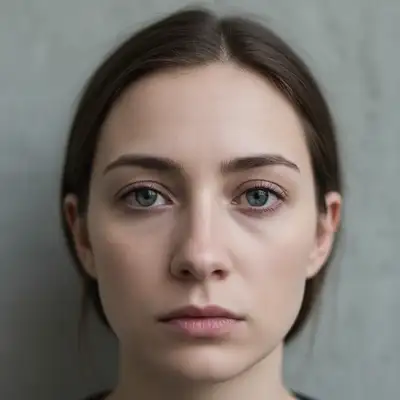
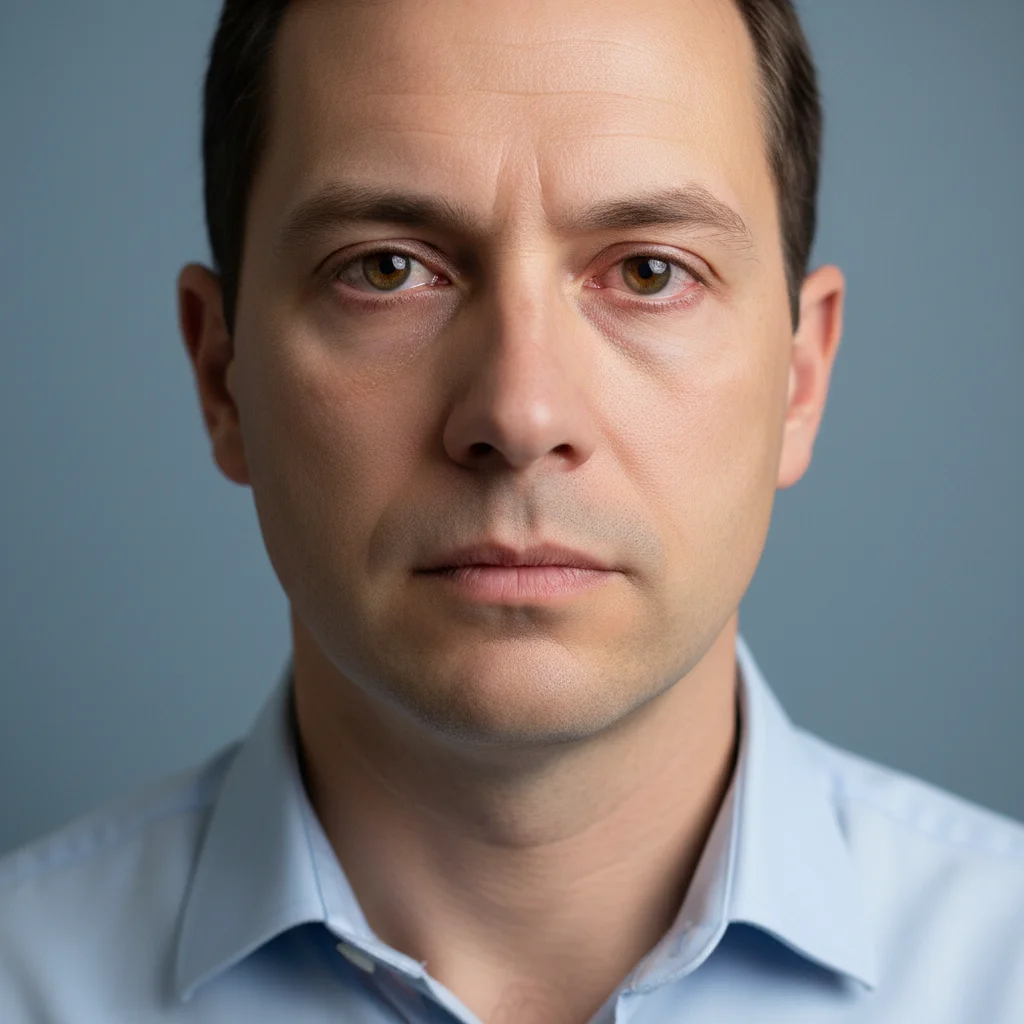
Professional headshot with yellowed eye whites
Before
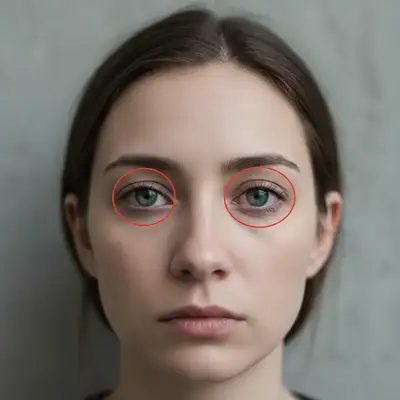
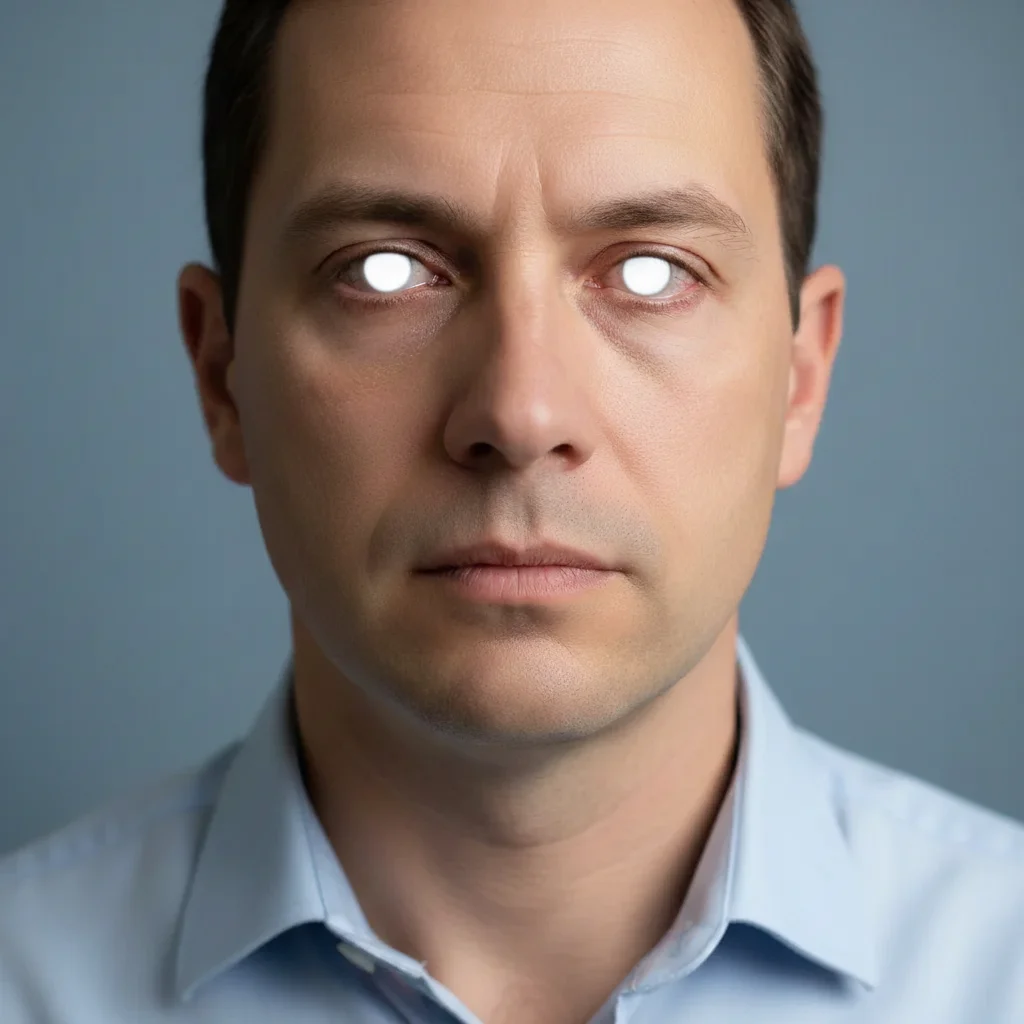
Same headshot with naturally whitened eye whites
After

Whiten Eyes in Photo

Drop your photo here

or click to browse

Release to upload

Free • No signup

Advertisement
Popular use cases:
  • professional headshots
  • LinkedIn profile photos
  • dating app photos
  • wedding photography
  • portrait retouching
  • social media profiles
  • modeling portfolios
  • passport photos

Cost
Free No signup required
Time
Instant results in 15-30 seconds
Works on
Any device - browser, phone, tablet, desktop
Powered by
AI-powered photo editing
Scenario Prompt Time
Natural whitening whiten the eye whites naturally while keeping subtle texture and blood vessels 15s
Remove yellowing brighten eye whites and remove yellow discoloration naturally 15s
Subtle brightening brighten eye whites subtly without making them pure white, keep natural look 20s
Professional headshot whiten eye whites to professional headshot standard with natural texture preserved 20s

How it works

  1. Upload your photo

    Drop your image into EditThisPic. JPG, PNG, WebP up to 7MB. Works best with front-facing portraits where eyes are clearly visible and well-lit. Natural lighting helps the AI distinguish eye whites from iris and skin.

    Expect: Simple whitening: 15-20 seconds. Multiple people or complex lighting: may need 2-3 refinements.
  2. Describe the whitening you want

    Type your instruction: 'whiten the eye whites naturally' or 'brighten eye whites and remove yellowing.' Be specific about how subtle or dramatic. No marking needed—the AI locates eye whites automatically and preserves natural texture, tiny blood vessels, and shadows.

    Tip: Include 'naturally' or 'keep subtle texture' for the most realistic results. Overly white eyes look fake—the AI maintains natural variation.

    Copy one of these to get started:

    Natural whitening whiten the eye whites naturally while keeping subtle texture and blood vessels
    Remove yellowing brighten eye whites and remove yellow discoloration naturally
    Subtle brightening brighten eye whites subtly without making them pure white, keep natural look
    Professional headshot whiten eye whites to professional headshot standard with natural texture preserved
    2 more prompts
    Wedding photo enhancement brighten and whiten eye whites for wedding photos, keeping natural shadow detail
    One person in group photo whiten only the eye whites of the person in the center naturally
  3. Generate and review

    Click Generate and watch the AI analyze the eyes. It identifies sclera (eye whites), removes yellowing or discoloration, brightens while preserving texture, and maintains natural shadows at eye corners. Zoom in to verify the whitening looks natural and not overly bright.

  4. Refine with markers if needed

    If the whitening is too strong or if the AI missed some eyes in a group photo, tap markers on those specific eyes and regenerate. This is optional—most eye whitening works without markers on individual portraits.

    Tip: Markers help when you have multiple people and want to whiten only specific eyes, or when eyes are partially obscured.
Try it free

Whiten Eyes in Photo

Drop your photo here

or click to browse

Release to upload

Free • No signup

"My wedding photos had slightly yellow eye whites. Typed one instruction and they look bright and natural. Nobody can tell they were edited." @bridalphotos

See it in action

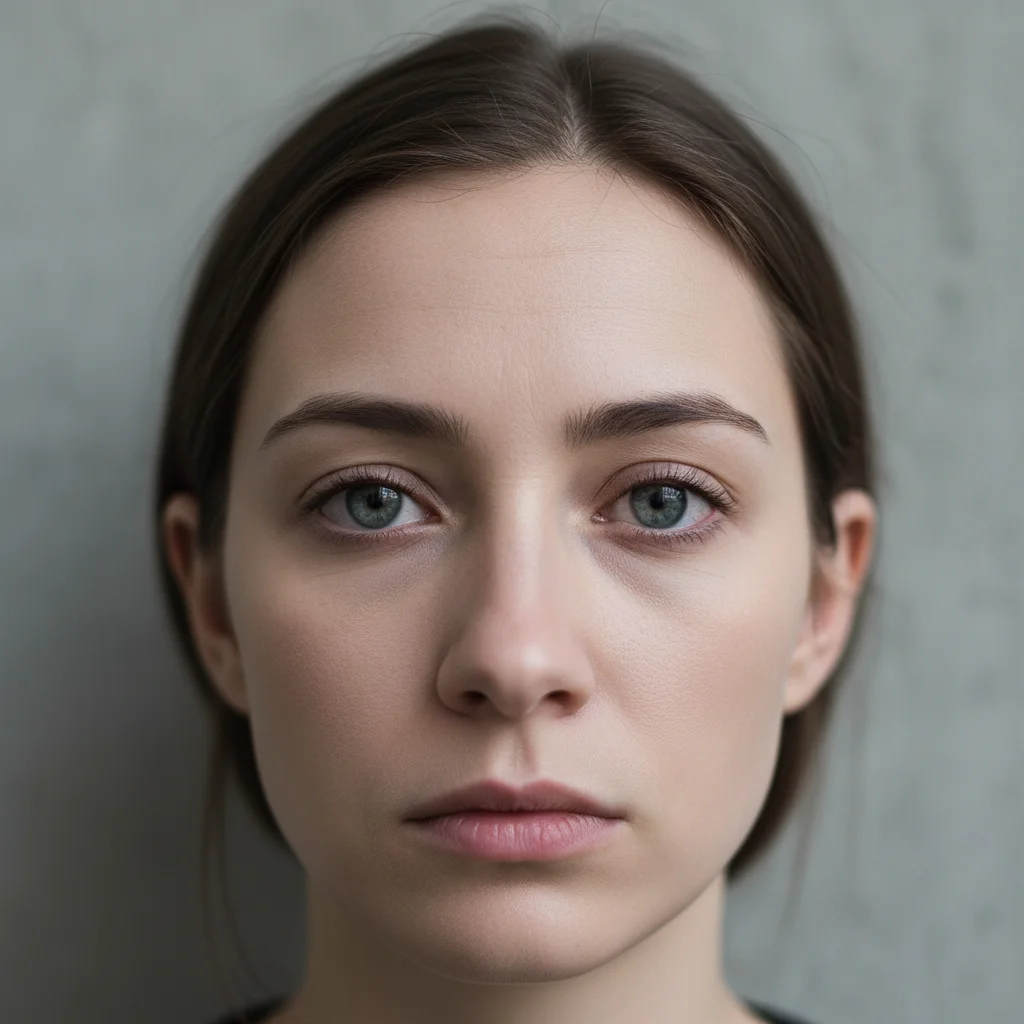
Professional headshot with yellowed eye whites
Before
->
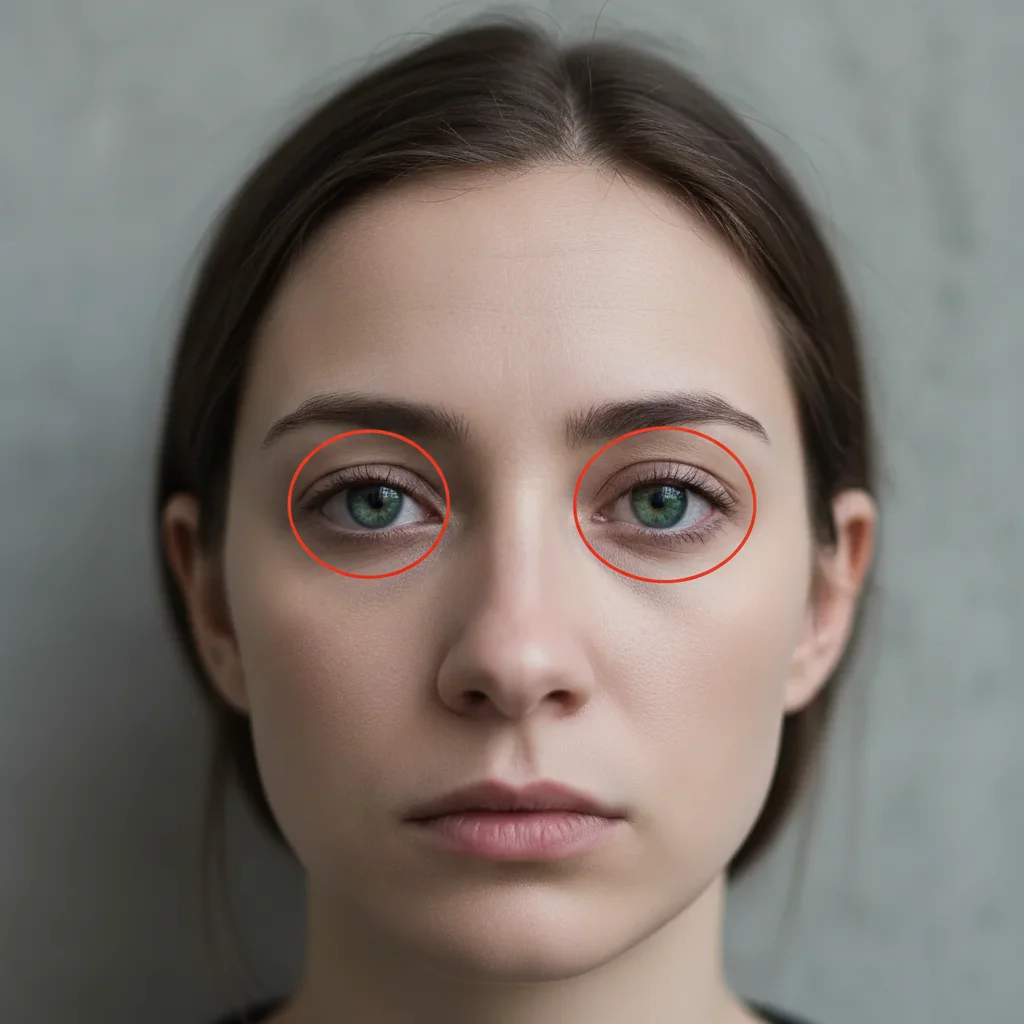
Same headshot with naturally whitened eye whites
After

Professional headshot whitening

Whitened slightly yellowed eye whites for a LinkedIn profile photo. The AI preserved natural texture and tiny blood vessels perfectly.

Prompt: whiten the eye whites naturally while keeping subtle texture and blood vessels
Wedding portrait with warm-toned eye whites
Before
->
Wedding portrait with naturally brightened eye whites
After

Wedding photo enhancement

Brightened eye whites in an outdoor wedding portrait that had warm golden hour lighting. One prompt delivered natural whitening without losing the warm tone of the photo.

Prompt: brighten eye whites and remove yellow discoloration naturally
Selfie with dull eye whites
Before
->
Selfie with subtly brightened eye whites
After

Subtle selfie brightening

Brightened eye whites in a casual selfie without making them look overly edited. The AI kept natural variation and texture intact.

Prompt: brighten eye whites subtly without making them pure white, keep natural look
Advertisement

If something looks off

AI changed the wrong area or something I didn't want changed

Why: The AI couldn't determine exactly which area you meant from description alone.

Try: Tap a marker on the specific area you want to change, then regenerate with the same prompt

Tip: Markers tell the AI 'I mean THIS one specifically.' Use them when description alone is ambiguous.

Eye whites look too bright or fake

Why: The AI applied maximum whitening without preserving natural texture and variation. Real eye whites are never pure white—they have subtle color and tiny blood vessels.

Try: Regenerate with: 'whiten eye whites subtly while preserving all natural texture, blood vessels, and slight color variation'

Tip: Always mention 'naturally' or 'subtly'—this prevents the AI from creating unrealistic pure white eyes.

AI whitened the iris or entire eye instead of just the whites

Why: The prompt may have been too vague. The AI needs to know you mean the sclera (white part) specifically, not the colored iris.

Try: Be specific: 'whiten only the sclera, the white parts of the eyes, not the iris or pupil'

Tip: Using the term 'eye whites' or 'sclera' helps the AI target the correct area.

Whitening looks uneven between the two eyes

Why: One eye may be in shadow or at an angle that confused the AI's detection. Different lighting on each eye creates uneven results.

Try: Mark both eyes and use: 'whiten both marked eye whites evenly to the same brightness level'

Tip: Photos with even lighting on both eyes produce the most consistent whitening.

Lost natural blood vessels or texture after whitening

Why: The AI applied solid white color instead of just brightening the existing texture. This removes the realistic imperfections that make eyes look natural.

Try: Regenerate with: 'brighten eye whites while keeping all tiny blood vessels, texture, and natural variation visible'

Tip: Explicitly mentioning 'keep texture' and 'blood vessels' ensures the AI preserves realistic detail.

Whitening looks wrong with the photo's lighting

Why: The AI didn't adjust the white tone to match warm or cool lighting in the photo. Eye whites should reflect the overall color temperature.

Try: Try: 'whiten eye whites to match the warm/cool lighting and color temperature of the photo'

Tip: Mentioning 'match the lighting' helps the AI adjust whitening to fit the photo's overall tone.

Quick answers

Do I need to mark the eyes before describing?

No! Just describe what you want: 'whiten the eye whites naturally' or 'brighten eye whites and remove yellowing.' The AI locates eye whites automatically in front-facing portraits. Only use markers when you need precision—like choosing which person's eyes to whiten in a group photo.

How do I whiten eyes in a photo for free?

Upload your photo to EditThisPic and type 'whiten the eye whites naturally while keeping subtle texture.' The AI finds the eye whites, removes yellowing, and brightens them while preserving natural blood vessels in 15-20 seconds. Free to try with no signup, no watermark, and no credit card required.

Is there a free eye whitener that doesn't require login?

Yes. EditThisPic whitens eyes without requiring an account. Just upload your portrait, describe the whitening you want, and download the result. No email, no signup, completely free for your first edit.

Will whitened eyes look natural or fake?

When you include 'naturally' or 'keep subtle texture' in your prompt, the whitening looks completely realistic. The AI maintains tiny blood vessels, natural color variation, and shadows that make eye whites look real. Avoid prompts that say 'pure white'—real eye whites are never completely white.

Can I whiten eyes in group photos?

Yes. Either describe which person ('whiten eye whites of the woman on the left') or use markers to tap on specific eyes. The AI can whiten multiple people's eyes at once or target just one person in the group.

Ready to whiten your eyes?

Free to try. No signup required.

Try it free