Free • No signup Change Eye color · Free

AI Eye Color Changer

Just say what color you want. AI changes eyes without marking or selection.

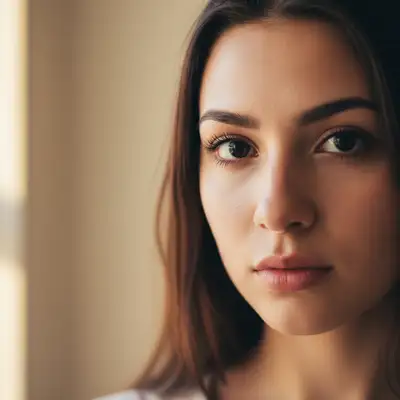
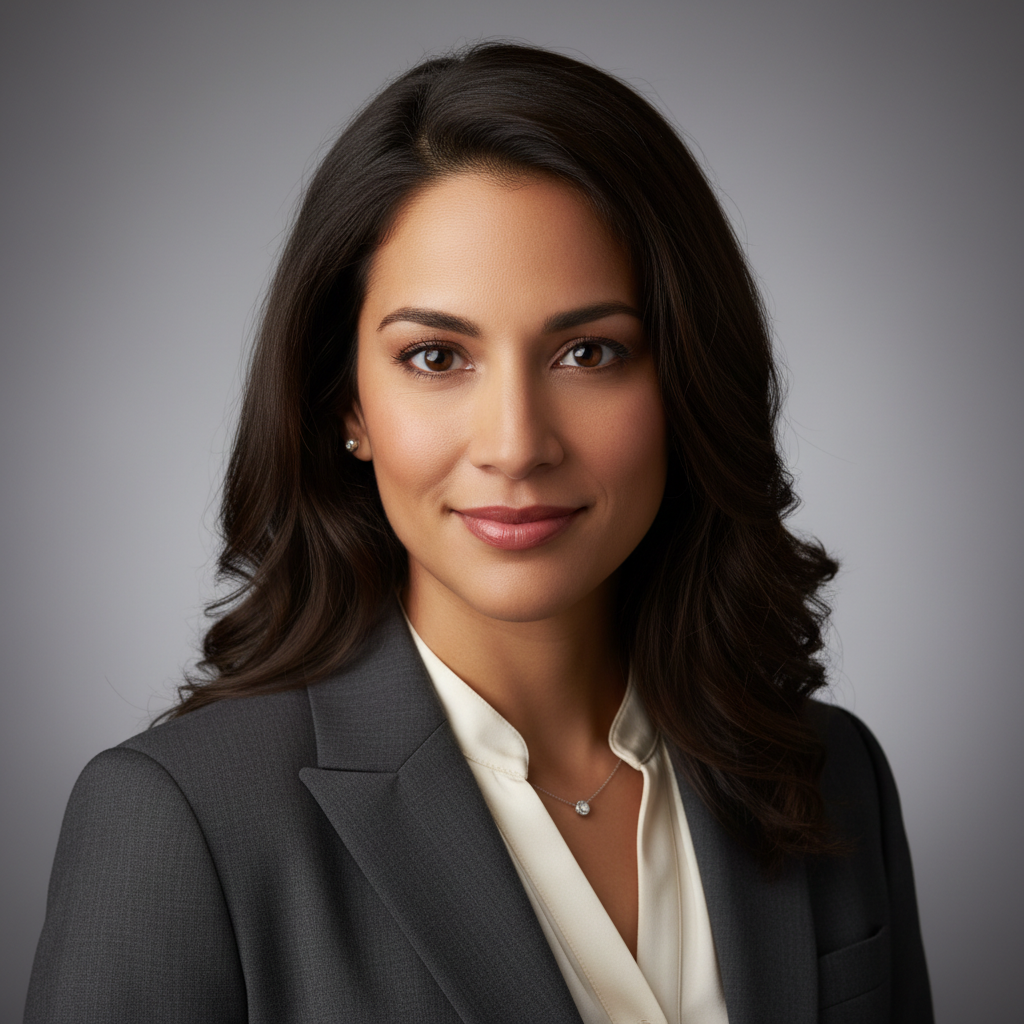
Professional portrait with dark brown eyes
Before
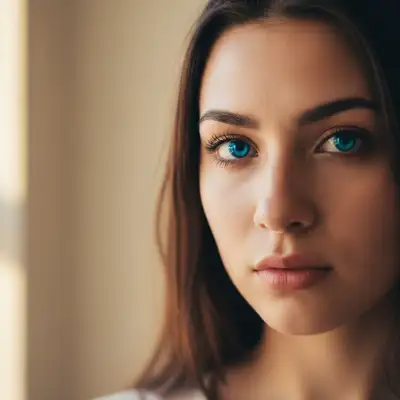
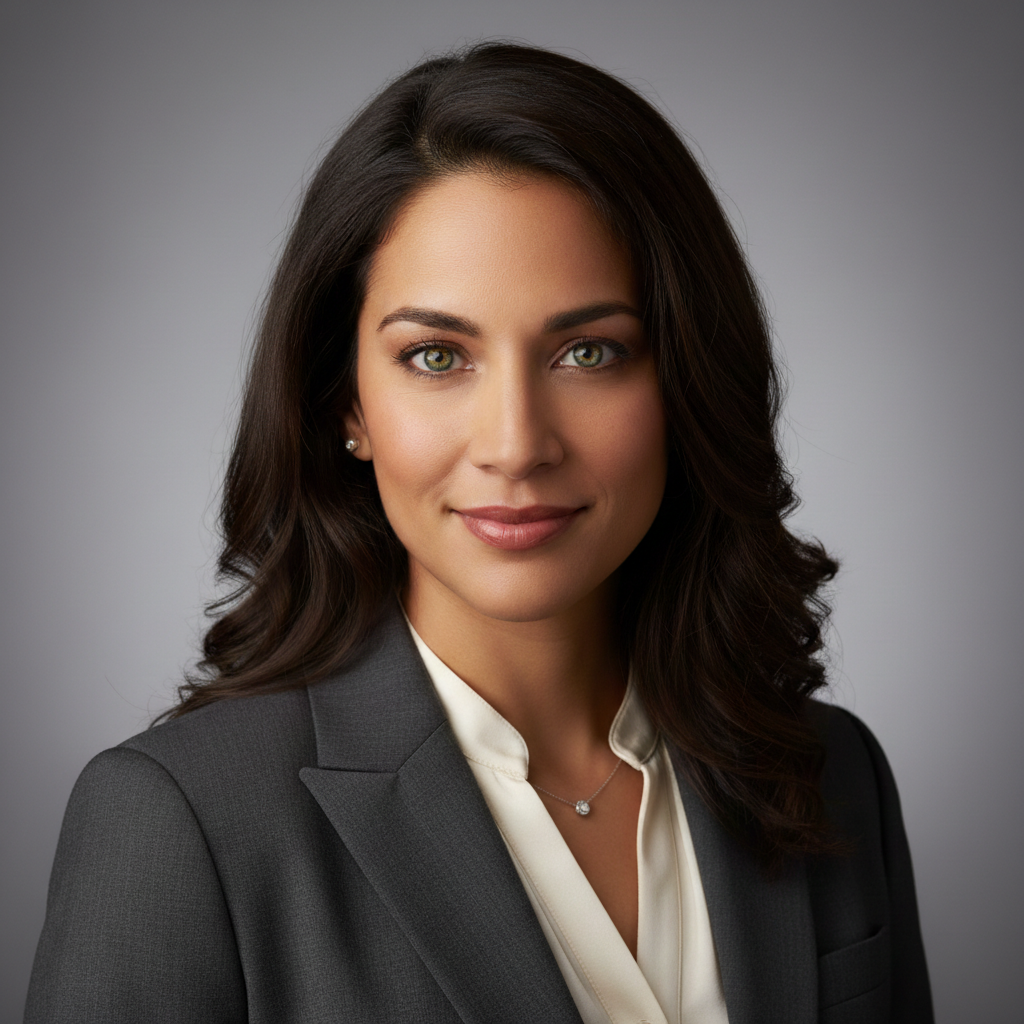
Same portrait with naturally changed bright blue eyes
After

Change Eye Color in Photo

Upload photo to change eye color

Any color • Natural look • Free

Release to upload

FreeNo signupNo watermark
Popular use cases:
  • portrait photography
  • dating app photos
  • social media profiles
  • headshots
  • fantasy portraits
  • cosplay photos
  • character design
  • modeling portfolios

Cost
Free No signup required
Time
Instant results in 15-30 seconds
Works on
Any device - browser, phone, tablet, desktop
Powered by
AI-powered photo editing
Scenario Prompt Time
Bright blue eyes change eye color to bright blue with natural iris detail and reflections 20s
Emerald green eyes make eyes emerald green with natural depth and preserve iris texture 20s
Hazel multi-tone change eye color to hazel with brown center fading to green outer ring naturally 25s
Amber golden eyes make eyes warm amber gold with natural brightness and maintain catchlights 20s

How it works

  1. Upload your photo

    Upload a clear, front-facing portrait. Good lighting on the face and visible facial features give the AI the best foundation for eye color editing. JPG, PNG, WebP up to 7MB.

    Expect: Simple color changes: 20-30 seconds. Complex multi-tone or gradient effects: may need 2-3 refinements.
  2. Describe the color you want

    Type your instruction: 'change eye color to bright blue' or 'make eyes emerald green with natural iris detail.' Be specific about the shade and tone. No marking needed—the AI locates eyes automatically and preserves natural iris patterns, reflections, and depth.

    Tip: Include 'natural iris detail' or 'preserve iris texture' for the most realistic results. The AI maintains individual iris patterns while changing color.

    Copy one of these to get started:

    Natural blue eyes change eye color to bright blue with natural iris detail and reflections
    Emerald green eyes make eyes emerald green with natural depth and preserve iris texture
    Hazel multi-tone eyes change eye color to hazel with brown center fading to green outer ring naturally
    Amber golden eyes make eyes warm amber gold with natural brightness and maintain catchlights
    4 more prompts
    Violet fantasy eyes change eye color to vivid violet purple with natural depth and realistic iris patterns
    Steel gray eyes make eyes steel gray-blue with subtle variation and preserve natural eye highlights
    Heterochromia effect make the left eye bright blue and the right eye emerald green, both with natural iris detail
    Enhance natural color intensify the natural eye color to make it more vibrant while keeping the same base tone
  3. Generate and review

    Click Generate and watch the AI analyze the eyes. It identifies irises, applies your chosen color, preserves natural patterns and catchlights, and adjusts for lighting. Zoom in to verify the color matches your description and iris detail remains natural.

  4. Refine with markers if needed

    If the color isn't quite right or if the AI changed the wrong eyes in a group photo, tap markers on those specific eyes and regenerate. This is optional—most eye color changes work without markers on individual portraits.

    Tip: Markers help when you want different colors for each eye (heterochromia effect) or when specifying which person's eyes to change in a group photo.
Try it free

Change Eye Color in Photo

Upload photo to change eye color

Any color • Natural look • Free

Release to upload

Free • No signup

See it in action

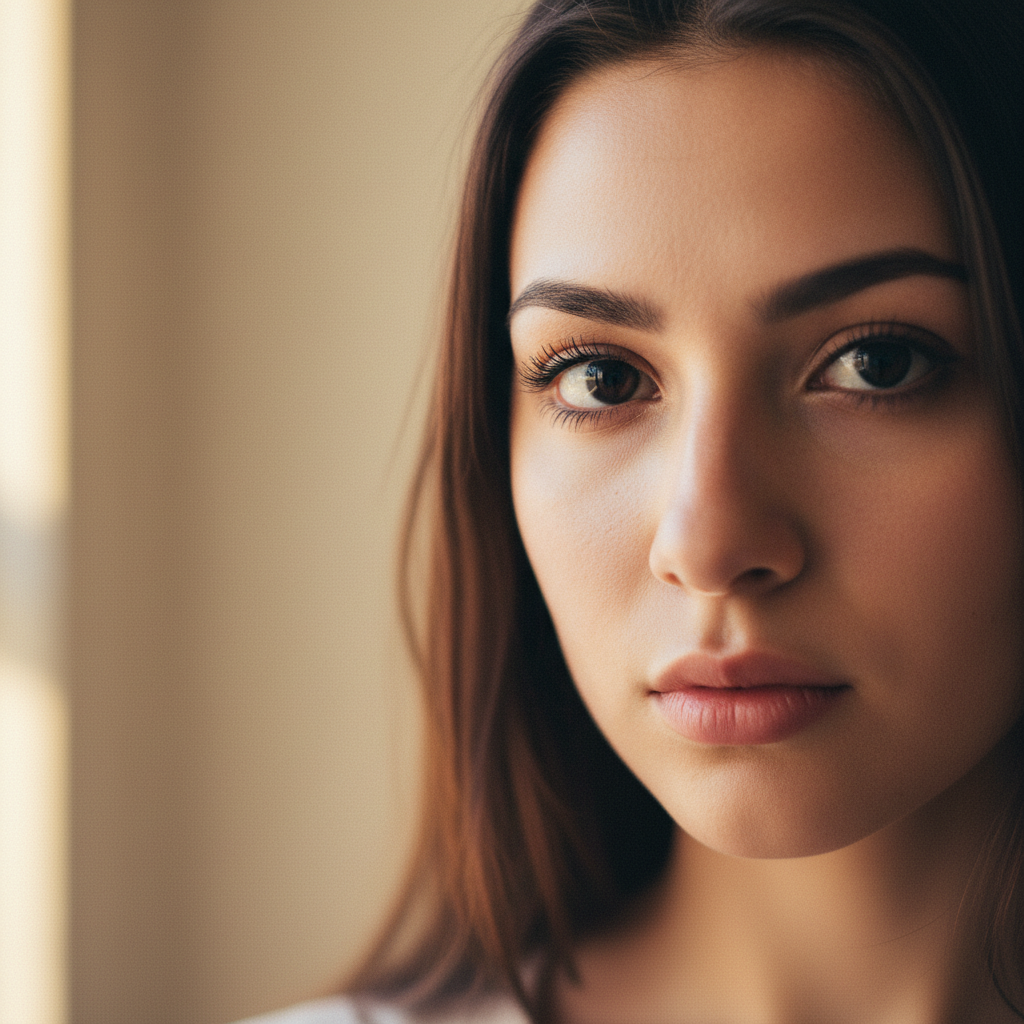
Professional portrait with dark brown eyes
Before
->
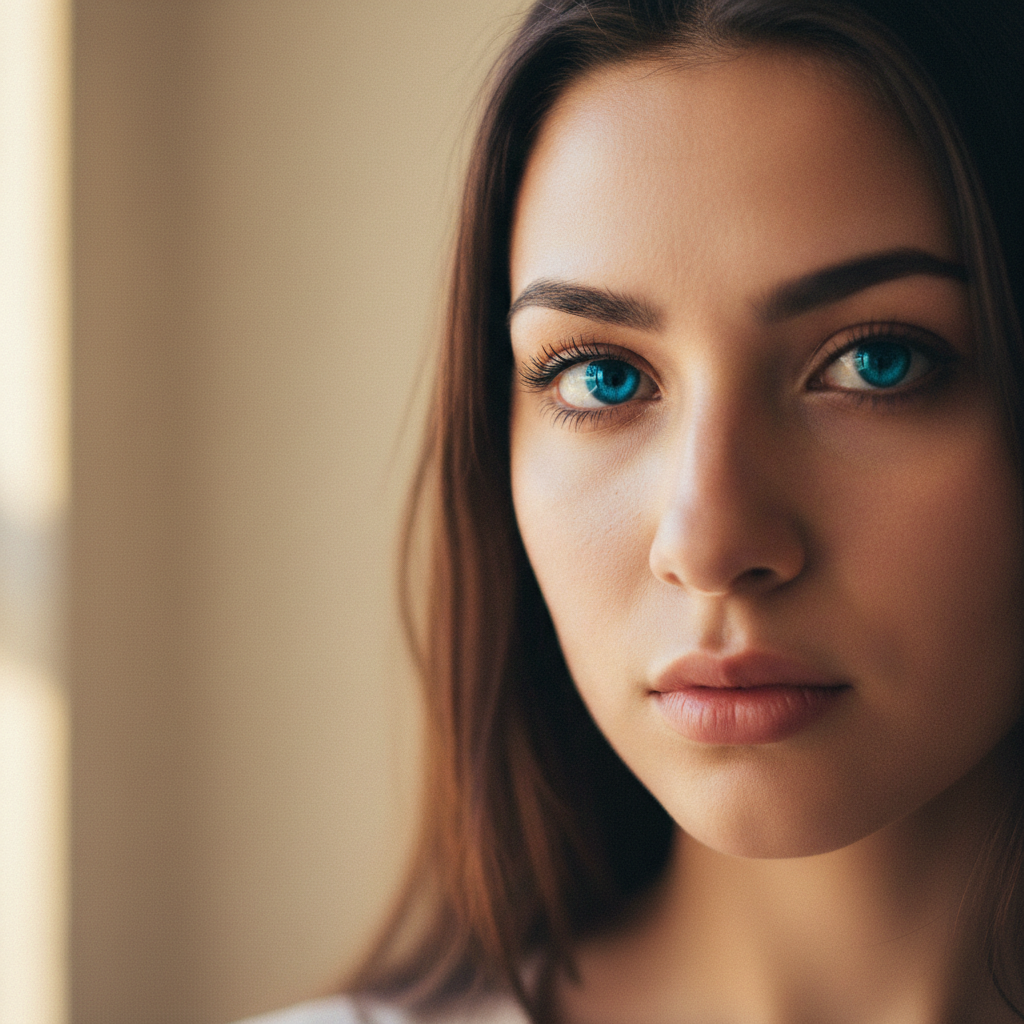
Same portrait with naturally changed bright blue eyes
After

Brown to bright blue eyes

Changed dark brown eyes to bright blue for a professional headshot. The AI preserved natural iris texture and light reflections perfectly.

Prompt: change eye color to bright blue with natural iris detail and reflections
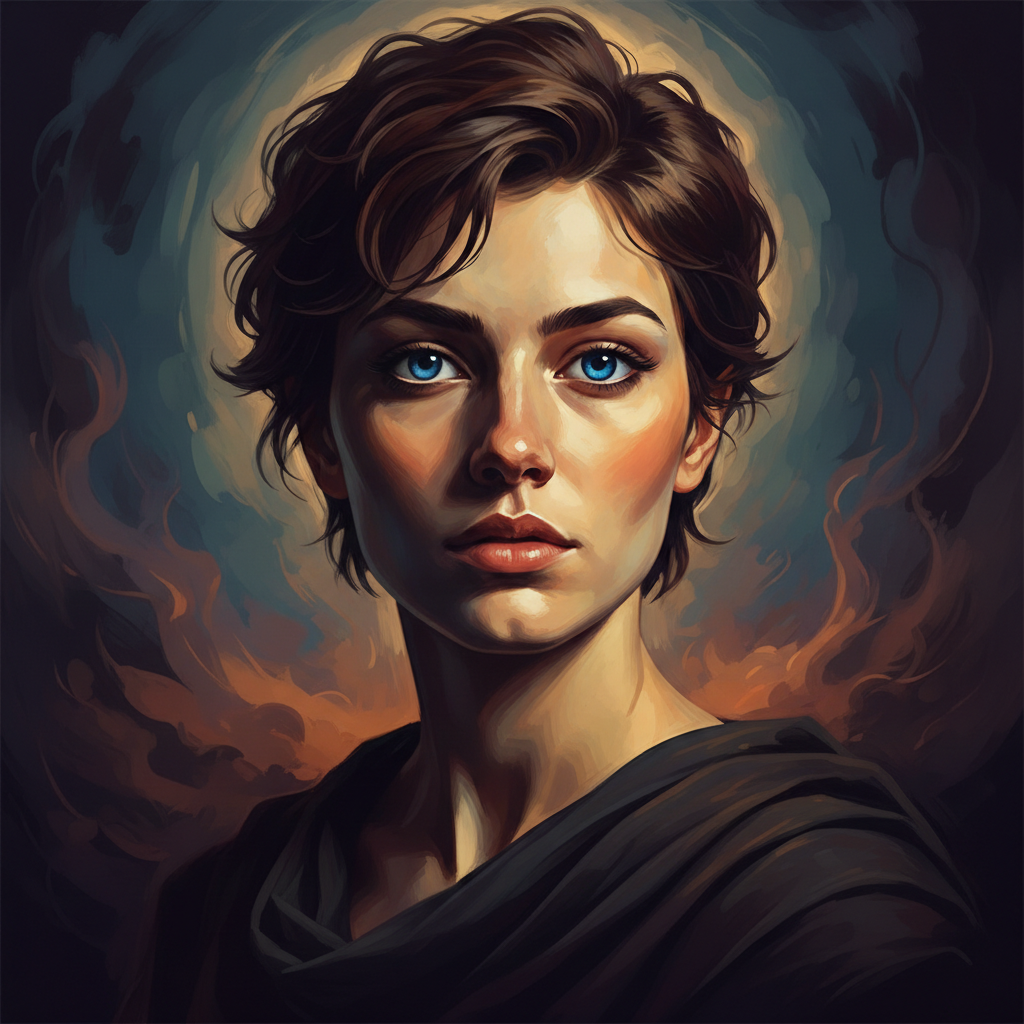
Portrait with light blue eyes
Before
->
Portrait with naturally changed emerald green eyes
After

Blue to emerald green eyes

Transformed light blue eyes to rich emerald green for a creative portrait. One prompt delivered natural depth and iris detail.

Prompt: make eyes emerald green with natural depth and preserve iris texture
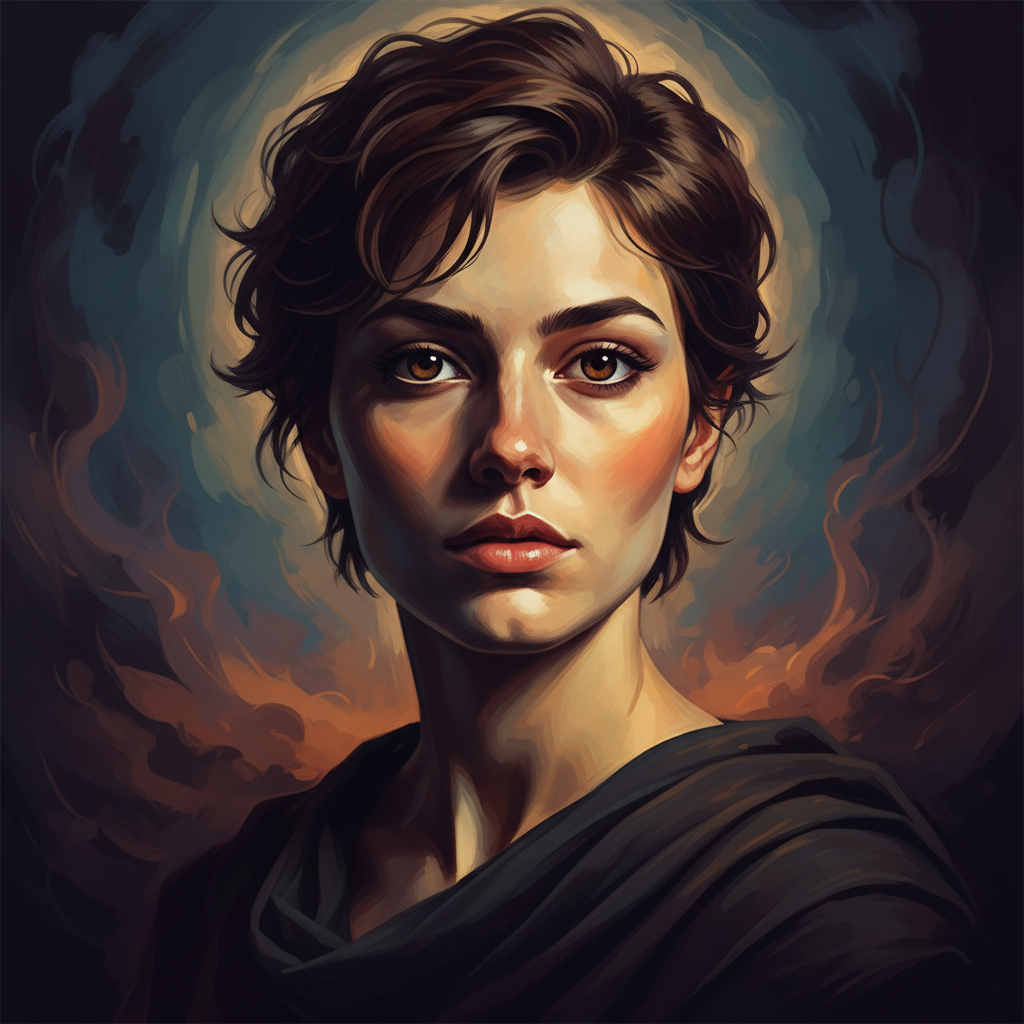
Portrait with very dark brown eyes
Before
->
Portrait with naturally changed multi-tone hazel eyes
After

Dark to hazel multi-tone eyes

Changed dark eyes to complex hazel with brown-to-green gradient. The AI created realistic multi-tone coloring on first try.

Prompt: change eye color to hazel with brown center fading to green outer ring naturally

Detailed Guides by Scenario

📷

Portrait Photography & Headshots

Enhance portraits and professional headshots by changing eye color to complement lighting, wardrobe, or personal preference.

Common Scenarios

  • Brightening eye color in a professional headshot for a LinkedIn or corporate profile
  • Adjusting eye color to complement the outfit and background in a portrait session
  • Creating a series of eye color variations for a model's portfolio

Best Practices

  • Use a well-lit, front-facing portrait with both eyes clearly visible for the best results
  • Include 'natural iris detail' in your prompt to preserve realistic depth and texture
  • For professional headshots, stick to natural colors (blue, green, hazel) rather than fantasy shades
📷

Social Media & Dating Profiles

Preview how different eye colors look on you before buying colored contacts, or simply enhance your selfies for social profiles.

Common Scenarios

  • Testing how blue, green, or hazel contacts would look before purchasing
  • Enhancing natural eye color to make it pop in dating app photos
  • Creating a dramatic eye look for Instagram or TikTok selfies

Best Practices

  • Use a selfie with good natural lighting for the most realistic preview
  • Try 'intensify the natural eye color' if you just want a subtle enhancement rather than a full change
  • For contact lens previews, match the exact shade name from the brand for accuracy
📷

Cosplay & Fantasy Character Design

Create fantasy eye colors for cosplay photos, character design, and creative projects — from violet and amber to full heterochromia effects.

Common Scenarios

  • Matching your eye color to a cosplay character's signature look
  • Creating supernatural eye effects like glowing violet or deep crimson for fantasy portraits
  • Designing heterochromia (two different eye colors) for a unique character look

Best Practices

  • Even unusual colors look believable when you include 'natural iris patterns' in the prompt
  • For heterochromia, specify each eye separately: 'left eye blue, right eye green'
  • Pair the eye color change with matching costume edits for a complete character transformation

If something looks off

AI changed the wrong eyes in a group photo

Why: The AI couldn't determine which person's eyes you meant from description alone. This happens in photos with multiple people.

Try: Tap markers on the specific person's eyes, then regenerate with: 'change only the marked eyes to [color]'

Tip: Markers tell the AI 'I mean THESE eyes specifically.' Essential for group photos with multiple subjects.

New eye color looks flat or artificial

Why: The AI applied solid color without preserving iris texture and natural variation. This happens when prompts don't specify texture preservation.

Try: Regenerate with: 'change eye color to [color] while preserving all natural iris patterns, texture, and depth variation'

Tip: Always mention 'natural iris detail' or 'preserve texture'—this is key for realistic results.

Eye color is too bright or saturated

Why: The AI interpreted 'bright' or 'vivid' as maximum saturation. Natural eyes have subtle tone variation, not pure color.

Try: Try: 'change eyes to natural [color] with subtle tone variation, not oversaturated'

Tip: Adding 'natural' and 'subtle' tones down the intensity for more realistic results.

Lost catchlights or eye sparkle after color change

Why: The AI changed the entire eye including the light reflections. This removes the natural sparkle that makes eyes look alive.

Try: Regenerate with: 'change iris color to [color] but preserve all catchlights, highlights, and reflections'

Tip: Explicitly mentioning 'preserve catchlights' ensures eye reflections remain after the color change.

Color doesn't match the lighting in the photo

Why: The AI applied the literal color you specified without adjusting for the photo's lighting conditions. Eyes in warm light should have warm tones.

Try: Try: 'change eye color to [color] matching the warm/cool lighting in the photo'

Tip: Specifying 'matching the lighting' helps the AI adjust the color temperature realistically.

Only one eye changed or color is uneven between eyes

Why: One eye may be partially obscured, in shadow, or at an angle that confused the AI's detection.

Try: Mark both eyes clearly and use: 'change both marked eyes to [color] evenly'

Tip: Photos with both eyes clearly visible and evenly lit produce the most consistent results.

Quick answers

Do I need to mark the eyes before describing?

No! Just describe what you want: 'change eye color to bright blue' or 'make eyes emerald green.' The AI locates eyes automatically in front-facing portraits. Only use markers when you need precision—like choosing which person's eyes to change in a group photo, or creating different colors for each eye.

How do I change eye color in a photo for free?

Upload your photo to EditThisPic and type 'change eye color to [your color choice] with natural iris detail.' The AI finds the eyes, applies your color while preserving iris patterns and reflections in 20-30 seconds. Free to try with no signup, no watermark, and no credit card required.

Is there a free eye color changer that doesn't require login?

Yes. EditThisPic changes eye color without requiring an account. Just upload your portrait, describe the color you want, and download the result. No email, no signup, completely free for your first edit.

What's the best AI tool for changing eye color in photos?

EditThisPic uses Google's Gemini AI which understands facial anatomy and iris structure. Unlike manual selection tools in apps that create flat color, you just describe what you want: 'change eyes to blue.' The AI preserves natural iris patterns, depth, catchlights, and adjusts for lighting automatically. Works on portraits, selfies, headshots, and close-up photos.

Will the changed eye color look natural?

Yes, when you include 'natural iris detail' or 'preserve iris texture' in your prompt. The AI maintains the individual radial patterns, color variation, and light reflections that make eyes look real. Results appear natural on well-lit portraits with eyes in focus. Check at full zoom—if it looks flat, regenerate with emphasis on texture preservation.

Can I create heterochromia or two different eye colors?

Yes. Specify both eyes in your prompt: 'make the left eye bright blue and the right eye emerald green, both with natural iris detail.' The AI can create different colors for each eye. If it doesn't work from description alone, mark each eye separately and regenerate.

Can I change eye color on my phone?

Yes. EditThisPic works in any mobile browser — iPhone, Android, tablet. No app download needed.

What photo formats does the AI eye color changer support?

JPG, PNG, WebP, and HEIC. Upload any common photo format and EditThisPic handles the rest.

Ready to change your eye color?

Free to try. No signup required.