Free β€’ No signup Add Smile Β· Free

AI Smile Generator

Describe the smile you want. AI handles facial adjustments.

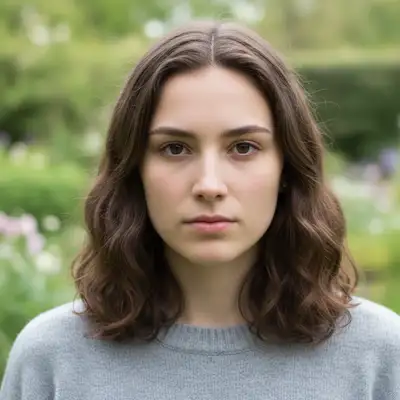
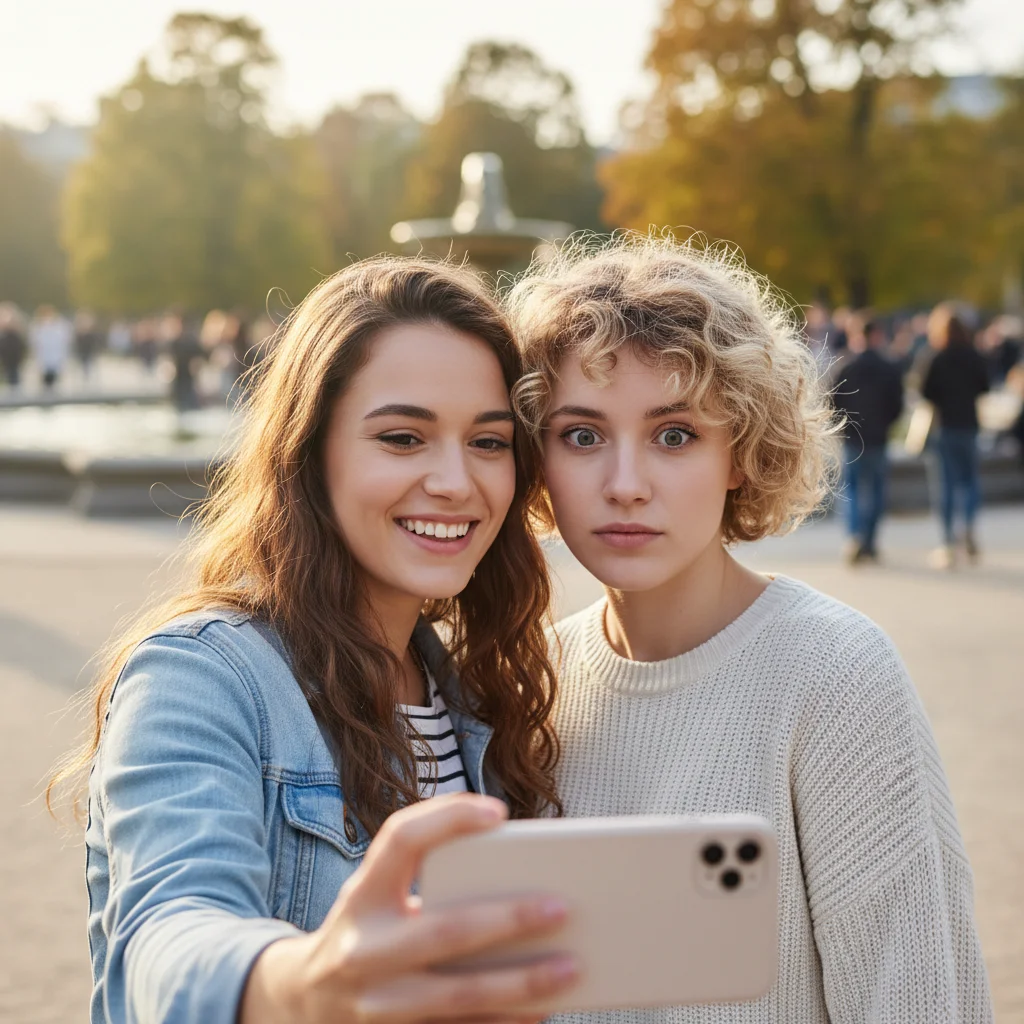
Woman in business attire with serious expression
Before
β†’
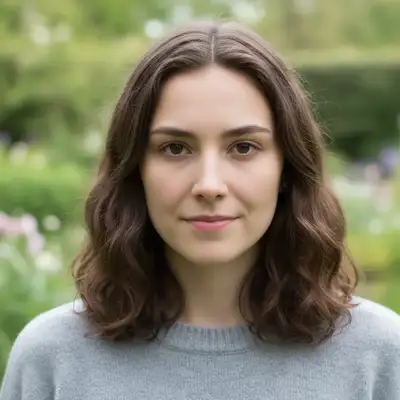
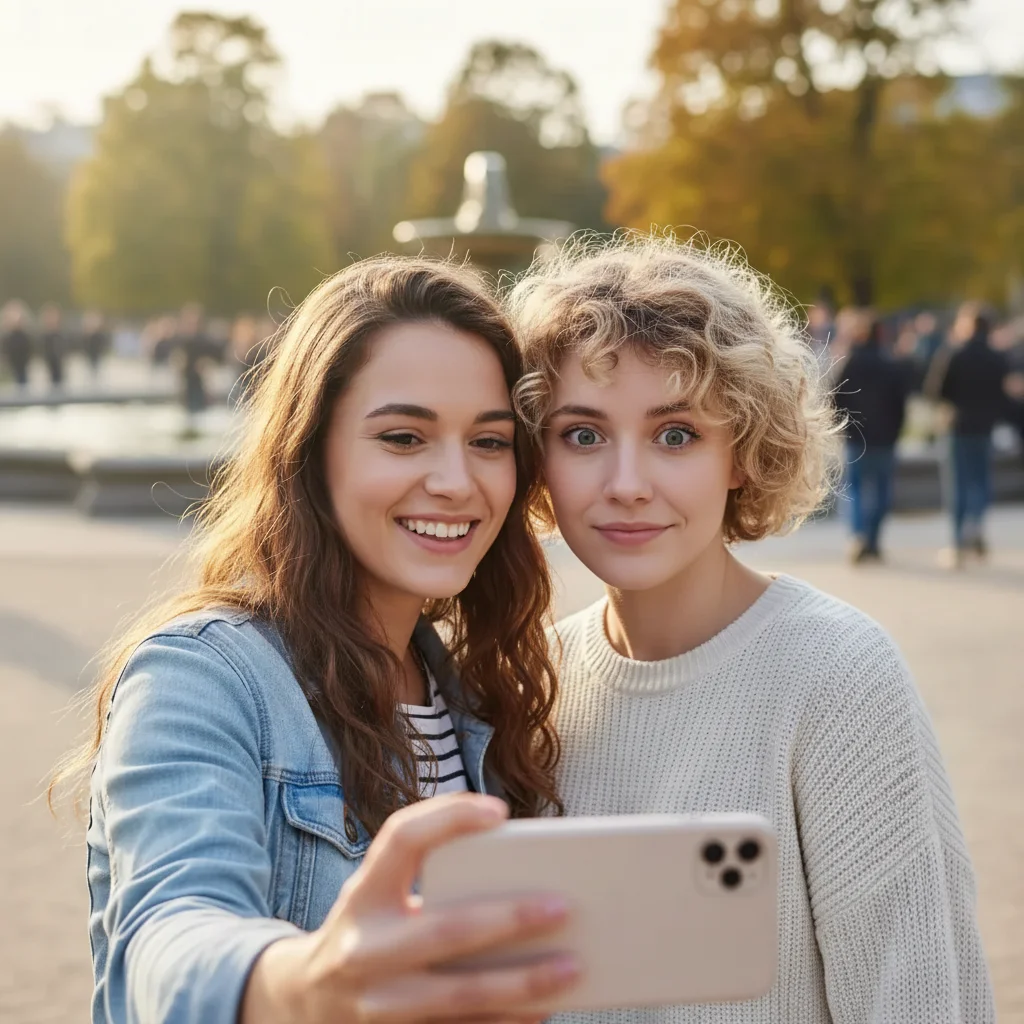
Same woman with confident professional smile
After

Add Smile to Photo

Upload photo to add smile

Free β€’ Results in 30 seconds β€’ No signup

Release to upload

FreeNo signupNo watermark
Popular use cases:
  • professional headshots
  • LinkedIn profiles
  • dating profile photos
  • social media portraits
  • group photo fixes
  • family portraits
  • business photos
  • resume headshots

Cost
Free No signup required
Time
Instant results in 15-30 seconds
Works on
Any device - browser, phone, tablet, desktop
Powered by
AI-powered photo editing
Scenario Prompt Time
Professional smile add a confident professional smile with warm eyes, subtle and polished 20s
Natural warm smile give her a natural warm smile with happy eyes and slight eye crinkles 15s
Bright cheerful smile add a bright cheerful smile showing teeth with genuine happy expression 20s
Subtle smile give him a subtle gentle smile, closed mouth with soft eyes 15s

How it works

  1. Upload your photo

    Upload a clear, front-facing portrait. Good lighting on the face and visible facial features give the AI the best foundation for smile editing. JPG, PNG, WebP up to 7MB.

    Expect: Simple portraits: 15-20 seconds for natural smile. Group photos or complex lighting: may need slight refinement for perfect expression matching.
  2. Describe the smile you want

    Type your instruction: 'add a warm natural smile with happy eyes' or 'give him a confident professional smile.' Be specific about the type of smile (subtle, bright, warm) and mention eyes for authenticity. The AI automatically identifies the face and applies the expression naturally.

    Tip: Real smiles involve the eyes. Include 'with happy eyes' or 'genuine smile with eye crinkles' for more authentic results that don't look forced.

    Copy one of these to get started:

    Professional headshot smile add a confident professional smile with warm eyes, subtle and polished
    Natural warm smile give her a natural warm smile with happy eyes and slight eye crinkles
    Bright cheerful smile add a bright cheerful smile showing teeth with genuine happy expression
    Subtle gentle smile give him a subtle gentle smile, closed mouth with soft eyes
    6 more prompts
    Relaxed casual smile add a relaxed casual smile with natural teeth showing and friendly expression
    Joyful laughing smile transform to a joyful smile like they're laughing, big genuine smile with happy eyes
    Dating profile smile add a friendly approachable smile with naturally parted lips and warm inviting eyes
    Smirk or playful smile give a slight playful smirk with one corner of the mouth raised and amused eyes
    Fix an awkward smile replace this awkward smile with a natural relaxed smile, keep eyes warm and expression genuine
    Toothy confident grin add a wide confident grin showing teeth with sparkling eyes and raised cheeks
  3. Generate and review

    Click Generate and watch the AI add the smile. Check that it looks natural and matches the photo's mood. The AI preserves facial features while adjusting mouth and eyes for a genuine expression.

  4. Adjust if needed

    If the smile is too wide or not quite right, refine with a new prompt: 'make the smile more subtle' or 'bigger smile showing teeth.' Most smile additions work on the first try, but you can fine-tune the expression easily.

    Tip: Match the smile to the photo's context. Professional headshots need confident subtle smiles; casual photos can have brighter, more relaxed expressions.
Try it free ↓

Add Smile to Photo

Upload photo to add smile

Free β€’ Results in 30 seconds β€’ No signup

Release to upload

Free β€’ No signup

See it in action

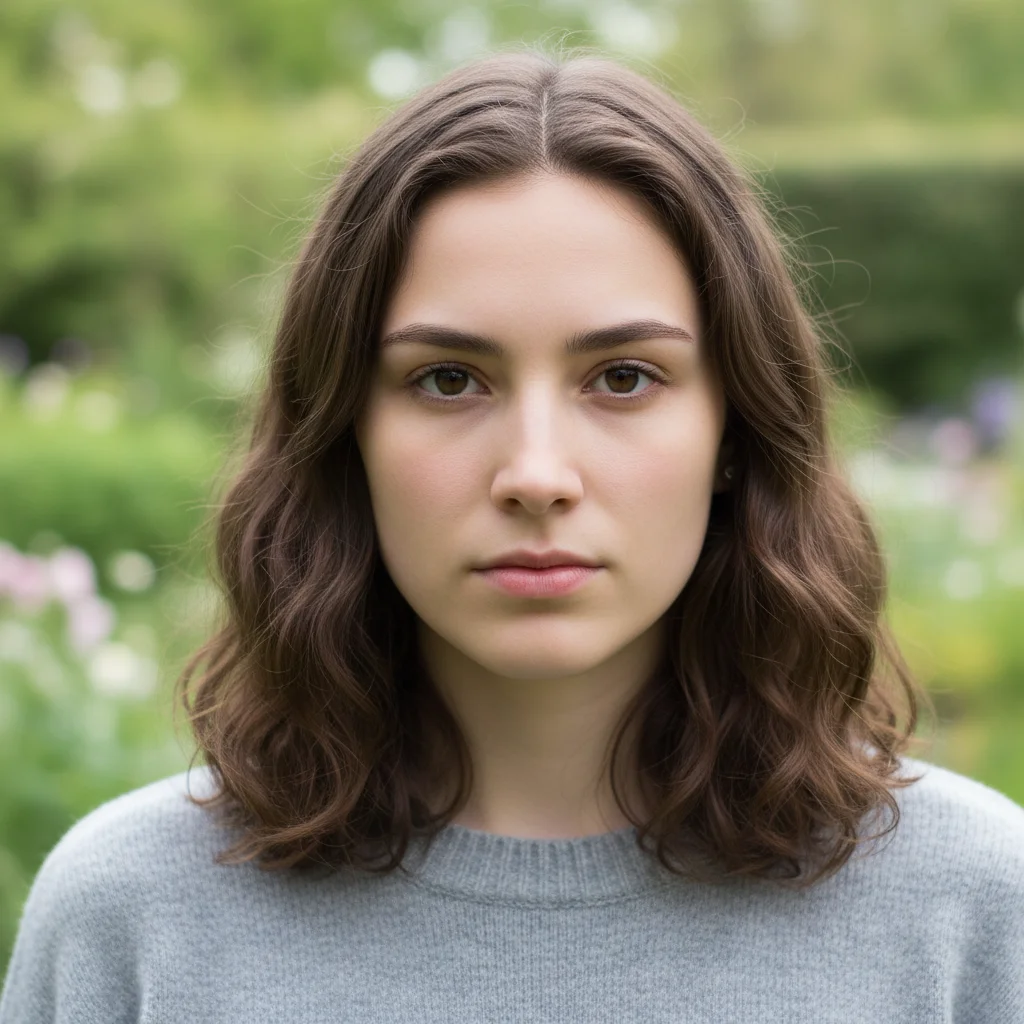
Woman in business attire with serious expression
Before
->
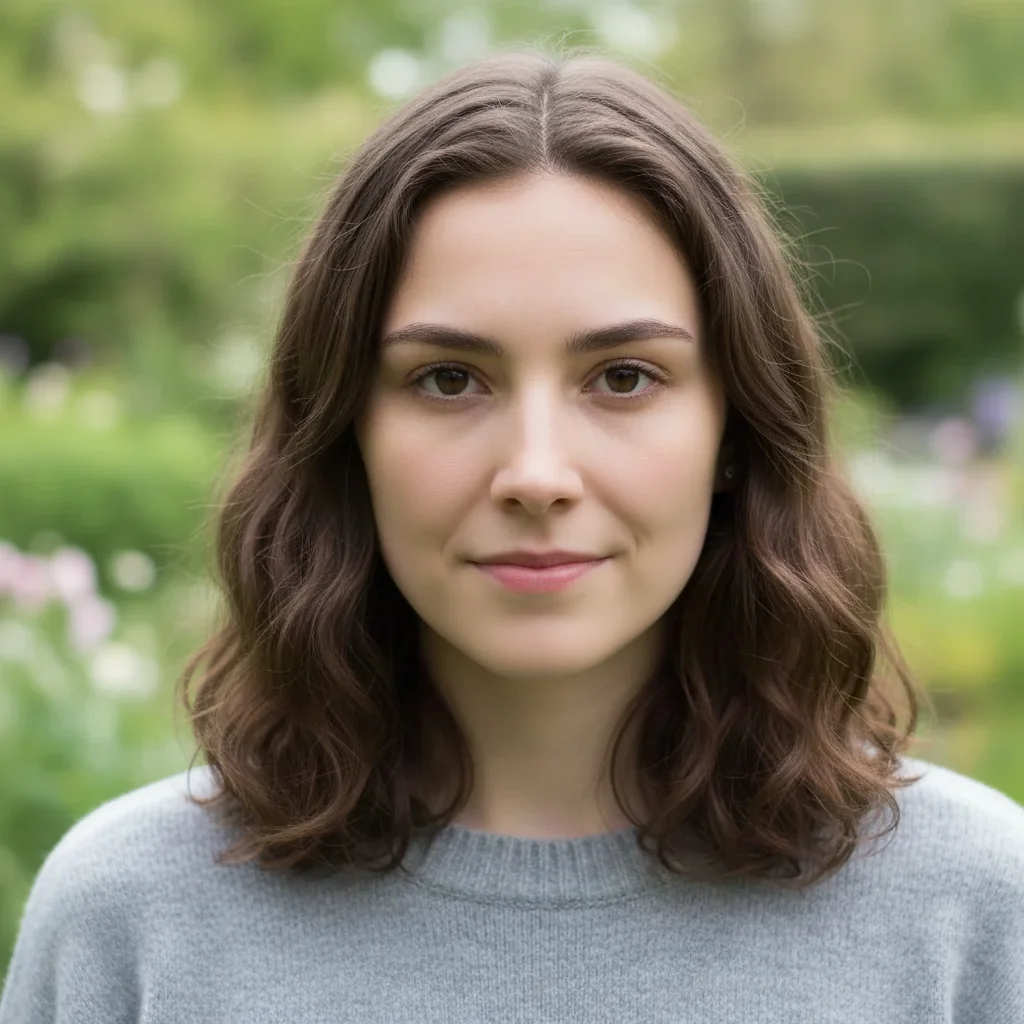
Same woman with confident professional smile
After

Professional LinkedIn headshot

Transformed a serious business photo into an approachable professional headshot with a confident smile.

Prompt: add a confident professional smile with warm eyes, subtle and polished
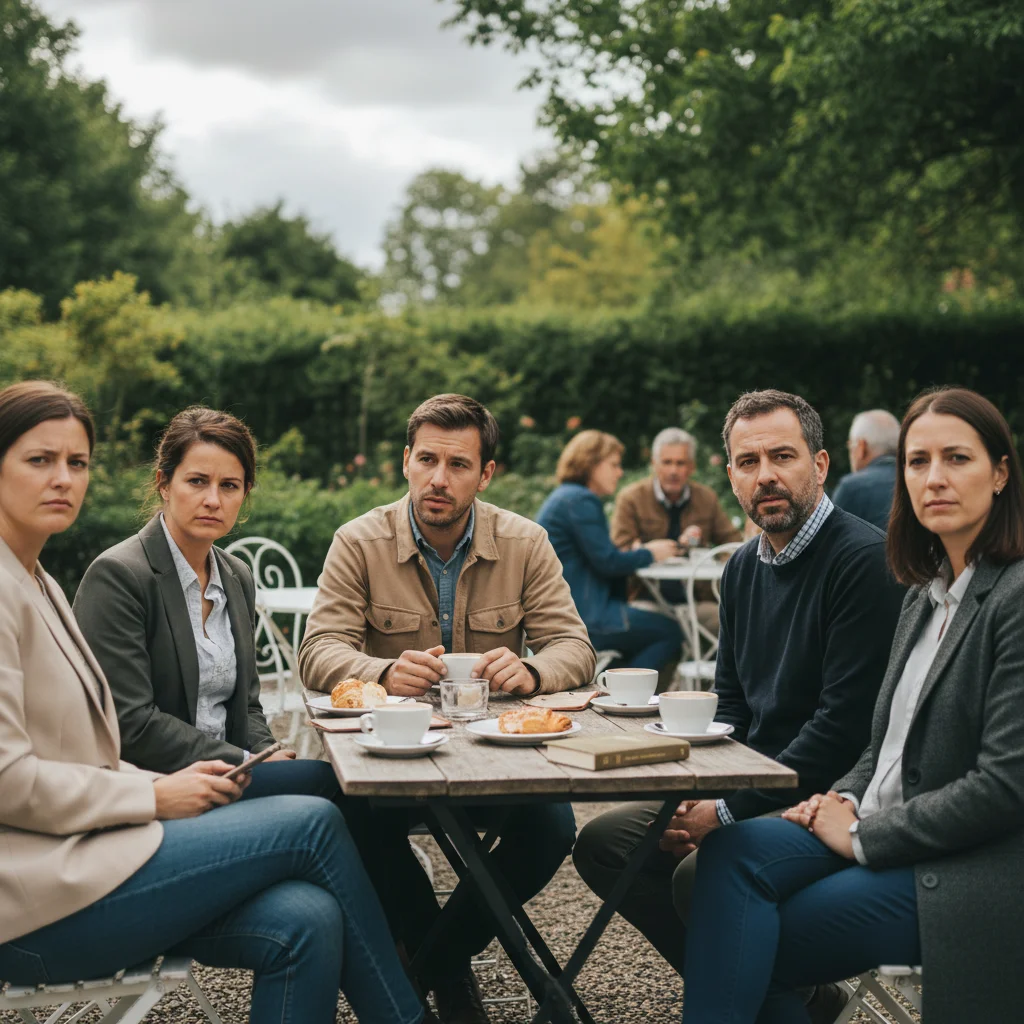
Group photo with one person not smiling
Before
->
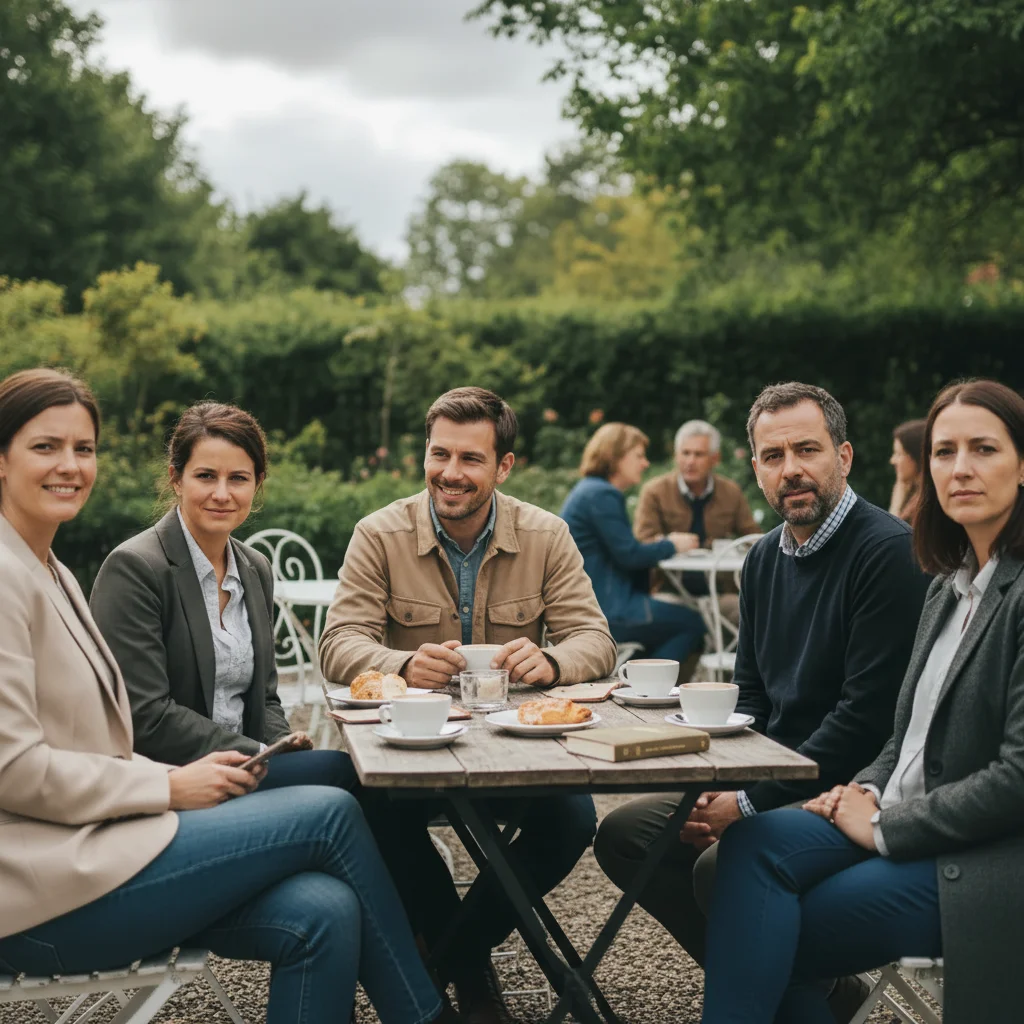
Group photo with everyone smiling naturally
After

Group photo smile fix

Added a natural smile to one person who wasn't smiling while everyone else was happy.

Prompt: give the man on the left a natural warm smile matching the group's happy mood
Man with slight smirk
Before
->
Man with bright genuine smile
After

Casual portrait enhancement

Turned a slight smirk into a genuine bright smile for a more engaging social media profile photo.

Prompt: add a bright cheerful smile showing teeth with genuine happy expression

Detailed Guides by Scenario

πŸ“·

Professional Headshots & LinkedIn

Add confident, approachable smiles to professional headshots for LinkedIn, resumes, and corporate directories.

Common Scenarios

  • Upgrading a serious business headshot with a warm professional smile for LinkedIn
  • Fixing a rushed corporate photo where the expression came out flat or tense
  • Creating a friendly approachable look for a company website team page

Best Practices

  • Use 'professional' and 'subtle' in your prompt for business-appropriate results
  • Always include 'with warm eyes' to avoid a mouth-only smile that looks forced
  • Front-facing portraits with even lighting produce the most natural smile additions
πŸ“·

Dating Profiles & Social Media

Transform neutral or awkward expressions into warm, genuine smiles for dating apps, Instagram, and social profiles.

Common Scenarios

  • Adding a warm inviting smile to a dating profile photo that looks too serious
  • Fixing an Instagram photo where you love the outfit and background but the expression is off
  • Creating a friendlier version of a selfie for your social media profile picture

Best Practices

  • For dating profiles, use 'friendly approachable smile with naturally parted lips'
  • Casual photos can handle bigger, brighter smiles than formal portraits
  • Include 'genuine' or 'natural' in the prompt to avoid an over-processed look
πŸ“·

Group & Family Photos

Fix the one person who wasn't smiling in an otherwise perfect group or family photo.

Common Scenarios

  • Adding a smile to one family member who blinked or looked away during the shot
  • Matching everyone's expression in a wedding or reunion group photo
  • Fixing a child's serious expression in a holiday card photo

Best Practices

  • Identify the person by position and clothing: 'the man on the left in the blue shirt'
  • Match the smile intensity to the rest of the group for a natural result
  • Run one edit per person if multiple people need smile adjustments

If something looks off

AI changed the wrong person in a group photo

Why: The AI wasn't sure which face to modify when multiple people are visible.

Try: Be specific about who: 'add a smile to the woman on the right' or 'give the child in the red shirt a happy smile'

Tip: Use position (left, right, center) or clothing color to identify the specific person clearly.

Smile looks forced or unnatural

Why: The AI created a smile without matching eye expression, or the prompt asked for an extreme smile.

Try: Always include eyes: 'add a gentle smile with warm happy eyes' or try 'subtle natural smile with slight eye crinkles'

Tip: Real smiles always involve the eyes. The Duchenne smile (genuine) shows eye crinkles; fake smiles don't.

Face looks distorted or features changed

Why: The photo has poor lighting, low resolution, or the face is at an extreme angle making facial structure unclear.

Try: Use a higher quality photo with better lighting. Front-facing or slight angle works best. Avoid extreme profiles or heavily shadowed faces

Tip: The AI needs to see facial features clearly. Photos with harsh shadows or blur make natural smile generation difficult.

Smile doesn't match the photo's mood or context

Why: The smile type doesn't fit the setting (e.g., big laugh in a formal portrait).

Try: Match smile to context: 'professional subtle smile' for business, 'warm casual smile' for social, 'big joyful smile' for celebrations

Tip: Consider the photo's purpose. LinkedIn needs professional; Instagram can be casual; family portraits want warm.

Only mouth changed, eyes still look sad or serious

Why: The prompt didn't specify eye expression, so AI only modified the mouth.

Try: Always mention eyes: 'smile with happy eyes', 'genuine smile with warm eyes', or 'bright smile with crinkled eyes'

Tip: The eyes are crucial. A smile with sad eyes looks fake. Always request matching eye expression.

Smile is too big or too small

Why: The prompt's descriptors (subtle vs bright) weren't specific enough for your vision.

Try: Use size descriptors: 'slight smile', 'moderate smile', 'big smile', or 'wide grin' for better control

Tip: You can iterate: if first result is too big, try 'make the smile more subtle and gentle.'

Quick answers

Do I need to mark the face before adding a smile?

No! Just describe the smile you want: 'add a natural warm smile' or 'give her a professional confident smile.' The AI automatically detects faces. Only specify which person if there are multiple people: 'add smile to the man on the left.'

How do I add a smile to a photo for free?

Upload your photo to EditThisPic, type what kind of smile you want (like 'add a natural warm smile with happy eyes'), and click Generate. The AI handles facial expression modification automatically. No Photoshop or manual editing required. Free to try with no signup.

Will the added smile look natural or obviously fake?

When you include eye expression in your prompt (like 'with happy eyes' or 'with eye crinkles'), the AI creates genuine-looking Duchenne smiles that involve the whole face. The key is matching the smile type to your photo's context and always mentioning the eyes for authenticity.

Can I add smiles to group photos?

Yes! Specify which person you want to modify: 'add a smile to the woman on the right' or 'give the child in the blue dress a happy smile.' The AI can add smiles to specific individuals in group photos while leaving others unchanged.

What's the best free AI smile generator?

EditThisPic offers free AI-powered smile generation with no signup, no watermark, and no download required. Unlike manual photo editing that requires reshaping mouths and eyes separately, EditThisPic understands natural facial expressions and creates genuine-looking smiles automatically. Perfect for professional headshots, social media profiles, and fixing group photos.

Is there a free AI smile tool that doesn't require login or signup?

Yes. EditThisPic adds smiles to photos for free with no account or login required. Upload your photo, describe the smile you want, and download the result. No watermarks, no email needed. Works directly in your browser on any device.

Is EditThisPic's AI smile adder really free?

Yes β€” you get 1 free edit per week, no account needed. For unlimited edits, plans start at $3.99/month.

Can I add smile on my phone?

Yes. EditThisPic works in any mobile browser β€” iPhone, Android, tablet. No app download needed.

What photo formats does the AI smile adder support?

JPG, PNG, WebP, and HEIC. Upload any common photo format and EditThisPic handles the rest.

Can the AI add a smile to a side-profile photo?

The AI works best with front-facing or slightly angled portraits where the mouth and eyes are clearly visible. Extreme side profiles make it harder to generate a natural smile because the AI cannot fully see the facial structure. For side views, try a subtle closed-mouth smile for the most natural result.

Will adding a smile change other parts of my face?

The AI focuses on the mouth and eye area to create a natural expression. Minor adjustments to cheeks and around the eyes are normal since real smiles engage the whole face. Your overall facial features, hair, skin, and background will remain unchanged.

Can I add different smiles to different people in the same photo?

Yes. Run multiple edits on the same photo, specifying each person: 'add a bright smile to the woman on the left' then 'add a subtle smile to the man on the right.' Each edit targets only the person you describe, leaving everyone else unchanged.

Is it safe to upload my headshot or personal photo?

Yes. EditThisPic processes your photo in real time and does not store images on any server. Your portrait is sent to the AI, the smile is added, and the result is returned directly to your browser. No photos are saved or used for training.

Ready to add natural smiles to your photos?

Free to try. No signup required.