Free • No signup Change Cabinet color · Free

AI Cabinet Color Changer

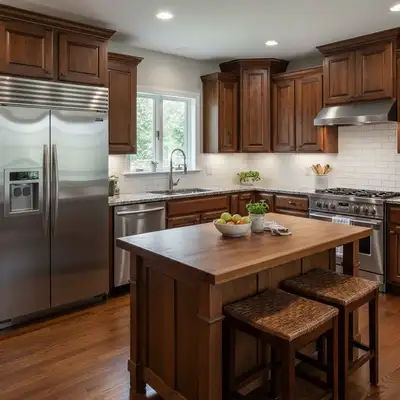
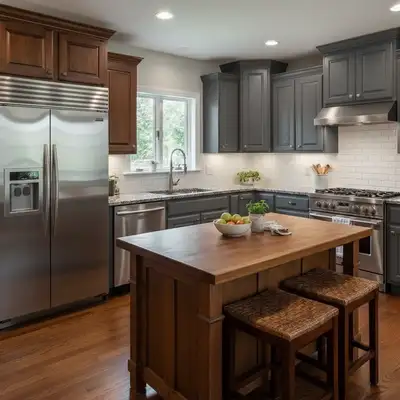
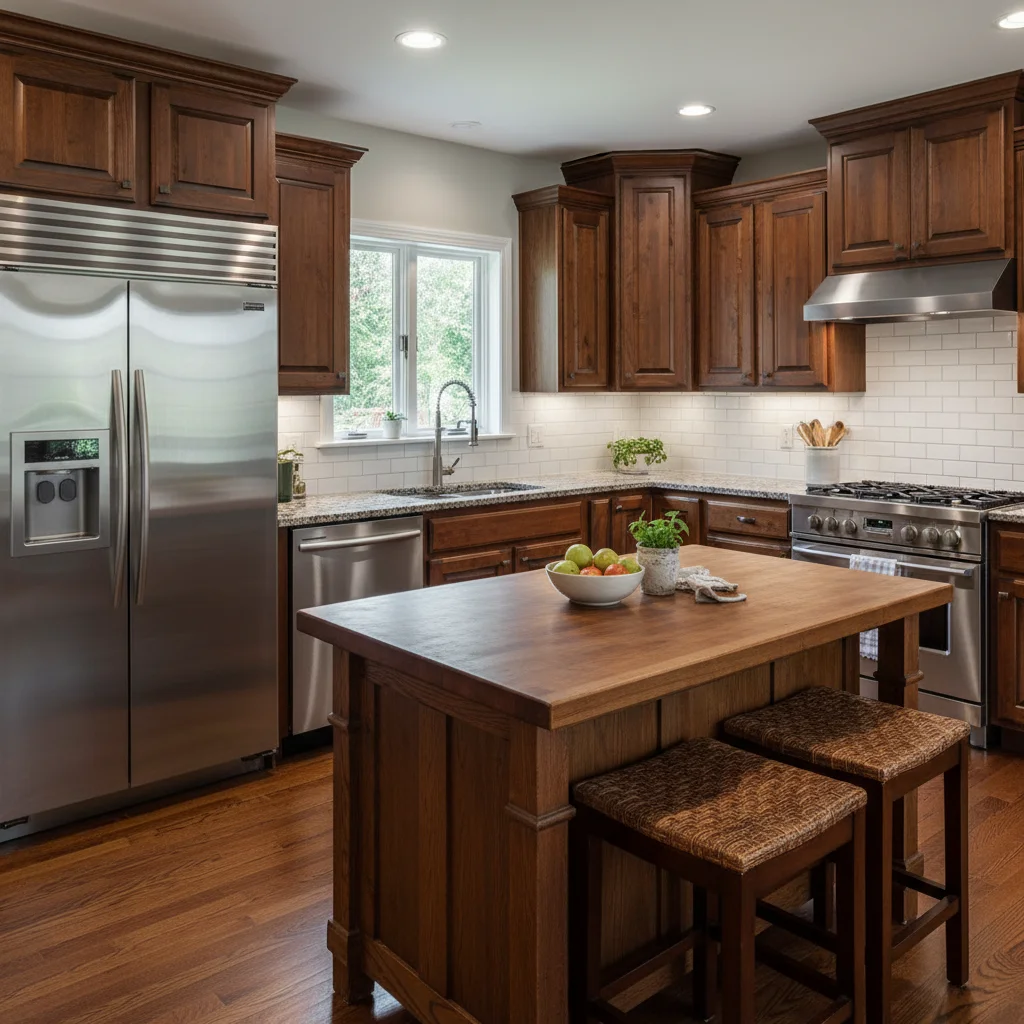
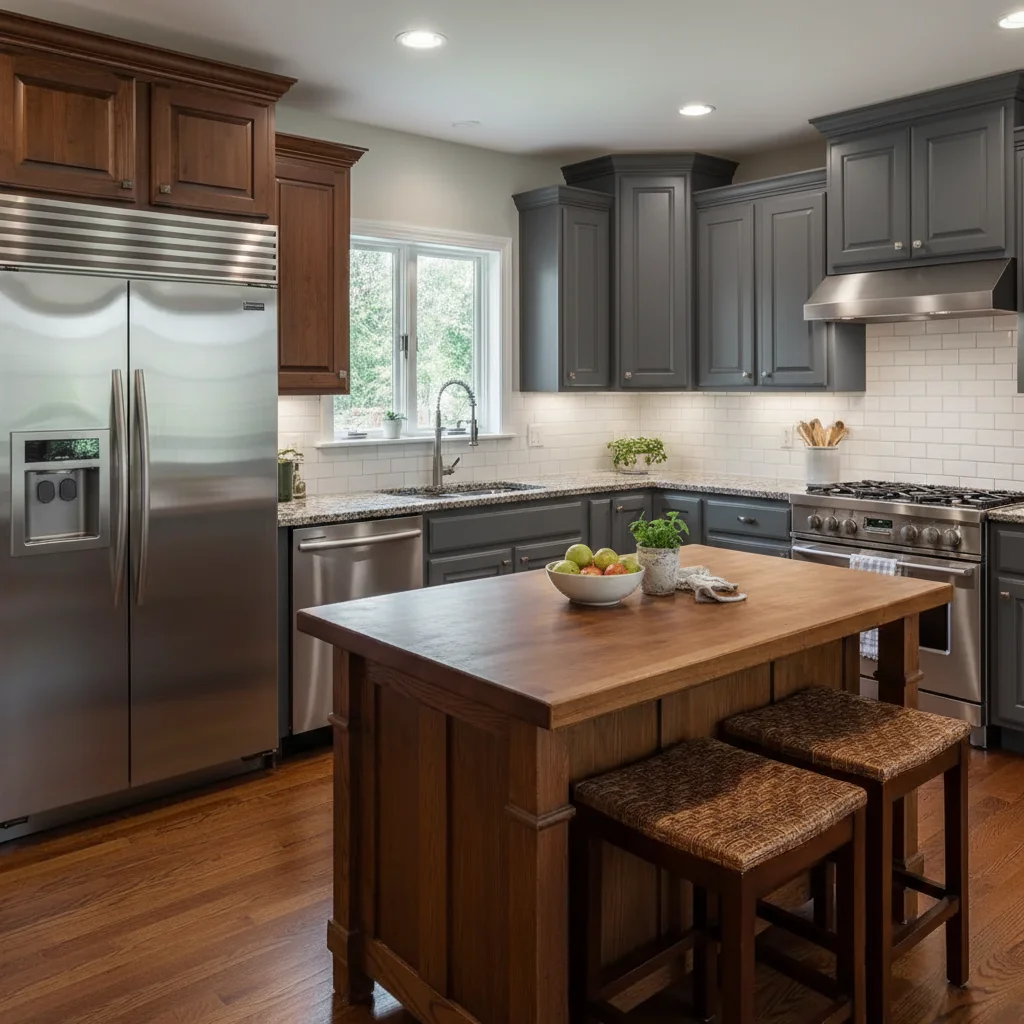
Before
Before
After
After

Free AI Cabinet Color Changer

Drop your photo here

or click to browse

Release to upload

Free • No signup

Advertisement
Popular use cases:
  • kitchen remodel planning
  • cabinet painting visualization
  • home renovation
  • real estate staging
  • interior design visualization
  • contractor proposals
  • two-tone kitchen design
  • cabinet color selection
  • before and after comparisons

Cost
Free No signup required
Time
Instant results in 15-30 seconds
Works on
Any device - browser, phone, tablet, desktop
Powered by
AI-powered photo editing
Scenario Prompt Time
Classic white kitchen 15-30s
Modern dark cabinets 15-30s
Two-tone design 15-30s
Natural wood 15-30s

How it works

  1. Upload your photo

    Choose any photo of your kitchen, bathroom, or room with cabinets you want to recolor. Works best with clear, well-lit photos where cabinets are fully visible. The AI handles kitchen cabinets, bathroom vanities, built-in cabinetry, or any cabinet furniture.

    Expect: Medium complexity change: 25-35 seconds. May need refinements if cabinets have complex lighting or you want very specific color matching.
  2. Describe what you want

    Simply type the new color you want: 'change cabinets to white,' 'make cabinets dark gray,' or 'paint cabinets sage green.' Be specific about the color shade if you have preferences. The AI understands natural language and will identify and recolor the cabinets automatically while preserving wood grain texture, hardware, and natural shadows.

    Tip: Be specific about finish if it matters: 'matte white cabinets' vs 'glossy white cabinets' or 'weathered gray' vs 'modern gray.' For two-tone kitchens, specify which cabinets: 'upper cabinets white, lower cabinets navy.'

    Copy one of these to get started:

    change Change cabinets to white
    change Make cabinets navy blue
    change Paint cabinets dark gray, keep wood grain texture
    change Change cabinets to sage green with matte finish
    5 more prompts
    change Make upper cabinets white and lower cabinets charcoal
    change Change cabinets to light oak natural wood tone
    change Paint cabinets cream color, preserve hardware and hinges
    change Change kitchen cabinets to modern black
    change Make island cabinets forest green, keep wall cabinets white
  3. Review the result

    Check that the cabinet color changed realistically while hardware, countertops, and room details stayed the same. Ensure the color looks natural with your lighting and that wood grain or panel details are preserved. If the shade isn't quite right, refine your color description and regenerate.

  4. Download Your Remodeled Kitchen

    Save your recolored image in high resolution. The result has no watermarks and is perfect for visualizing remodels, sharing with contractors, getting family approval, or listing photos.

Try it free

Free AI Cabinet Color Changer

Drop your photo here

or click to browse

Release to upload

Free • No signup

See it in action

Before
Before
->
After
After

Classic White Kitchen

Change cabinets to white, keep wood grain texture visible

Prompt:
Before
Before
->
After
After

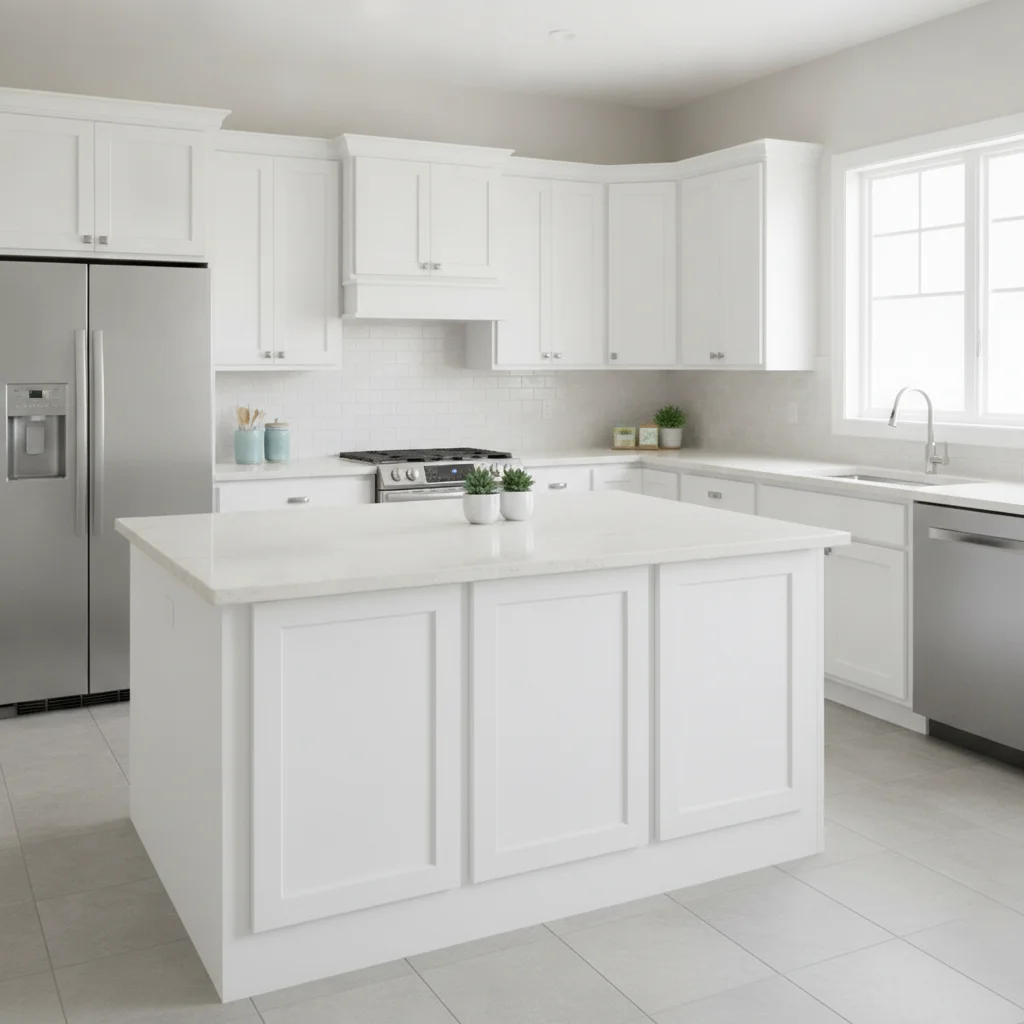
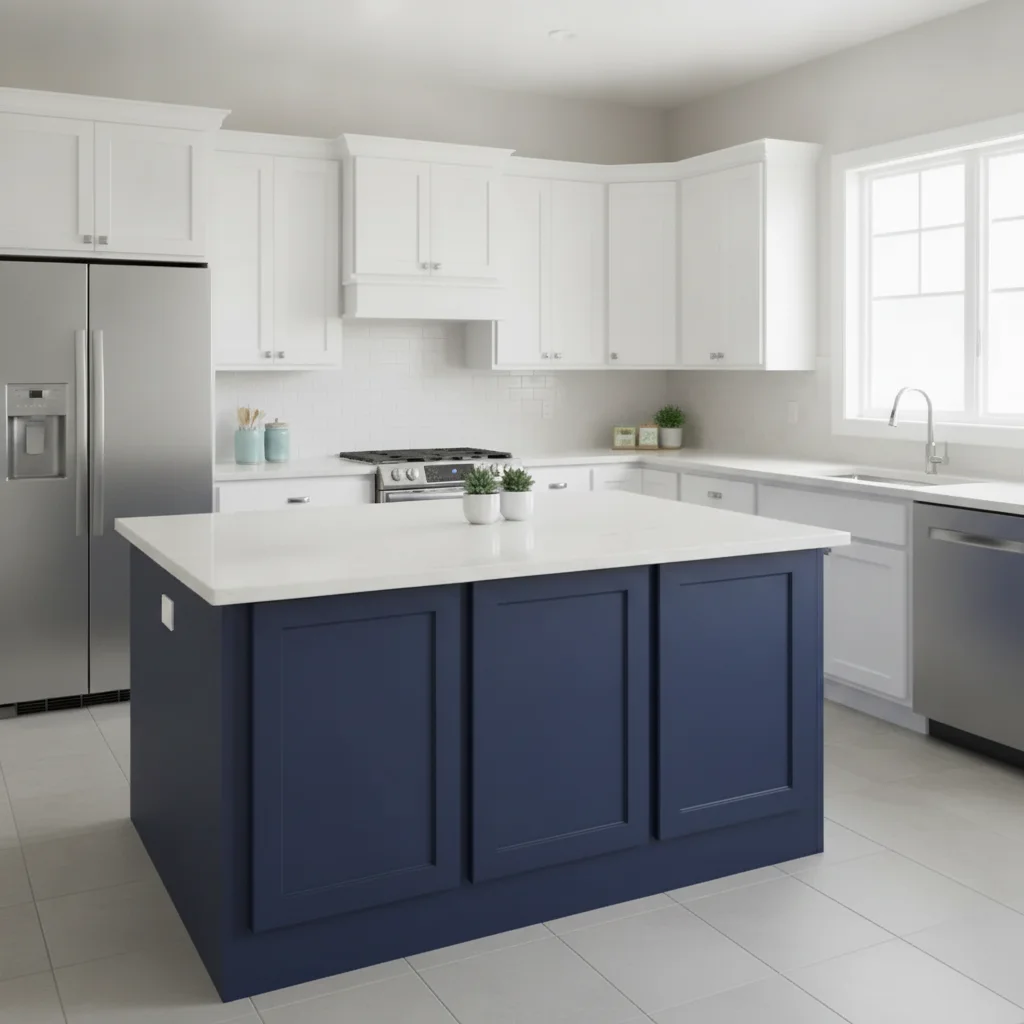
Modern Two-Tone Design

Make lower cabinets and island navy blue, keep upper cabinets white

Prompt:
Before
Before
->
After
After

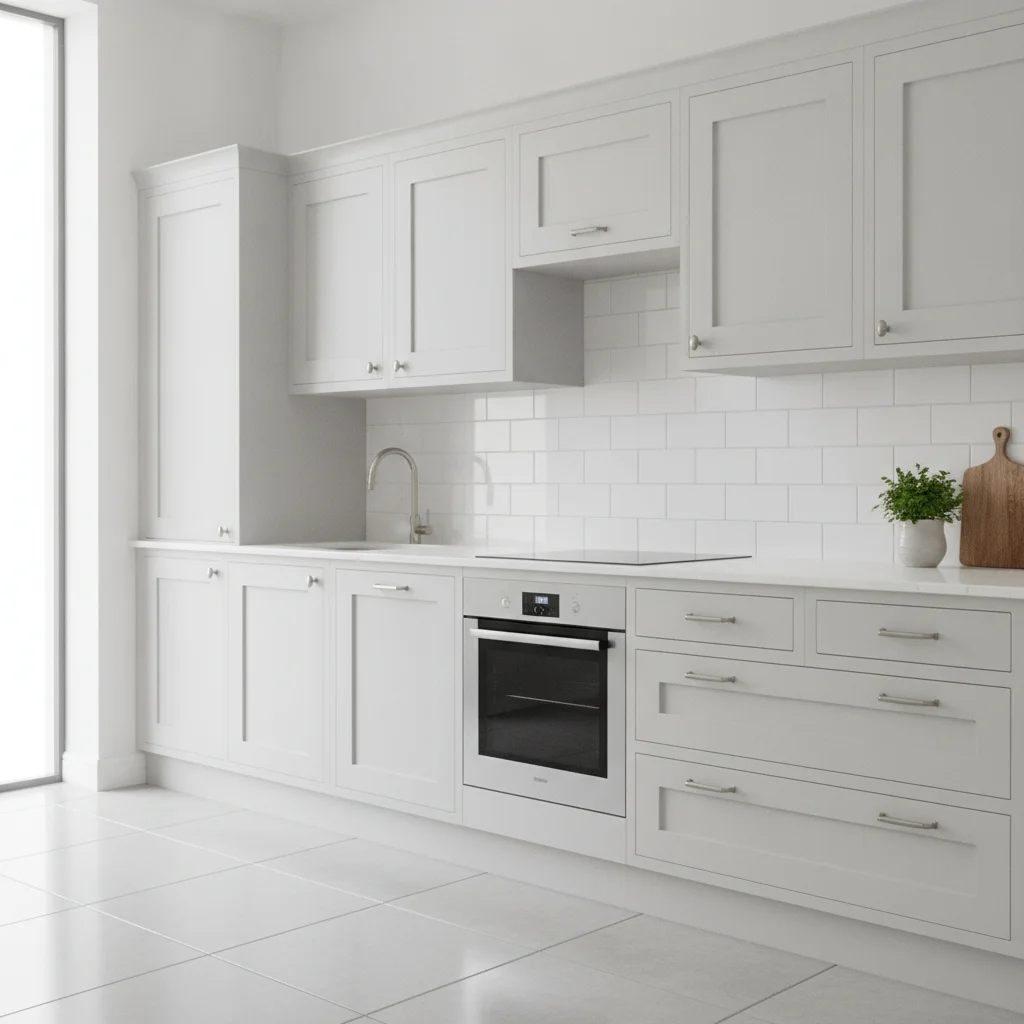
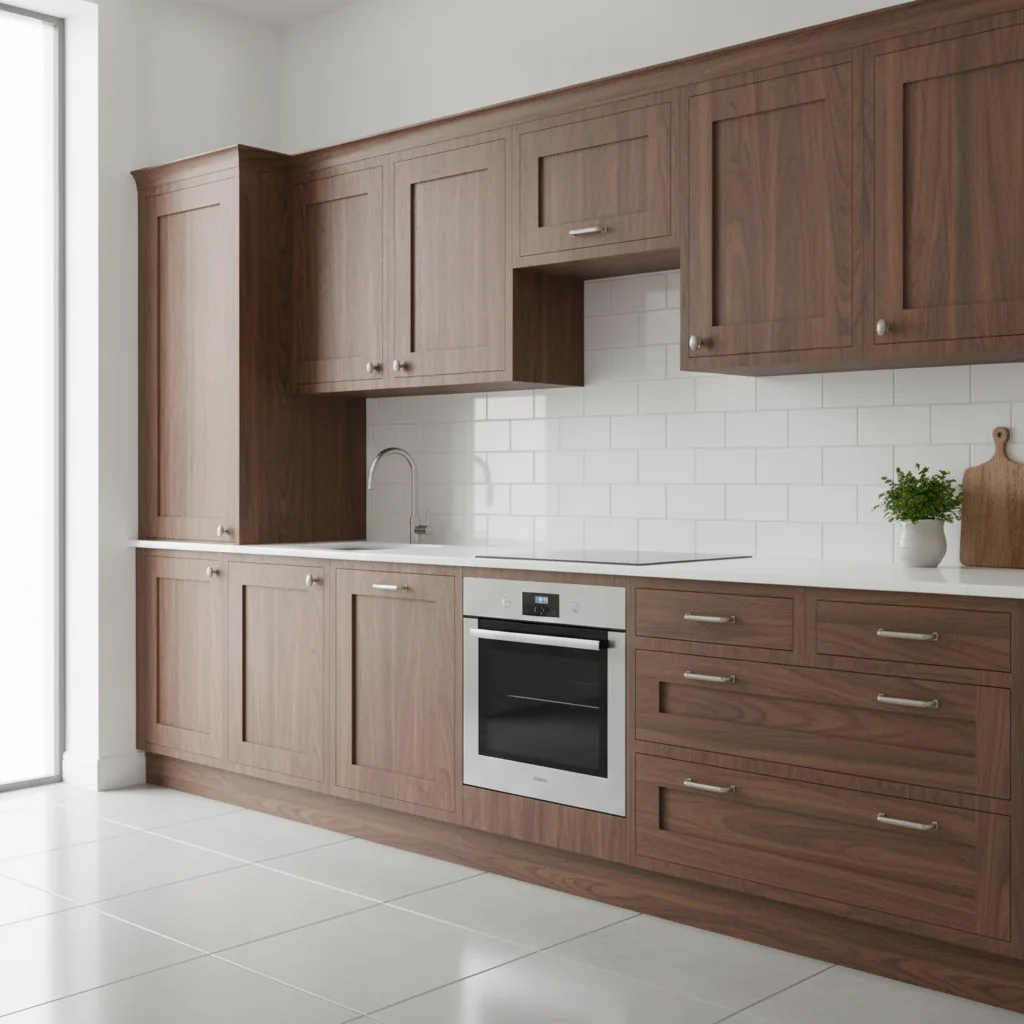
Natural Wood Conversion

Change cabinets to dark walnut stain with natural wood grain

Prompt:
Advertisement

If something looks off

AI changed the wrong area or something I didn't want changed

Why: The AI couldn't determine exactly which cabinets you meant, or mistook similar colored items for cabinets.

Try: Tap a marker on the specific cabinets you want recolored, then regenerate with the same prompt

Tip: Markers tell the AI 'I mean THESE cabinets specifically.' Use them when your photo has multiple cabinet areas or when other furniture might be confused with cabinets.

New color looks flat or artificial

Why: Lighting and shadows weren't properly preserved during recoloring.

Try: Add 'preserve natural lighting and shadows' or 'keep realistic cabinet depth' to your prompt

Tip: Cabinet recoloring should maintain dimensional shadows and light reflections. Mention 'realistic' or 'natural lighting' if results look too flat.

Wood grain or panel details disappeared

Why: The recoloring was too opaque and covered existing texture.

Try: Try 'change color but preserve wood grain' or 'show panel lines and texture'

Tip: Always mention 'keep texture' or 'preserve details' when recoloring cabinets with visible grain or raised panels you want to maintain.

Hardware or hinges changed color too

Why: The AI included hardware in the cabinet selection.

Try: Add 'keep hardware original color' or 'don't change handles and hinges' to your prompt

Tip: Explicitly state 'preserve hardware' to keep knobs, pulls, and hinges their original finish while only changing cabinet color.

Color doesn't match between multiple cabinet sections

Why: Different lighting on different cabinets created slight color variations.

Try: Try 'change all cabinets to consistent [color]' or 'uniform [color] on all cabinet surfaces'

Tip: Some natural color variation is realistic due to lighting. For perfectly uniform color, specify 'consistent' or 'uniform' in your prompt.

New color clashes with existing countertops or backsplash

Why: This is a design consideration, not a technical issue.

Try: Try different cabinet colors until you find one that complements your existing elements

Tip: Use this tool to test multiple color options quickly. Try 'warm white,' 'cool gray,' or 'sage green' to see what works with your space.

Quick answers

Do I need to mark the cabinets before describing what I want?

No! Just describe the color you want in plain English. The AI automatically identifies and recolors the cabinets. Only add markers if you want to recolor specific cabinets differently (like upper vs lower cabinets), or if your photo has multiple cabinet areas and you only want to change some.

Will the wood grain and cabinet details be preserved?

Yes, the AI preserves texture and details by default. You can emphasize this by adding 'keep wood grain' or 'preserve panel details' to your prompt. Shaker panels, raised details, and natural wood texture will remain visible through the new color.

Can I create a two-tone kitchen with different colored cabinets?

Yes! Specify which cabinets get which colors: 'upper cabinets white, lower cabinets navy' or 'island cabinets dark gray, wall cabinets cream.' Use markers on specific cabinet groups for more precise control.

What cabinet colors work best for visualization?

All colors work, but some are more popular: classic white, navy blue, sage green, charcoal gray, and natural wood tones. The AI handles bold colors (black, forest green) and subtle ones (cream, greige) equally well. Try multiple options to see what looks best with your space.

Does this work for bathroom vanities too?

Absolutely. This tool works for any cabinetry—kitchen cabinets, bathroom vanities, built-in bookcases, closet systems, or standalone cabinet furniture. Just describe what you want changed.

How accurate is the color representation?

Very accurate for standard colors. The AI interprets common color names (navy, sage, charcoal) consistently. For exact color matching, provide descriptive details like 'Benjamin Moore Simply White' or 'warm white with cream undertones.' Remember that your photo's lighting affects how colors appear.

Can I use this to convince my family about cabinet color changes?

Yes! This is perfect for visualizing remodel decisions before committing. Generate several color options to compare and share with family, contractors, or designers. It's much easier to make decisions when you can see realistic previews.

Ready to visualize your new cabinet color?

Free to try. No signup required.

Try it free