Free • No signup Open Editor

Blur & Privacy Tools

Blur faces for privacy, create portrait bokeh, obscure license plates, and add artistic depth. Describe what to blur and the AI handles the rest.

FreeNo signupNo watermark

Drop your photo here

or click to browse

Release to upload

Free • No signup

Advertisement

How AI Photo Blurring Works

Traditional blur tools require you to manually select the area you want to blur — drawing circles around faces, tracing license plate outlines, or carefully masking backgrounds around hair strands. AI-powered blur works from natural language descriptions. With EditThisPic, you describe what to blur: "blur all faces except the person in the red shirt" or "blur the background with soft bokeh effect." The AI identifies the elements, detects boundaries, and applies appropriate blur — all from one sentence. The AI understands context, which makes it far more powerful than manual selection. When you blur a background, it identifies the subject and creates a realistic depth-of-field gradient — closer objects get less blur, distant objects get more, just like a real camera lens. When you blur faces, it finds every face in the image and applies consistent obscuring while leaving everything else sharp. This context-awareness extends to edge handling. Hair, glasses, translucent clothing, and other complex boundaries that frustrate manual selection tools are handled automatically. The AI knows where your subject ends and the background begins, producing clean transitions that look natural rather than obviously edited.

Privacy Blurring: Faces, Plates, and Sensitive Info

Privacy blurring has become essential for content creators, businesses, journalists, and parents sharing photos online. GDPR, CCPA, and other privacy regulations require consent before publishing identifiable images. Even outside legal requirements, protecting privacy is simply good practice. Face blurring is the most common privacy need. The AI detects all faces in an image and blurs them uniformly. You can be selective: "blur all faces except the person in the center" or "blur the faces of the people in the background only." This is critical for street photography, event coverage, and workplace photos. Children's face blurring deserves special attention. Parents sharing school events, playground photos, or birthday parties need to protect other children's identities. The AI can selectively blur children's faces while keeping your own child clear: "blur all children's faces except the girl in the pink dress." License plate blurring is required for real estate listings, car sales, street views, and any published content showing vehicles. The AI identifies plate shapes and blurs them while keeping the rest of the vehicle sharp. Text blurring covers sensitive information in screenshots, documents, and photos: addresses, phone numbers, medical records, financial data. Instead of carefully painting over each text block, describe what to obscure: "blur all text containing addresses and phone numbers." Full person blurring goes beyond faces — when you need to obscure someone's entire body, clothing, and any identifying features. Useful for witness protection contexts, CCTV footage publishing, and news media.

Portrait Background Blur and Bokeh

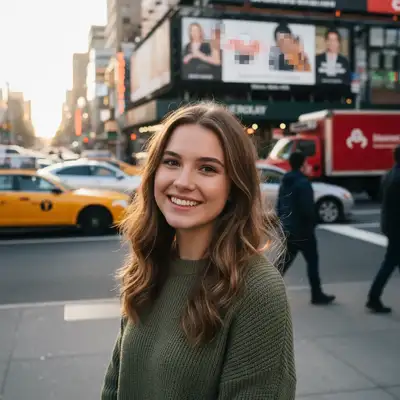
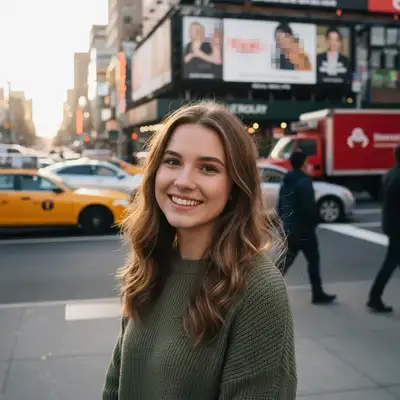
Professional portrait photography relies on shallow depth of field — the subject is sharp while the background dissolves into creamy blur. This requires expensive lenses (f/1.4-f/2.8) and the right shooting distance. Phone portrait modes attempt it but often blur hair, ears, and edges unnaturally. AI background blur creates this professional look from any photo, regardless of the camera that shot it. The AI detects depth planes and applies realistic blur gradients — closer background elements get less blur, distant elements get more, mimicking real lens optics. You control the intensity: "subtle blur" keeps background recognizable while adding separation. "Heavy bokeh" creates the dreamy, creamy backgrounds of high-end portrait photography. "Extreme blur" makes the background almost abstract, putting all focus on the subject. For light sources in the background, ask specifically for "bokeh circles" — the AI transforms point lights into the smooth, circular orbs that are the hallmark of premium lens blur. Street lights, fairy lights, and city windows all become beautiful bokeh. Product photographers also benefit from selective blur. Blurring the background behind a product creates focus and separation that makes the item stand out. "Blur the background with shallow depth of field, keep the product in sharp focus" produces e-commerce-ready results. Pet photographers use the same technique — blur the cluttered living room behind your dog or cat for a portrait-studio look without the studio.

Artistic Blur and Creative Effects

Beyond privacy and portraits, blur is a powerful creative tool. Motion blur, tilt-shift miniature effects, and radial blur can transform ordinary photos into striking images. Motion blur creates a sense of speed and dynamism. "Add motion blur to the car while keeping the driver sharp" or "blur the background to simulate camera panning with a moving cyclist." The AI applies directional blur that follows the implied motion in the scene. Tilt-shift miniature effect makes real scenes look like tiny models. "Apply tilt-shift blur to make this cityscape look like a miniature model" blurs the top and bottom of the image while keeping a horizontal band sharp — the classic miniature photography technique. Radial blur creates dramatic focus towards a center point. "Apply radial blur focused on the center person, blur outward" produces a tunnel-vision effect that draws the eye to your subject. Gaussian blur overlays create dreamy, ethereal effects for creative photography. "Add a soft dreamy haze to the entire image, gentle gaussian blur with warm tones" transforms sharp photos into atmospheric art. For food photography, selective blur isolates the hero dish: "blur everything except the front plate, create shallow depth of field" produces the depth separation that makes restaurant photography look professional. Each of these effects can be combined with other edits. Blur the background, then change it to a new scene. Blur faces for privacy, then enhance the remaining visible areas. The non-destructive workflow means you can build complex edits step by step.

Privacy Protection

Portrait & Background

Artistic Blur

Example prompts to get started

blur all faces in this photo for privacy, keep everything else sharp
blur the background to create soft creamy bokeh effect, keep subject perfectly sharp
blur the license plate on the car, keep the rest of the vehicle sharp and clear
blur all faces except the person in the center wearing the blue jacket
blur the background with shallow depth of field, keep only the product in sharp focus
blur all children's faces except my child in the pink dress, protect other kids' identities
Advertisement

Frequently Asked Questions About Blurring Photos

How do I blur faces in a photo for privacy?

Upload your photo and type 'blur all faces for privacy.' The AI detects and blurs every face in the image. To keep specific people visible, add exceptions: 'blur all faces except the person in the red shirt.' Takes about 15 seconds.

Can I blur just the background for a portrait effect?

Yes. Type 'blur the background to create soft bokeh effect, keep subject sharp.' The AI detects depth and creates realistic blur gradients — closer elements get less blur, distant elements get more. Works on portraits, products, pets, and any subject.

Do I need to select or mark what to blur?

No. Just describe it: 'blur the background,' 'blur all faces,' 'blur the license plate.' The AI identifies the elements from your description. Only use markers if the AI misidentifies something — like blurring part of your subject's hair.

Can I blur license plates for real estate or car sale photos?

Yes. Type 'blur the license plate on the car' and the AI identifies and blurs the plate while keeping the vehicle sharp. This is essential for real estate listings showing street views and car sale advertisements.

How do I protect children's faces when sharing group photos?

Upload the photo and say 'blur all children's faces except the girl in the pink dress' (describing your child). The AI selectively blurs other children's identities while keeping your child visible. Essential for school events and playground photos.

What's the difference between blur and bokeh?

Blur makes areas less sharp. Bokeh refers specifically to the aesthetic quality of the blur — how light sources become soft circles, how the blur transitions feel smooth and pleasing. Ask for 'bokeh' when you want that creamy, artistic background. Ask for 'blur' when you just need privacy or less distraction.

Can I control how much blur is applied?

Yes. Use intensity words: 'subtle blur' keeps context visible, 'heavy blur' creates strong separation, 'extreme blur' makes backgrounds almost abstract. You can also ask for 'gentle gaussian blur,' 'strong bokeh,' or 'slight softening' to fine-tune the effect.

Will hair and edges look natural?

Yes. Unlike phone portrait modes that often blur hair and ears, the AI understands complex boundaries. Hair strands, glasses frames, and clothing edges are detected accurately. If any edge looks off, tap a marker on it and regenerate.

Is this GDPR-compliant for privacy blurring?

EditThisPic provides the tools to blur faces and identifying information, which helps with GDPR compliance. However, compliance depends on your overall data handling practices, not just whether faces are blurred. Consult legal guidance for your specific use case.

Do I need to download an app?

No. EditThisPic works entirely in your browser — no app download, no software installation. It works on any device: desktop, tablet, or phone. Just open the website, upload your photo, and start editing.

Is it really free?

Yes. You get free edits every week with no signup required. There are no hidden fees, no watermarks on your results, and no account needed to start. Power users who need more edits can purchase credit packs or a subscription.

Ready to start editing?

Open Editor