Blur Text from Photo
Type 'blur the text' and watch sensitive information disappear safely.
Type 'blur the address label' or 'blur the text in the corner' and EditThisPic's AI obscures it in 15-30 seconds. No selection tools needed. The AI recognizes text areas and applies a privacy-safe blur. For multiple text areas, tap a marker on the specific one you mean. Free, no signup required.
How it works
Upload your photo
Drop your image into EditThisPic. JPG, PNG, and WebP up to 7MB. Screenshots, document photos, and package images with visible text all work well.
Describe what to blur
Type what you want blurred: 'blur the address label' or 'blur the credit card number.' The AI understands text contexts. If there's only one text area, 'blur the text' works. Be specific about which text when there are multiple areas.
Copy one of these to get started:
blur the shipping address label so no text is readable
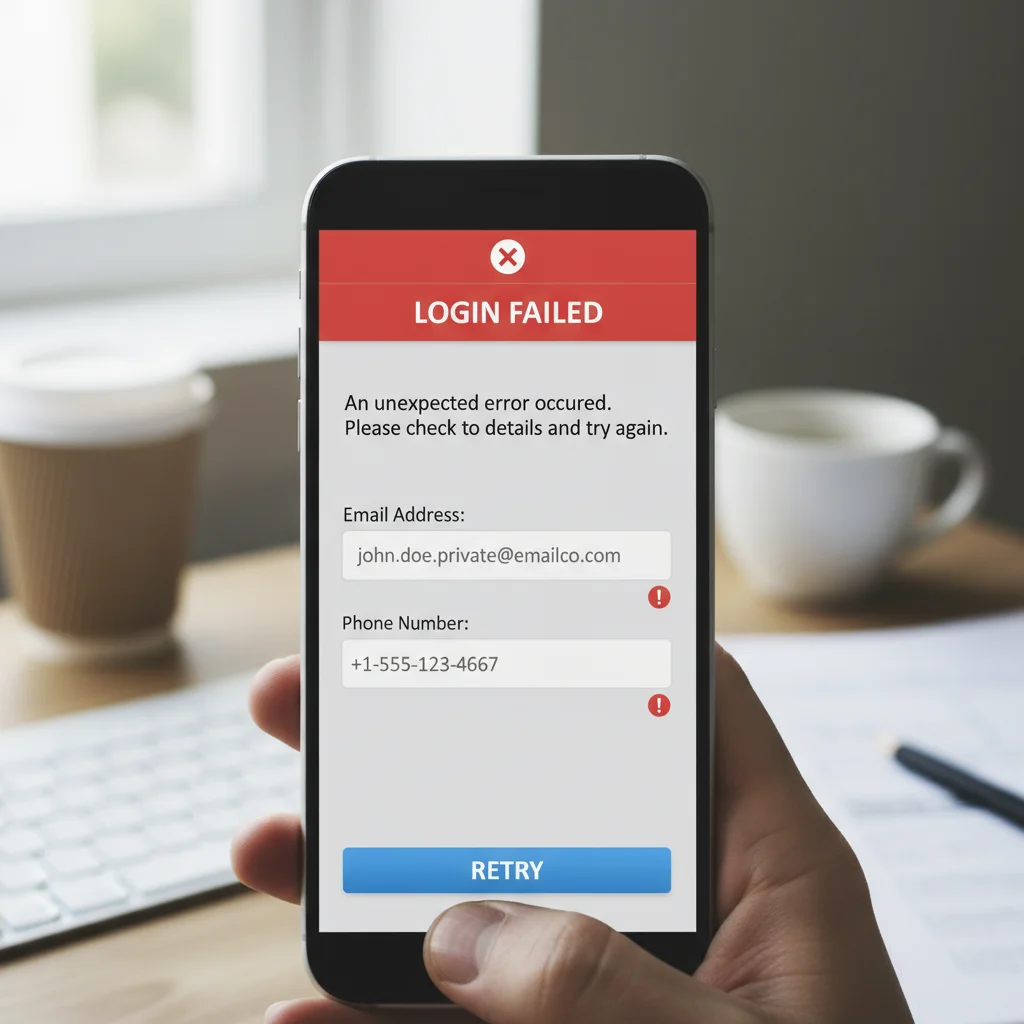
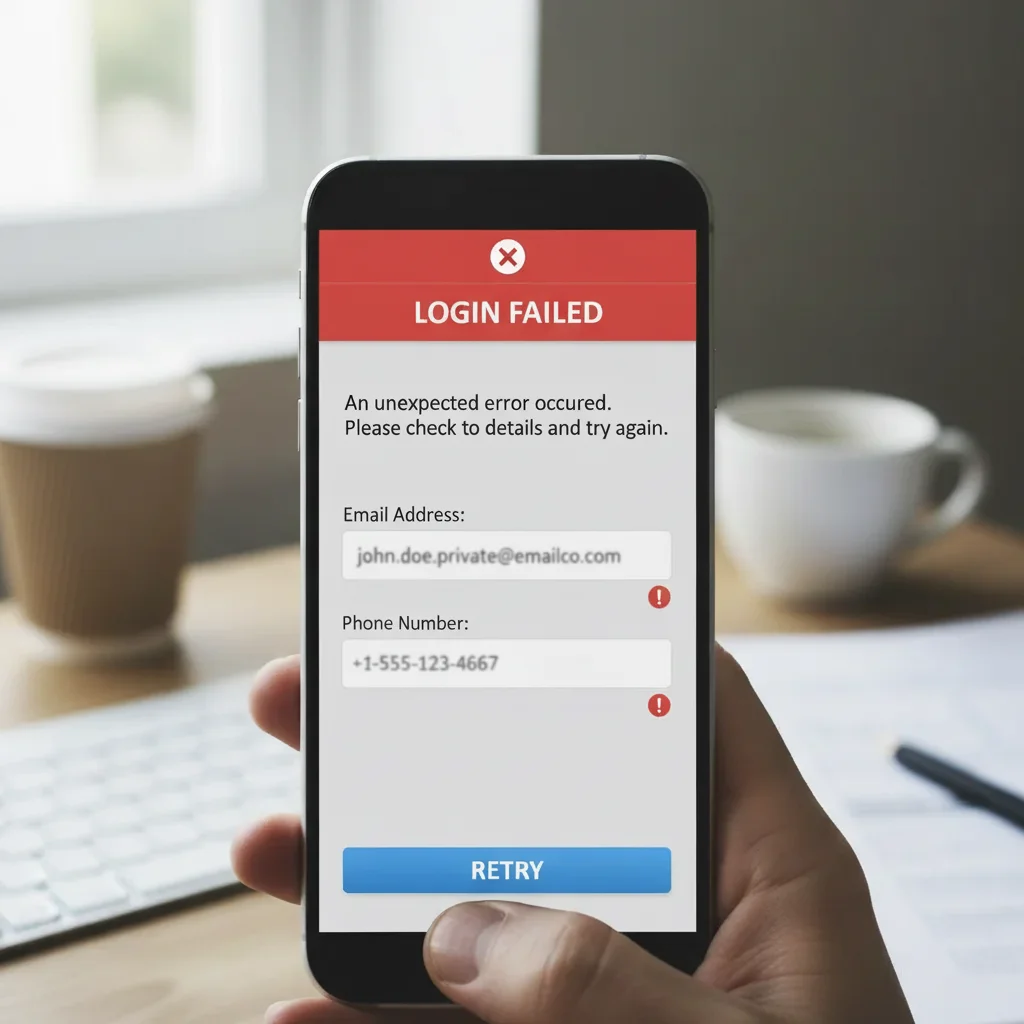
blur the email address and phone number in this screenshot
blur the social security number and account number, keep the rest readable
blur the credit card number on the receipt, keep the total and date visible
2 more prompts
blur the license plate number on the car in the background
blur all visible address text including return address and shipping label
Generate and verify
Tap generate and check that the sensitive text is fully obscured. Zoom to 100% and verify no characters remain readable. Partial blur can still expose information.
Mark specific text if needed
If the AI blurred the wrong text area or missed part of it, tap a marker directly on the text you want obscured and regenerate. Markers help when multiple text areas exist.
"Had to share a screenshot but my address was visible. Typed 'blur the address' and it was gone in seconds. Saved me from re-cropping." @PrivacyMindedMom
See it in action
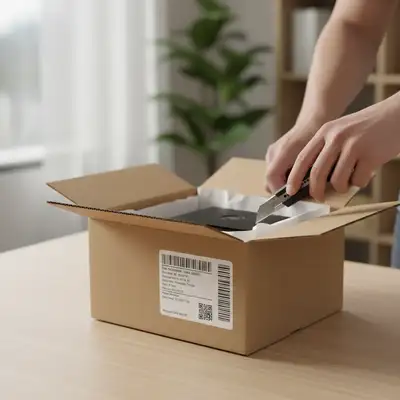
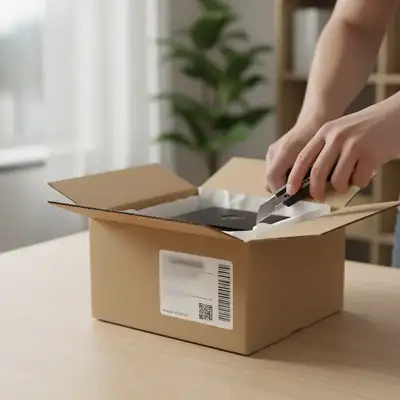
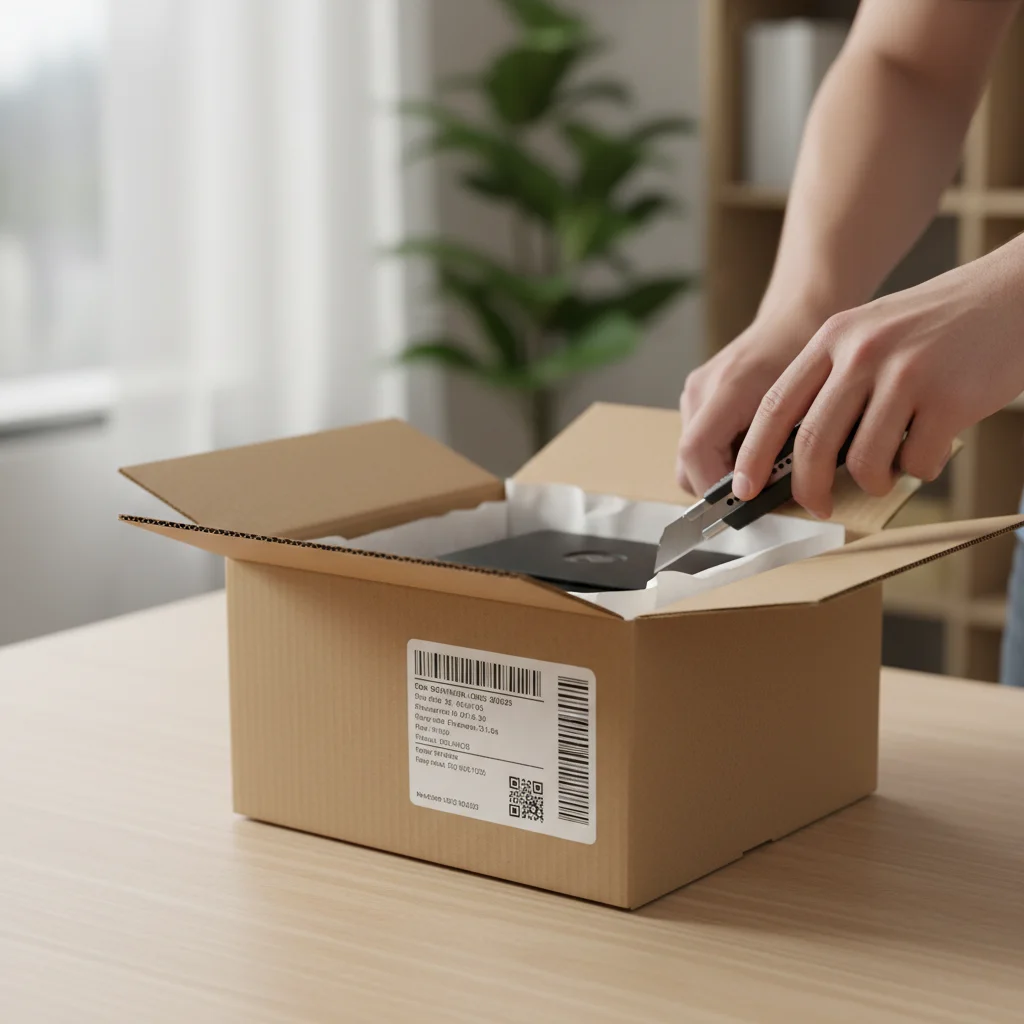
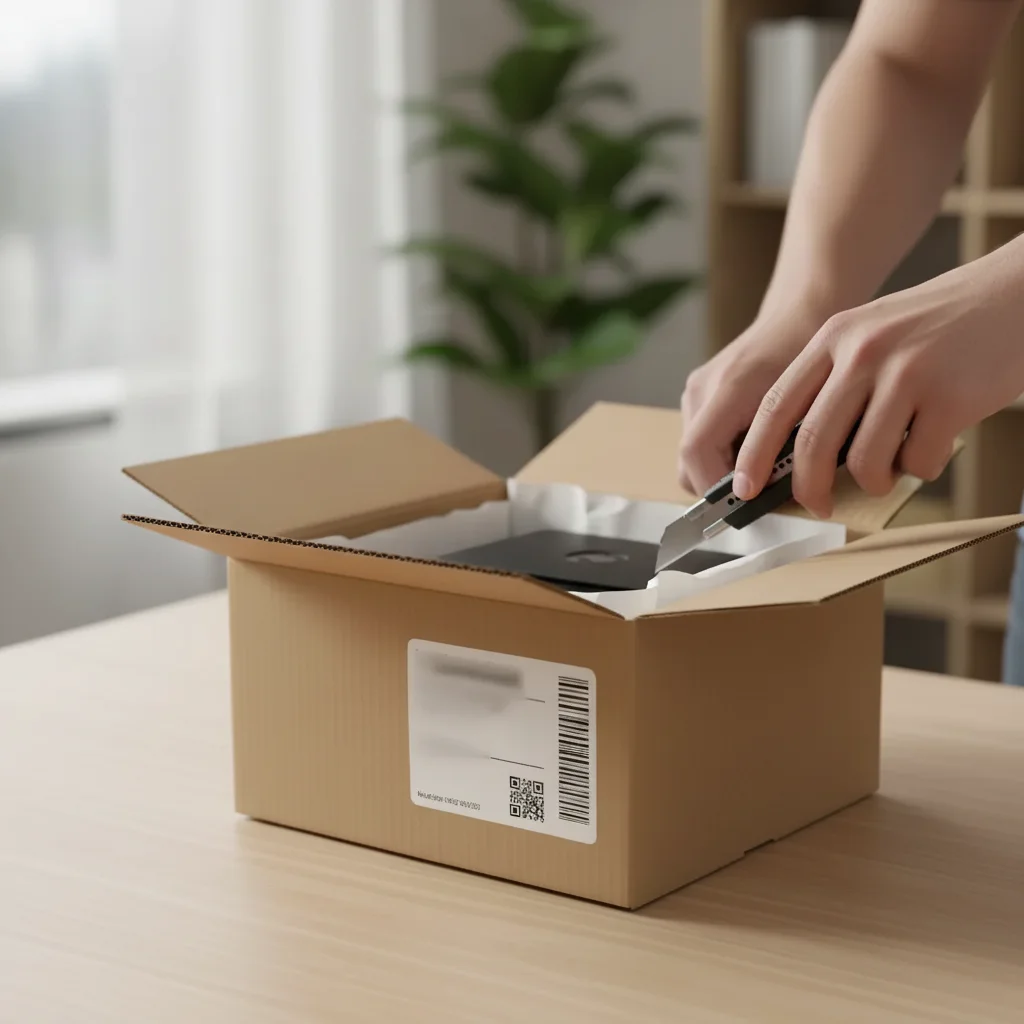
Package photo for social media
Wanted to share an unboxing photo but the shipping label showed full home address. One prompt blurred it completely.
blur the shipping address label so no text is readable
Screenshot redaction for support ticket
Needed to share an error screenshot but it showed account email and phone. Blurred both while keeping the error message visible.
blur the email address and phone number, keep the error message readable
If something looks off
AI blurred the wrong text area
Why: Multiple text areas exist and the AI couldn't determine which one you meant from description alone.
Tap a marker directly on the text you want blurred, then regenerate with the same prompt
💡 Markers are essential when there are multiple text blocks. They tell the AI 'blur THIS one specifically.'
Text is still partially readable after blur
Why: The blur wasn't strong enough or missed some characters. Light blurs can still reveal text under enhancement.
blur the text completely so no characters are recognizable, heavy blur
💡 For sensitive data like SSNs or account numbers, always zoom to 100% and verify no characters remain visible.
AI blurred too much area including surrounding content
Why: The AI interpreted 'blur the text' too broadly and included nearby elements.
blur only the address text, keep everything else sharp and unchanged
💡 Adding 'only' and 'keep everything else' helps constrain the blur to just the target area.
Small text wasn't detected or blurred
Why: Very small text may not be recognized as a distinct text area by the AI.
Tap a marker on the small text and regenerate with 'blur the marked text area'
💡 For tiny text, always use a marker to ensure the AI knows exactly where to apply the blur.
Quick answers
Do I need to mark the text before describing?
No! Just describe what you want: 'blur the address' or 'blur the phone number.' The AI understands common text types. Only use markers when there are multiple text areas and you need to specify which one, or when the AI picked the wrong area on your first try.
Is blurred text truly unreadable or can it be recovered?
EditThisPic applies a destructive blur that permanently scrambles the pixel data. Unlike some simple overlays, this blur cannot be reversed or enhanced to reveal the original text. For maximum security, always verify at 100% zoom that no characters remain recognizable.
Can I blur multiple text areas at once?
Yes. Include all areas in your prompt: 'blur the return address and shipping label' or 'blur all visible email addresses.' If the AI misses one, tap a marker on it and regenerate. For many scattered text areas, you may need multiple passes.
What's the difference between blur and remove for text?
Blur obscures text while keeping the area visibly present—viewers know something was redacted. Remove attempts to fill the area with background, as if the text was never there. Use blur for transparency about redaction; use remove when you want the text area to disappear entirely.
Ready to blur sensitive text?
Free to try. No signup required.