Free โ€ข No signup Adjust Skin tone ยท Free

AI Skin Tone Adjuster

Just describe the skin tone you want - AI handles color correction automatically.
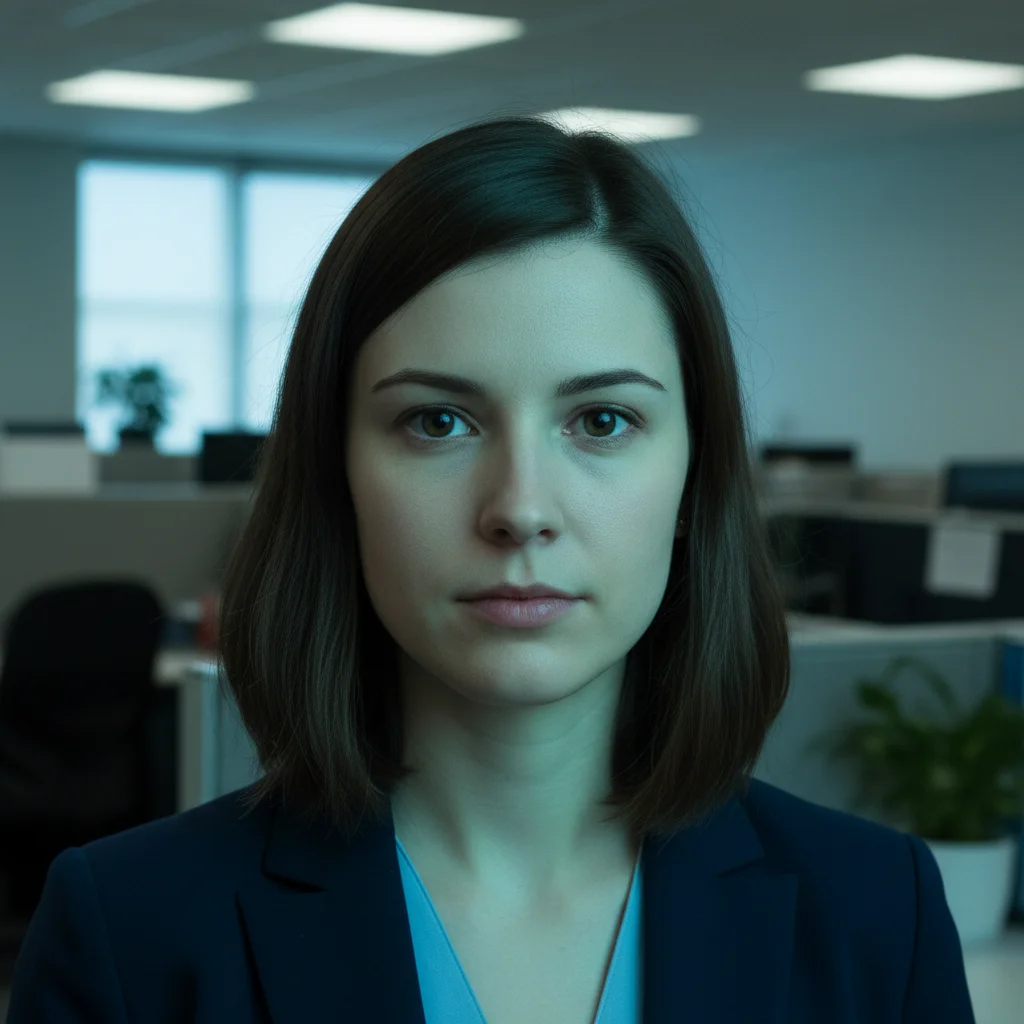
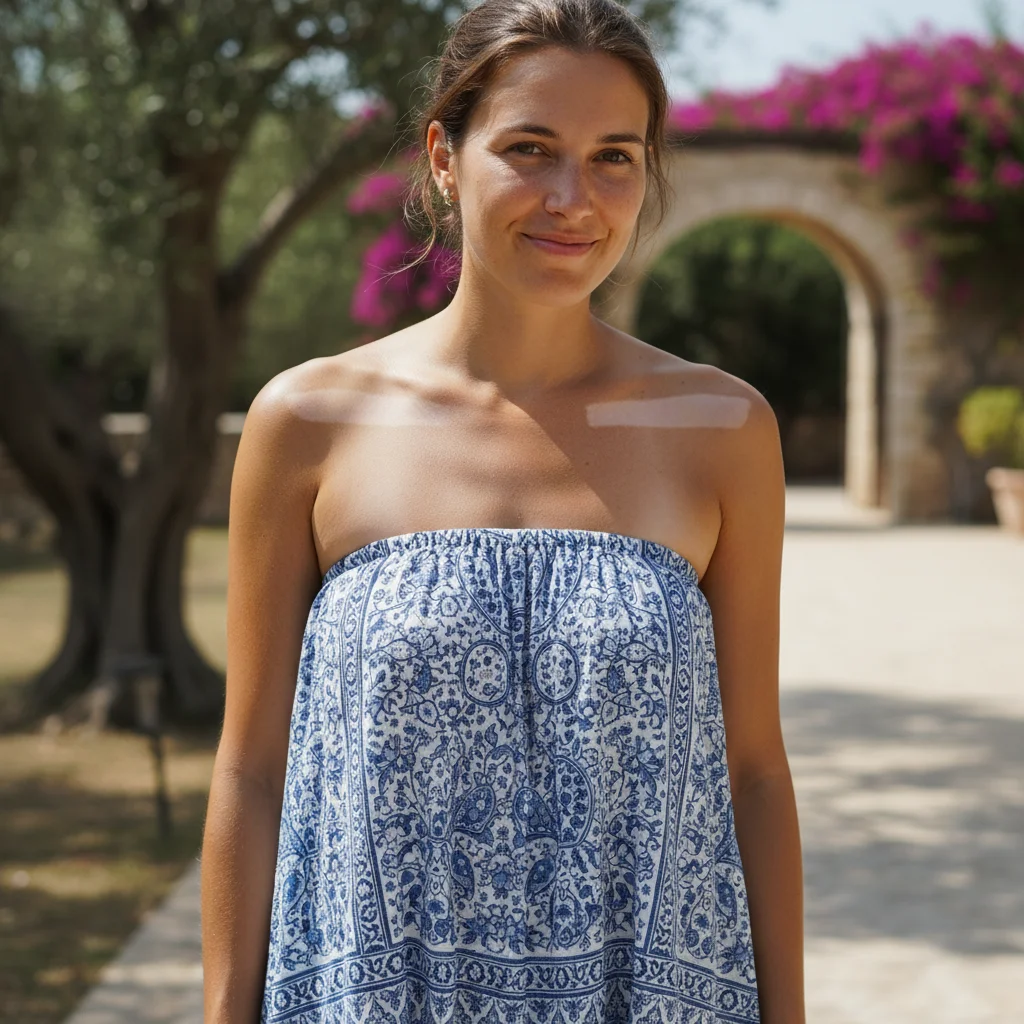
Office portrait with harsh green fluorescent tint on skin
Before
โ†’
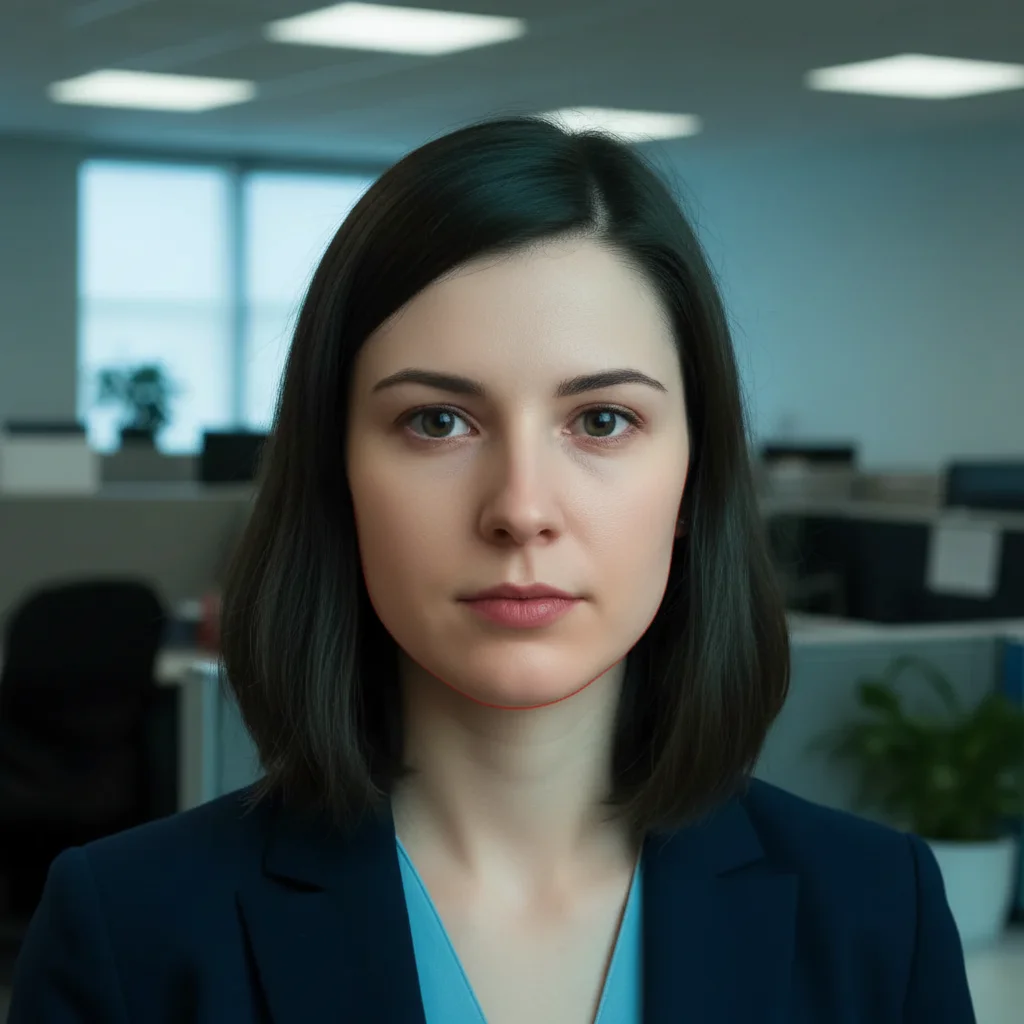
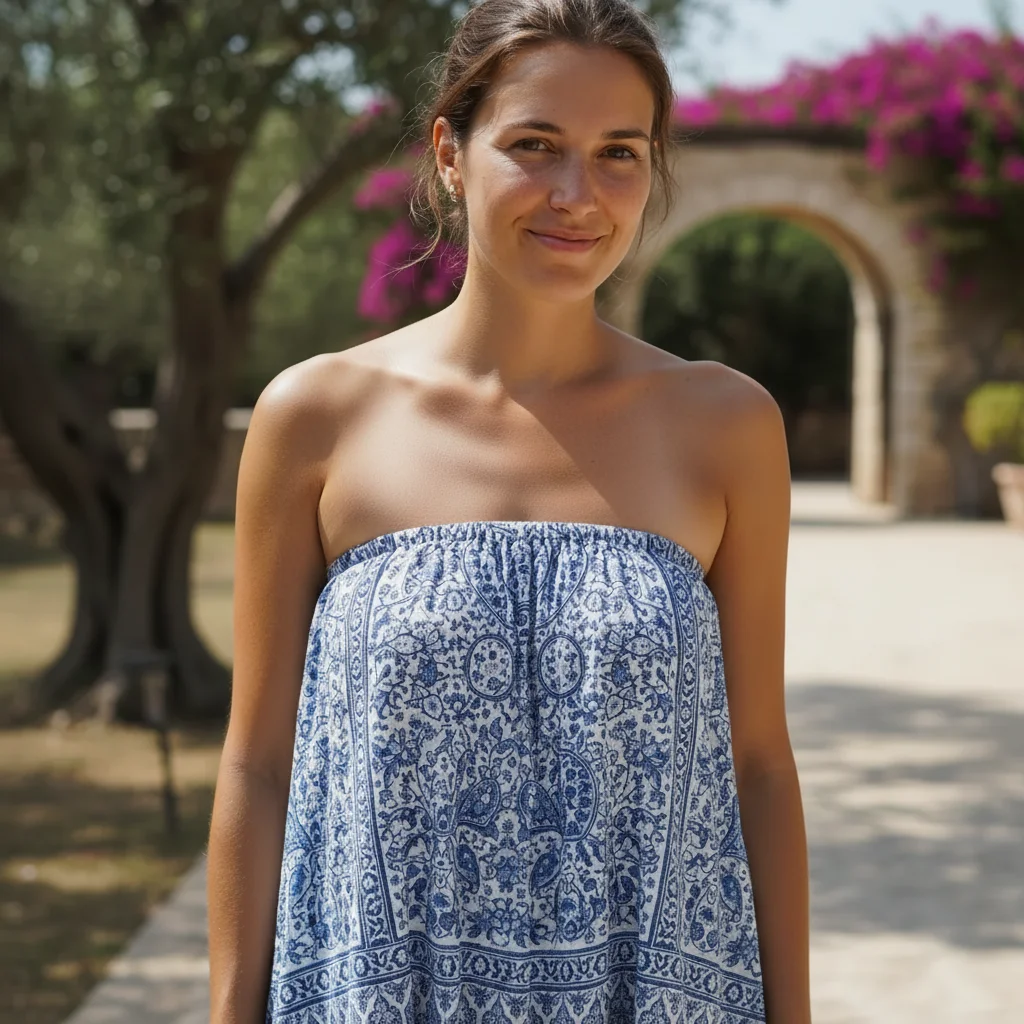
Same portrait with natural balanced skin tone after correction
After

AI Skin Tone Adjuster

Drop your photo here

or click to browse

Release to upload

Free โ€ข No signup

Advertisement
Popular use cases:
  • portrait photography
  • wedding photos
  • professional headshots
  • selfie correction
  • Instagram photos
  • LinkedIn profile pictures
  • family photos
  • outdoor portraits

Cost
Free No signup required
Time
Instant results in 15-30 seconds
Works on
Any device - browser, phone, tablet, desktop
Powered by
AI-powered photo editing
Scenario Prompt Time
Fix orange indoor lighting remove the orange tint from skin tones and adjust to natural balanced color 15s
Warm up cold outdoor shade adjust skin tone to warmer, removing the blue-gray cast from outdoor shade 15s
Fix fluorescent green tint correct the harsh green fluorescent tint in skin tones and balance to natural color 20s
Balance mixed lighting balance skin tones across all faces to consistent warm natural color, removing uneven lighting 25s

How it works

  1. Upload your photo

    Drop your portrait, selfie, or group photo into EditThisPic. JPG, PNG, WebP up to 7MB. Works best with well-lit photos where faces are clearly visible.

    Expect: Simple adjustments like 'warmer' or 'cooler': 15-20 seconds. Complex corrections fixing multiple tones: may need 2-3 refinements.
  2. Describe what you want

    Type your instruction: 'adjust skin tone to warmer and more natural' or 'remove the orange tint and balance skin color.' Be specific about direction (warmer/cooler), intensity (slightly/significantly), and any color casts to remove. No color picker needed - the AI understands natural language descriptions.

    Tip: Mention lighting conditions if relevant: 'correct the harsh fluorescent green tint' or 'warm up the cold blue outdoor lighting'

    Copy one of these to get started:

    Fix orange/yellow indoor lighting remove the orange tint from skin tones and adjust to natural balanced color
    Warm up cold outdoor lighting adjust skin tone to warmer, removing the blue-gray cast from outdoor shade
    Fix fluorescent green tint correct the harsh green fluorescent tint in skin tones and balance to natural color
    Cool down overly warm/red skin adjust skin tone slightly cooler to reduce redness while keeping it natural
    3 more prompts
    Even out mixed lighting balance skin tones across all faces to consistent warm natural color, removing uneven lighting
    Fix washed out pale skin enrich skin tone with more warmth and color, reducing the pale washed-out look
    Correct oversaturated orange skin reduce oversaturation in skin tones and adjust to subtle natural warmth, not orange
  3. Generate and review

    Click Generate and the AI analyzes skin tones across all faces in your photo, adjusting color balance while preserving natural variation and texture. Check the result at full zoom to verify even tone and natural color.

  4. Refine with markers if needed

    If specific faces need different adjustments or some areas still look off, tap markers on those spots and describe the refinement: 'make this person's skin tone warmer.' This is optional - most adjustments work without markers.

    Tip: Markers are for precision when different people need different adjustments. Try without them first for consistent results across all faces.
Try it free โ†“

AI Skin Tone Adjuster

Drop your photo here

or click to browse

Release to upload

Free โ€ข No signup

"Fixed my outdoor selfie's orange tint in one try. Just typed what I wanted and it looked perfect." @sarahphoto

See it in action

Office portrait with harsh green fluorescent tint on skin
Before
->
Same portrait with natural balanced skin tone after correction
After

Fixed harsh fluorescent lighting

Indoor office photo had harsh green-yellow fluorescent cast. One prompt balanced the skin tone to natural warmth.

Prompt: remove the harsh green fluorescent tint from skin tones and balance to natural warm color
Hiking photo with cold blue skin tone from shade
Before
->
Same photo with warm natural skin tone after adjustment
After

Warmed up cold outdoor shade

Mountain hiking photo had cold blue-gray cast from open shade. AI warmed the skin tone naturally.

Prompt: adjust skin tone to warmer, removing the blue-gray cast from outdoor shade
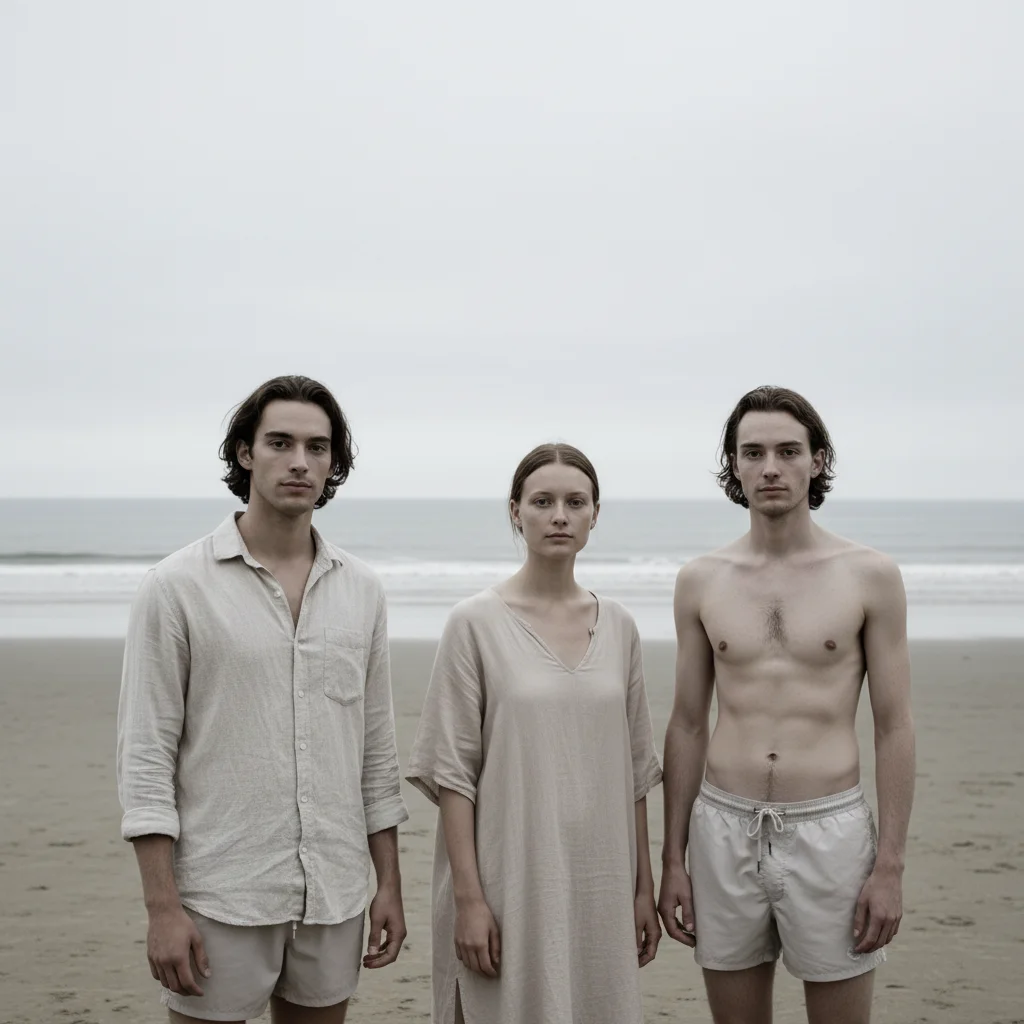
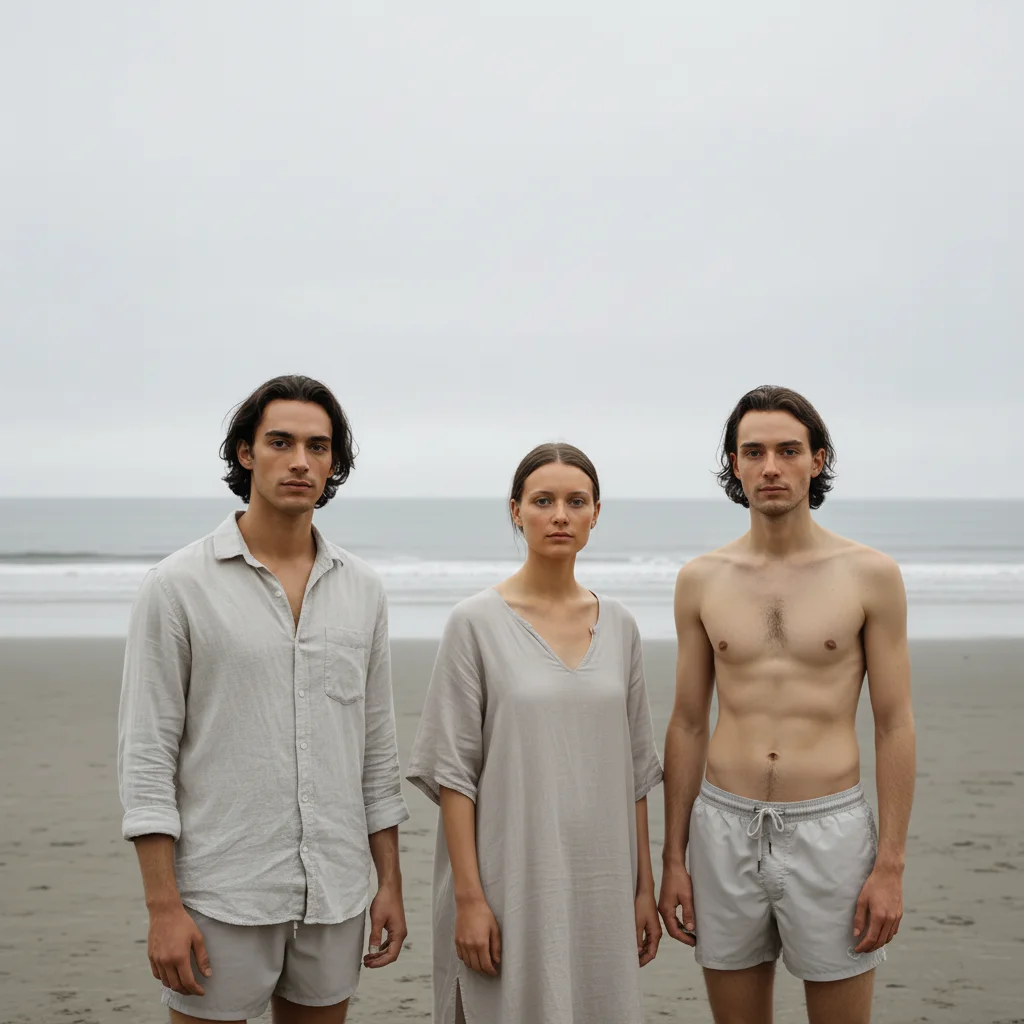
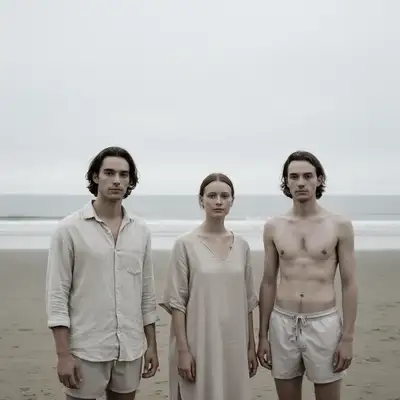
Group wedding photo with mismatched skin tones from mixed lighting
Before
->
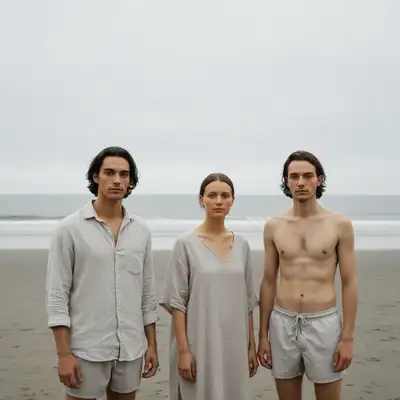
Same group with consistent natural skin tones across all faces
After

Balanced group photo with mixed lighting

Wedding group photo had people in sun vs. shade with different skin tones. AI balanced everyone to consistent natural warmth.

Prompt: balance skin tones across all faces to consistent warm natural color, removing uneven lighting
Advertisement

If something looks off

AI adjusted the wrong face or changed all faces when I meant one person

Why: The AI couldn't determine which specific person you meant from description alone. This happens when you say 'adjust skin tone' without specifying who.

Try: Tap a marker on the specific person's face you want adjusted, then regenerate with a prompt like 'make this person's skin tone warmer'

Tip: Markers tell the AI 'I mean THIS person specifically.' Use them when different people need different adjustments.

Skin tone went too far - now too orange or too pale

Why: The AI interpreted 'warmer' or 'cooler' more aggressively than you intended, or the photo's existing color cast was more extreme than typical.

Try: Add 'slightly' or 'subtly' to your prompt: 'adjust skin tone slightly warmer' or regenerate with 'reduce the adjustment by half, keep it subtle and natural'
Adjustment looks unnatural or plastic

Why: Heavy adjustments can lose natural skin texture variation. This often happens when correcting extreme color casts in one step.

Try: Try a gentler approach: 'slightly adjust skin tone toward natural warmth, preserving skin texture' or make the change in two steps with smaller adjustments each time
Some faces changed but others didn't

Why: The AI may have detected different starting tones and adjusted them inconsistently, or some faces weren't clearly visible enough for confident adjustment.

Try: Regenerate with 'balance skin tones across all visible faces to consistent [target color]' or tap markers on the faces that didn't adjust and regenerate
Background or clothing colors also changed

Why: The AI's color adjustment sometimes affects the entire image when the target description is too broad or the color cast affects everything.

Try: Be more specific: 'adjust only skin tones to warmer, don't change background or clothing colors' or use markers on faces to limit the adjustment area
Color cast is still visible after adjustment

Why: Extreme color casts (like heavy fluorescent green) may need multiple passes, or your description didn't name the specific cast that needs removal.

Try: Name the exact cast: 'remove the green fluorescent tint' or 'eliminate the orange sodium vapor cast' then regenerate. For stubborn casts, adjust in two steps.

Quick answers

Do I need to mark faces before describing the adjustment?

No! For most skin tone adjustments, just describe what you want: 'adjust skin tone warmer' or 'remove the orange tint and balance skin color.' The AI understands 'skin tone' and finds all faces automatically. Only use markers when you need different adjustments for different people, or when you want to target one specific face in a group.

How do I adjust skin tone for free without Photoshop?

Use EditThisPic's free AI skin tone adjuster. Upload your photo, describe the change you want (like 'warmer' or 'remove orange tint'), and the AI handles color correction automatically. No subscriptions, no accounts, no watermarks. You get natural-looking results in seconds without learning complex color grading tools.
Will it work on all skin tones and ethnicities?

Yes. The AI is trained on diverse skin tones from very pale to very deep, and adjusts relative to each person's natural tone. When you say 'warmer,' it warms their specific starting tone naturally. When you say 'remove green tint,' it removes the cast while preserving their natural color. Results work equally well across all skin tones.

Can I fix photos with mixed lighting where people have different skin colors?

Yes. Use a prompt like 'balance skin tones across all faces to consistent warm natural color, removing uneven lighting.' The AI will analyze each person's skin and adjust them all toward the same target tone, correcting for different lighting conditions on each person.

What's the difference between skin tone adjustment and photo color correction?

Skin tone adjustment targets only skin areas (faces, arms, neck) to correct color casts and balance tones. Photo color correction adjusts the entire image including backgrounds, clothing, and objects. Use skin tone adjustment when faces look off-color but the rest of the photo is fine. Use color correction when the whole image has a color cast.

Ready to adjust skin tones in your photos?

Free to try. No signup required.

Try it free โ†’