Free • No signup Enhance Skin · Free

AI Skin Enhancer

Describe the skin enhancement you want and AI improves quality naturally. No marking needed.
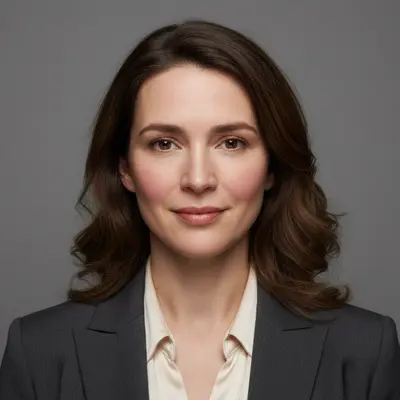
Professional headshot with uneven skin tone and visible texture
Before
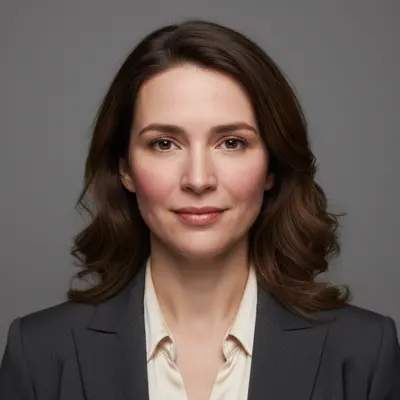
Same headshot with smooth, even skin tone looking natural
After

AI Skin Enhancer

Drop your photo here

or click to browse

Release to upload

Free • No signup

Popular use cases:
  • skin enhancement
  • skin quality improvement
  • skin texture smoothing
  • skin tone correction
  • professional headshot enhancement
  • beauty photo editing
  • portrait skin improvement
  • complexion enhancement
  • natural skin editing

Cost
Free No signup required
Time
Instant results in 15-30 seconds
Works on
Any device - browser, phone, tablet, desktop
Powered by
AI-powered photo editing
Scenario Prompt Time
Texture smoothing only smooth skin texture while keeping natural 20s
Tone correction focus even out skin tone and reduce discoloration 25s
Overall skin enhancement enhance skin quality - texture, tone, and appearance 30s

How it works

  1. Upload your photo

    Upload a clear portrait or selfie. Good lighting and visible facial features help the AI analyze and enhance skin quality effectively. JPG, PNG, WebP up to 7MB.

    Expect: Simple skin enhancement (smoothing): 15-25 seconds. Complete skin improvement (texture + tone): 30-45 seconds.
  2. Describe the enhancement

    Type what you want: 'enhance the skin quality by smoothing texture and evening tone' or 'improve overall skin appearance while keeping natural characteristics.' Be specific about goals—smoothing, tone correction, or overall enhancement. No marking needed—the AI identifies and improves skin areas.

    Tip: Use 'while keeping natural' to ensure the result doesn't look over-processed or artificial.

    Copy one of these to get started:

    Overall skin improvement enhance the skin quality in this photo by smoothing texture, evening tone, and improving overall appearance while maintaining natural looks
    Texture smoothing focus smooth the skin texture and reduce pores while keeping the face natural and realistic
    Tone evening and brightening even out the skin tone, reduce discoloration, and add a healthy glow to the complexion
    Professional headshot enhancement enhance the skin for a professional headshot - smooth texture, even tone, and improve clarity while keeping it business-appropriate
    4 more prompts
    Beauty photo enhancement enhance the skin for beauty photography - smooth complexion, perfect tone, and add radiance while keeping facial features sharp
    Natural selfie improvement improve the skin quality naturally - smooth minor imperfections and even tone without making it look edited
    Complexion enhancement for portraits enhance the complexion by reducing shine, smoothing texture, and creating an even, matte finish
    Skin clarity and brightness boost boost skin clarity and brightness, smooth out roughness, and create a fresh, healthy appearance
  3. Review the result

    Check that skin quality is improved while maintaining natural texture and characteristics. Zoom in to verify smoothing is even and skin tone looks realistic. Ensure facial features remain sharp and detailed.

  4. Refine with markers if needed

    If specific areas like cheeks, forehead, or jawline need additional enhancement, tap markers on those spots and regenerate. Most skin enhancements work perfectly on the first try.

    Tip: Markers are for precision refinement only. Try without them first—you usually won't need them.
Try it free

AI Skin Enhancer

Drop your photo here

or click to browse

Release to upload

Free • No signup

"Transformed my selfies with one simple prompt. The AI enhanced my skin naturally without making it look fake or over-processed. Perfect for dating apps and LinkedIn headshots." @GlowUpQueen_Sarah

See it in action

Professional headshot with uneven skin tone and visible texture
Before
->
Same headshot with smooth, even skin tone looking natural
After

Professional headshot skin enhancement

A business portrait with uneven skin tone and texture enhanced for a polished, professional appearance.

Prompt: enhance the skin quality in this photo by smoothing texture, evening tone, and improving overall appearance while maintaining natural looks
Selfie with rough skin texture and visible pores
Before
->
Same selfie with smoothed skin texture looking natural
After

Selfie skin smoothing and tone correction

A selfie with rough skin texture and discoloration improved for social media sharing.

Prompt: smooth the skin texture and reduce pores while keeping the face natural and realistic
Beauty portrait with uneven skin tone and dull complexion
Before
->
Same portrait with even, glowing complexion looking radiant
After

Beauty photo complexion enhancement

A beauty shot with skin imperfections enhanced to create a flawless yet natural complexion.

Prompt: even out the skin tone, reduce discoloration, and add a healthy glow to the complexion

Detailed Guides by Scenario

📷

Professional Headshots

Enhance skin quality in professional headshots for business profiles, LinkedIn photos, and corporate materials to achieve polished, confident results.

Common Scenarios

  • Business headshots that need skin refinement for executive profiles
  • LinkedIn photos where skin quality affects professional impression
  • Corporate team photos requiring consistent skin enhancement across subjects

Best Practices

  • Use 'business-appropriate' in prompts to ensure subtle, professional-level enhancement
  • Focus on evening skin tone rather than heavy smoothing for credible business photos
  • Maintain natural skin texture to preserve authenticity in professional contexts
📷

Beauty & Fashion Photography

Perfect skin quality in beauty shots, fashion photography, and glamour portraits for magazine-quality results.

Common Scenarios

  • Beauty photography requiring flawless but realistic skin
  • Fashion shoots where skin quality needs to match styling perfection
  • Glamour portraits for portfolios and professional beauty work

Best Practices

  • Allow more dramatic enhancement for beauty context while maintaining realism
  • Focus on creating healthy glow and radiance alongside smoothing
  • Preserve facial character and avoid over-processing that looks artificial
📷

Social Media & Selfies

Improve skin appearance in selfies and social media photos for confident sharing while maintaining natural, authentic looks.

Common Scenarios

  • Dating app photos where natural but improved skin boosts confidence
  • Instagram and social media posts requiring subtle skin enhancement
  • Selfies with skin imperfections that need gentle correction

Best Practices

  • Emphasize 'natural' and 'subtle' to avoid obviously edited appearance
  • Focus on evening skin tone rather than dramatic smoothing for social authenticity
  • Maintain skin texture and character to preserve personal identity

If something looks off

AI changed the wrong area or something I didn't want changed

Why: The AI enhanced areas beyond just the skin, potentially affecting hair, clothing, or background elements that were near facial areas.

Try: Tap markers on only the specific skin areas you want enhanced, then regenerate: enhance only these marked areas of skin

Tip: Markers tell the AI 'I mean THIS skin area specifically.' Use them when the enhancement affects unwanted areas.

Skin looks too smooth or artificial after enhancement

Why: Too much smoothing was applied, removing natural skin texture and creating a plastic or over-processed appearance.

Try: enhance the skin more subtly - smooth texture moderately while keeping natural pores and skin detail visible

Tip: 'Moderately' and 'keeping natural detail' guide the AI to a more realistic enhancement level.

Enhancement is uneven across different areas of the face

Why: Different skin areas responded differently to the same enhancement level, with some becoming over-smoothed while others remained unchanged.

Try: enhance skin quality evenly across the entire face - smooth texture and tone consistently throughout

Tip: 'Consistently throughout' tells the AI to apply the same level of enhancement to all facial skin areas.

Facial features became soft or blurry during skin enhancement

Why: The skin enhancement algorithm affected nearby facial features like eyes, lips, or eyebrows, reducing their sharpness.

Try: enhance only the skin areas while keeping eyes, lips, eyebrows, and other facial features sharp and detailed

Tip: Explicitly mentioning feature preservation prevents the AI from softening non-skin areas.

Skin tone looks unnatural or changed color

Why: The enhancement altered the natural skin color rather than just improving texture and evenness.

Try: enhance skin texture and smoothness while preserving the original natural skin tone and color

Tip: 'Preserving original skin tone' ensures enhancement improves quality without changing ethnic or natural coloring.

Quick answers

Do I need to mark skin areas before describing the enhancement I want?

No! Just describe what you want: 'enhance the skin quality by smoothing texture and evening tone.' The AI automatically identifies skin areas on faces and enhances them. Only use markers when you want to enhance specific skin areas while leaving others untouched—like smoothing forehead skin but keeping natural texture around the eyes.

How do I enhance skin without making it look fake or over-processed?

Use 'natural' and 'realistic' in your prompt: 'enhance skin quality while keeping it natural and realistic.' The goal is improvement, not perfection. Adding phrases like 'maintain natural texture' or 'keep subtle imperfections' prevents the plastic, over-smoothed look that screams 'edited.'

Is there a free AI skin enhancer that doesn't require login?

Yes, EditThisPic is free to try with no account needed. Upload your photo, describe the skin enhancement you want, and download the result. No watermarks on outputs. Works for texture smoothing, tone correction, and overall skin quality improvement without any signup.

What's the best free AI tool for enhancing skin quality in photos?

EditThisPic offers free AI skin enhancement with no signup required. Unlike basic beauty filters that apply the same effect to everything, you describe exactly what to improve. It handles texture smoothing, tone evening, and pore reduction individually for natural-looking results in seconds.

Can I enhance skin quality on my phone?

Yes. EditThisPic works in any mobile browser — iPhone, Android, tablet. No app download needed.

How long does it take to enhance skin quality?

Usually 15-30 seconds. Upload your photo, describe the enhancement you want, and the AI delivers the improved result.

What photo formats does the AI skin enhancer support?

JPG, PNG, WebP, and HEIC. Upload any common photo format and EditThisPic handles the rest.

Can AI skin enhancement work on all skin tones?

Yes, EditThisPic's AI is trained to enhance skin quality across all ethnicities and skin tones. The enhancement preserves your natural coloring while improving texture and tone evenness.

Does skin enhancement work on group photos?

Yes, but results work best on close-up portraits and selfies where skin details are clearly visible. For group photos with small faces, the enhancement may be less noticeable.

Ready to enhance your skin quality?

Free to try. No signup required.

Try it free