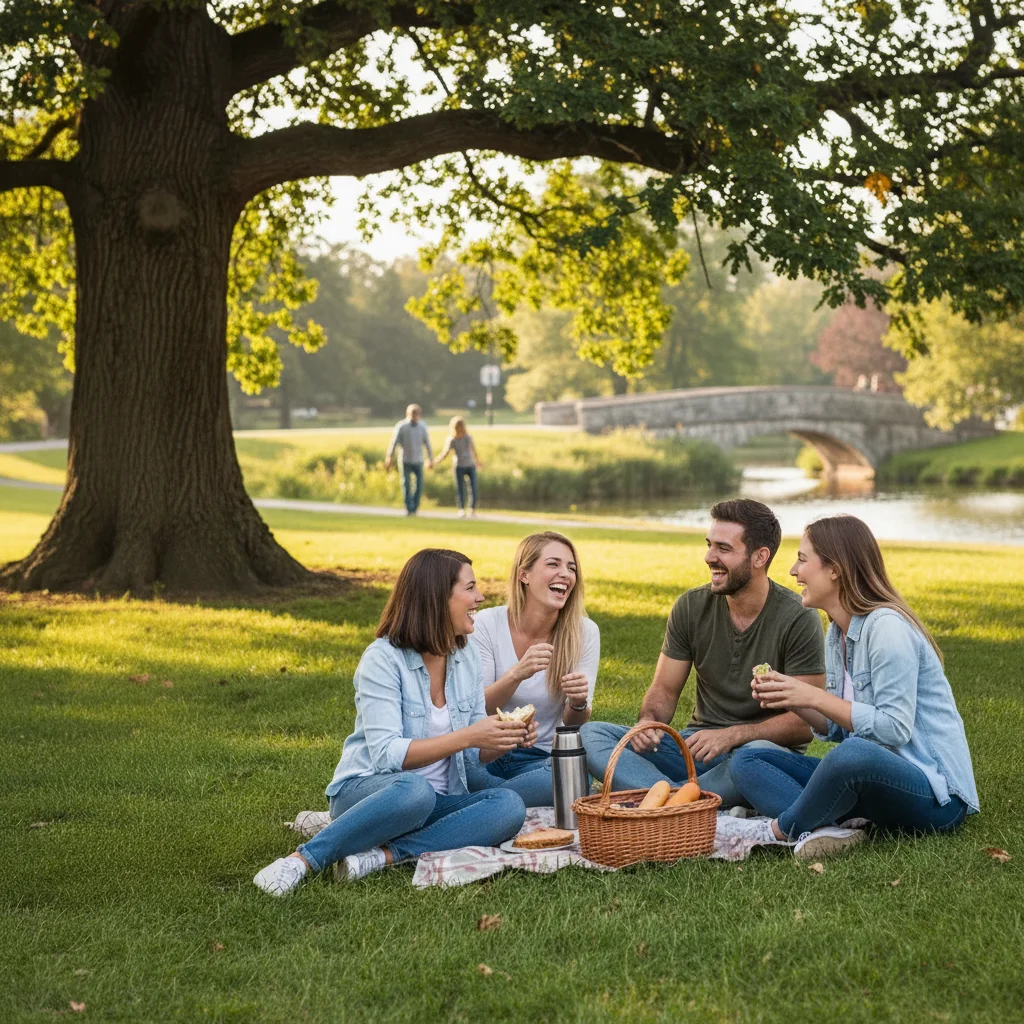
Remove Person from Photo
Remove anyone from your photos with AI. Tap to mark them, describe what to fill.
Tap the person you want gone, then type 'remove and fill with natural background.' The AI handles it in 15-30 seconds. For single-person photos, just describe the removal. For groups, marking is faster and more reliable than trying to describe 'the one in the blue shirt third from left.'
How it works
Upload your photo
Drop your image into EditThisPic. Works with JPG, PNG, WebP up to 7MB.
Mark the person to remove
Tap or click on the person you want removed. A marker appears showing the AI exactly who you mean. No need to outline them precisely - just tap their head, body, or anywhere on them.
Copy one of these to get started:
remove the marked person and fill with natural background
remove the person and extend the background naturally
remove the marked person and extend the beach and ocean
remove the marked person and their shadow, fill with ground
2 more prompts
remove all marked people and show the empty background
remove the marked photobomber and show the clear landmark
Describe what to fill
Tell the AI what should appear where the person was: 'remove and fill with beach,' 'remove and extend the grass,' or just 'remove and fill naturally.' The AI reconstructs the background based on surrounding context.
Review and refine
Check that the person is fully removed and the background looks natural. If shadows, reflections, or edges remain, describe what to fix or tap a marker on the leftover area.
"Removed my ex from 47 wedding photos in one afternoon. Each one took like 30 seconds." @rachel_m
See it in action
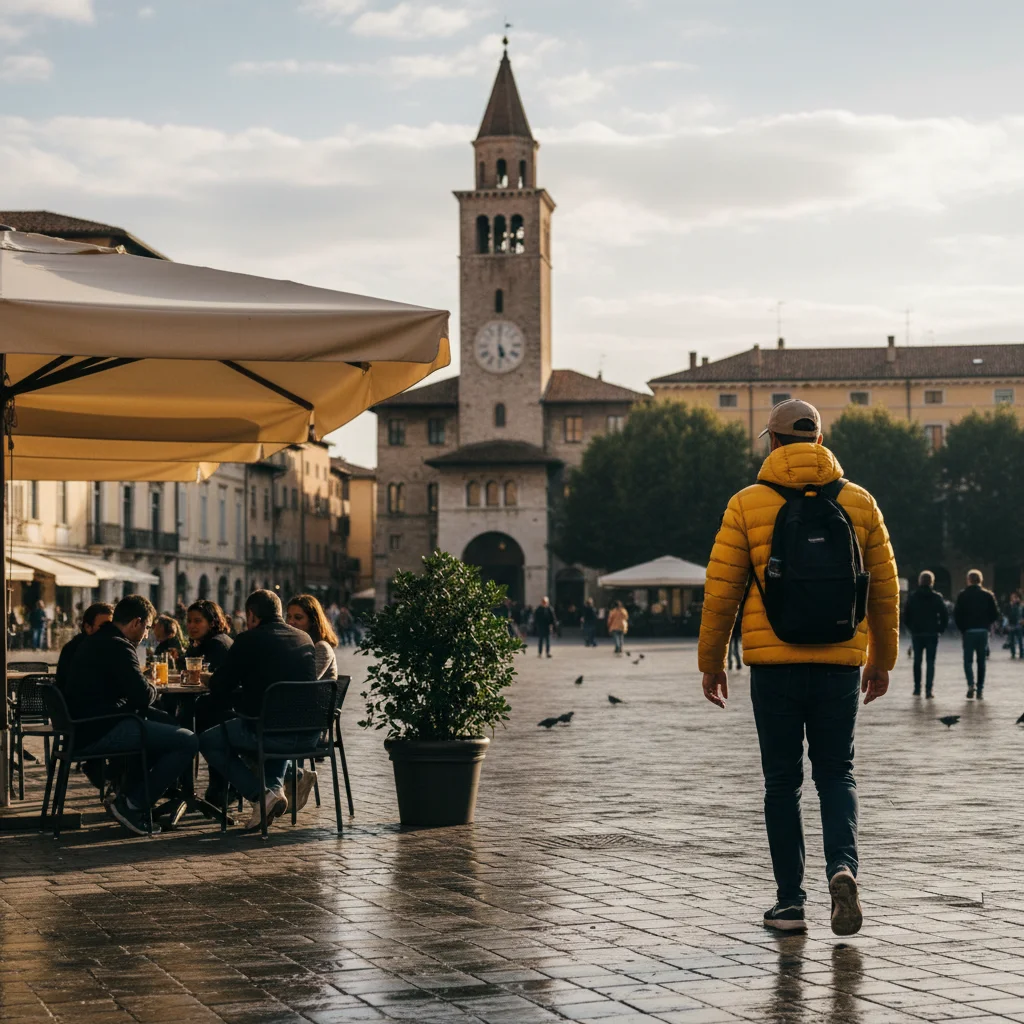
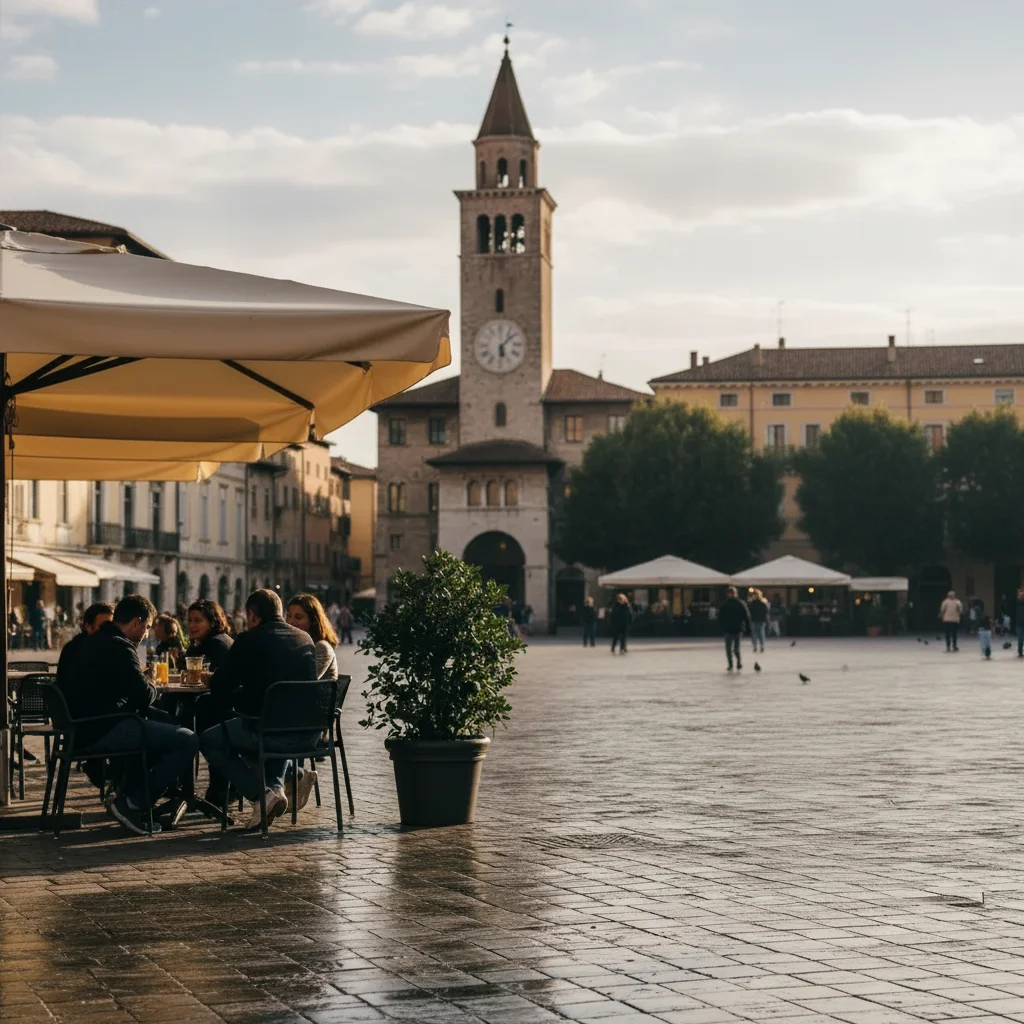
Tourist removed from Eiffel Tower photo
Stranger in yellow jacket walked into the shot. One prompt, gone.
remove the person on the right and show the tower background
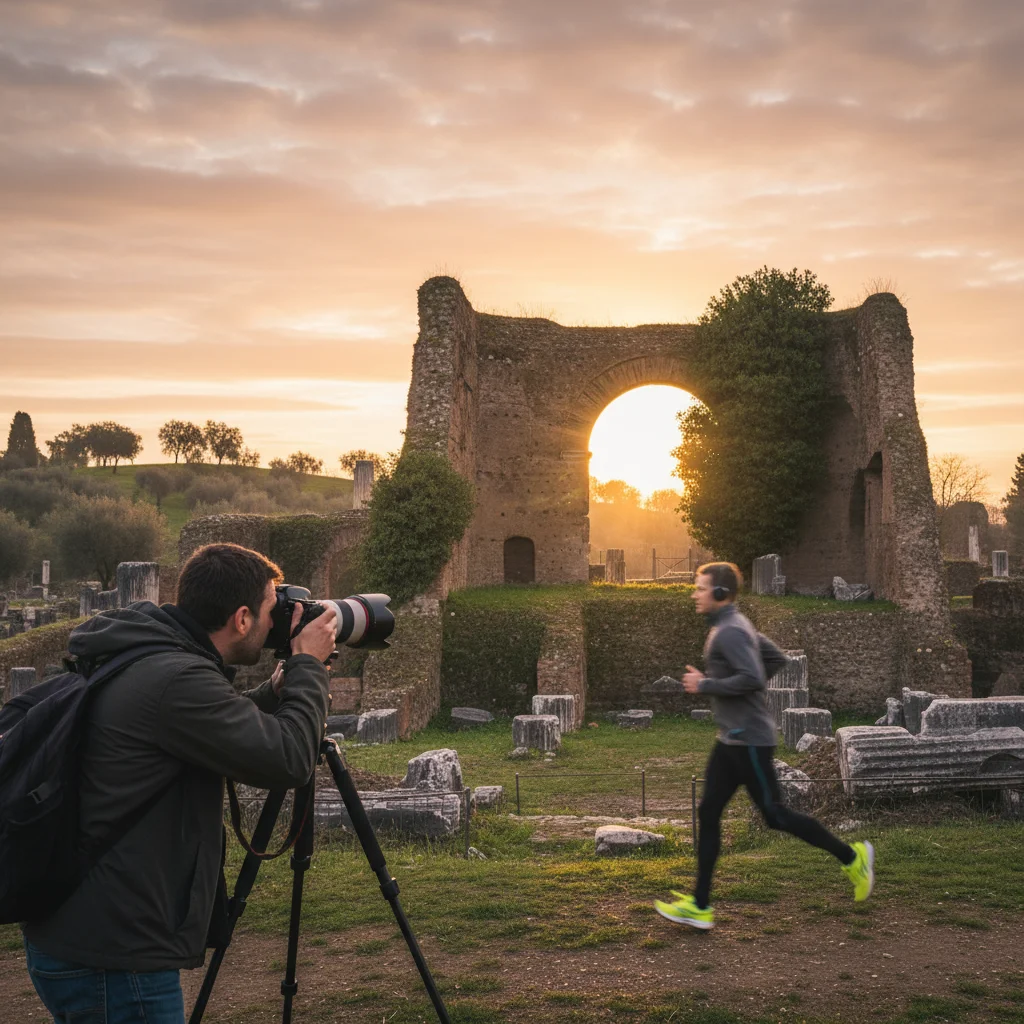
Runner removed from beach sunset
Someone jogging through ruined the perfect shot. AI fixed it.
remove the person running in the background
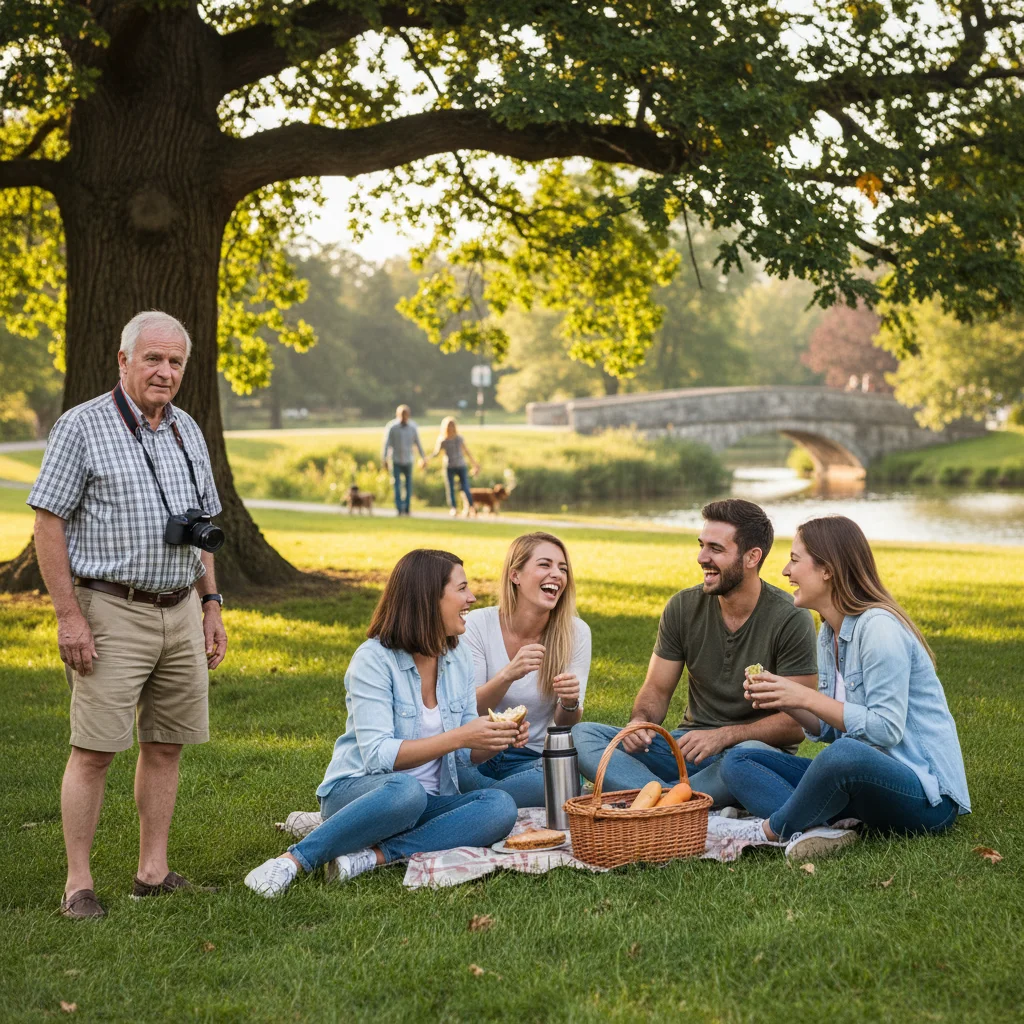
Guest removed from wedding first dance
Uncle wandered into the frame. Problem solved.
remove the man on the far left edge
If something looks off
Background fill looks unnatural or blurry
Why: The AI didn't have enough context from surrounding pixels to reconstruct that area.
make the background where the person was look more natural and match the surroundings
💡 Describe the specific texture: 'match the grass pattern' or 'continue the brick wall texture'
Person's shadow or reflection still visible
Why: The AI focused on the person's body but shadows and reflections are separate elements.
remove the remaining shadow on the ground and fill with natural surface
💡 Include shadows upfront: 'remove the marked person AND their shadow'
Part of the person still visible (arm, leg, edge)
Why: Complex poses or occlusion made it hard for AI to detect the full body boundary.
remove the remaining arm/leg and fill with background
💡 Tap a new marker on the remaining part for precision removal
Removed person left a weird color patch
Why: The inpainting algorithm struggled with that specific area's texture or lighting.
fix the discolored patch and blend it with surrounding area
💡 Regenerating sometimes gives better results - AI uses different random seeds
Marker not appearing when I tap
Why: You may be in text-only mode or the tap didn't register.
Tap again on the person, then enter your prompt
💡 Markers appear as colored dots - make sure you see one before submitting
Quick answers
Do I need to mark the person or can I just describe them?
For single-person photos, describing works fine: 'remove the person.' For groups, marking is better. Trying to describe 'the man in blue second from left' is error-prone - the AI might pick the wrong person. Tapping to mark them takes one second and is always accurate.
What happens to the space where the person was?
The AI analyzes the surrounding area and intelligently fills it in. Beach becomes more beach. Grass extends naturally. Walls continue their pattern. It's not blur or smudge - the AI reconstructs what would logically be there based on context.
Can I remove multiple people at once?
Yes. Place a marker on each person you want removed, then say 'remove all marked people.' For complex scenes, removing them one at a time sometimes gives cleaner results.
Will removing someone affect the people I want to keep?
No. The AI only modifies the area where the removed person was standing. Other people remain untouched. If someone was partially behind the removed person, that area fills with background.
How precise does my marker placement need to be?
Not very. Tap anywhere on the person - head, body, legs. The AI understands you mean 'this person' not 'this exact pixel.' One tap is enough.
Ready to remove someone from your photo?
Free to try. No signup required.