AI Photo Editor for Social Media Photos
Last updated
Fix any photo before posting. Just type what you want changed.
Drop your photo here
"social media photos — keep it looking natural and realistic. I want to share this on social media right away"
Free to try · no sign-up · never used for AI training
Release to upload


Built for Social Media Users
Social media moves fast. You don't have time to learn complex editing software or spend 20 minutes perfecting one photo. EditThisPic lets you describe what's wrong and fix it in seconds. Remove that photobomber, boost those colors, clean up that background - all by just typing what you want.
Tools Social Media Users Love
Remove Person
Get rid of photobombers, strangers, or anyone who walked into your shot
Blur Background
Add professional depth-of-field blur to make you stand out
Enhance Colors
Make colors pop and give photos that vibrant social media look
Fix Lighting
Correct harsh shadows, brighten dark photos, even out exposure
How to Edit Social Media Photos
-
Upload your photo
Upload a high-quality source image. Screenshots, camera photos, or existing graphics all work for creation. JPG, PNG, WebP up to 7MB.
Quick fixes: 15-30 seconds. Multiple changes: may take 2-3 edits over 1-2 minutes. -
Describe what you want changed
Type your edit in plain language: 'remove the trash can on the left,' 'blur the messy background,' or 'make colors more vibrant and warm.' No photo editing knowledge required. The AI understands everyday descriptions.
Be specific about what bothers you. 'Remove the guy photobombing on the right' works better than just 'fix the background.' -
Review your edit
Check the result. Zoom in on areas you changed. Make sure everything looks natural before downloading.
Preview at the size it will appear on social media. Story dimensions and feed posts have different requirements.
Copy-Paste Prompts for Social Media Photos
social media photos — keep it looking natural and realistic. I want to share this on social media right away
Upload the highest resolution version of your photo for the best editing results
remove the person in the background on the right side, fill with the natural surroundings
Specify location (left, right, behind me) so the AI knows exactly who to remove
enhance colors to be more vibrant and warm, make it look like golden hour lighting
Golden hour lighting is universally flattering and gets more engagement
remove the trash can and clutter on the ground, fill with clean grass
Name specific objects you want gone so the AI knows exactly what to target
Show 4 more prompts
replace messy room background with clean neutral wall, soft natural lighting
A clean background shifts focus to you instead of your environment
brighten the shadows on my face, even out the lighting to look natural
Fixing lighting issues makes a bigger difference than most filters
enhance with soft pastel tones and slightly dreamy atmosphere, cohesive Instagram aesthetic
Consistent color grading across your posts creates a recognizable personal brand
remove the stranger walking through the back of the shot, blend with the original scene
Group photos often catch random passersby who are easy to remove
| Edit Type | Prompt | Time | |
|---|---|---|---|
| Remove photobomber | remove the person in the background on the right |
20s | Try This → |
| Blur background | blur background with soft bokeh, keep me sharp |
15s | Try This → |
| Enhance colors | make colors more vibrant and warm |
15s | Try This → |
| Remove object | remove the trash can, fill with surroundings |
20s | Try This → |
Real Social Media Photo Edits

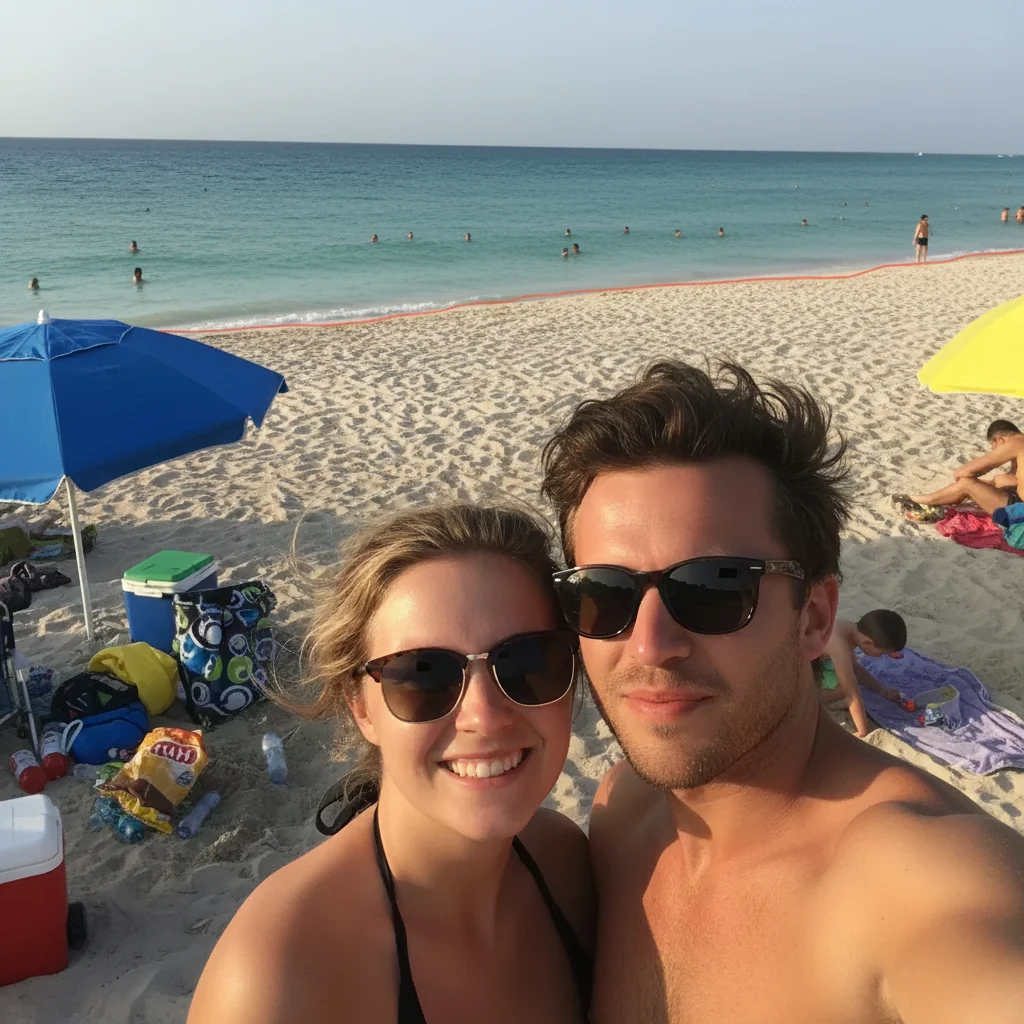
Beach photo background cleanup
Great vacation selfie ruined by crowded beach behind. Removed the tourists and clutter for a cleaner shot.
remove all the people in the background and beach clutter, fill with clean sand and ocean
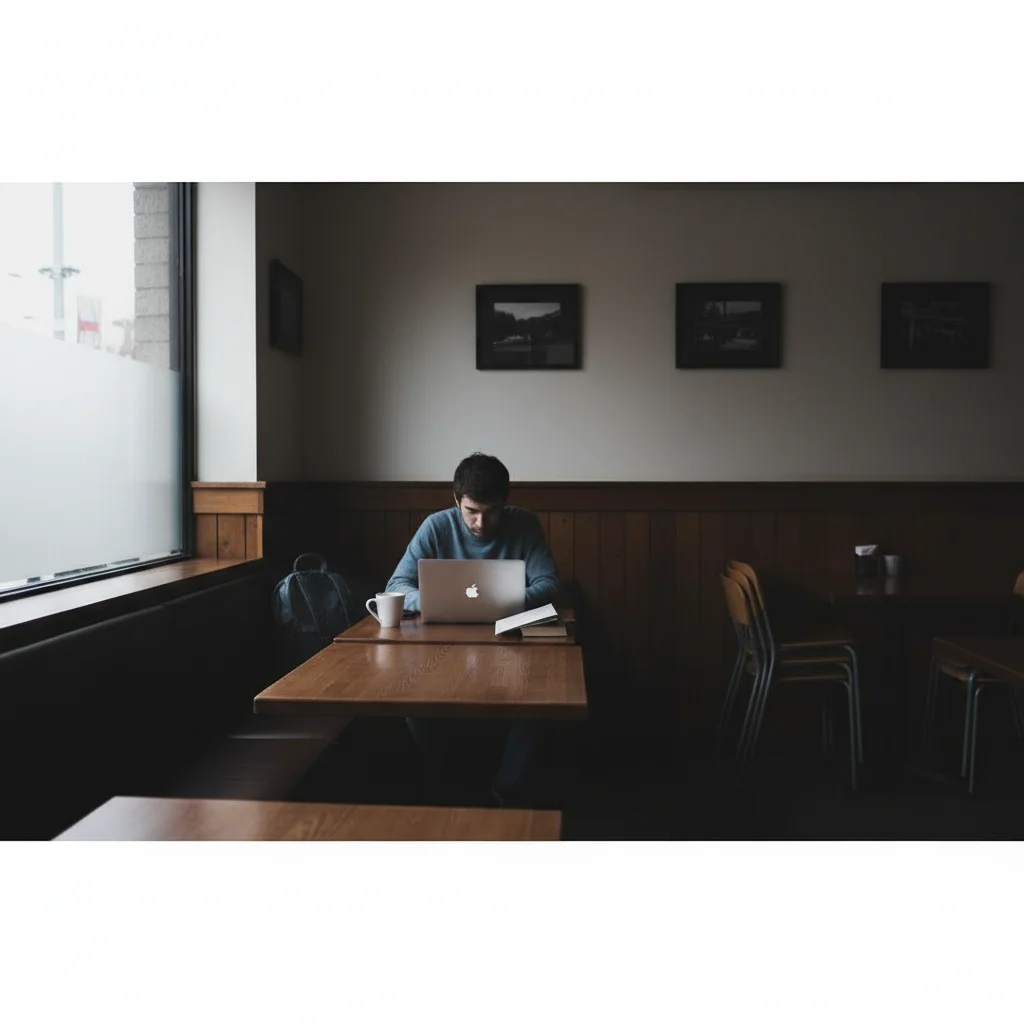
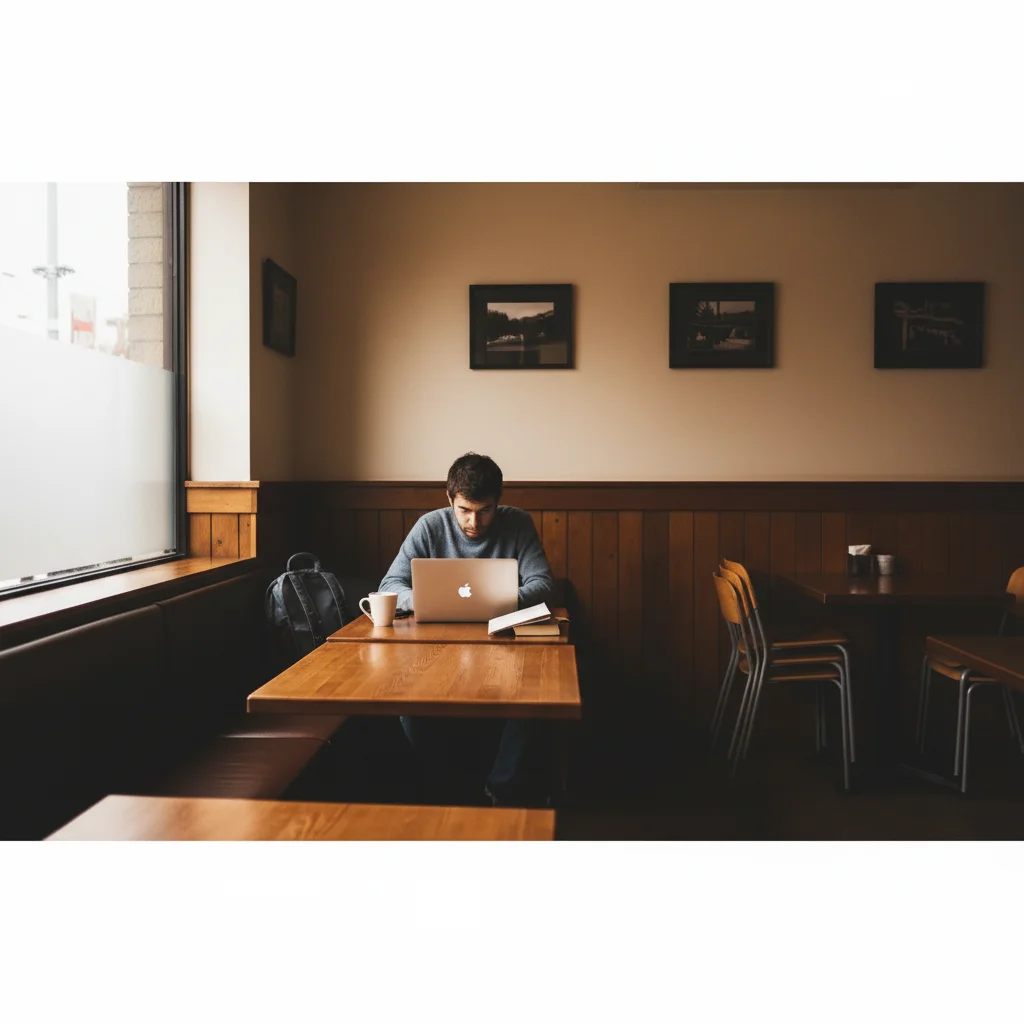
Cafe photo enhancement
Indoor cafe shot looked flat and dark. Enhanced colors and lighting for a warm, inviting aesthetic.
enhance colors to be warmer and more vibrant, brighten the overall image, give it a cozy cafe atmosphere
Common Issues and Fixes
The edited area looks obviously fake or doesn't blend
Why: The AI-generated fill doesn't match the surrounding lighting, texture, or perspective well enough.
regenerate with same prompt adding 'blend naturally with surrounding area, match lighting and texture'
Sometimes running the same edit again produces better results. AI has some randomness.
Colors look oversaturated or unnatural after enhancement
Why: Color enhancement went too far. The AI interpreted 'vibrant' more aggressively than you wanted.
Words like 'subtle,' 'natural,' and 'slight' help prevent over-processing.
Background blur looks choppy around hair or edges
Why: Hair and fine details are challenging for blur effects. The AI needs more guidance about edge quality.
blur background with smooth natural bokeh, preserve crisp edges around person and hair detail
Zoom to 100% to check edges before downloading. Problems show up at full resolution.
Removed object left a visible patch or color difference
Why: The area filled in doesn't perfectly match the original background texture or color.
remove [object] and fill seamlessly with matching texture and color, no visible seams
If patching persists, try describing what should replace it specifically.
Frequently Asked Questions
Do I need to select or mark anything before editing?
No, just describe what you want in plain language. Say 'remove the person on the right' or 'blur the background' and the AI figures out what you mean.
Will my edited photo have a watermark?
No. EditThisPic is free to try, and purchased downloads are clean. Download your edited photos and post them directly to any social media platform.
Can I edit photos from my phone camera roll?
Yes, EditThisPic works in any mobile browser. Just upload photos directly from your camera roll, edit them, and save. No app download needed.
What size photos work best for social media?
Upload the highest resolution you have. EditThisPic handles photos up to 7MB. Higher resolution gives the AI more detail to work with. You can always crop to specific social media dimensions afterward.
Can I make multiple edits to the same photo?
Yes, make as many edits as you need. Fix the background first, then enhance colors, then remove an object. Each edit builds on the last. Download when you are happy with the result.
Does this work for Stories and Reels too?
Absolutely. EditThisPic works with any photo regardless of intended use. Edit your photos here, then crop or format them for Stories, Reels, TikTok, or any other platform using your phone's built-in tools.
Is EditThisPic's AI photo editor for social media photos really free?
Yes — you get 1 free edit per week, no account needed. Credit packs start at $4.99 for 10 edits.
Can I use this on my phone?
Yes. EditThisPic works in any mobile browser — iPhone, Android, tablet. No app download needed.
Popular use cases
Ready to upgrade your social media photos?
Free to try. No signup or app download required.
Start Editing