Free โ€ข No signup Remove Car ยท Free

AI Car Remover

Just describe what you want and AI handles the car editing.
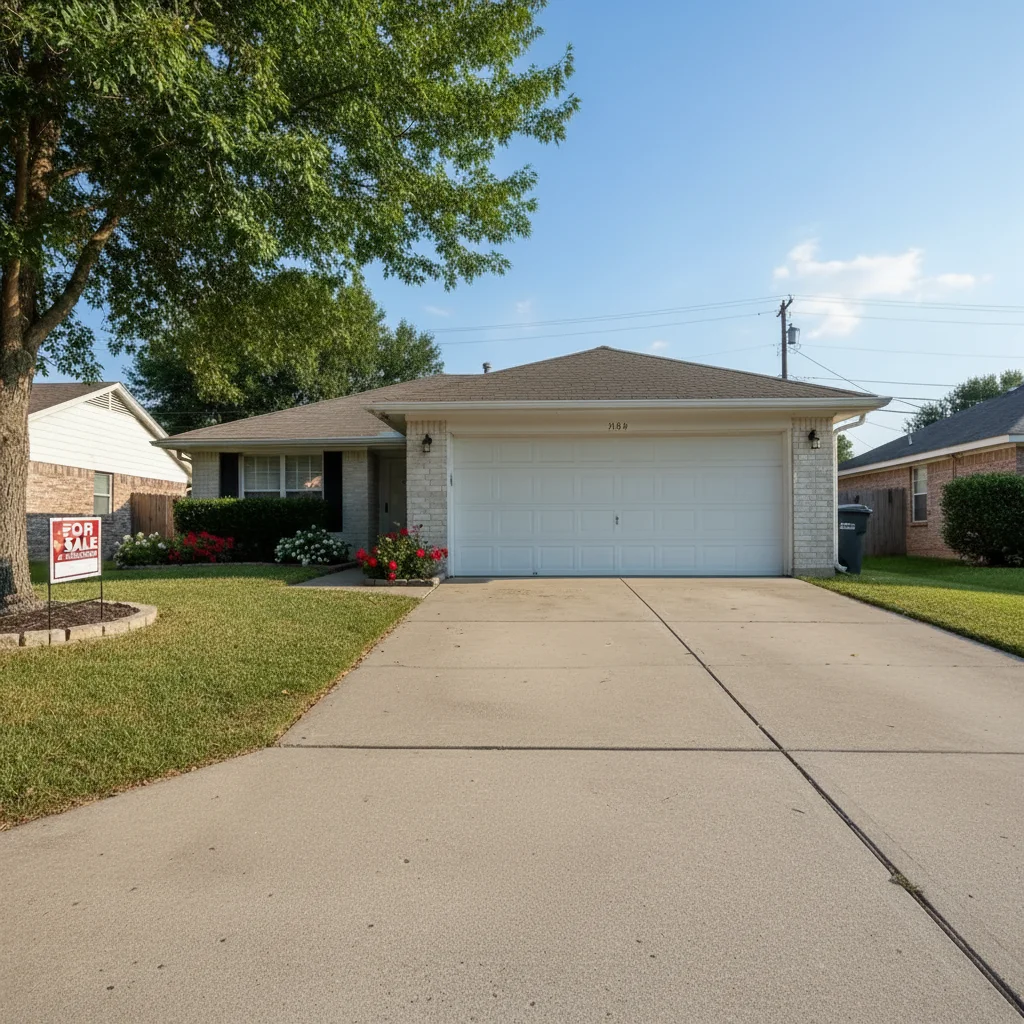
Before ai-car-remover edit
Before
โ†’
After ai-car-remover edit
After

AI Car Remover

Drop your photo here

or click to browse

Release to upload

Free โ€ข No signup

Advertisement
Popular use cases:
  • social media photos
  • professional headshots
  • product photography
  • personal photos

Cost
Free No signup required
Time
Instant results in 15-30 seconds
Works on
Any device - browser, phone, tablet, desktop
Powered by
AI-powered photo editing
Scenario Prompt Time
Remove parked car from street Remove the red parked car completely and reconstruct the street and curb beneath it 15s
Remove car from driveway Remove the black SUV from the driveway and reveal the complete driveway and garage behind it 15s
Remove car from landscape photo Remove the white car from the mountain road and restore the natural landscape 20s
Remove multiple parked cars Remove all three parked cars from the street and reconstruct the empty parking lane 20s

How it works

  1. Upload Your Photo

    Select a photo containing cars or vehicles you want to remove. The AI works best when cars are clearly separated from your main subject and the background has identifiable patterns or textures to reconstruct.

    Expect: Your photo uploads instantly and appears in the editor at full resolution. The image is ready for car removal with no compression or quality loss.
  2. Mark All Cars to Remove

    Use the brush tool to paint over each car you want to eliminate. Mark the entire vehicle including the body, windows, wheels, and shadows. The AI will analyze surrounding background elements to fill in the space naturally.

    Copy one of these to get started:

    Remove parked car from street Remove the red parked car completely and reconstruct the street and curb beneath it
    Remove car from driveway Remove the black SUV from the driveway and reveal the complete driveway and garage behind it
    Remove car from landscape photo Remove the white car from the mountain road and restore the natural landscape
    Remove multiple parked cars Remove all three parked cars from the street and reconstruct the empty parking lane
    3 more prompts
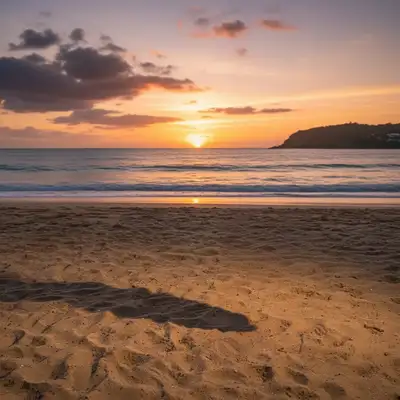
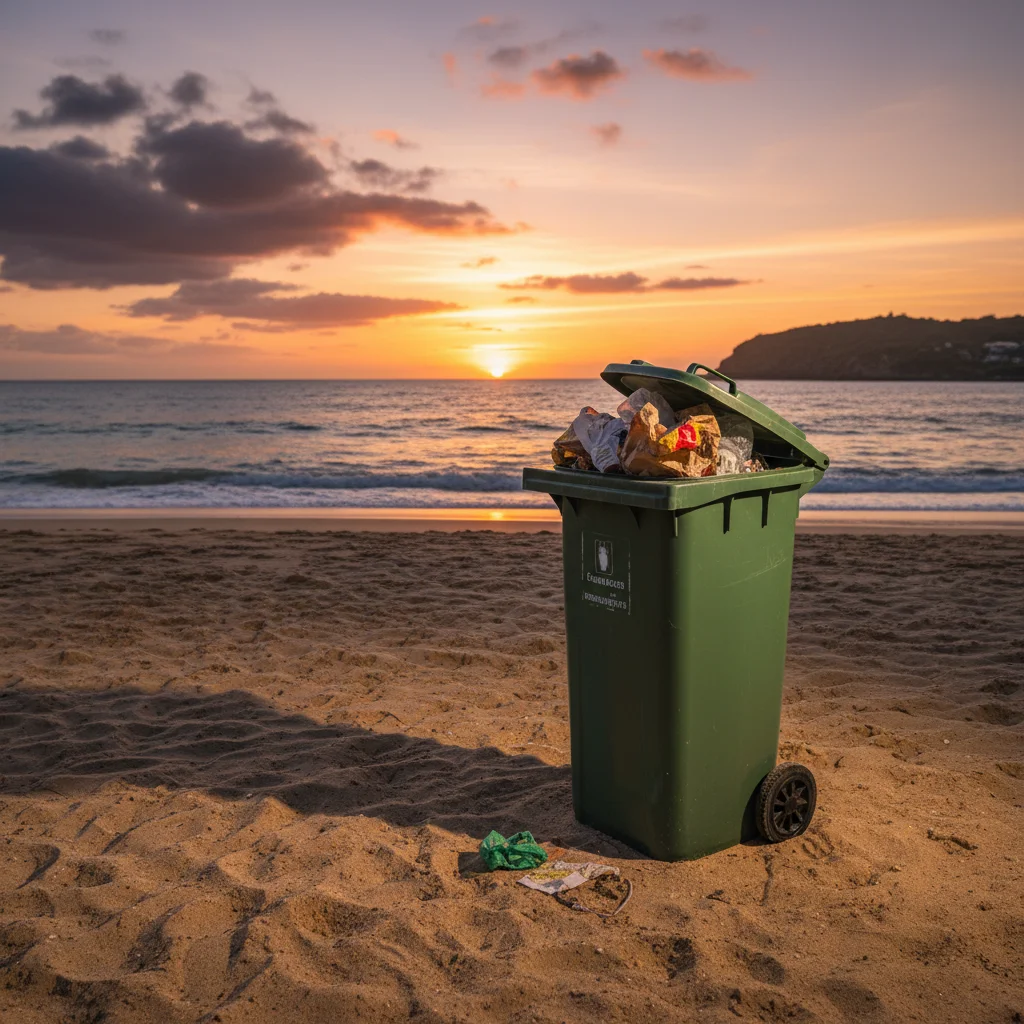
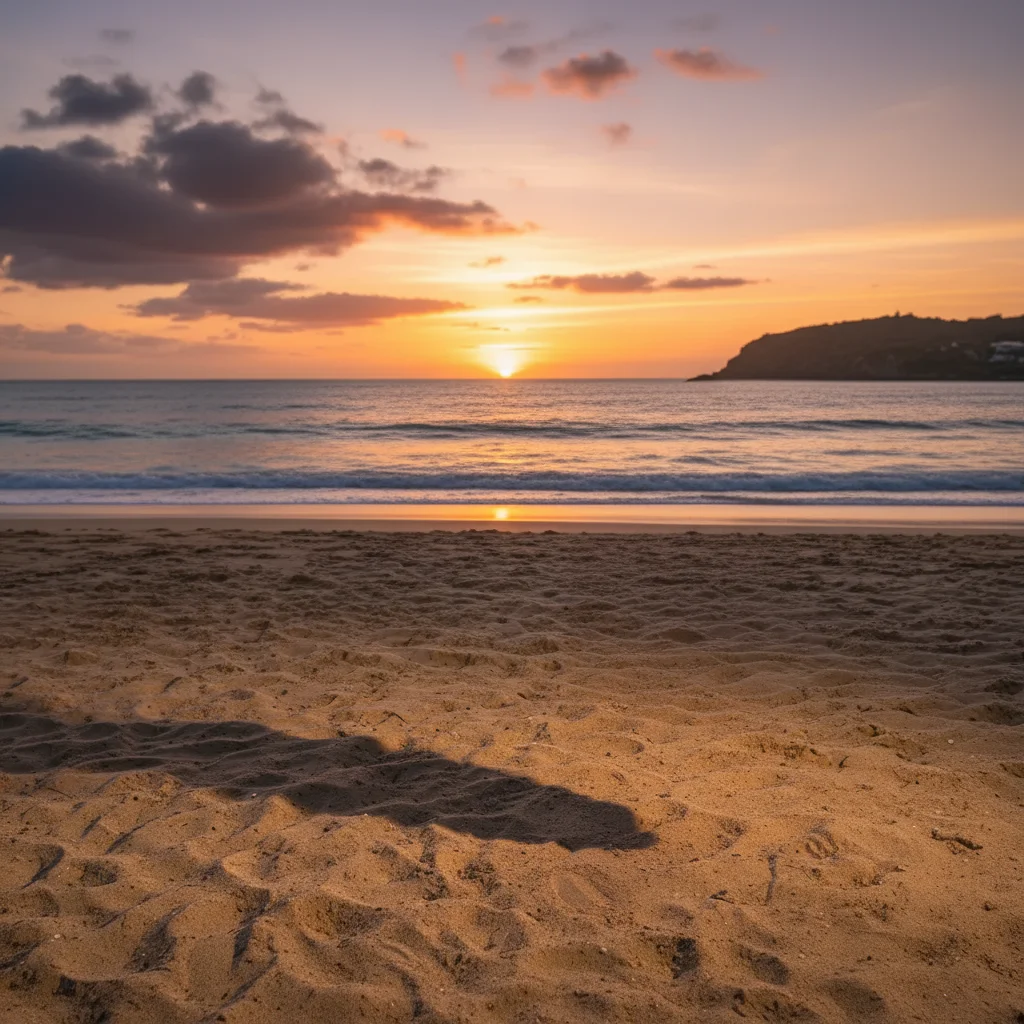
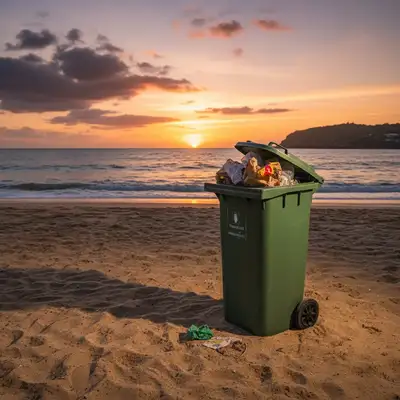
    Remove car from beach photo Remove the red truck from the beach and restore the natural sandy shore beneath it
    Remove car blocking building Remove the white van to reveal the complete building facade and entrance behind it
    Remove car from parking lot Remove the blue car and show the empty parking space with intact lines and pavement
  3. Generate Car-Free Scene

    Click Generate and watch as AI removes the cars and reconstructs the background. The process analyzes surrounding textures, patterns, and structures to create seamless results.

  4. Download Your Clean Photo

    Save your vehicle-free photo in full resolution with no watermark. Your edited image shows a clean scene with cars removed and background naturally filled in.

Try it free โ†“

AI Car Remover

Drop your photo here

or click to browse

Release to upload

Free โ€ข No signup

"This car tool is incredible. Just described what I wanted and it worked perfectly on the first try." @happy_user

See it in action

Before ai-car-remover edit
Before
->
After ai-car-remover edit
After

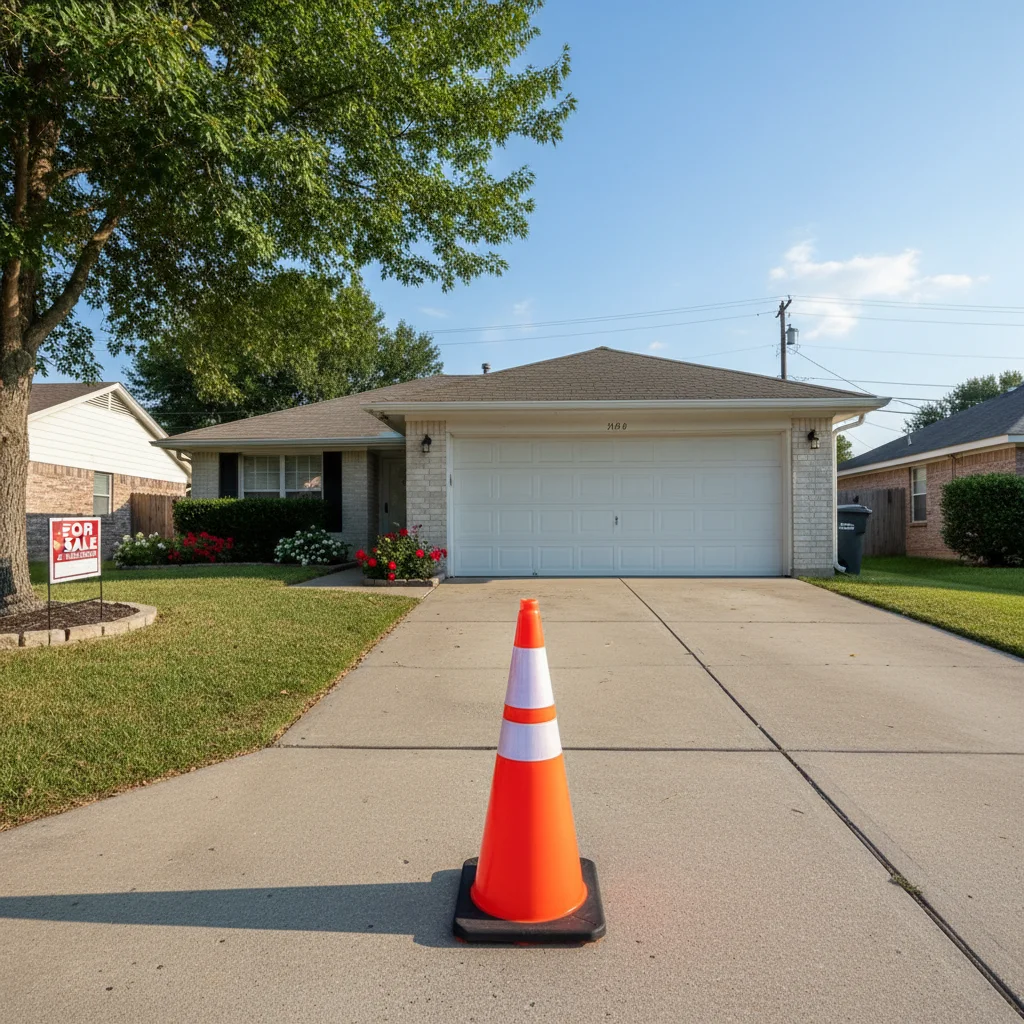
Real Estate Photo Enhancement

Removed parked cars from driveway to showcase property without vehicle distractions.
Prompt:
Before ai-car-remover edit
Before
->
After ai-car-remover edit
After

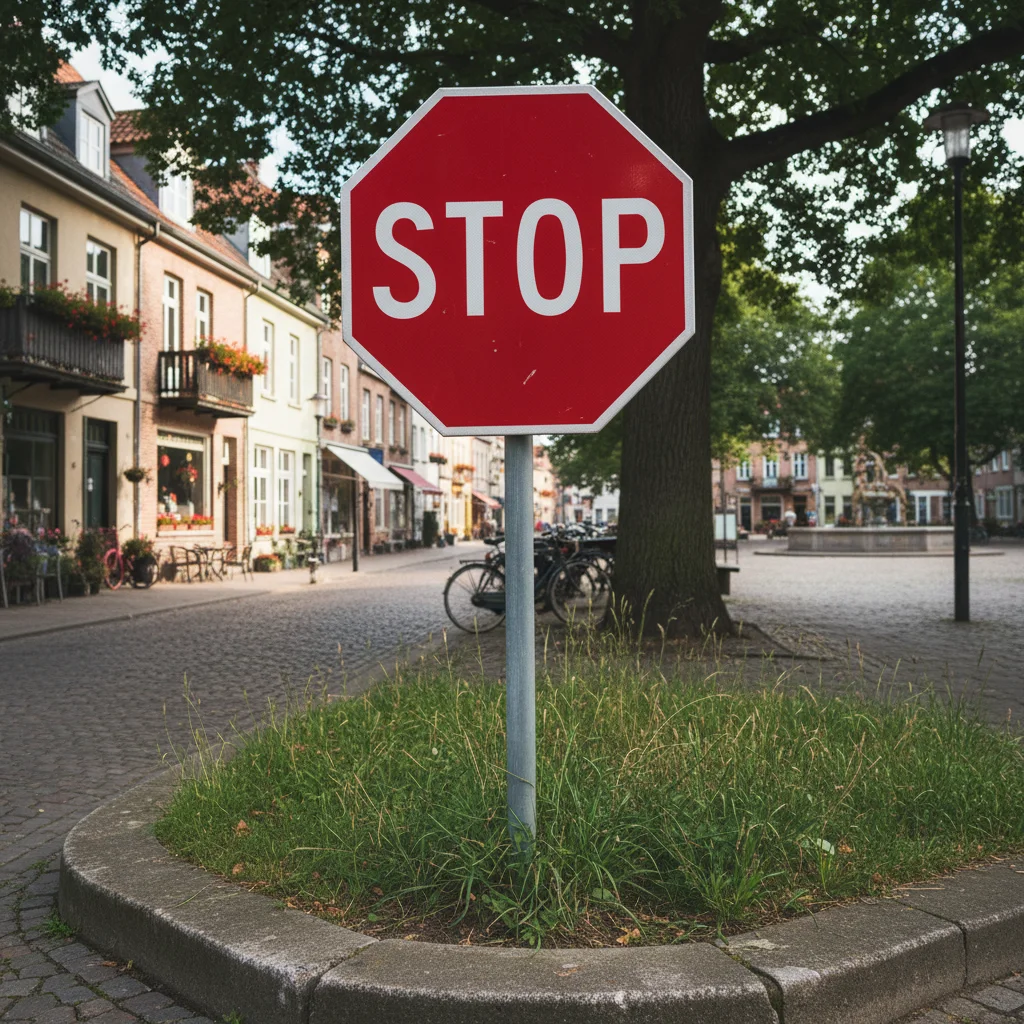
Street Scene Cleanup

Eliminated multiple parked vehicles from urban street photo for clean architectural view.
Prompt:
Before ai-car-remover edit
Before
->
After ai-car-remover edit
After

Landscape Photo Restoration

Removed car from scenic mountain road to restore natural landscape without man-made objects.

Prompt:
Advertisement

If something looks off

AI changed wrong area

Why: The AI interpreted the instruction differently than expected.

Try: Mark only the car itself including its shadow. Avoid marking surrounding background areas that you want to keep. The AI needs clear boundaries between the car and the scene you want preserved.
Background looks blurry or distorted

Why: The AI interpreted the instruction differently than expected.

Try: Complex backgrounds behind large cars can be challenging. For best results, use photos where the car is in front of relatively simple, repeating textures like roads, grass, or walls rather than complex detailed backgrounds.
Car shadow remains visible

Why: The AI interpreted the instruction differently than expected.

Try: Make sure you marked the car's shadow along with the vehicle itself. Shadows are part of the car's presence and need to be included in your markings for complete removal.
Only part of car removed

Why: The AI interpreted the instruction differently than expected.

Try: Ensure you marked the entire vehicle including all visible parts, wheels, roof, and any reflections. Incomplete markings result in partial removal.
Multiple cars not all removed

Why: The AI interpreted the instruction differently than expected.

Try: Mark each car separately and generate results. For photos with many cars, you may get better results removing them one at a time or in small groups.
Ground texture doesn't match

Why: The AI interpreted the instruction differently than expected.

Try: The AI reconstructs based on surrounding visible areas. If the car covers a unique ground pattern or texture, there may not be enough reference. Photos with repetitive ground patterns work best.

Quick answers

Do I need to mark the cars?

Yes, paint over each car you want to remove using the brush tool. Include the entire vehicle, wheels, and shadows. The AI will remove everything you mark and reconstruct the background.

Can I remove multiple cars at once?

Yes, you can mark and remove multiple cars in a single generation. However, for scenes with many cars, you may achieve better results by removing them one or two at a time.

What if the car is in front of buildings or people?

The AI reconstructs the background based on visible surrounding areas. If the car blocks important details with no reference visible elsewhere, the reconstruction may not be perfect. Best results come from cars in front of simple or repetitive backgrounds.

Does it work on moving cars with motion blur?

Yes, though stationary or slow-moving cars with clear edges produce the most realistic results. Heavy motion blur can make marking difficult and affect background reconstruction quality.

Can I remove other vehicles like trucks or motorcycles?

Absolutely. This tool works on all types of vehicles including cars, trucks, SUVs, vans, motorcycles, and bikes. Mark any vehicle you want to remove.

Ready to edit your photos?

Free to try. No signup required.

Try it free โ†’