Free β€’ No signup Change Text Β· Free

AI Text Replacer

Just describe the text change. The AI replaces it with natural font matching.

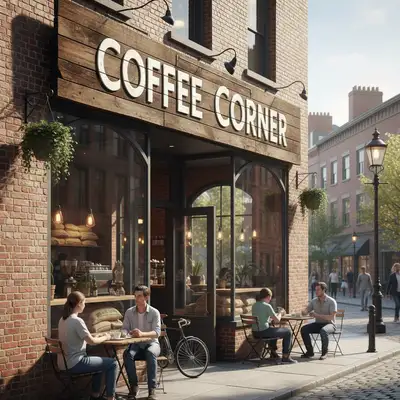
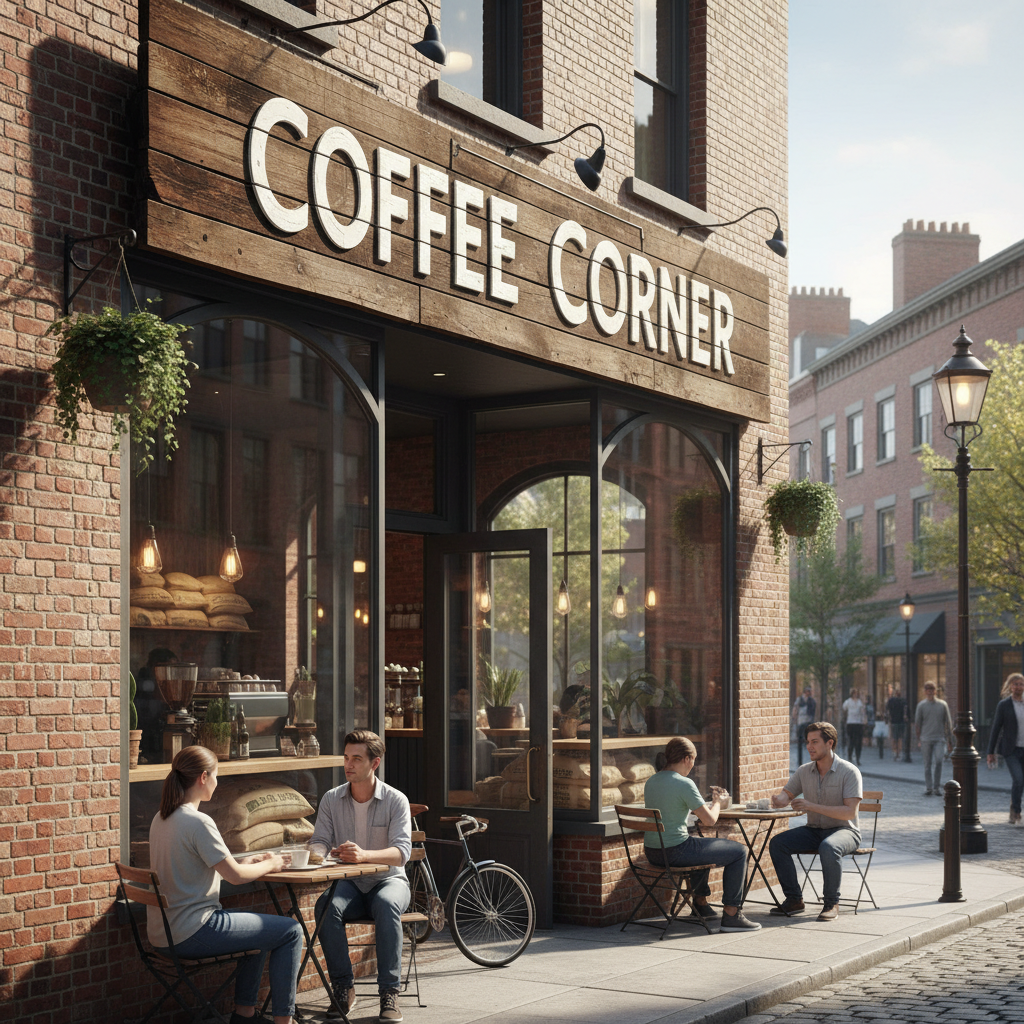
Coffee shop with Coffee Corner sign
Before
β†’
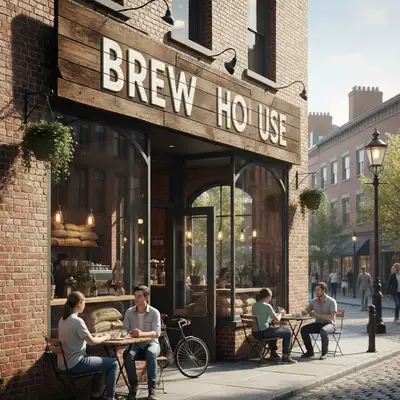
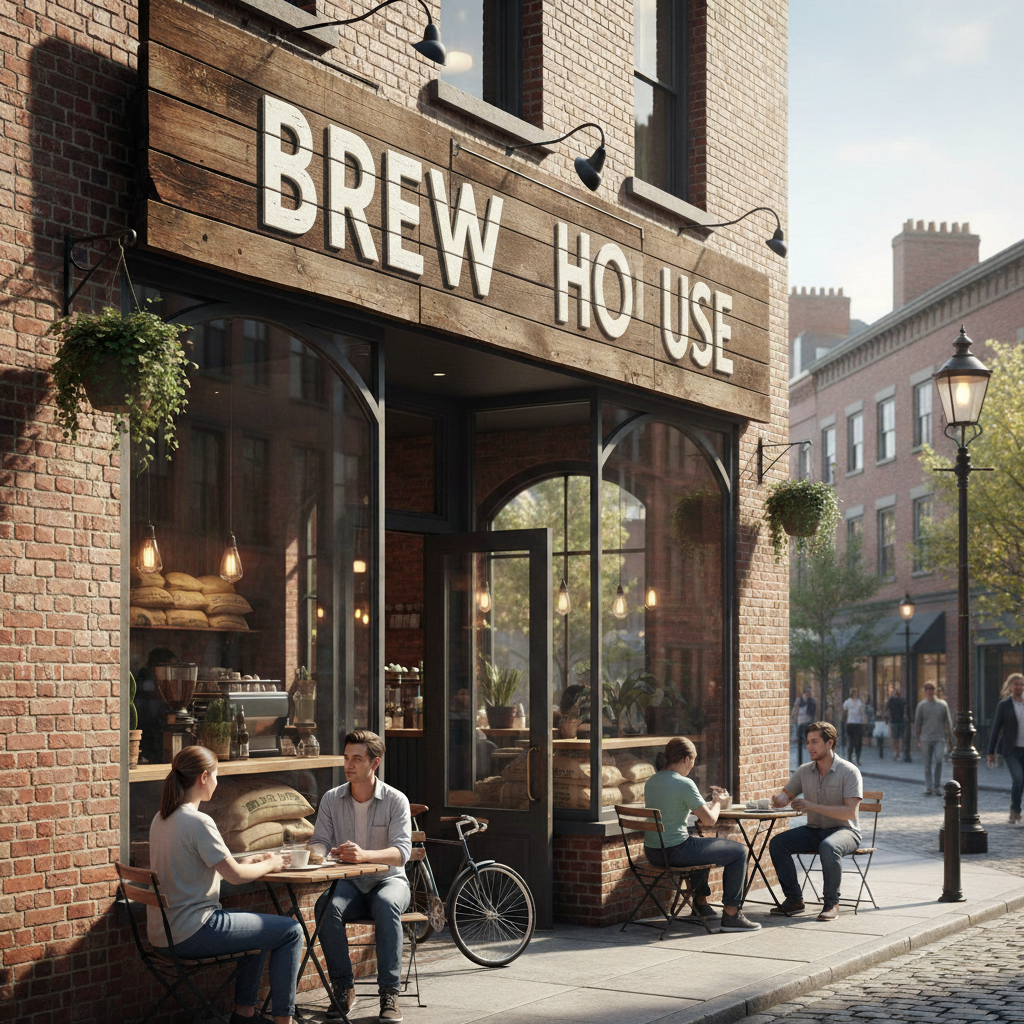
Same shop with Brew House sign replacing original text
After

AI Text Replacer

Upload photo to replace text

Free β€’ Results in 30 seconds β€’ No signup

Release to upload

FreeNo signupNo watermark
Popular use cases:
  • Store sign mockups
  • Product label updates
  • Event banners
  • Menu boards
  • Street signs
  • Price tags
  • Business rebranding

Cost
Free No signup required
Time
Instant results in 15-30 seconds
Works on
Any device - browser, phone, tablet, desktop
Powered by
AI-powered photo editing
Scenario Prompt Time
Store sign replace the sign text with "NEW NAME" in same font 20s
Product label change label text to "New Brand" keep design 25s
Curved text replace mug text following the same curve 35s

How it works

  1. Upload your photo

    Upload the image containing the text or overlay you want to work with. Readable text and good resolution help the AI with text precision. JPG, PNG, WebP up to 7MB.

    Expect: Simple text swaps: 20-30 seconds. Complex fonts or curved text: 30-45 seconds with possible refinement.
  2. Describe the text replacement

    Type your instruction: 'replace the text on the sign with OPEN' or 'change the label to say Premium Quality.' Be specific about what text to replace and what the new text should say. No marking needed for most text replacements.

    Tip: Include the exact new text in quotes for precision: 'replace with "SALE 50% OFF"' ensures correct capitalization and punctuation.

    Copy one of these to get started:

    Change store sign text replace the text on the store sign with "GRAND OPENING" in the same font style
    Update product label change the label text to say "Organic" and keep the same design and colors
    Replace street sign replace the street sign text with "Main Street" matching the official font and color
    Change banner message replace the banner text with "Welcome Home" in the same festive style, keep the decorations
    3 more prompts
    Update price tag change the price tag from $49.99 to $29.99, keep the tag design exactly the same
    Replace curved text on mug replace the curved text on the mug with "Best Mom Ever" following the same curve and font
    Change neon sign text replace the neon sign text with "PIZZA" keeping the glowing neon effect and color
  3. Generate and review

    Check that the new text is readable, properly aligned, and matches the original font style. Verify the text fits naturally within the original space and the perspective looks correct.

  4. Refine with markers if needed

    If the AI replaced the wrong text or the font doesn't match, tap a marker on the specific text area and regenerate with more guidance. Specify font style if needed: 'match the bold serif font.'

    Tip: For multiple text areas, replace one at a time for best results.
Try it free ↓

AI Text Replacer

Upload photo to replace text

Free β€’ Results in 30 seconds β€’ No signup

Release to upload

Free β€’ No signup

"Changed the store name on my shop photo for rebranding mockup. Font matched perfectly, looked like a real photo." @SmallBiz_Marcus

See it in action

Coffee shop with Coffee Corner sign
Before
->
Same shop with Brew House sign replacing original text
After

Store sign rebranding

A coffee shop needed to preview their new name before ordering a real sign. Text replaced with matching typography.

Prompt: replace the text on the store sign with "BREW HOUSE" in the same font style
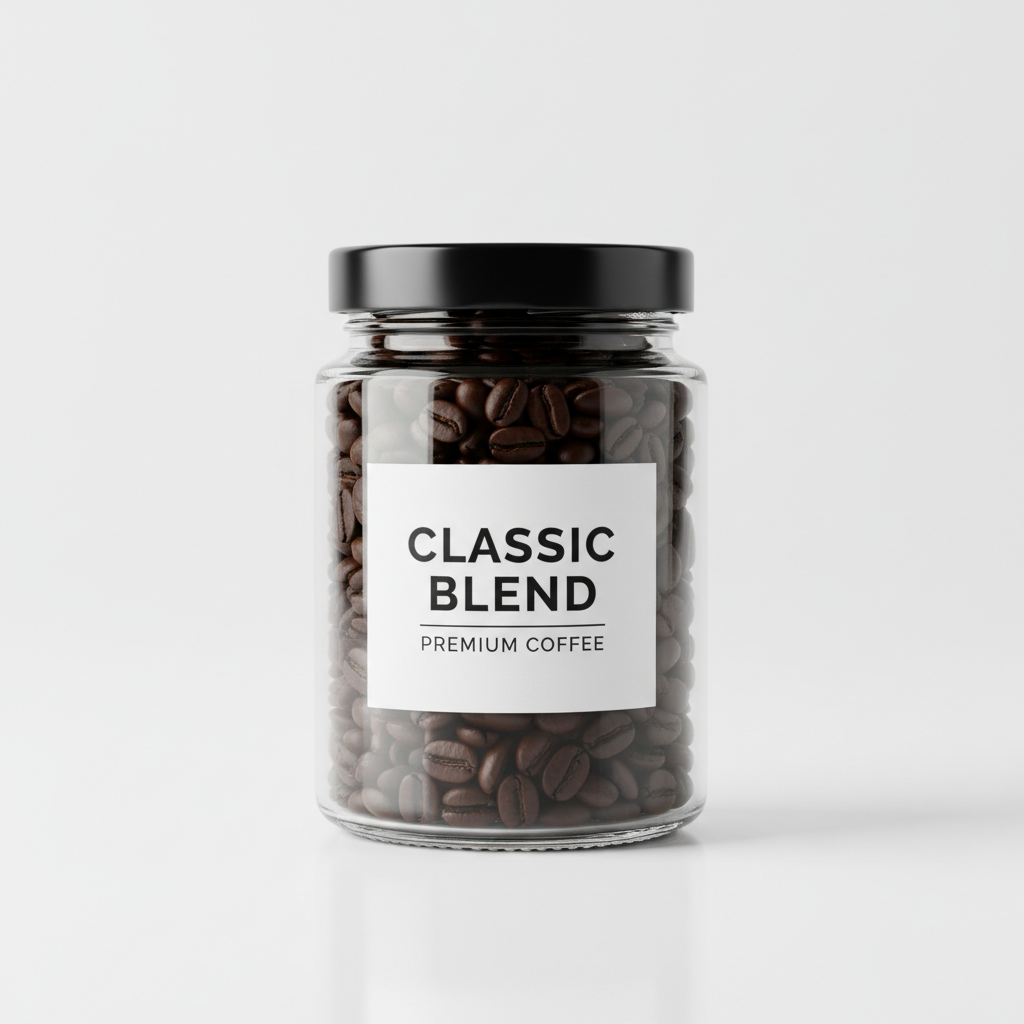
Jar with Classic Blend label
Before
->
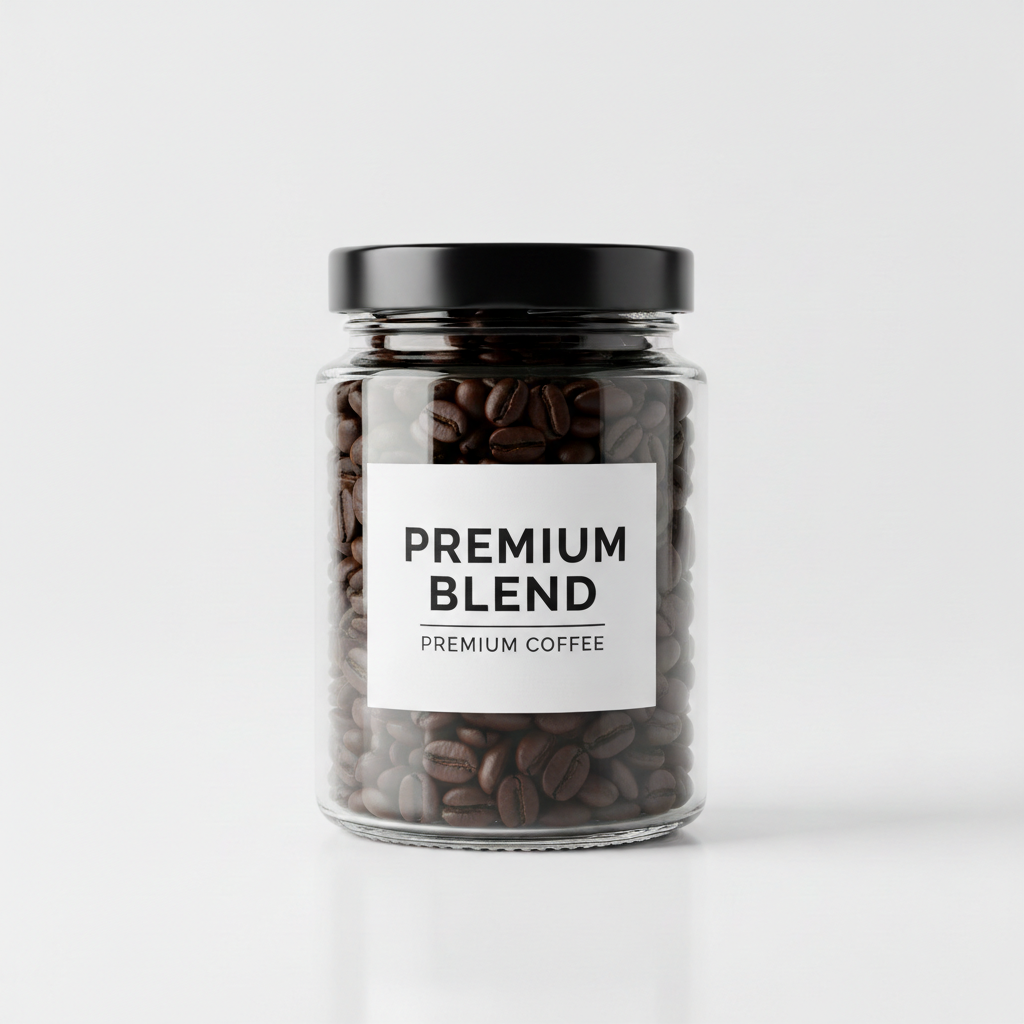
Same jar with Premium Blend label
After

Product label update

Marketing needed a product photo with new branding. Label text swapped while preserving all design elements.

Prompt: change the label text to say "Premium Blend" and keep the same design and colors
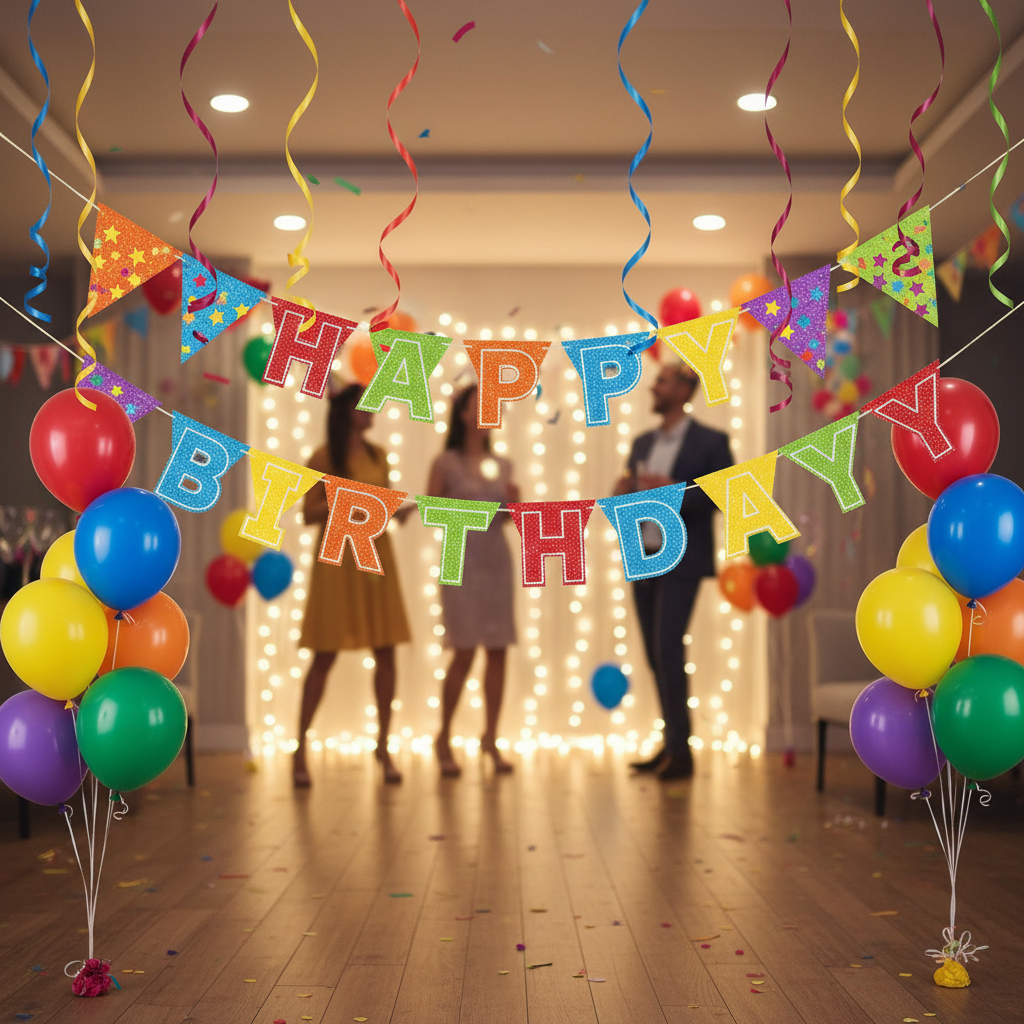
Party banner reading Happy Birthday
Before
->
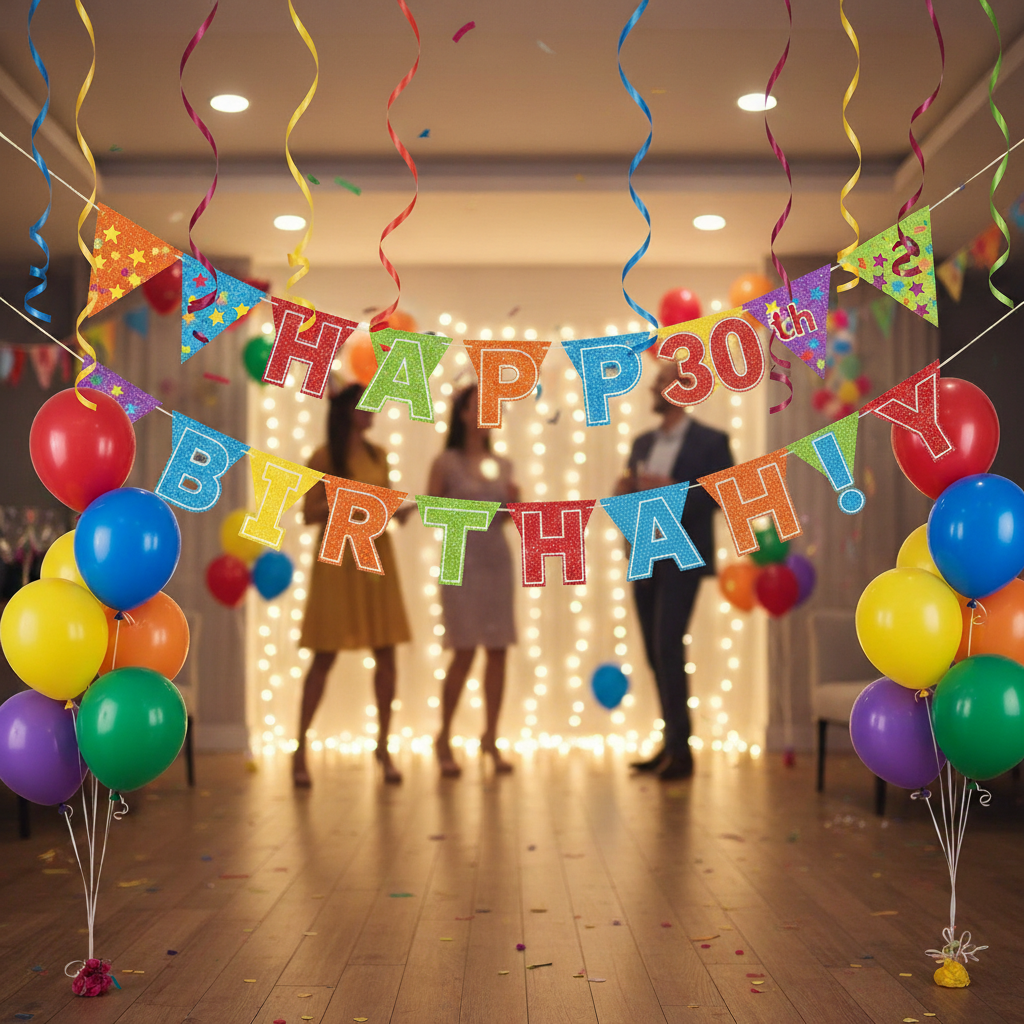
Same banner now reading Happy 30th Sarah
After

Event banner customization

Party planner created a mockup by changing generic banner text to personalized message.

Prompt: replace the banner text with "Happy 30th Sarah!" in the same festive style, keep the decorations

Detailed Guides by Scenario

πŸ“·

Creative Compositing

Swap and replace text in photos to create imaginative composites, mashups, and artistic transformations.

Common Scenarios

  • Replacing text with something completely different for a surreal effect
  • Swapping text to create a humorous or viral-worthy photo edit
  • Compositing multiple elements by replacing text with custom alternatives

Best Practices

  • Be specific about what should replace text β€” include color, style, and position details
  • The AI matches lighting automatically, but mentioning 'match the scene lighting' improves realism
  • For multiple replacements, do them one at a time for the cleanest results
πŸ“·

Professional & Commercial

Replace text in commercial photos for marketing, product shots, and client presentations without reshooting.

Common Scenarios

  • Replacing text in a product photo to show a different variant or model
  • Swapping text in a marketing image for a different campaign or audience segment
  • Updating legacy photos by replacing outdated text with current versions

Best Practices

  • Use reference images when the replacement needs to match a specific look exactly
  • Verify that lighting, shadows, and proportions look natural after the swap
  • For product photography, describe materials and colors precisely when replacing text
πŸ“·

Personal Photo Editing

Fix or improve personal photos by replacing text with something better β€” save the shot without retaking it.

Common Scenarios

  • Replacing a dull or overcast sky (as text) with a dramatic sunset or blue sky
  • Swapping out text in a photo to fix a mistake or improve composition
  • Replacing text in an old photo to update or refresh the image

Best Practices

  • Save the original first β€” keep the unedited version in case you want to try different replacements
  • If the replacement doesn't match the first time, describe the desired look in more detail
  • Natural-looking replacements work best when the new element matches the photo's lighting and perspective

If something looks off

AI changed the wrong area or something I didn't want changed

Why: Multiple text areas in the image made it unclear which one to replace.

Try: Tap a marker on the specific text you want to change, then regenerate with the same prompt

Tip: Markers tell the AI 'I mean THIS text specifically.' Use them when there are multiple text elements.

New text doesn't match the original font style

Why: The AI defaulted to a generic font instead of analyzing the original typography.

Try: replace the text with "[your text]" exactly matching the original bold serif font and letter spacing

Tip: Describe the font type: serif, sans-serif, script, bold, thin, condensed, etc.

Text is blurry or distorted

Why: The original text area was small or the image quality limited what the AI could produce.

Try: replace the text with "[your text]" keeping it crisp and readable at the original size

Tip: Larger text areas in higher resolution images produce clearer results.

Text doesn't follow the surface curve

Why: Curved or angled text requires understanding 3D perspective that the AI may have missed.

Try: replace the text with "[your text]" following the exact curve and angle of the original

Tip: Mention 'same perspective' and 'same curve' for text on bottles, mugs, or angled surfaces.

Replacement text is cut off or doesn't fit

Why: New text is longer than original and doesn't fit the same space.

Try: replace the text with "[shorter text]" or adjust the text size to fit the original space

Tip: Keep replacement text similar length to original, or specifically ask to resize.

Quick answers

Do I need to select the text before replacing it?

No. Just describe what text to replace: 'replace the sign text with OPEN.' The AI identifies the text automatically. Only use markers if there are multiple text areas and you need to specify which one.

How do I replace text in a photo for free?

Upload your photo to EditThisPic and type 'replace the text on [location] with [new text].' The AI swaps the text in 20-40 seconds, matching the original font. Free, no login, no watermarks.

Will the new text match the original font?

The AI analyzes the original font style and attempts to match it. For best results, mention 'same font style' or describe the font type (serif, bold, script) in your prompt.

Can I replace text on curved surfaces like mugs or bottles?

Yes. Add 'following the same curve' to your prompt. The AI will wrap the new text to match the surface curvature of the original text.

Is EditThisPic's AI text replacer really free?

Yes β€” you get 1 free edit per week, no account needed. For unlimited edits, plans start at $3.99/month.

Is my photo kept private when I replace text?

Yes. Your photo is processed in real-time by the AI and is not stored on our servers after editing. No account is required to use the tool, and we don't collect or share your images. Your original file stays on your device.

How does EditThisPic compare to Cleanup.pictures for replacing text?

EditThisPic uses AI that understands natural language, so you describe the edit you want instead of using complex tools. It works instantly in your browser with no software to install or learn. For replacing text, you simply type what you want and the AI handles the rest in 20-45 seconds.

Can the AI remove text without damaging the photo underneath?

Yes. The AI fills in what should be behind the text using context from the surrounding image. Simple backgrounds restore perfectly; complex patterns underneath text may need a refinement prompt for seamless results.

Can I replace text for multiple photos at once?

Currently, EditThisPic processes one photo at a time for the best AI results. Upload each photo individually and use the same prompt β€” the process takes about 20-45 seconds per image. For large batches, a paid plan gives you unlimited edits without waiting.

What makes a good photo for replacing text?

Well-lit photos with clear subjects produce the best results. Avoid heavily compressed or very small images. Front-facing angles typically work better than extreme side angles. The AI can work with most photos, but higher quality input means higher quality output.

What types of photos work best with this tool?

JPG, PNG, and WebP photos up to 7MB work best. The AI handles photos from any camera or phone. High-resolution images with good lighting produce the best results. Extremely dark, heavily compressed, or very small images may produce less precise edits.

Can I also crop the image in the same edit?

Yes! You can combine multiple edits in one prompt. For example, ask to replace text and crop the image at the same time. The AI understands complex multi-step instructions. For very different changes, separate prompts may give better control over each edit.

Ready to replace text in your photo?

Free to try. No signup required.