Free • No signup Open Editor

Add to Photos with AI

Add a person, object, or background to any photo by describing it in plain English. The AI generates the new element with matched lighting, correct perspective, and natural shadows — in under 30 seconds. Free, no signup required.

FreeNo signupNo watermark

Drop your photo here

"add a woman in a navy dress standing to the right of the group at the same scale as the others, matching the outdoor midday lighting"

Release to upload

Free • No signup

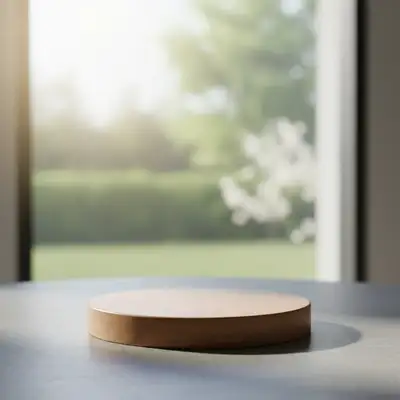
Before photo
Before
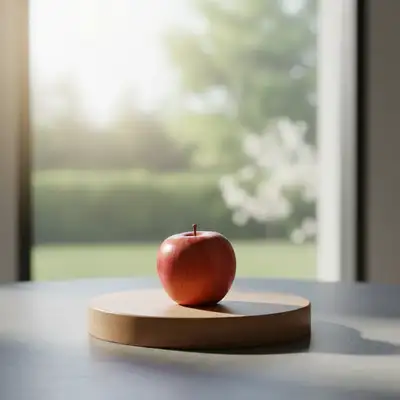
After AI edit
After
Quick Answer

EditThisPic adds people, objects, or backgrounds to any photo using AI — free, no signup needed. Upload your photo, describe what to add in plain English (e.g., "add a woman standing to the left"), and get a photorealistic result in about 20–30 seconds. Covers people, objects, backgrounds, hair, text, and shadows.

Unlike Photoshop compositing — which requires sourcing stock images, precise masking, manual shadow painting, and color correction across multiple tool panels — EditThisPic adds people, objects, and backgrounds from a plain-English description. No layer masks, no blending modes, no hours of retouching work.

How AI Photo Addition Works

Traditional photo compositing requires sourcing a matching stock image, cutting it out precisely, adjusting perspective manually, painting shadows, correcting color, and blending edges — often 30-60 minutes of work per element. AI addition works fundamentally differently: you describe what to add and where, and the AI generates the new element from scratch — matched to your photo's exact lighting, perspective, color palette, and scene context. When you say 'add a leather armchair to the left of the fireplace,' the AI doesn't paste a generic chair on top of your image. It analyzes the room's light direction, floor perspective, existing shadow angles, and color temperature, then generates a chair that belongs in that specific spot in that specific room. For adding people, the AI matches scale, body proportions, shadow direction, and skin-tone lighting to the existing subjects. For backgrounds, it matches the subject's existing light to the generated environment. For objects, it handles surface contact, cast shadows, and reflections automatically. Use tap markers on the exact spot you want the new element placed — this gives the AI a precise anchor point and eliminates placement ambiguity, especially useful when inserting a person into a specific gap.

Tips for Photorealistic Addition Results

1. Be specific about placement. 'Add a chair to the left of the table, facing the window' beats 'add a chair.' Spatial references relative to existing elements give the AI clear anchors for perspective and scale. 2. Mention the lighting. The AI reads lighting automatically, but explicit instructions produce more consistent results: 'with warm light from the upper left matching the rest of the scene.' This is especially important for adding people and objects on surfaces. 3. Tap a marker on the exact location. For precise placement — especially when filling a gap in a group photo — tap the spot on the image first. The AI treats the marker as the center anchor for the new element. 4. Add shadow instructions. For objects resting on surfaces, 'with a natural shadow' makes the addition look grounded rather than floating. Describe the light source: 'cast shadow to the lower right from overhead light.' 5. Name materials and styles. 'Add a table' produces a generic result. 'Add a round marble dining table on gold legs' gives the AI a precise target. Naming materials (leather, velvet, walnut, concrete) produces far more detailed and realistic outputs. 6. Work in passes for complex scenes. Adding three elements at once produces weaker results than adding them one at a time. Stage a room sofa-first, then side table, then decor — each pass refines the scene incrementally.

Use case guides

Add a Person to a Photo

Insert a missing family member, add someone to a group shot, or place a person into an empty scene. The AI generates the person with correct perspective, matched lighting, and natural shadows — describe who to add and where.

Common scenarios

  • A family reunion photo where a relative couldn't attend — add them using a reference photo
  • A wedding group shot where one guest was absent — insert them into the gap in the lineup
  • A product lifestyle photo that needs a model — add a person holding or wearing the item

Best practices

  • Describe the person's position relative to existing subjects: 'add a woman standing to the left of the man in the center'
  • Mention the lighting direction so the AI can match it: 'add her with warm light from the right side matching the rest of the photo'
  • Use a marker tap on the exact spot where the person should stand to eliminate placement guesswork
  • For missing family members, run two passes — one to add their silhouette, then a refinement pass for face and clothing detail

Sample prompts

Add a young woman in a red dress standing to the right of the group, matching the outdoor lightingInsert a man in a blue suit standing in the gap between the two people on the left, same scale as the others

Add an Object to a Photo

Place furniture, props, accessories, or any item into a photo. Describe the object, its material, color, and position — the AI generates it with correct perspective, surface contact, and matching light so it looks like it was always there.

Common scenarios

  • A real estate listing of an empty room — add a sofa, coffee table, and rug to show the space furnished
  • A product shot on a plain surface — add a decorative prop or context object to make it lifestyle-ready
  • A landscape photo that needs a focal point — insert a bench, lantern, or architectural element

Best practices

  • Name the material and style, not just the object type: 'add a mid-century walnut coffee table' beats 'add a table'
  • Include 'with a natural shadow' in your prompt for objects resting on surfaces — this grounds the object visually
  • Stage complex rooms in multiple passes — sofa first, then side table, then decor — each pass builds on the last
  • For reflective surfaces like polished floors, add 'with a subtle floor reflection' to your prompt

Sample prompts

Add a beige linen sofa facing the window with natural shadows on the hardwood floorInsert a green potted fiddle leaf fig plant in the right corner of the room, matching the warm lighting

Add or Replace a Background

Add a background to a cutout product or portrait, or replace an existing background entirely. Describe the scene, lighting, and mood — the AI generates a background that fits the subject's lighting and color palette.

Common scenarios

  • A product photo on white — add a lifestyle scene background to make it market-ready
  • A headshot against a plain wall — add a professional office or outdoor blur background
  • A portrait with a cluttered background — replace it with a clean studio gradient or scenic environment

Best practices

  • Describe the background in terms of mood and setting: 'a warm Tuscany vineyard at golden hour' produces better results than 'a nice outdoor background'
  • Mention depth cues if needed: 'soft bokeh blur in the background' tells the AI to separate subject from scene
  • For products, match the background to the product's use context — a coffee mug gets a café table, not a generic gradient
  • If the subject has complex hair or fine edges, describe the background as having low contrast to the subject's outline color

Sample prompts

Add a blurred modern office background with warm natural light coming from the leftReplace the background with a tropical beach at sunset, soft bokeh on the water and palms

Add Text, Watermarks & Shadows

Insert text overlays, copyright watermarks, or product shadows directly into photos. Describe the text content, style, and placement — the AI integrates it with natural perspective and blending so it reads as part of the image.

Common scenarios

  • A social media graphic that needs a headline or caption overlaid on a scenic photo
  • Product photography where you want a subtle watermark or brand logo in the corner
  • An object photo on a white background that needs a realistic drop shadow for depth

Best practices

  • For text, specify the font style and color: 'add bold white sans-serif text in the lower third saying [your text]'
  • For watermarks, describe opacity: 'add a semi-transparent watermark in the bottom right corner'
  • For shadows, describe the light source: 'add a soft drop shadow falling to the lower right from overhead light'
  • Keep text placement away from busy areas of the image — describe a clean zone: 'in the sky area in the upper left'

Sample prompts

Add the text 'Summer Collection 2026' in elegant white serif font centered at the bottom of the imageAdd a realistic drop shadow beneath the product, soft and falling to the lower right, as if from overhead studio lighting

Example prompts to get started

add a woman in a navy dress standing to the right of the group at the same scale as the others, matching the outdoor midday lighting
insert a man in casual clothes sitting on the bench in the foreground, matching the natural park lighting — soft shadows falling to the right
add a glass vase with white flowers on the table in the foreground, with a soft natural shadow falling to the lower right consistent with the window light
add a warm, moody café interior background — wooden table surface in the foreground, soft bokeh lighting behind, matching warm amber tones to complement the product
add voluminous, wavy auburn hair — naturally flowing, with soft highlights matching the side lighting in the photo. Keep the hairline and face untouched.
add bold white sans-serif text reading 'Summer Essentials' centered in the upper third of the image, with a subtle dark gradient behind it for legibility — keep the text clean and modern

Frequently Asked Questions About Adding to Photos

How do I add a person or object to a photo for free?

Upload your photo to EditThisPic and describe what to add and where — for example, "add a woman in a blue dress standing to the right of the group, matching the outdoor lighting." Tap a marker on the exact spot for precise placement. The AI generates the new element with matched lighting, correct perspective, and natural shadows in under 30 seconds. Free to try with one edit per week, no signup required.

Can AI realistically add a person to a photo?

Yes. EditThisPic adds people to photos by generating a new person matched to your scene's lighting, perspective, and scale — not pasting a stock photo on top. Describe the person's position, clothing, and the lighting, and the AI generates a photorealistic result in under 30 seconds. For a missing family member, describe their features or reference another photo. Results are most realistic when the subject description is specific and the photo has clear, consistent lighting.

How do I add someone to a group photo?

Upload the group photo, then describe who to add and where: 'add a woman in a blue dress standing to the right of the group at the same scale as the others.' Tap a marker on the exact gap where they should stand for precise placement. The AI generates the person with matched lighting and perspective. For best results, specify clothing, approximate age, and a lighting reference relative to others in the photo.

Can I add a background to a photo for free?

Yes. Upload your photo, describe the background you want — 'a sun-drenched Santorini terrace with soft bokeh' — and EditThisPic generates it in under 30 seconds. Free to try with one edit per week, no account required. Subscriptions from $4.99/mo (15 edits/month). Works best when the subject has a clean edge or has already had the background removed.

How do I add an object to a photo?

Upload your photo and describe the object, its position, and its material: 'add a mid-century walnut coffee table in front of the sofa with a soft shadow on the rug.' Tap a marker on the spot where the object should appear for precise placement. The AI generates the object with correct perspective, surface contact, and matching light direction. Work in passes for rooms with multiple objects — add one at a time for cleaner results.

Can I insert a specific person into a photo using their picture?

EditThisPic supports reference images — upload the target photo and use the reference image feature to provide a picture of the person you want to insert. The AI uses the reference to match face, hair, and build. Results improve with a clear, well-lit reference photo. This works well for memorial composites, adding a child's photo to a scene, or inserting a specific person into a lifestyle or event photo.

What objects can I add to a photo with AI?

Any object you can describe in words: furniture, plants, food, vehicles, clothing, accessories, props, architectural elements, text, watermarks, shadows, and more. The AI generates the object from scratch matched to your scene — no stock photo required. Results are most photorealistic for common objects with clear visual identity (furniture, food, everyday items). Abstract or highly custom objects may need iterative refinement passes.

Can I add text or a watermark to a photo?

Yes. Describe the text content, style, color, and placement: 'add bold white sans-serif text reading Summer 2026 centered in the lower third with a subtle dark gradient behind it.' For watermarks, specify opacity and position: 'add a semi-transparent copyright watermark in the lower right corner.' The AI integrates text with natural blending rather than simply stamping it on top.

Can AI add a shadow to an object in a photo?

Yes. Describe the light source and shadow direction: 'add a soft drop shadow beneath the product falling to the lower right from overhead studio lighting.' For objects on reflective surfaces, add 'with a subtle floor reflection.' Shadows are the single most important detail for making added objects look like they belong in the scene — always include shadow instructions when adding objects to surfaces.

How realistic is AI photo addition compared to Photoshop?

For most use cases — real estate staging, social media, family photo fixes, product photography — AI addition produces results comparable to skilled Photoshop compositing in under 30 seconds instead of 30-60 minutes. The AI handles perspective, shadows, color matching, and edge blending automatically. Manual compositing still has advantages for pixel-perfect commercial advertising work, but for everything else, AI addition is faster with equivalent quality.

Do I need to remove the background first before adding a new one?

Not necessarily. You can describe a background replacement directly: 'replace the background with a bright studio gradient, keeping the subject perfectly sharp.' EditThisPic handles the background separation internally. For subjects with complex hair or fine edges, removing the background first with the remove background tool and then adding a new one produces the cleanest results.

Is there a limit to how many elements I can add to one photo?

No hard limit, but adding multiple elements in a single pass produces weaker results than working iteratively. For best quality, add one element per pass — add the person, check the result, then add the object in the next pass. This lets you refine each addition before building on it. Complex real estate staging (sofa, rug, side table, lamp) typically takes 3-4 passes for the cleanest result.

Can I add a missing family member to a photo using AI?

Yes. You can describe a person to generate from scratch, or use the reference image feature to guide the AI with an actual photo of the missing person. For memorial composites or reunion photos, describe their position and clothing, then tap a marker on the gap where they should appear. The AI generates them with matched lighting and correct scale relative to the rest of the group.

Ready to start editing?

Open Editor