Do I need to mark where the object should go?
No! Just describe the placement in your prompt: 'add this on the left side of the desk' or 'place in the center of the table.' The AI understands spatial descriptions.
How do I add an object to a photo for free?
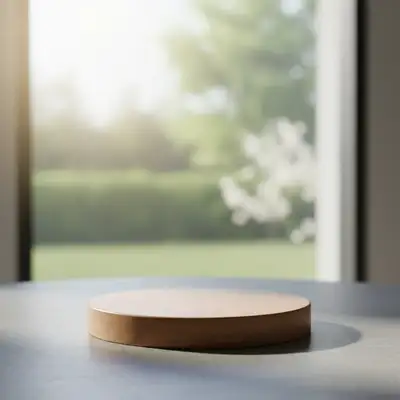
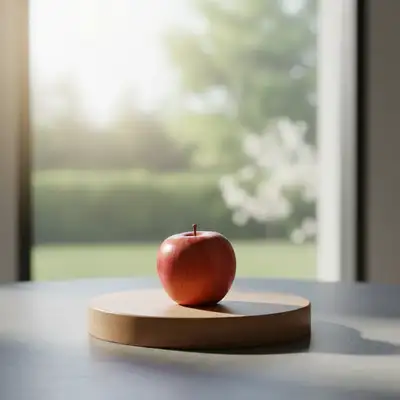
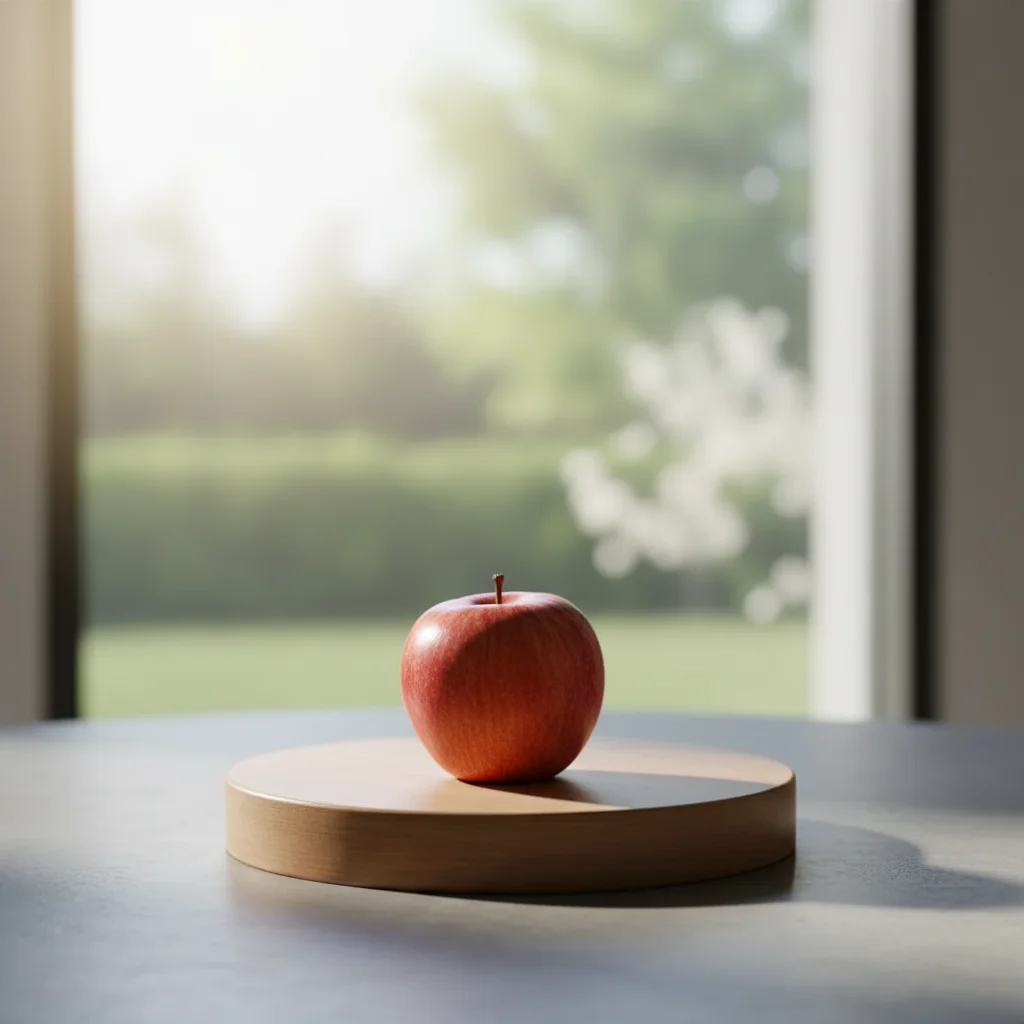
Upload your photo to EditThisPic and describe what you want added: 'add a coffee mug on the table' or upload a reference photo of the exact object. The AI places it with matching lighting and shadows in 20-40 seconds. Free to try, no login, no watermarks.
Should I use a reference photo or just describe what I want?
Use a reference photo when you need the EXACT object - your product, a specific prop, or a branded item. Click '+ Add another image' to upload it. The AI extracts and composites that exact object into your scene. Use description alone for generic items like 'a coffee mug' or 'a potted plant' where any version will work.
How do I control the size of added objects?
Include size references in your prompt. Use measurements ('about 12 inches tall'), comparisons ('the size of a coffee mug'), or relative terms ('small,' 'large'). You can also reference existing objects: 'about the same height as the lamp.'
Can I add multiple objects at once?
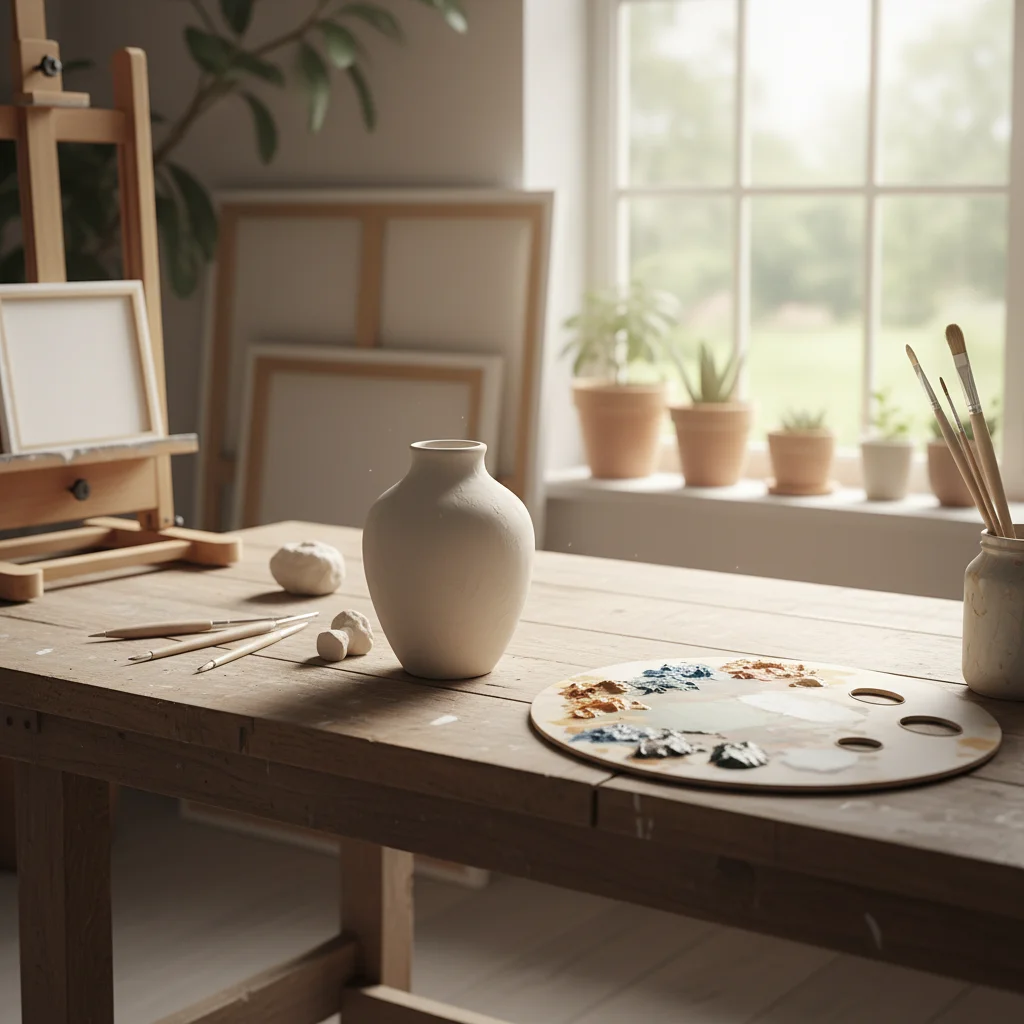
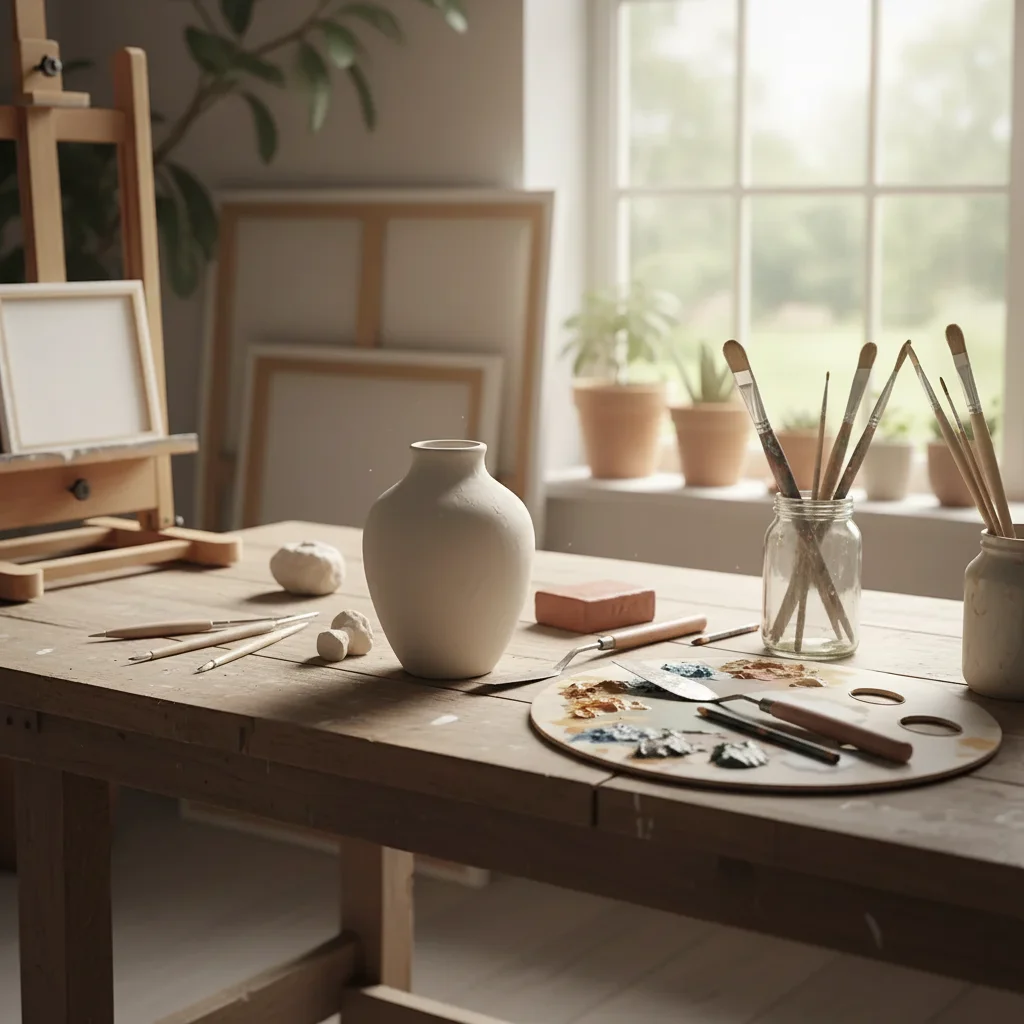
Yes! Describe all objects in one prompt: 'add a laptop on the desk, a coffee mug next to it, and a small plant in the corner.' The AI will place all items with consistent lighting. For complex arrangements, adding objects one at a time gives more control.
Why do glass or reflective objects sometimes look wrong?
Glass and metal need environmental reflections to look real. Include 'with natural reflections' in your prompt. The AI will add appropriate reflections of the surroundings, making glass vases, shiny electronics, and metallic objects look realistic.
What is the best free AI tool for adding objects to photos?
EditThisPic offers free AI object placement with no signup required. Unlike Photoshop compositing that requires finding stock images and manual blending, just describe what you want and where. The AI generates objects with matching perspective, lighting, and shadows automatically. Works for furniture, products, decorations, and props.
Is EditThisPic's AI object adder really free?
Yes — every visitor gets one free edit per week with no account needed, so you can add an object to your photo at no cost the first time. If you need more, a 10-edit pack is $4.99, 25 edits is $9.99, and 100 edits is $29.99. There are also one-time credit packs from $4.99.
Can I add object on my phone?
Yes. EditThisPic runs entirely in your mobile browser — iPhone Safari, Android Chrome, and tablets all work. There's nothing to install. Just open editthispic.com, tap to upload a photo from your camera roll, type your prompt, and add an object to your photo. The result downloads straight back to your photos.
What photo formats does the AI object adder support?
EditThisPic accepts JPG, PNG, WebP, and HEIC files up to 7MB. HEIC support matters for iPhone users since that's the default capture format. The AI object adder returns a standard JPG or PNG, and iPhone HEIC photos are converted automatically on upload.
Can I add my own product using a reference photo?
Yes, and this is the best method for product photography. Click '+ Add another image' and upload a photo of your product on a clean background. Then describe where to place it: 'put this product on the wooden table.' The AI extracts your exact product and composites it into the scene with matching lighting.
How do I make added objects look realistic with proper shadows?
Include 'with natural shadows' or 'with contact shadow underneath' in your prompt. Also mention the light direction if visible in the photo: 'matching the window light from the left.' The AI uses these cues to generate shadows that ground the object on the surface and match the scene's lighting.
Can I add text or logos to a photo with this tool?
For simple text or logos, describe what you want: 'add a neon sign saying OPEN on the wall.' For precise logos, upload the logo as a reference image and describe placement. For complex typography, the dedicated Add Text tool gives more control over fonts and positioning.
Does the AI match the perspective of added objects to the scene?
Yes. The AI analyzes the camera angle and vanishing points in your photo, then generates the object with matching perspective. Objects placed on tables appear at the correct angle, and wall-mounted items follow the room's perspective lines. Straight-on photos give the most accurate perspective matching.
How much does EditThisPic cost?
You get 1 free edit per week — no account needed. After that, one-time credit packs start at $4.99 for 10 edits, valid 12 months, no subscription. Power users who edit daily can pick Studio Membership, a monthly workspace at $49.99/mo for 300 edits. Purchased downloads are clean with no watermark.