How do I add a person to a photo?
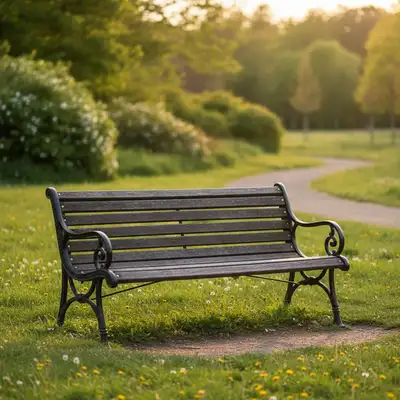
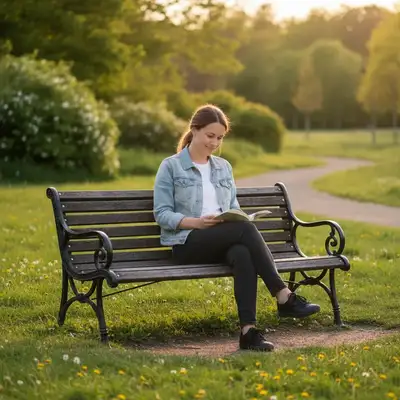
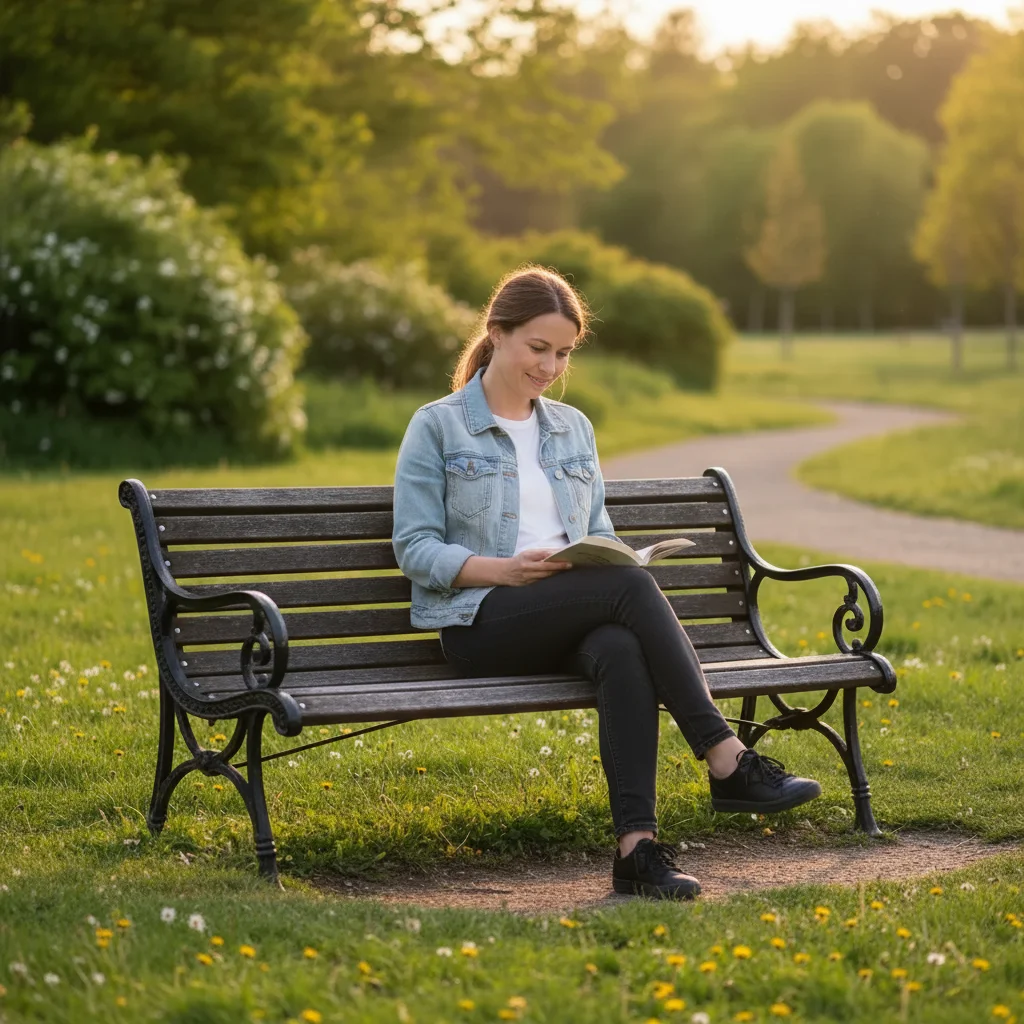
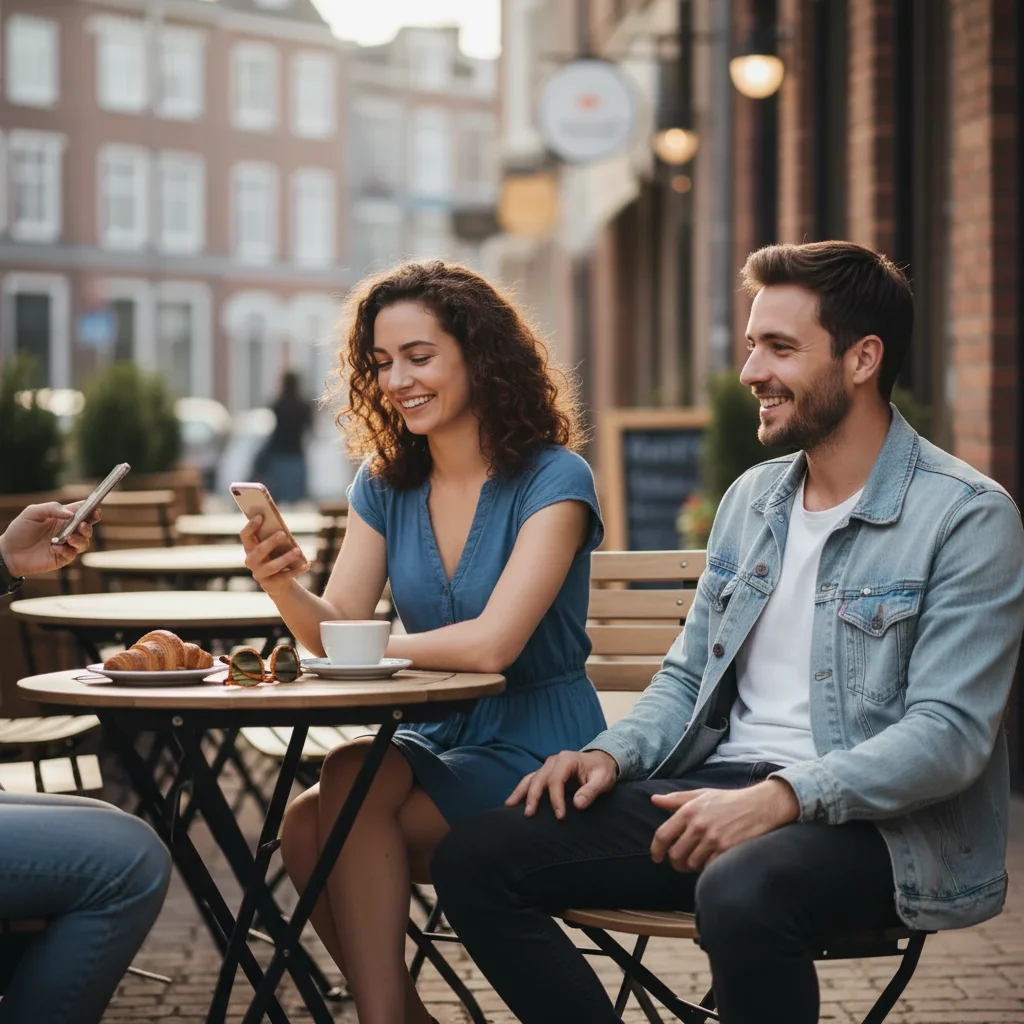
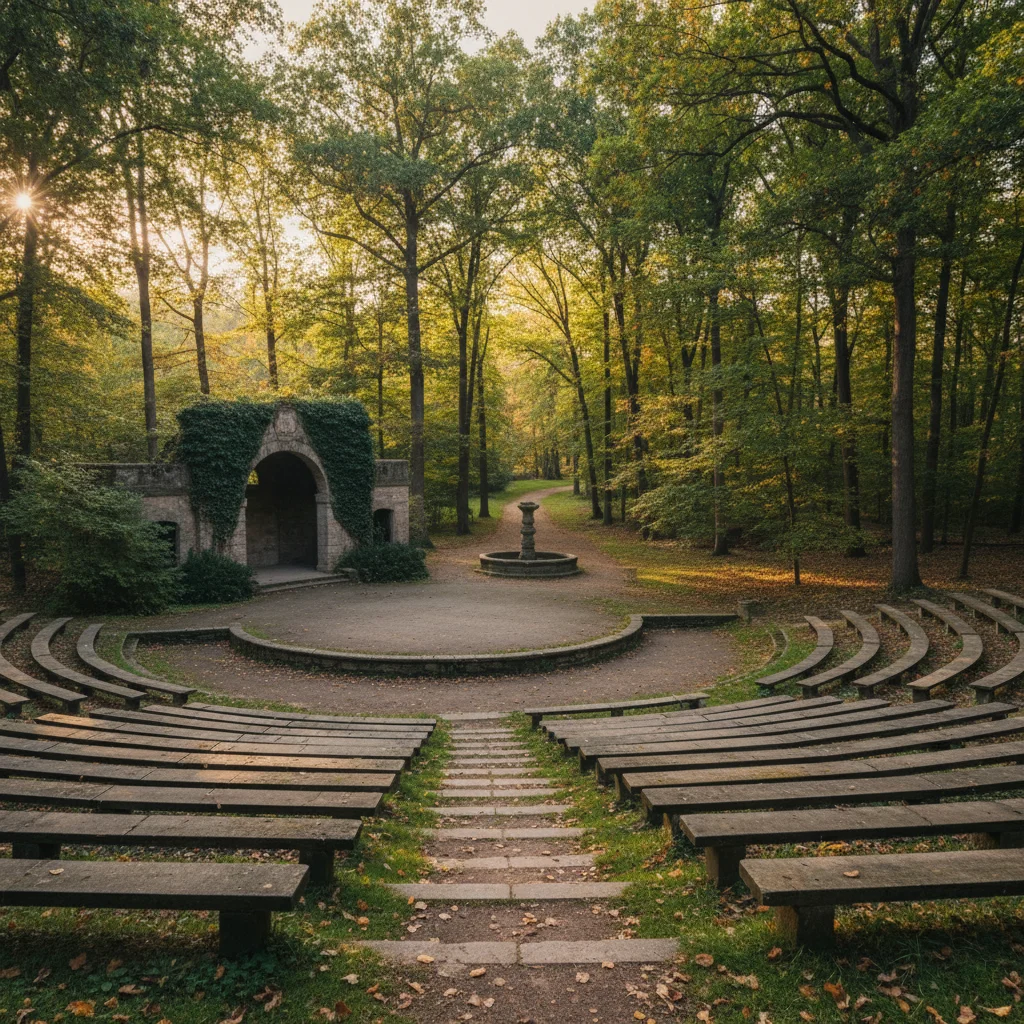
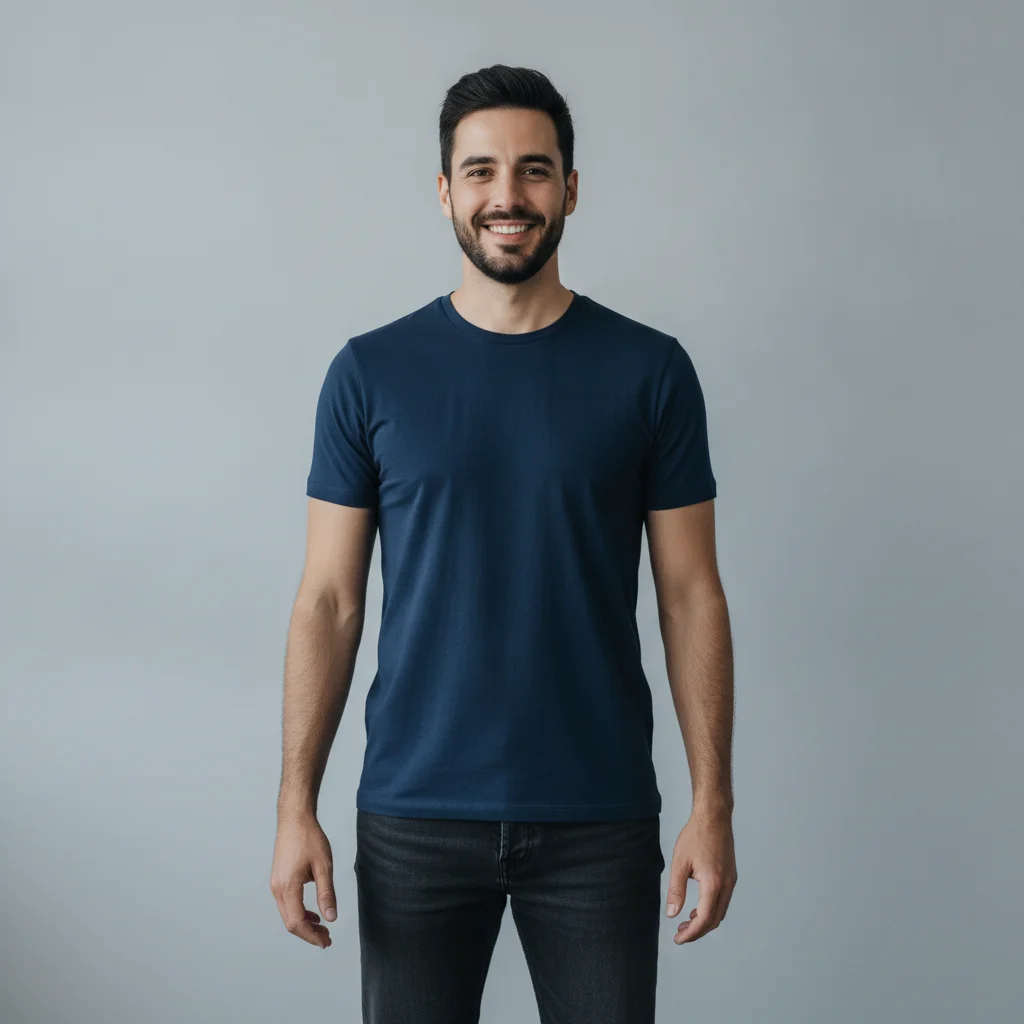
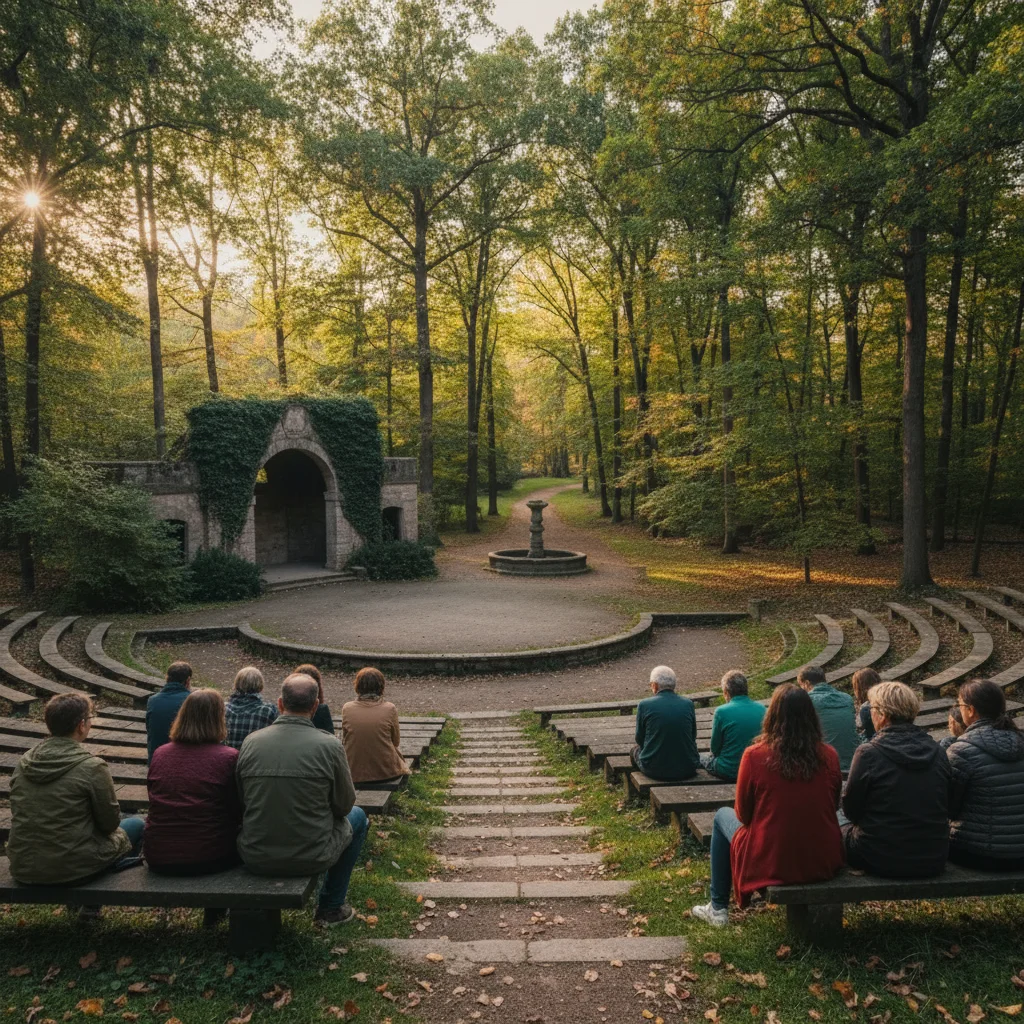
Upload your main photo to EditThisPic, then add a clear reference image of the real person you have consent to use. Describe their placement and ask to preserve likeness while matching scale, perspective, lighting, and shadows. Review the composition before use. Free to try, no account or signup needed.
Do I need to mark where the person should go?
No. Just describe the position: 'add this person standing on the right side of the group' or 'add someone sitting in the empty chair.' EditThisPic's AI understands spatial descriptions.
Is there a free AI tool to add someone to a photo without signup?
Yes. EditThisPic adds people to photos for free with no account needed. Upload your main photo, add a reference photo of the person, describe the placement, and download the result. Works in any browser on desktop or mobile, no app download required. The free edit is a preview — purchased downloads are clean, full quality.
Can I add someone who passed away to a family photo?
Yes, and many families find this deeply meaningful. Upload a photo of your loved one as a reference image, then describe where you'd like them in the photo. The AI preserves their likeness while matching the scene's lighting and style. This works well for memorial displays, holiday cards, or creating the complete family portrait you wish you had.
What is the best free AI tool to add a person to a photo?
EditThisPic is free to try for adding a supplied, consented person to a photo. Upload the main image and a clear reference, describe the placement, then review likeness, scale, perspective, lighting, shadows, and edges before using the result. No signup or Photoshop skills needed.
Can I put someone in a photo without Photoshop?
Yes. Upload the group image and a clear reference of the real person, then describe the placement and protected details. Review whether likeness, scale, perspective, lighting, shadows, and edges fit the scene; refine a local detail if needed.
How do I merge two photos with different people together?
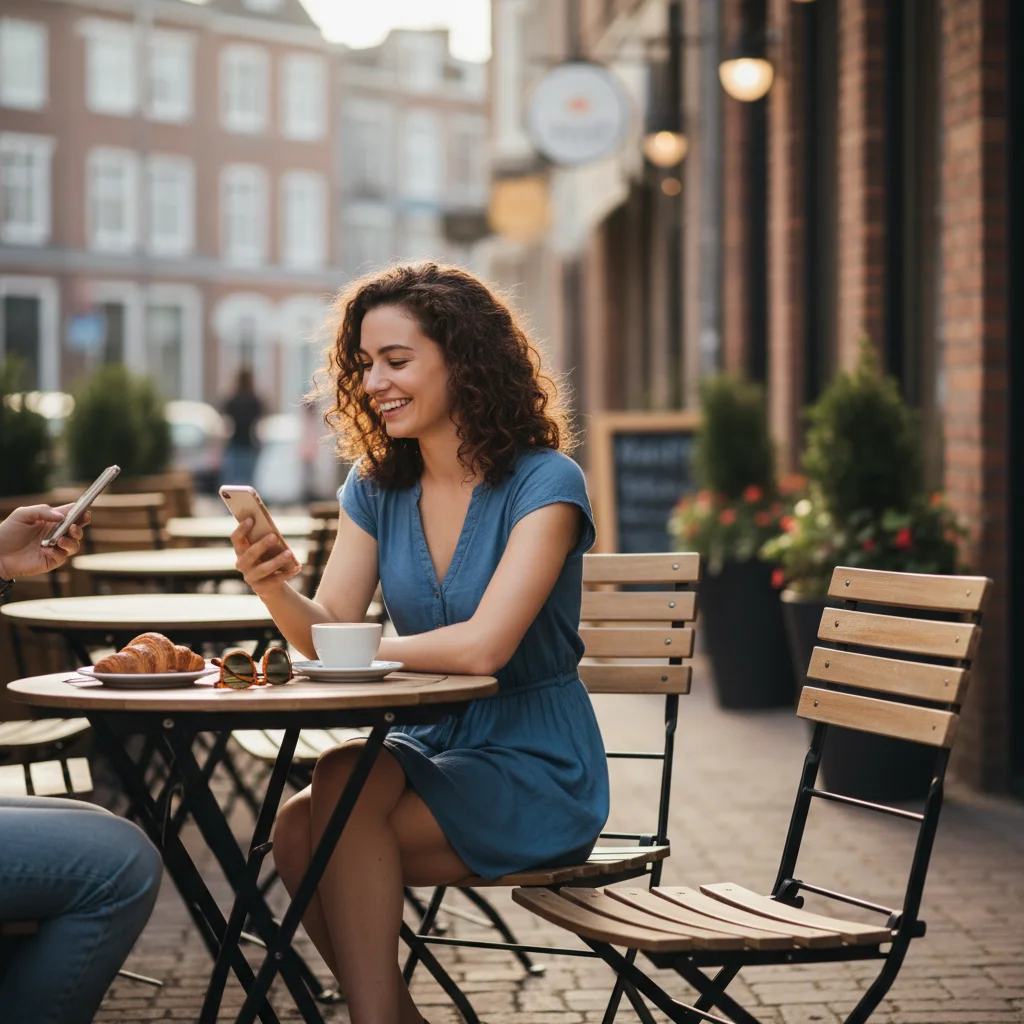
Upload your main photo (the scene you want to keep), then click '+ Add reference image' to upload the second photo containing the person you want to add. Describe where to place them: 'add this person standing on the right side of the group.' The AI extracts the person from the reference image and composites them naturally into your main photo.
What photo quality do I need for the reference image?
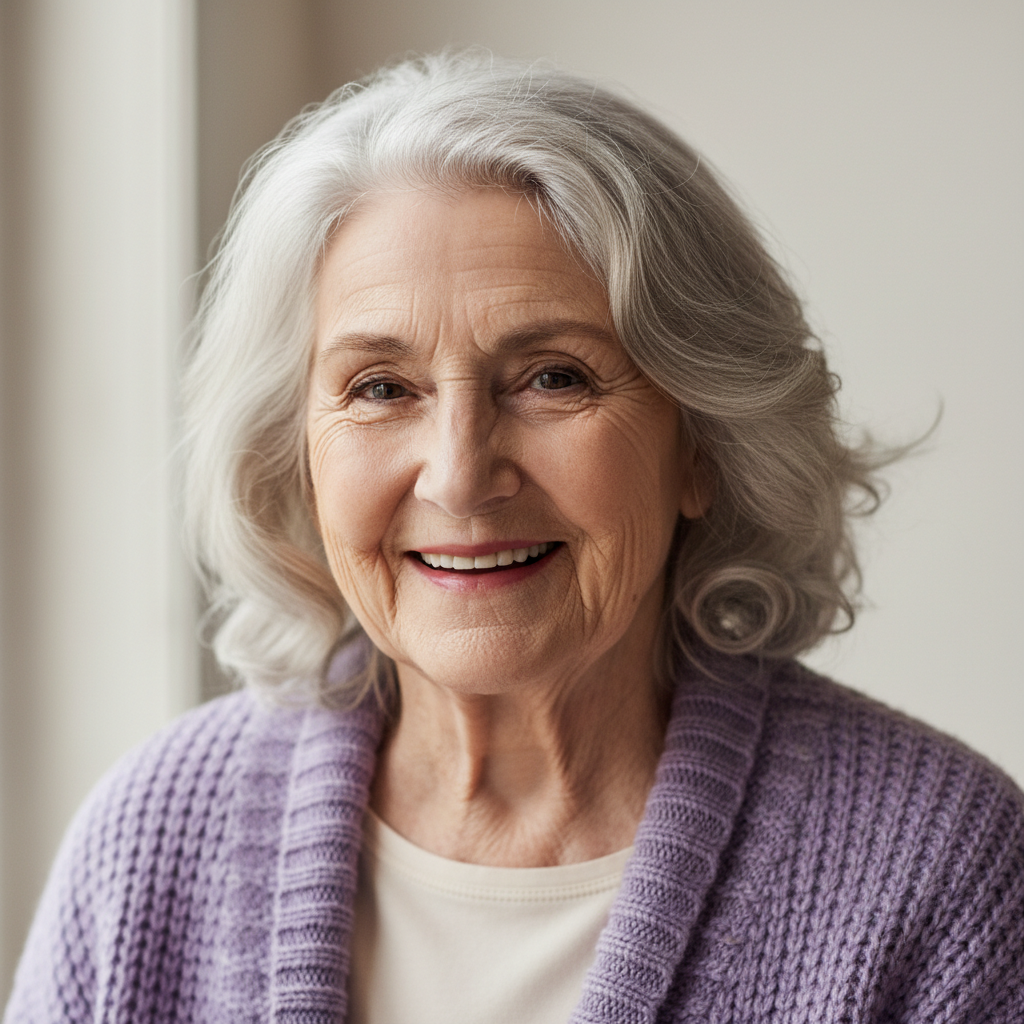
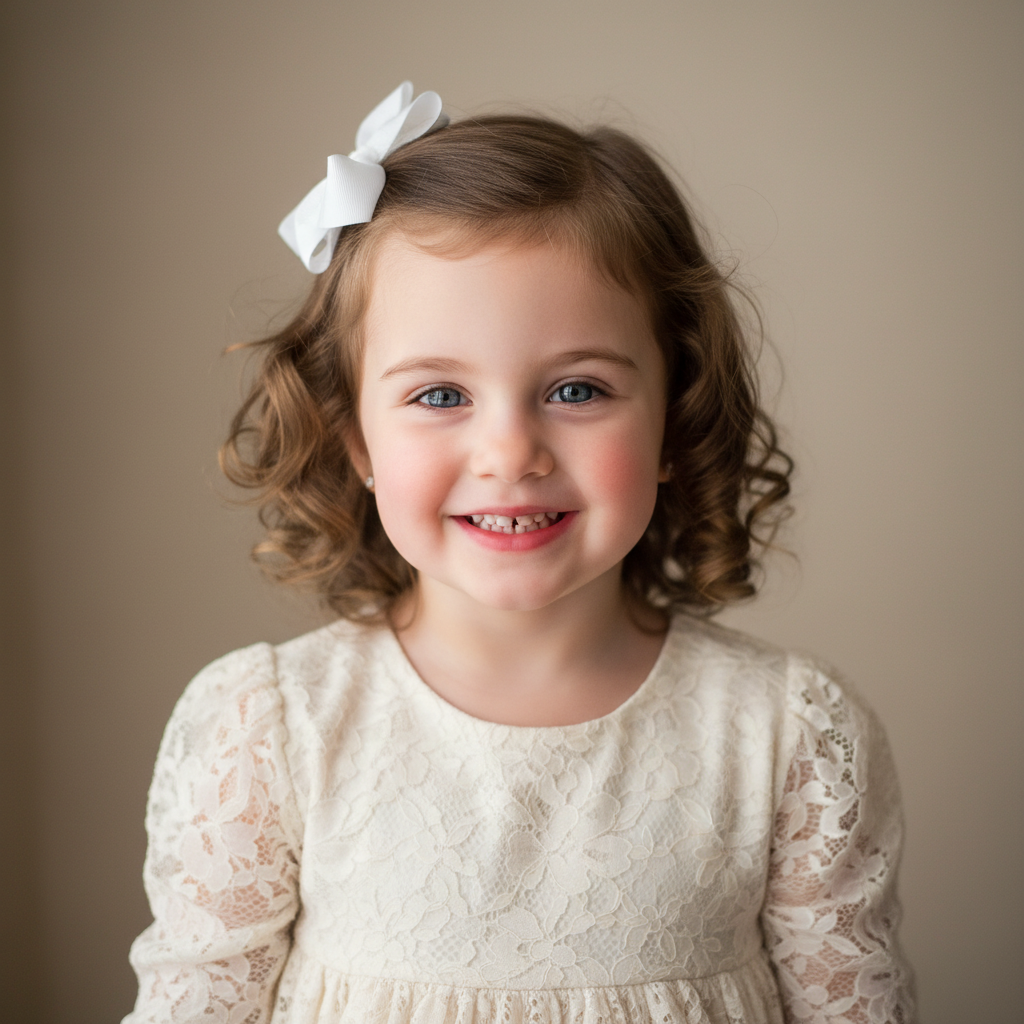
The reference photo should clearly show the person's face and body. Phone selfies work fine - you don't need professional quality. The main requirements are: (1) the person should be reasonably large in the frame, not tiny in the background, (2) their face should be visible and not heavily obscured, and (3) the photo shouldn't be extremely blurry. The AI can handle different lighting and angles between your main photo and reference.
Will the added person look fake or obviously edited?
Results need review. Use a reference photo with similar lighting, place the person where the scene has credible space, and describe the clothing and shadow direction. Inspect likeness, scale relative to others, perspective, edge blending, and shadows; complex scenes may need a focused refinement.
Can I add multiple people at once?
For the most control, add one supplied, consented person at a time with a clear reference image. Describe their placement, then review scale, perspective, lighting, shadows, and the surrounding people before attempting another addition.
Does this work for adding someone to a crowded group photo?
Yes, but crowded scenes require more precision. Describe how they should interact with nearby people: 'add someone in the gap between the two people on the left.' Position them where there's actually space - trying to squeeze someone into a tightly packed group looks unnatural.
Can I add someone to a wedding photo?
Yes, wedding photos are one of the most common use cases. The key is matching the formal attire and consistent lighting of professional wedding photography. Describe the clothing specifically: 'wearing a navy bridesmaid dress matching the others' or 'in a dark formal suit like the groomsmen.' Position additions at the ends of group lineups rather than trying to insert them in the middle.
How do I make the added person match the photo's lighting?
Describe the lighting in your prompt: 'with soft studio lighting from the left' or 'matching the bright outdoor sunlight.' Look at where shadows fall on existing people and mention that direction. If the first result has mismatched lighting, refine with: 'adjust lighting to match the other people, with shadows falling to the right.'
Is EditThisPic really free? What's the catch?
EditThisPic offers one completely free preview edit per week with no account required. There's no catch - we want you to try the tool and see the quality before deciding if you need more edits. If you need more than one edit per week, you can purchase credit packs (starting at $4.99 for 10 edits) or subscribe for monthly credits. Purchased downloads are clean, full quality.
Can I use this to create fake photos of real people?
Our terms prohibit creating deceptive content, impersonation, or images that could harm others. The tool is designed for legitimate uses like completing family photos, memorial images, and fixing group shots. We reserve the right to terminate accounts that violate these policies.
What if the person I want to add is facing the wrong direction?
The AI can adjust the person's orientation to match your scene. In your prompt, specify: 'add this person facing left to match the others' or 'turn them to face the camera.' For best results, use a reference photo where the person is already facing a similar direction, but the AI can handle moderate adjustments.
Can I add a deceased loved one to a recent family photo?
Yes. Upload the family photo, add a clear reference photo of the person as the second image, and describe where to place them: 'add this person standing next to the group on the right.' The AI blends them into the scene with matched lighting. Many families use this for memorial portraits and holiday photos. Handle with care - use a clear, well-lit reference photo for the best result.
What makes a good reference photo for adding someone to a picture?
Use a clear photo where the person's face is well-lit and visible. Front-facing or three-quarter angle photos work best. The background of the reference photo does not matter - the AI extracts only the person. Avoid heavily filtered, very dark, or extremely low-resolution reference images.
How much does EditThisPic cost?
You get 1 free edit per week — no account needed. After that, one-time credit packs start at $4.99 for 10 edits, valid 12 months, no subscription. Power users who edit daily can pick Studio Membership, a monthly workspace at $49.99/mo for 300 edits. Purchased downloads are clean with no watermark.