Free β€’ No signup Merge Photos Β· Free

AI Photo Merger

Upload two photos and describe how to combine them. The AI handles blending, lighting matching, and edge compositing automatically.

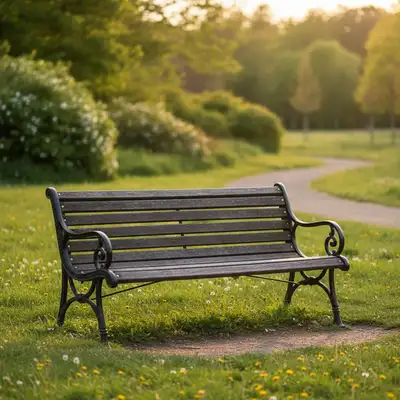
Group of friends at a picnic
Photo 1
+
Woman to add to the group photo
Photo 2
β†’
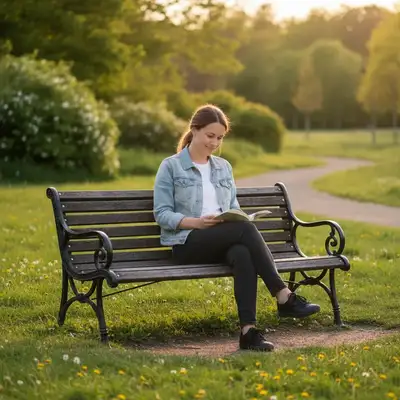
Combined photo with the woman added to the group
Result

AI Photo Merger

Upload photos to merge together

AI merging β€’ No Photoshop needed

Release to upload

FreeNo signupNo watermark
Popular use cases:
  • merge family photos
  • combine group photos
  • photo merger online
  • blend images together
  • put two photos together
  • combine photos free
  • photo composite tool

Cost
Free No signup required
Time
Instant results in 15-30 seconds
Works on
Any device - browser, phone, tablet, desktop
Powered by
AI-powered photo editing

How it works

  1. Upload your base photo

    Drop the photo that will be the foundation - the background or main scene you want to add to. This becomes 'photo 1' in your prompt. JPG, PNG, WebP up to 7MB.

  2. Add the second photo

    Click '+ Add reference image' and upload the photo containing what you want to merge in - a person, object, or scene to blend. This becomes 'photo 2.' The AI will extract elements from this photo.

    Tip: Choose photos with similar lighting for the most natural merge. Outdoor + outdoor or indoor + indoor work best.

    Copy one of these to get started:

    Add person from one photo to another add the person from photo 2 into photo 1 on the left side, match the lighting and blend naturally
    Combine two group photos merge the people from photo 2 into the right side of photo 1, blend edges naturally and match lighting
    Double exposure artistic effect create a double exposure effect blending photo 1 and photo 2, with photo 1 as the main subject
    Replace background keeping subject keep the person from photo 1 but replace the background with the scene from photo 2
    6 more prompts
    Blend best expressions replace the expression of the person in blue from photo 1 with their better expression from photo 2
    Product composite place the product from photo 2 onto the table in photo 1, add realistic shadow and match lighting
    Combine family members from separate photos add the family members from photo 2 into the living room scene in photo 1, position them on the right side of the couch, match indoor lighting
    Merge pet into family photo add the dog from photo 2 sitting in front of the family in photo 1, natural size relative to the people, with a shadow on the floor
    Swap sky or background between photos replace the sky in photo 1 with the dramatic sunset sky from photo 2, blend the horizon line naturally
    Create memorial photo with loved one add the person from photo 2 standing gently beside the family in photo 1, match the warm lighting and blend naturally as if they were really there
  3. Describe the merge

    Tell the AI how to combine them: 'add the person from photo 2 into photo 1 on the left side' or 'blend these photos together with a double exposure effect.' Be specific about what to take from each photo.

    Tip: Reference 'photo 1' and 'photo 2' explicitly so the AI knows which is the base and which is the source.

    Copy one of these to get started:

    Add person from one photo to another add the person from photo 2 into photo 1 on the left side, match the lighting and blend naturally
    Combine two group photos merge the people from photo 2 into the right side of photo 1, blend edges naturally and match lighting
    Double exposure artistic effect create a double exposure effect blending photo 1 and photo 2, with photo 1 as the main subject
    Replace background keeping subject keep the person from photo 1 but replace the background with the scene from photo 2
    6 more prompts
    Blend best expressions replace the expression of the person in blue from photo 1 with their better expression from photo 2
    Product composite place the product from photo 2 onto the table in photo 1, add realistic shadow and match lighting
    Combine family members from separate photos add the family members from photo 2 into the living room scene in photo 1, position them on the right side of the couch, match indoor lighting
    Merge pet into family photo add the dog from photo 2 sitting in front of the family in photo 1, natural size relative to the people, with a shadow on the floor
    Swap sky or background between photos replace the sky in photo 1 with the dramatic sunset sky from photo 2, blend the horizon line naturally
    Create memorial photo with loved one add the person from photo 2 standing gently beside the family in photo 1, match the warm lighting and blend naturally as if they were really there
  4. Review and refine

    Check that edges blend naturally, lighting matches, and the composition looks right. If something looks off, describe the specific fix or use markers on problem areas.

Try it free ↓

AI Photo Merger

Upload photos to merge together

AI merging β€’ No Photoshop needed

Release to upload

Free β€’ No signup

See it in action

Group of friends at a picnic
Main Photo
Woman to add to the group photo
Reference
Combined photo with the woman added to the group
Result

Family members merged into one photo

Dad couldn't make it to the family photo. Merged him from a solo shot into the group.

Prompt: add the man from photo 2 into photo 1 standing on the left side next to mom, match the lighting and scale naturally
Portrait of woman with plain background
Before
->
Artistic double exposure with forest blended into portrait
After

Double exposure portrait

Created artistic double exposure by blending a portrait with a forest scene.

Prompt: create a double exposure effect blending the portrait from photo 1 with the forest trees from photo 2, artistic and dreamy
Empty marble countertop with warm lighting
Before
->
Coffee mug composited onto countertop with realistic shadow
After

Product placed in lifestyle scene

Took a product photo and placed it on a styled marble countertop background.

Prompt: place the coffee mug from photo 2 onto the marble countertop in photo 1, add realistic shadow, match the warm morning lighting

Detailed Guides by Scenario

πŸ“·

How This Differs from Collage Makers

EditThisPic does AI compositing - extracting subjects from one photo and seamlessly blending them into another. This is fundamentally different from collage or side-by-side apps.

πŸ“·

Merging People from Different Photos

Combine people who weren't photographed together into one photo - family members, friends, or group shots.

Common Scenarios

  • Add someone who couldn't attend an event
  • Combine two group photos into one larger group
  • Put family members from different photos together
  • Create memorial photos with deceased loved ones

Best Practices

  • Match lighting direction - both photos should have light from same side
  • Similar photo quality/resolution gives best results
  • Specify where to place the person: 'on the left,' 'next to mom'
  • Mention 'match lighting and scale' for automatic adjustments
Adding missing family member add the person from photo 2 into photo 1 standing on the left side, match the lighting and scale
Combining two group shots merge the group from photo 2 into the right side of photo 1, blend naturally
πŸ“·

Combining Best Parts of Multiple Shots

Take the best elements from several similar photos to create one perfect image.

Common Scenarios

  • Everyone has eyes open in different photos
  • Best smile from one shot, best pose from another
  • Perfect background from one, perfect subject from another
  • Fix one person's expression using another shot

Best Practices

  • Use photos from same session for matching lighting
  • Be specific about what to take from each: 'expression from photo 2'
  • For faces, see 'Combine Best Expressions' for detailed workflow
  • Process one change at a time for complex merges
Fix bad expression replace the man's expression in photo 1 with his smiling expression from photo 2
Best background + best subjects use the background from photo 1 but the people from photo 2
πŸ“·

Artistic Photo Blending

Create artistic effects by blending two photos - double exposure, overlays, dream-like composites.

Common Scenarios

  • Double exposure portrait effects
  • Blending landscape with portrait
  • Creating surreal composites
  • Artistic photo overlays

Best Practices

  • Describe the effect you want: 'double exposure,' 'ghostly overlay'
  • Specify opacity: 'subtle blend' vs 'strong overlay'
  • Mention which photo should be dominant
  • For creative effects, experimentation helps find the right balance
Double exposure portrait create a double exposure effect blending the portrait from photo 1 with the forest from photo 2
Artistic overlay overlay photo 2 onto photo 1 with a dreamy transparent effect
πŸ“·

Product and Scene Compositing

Place products into lifestyle scenes or composite objects into new backgrounds.

Common Scenarios

  • Product on lifestyle background
  • Object from one photo into another scene
  • Creating mockups and previews
  • Furniture in room photos

Best Practices

  • Match perspective - eye-level product needs eye-level scene
  • Lighting direction must match between photos
  • Specify exact placement: 'on the table,' 'in the center'
  • Add 'with realistic shadow' for grounded objects
Product lifestyle shot place the product from photo 2 onto the marble countertop in photo 1, add realistic shadow
Furniture visualization add the chair from photo 2 into the living room in photo 1, positioned in the corner

If something looks off

Merged element looks pasted on, not natural

Why: The AI didn't properly blend edges or match lighting between the two photos.

Try: add the [element] from photo 2 into photo 1, blend edges seamlessly and match the lighting direction from photo 1

Tip: Explicitly mentioning 'blend edges' and 'match lighting' triggers more careful compositing.

Person/object is wrong size

Why: The scale between the two photos wasn't automatically adjusted.

Try: add the [element] from photo 2 into photo 1, scale to match the other people/objects in photo 1

Tip: Mention 'scale to match' or give relative size: 'should be same height as the person on the right.'

Lighting direction doesn't match

Why: One photo has light from the left, the other from the right, creating an unnatural composite.

Try: add the [element] from photo 2 into photo 1, adjust lighting to match the light source direction in photo 1

Tip: Best results come from photos with similar lighting. If they differ dramatically, mention which to adjust.

Wrong part of photo 2 was used

Why: The AI wasn't sure which element you wanted to extract from photo 2.

Try: Take ONLY the [specific element] from photo 2 and add it to photo 1, ignore everything else in photo 2

Tip: Be very specific: 'only the person,' 'just the dog,' 'the product in the center.'

Quick answers

Do I need to manually cut out people or objects before merging?

No! Just describe what you want: 'add the person from photo 2 into photo 1.' EditThisPic's AI automatically identifies and extracts the subject, matches lighting, and blends edges. No manual selection or masking required. Only use markers if the AI picked the wrong element from your reference photo.

How do I merge two photos together for free?

Upload your base photo to EditThisPic, click '+ Add reference image' to upload the second photo, then describe how to combine them: 'add the person from photo 2 into photo 1.' The AI handles cutting out, blending edges, and matching lighting automatically. Results in 20-40 seconds. Free to try, no account needed, no watermark.

Is there a free photo merger online that doesn't require login?

Yes. EditThisPic merges photos without requiring signup or an account. Upload both photos, describe how to combine them, and download the merged result. You get 1 free merge per week. Unlike collage apps, EditThisPic actually blends images seamlessly rather than placing them side by side.

Can I merge people from different photos?

Yes! Upload the group photo as photo 1, then upload a photo of the person you want to add as photo 2. Describe: 'add the person from photo 2 into photo 1 standing on the left.' The AI matches lighting and scale automatically. Works great for adding someone who missed a family photo.

How do I combine the best parts of multiple photos?

Take the best expression, pose, or background from different shots. Upload your preferred base photo, add the reference photo, then describe: 'replace the man's expression from photo 1 with his smile from photo 2.' For more complex merges, do one change at a time.

Is there a free photo merger online?

Yes - EditThisPic offers one free merge per week with no signup or watermark. Just upload both photos and describe how to combine them. For more merges, credit packs start at $4.99 for 10 edits.

Can I overlay one photo on another?

Yes! For artistic overlays, describe 'overlay photo 2 onto photo 1 with a transparent effect.' For double exposure effects, say 'create a double exposure blending both photos.' You can control opacity by saying 'subtle overlay' or 'strong overlay.'

How do I merge photos with different backgrounds?

The AI extracts what you specify from photo 2 (usually a person or object) and composites it into photo 1's background. Different backgrounds in the source photos don't matter - only the element you're merging gets transferred. Describe 'keep only the person from photo 2.'

Can I combine photos taken at different times?

Yes, but results are best when lighting conditions are similar. Photos from the same event or similar settings merge more naturally. For photos with very different lighting, add 'adjust lighting to match photo 1' to help the AI compensate.

Does merging photos reduce quality?

No - EditThisPic maintains your original resolution. The merged result is the same quality as your input photos. For best results, use high-resolution source photos, especially for the elements you're merging in.

Can I merge more than two photos?

You can merge two at a time. For complex composites with multiple sources, merge two photos first, download the result, then use that as photo 1 and add a third photo as photo 2. Repeat for additional elements.

How is this different from a collage maker?

Collage makers place photos side by side in frames. EditThisPic actually merges photos together - extracting elements from one and seamlessly blending them into another. The result is one unified image, not separate photos in a grid.

What is the best free AI tool to merge photos together?

For seamless blending where you want one unified image, EditThisPic is the best free option. Upload two photos, describe how to combine them, and the AI extracts subjects, matches lighting, and blends edges automatically in 20-40 seconds. No signup required, no watermark. For simple side-by-side grids, Canva works. For full control, Photoshop is the standard ($22.99/month).

How do I put two photos together on my phone?

On iPhone (iOS 16+), you can tap and hold a subject to cut it out, then paste into another app. However, this doesn't match lighting or blend edges. For seamless merging on any phone, open EditThisPic in your mobile browser, upload both photos, and describe how to combine them. The AI handles the blending automatically - no app download needed.

Can I stitch photos together seamlessly?

If you mean stitching like a panorama (extending a scene), EditThisPic can do basic extensions. But its strength is compositing - blending elements from one photo into another with matched lighting. For true panorama stitching (multiple overlapping shots of the same scene), dedicated panorama tools like Lightroom or your phone's built-in feature work better.

How do I combine the best parts of two group photos?

Upload the photo with the best overall composition as the main image. Add the second photo as a reference. Type 'replace the person on the left with the version from the reference photo' to swap in a better expression or pose from the other shot. This is perfect for fixing group photos where someone blinked or looked away.

Can I merge a person from one photo into a completely different scene?

Yes. Upload the destination scene as the main image and the person's photo as the reference image. Type 'add the person from the reference photo standing on the right side.' The AI extracts the person, adjusts their lighting and scale, and blends them into the new scene. Works best when both photos have reasonable resolution and the person is clearly visible.

Ready to edit your photos?

Free to try. No signup required.