Free β€’ No signup Add Person sleeping in bed Β· Free

Add Person Sleeping in Bed Prank

Upload your bedroom photo. AI adds a stranger sleeping in the bed. The ultimate jealousy or roommate prank.

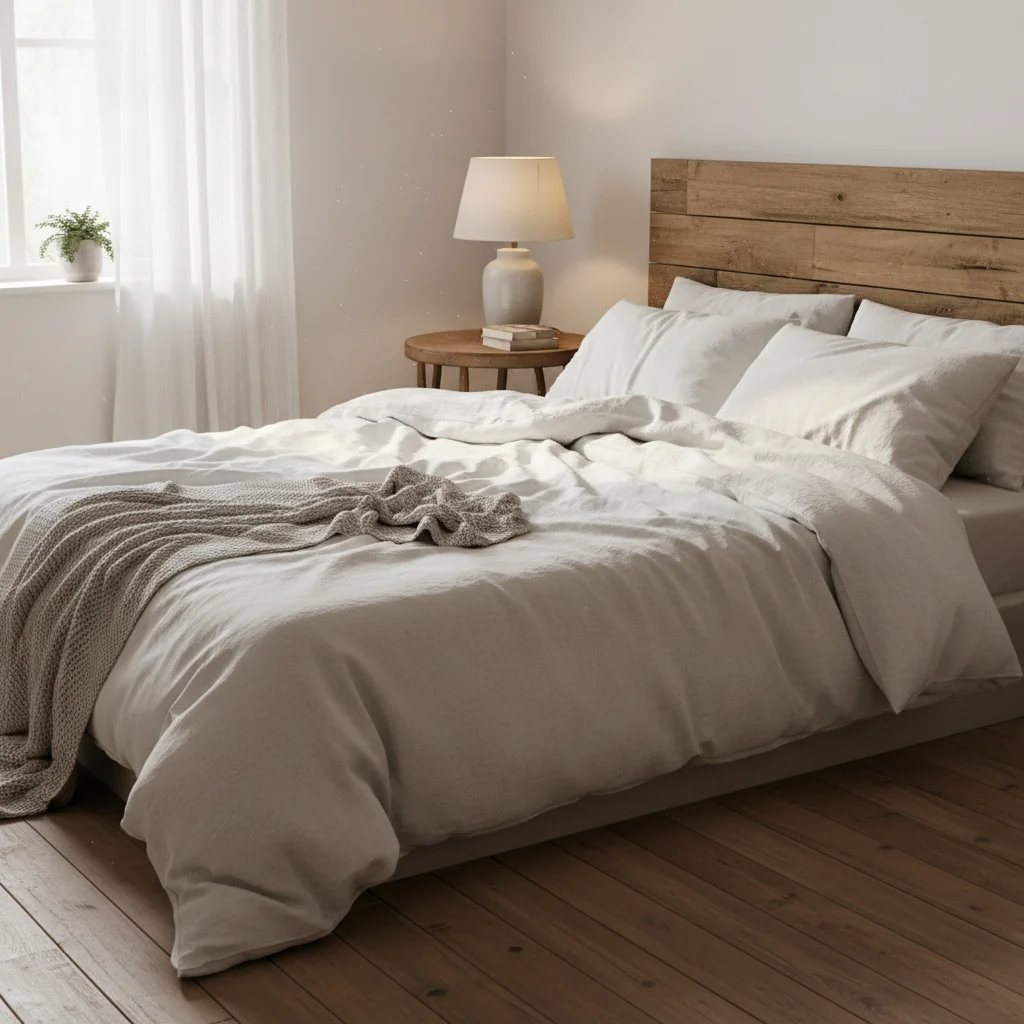
Empty bed in bedroom
Before
β†’
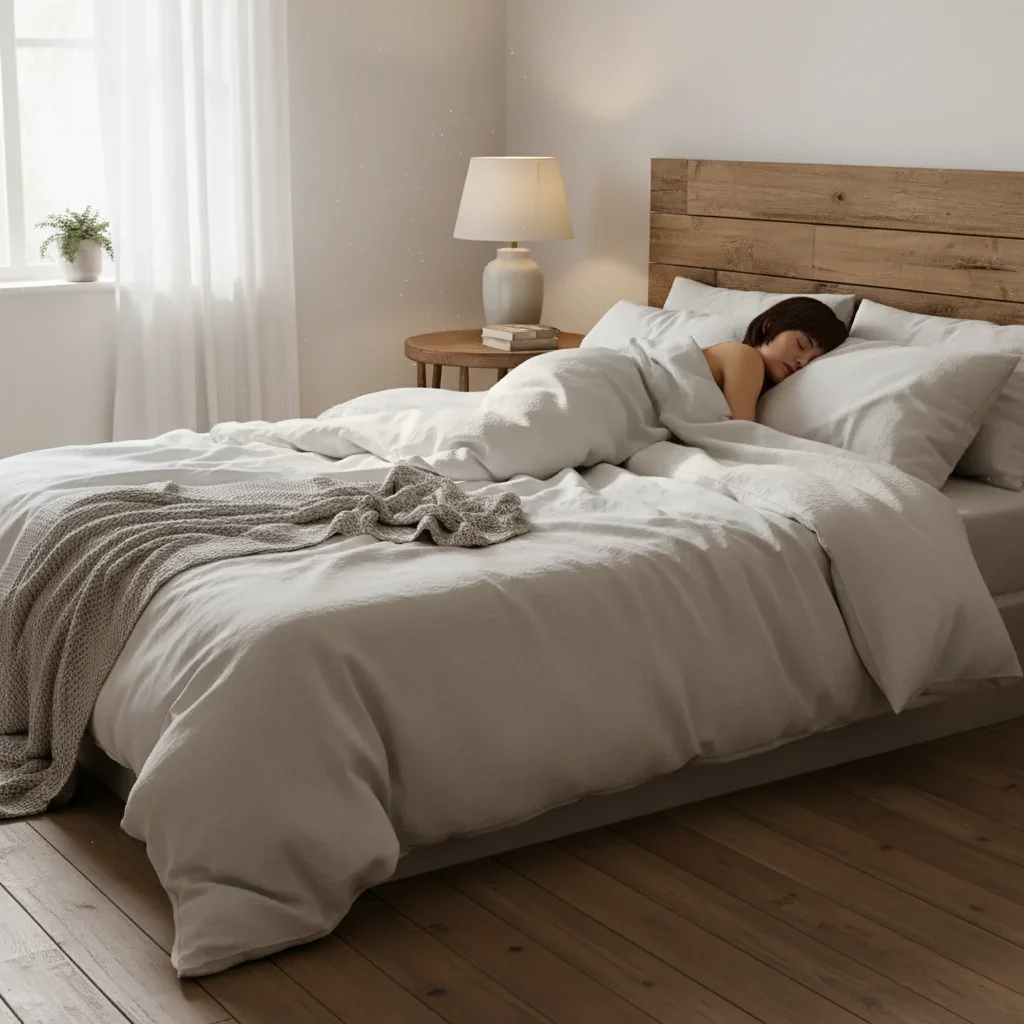
Bed with AI-added sleeping stranger
After

Add Person Sleeping in Bed Prank

Upload photo to add person sleeping in bed

Free β€’ Results in 30 seconds β€’ No signup

Release to upload

FreeNo signupNo watermark

1 free edit·then from $1.99

Popular use cases:
  • add person sleeping in bed prank
  • sleeping stranger bed photo AI
  • bed prank photo generator
  • add someone in my bed photo
  • AI sleeping person prank

Cost
Free No signup required
Time
Instant results in 15-30 seconds
Works on
Any device - browser, phone, tablet, desktop
Powered by
AI-powered photo editing
Scenario Prompt Time
Head on pillow Person under covers, dark hair visible on pillow 30-45 sec
Jealousy prank Woman with blonde hair sleeping on right side 30-45 sec
Lump under covers Body-shaped lump under blanket, no head visible 30 sec

How it works

  1. Upload your bedroom photo

    Drop a photo of your bedroom into EditThisPic. JPG, PNG, WebP up to 7MB. Make sure the bed is clearly visible. Messy beds work great β€” adds to the realism.

    Expect: Most edits complete in 20-45 seconds. The AI automatically matches your bedroom's lighting.
  2. Describe the sleeping person

    Type what you want: 'Add a stranger sleeping under the covers with just their head visible on the pillow' or 'Add someone sleeping face-down in the bed with dark hair.' Describe hair color and how much is visible for realism.

    Tip: Focus on what's visible β€” usually just the head and maybe a shoulder. 'Dark hair on the white pillow, sleeping on their side facing away from the camera' looks more natural than a fully visible person.

    Copy one of these to get started:

    Classic sleeping stranger Add a person sleeping under the covers with just their head and dark hair visible on the pillow, facing away from the camera
    Jealousy prank Add a woman with blonde hair sleeping on the right side of the bed, face partially buried in the pillow, covers pulled up to shoulders
    Messy sleeper Add a person sprawled across the bed with one arm hanging off the side, covers half kicked off, sleeping deeply
    Roommate scare Add a random man with a beard sleeping in this bed, face visible on the pillow, looking like he just passed out here
    2 more prompts
    Under the covers only Add the shape of a person under the bed covers β€” no head visible, just a human-shaped lump under the blanket
    Two people prank Add two people sleeping in the bed β€” one on each side, both under the covers with just their heads visible
  3. Download and prank

    Check that the person looks naturally in bed β€” the covers should drape realistically. Download and send with: 'Who is sleeping in my bed??' or 'Came home to this...'

Try it free ↓

Add Person Sleeping in Bed Prank

Upload photo to add person sleeping in bed

Free β€’ Results in 30 seconds β€’ No signup

Release to upload

Free β€’ No signup

See it in action

Empty bed in bedroom
Before
->
Bed with AI-added sleeping stranger
After

Sleeping stranger in bed prank

A bedroom with an AI-added person sleeping under the covers.

Prompt: Add a person sleeping under the covers with just their head and dark hair visible on the pillow, facing away from the camera
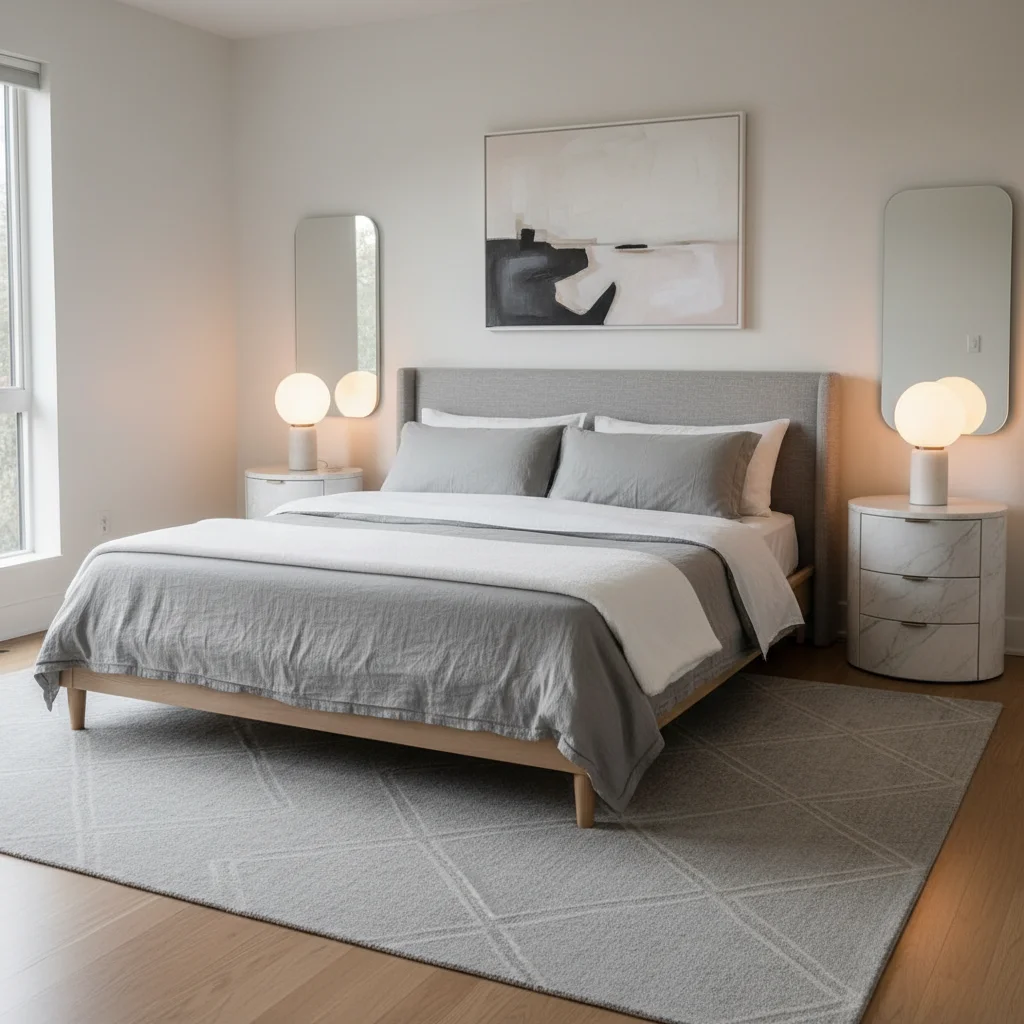
Empty bed before jealousy prank
Before
->
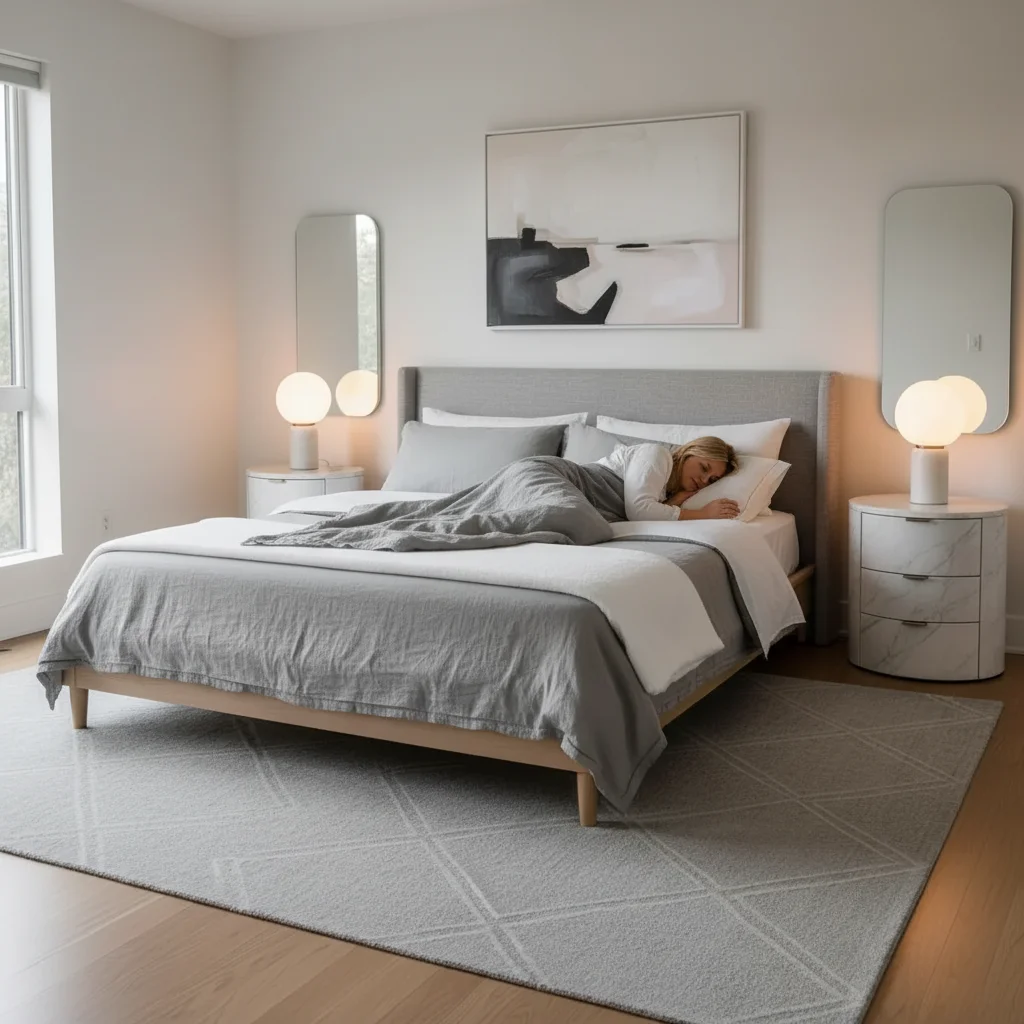
Bed with AI-added woman sleeping for jealousy prank
After

Jealousy prank β€” blonde hair on pillow

Bedroom prank with an AI-added woman sleeping on one side of the bed.

Prompt: Add a woman with blonde hair sleeping on the right side of the bed, face partially buried in the pillow

If something looks off

Person looks like they're on top of the covers, not in bed

Why: The AI didn't understand the covers should drape over the person.

Try: Add 'under the covers, with the blanket draped naturally over their body' to your prompt

Tip: Mentioning 'under the blanket' or 'tucked in' helps the AI understand the covers should cover the person.

Hair looks unnatural on the pillow

Why: AI-generated hair on a pillow is tricky to get right.

Try: Describe the hair specifically: 'dark brown hair spread naturally on the white pillow' or try 'facing away from camera'

Tip: Facing-away poses avoid most face and hair issues β€” you'd mostly see the back of their head anyway.

Person was placed next to the bed instead of in it

Why: The AI placed the figure on the floor or beside the bed.

Try: Tap a marker directly on the bed/pillow area, then regenerate with the same prompt

Tip: Markers on the pillow or mattress area guarantee correct placement.

The bedding looks flat β€” no body shape visible

Why: The AI didn't create a convincing body shape under the covers.

Try: Add 'with the covers showing the natural contour and shape of a person's body underneath' to your prompt

Tip: Heavier blankets and comforters show body shapes better than flat sheets.

Quick answers

Do I need to mark where the person should be?

No β€” just mention 'sleeping in the bed' and the AI places them on the pillow and under the covers automatically. Use a marker only if placement is off.

Is this free?

Yes, EditThisPic gives you one free edit per week with no signup required. For more pranks, credit packs start at $1.99.

What makes the sleeping person look realistic?

Describe just what would be visible in a real photo: hair on the pillow, maybe a shoulder peeking out. Less is more β€” a fully visible person lying on top of the covers looks fake. Under the covers with just the head showing is most convincing.

What bedroom photos work best?

Any bedroom photo where the bed is clearly visible. Messy, unmade beds actually work better than perfectly made ones β€” they look more natural with someone sleeping in them.

Can I describe what the person looks like?

Yes β€” describe hair color, approximate age, and any visible features. For sleeping poses, hair color on the pillow is the most important detail since the face is often not fully visible.

Will there be a watermark?

No, EditThisPic never adds watermarks. Your prank photo downloads clean.

Does this work on my phone?

Yes, works fully in any mobile browser. No app needed.

How much does EditThisPic cost?

You get 1 free edit per week β€” no account needed. After that, credit packs start at $1.99 for 3 edits. Monthly plans start at $4.99/mo for 15 edits with unused credits rolling over. All edits are full resolution with no watermark.

Ready to prank your partner?

Free to try. No signup required.

1 free edit included·Credit packs from $1.99