Free • No signup Open Editor

Add Background to Photo

Transform transparent or plain photos with beautiful AI-generated backgrounds in seconds.

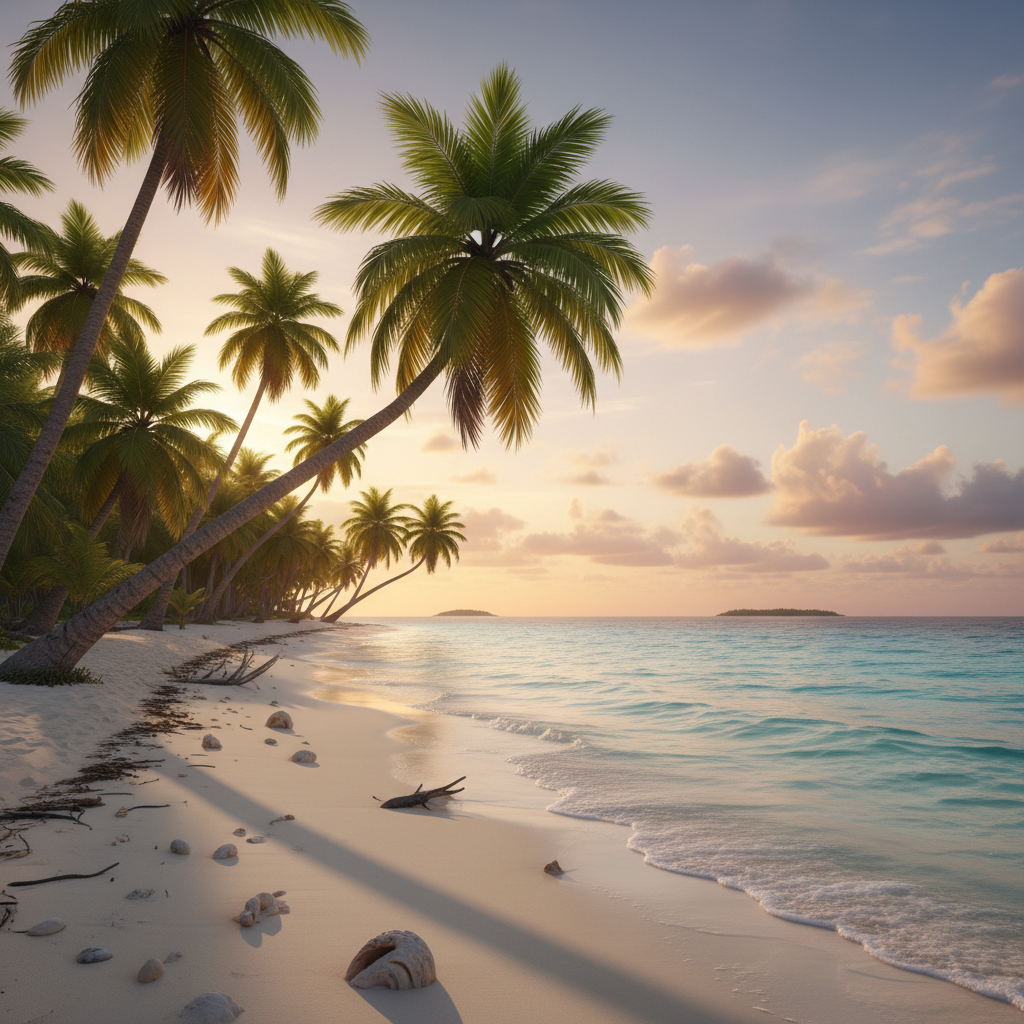
Type 'add a sunny beach background with palm trees and turquoise water' and EditThisPic's AI generates the perfect backdrop in 15-30 seconds. Works with transparent PNG cutouts, plain backgrounds, or any photo needing a scene change. No selection tools needed. Just describe your ideal background. Free to try, no account required.

Skincare bottle on plain white background
Before
Skincare bottle on elegant marble surface with natural shadows
After

How it works

1

Upload your photo

Drop your image into EditThisPic. Works with transparent PNGs, cutout images, or photos with plain/boring backgrounds you want to replace. JPG, PNG, WebP up to 7MB.

⏱ Simple backgrounds: 15-30 seconds. Complex scenes with lighting matching: may need 2-3 refinements.
2

Describe your ideal background

Type exactly what background you want: 'add a clean white studio background with soft shadows' or 'add a tropical beach sunset behind the subject.' Be specific about colors, textures, and lighting direction. The AI understands context and generates backgrounds that match your subject.

💡 Include lighting direction for realism: 'with warm light from the left matching the subject's lighting'

Copy one of these to get started:

E-commerce product shots add a pure white seamless studio background with soft natural shadows beneath the product
Lifestyle product photography add a warm wooden table surface with a blurred kitchen background and morning sunlight from the left
Professional headshot backgrounds add a soft gradient gray studio background fading from dark at edges to light in center
Outdoor scene compositing add a golden hour beach sunset background with soft orange sky and calm ocean waves
3 more prompts
Urban lifestyle shots add a blurred city street background at night with bokeh lights in warm colors
Nature and greenery add a lush green forest background with soft dappled sunlight filtering through leaves
Minimalist modern add a clean concrete wall background with subtle texture and soft side lighting
3

Generate and review

Check how the new background blends with your subject. Look at edges where subject meets background - they should be seamless. Verify lighting direction matches and shadows look natural.

4

Refine with markers if needed

If edges look rough or the background bleeds into your subject, tap markers on problem areas and regenerate. Most backgrounds work without markers, but complex edges like hair may need refinement.

💡 For hair edges, try 'blend the hair edges naturally into the new background' in your prompt.
Try it free
"I cut out my product photos and needed backgrounds fast. Just typed what I wanted and boom - professional studio shots in seconds." @MarcusEcommerce

See it in action

Skincare bottle on plain white background
Before
Skincare bottle on elegant marble surface with natural shadows
After

Product on marble surface

Skincare bottle photographed on plain white, transformed with an elegant marble background for luxury brand feel.

Prompt: add an elegant white marble surface background with subtle gray veining and soft shadows beneath the bottle
Woman selfie with cluttered home office background
Before
Professional headshot with clean gray studio backdrop
After

Portrait with studio backdrop

Casual selfie transformed into professional headshot with proper studio background.

Prompt: add a professional soft gray gradient studio background with subtle vignette darkening at the edges
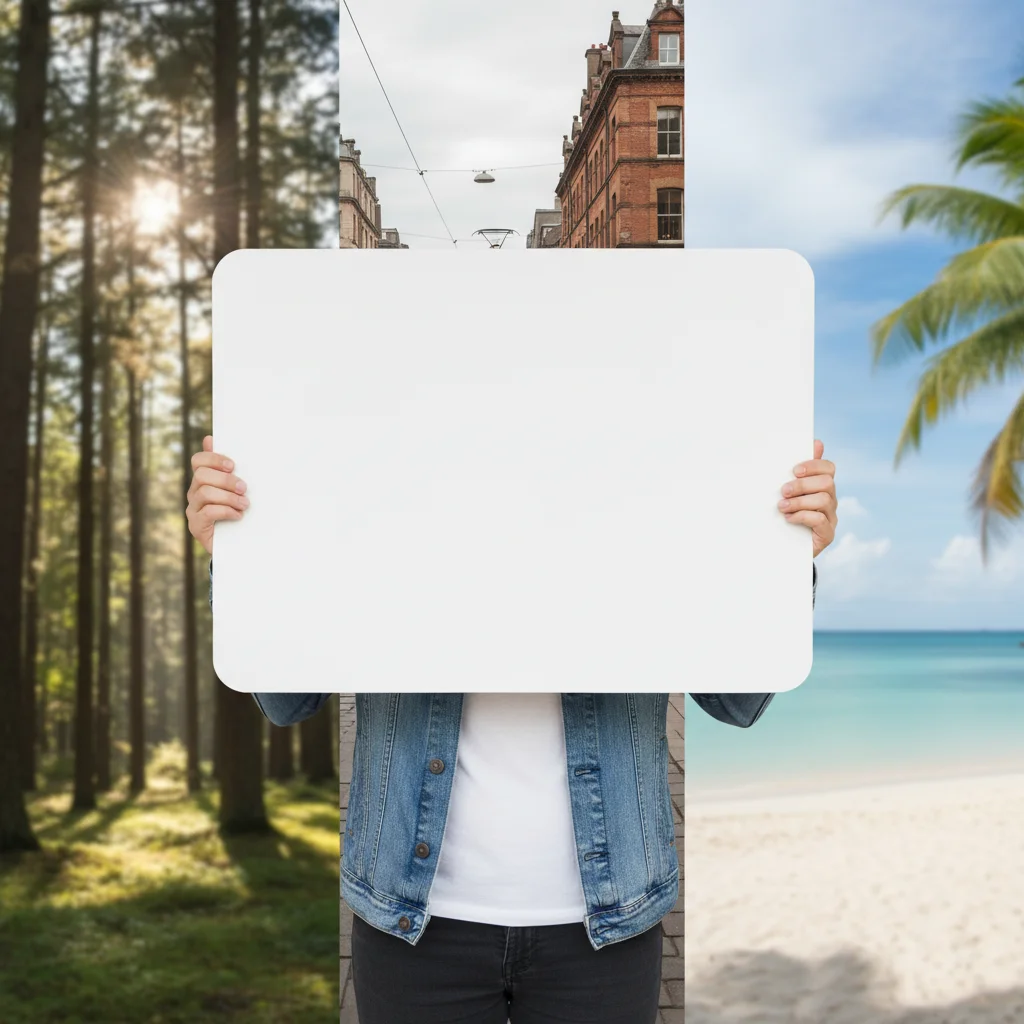
Person standing against green screen background
Before
Person composited into tropical beach sunset scene
After

Beach vacation composite

Subject cut out from indoor photo placed in tropical paradise setting.

Prompt: add a tropical beach background with turquoise water, white sand, and palm trees with warm sunset lighting matching the subject

If something looks off

Background looks pasted on without depth

Why: The AI generated a flat background without proper shadowing or perspective matching your subject.

Try: add a [background type] with natural shadows beneath the subject and matching perspective

💡 Always include shadow instructions: 'with soft shadows' or 'with natural ground shadows'

Lighting direction doesn't match

Why: The background has light coming from a different direction than your subject's existing lighting.

Try: add [background] with lighting from the [same direction as subject - left/right/above]

💡 Look at where highlights are on your subject to determine lighting direction

Edges around hair or fur look rough

Why: Fine details like hair are difficult to blend seamlessly into new backgrounds.

Try: Tap markers on the rough hair edges and regenerate with 'blend hair edges naturally into background'

💡 Backgrounds with similar colors to hair edges (like dark backgrounds with dark hair) hide imperfections better

AI changed the wrong area or something I didn't want changed

Why: The AI couldn't determine exactly which area you meant from description alone. This happens with ambiguous requests.

Try: Tap a marker on the specific area you want to change, then regenerate with the same prompt

💡 Markers tell the AI 'I mean THIS one specifically.' Use them when description alone is ambiguous.

Background looks too sharp or too blurry compared to subject

Why: Depth of field mismatch between your subject and the generated background.

Try: add [background] with slight blur to match subject's depth of field

💡 Slightly blurred backgrounds often look more realistic and hide edge imperfections

Quick answers

Do I need to mark the background area before describing?

No! Just describe the background you want: 'add a beach sunset background' or 'add a studio backdrop.' The AI understands what 'background' means and generates it appropriately. Only use markers if you need to fix specific edge areas after the first result.

Does my photo need to have a transparent background first?

No. EditThisPic works with transparent PNGs, solid color backgrounds, or even complex existing backgrounds. The AI intelligently identifies your subject and generates the new background around it. Transparent images often give cleaner results, but aren't required.

How do I make the background look realistic with my subject?

Include lighting and shadow details in your prompt. Specify 'with soft shadows beneath' and match lighting direction: 'with warm light from the left.' This helps the AI create backgrounds that feel naturally connected to your subject.

Can I add a background to a group photo?

Yes, the AI handles multiple subjects well. Just describe your background and it will wrap around everyone. For best results, ensure good separation between people in the original photo.

What makes a good background description?

Be specific about surface/scene, colors, lighting, and mood. 'Add a background' is vague. 'Add a warm wooden table with a soft-focus cafe interior behind and morning light from the right' gives the AI everything it needs for great results.

Ready to add the perfect background?

Free to try. No signup required.

Try it free