Free • No signup Add Person · Free

AI Add Person to Group Picture

← Browse all body & person tools

Last updated

Add any person to a group picture using a reference photo — AI matches their scale and lighting automatically so they look like they were really there.

01Photo 1
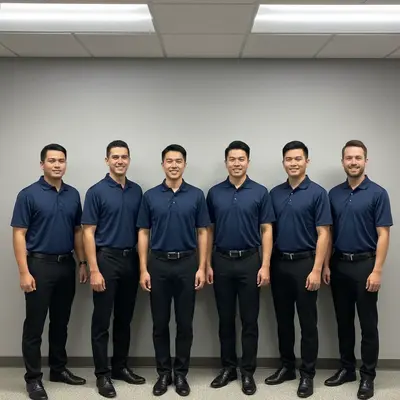
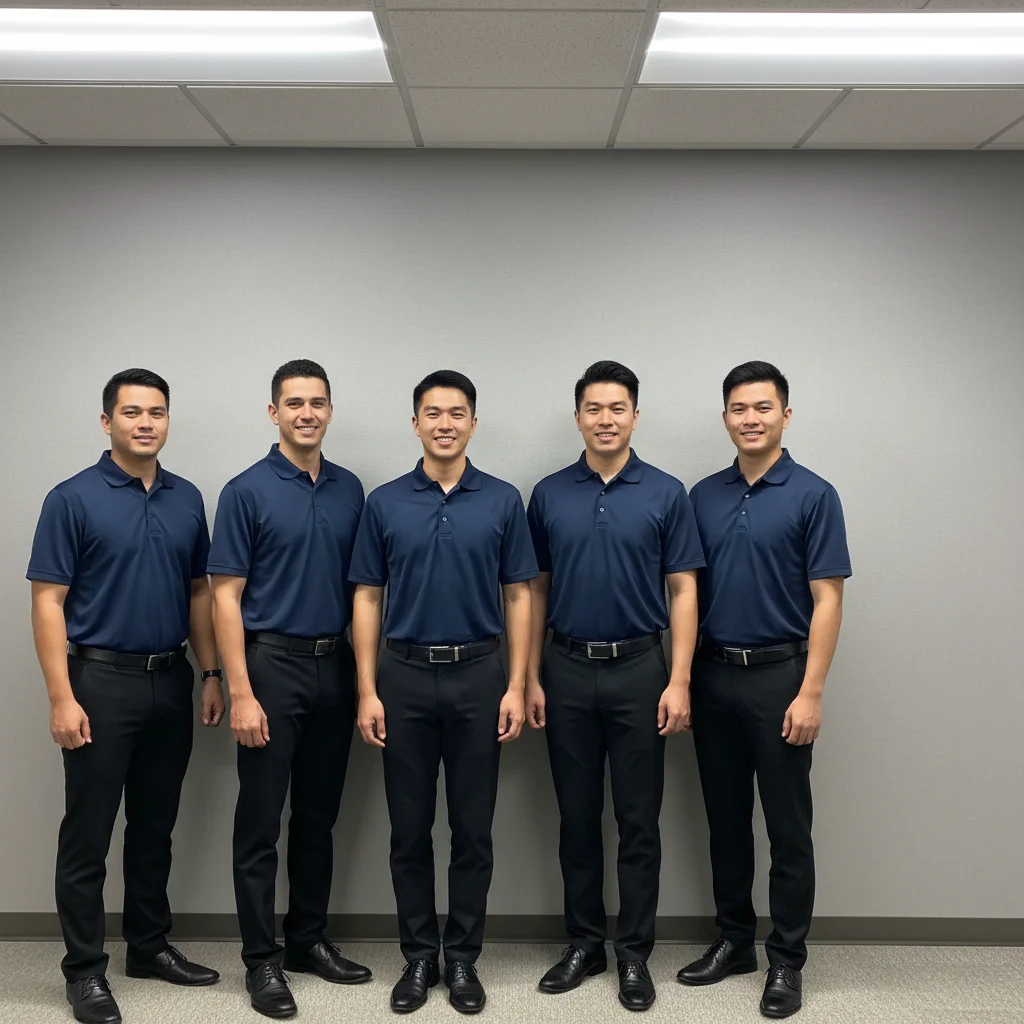
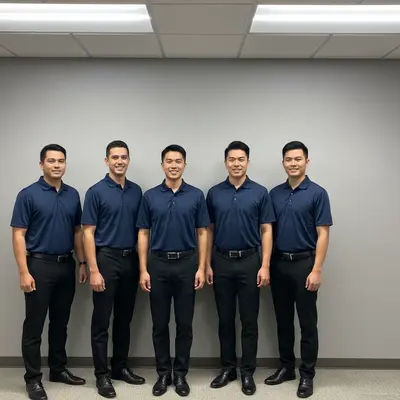
Team photo with gap at the right end of the lineup
02Photo 2
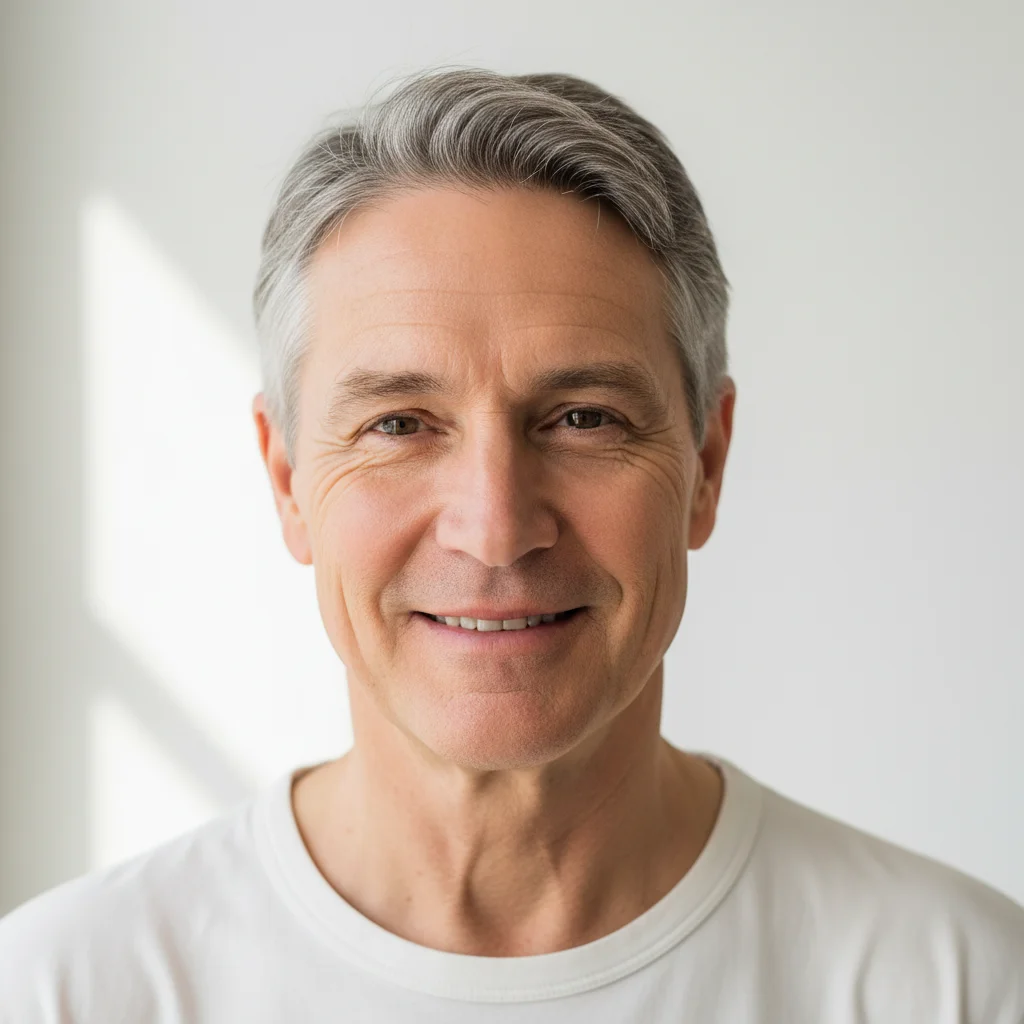
Portrait of the coworker to add
03Result
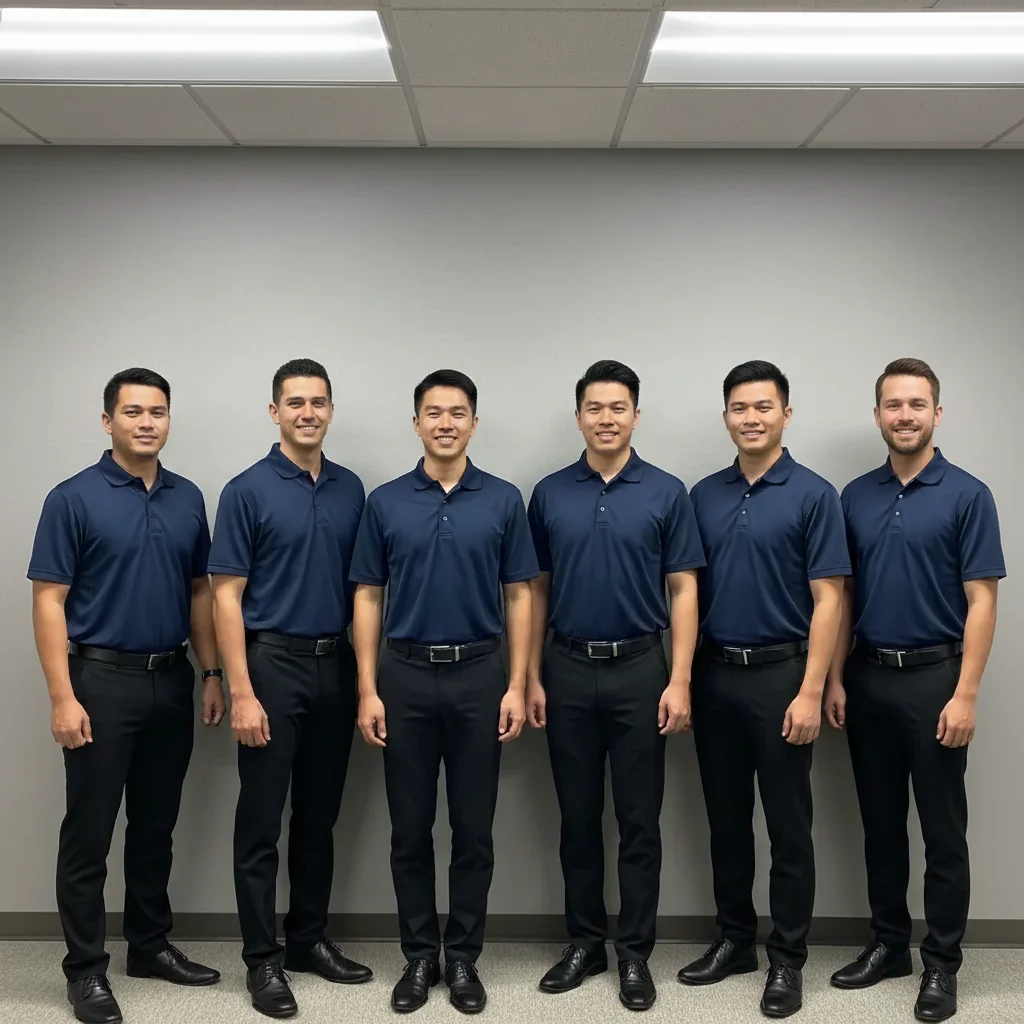
Complete team photo with coworker added at the right end

Upload photo to add person

"add this person standing between the two people on the left, matching their casual pose and the even indoor lighting, naturally blended into the group"

Release to upload

1 free edit·then from $4.99

Popular use cases:
  • add person to group picture
  • add someone to group photo
  • insert person into group shot
  • add missing person to group
  • add friend to team photo
  • complete group picture
  • add coworker to team photo
  • add classmate to group photo

1Your photo
+
2Reference
=
Result
Group picture with a gap Your group picture
Photo of the person to add to the group Reference photo
Complete group picture with person added Result

"Add this person standing at the right end of the group"

Cost
Free No signup required
Time
Instant results in 15-30 seconds
Works on
Any device - browser, phone, tablet, desktop
Powered by
AI-powered photo editing

How it works

  1. Upload your two photos

    Drop your group picture into EditThisPic. Then click '+ Add reference photo' below the prompt to upload a clear photo of the person you want to add. Both are required: the group picture AND the reference photo. Group pictures with some open space at the edges work best. JPG, PNG, WebP up to 7MB each.

    Expect: Single person addition to a group: 30-45 seconds. Crowded group shots may need 2-3 refinements for precise placement.
  2. Attach the reference photo

    Click '+ Add reference photo' and select a clear photo of the person you want to add. This is the key step — the AI uses the reference to composite the real person into the group, preserving their likeness rather than generating a generic person. Choose a photo where their face and body are clearly visible.

    Tip: A photo from the same day or event (if available) gives the best clothing and lighting match.

    Copy one of these to get started:

    Add person to end of group lineup add this person standing at the right end of the group, scale them to match the height of the others, blend naturally with matching outdoor lighting
    Add friend to team or class photo add this person standing between the two people on the left, matching their casual pose and the even indoor lighting, naturally blended into the group
    Add coworker to team photo add this person standing at the right end of the team lineup, wearing the same navy company shirt as the others, matching the office lighting and the group's slight smile
    Add person to outdoor group photo add this person at the left end of the group, standing naturally on the grass, matching the bright afternoon sunlight and the casual attire of the others
    2 more prompts
    Add person to graduation group photo add this person wearing a matching graduation cap and gown, standing at the right end of the graduate group, holding a diploma, same outdoor lighting
    Add person to crowded group shot add this person in the gap in the back row between the two tallest people, dressed casually matching the group, naturally blended
  3. Describe their position in the group

    Tell the AI where to place them and how: 'add this person standing at the right end of the group, same height scale as the others, matching the casual outdoor lighting.' Edges of the group work best for natural placements — squeezing into the center is harder.

    Tip: Reference a specific person near the target position: 'standing next to the man in the blue shirt on the right.' It gives the AI a precise anchor.

See it in action

Team photo with gap at the right end of the lineup
Main Photo
Portrait of the coworker to add
Reference
Complete team photo with coworker added at the right end
Result

Coworker added to team photo

Office team photo with a clear gap at the right end — AI added the missing coworker using their reference portrait, matching the navy shirts and office lighting.

Prompt: add this person from the reference photo to the right end of the team lineup, wearing the same navy company shirt as the others and matching the group's slight smile.
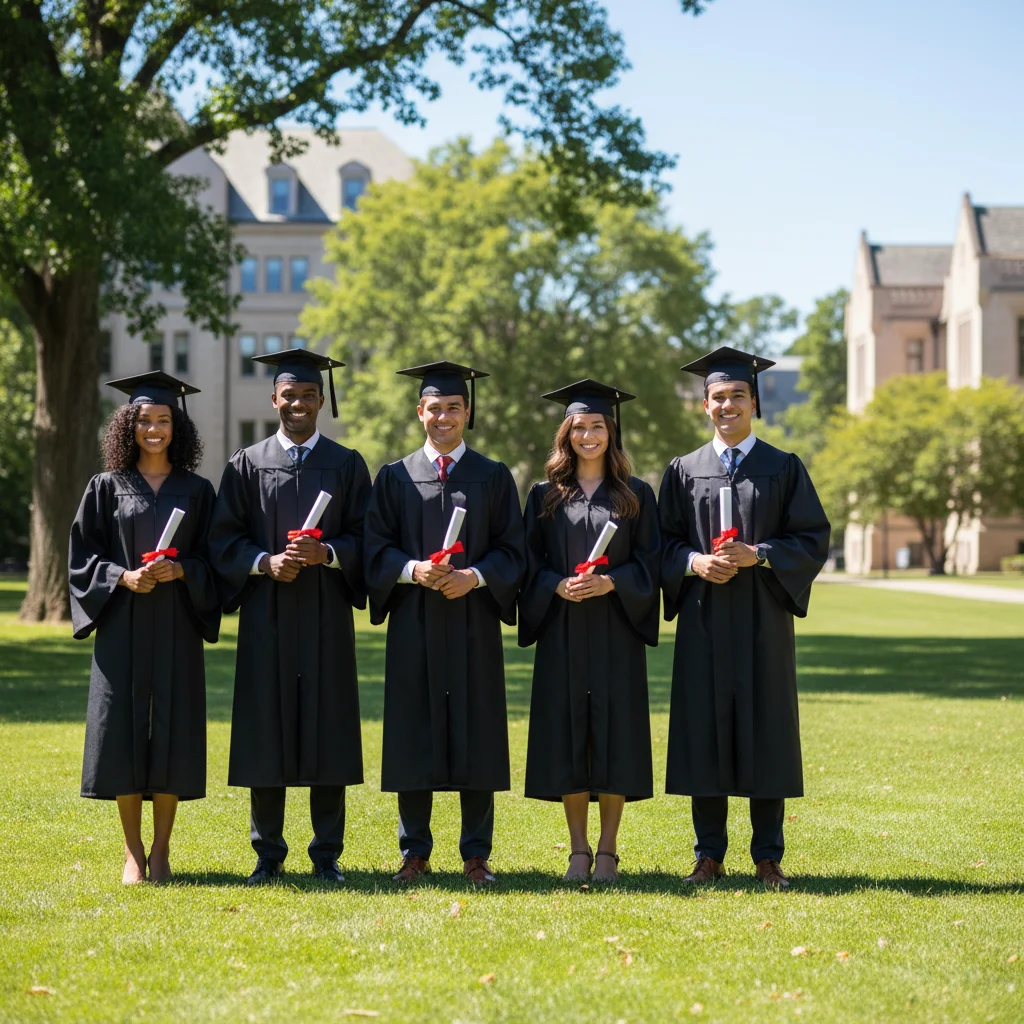
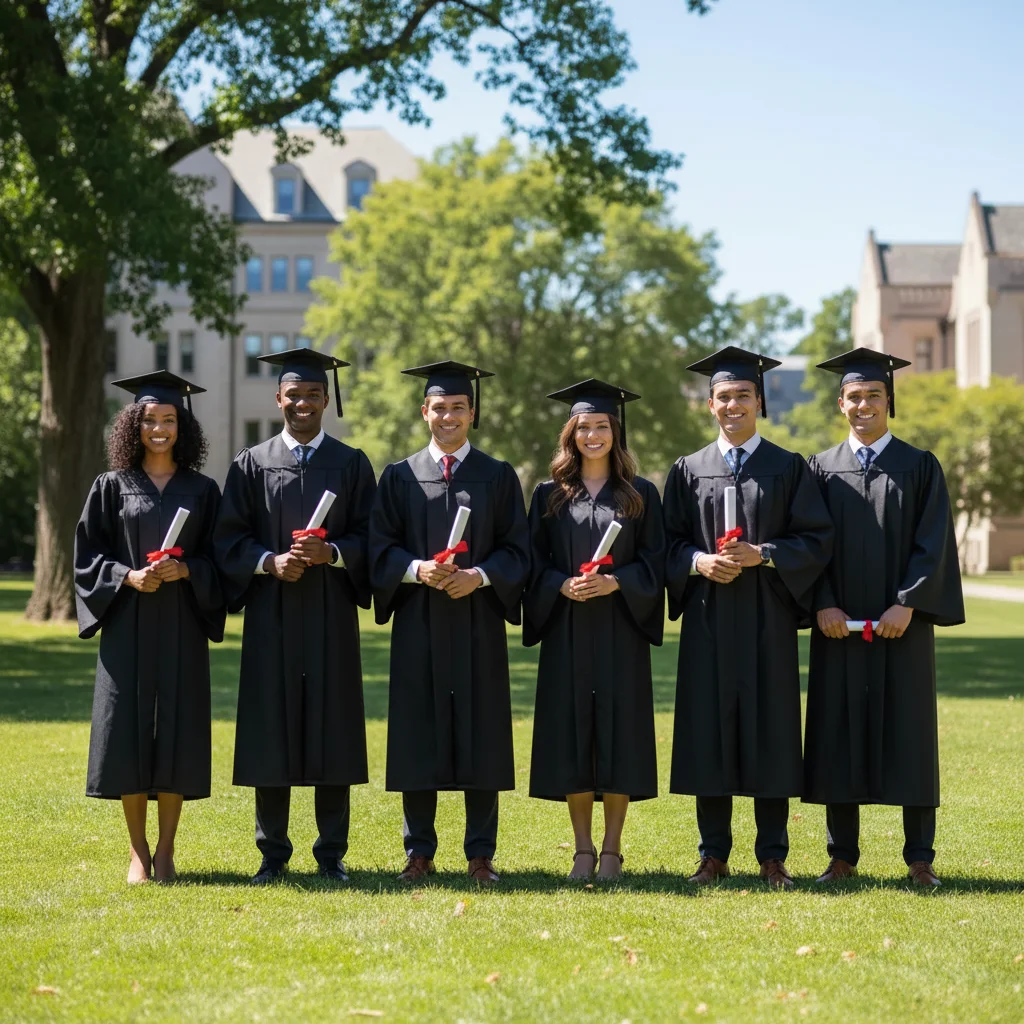
Graduate group photo with a gap at the right end
Main Photo
Reference image for AI Add Person to Group Picture
Reference
Complete graduate group with friend added in cap and gown
Result

Friend added to graduation group photo

Graduate group photo outdoors — AI added a friend in a matching graduation cap and gown at the end of the lineup, matching the bright outdoor lighting.

Prompt: add this person wearing a matching graduation cap and gown standing at the right end of the graduate group, holding a diploma, matching the bright outdoor afternoon lighting
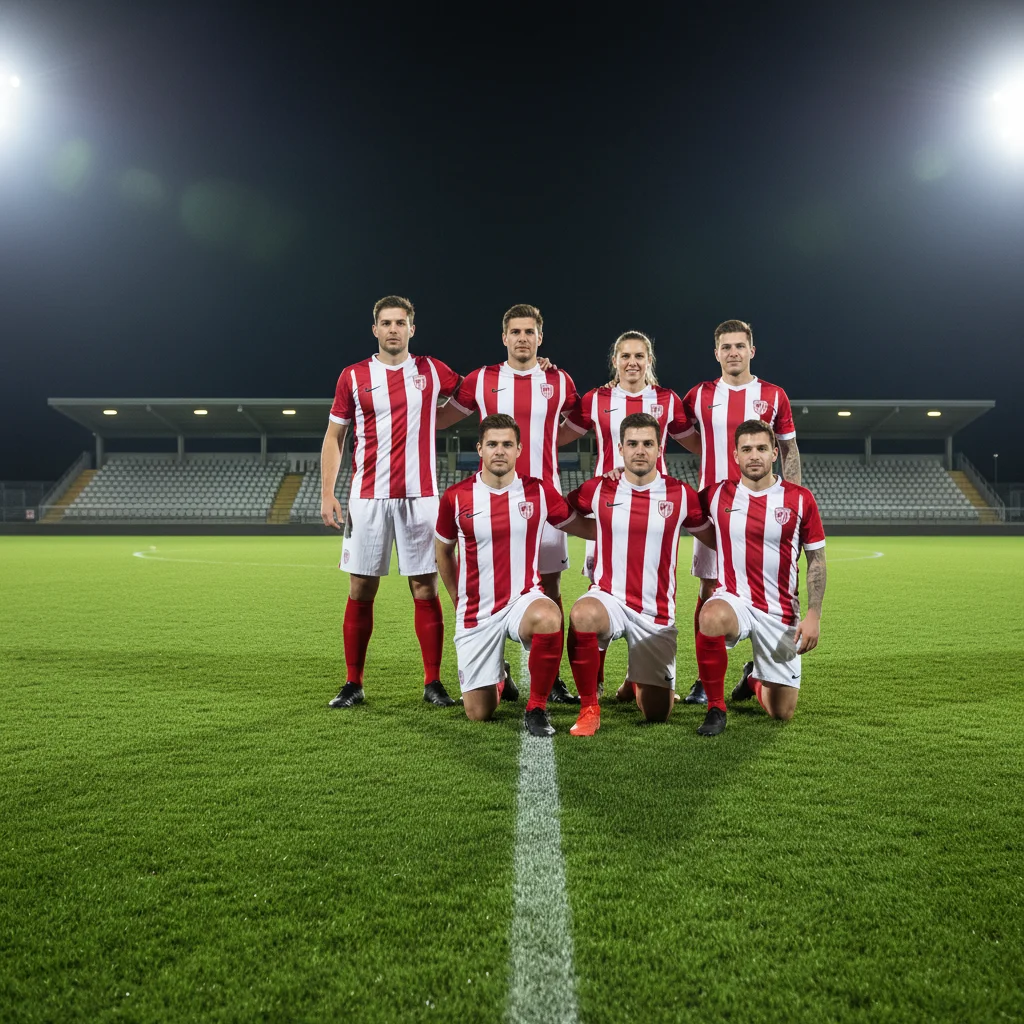
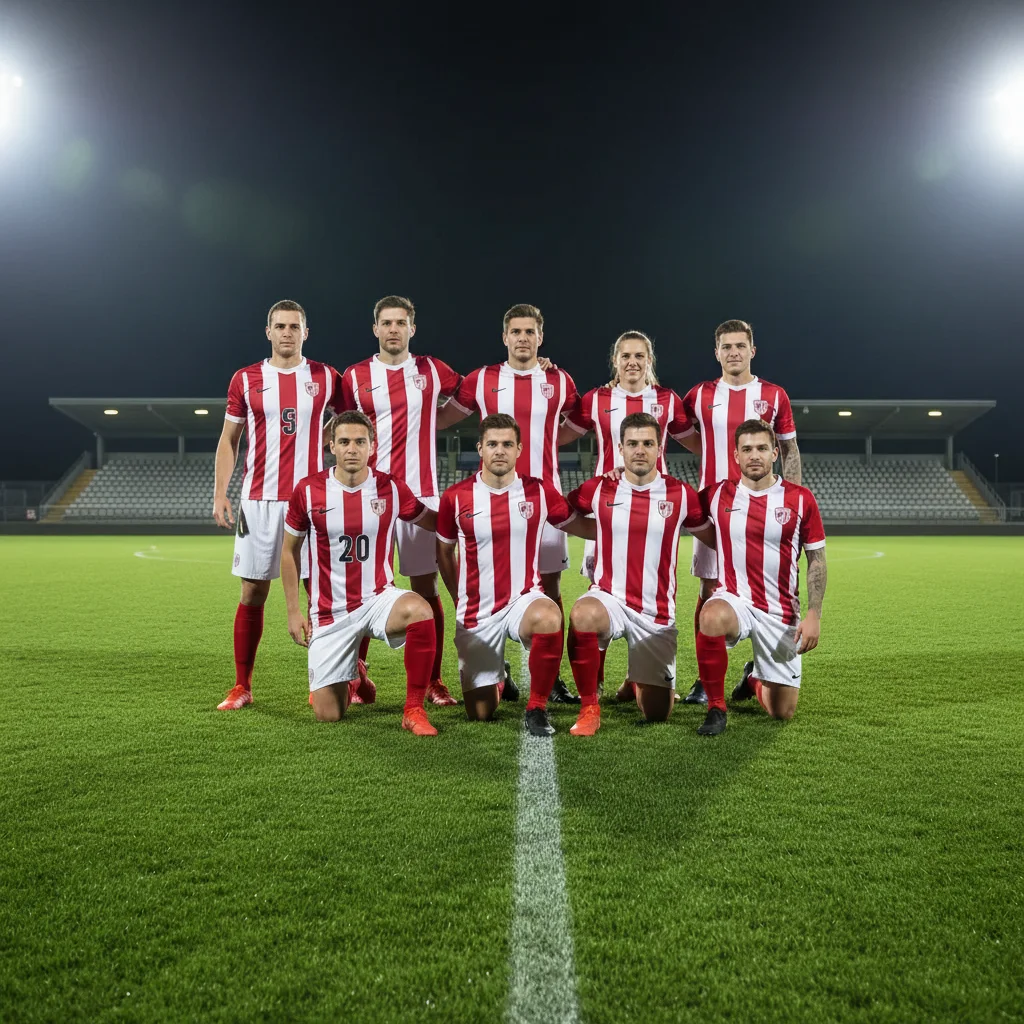
Sports team lineup with empty slot in the front row
Main Photo
Reference image for AI Add Person to Group Picture
Reference
Complete team lineup with missing player added in matching jersey
Result

Person added to sports team lineup

Sports team lineup photo with an empty spot — AI added the missing player in matching jersey, scaled to the team's height, with the bright stadium lighting.

Prompt: add this person standing in the front row left slot, wearing the red team jersey with the number matching the team, matching the bright stadium floodlight lighting

If something looks off

Person is the wrong size relative to the group

Why: The AI misjudged depth and scale — common in group shots where perspective cues are ambiguous.

Try: add this person at the same scale as the others in the group, feet on the same ground level, height matching [specific person] next to them

Tip: Reference a person already in the photo for scale: 'same height as the woman in red on the right'

Added person doesn't look like the reference

Why: The reference photo was unclear, low resolution, or the face wasn't prominent enough.

Try: Re-upload using a clearer reference photo where the person's face is large and well-lit

Tip: The person should occupy a significant portion of the reference photo frame — not a small figure in the background

Lighting on the added person doesn't match the group

Why: Different light source direction in the reference photo versus the group picture.

Try: add this person with lighting from the [left/right/above] matching the rest of the group, consistent shadow direction

Tip: Study where highlights fall on people already in the group and describe that in your prompt

Clothing doesn't match the group

Why: The reference clothing is too different from the group's style or formality.

Try: add this person wearing [specific clothing] matching the [casual/formal/uniform] style of the rest of the group

Tip: For groups with matching uniforms, describe the uniform specifically so the AI adjusts the reference clothing

Person looks pasted on or has harsh edges

Why: The compositing didn't blend naturally — often because the background contrast was high.

Try: blend this person naturally into the group scene, with realistic edge blending and an appropriate shadow beneath them

Tip: Add 'seamlessly blended edges' and 'natural shadow on the ground' to your prompt for cleaner results

Quick answers

Do I need TWO photos for this?

Yes. You need two photos: (1) the group picture where you want to add someone, and (2) a reference photo of the person you want to add. Upload the group picture as the main photo, then click '+ Add reference photo' to attach the person's reference image. The AI uses the reference to composite the real person into the group with accurate likeness.

How do I add a person to a group picture for free?

Upload your group picture to EditThisPic, click '+ Add reference photo' to attach a clear photo of the person to add, then describe their placement: 'add this person standing at the right end of the group, matching the others in scale.' The AI composites them naturally in about 30 seconds. Free to try, no signup, no watermark.

Where should I position the added person in the group?

Edges of the group (left end, right end) work best and look the most natural. Inserting someone in the middle of a tight group is much harder because they need to overlap with existing people.

Can I add a person to a crowded group picture?

Yes, but crowded scenes require more precision. Describe how they relate to nearby people: 'in the gap between the two people on the left, second row.' Position them where there's actually space — trying to force someone into a tightly packed spot looks unnatural.

What if the group has matching uniforms or clothing?

Describe the matching clothing in your prompt: 'wearing the same navy blue team shirt as the others' or 'in a matching black cap and gown.' The AI will adjust the reference photo's clothing to match the group's uniform. Be specific — mention color, style, and any matching accessories.

Can I add multiple people at once?

You can describe multiple people in one prompt: 'add two people standing at the right end of the group.' For the most control, add one person at a time — each edit takes about 30 seconds, and it's easier to get scale and placement right when handling one person per edit.

Does this work for professional group photos like team headshots?

Yes. For professional team headshots, describe the lighting and background: 'matching the soft studio lighting and neutral gray background.' For group photos with consistent attire, specify the clothing. The AI handles formal, studio-lit group photos well — the key is to upload a good reference photo and describe the placement clearly.

How much does EditThisPic cost?

You get 1 free edit per week — no account needed. After that, credit packs start at $1.99 for 3 edits. Monthly plans start at $4.99/mo for 15 edits with unused credits rolling over. All edits are full resolution with no watermark.

Ready to complete your group picture?

Upload two photos. Free, no signup required.

1 free edit included·Credit packs from $4.99