Free • No signup Put Yourself · Free

AI Put Me in a Photo Tool

← Browse all creative effects

Last updated

Upload your selfie and any destination photo — AI places you naturally in the scene with matched lighting and perspective.
01Photo 1
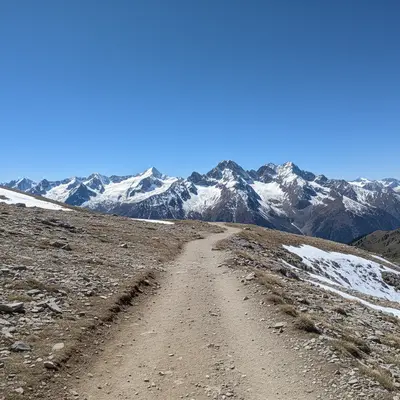
Empty mountain trail landscape with no people
02Photo 2
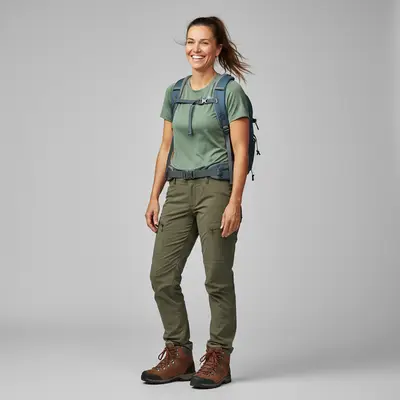
Clear portrait of the person to insert
03Result
Same mountain scene with a person naturally standing on the trail

Upload photo to put yourself

"add this person standing at the right end of the group, scale to match the others, blend naturally with matching indoor lighting"

Release to upload

1 free edit·then from $4.99

Popular use cases:
  • put me in a photo
  • add myself to photo
  • insert person into scene
  • composite selfie into photo
  • place myself in picture
  • photoshop myself into photo
  • put myself in vacation photo
  • add me to group photo

1Your photo
+
2Reference
=
Result
Destination scene or group photo Your destination photo
Selfie or portrait of the person to insert Your reference photo
Person naturally composited into the destination scene Result

"Put this person standing in the foreground, natural lighting"

Cost
Free No signup required
Time
Instant results in 15-30 seconds
Works on
Any device - browser, phone, tablet, desktop
Powered by
AI-powered photo editing

How it works

  1. Upload your two photos

    Drop your destination photo (the scene you want to appear in) into EditThisPic. Then click '+ Add reference photo' below the prompt to upload a clear photo of yourself. The AI needs both: the destination scene AND a reference image of you. JPG, PNG, WebP up to 7MB each.

    Expect: Single person insertion: 30-45 seconds. Complex scenes with unusual lighting may need 2-3 refinements.
  2. Describe where you want to appear

    Click '+ Add reference photo' below the prompt box and upload your selfie or portrait. This is the KEY step — without a reference image of yourself, the AI generates a generic person instead of you. Choose a clear, well-lit photo where your face is visible.

    Tip: A front-facing or three-quarter angle selfie works best. The background of your reference photo doesn't matter — the AI extracts only you.

    Copy one of these to get started:

    Put yourself in a landmark or travel photo add this person standing in the foreground on the left side of the scene, casual tourist pose, matching the natural outdoor lighting and perspective
    Add yourself to a group photo add this person standing at the right end of the group, scale to match the others, blend naturally with matching indoor lighting
    Place yourself in an outdoor scenic photo add this person sitting on the rock in the foreground, relaxed natural pose, with appropriate shadows matching the afternoon sunlight from the right
    Insert yourself into an event photo add this person standing near the back-left of the crowd, dressed to match the event style, naturally blended with surrounding people
    2 more prompts
    Put yourself in a night or city scene add this person walking in the foreground of the city street, wearing a coat, with urban night lighting and reflections on the wet pavement
    Add yourself to a beach or vacation photo add this person standing at the water's edge in the middle distance, wearing swimwear, with warm golden hour lighting and natural shadow on the sand
  3. Type your placement prompt

    Describe where and how to place yourself: 'put this person standing in the foreground on the left, casual pose, matching the outdoor lighting.' Mention scale cues ('same height as people already in the photo') and any clothing adjustments needed.

    Tip: Specify distance from camera: 'in the foreground,' 'in the mid-ground,' or 'near the background.' This controls your size relative to the scene.

See it in action

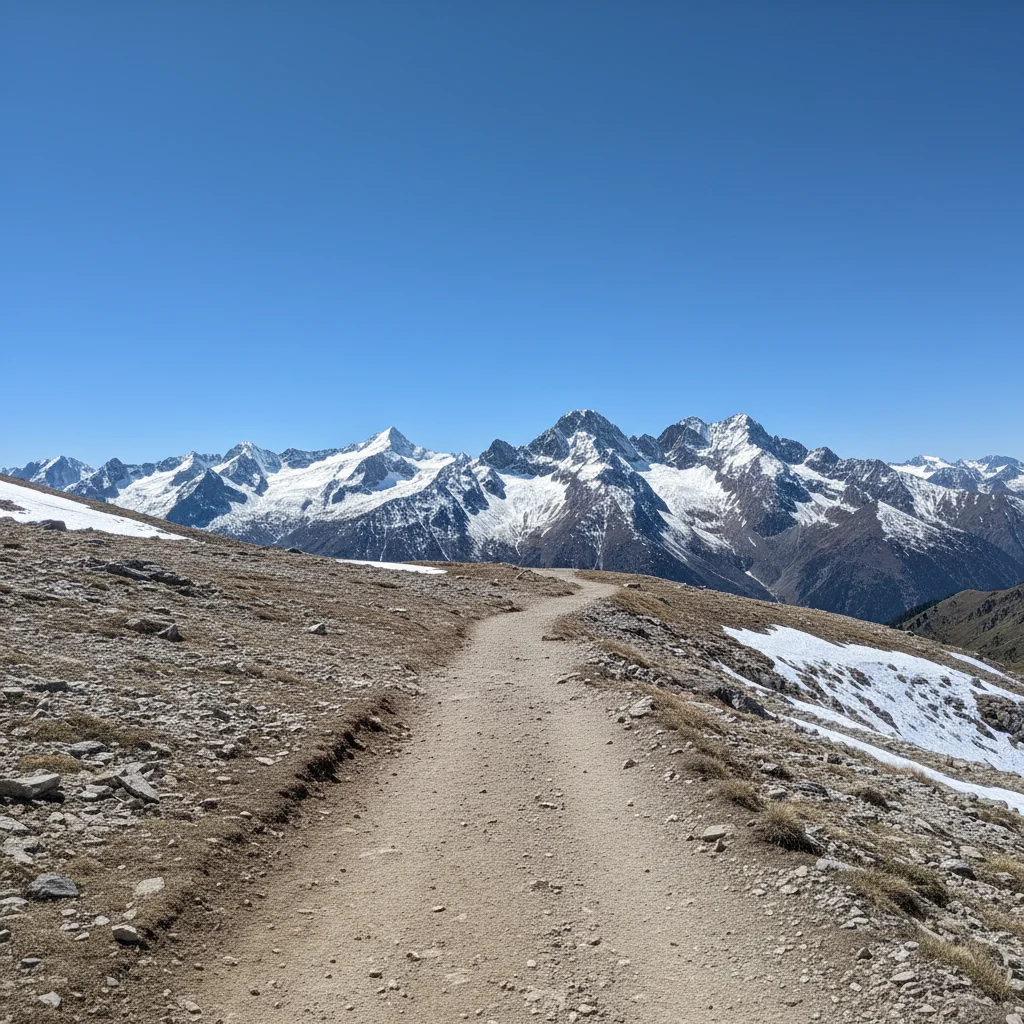
Empty mountain trail landscape with no people
Main Photo
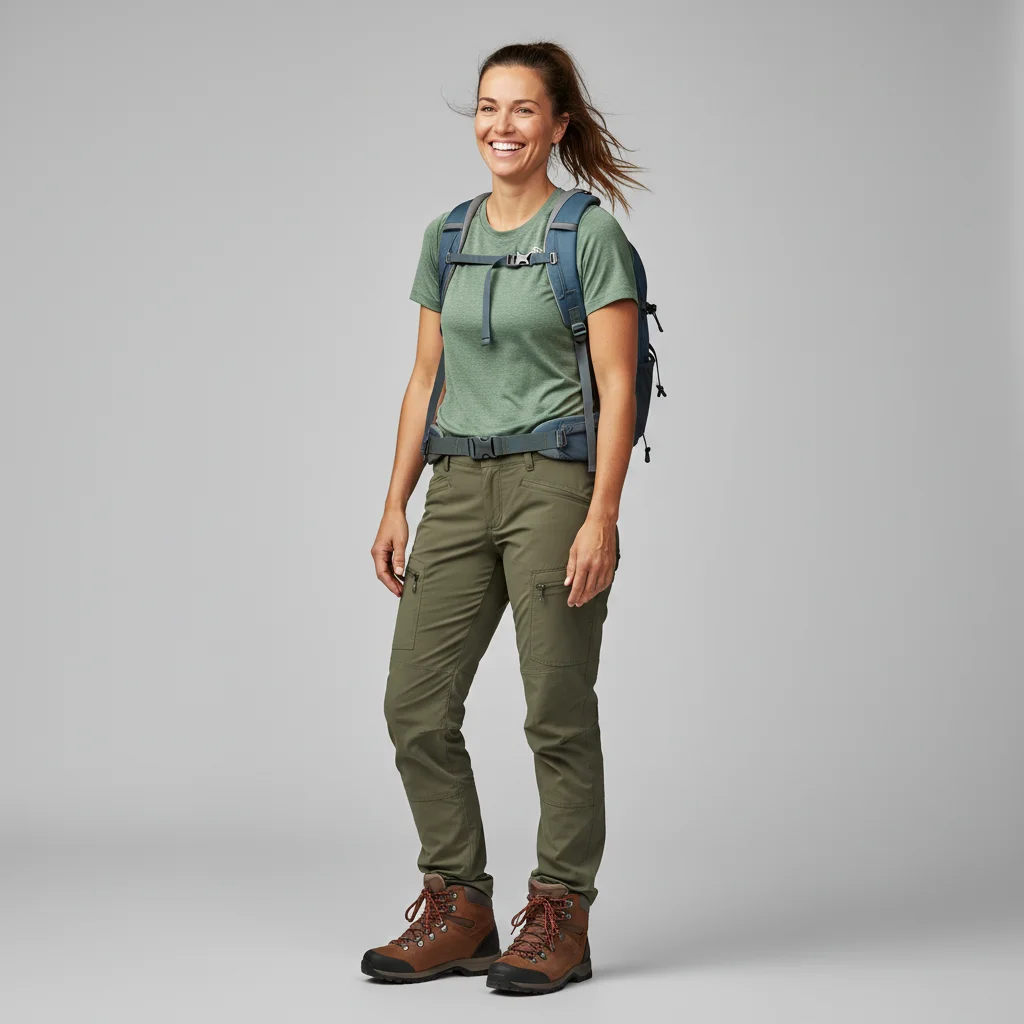
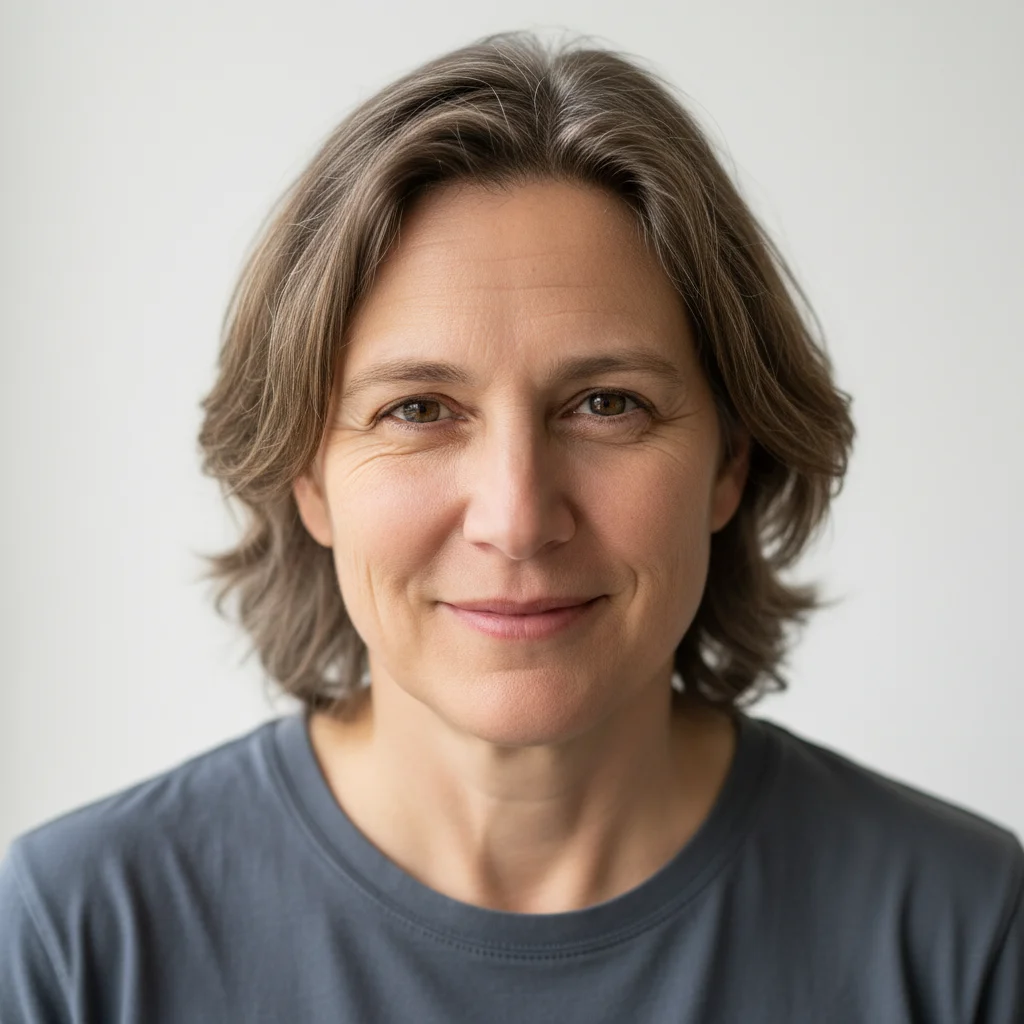
Clear portrait of the person to insert
Reference
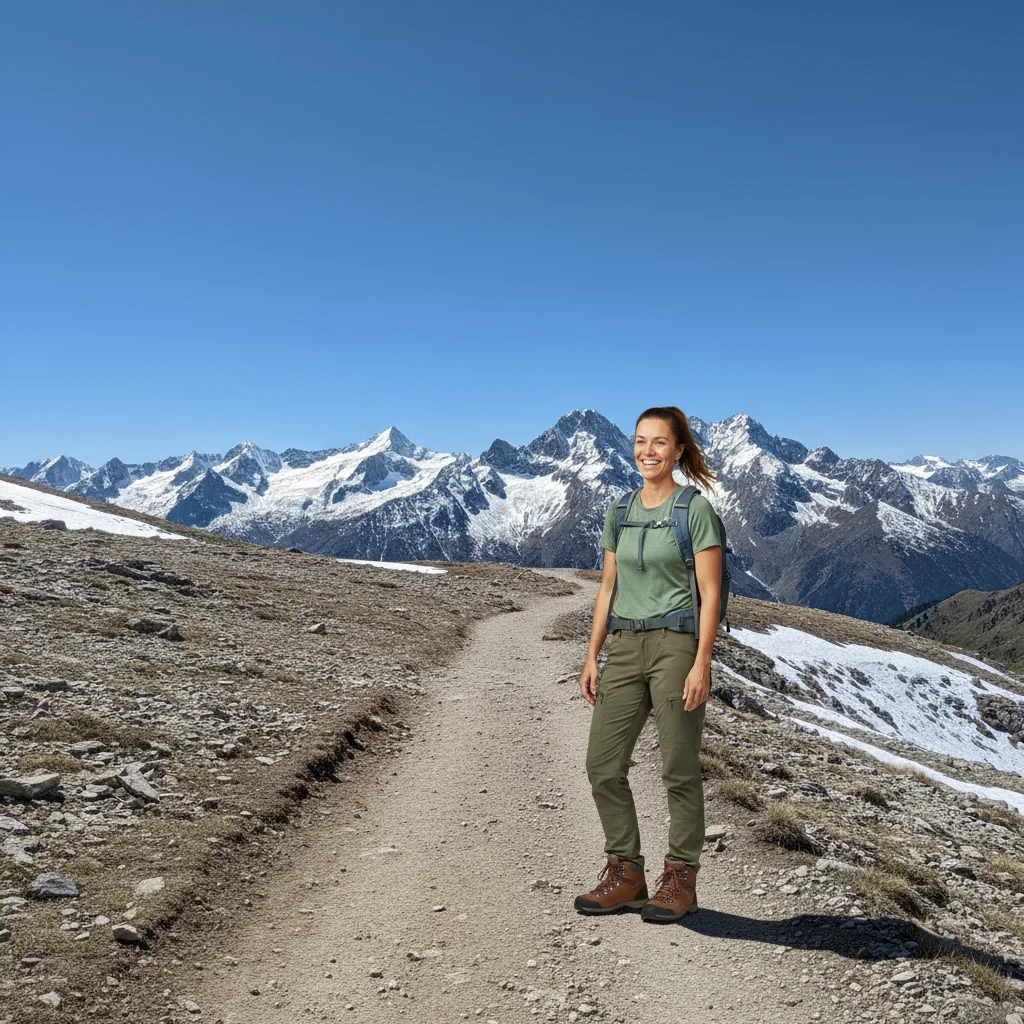
Same mountain scene with a person naturally standing on the trail
Result

Person placed in a mountain landscape

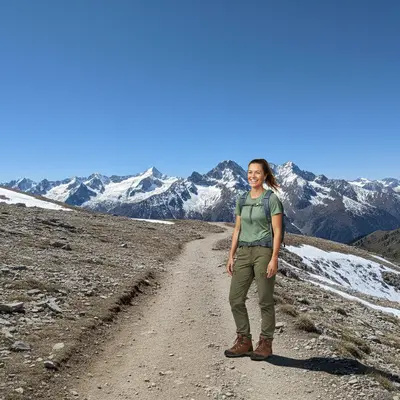
A scenic mountain trail photo with no people — AI inserted a person in the foreground using a reference selfie, matching the bright outdoor lighting and casting a natural shadow on the trail.

Prompt: Take the person from the reference photo and add them standing on the trail in the foreground. Make sure their lighting matches the bright midday mountain sun in the scene.
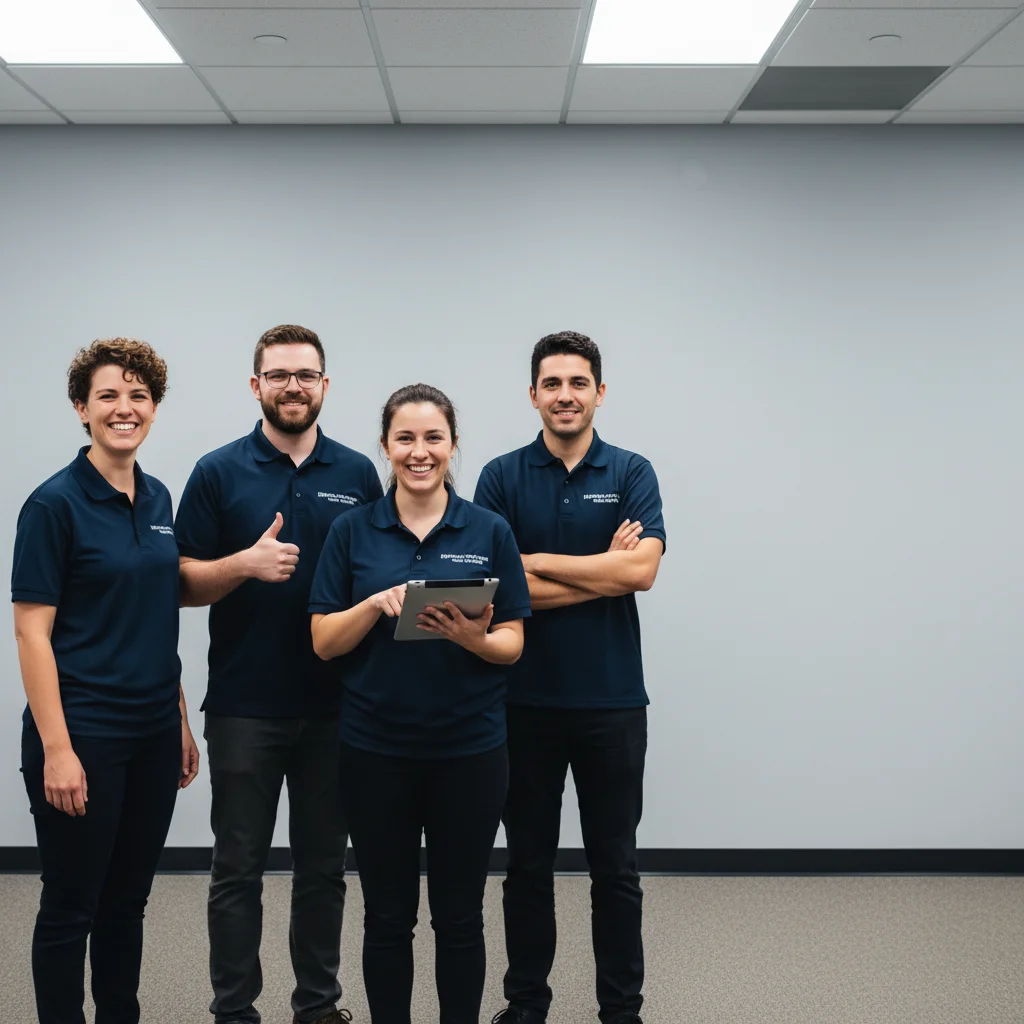
Team lineup with a gap at the right end
Main Photo
Reference image for AI Put Me in a Photo Tool
Reference
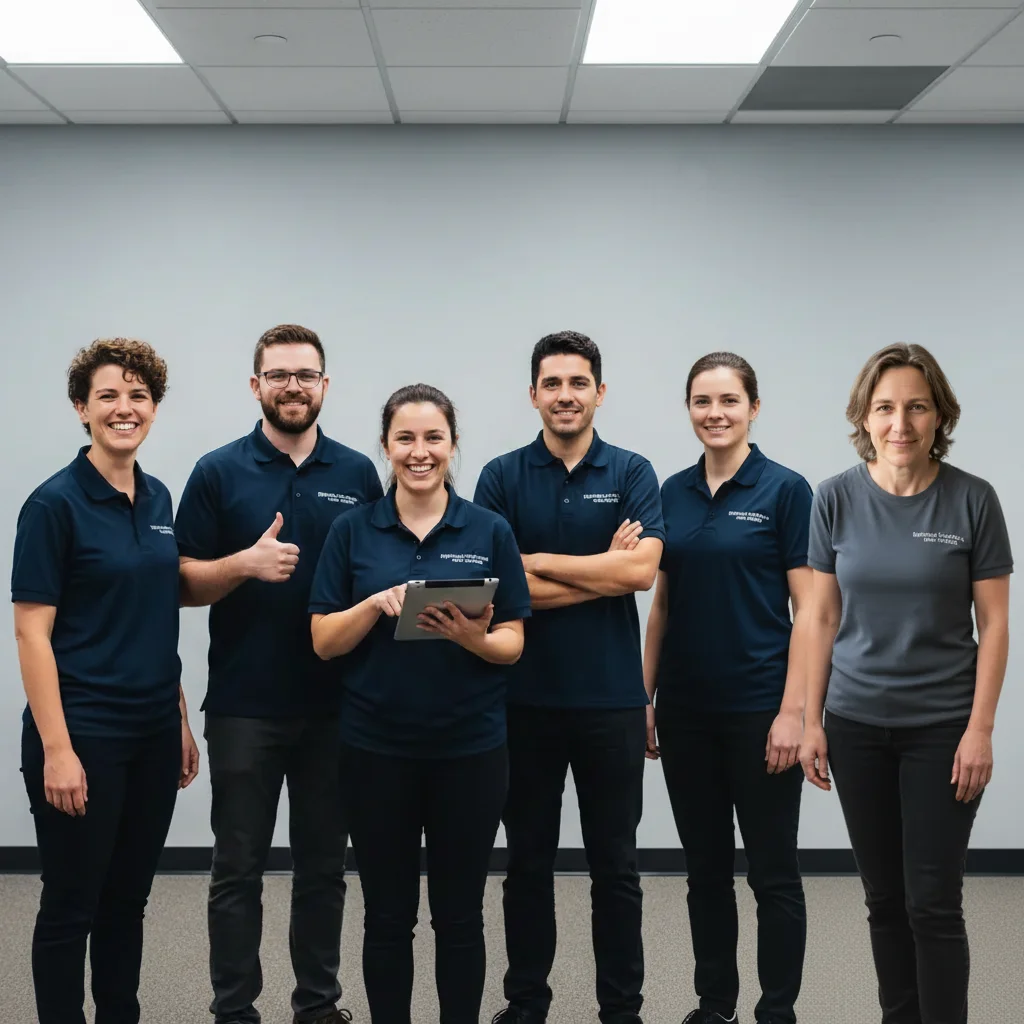
Complete team photo with person added at the right end
Result

Added to a group team photo

Office team lineup photo with a clear gap on the right end — AI added the person from their reference selfie, matching the navy shirts and fluorescent office lighting.

Prompt: add this person standing at the right end of the team lineup, wearing a navy shirt matching the others, natural office lighting, matching the group's slight smile
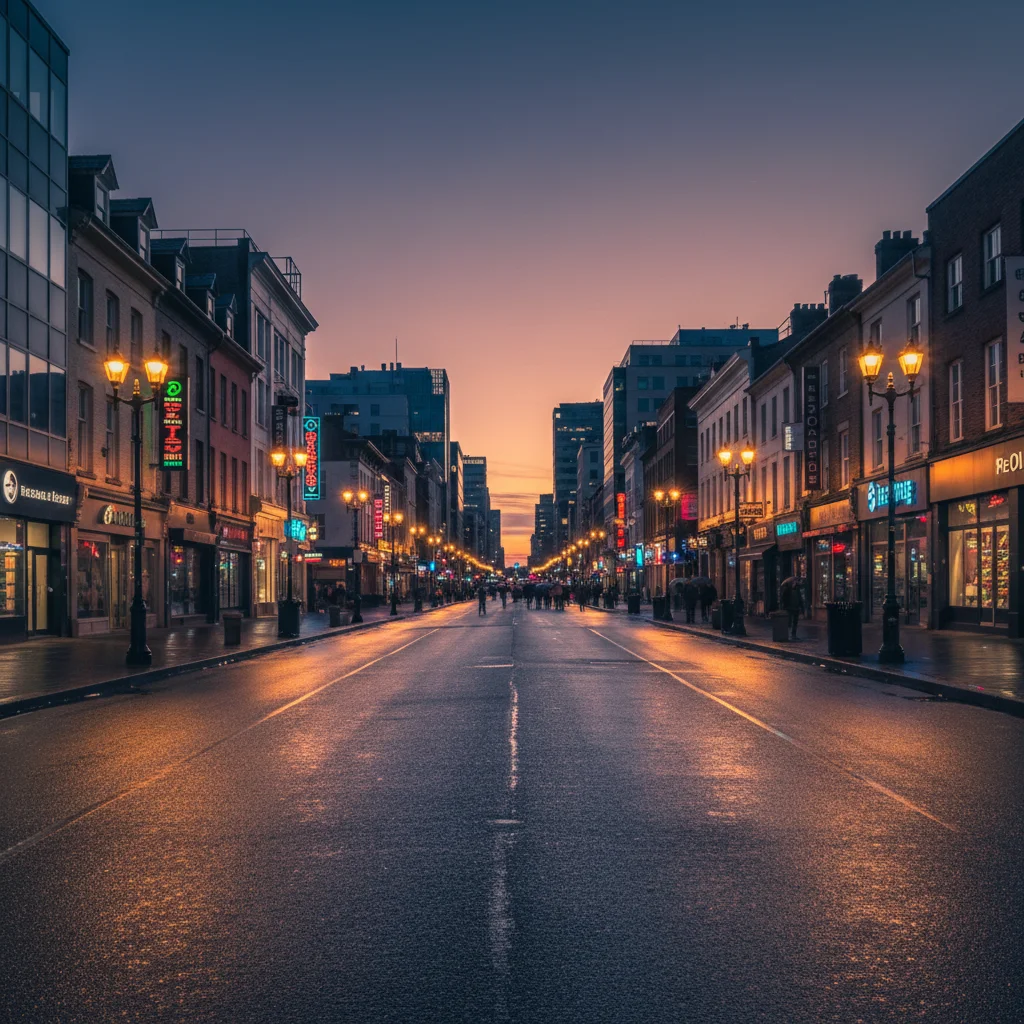
City street at dusk with empty foreground
Main Photo
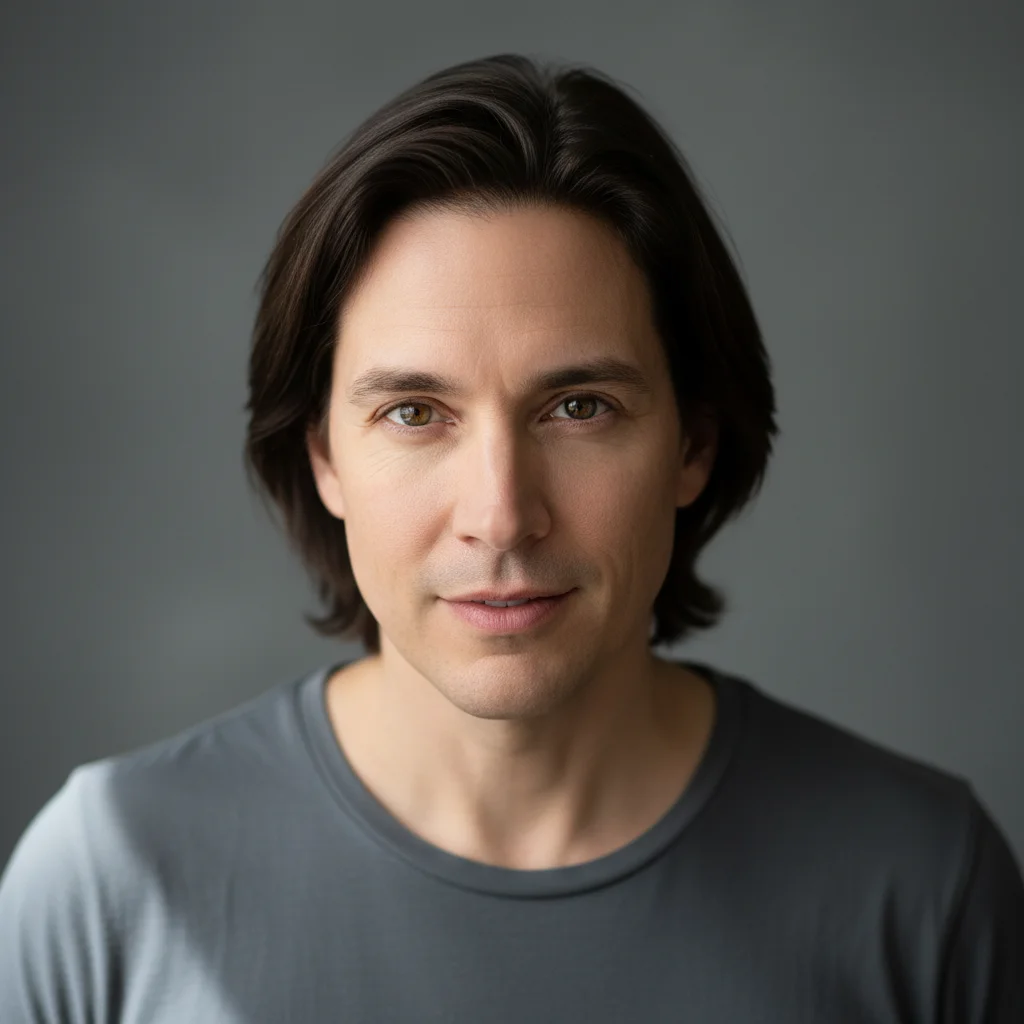
Reference image for AI Put Me in a Photo Tool
Reference
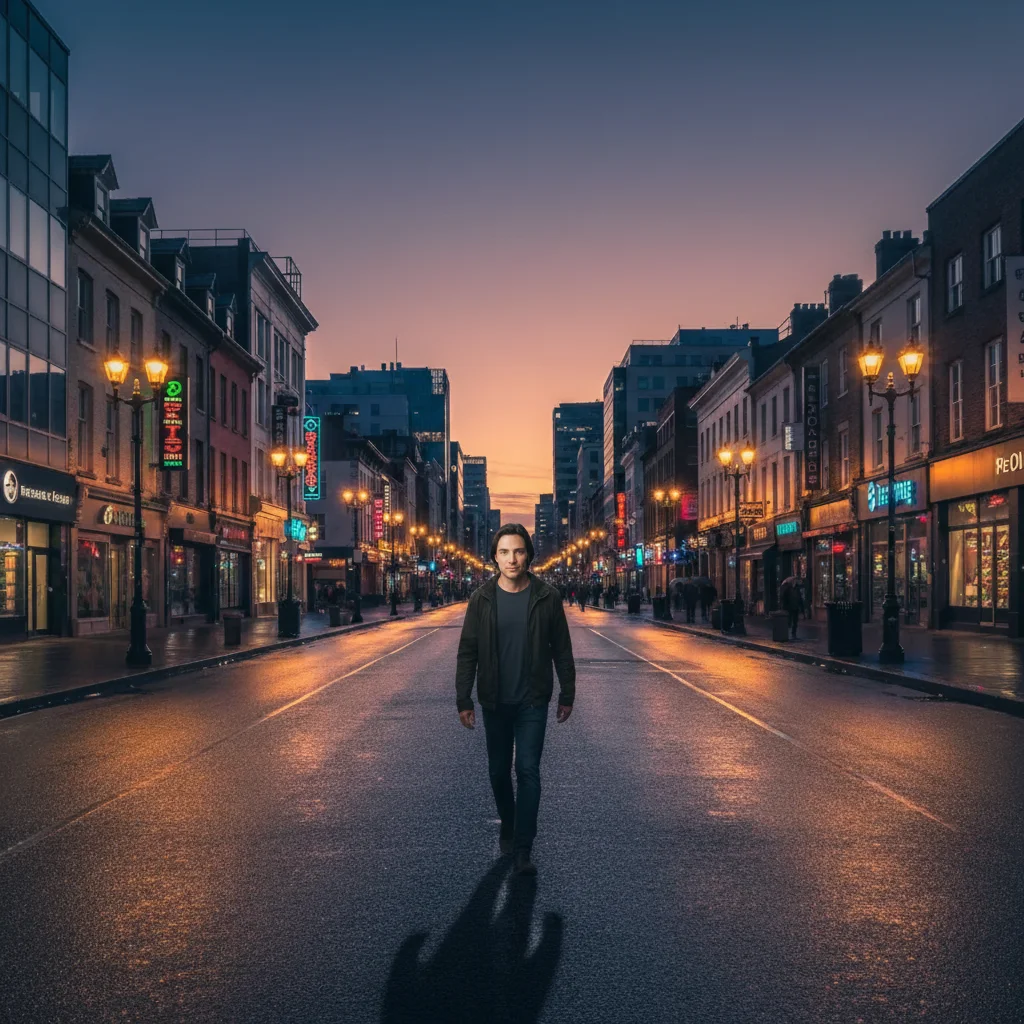
Same city scene with person walking naturally in the foreground
Result

Inserted into a city street scene

Vibrant city street photo at dusk — AI placed a person in the foreground walking toward camera, matching the warm streetlight glow and casting realistic shadows.

Prompt: add this person walking toward the camera in the foreground, casual evening clothing, lit naturally by the warm streetlights above, with a shadow on the wet pavement

If something looks off

The person doesn't look like me

Why: The AI may have generated a generic person instead of using your reference photo, or the reference photo wasn't clear enough.

Try: Use the '+ Add reference photo' button to upload a clear, front-facing selfie before submitting

Tip: Make sure you click '+ Add reference photo' to actually attach your selfie — the reference image is separate from the main photo upload

My lighting looks different from the scene

Why: The reference selfie was lit differently from the destination scene, causing an obvious mismatch.

Try: add this person with lighting from the [left/right/above] matching the light source in the scene, with consistent shadows

Tip: Look at where shadows fall in the destination photo and describe that direction: 'bright sunlight from the upper left'

My edges look cut-out or artificial

Why: The compositing didn't blend naturally, often because the background behind me in the reference photo was too similar to the destination scene.

Try: blend this person naturally into the scene, with realistic edge blending and an appropriate shadow beneath them

Tip: A reference selfie with a plain, single-color background helps the AI extract you more cleanly

My pose looks unnatural for the scene

Why: The extracted pose from the reference photo doesn't fit the destination setting.

Try: add this person in a natural [standing/walking/sitting] pose appropriate for the scene, with relaxed body language

Tip: If you have a reference selfie where you're in a pose that matches the desired outcome, it will give more natural results

Quick answers

Do I need TWO photos for this?

Yes. You need two photos: (1) the destination photo — the scene you want to appear in, and (2) a reference photo of yourself — your selfie or portrait. Upload the destination scene as your main photo, then click '+ Add reference photo' to attach your selfie. Without the reference photo, the AI generates a generic person instead of you.

How do I put myself in a photo for free?

Upload the destination photo to EditThisPic, click '+ Add reference photo' to attach a selfie of yourself, then type where to place you: 'put this person standing in the foreground on the left.' The AI composites you into the scene in about 30 seconds with matched lighting and scale. Free to try, no signup, no watermark on the result.

What kind of selfie should I use as a reference photo?

A clear, well-lit photo where your face and body are visible. Front-facing or three-quarter angle works best. Phone selfies are fine — professional quality isn't required. The background of the reference photo doesn't matter. Avoid very dark, heavily filtered, or blurry reference photos. The more clearly your face and body are visible, the more accurately the AI replicates your likeness.

Can I put myself in a photo without Photoshop?

Yes. EditThisPic is built for exactly this — no Photoshop skills, no manual masking or cutting. Upload your destination photo, add a selfie as the reference image, describe where to place yourself, and get a natural composite in 30 seconds. Works in any browser on desktop or mobile.

Will the result look realistic or obviously fake?

When done well, the composite looks convincingly realistic. The AI matches lighting direction, shadow placement, scale, and edge blending. The key is using a reference selfie with similar lighting to your destination scene and specifying placement clearly. Most results look natural on first try; unusual lighting scenes may need one refinement.

Can I add myself to a group photo?

Yes. Upload the group photo as the main image, add your selfie as the reference photo, and describe where to place yourself: 'add this person standing at the right end of the group, matching the others in scale.' Position yourself at the edge of a group rather than in the middle for the most natural result.

What destination photos work best?

Photos with clear ground planes or natural anchor points work best — beaches, streets, parks, indoor scenes. Scenes with consistent, identifiable lighting make it easier for the AI to match your shadow and highlights. Very abstract or heavily distorted backgrounds can challenge proper scale detection.

How much does EditThisPic cost?

You get 1 free edit per week — no account needed. After that, credit packs start at $1.99 for 3 edits. Monthly plans start at $4.99/mo for 15 edits with unused credits rolling over. All edits are full resolution with no watermark.

Ready to put yourself in any photo?

Upload two photos. Free, no signup required.

1 free edit included·Credit packs from $4.99