Free • No signup Insert Someone · Free

AI Insert Someone into Photo

Last updated

Insert anyone into your photo using a reference image — AI composites them in with natural lighting, correct scale, and seamless blending.
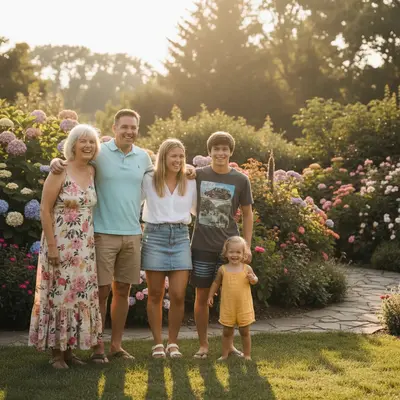
01Photo 1
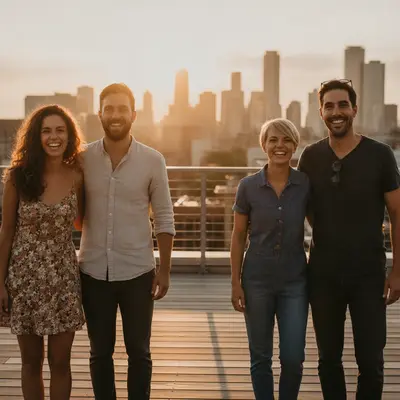
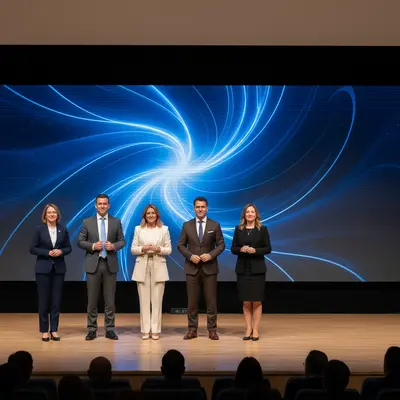
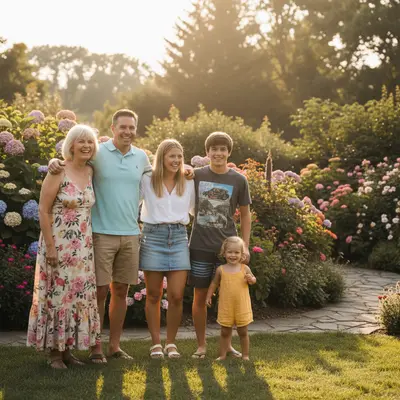
Family reunion photo with gap at right end of lineup
02Photo 2
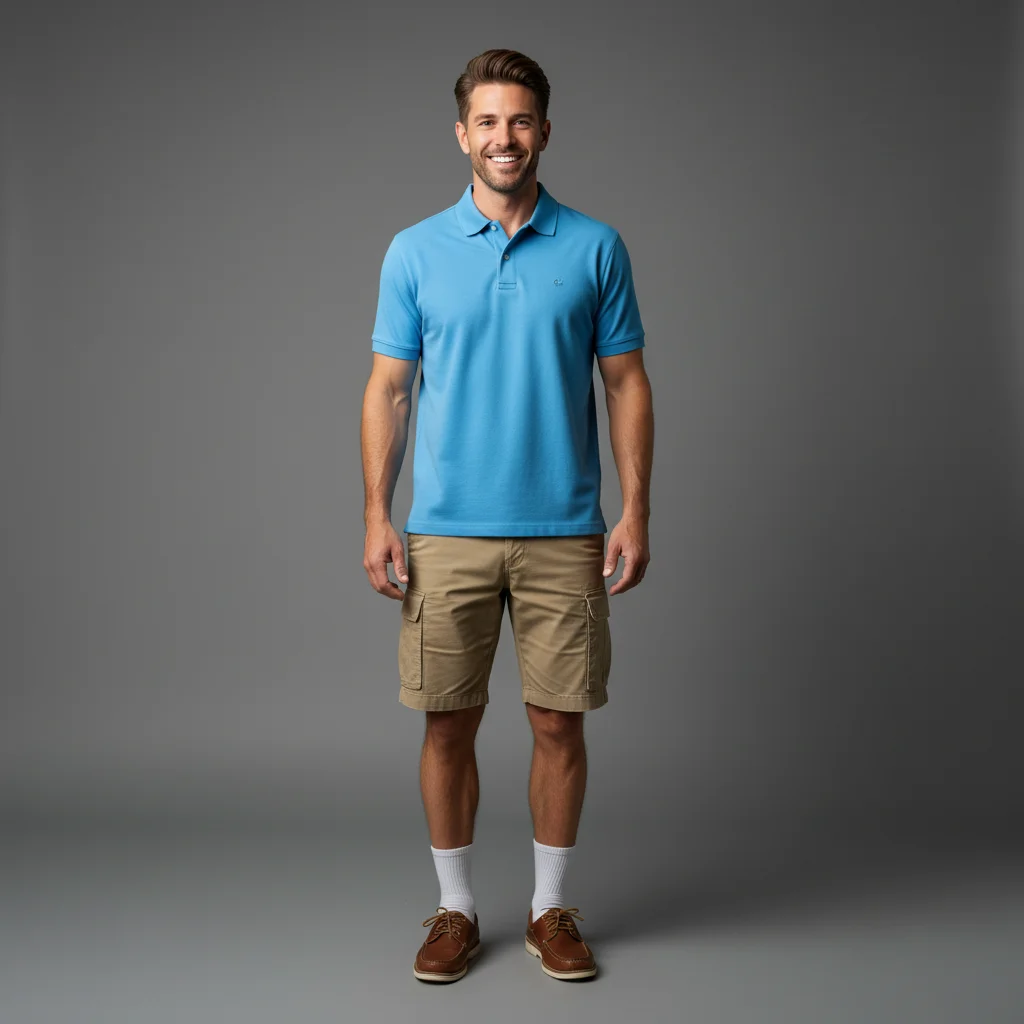
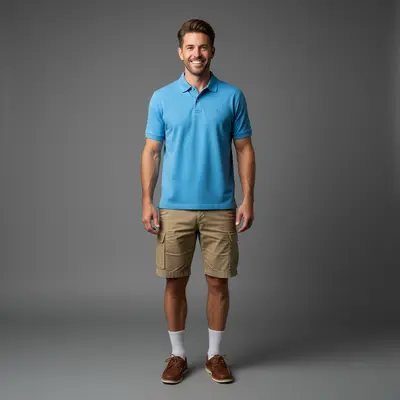
Portrait of the person to insert
03Result
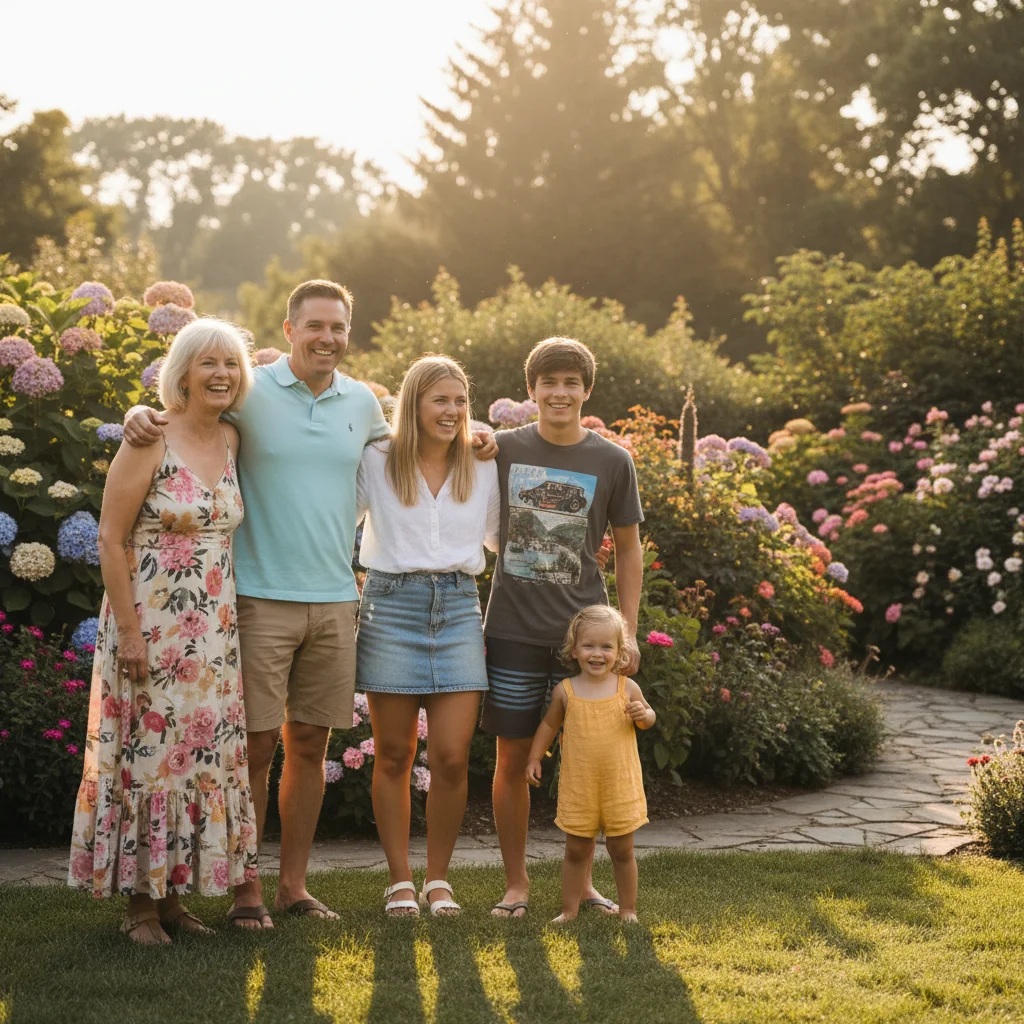
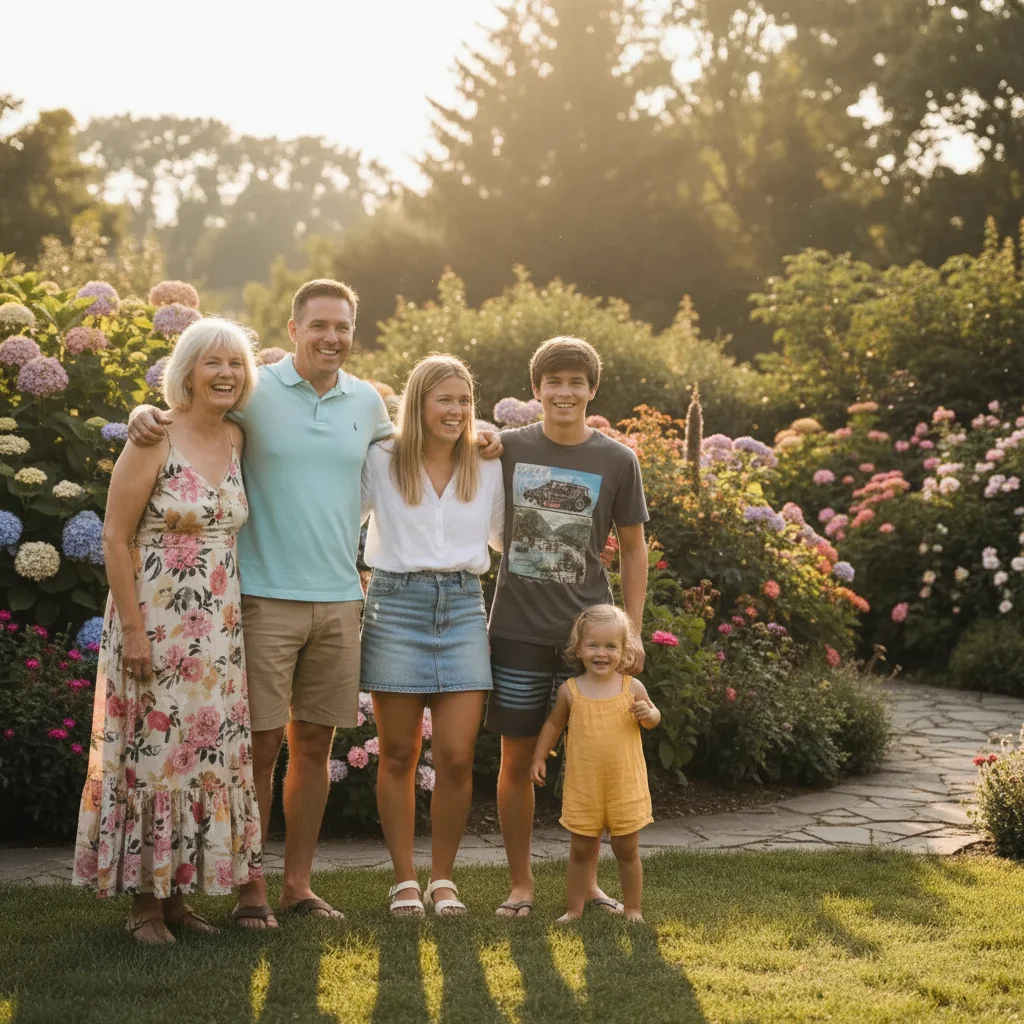
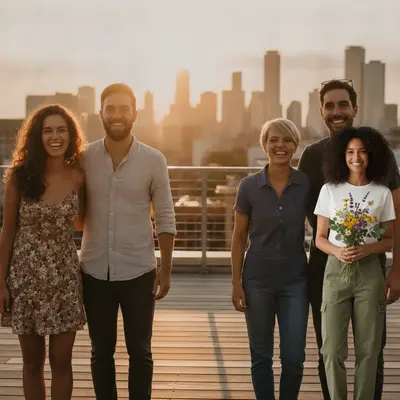
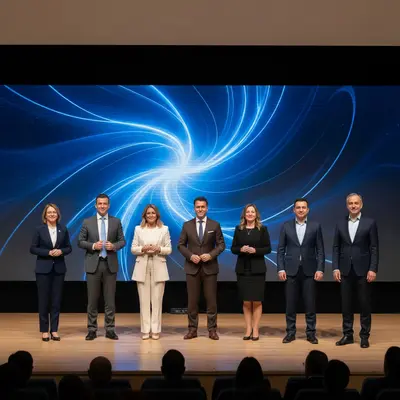
Complete reunion photo with the person inserted on the right

Upload photo to insert someone

"insert this person at the end of the wedding party lineup, wearing formal attire matching the others, same pose and outdoor lighting"

Release to upload

1 free edit·then from $4.99

Popular use cases:
  • insert someone into group photo
  • insert missing person into photo
  • composite person into photo
  • insert person using reference image
  • family photo editing
  • memorial photo creation
  • insert person into wedding photo

1Your photo
+
2Reference
=
Result
Photo with visible gap in the group Your photo
Reference photo of the person to insert Reference
Photo with the person inserted Result

"Insert this person standing next to the group on the right"

Cost
Free No signup required
Time
Instant results in 15-30 seconds
Works on
Any device - browser, phone, tablet, desktop
Powered by
AI-powered photo editing

How it works

  1. Upload your two photos

    Drop your main photo into EditThisPic — the scene you want to modify. Then click '+ Add reference photo' below the prompt box to upload a photo of the person you want to insert. Both photos are required: the main photo provides the scene, the reference photo provides the specific person.

    Expect: JPG, PNG, WebP up to 7MB each. Main photo should have clear space where the inserted person will stand.
  2. Describe where to insert them

    Type precise placement instructions: 'insert this person standing on the left side of the group, wearing similar clothing, matching the outdoor lighting.' The reference photo tells the AI who to insert; your description tells it where and how.

    Tip: Describe adjacent subjects as landmarks: 'insert this person between the man in red and the woman in blue' for precise positioning.

    Copy one of these to get started:

    Insert someone into a group photo insert this person standing at the right end of the group, scale to match the others, matching the outdoor lighting and casual attire
    Insert someone into a wedding photo insert this person at the end of the wedding party lineup, wearing formal attire matching the others, same pose and outdoor lighting
    Insert someone into a scene photo insert the person from the reference photo into the park scene, standing in the foreground on the right, casual clothing, natural sunlight with shadow
    Insert deceased loved one into family photo insert this person standing gently at the left side of the family, peaceful expression, matching the warm indoor lighting, naturally blended into the scene
    2 more prompts
    Insert someone into a sports team photo insert this person at the right end of the team photo, wearing the same red team jersey as the others, matching the bright indoor gym lighting
    Insert someone into a holiday photo insert this person sitting next to the group at the holiday table, wearing festive casual clothing, matching the warm dining room candlelight
  3. Generate and review

    Review whether the inserted person's size is proportional to others in the scene, whether lighting direction is consistent, and whether the blending looks clean at the edges. Most insertions look natural in 30-45 seconds.

  4. Fine-tune placement with markers

    If the person appears in the wrong location, tap a marker exactly where you want them in the photo and regenerate. Markers give the AI a precise anchor point, especially useful in complex or crowded scenes.

    Tip: Tap the marker at the foot position, not the head — this gives the AI the correct ground-plane reference for accurate scale.

See it in action

Family reunion photo with gap at right end of lineup
Main Photo
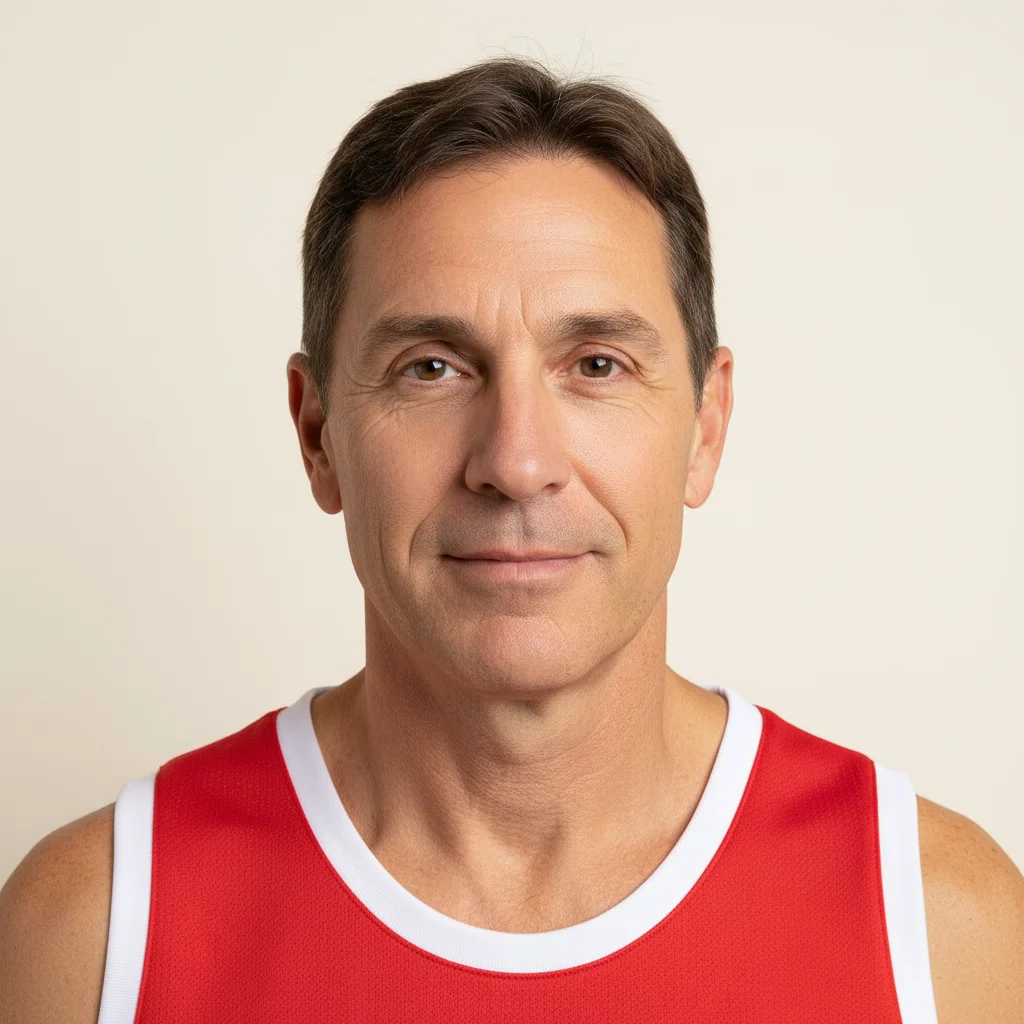
Portrait of the person to insert
Reference
Complete reunion photo with the person inserted on the right
Result

Missing person inserted into reunion photo

A family reunion with a gap at the end of the lineup — AI inserted the missing relative using a reference portrait, matching casual summer attire and bright outdoor lighting.

Prompt: insert this person from the reference photo standing at the right end of the family lineup. Match their lighting to the bright afternoon sunlight and add natural shadows consistent with the rest of the group.
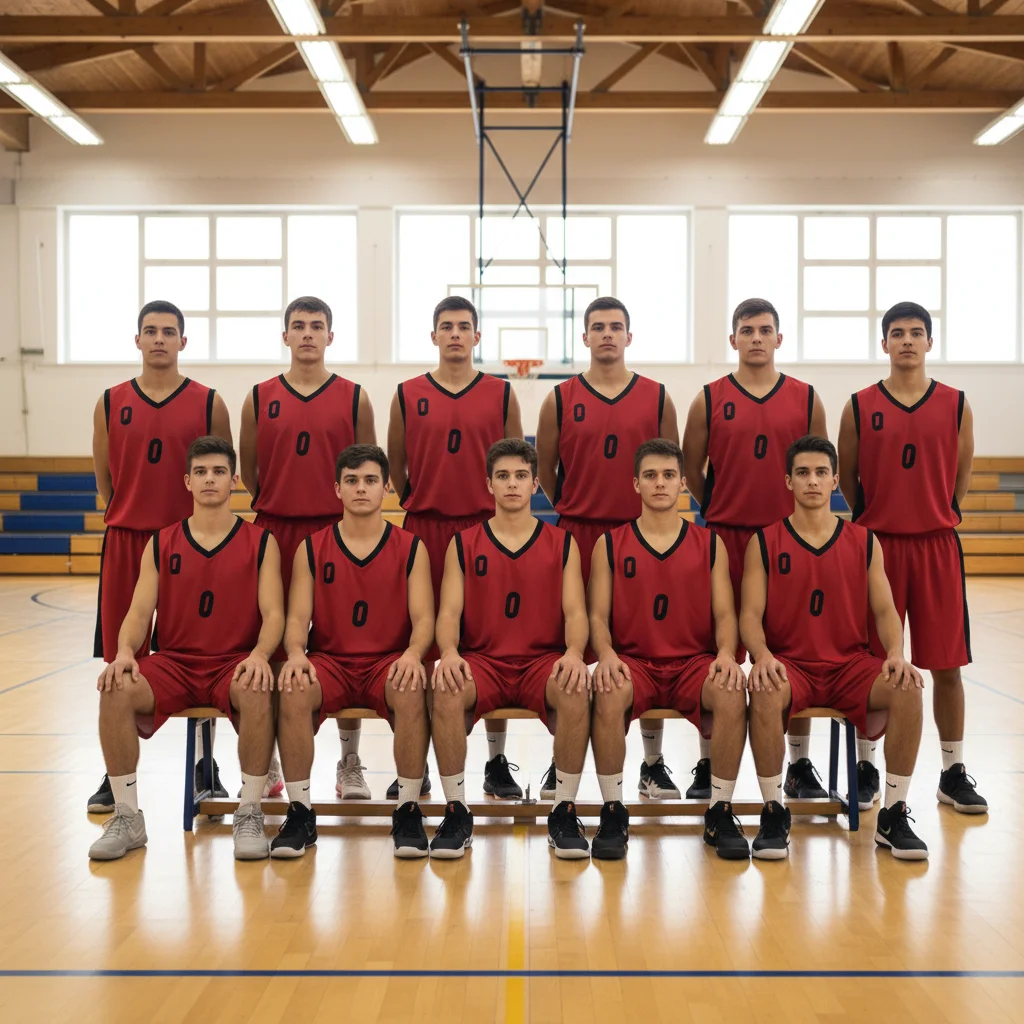
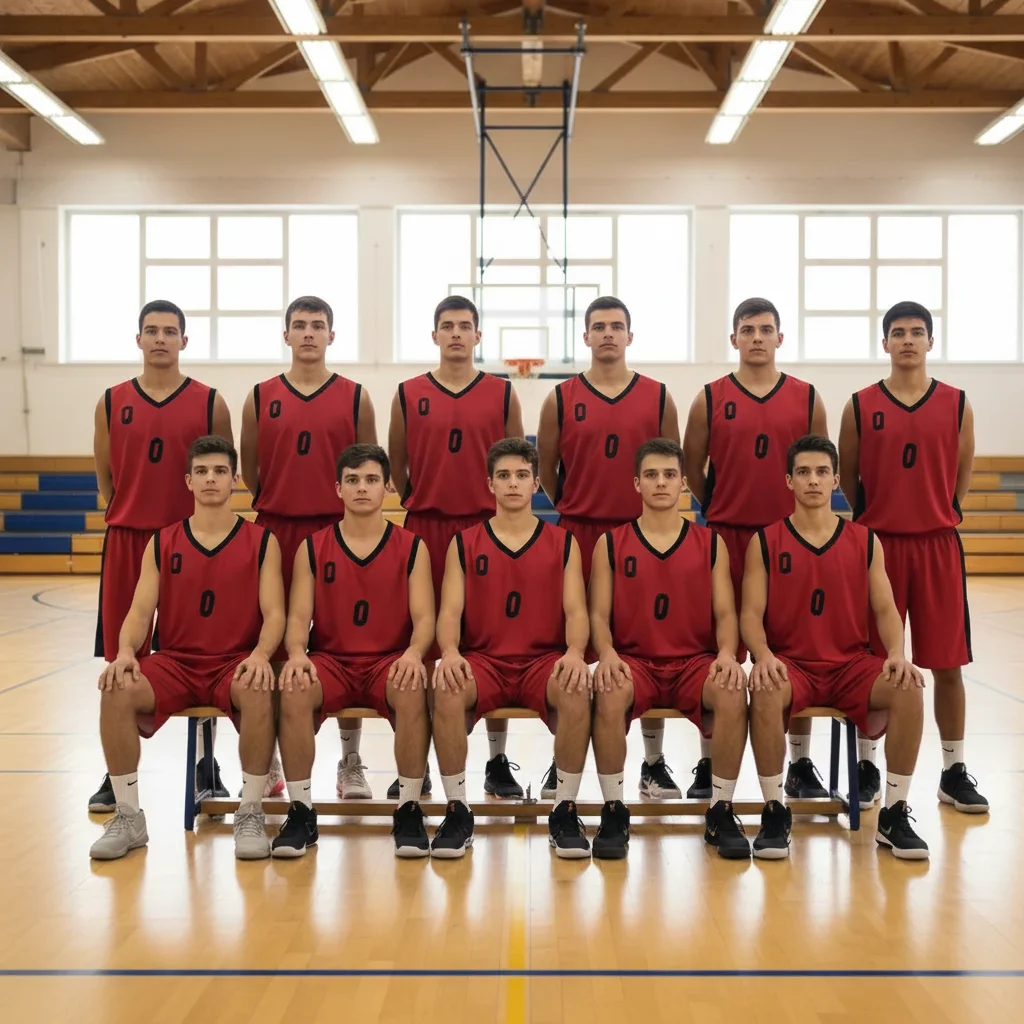
Basketball team photo with gap at right end of front row
Main Photo
Reference image for AI Insert Someone into Photo
Reference
Complete team photo with the player inserted in the lineup
Result

Teammate inserted into sports team photo

A basketball team photo where one player missed picture day — AI inserted them into the lineup using a reference photo, wearing the matching red jersey.

Prompt: insert this person from the reference photo at the right end of the basketball team lineup. Match the lighting to the bright indoor gym.
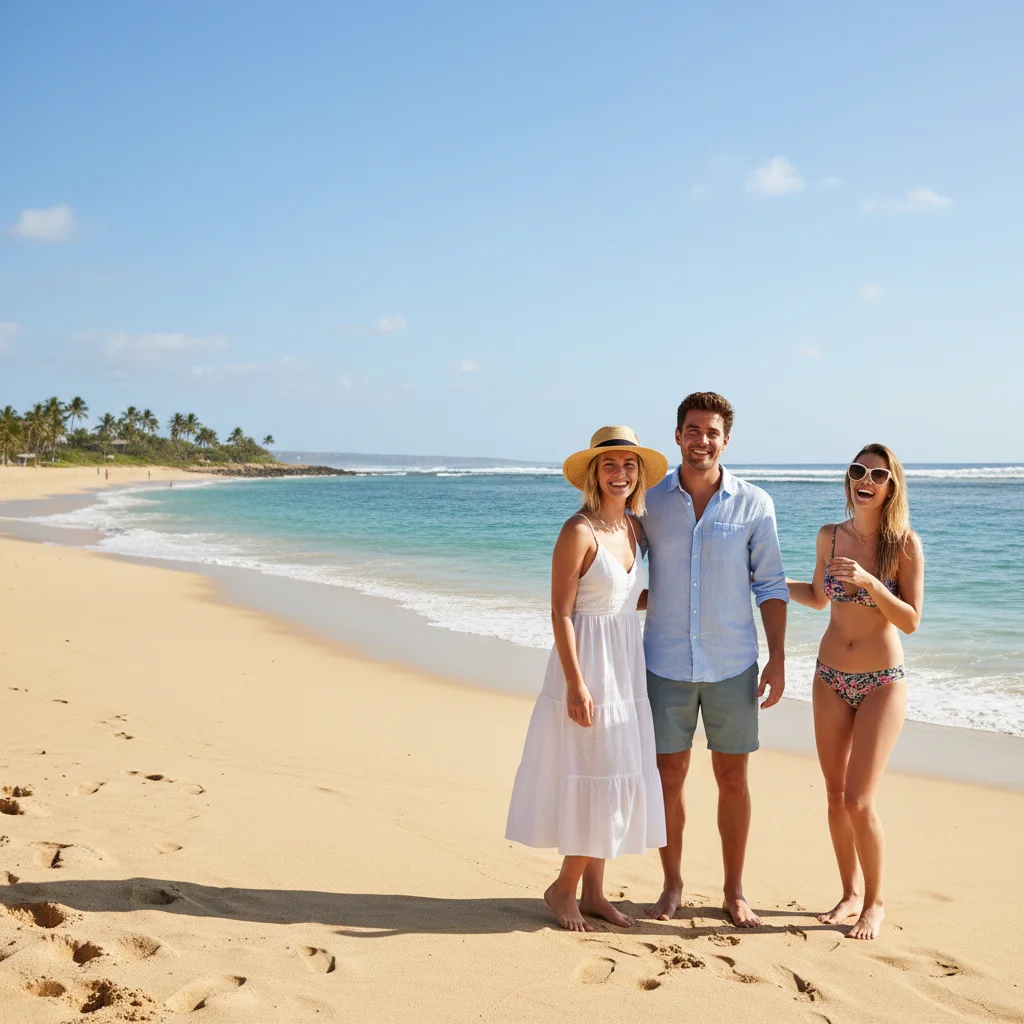
Beach vacation photo with open space to the left of the couple
Main Photo
Reference image for AI Insert Someone into Photo
Reference
Complete beach group photo with the friend inserted on the left
Result

Friend inserted into travel group photo

A travel group shot with a friend who had to leave early — AI inserted them next to the couple in the foreground using a reference photo, matching the beach vacation setting.

Prompt: insert this person standing to the left of the couple in the foreground, casual beach vacation clothing, bright sunny outdoor light, natural ground shadow

If something looks off

Inserted person is the wrong scale

Why: The AI misjudged the depth and perspective, resulting in a size mismatch.

Try: insert this person at the correct scale to match the height of other people in the photo, feet on the same ground plane

Tip: Tap a marker at the expected foot position — this gives the AI accurate ground-plane context for scaling

Lighting doesn't match between person and scene

Why: The generated insertion has different light direction or intensity from the existing subjects.

Try: insert this person with lighting from the left side matching the other subjects, consistent shadows falling to the right

Tip: Describe exact light direction by looking at where highlights fall on the nearest person

AI changed the wrong area

Why: Ambiguous description led the AI to choose a different insertion point.

Try: Tap a marker on the exact spot where you want the person inserted, then regenerate

Tip: Markers are the most precise way to control insertion location in crowded scenes

Person's face doesn't match the reference

Why: The reference photo quality or angle wasn't ideal for facial feature extraction.

Try: insert this person preserving their exact facial features and likeness from the reference photo

Tip: Front-facing or three-quarter angle reference photos give the best facial accuracy

Blending looks fake or cut-out

Why: The edge compositing didn't adapt well to the background at that position.

Try: insert this person with seamlessly blended edges, natural hair rendering, no harsh cutout lines

Tip: Complex backgrounds (foliage, crowds) need explicit 'seamlessly blended' instruction for clean edges

Quick answers

Do I need TWO photos for this?

Yes — inserting a specific person requires two photos. Upload your main photo (the scene you want), then click '+ Add reference photo' to upload a photo of the person you want to insert. The AI reads the reference to identify the real person, then inserts them into your main photo with matched lighting and scale. Without the reference, the AI can only generate a generic description-based figure.

How do I insert someone into a photo for free?

Upload your main photo to EditThisPic, click '+ Add reference photo' to upload the person, then describe where to place them: 'insert this person standing on the right side of the group.' The AI inserts them in about 30 seconds with matched lighting. Completely free, no account needed, no watermark on the result.

How is this different from Photoshop?

In Photoshop, inserting someone requires manual selection, masking, color correction, and shadow matching — typically 30-60 minutes of skilled work. EditThisPic does all of that automatically in 30 seconds. Just upload two photos and describe what you want.

Can I insert a deceased loved one into a family photo?

Yes, and many families find this meaningful. Upload a reference photo of your loved one, describe where to insert them, and the AI preserves their likeness while matching the scene's lighting. Works well for memorial displays and holiday photos.

What if the person gets inserted in the wrong spot?

Tap a marker directly on the exact position in the photo where you want the person to appear, then regenerate with your original prompt. The marker gives the AI a precise anchor point and overrides the description-based placement.

How much does EditThisPic cost?

You get 1 free edit per week — no account needed. After that, credit packs start at $1.99 for 3 edits. Monthly plans start at $4.99/mo for 15 edits with unused credits rolling over. All edits are full resolution with no watermark.

Ready to insert someone into your photo?

Upload two photos, describe placement. Free, no signup required.

1 free edit included·Credit packs from $4.99