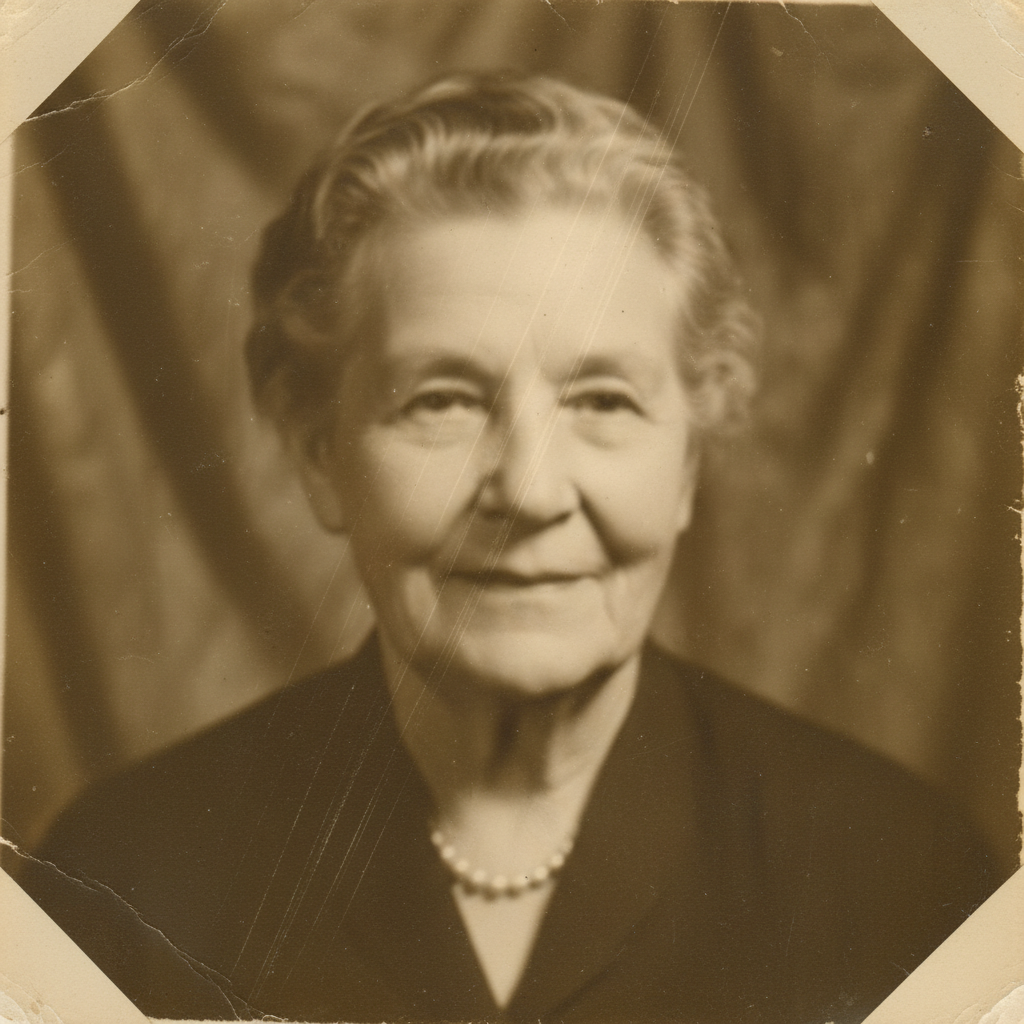
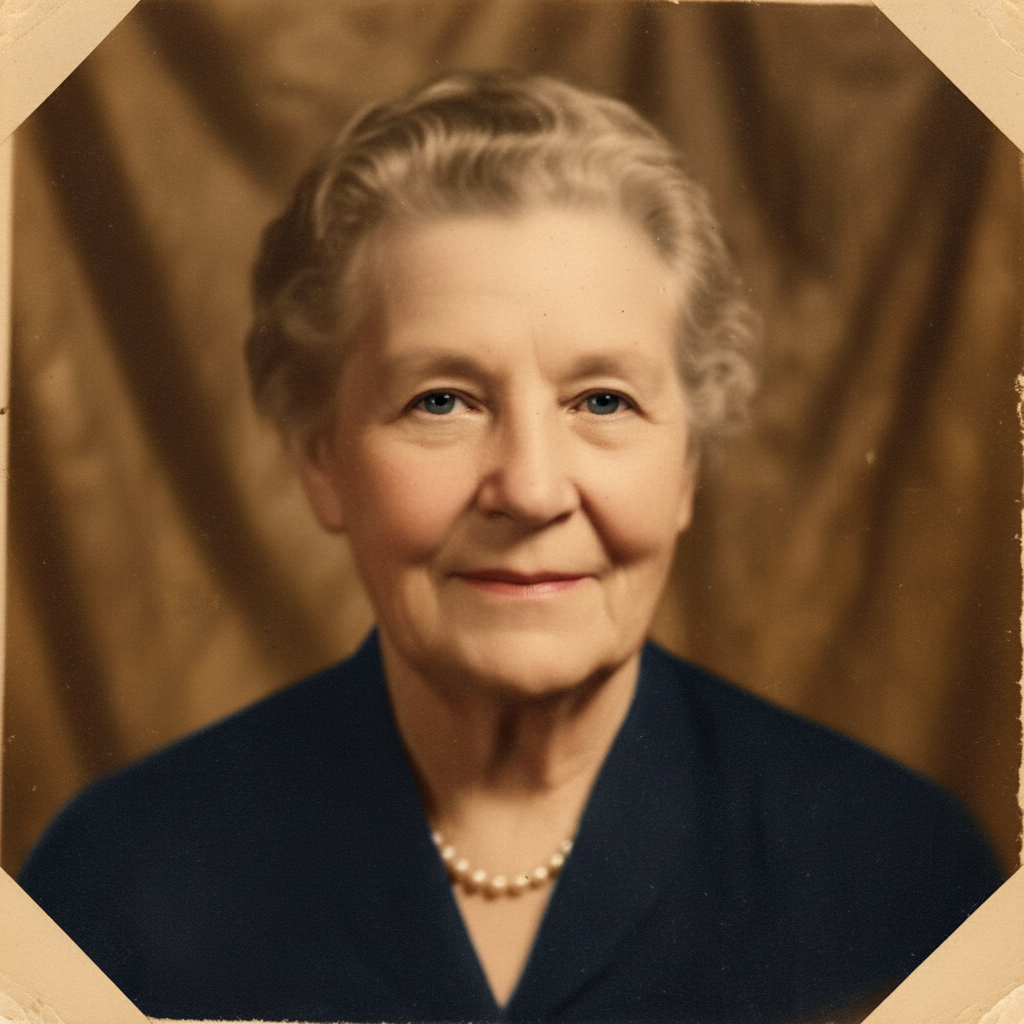
Free • No signup Insert Person into historical photo · Free

Insert Self Into Historical Photo

Last updated

Step into any era — the 1920s, wartime 1940s, or Victorian portraits. The AI applies film grain, sepia, and period-accurate styling automatically.
1940s military group photo with a gap in the back row 1940s military group photo with a soldier composited naturally into the back row

Upload photo to insert person into historical photo

"insert a woman in a 1920s flapper dress and cloche hat walking on the left side of the cobblestone street, matching the sepia toning and soft focus of the rest of the photo"

Release to upload

1 free edit·then from $4.99

Popular use cases:
  • insert self into historical photo
  • put yourself in vintage photo AI
  • historical photo composite free
  • step into history photo editor

Cost
Free No signup required
Time
Instant results in 15-30 seconds
Works on
Any device - browser, phone, tablet, desktop
Powered by
AI-powered photo editing

How it works

  1. Upload the historical photo

    Drop the vintage or historical photograph into EditThisPic. JPG, PNG, or WebP up to 7MB. The photo can be sepia, black-and-white, or any aged format — the AI reads the era from the photo's visual texture and tonal range.

    Expect: Historical photo composites typically complete in 20-45 seconds. The AI needs to match period-specific film grain and color processing, so results with very high grain or complex crowd scenes may need one refinement.
  2. Describe your placement and era details

    Type what you want: "insert a woman in her 30s in a 1940s-style dress standing at the right end of the group, matching the sepia tone, film grain, and the soft overhead light. She should look like she belongs to the era — period hair and clothing." The key is telling the AI both where to place you and what era-specific styling to apply. Mentioning the decade, clothing style, and the photo's tonal qualities (sepia, black-and-white, high grain) ensures the composite looks authentic rather than modern.

    Tip: Historical photos have characteristic defects: film grain, slight blur, vignetting at the edges, and era-specific contrast. Add 'with the same film grain and contrast as the rest of the photo' to your prompt and the AI will match these imperfections so your insertion doesn't look digitally sharp against an aged background.

    Copy one of these to get started:

    1940s wartime group photo insert a man in his 30s in a 1940s military uniform standing in the back row of the group, matching the black-and-white high-contrast photography of the era, with the same slight grain and faded tones
    1920s flapper-era street scene insert a woman in a 1920s flapper dress and cloche hat walking on the left side of the cobblestone street, matching the sepia toning and soft focus of the rest of the photo
    Victorian-era formal portrait insert a man in his 40s in a Victorian three-piece suit sitting in the empty chair on the right, matching the studio portrait's sepia tone, slight vignette at the edges, and formal upright posture of the era
    1960s-70s color Kodachrome snapshot insert a teenage girl in 1960s bell-bottom jeans and a floral blouse standing to the right of the group, matching the slightly faded, oversaturated Kodachrome color palette of the photo
    2 more prompts
    WWII-era factory or workplace photo insert a woman in 1940s work overalls and head scarf standing among the other workers at the factory, matching the black-and-white high-contrast news photography style, with the same sharp grain
    Edwardian outdoor family photo insert a young child in Edwardian white dress and pinafore sitting on the lawn in front of the family, matching the soft blown-out sky and faded sepia tones typical of Edwardian outdoor photography
  3. Review era authenticity

    Check that the inserted person shares the same grain, tone, and contrast as everyone else in the photo. A modern-looking person against an aged background is the most common sign that the composite needs a refinement pass. Also verify that clothing and hairstyle look period-appropriate.

See it in action

1940s military group photo with a gap in the back row
Before
->
1940s military group photo with a soldier composited naturally into the back row
After

Man Added to 1940s Wartime Group Photo

A black-and-white WWII-era military group photo got an additional soldier added to the back row, matching the high-contrast monochrome photography and military uniform of the period.

Prompt: insert a man in his 30s in a 1940s military uniform standing in the back row between two soldiers, matching the high-contrast black-and-white photography, with the same film grain and sharp shadows typical of wartime press photography
1920s street scene before adding a person
Before
->
1920s street scene with a woman in period clothing composited in
After

Woman Inserted Into 1920s Street Scene

A sepia-toned 1920s street photograph had a woman in period clothing added, matching the cobblestone setting, soft sepia toning, and characteristic slight blur of early 20th-century street photography.

Prompt: insert a woman in her 20s wearing a 1920s flapper dress and cloche hat walking on the left side of the cobblestone street, matching the sepia warm tone, soft focus, and slight edge vignette of the rest of the photo

If something looks off

Inserted person looks too modern or digitally sharp

Why: Historical photos have characteristic imperfections — grain, soft focus, faded tones — that the AI may not have applied to the new person without being told to match them.

Try: Add: 'apply the same grain, sepia tone, and slight soft focus to the inserted person as the rest of the photo — they should look like they were photographed with the same camera'

Tip: This is the most common issue with historical composites. Always include a tonal-matching instruction in your prompt from the start.

Clothing looks contemporary, not era-appropriate

Why: The AI defaulted to modern clothing for the inserted person rather than period-accurate attire.

Try: Be specific about the era and garment type: 'wearing a 1940s women's A-line skirt and blouse with period-appropriate hairstyle, finger-wave hair set'

Tip: Naming specific garments (Victorian frock coat, 1920s cloche hat, 1940s peplum blouse) is much more reliable than just naming the decade.

Person's pose looks stiff or unnatural for the era

Why: Different eras had different photographic conventions — Victorian subjects held very rigid poses, while 1960s photos have more natural candid stances.

Try: Add the expected pose style: 'with the formal upright posture typical of Victorian portrait photography' or 'in a natural casual stance typical of 1960s snapshot photography'

Tip: Describing the posing convention of the era is as important as describing the clothing — both tell the AI what 'belonging to the era' looks like.

Color toning doesn't match (sepia vs black-and-white vs color)

Why: The AI generated the person in a different tonal mode than the photo — for example, a color person in a sepia photo.

Try: Explicitly state the tonal requirement: 'in pure sepia tone, no color' or 'in true black-and-white with high contrast, no warm tones'

Tip: Sepia and black-and-white look similar to AI but are distinct. Specify which one you want explicitly — 'sepia' is warm brown, 'black-and-white' is neutral grey scale.

Quick answers

How do I insert myself into a historical photo with AI?

Upload the vintage photograph to EditThisPic, then describe your placement and the era details — position in the scene, decade, clothing style, and the photo's tonal quality (sepia, black-and-white, Kodachrome). The AI composites you in 20-45 seconds with matching grain, tone, and period clothing. Free, no account required.

Is there a free tool to step into a vintage or historical photograph?

Yes. EditThisPic lets you insert anyone into a historical photo for free with one edit per week — no account, no Photoshop, no watermark. You describe the era and placement in plain English and the AI handles the grain, sepia toning, and period-accurate styling.

Will the AI match the sepia or black-and-white tones of the old photo?

Yes, when you tell it to. Add 'matching the sepia tone and film grain of the rest of the photo' or 'in black-and-white with the same high contrast as the other figures' to your prompt. The AI will apply those same tonal qualities to the inserted person so they look like they were photographed with the same camera.

Does the AI automatically apply era-appropriate clothing?

EditThisPic AI will try to match the era when you describe it — but for the best results, name specific garment types (1940s military uniform, Victorian frock coat, 1920s flapper dress) rather than just the decade. Specific clothing descriptions give the AI much clearer guidance than the decade alone.

Can I use any historical photo I find, or do I need one from my family?

You can use any historical photo — a downloaded image, a scanned family photo, or a public domain archive image. The AI treats all of them the same way. Just make sure the file is JPG, PNG, or WebP and under 7MB.

What eras work best for this tool?

The tool works across all photographic eras — Victorian (1840s-1900s), Edwardian (1900-1910s), 1920s-1940s, and early color photography from the 1950s-70s. Earlier daguerreotypes and ambotypes (pre-1880) can be harder due to their very unique texture — describe the tonal quality explicitly for best results.

How much does EditThisPic cost?

You get 1 free edit per week — no account needed. After that, credit packs start at $1.99 for 3 edits. Monthly plans start at $4.99/mo for 15 edits with unused credits rolling over. All edits are full resolution with no watermark.

Ready to step into history?

Free to try. No signup required.

1 free edit included·Credit packs from $4.99