Free • No signup Insert Person into group photo · Free

Insert Person Into Group Photo

Describe who to add or remove. The AI handles the rest.
Group photo missing one person
Before
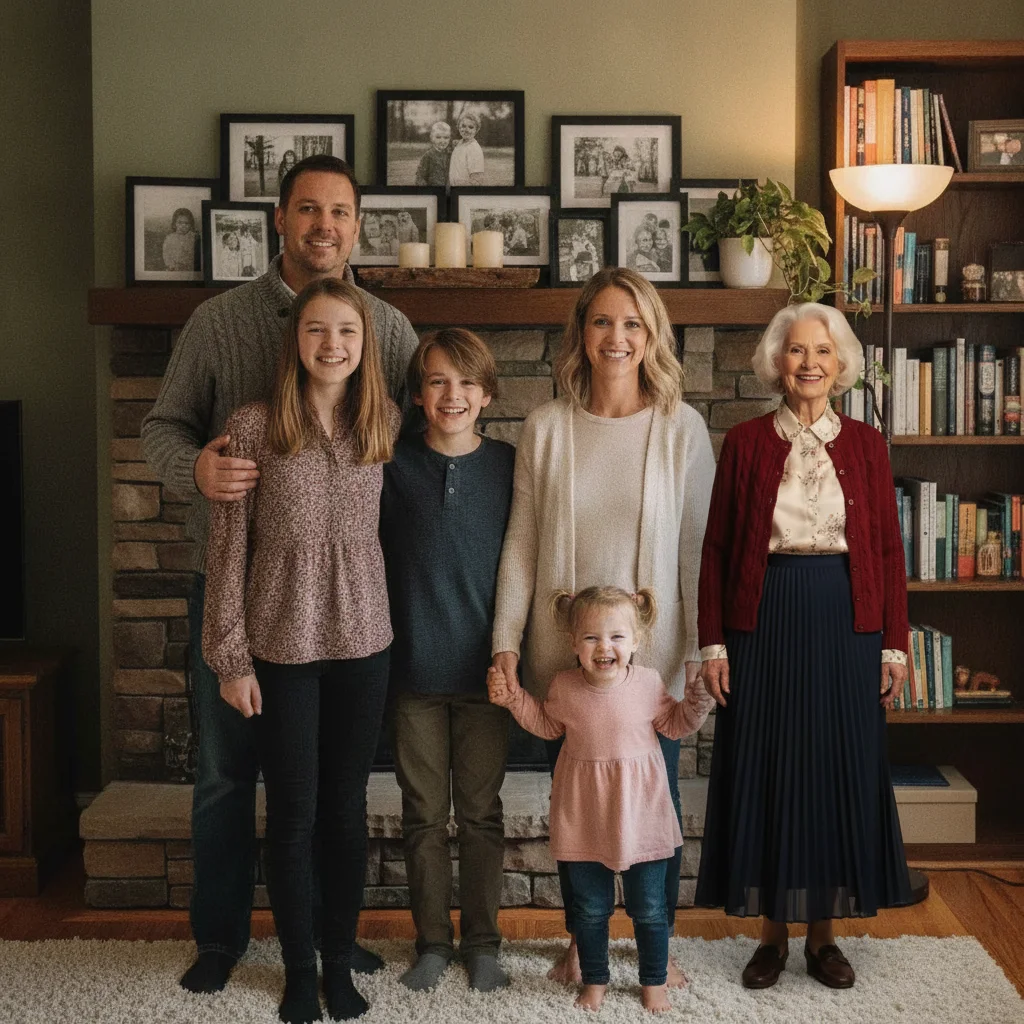
Complete group with inserted person
After

Insert Person Into Group Photo

Drop your photo here

or click to browse

Release to upload

Free • No signup

Popular use cases:
  • insert person into group photo
  • AI person into group photo editor
  • photo person into group photo tool
  • free person into group photo editing

Cost
Free No signup required
Time
Instant results in 15-30 seconds
Works on
Any device - browser, phone, tablet, desktop
Powered by
AI-powered photo editing

How it works

  1. Upload your photo

    Upload a clear photo showing the area you want to edit. Good lighting and sharp focus help the AI deliver better person into group photo results. JPG, PNG, WebP up to 7MB.

    Expect: Most edits complete in 20-45 seconds. Complex changes may need 1-2 refinements.
  2. Describe your edit

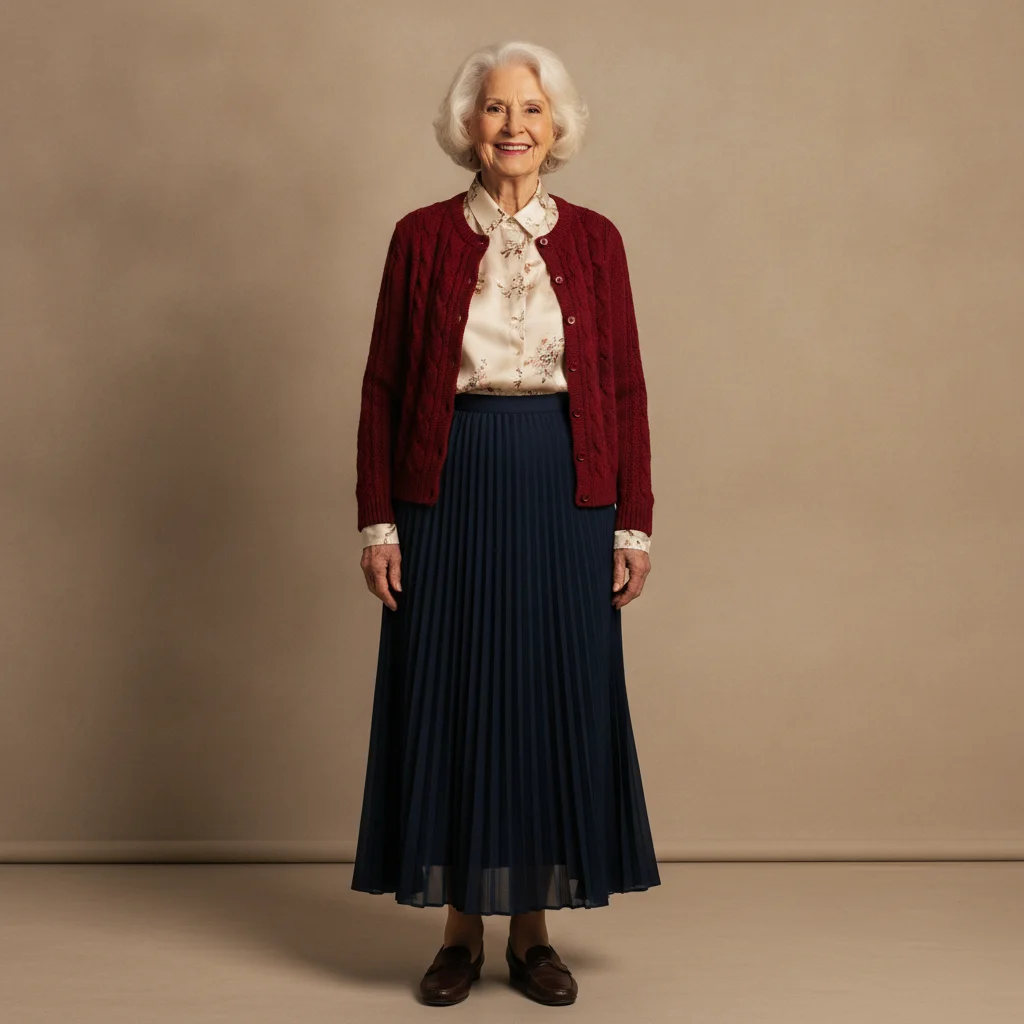
    Type what you want: 'insert the person from the reference photo into this group photo.' Be specific about details for best results. The AI understands natural language — no technical skills needed.

    Tip: Upload the person you want to add as a reference image for seamless insertion.

    Copy one of these to get started:

    Add to end of group insert the person from reference at the right end of this group photo
    Add between two people insert the person from reference between the second and third person in the group
    Add to back row insert the person from reference into the back row of this group, between the tallest people
    Seated group addition insert the person from reference seated at the end of this row
    4 more prompts
    Large team photo insert the person from reference into this large team or class photo, in the second row
    Subtle and natural blend insert person into group photo with subtle natural blending that matches the original photo's style
    With specific positioning insert person into group photo in the center of the frame with balanced proportions
    Dramatic effect version insert person into group photo with dramatic lighting and vivid details for maximum impact
  3. Review the result

    Use the before/after slider to compare results. Check that the person into group photo edit blends naturally with surrounding areas — look for consistent lighting, color matching, and clean edges throughout.

  4. Refine if needed

    If any areas need fine-tuning, tap markers on those specific spots and describe what to fix. The AI can adjust individual regions without redoing the entire edit — useful for perfecting person into group photo details in tricky areas.

    Tip: Markers are optional. Try without them first — the AI usually gets it right.
Try it free

Insert Person Into Group Photo

Drop your photo here

or click to browse

Release to upload

Free • No signup

"One person was in the restroom during the group shot. Added them in and no one can tell." @EventOrganizer

See it in action

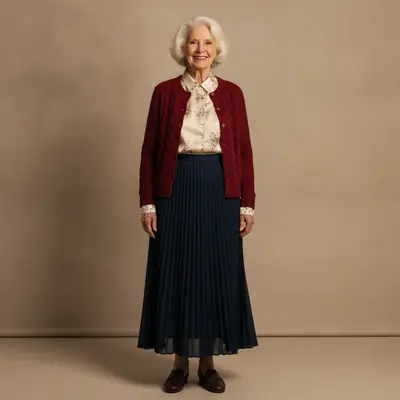
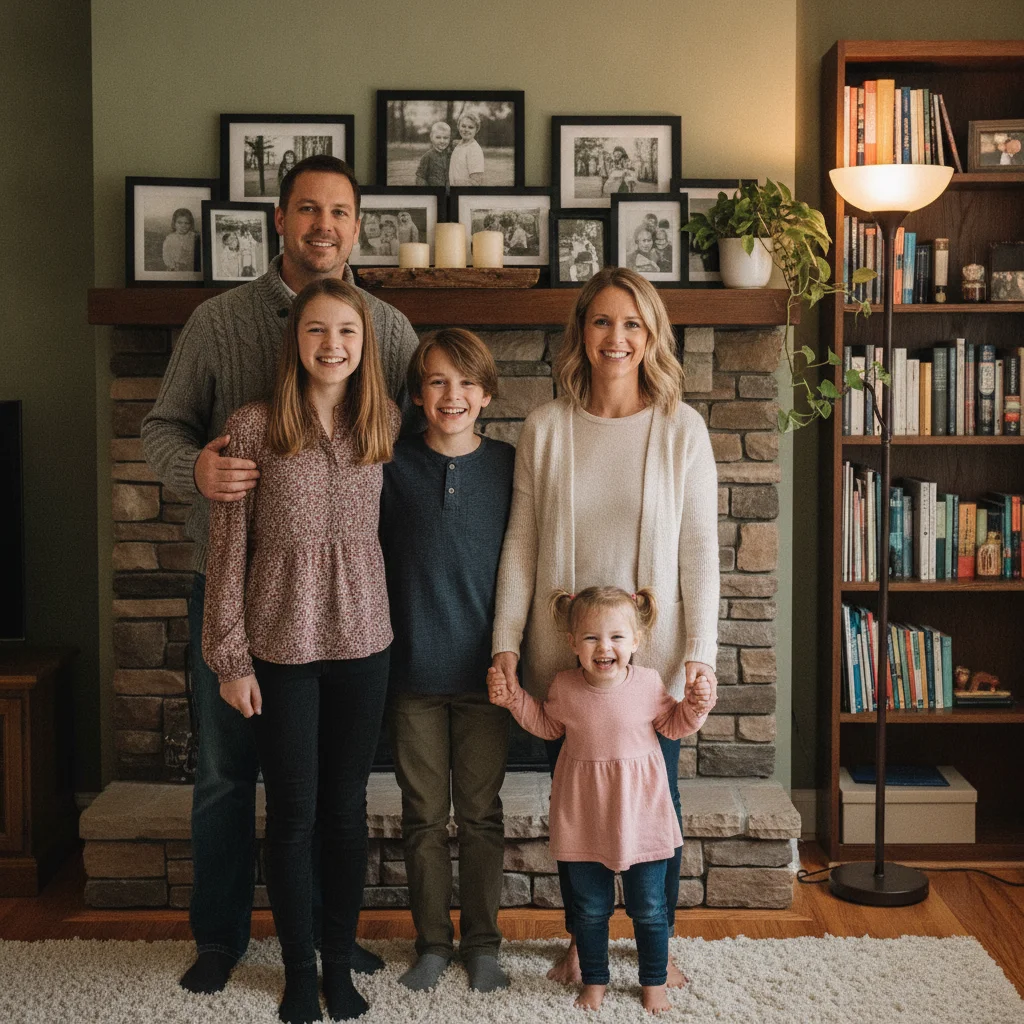
Group photo missing one person
Before
->
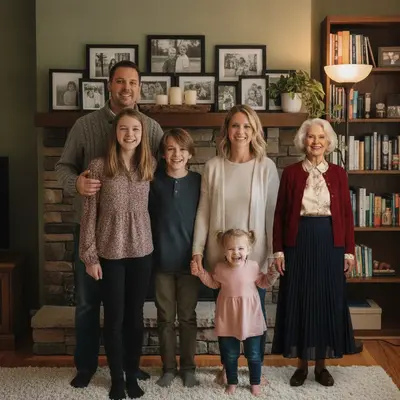
Complete group with inserted person
After

Person added to group end

Group photo with additional person naturally inserted at the end.

Prompt: insert the person from reference at the right end of the group
Group photo with space in back row
Before
->
Group with person added to back row
After

Back row insertion

Group photo with person added to the back row seamlessly.

Prompt: insert person from reference into back row

Detailed Guides by Scenario

📷

Professional Use

Apply 'Insert Person Into Group Photo' to images for professional projects — websites, marketing materials, client deliverables, and presentations.

Common Scenarios

  • Using 'Insert Person Into Group Photo' for client work or commercial photography
  • Applying 'Insert Person Into Group Photo' to product or marketing images for a business
  • Batch-processing multiple images with 'Insert Person Into Group Photo' for a project deadline

Best Practices

  • Use the highest resolution source image available for professional-quality results
  • Be specific in your prompt about the exact 'Insert Person Into Group Photo' effect you need
  • For consistency across multiple images, reuse the same prompt template
📷

Creative & Social Media

Use 'Insert Person Into Group Photo' creatively for social media content, personal projects, and artistic expression.

Common Scenarios

  • Applying 'Insert Person Into Group Photo' to a photo for a unique social media post
  • Using 'Insert Person Into Group Photo' to create artistic variations of a favorite image
  • Experimenting with 'Insert Person Into Group Photo' for a creative project or portfolio piece

Best Practices

  • Experiment freely — AI editing lets you try bold ideas with no risk to the original
  • For social content, pair the visual effect with a caption that references the transformation
  • Try the effect on different types of photos to find what looks most striking
📷

Personal Photos & Memories

Apply 'Insert Person Into Group Photo' to personal photos to fix issues, enhance quality, or create something special from everyday images.

Common Scenarios

  • Using 'Insert Person Into Group Photo' on family photos to improve or personalize them
  • Applying 'Insert Person Into Group Photo' to vacation or event photos before printing or sharing
  • Trying 'Insert Person Into Group Photo' on a selfie or portrait for profile or personal use

Best Practices

  • Always work on a copy — keep the original safe in case you want to try a different approach
  • Natural-looking results are almost always better than dramatic over-processing
  • If it doesn't look right the first time, rephrase your prompt with more specific details

If something looks off

AI changed the wrong area

Why: The AI couldn't determine exactly which area you meant from the description alone.

Try: Tap a marker on the specific area you want to edit, then regenerate with the same prompt

Tip: Markers tell the AI exactly where to focus. Use them when description alone is ambiguous.

Result looks unnatural or blurry

Why: The AI may need more specific guidance about the look you want.

Try: insert the person from the reference photo into this group photo, ensure natural lighting and sharp details that match the rest of the photo

Tip: Adding 'natural' and 'realistic' to your prompt helps the AI prioritize believability.

Person's edges show halos or artifacts

Why: The boundary between the person and the background wasn't cleanly handled.

Try: Tap markers along the person's outline and regenerate: 'clean up the edges for a seamless blend'

Tip: Upload the person you want to add as a reference image for seamless insertion.

Added person's lighting doesn't match the scene

Why: The source photo of the person had different lighting than the target scene.

Try: Add 'match the lighting direction and color temperature of the scene' to your prompt

Tip: Use source photos with similar lighting conditions — both outdoor or both indoor — for best results.

Face swap looks uncanny or distorted

Why: The face angle or expression didn't align well between the two photos.

Try: Try with photos where both faces have a similar angle and expression for more natural results

Tip: Face swaps work best when both photos have a similar head angle and neutral or matching expressions.

Quick answers

Do I need to mark the insertion point?

No, describe the position in words. The AI handles scale and placement automatically.

Is this free?

Yes, 1 free edit per week. Plans from $3.99/mo for unlimited.

Does it work on mobile?

Yes, works in any mobile browser.

What reference photo works best?

A photo of the person at a similar angle and in similar attire to the group gives the most natural result.

Can I insert multiple people?

Insert one at a time for best results. Save and repeat for additional people.

What photo formats does the insert person into group photo tool support?

JPG, PNG, WebP, and HEIC. Upload any common photo format and EditThisPic handles the rest.

How long does it take to insert person into group photo?

Usually 20-45 seconds. Upload your photo, describe what you want, and the AI delivers the result.

Do I need to download an app to insert person into group photo?

No app needed. EditThisPic runs entirely in your web browser on any device -- desktop, laptop, phone, or tablet.

Ready to edit your group photos?

Free to try. No signup required.

Try it free