Free โ€ข No signup Add Person ยท Free

Add Missing Person to Group Photo

Add someone who couldn't make it to the photo with AI that matches lighting and scale perfectly.
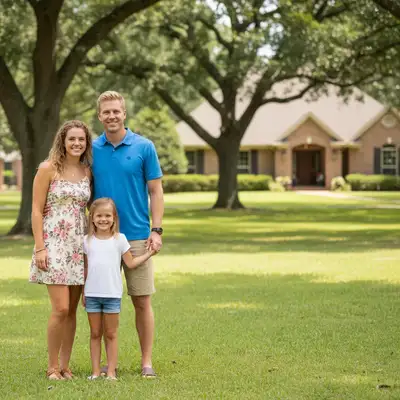
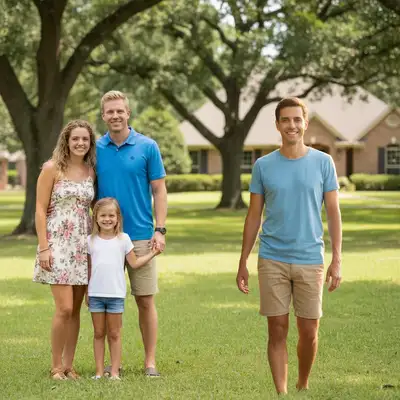
Family group of four people outdoors with empty space on the right
Before
โ†’
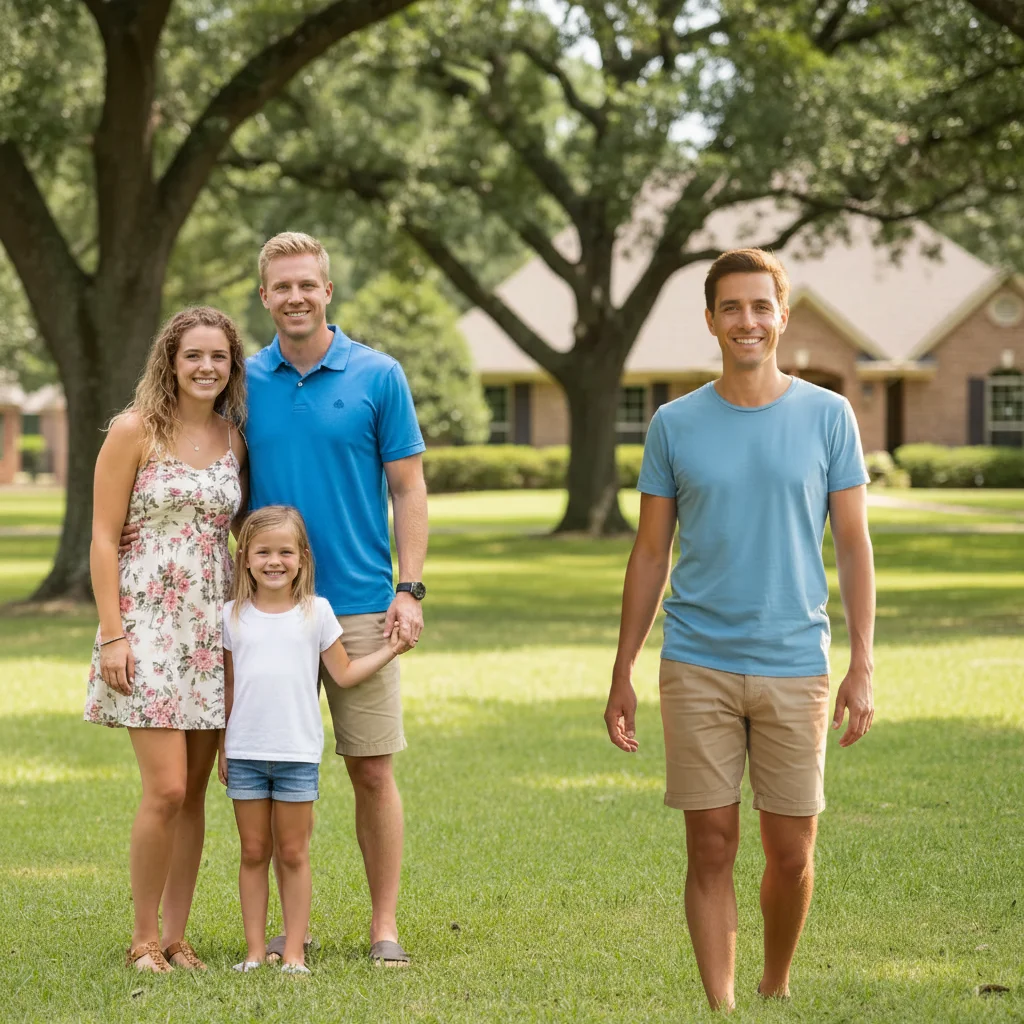
Complete family group of five people with added person blended naturally
After

Add Missing Person to Group Photo

Drop your photo here

or click to browse

Release to upload

Free โ€ข No signup

Advertisement
Popular use cases:
  • add missing person to photo
  • complete group photo
  • memorial photo editing
  • family photo completion
  • wedding photo fix
  • add person who left early
  • restore cropped person
  • group photo repair

Cost
Free No signup required
Time
Instant results in 15-30 seconds
Works on
Any device - browser, phone, tablet, desktop
Powered by
AI-powered photo editing
Scenario Prompt Time
Side placement add this person to the right side, match lighting and scale 25s
Between people insert this person between the two on the left, blend naturally 30s
Back row add this person to back row center, slightly smaller scale 30s

How it works

  1. Upload your group photo

    Drop the group photo you want to add someone to into EditThisPic. Works with family photos, wedding photos, team photos, or any group shot. JPG, PNG, WebP up to 7MB.

    Expect: Simple additions: 20-30 seconds. Complex lighting matching and natural blending: may need 2-3 refinements.
  2. Upload reference photo of the person

    Click '+ Add another image' and select a photo of the person you want to add to the group. This gives exact results - the AI inserts that specific person with proper perspective, matching the group photo's lighting and scale. Choose a reference photo with similar lighting conditions and angle for best results.

    Tip: Use a reference photo taken in similar lighting (indoor/outdoor, time of day) and similar clothing formality to match the group photo.

    Copy one of these to get started:

    Person missing from family photo add this person to the right side of the group photo, match lighting and scale naturally
    Insert between two people insert this person between the two people on the left, blend naturally with the group
    Back row placement add this person to the back row center, slightly smaller scale to match depth perspective
    Memorial photo addition add this person standing on the far left, match the lighting and blend seamlessly as if they were there
    3 more prompts
    Someone cropped out add this person to the right edge where they were cropped out, match the existing lighting and poses
    Child added to family photo add this child standing in front of the two adults on the right, scale appropriately for a child's height
    Wedding party completion add this groomsman to the left side of the lineup, match the formal attire lighting and align with the row
  3. Describe the placement and blending

    With reference image: 'add this person to the right side of the group photo, match lighting and scale' or 'insert this person between the two people on the left, blend naturally.' Be specific about where they should go and ensure the AI matches the existing photo's lighting.

    Tip: Mention 'match lighting' and 'blend naturally' to ensure the AI harmonizes the added person with the group's appearance.

    Copy one of these to get started:

    Person missing from family photo add this person to the right side of the group photo, match lighting and scale naturally
    Insert between two people insert this person between the two people on the left, blend naturally with the group
    Back row placement add this person to the back row center, slightly smaller scale to match depth perspective
    Memorial photo addition add this person standing on the far left, match the lighting and blend seamlessly as if they were there
    3 more prompts
    Someone cropped out add this person to the right edge where they were cropped out, match the existing lighting and poses
    Child added to family photo add this child standing in front of the two adults on the right, scale appropriately for a child's height
    Wedding party completion add this groomsman to the left side of the lineup, match the formal attire lighting and align with the row
  4. Generate and review

    Check that the added person's scale matches the group, lighting looks consistent, shadows align with the scene, and they're positioned realistically in the composition. Verify skin tones and clothing colors blend with the overall photo.

  5. Refine with markers if needed

    If the person's placement is slightly off or you want to adjust their position, tap a marker on the exact spot where they should be and regenerate. Great for fine-tuning after the initial placement.

    Tip: For back row placement, mention 'slightly smaller scale' to create realistic depth perspective.
Try it free โ†“

Add Missing Person to Group Photo

Drop your photo here

or click to browse

Release to upload

Free โ€ข No signup

"My grandma passed before our wedding. Used her photo from another event and added her to our family portrait. It looks so natural, like she was there. Means everything to us." @SarahM_2024

See it in action

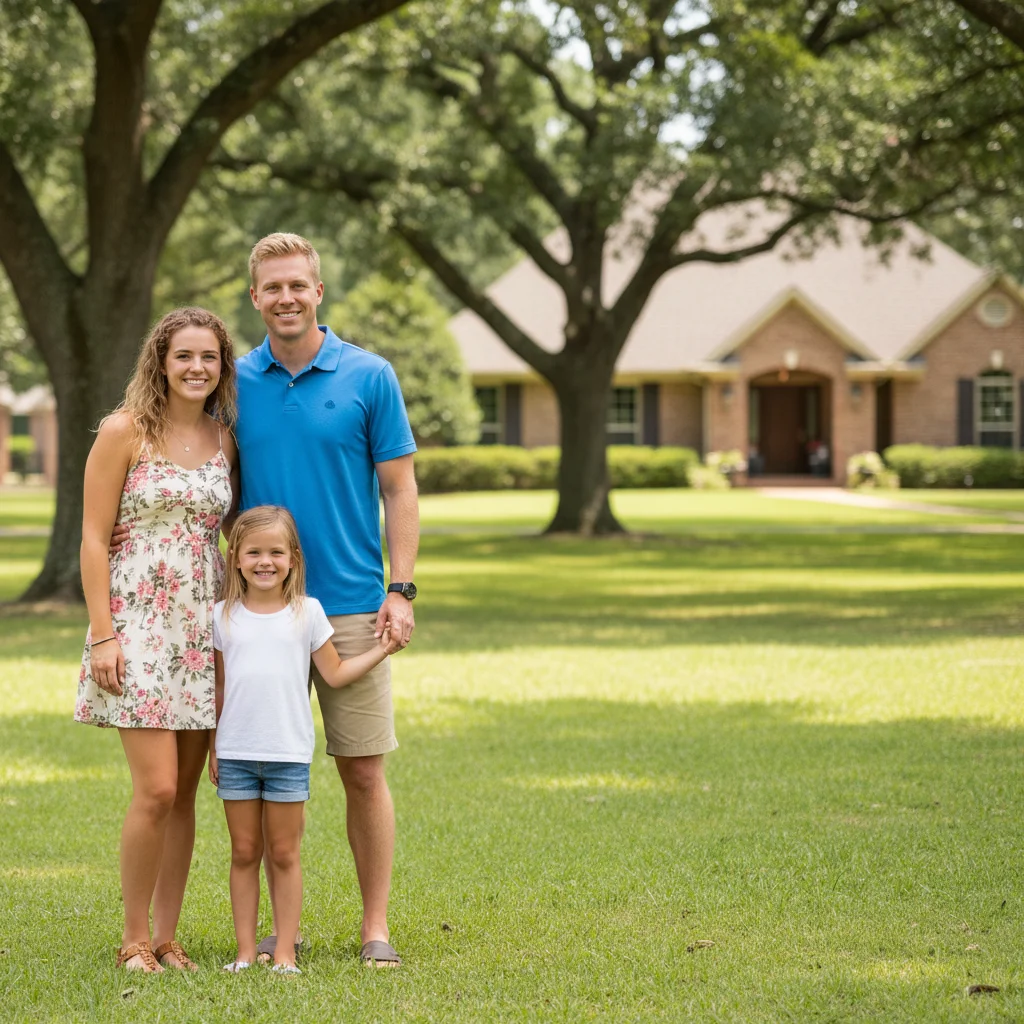
Family group of four people outdoors with empty space on the right
Main Photo
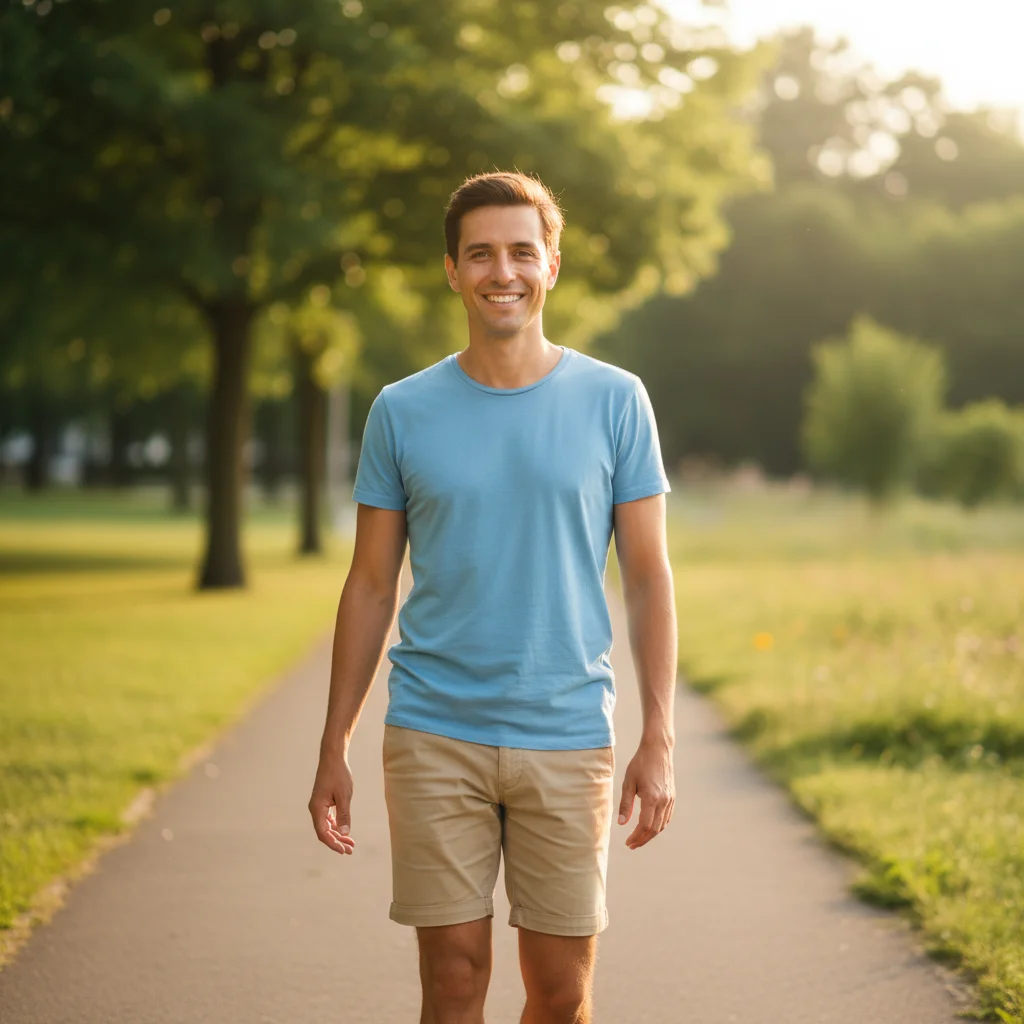
Individual photo of person in casual summer clothing
Reference
Complete family group of five people with added person blended naturally
Result

Family member who left early

A family reunion photo where one person had to leave before the group shot. Added them seamlessly to complete the family portrait.

Prompt: add this person from photo 2 to the right side of photo 1, match lighting and scale naturally
Family portrait of three people indoors with space on the left
Main Photo
Individual portrait of person in similar semi-formal attire
Reference
Complete family portrait with fourth person added on the left side
Result

Memorial family photo

Adding a deceased family member to a current family photo to create a meaningful memorial portrait.

Prompt: add this person from photo 2 standing on the far left of photo 1, match the lighting and blend seamlessly as if they were there
Wedding party of five people with visible gap on the left
Main Photo
Individual photo of groomsman in tuxedo
Reference
Complete wedding party of six people with person inserted naturally
Result

Someone cropped out of frame

A wedding party photo where one groomsman was accidentally cropped out. Restored them to the complete lineup.

Prompt: add this person from photo 2 between the two people on the left side of photo 1, blend naturally with the formal attire and lighting
Advertisement

If something looks off

Added person looks too big or too small compared to the group

Why: The AI misjudged the depth perspective or distance from camera, creating scale mismatches.

Try: add this person at the same scale as the others in [front row/back row], match their size proportionally

Tip: Reference a specific person in the group: 'same height as the person on the right' for accurate scaling

Lighting doesn't match between the added person and the group

Why: The reference photo was taken in different lighting conditions than the group photo.

Try: add this person and adjust their lighting to match the group's [bright outdoor/soft indoor/etc] lighting

Tip: Choose reference photos taken in similar lighting conditions as the group photo for best results

Added person looks pasted on, not naturally blended

Why: The AI didn't create smooth edge transitions or match the photo's grain and color tone.

Try: add this person and blend their edges naturally into the group photo, match grain and color tone

Tip: Mention 'blend edges' and 'match grain' explicitly to encourage seamless integration

Person's position looks awkward or overlaps others unnaturally

Why: The AI placed them without considering natural spacing and body language of the group.

Try: add this person with natural spacing from others, positioned as if they were part of the original photo

Tip: Use markers to show the exact spot where the person should be placed for precise positioning

AI changed the wrong area or something I didn't want changed

Why: The AI couldn't determine exactly which area you meant from description alone. This happens with ambiguous requests.

Try: Tap a marker on the specific area you want to change, then regenerate with the same prompt

Tip: Markers tell the AI 'I mean THIS one specifically.' Use them when description alone is ambiguous.

Shadows or reflections don't match the scene

Why: The AI didn't analyze the lighting direction and shadow angles in the original group photo.

Try: add this person with shadows matching the direction and intensity of the existing group's shadows

Tip: Observe the group photo's shadow direction and mention it: 'shadows falling to the left' for consistency

Quick answers

Do I need Photoshop skills to add a person to a group photo?

No! EditThisPic handles the complex work of matching lighting, scaling, and blending automatically. Just upload your group photo and a reference image of the person, then describe where they should go: 'add this person to the right side of the group.' The AI does the rest. No masking, layering, or manual editing required.

How do I get the most natural-looking results?

Use a reference photo of the person taken in similar conditions as the group photo - matching indoor/outdoor setting, similar lighting (time of day), and comparable clothing formality. Mention 'match lighting and scale' in your prompt. The more similar the reference photo's conditions, the more seamless the blend.

Can I add someone to the middle of the group, not just the edges?

Yes. Describe the exact position: 'insert this person between the two people on the left' or 'add this person to the back row center.' The AI understands spatial positioning within groups. For middle placements, expect slightly more complex blending that may need one refinement.

Is this appropriate for memorial or tribute photos?

Yes. Many families use this to create meaningful memorial photos by adding deceased loved ones to current family gatherings. The AI treats these edits with the same care and quality. Always inform recipients that the photo is a loving tribute composition, not an original photograph.

What if I don't have a reference photo of the person?

You can describe the person instead: 'add a woman in a red dress standing on the right, matching the group's casual style.' Results won't be that specific person, but a generated person matching your description. For family photos of specific people, a reference image is strongly recommended.

Can I add multiple people to the same group photo?

Yes. Add them one at a time for best results. First prompt: 'add this person to the right side.' Then upload the edited result and add the second person: 'add this person to the left side.' Sequential additions give you control over each person's placement and blending.

Ready to complete your group photo?

Free to try. No signup required.

Try it free โ†’