How do I swap faces in a photo?
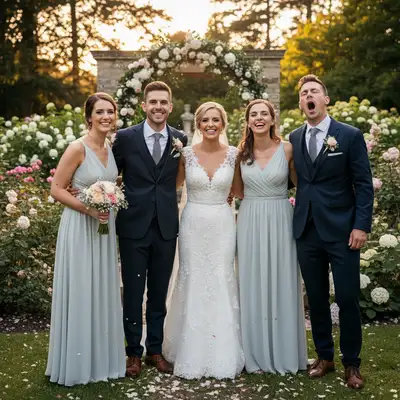
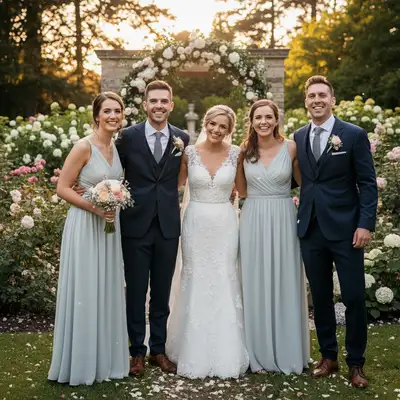
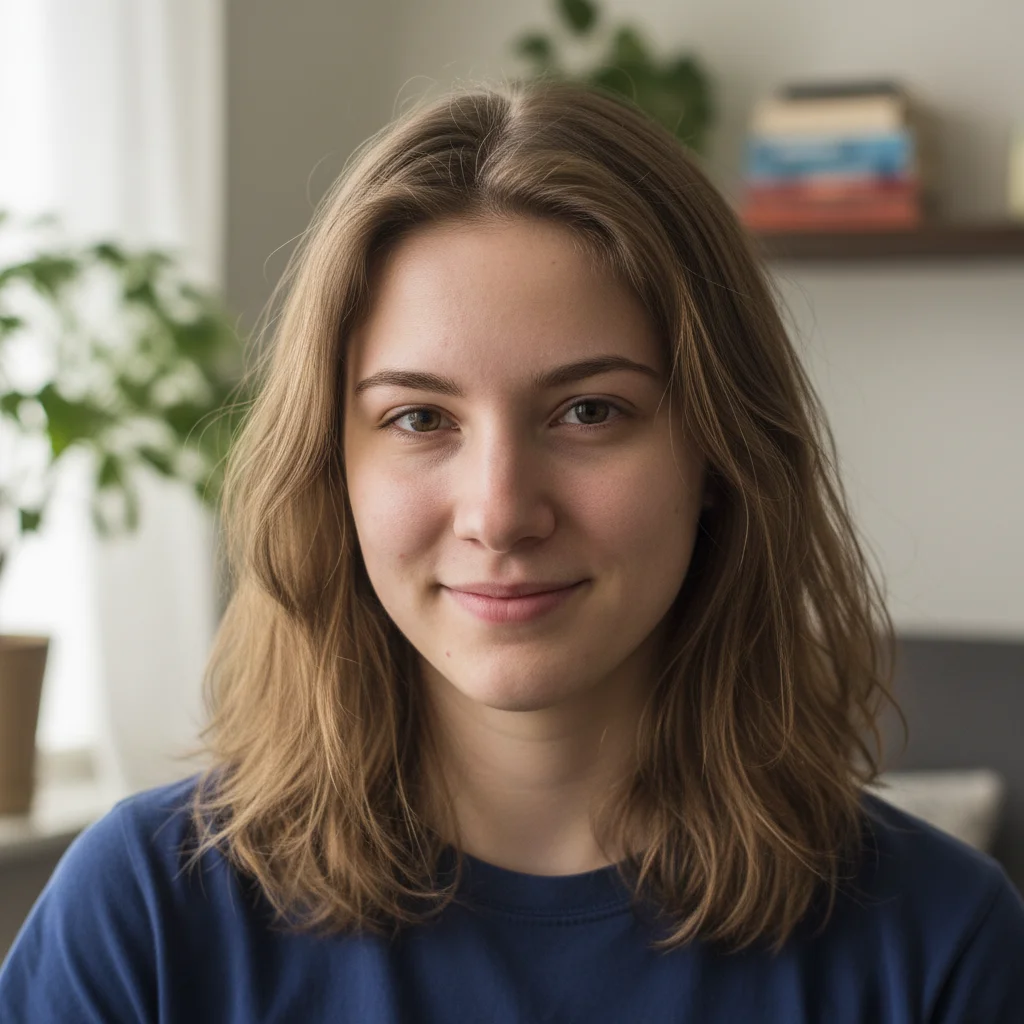
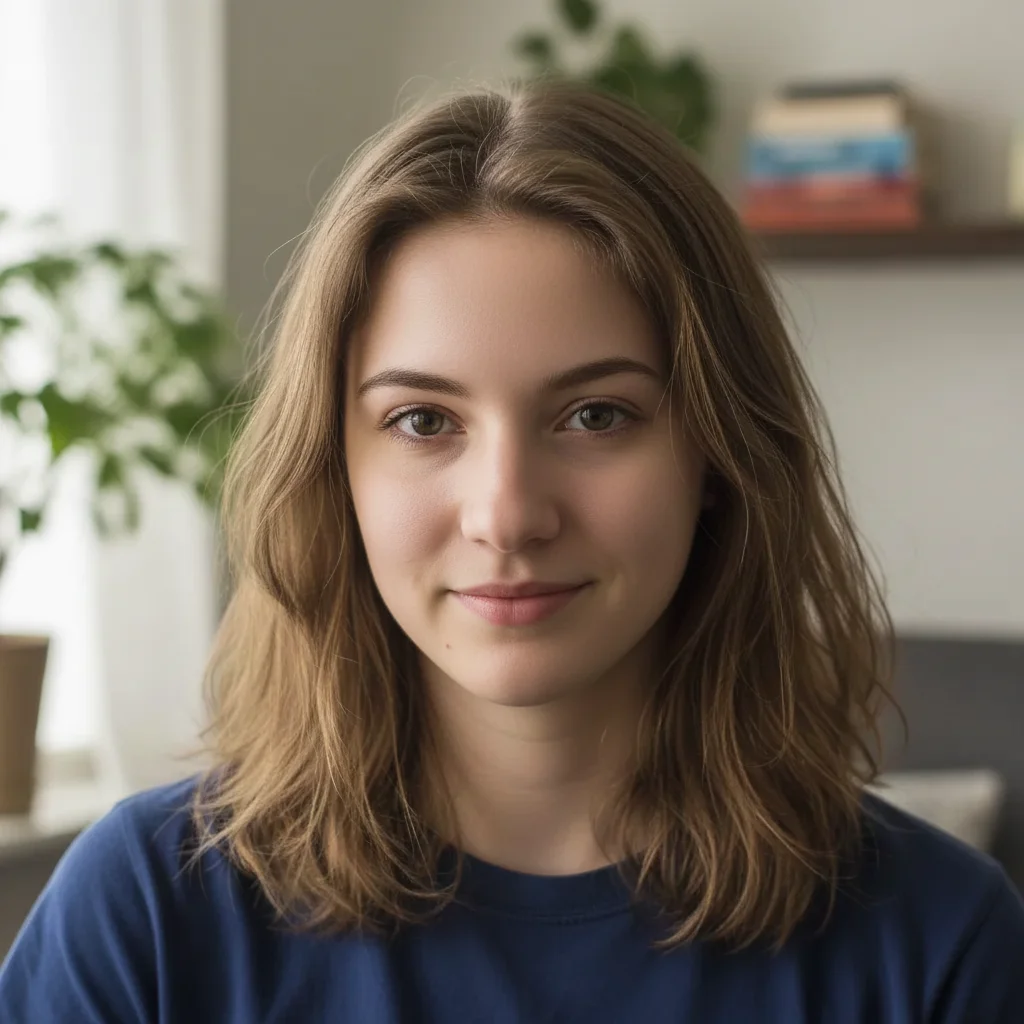
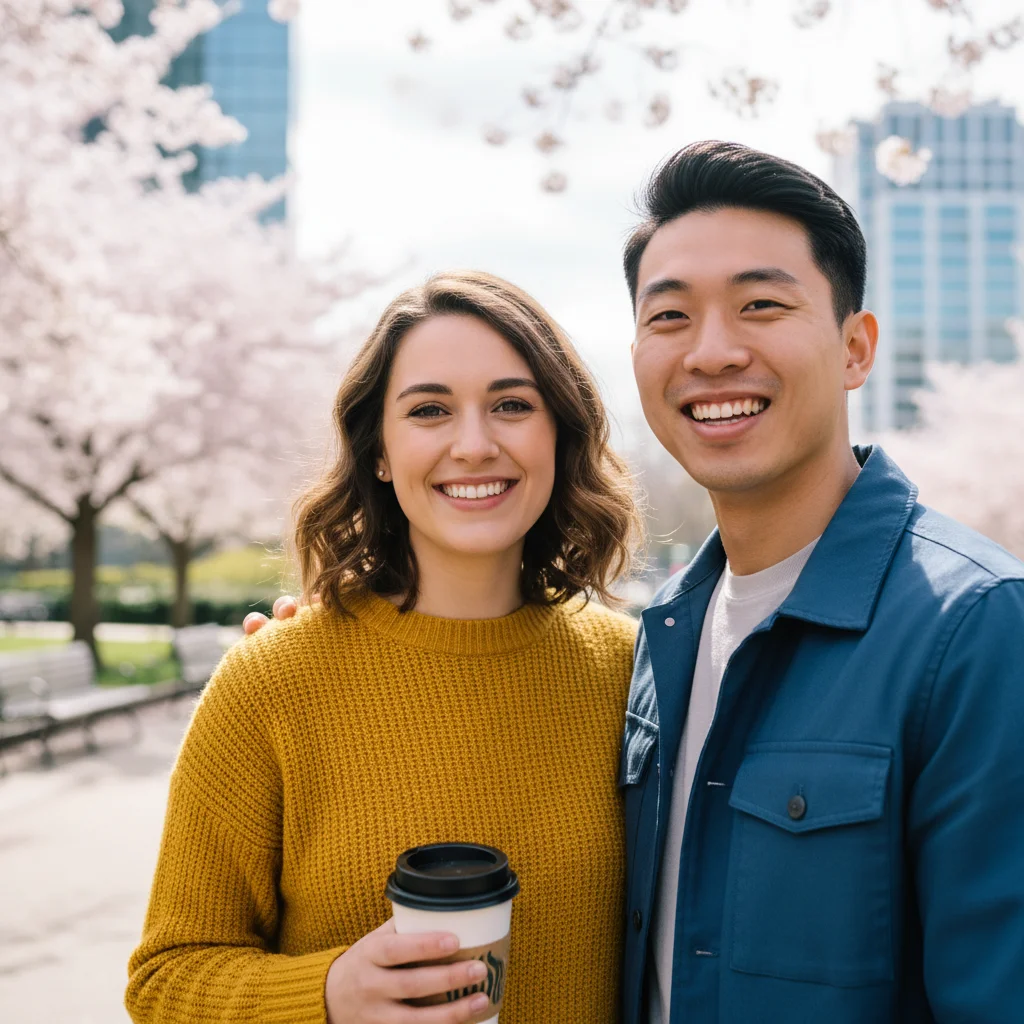
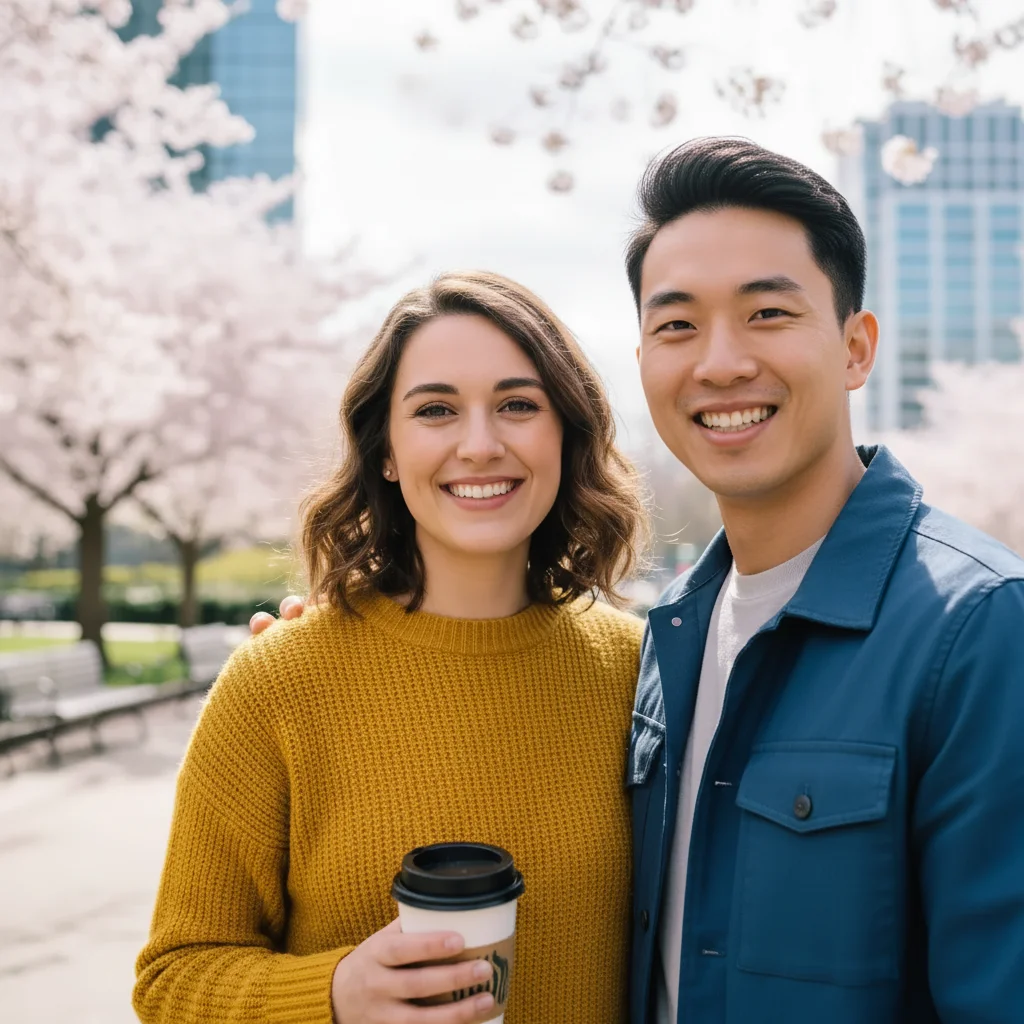
Upload your photo, click '+ Add reference image' to upload the face you want to use, then describe 'swap the face from photo 2 onto the person in photo 1.' The AI handles cutting out, lighting matching, and seamless blending automatically. Results in 30-60 seconds.
Is face swapping free?
Yes! EditThisPic offers one free face swap per week with no signup or watermark. Just upload both photos and describe the swap. For more edits, credit packs start at $4.99 for 10 edits.
Can I swap faces without Photoshop?
Yes! EditThisPic uses AI to swap faces without any manual masking or Photoshop skills. Just describe which faces to swap and the AI does all the complex work - cutting out, matching lighting, blending edges - automatically.
How do I swap my face with someone else's?
Upload your photo as photo 1, then click '+ Add reference image' to upload the photo containing your face as photo 2. Describe 'replace the face in photo 1 with my face from photo 2, match lighting and angle.' The AI composites your face onto the other body.
How do I fix someone's expression using face swap?
Upload the photo where someone has a bad expression, add a reference photo where they look better, then describe 'replace their expression from photo 1 with their smiling face from photo 2.' This is great for fixing blinks, frowns, or awkward expressions.
Is AI face swap safe?
EditThisPic processes photos in real-time and doesn't store them permanently unless you save to your account. We don't use your photos for training. Use face swap responsibly - always have consent from people in photos you share publicly.
Can I swap faces from different angles?
Yes, but results are best with similar angles. The AI can adjust for slight angle differences, but extreme mismatches (profile vs. front-facing) may look unnatural. Choose reference photos with roughly similar head positions.
How do I blend the swapped face naturally?
Add 'blend naturally' or 'blend edges seamlessly' to your prompt. Also mention 'match lighting and skin tone from photo 1.' The AI will smooth transitions so the swap doesn't look cut-and-pasted.
Can I undo a face swap?
The swap is applied to a new image - your original is never modified. Just re-upload the original to start over. If you want to refine the swap, describe what to fix: 'blend the edges better' or 'match the lighting more closely.'
Does face swap work on old photos?
Yes! Face swap works on old photos, scanned images, and vintage shots. For best results with low-quality sources, the reference photo should be clearer than the destination. The AI adapts to match photo quality.
Can I swap multiple faces at once?
You can describe multiple swaps, but doing them one at a time often gives better results. Swap the first face, download, then upload as the new base for the next swap. This gives you control over each individual swap.
How much does EditThisPic cost?
You get 1 free edit per week — no account needed. After that, one-time credit packs start at $4.99 for 10 edits, valid 12 months, no subscription. Power users who edit daily can pick Studio Membership, a monthly workspace at $49.99/mo for 300 edits. Purchased downloads are clean with no watermark.