Free • No signup Fix Missing person in group · Free

Someone is missing from your group photo?

Create the photo that should have been. Add someone who couldn't make it by uploading their photo.

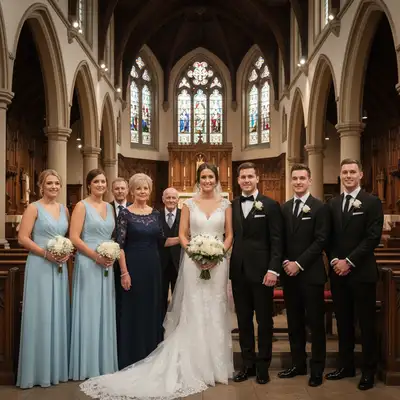
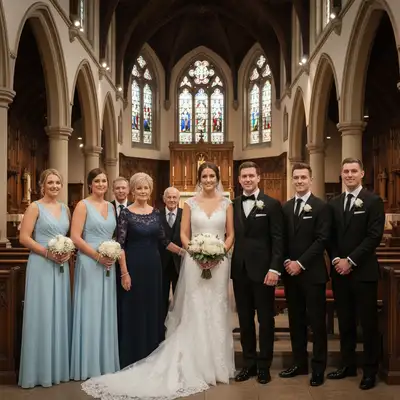
Wedding family photo with visible gap where father should be standing
Before
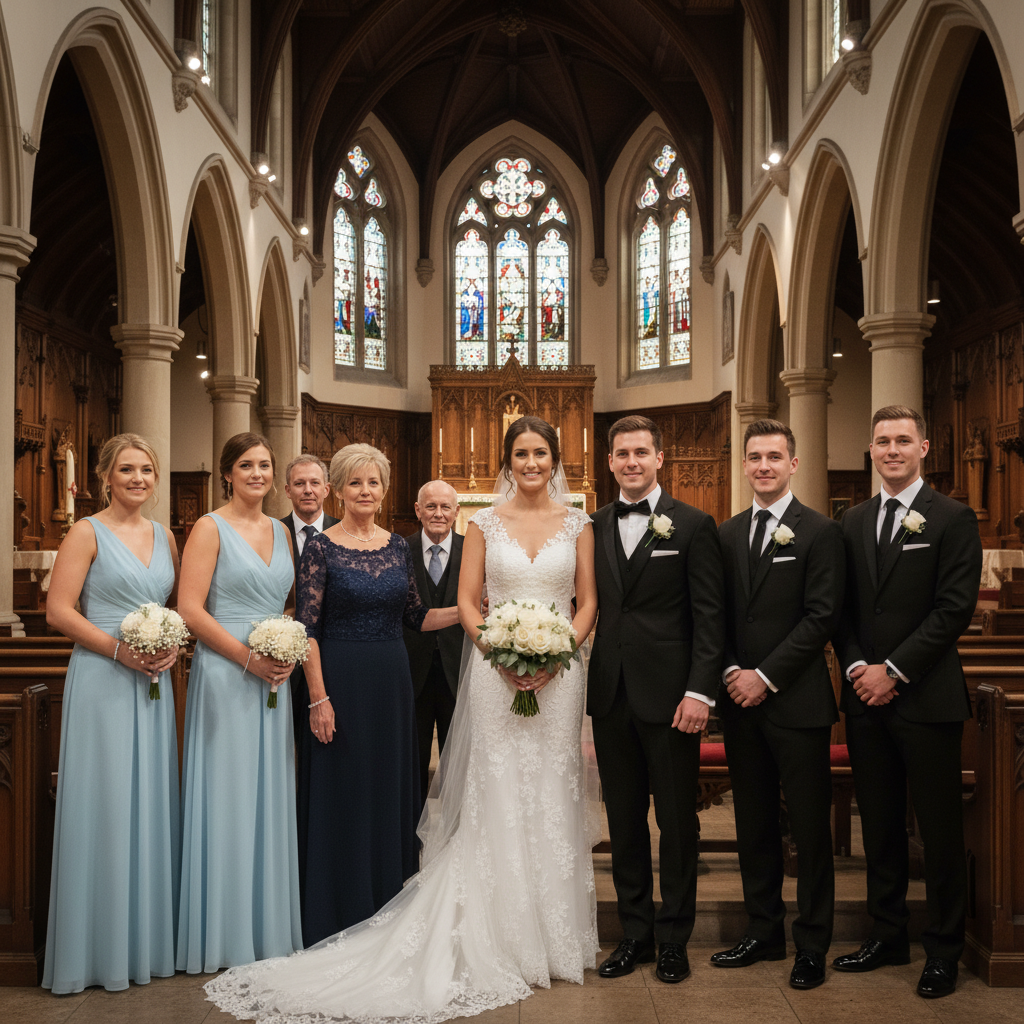
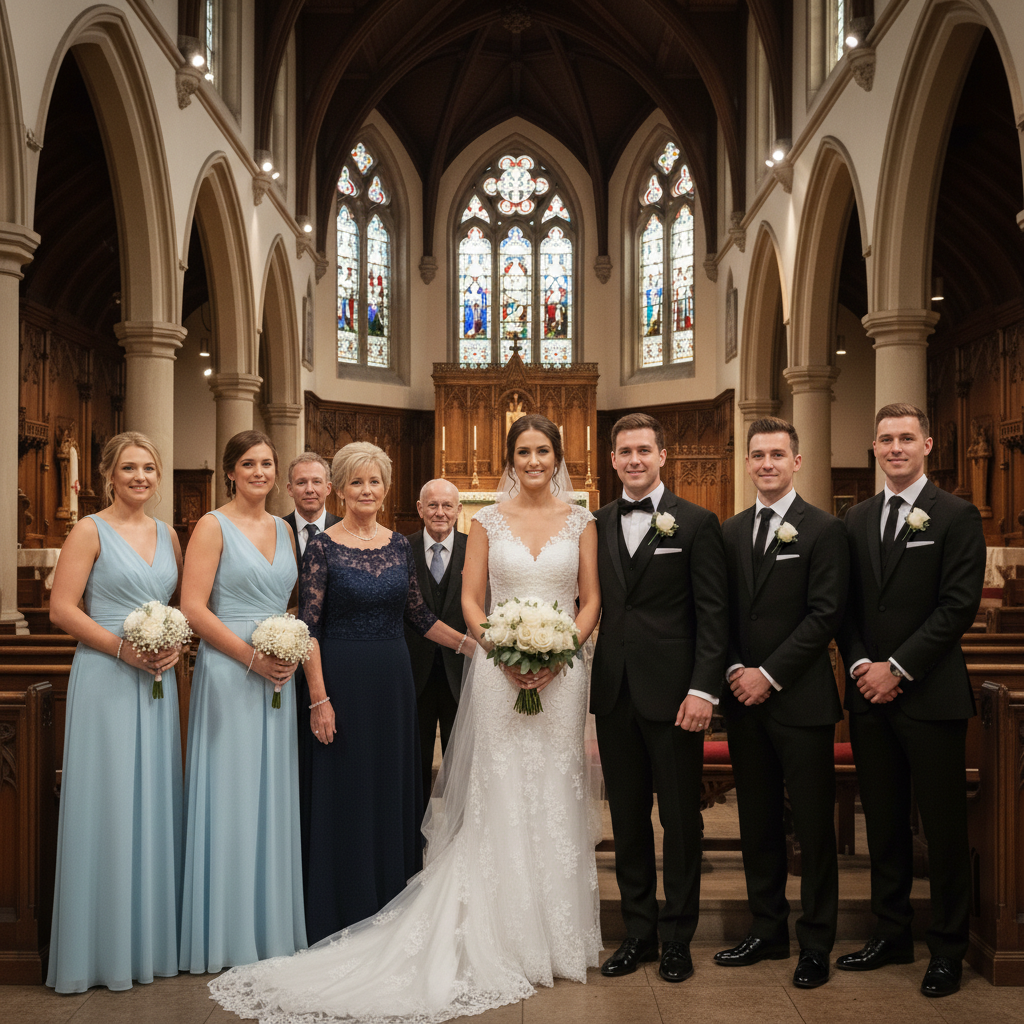
Complete wedding family photo with father added next to bride naturally
After

Someone Missing from Your Group Photo? Add | EditThisPic

Drop your photo here

or click to browse

Release to upload

Free • No signup

Advertisement
Popular use cases:
  • Missing person in group photo
  • Add family member to photo
  • Wedding photo missing someone
  • Add deceased to family photo
  • Group photo composite
  • Add person who couldn't attend
  • Memorial photo editing

Cost
Free No signup required
Time
Instant results in 15-30 seconds
Works on
Any device - browser, phone, tablet, desktop
Powered by
AI-powered photo editing
Scenario Prompt Time
Add missing family member add them standing between mom and dad, smiling naturally 30s
Add deceased to wedding photo add him next to the bride on the left, dressed formally 30s
Add deployed soldier to reunion add him in the back row on the right, in uniform 30s
Add friend who was sick put her on the far left standing, same height as others 30s

How it works

  1. Upload the group photo

    Start by uploading the group or family photo that's missing someone. This could be a wedding party, family reunion, graduation, holiday gathering—any photo where you wish someone who couldn't be there was included. JPG, PNG, and WebP formats work.

    Expect: The group photo should have enough space or context for where the missing person would naturally fit. If everyone is tightly packed, you may need to describe where to add them.
  2. Upload the reference photo

    Click 'Add reference image' and upload a photo of the person you want to add to the group. This should be a clear photo of them—ideally from a similar time period, similar lighting, and showing them from a similar angle. The AI will use this to composite them into the group photo naturally.

    Tip: Use a photo taken around the same time if possible. If adding someone who passed away, choose a photo where they look how you remember them best.

    Copy one of these to get started:

    Dad missed the wedding because he passed away add him standing between my mom and me on the left, smiling naturally like he's part of the celebration
    Sister couldn't make it to the family reunion put her in the back row on the right side, standing next to grandma, wearing similar casual clothes
    Friend was sick and missed the group photo add her standing on the far left of the group, same height as the others, looking at the camera
    Grandparent lives far away and couldn't attend add grandpa sitting in the front row center, smiling warmly like he's with the family
    2 more prompts
    Wedding party missing the best man who was deployed add him standing on the groom's right side in the groomsmen row, wearing a matching suit
    Mom passed before graduation and I want her in the family photo add her standing next to me on my left, dressed nicely for graduation, smiling proudly
  3. Describe the placement

    Type where you want them added and how they should appear. Examples: 'add this person standing on the left side of the group' or 'put her between the bride and groom' or 'add him in the back row on the right.' The AI matches lighting, perspective, and blends them in naturally.

    Tip: Be specific about position. 'Standing between mom and dad' works better than just 'add them to the photo.'

    Copy one of these to get started:

    Dad missed the wedding because he passed away add him standing between my mom and me on the left, smiling naturally like he's part of the celebration
    Sister couldn't make it to the family reunion put her in the back row on the right side, standing next to grandma, wearing similar casual clothes
    Friend was sick and missed the group photo add her standing on the far left of the group, same height as the others, looking at the camera
    Grandparent lives far away and couldn't attend add grandpa sitting in the front row center, smiling warmly like he's with the family
    2 more prompts
    Wedding party missing the best man who was deployed add him standing on the groom's right side in the groomsmen row, wearing a matching suit
    Mom passed before graduation and I want her in the family photo add her standing next to me on my left, dressed nicely for graduation, smiling proudly
  4. Review and refine

    Check that the person looks natural in the group—lighting matches, size is proportional, and they blend in seamlessly. If the positioning or lighting is off, tap a marker where you want them placed and regenerate with adjusted instructions.

Try it free

Someone Missing from Your Group Photo? Add | EditThisPic

Drop your photo here

or click to browse

Release to upload

Free • No signup

"My dad passed before the wedding. We added him into our family photo from an old portrait. It meant everything to have him there with us." @MemoriesPreserved

See it in action

Wedding family photo with visible gap where father should be standing
Before
->
Complete wedding family photo with father added next to bride naturally
After

Adding missing father to wedding family photo

Bride's father passed away before the wedding. We added him into the family group photo using a portrait from a few years earlier. The AI matched the formal lighting and positioned him naturally next to the bride.

Prompt: add him standing between my mom and me on the left, smiling naturally like he's part of the celebration
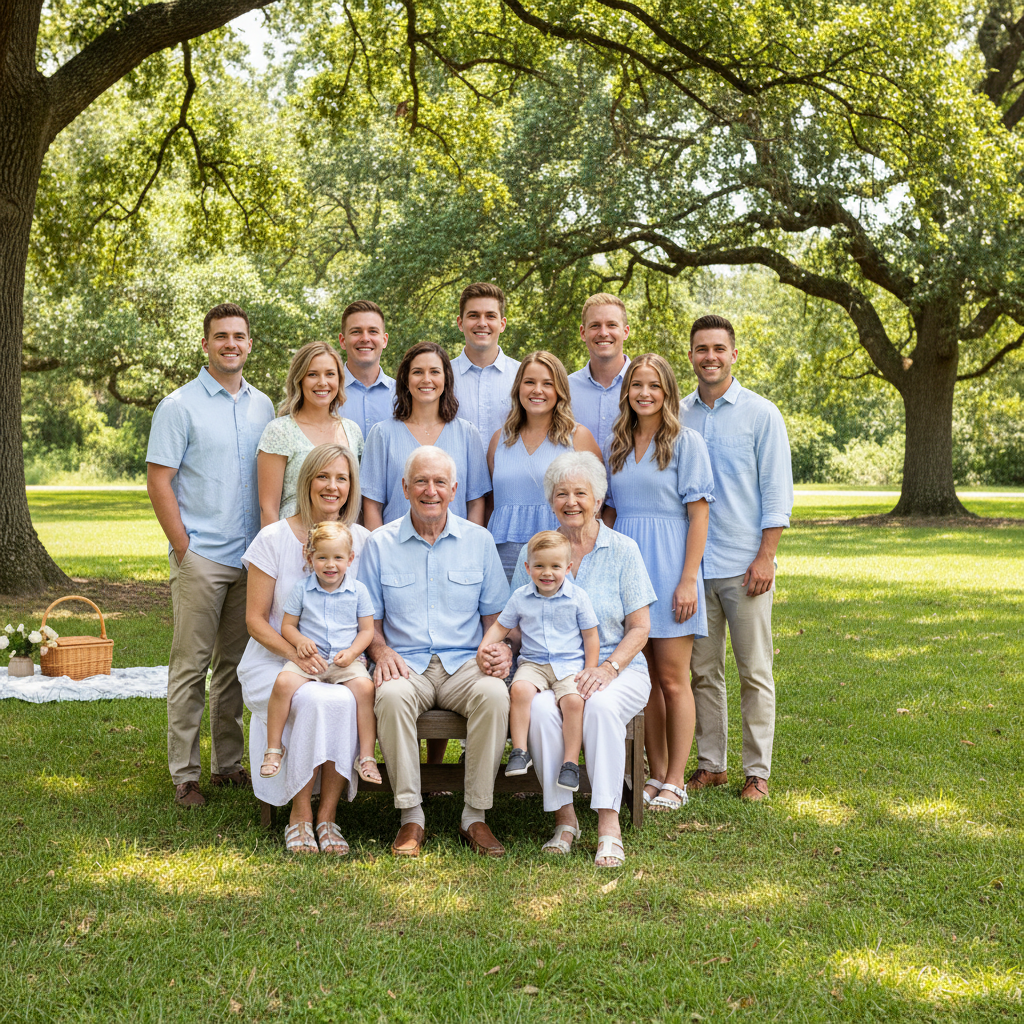
Family reunion photo with gap in back row where deployed son should be
Before
->
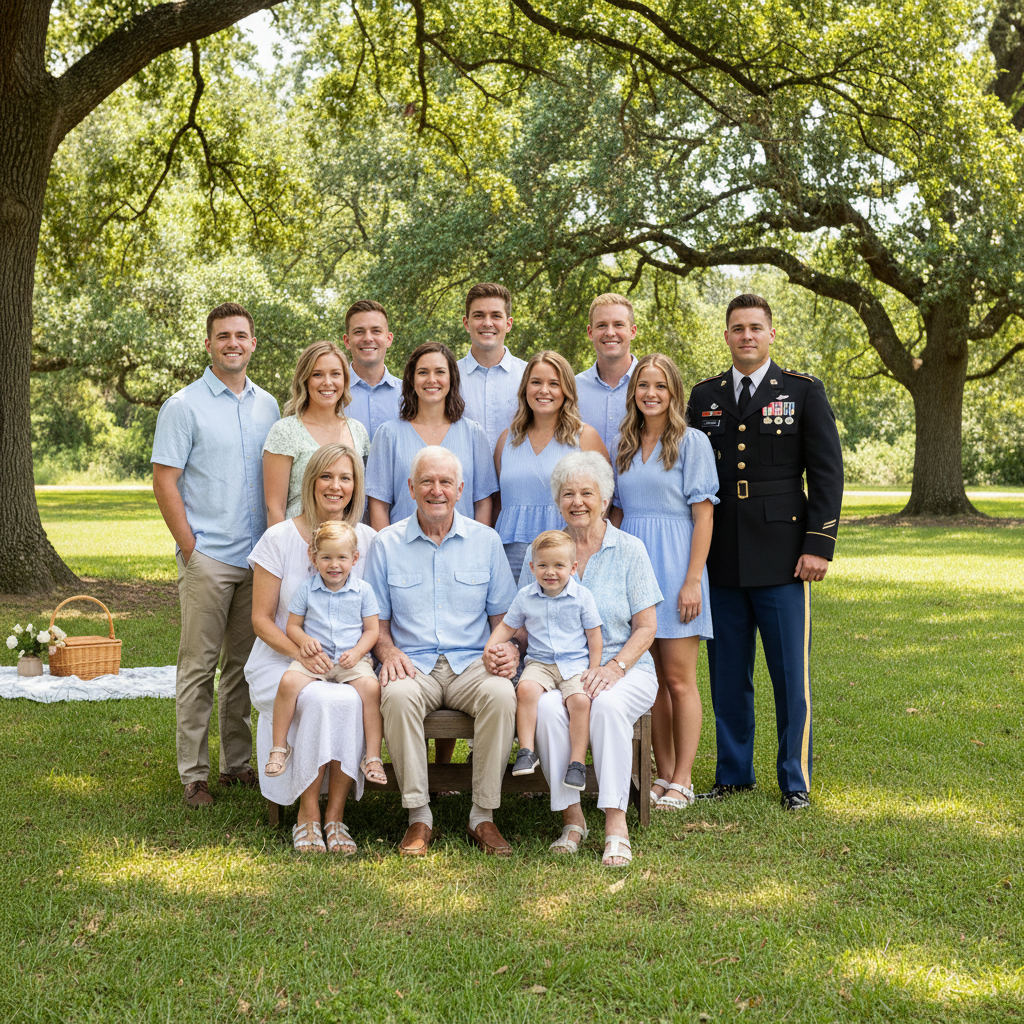
Complete family reunion photo with son in uniform added to back row
After

Adding deployed soldier to military family photo

Son was deployed overseas and missed the family reunion photo. We added him into the group using a recent portrait in uniform. The AI positioned him in the back row and matched the outdoor lighting perfectly.

Prompt: add him standing in the back row on the right side, in his military uniform, looking proud
Advertisement

If something looks off

The added person looks too big or too small compared to the group

Why: The AI may have misjudged the relative size based on their position in the reference photo or distance from the camera.

Try: add them to the group at the same size as [name of nearby person], matching their height and proportions

Tip: Reference a specific person's size in the group. 'Same height as mom' or 'slightly taller than my sister' helps the AI scale correctly.

The lighting doesn't match—added person looks too bright or too dark

Why: The reference photo may have been taken under different lighting conditions than the group photo.

Try: add them with lighting that matches the rest of the family, same brightness and shadows as [nearby person]

Tip: Try a different reference photo taken in similar lighting. Indoor vs outdoor makes a big difference.

The person was added but in the wrong spot

Why: The position description may have been ambiguous or the AI interpreted 'left' differently than you intended.

Try: move them to stand between [person A] and [person B], directly to [person]'s left

Tip: Use specific people as anchors. 'Between grandma and uncle Joe' is clearer than 'on the left side.'

The added person looks blurry or low quality compared to the group

Why: The reference photo may be lower resolution or the AI's composite didn't match the sharpness of the group photo.

Try: add them with the same clarity and sharpness as the rest of the group, match photo quality

Tip: Use the highest quality reference photo you have. If it's an old photo, try 'fix blurry photo' first before using it as a reference.

Quick answers

Why does this require TWO photos?

You need the group photo (where someone is missing) and a separate photo of the missing person (the reference image). The AI uses the reference photo to know what the person looks like, then composites them into the group photo in the position you specify. Without the reference photo, the AI wouldn't know who to add.

Can I add someone who passed away to a family photo?

Yes. Many people use this to create the family photo they wish they had—adding a parent, grandparent, or loved one who passed before an important event like a wedding, graduation, or reunion. Choose a photo where they look how you remember them best. The AI will blend them in respectfully and naturally.

What if the reference photo is old or from a different time period?

The AI will match the person's appearance from the reference photo to the group photo's lighting and style. If the reference is much older (like adding a young photo of grandma to a current family shot), the person will look as they did in that photo. For best results, use a reference photo from around the same time period as the group photo.

Can I add multiple missing people to one group photo?

Yes, but you'll need to do it one person at a time. Add the first person, download the result, then upload that result and add the second person. Each addition requires its own reference photo and positioning instructions.

What kind of reference photo works best?

A clear, well-lit photo of the person facing the camera works best. Ideally from around the same time period as the group photo. Avoid heavily cropped faces or photos where they're at a very different angle. A portrait or solo photo is easier for the AI to work with than cropping them out of another group shot.

Will the added person look natural or fake?

The AI matches lighting, perspective, and blends edges so the person looks like they were actually there when the photo was taken. The quality depends on how similar the reference photo is to the group photo's lighting and angle. With a good reference photo and clear positioning instructions, the result looks very natural.

Ready to create the complete family photo?

Upload the group photo and the photo of who's missing. Free to try.

Try it free