Free • No signup Open Editor

Remove Ex from Photo with AI

Remove your ex from photos instantly—just describe what you want gone or replaced.

Type 'remove the person on the left' or 'replace ex with beautiful sunset background' and EditThisPic's AI handles it in 15-30 seconds. No selection tools or marking required for most removals. Just describe what should go or what should replace them. Works on group photos, couples shots, and vacation pictures. Free to try, no account needed.

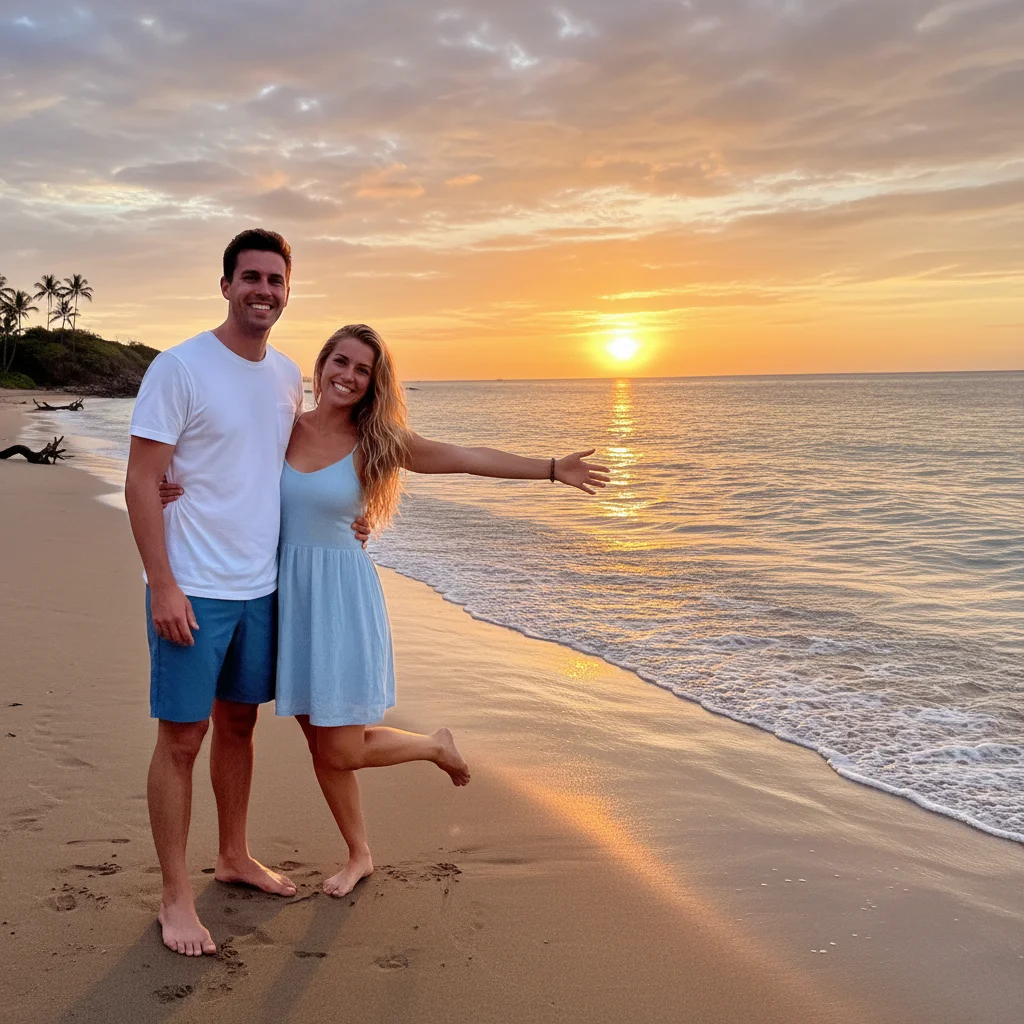
Couple standing on beach at sunset, man and woman together
Before
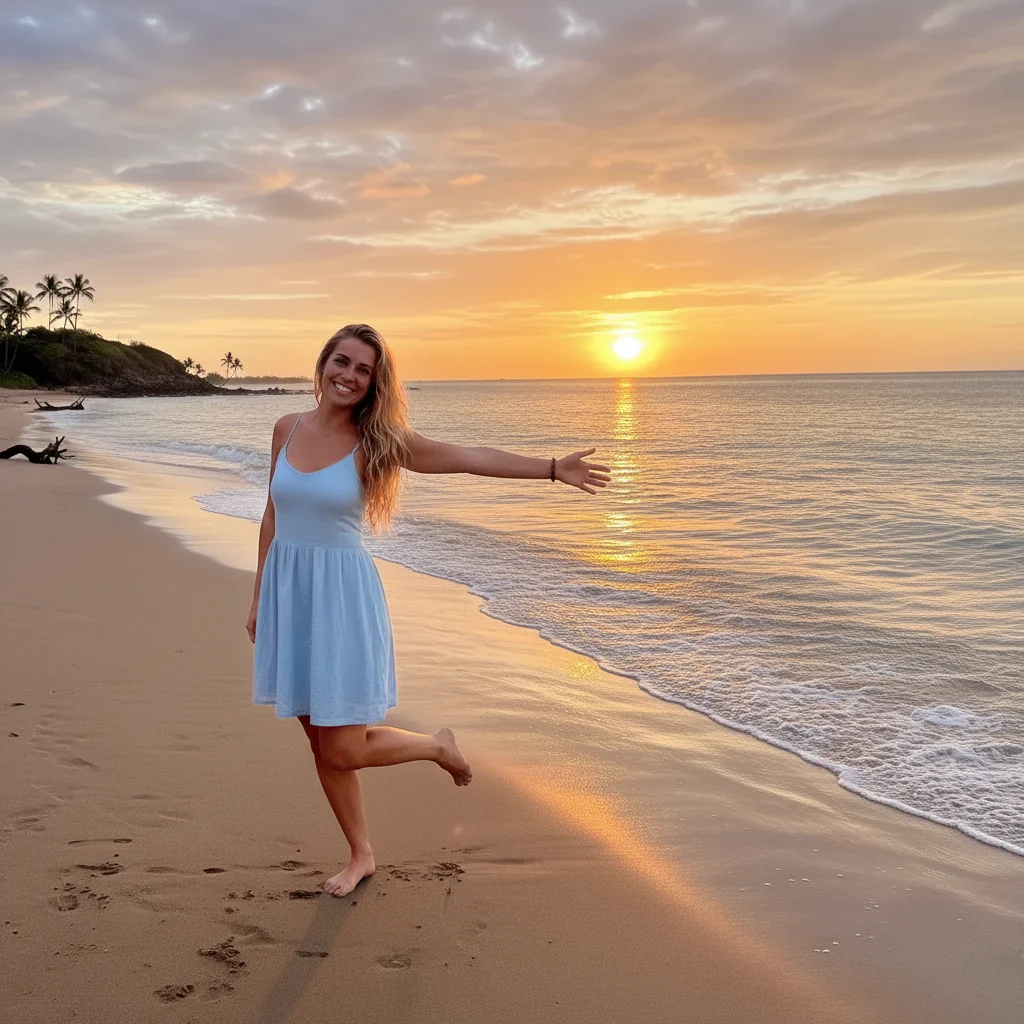
Solo woman on beach with seamlessly extended sunset background
After

How it works

1

Upload your photo

Drop your photo into EditThisPic. Works with JPG, PNG, WebP files up to 7MB. Any photo with your ex—couples shots, group photos, vacation pictures.

⏱ Simple removals: 15-30 seconds. Complex scenes with overlapping people: may need 2-3 refinements.
2

Describe what you want

Type your instruction: 'remove the man on the right' or 'delete the person in the blue shirt' or 'replace ex with beach scenery.' Be specific about which person if there are multiple people. No marking needed—the AI understands descriptions like 'person on left' or 'guy in red jacket.'

💡 Use clothing colors, position, or distinctive features: 'remove the tall person in black hoodie'

Copy one of these to get started:

Simple person removal remove the person on the right
Remove by clothing description delete the man in the blue shirt
Remove and replace with scenery remove ex and replace with natural beach background
Remove from couple photo delete the tall person and extend the background naturally
4 more prompts
Remove specific person in group remove the woman with long dark hair in the center
Remove and fix shadows delete the person on the left and fix any shadows or lighting issues
Remove from wedding/formal photo remove the man in the black suit standing behind others
Remove with specific background fill delete ex and fill with matching grass and trees from the background
3

Generate and review

EditThisPic analyzes your photo and removes or replaces your ex while filling in realistic background. Check edges and background fill at full zoom to ensure natural-looking results.

4

Refine with markers if needed

If the AI removed the wrong person or left artifacts, tap markers on the specific areas that need work and regenerate. This is optional—most removals work perfectly without markers.

💡 Markers are for precision when the AI can't tell which person you mean. Try description first.
Try it free
"Saved me from having to crop out half my vacation photos. Just typed 'remove him' and boom, clean photo ready for my dating profile." @sarah_travels

See it in action

Couple standing on beach at sunset, man and woman together
Before
Solo woman on beach with seamlessly extended sunset background
After

Beach vacation photo cleanup

Removed ex-boyfriend from couple's beach photo while preserving natural sunset background and woman's pose.

Prompt: remove the man on the right and extend the beach background
Group of five friends at restaurant table with one person in red jacket
Before
Same group photo with four friends, red jacket person removed naturally
After

Group photo person removal

Cleanly removed specific person from friend group photo without affecting others or background restaurant setting.

Prompt: delete the person in the red jacket standing in the back
Wedding party group photo with man in black suit on left side
Before
Wedding party photo with unwanted person removed, natural spacing maintained
After

Wedding photo fix

Removed unwanted ex-partner from formal wedding photo while maintaining elegant venue background and group positioning.

Prompt: remove the tall man in black suit on the left side

If something looks off

AI removed the wrong person

Why: The description wasn't specific enough to identify which person you meant in a group photo

Try: Tap a marker on the specific person you want removed, then use prompt: 'remove this person'

💡 Be more specific next time: use clothing colors, position, or height differences

Background looks unnatural or blurry after removal

Why: Complex backgrounds or overlapping people make it harder to reconstruct what was behind the person

Try: replace with matching background from the surrounding area and smooth all edges

💡 Try specifying what should fill the space: 'extend the grass' or 'continue the brick wall'

Parts of your ex are still visible (hands, shadows, reflections)

Why: The AI focused on the main body but missed subtle traces like shadows or reflections

Try: remove all traces including shadows, reflections, and any remaining body parts

💡 Look for shadows on the ground, reflections in windows or water, and partially hidden limbs

The remaining people look cut off or awkwardly positioned

Why: Removing someone from between others can create unnatural spacing or crop others awkwardly

Try: adjust positioning and spacing of remaining people to look natural

💡 Consider cropping the photo differently or asking to 'close the gap between remaining people'

Photo quality decreased after removal

Why: Heavy reconstruction of large areas can sometimes reduce sharpness or create artifacts

Try: enhance image quality and sharpen any soft areas after person removal

💡 Start with highest resolution original and avoid removing people who take up large portions of the photo

Quick answers

Do I need to mark the person before describing removal?

No! For most removals, just describe which person: 'remove the man in blue' or 'delete the person on the right.' The AI understands these descriptions. Only use markers when you need precision—like specifying which of several similar-looking people to remove, or when the AI removes the wrong person on first try.

Can I remove my ex from group photos without affecting others?

Yes! EditThisPic can identify and remove specific people from group photos while leaving others untouched. Be specific about which person: use clothing colors, position, height, or other distinguishing features. The AI will fill in the background naturally.

What if my ex is hugging me or very close in the photo?

The AI can handle close contact and overlapping people. Use prompts like 'remove the person hugging me' or 'delete the man with his arm around the woman.' You may need refinement for complex poses, but most work on first try.

Will removing someone leave obvious traces or artifacts?

EditThisPic reconstructs backgrounds intelligently, extending patterns, textures, and lighting naturally. Simple backgrounds (beaches, walls, sky) work perfectly. Complex scenes might need refinement, but the AI handles most scenarios without visible artifacts.

Can I remove multiple people at once?

Yes, you can remove multiple people in one edit. Use prompts like 'remove both people on the left' or 'delete the man and woman in the background.' For complex removals, you might get better results removing them one at a time.

Ready to remove your ex from photos?

Free to try. No signup required.

Try it free