Free โ€ข No signup Remove Crowd ยท Free

AI Crowd Remover

Just describe what you want and AI handles the crowd editing.
Before ai-crowd-remover edit
Before
โ†’
After ai-crowd-remover edit
After

AI Crowd Remover

Drop your photo here

or click to browse

Release to upload

Free โ€ข No signup

Advertisement
Popular use cases:
  • social media photos
  • professional headshots
  • product photography
  • personal photos

Cost
Free No signup required
Time
Instant results in 15-30 seconds
Works on
Any device - browser, phone, tablet, desktop
Powered by
AI-powered photo editing
Scenario Prompt Time
Remove crowd from monument Remove the entire crowd of people to show the monument in an empty, peaceful setting 15s
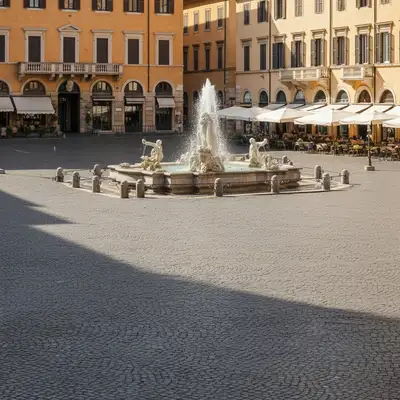
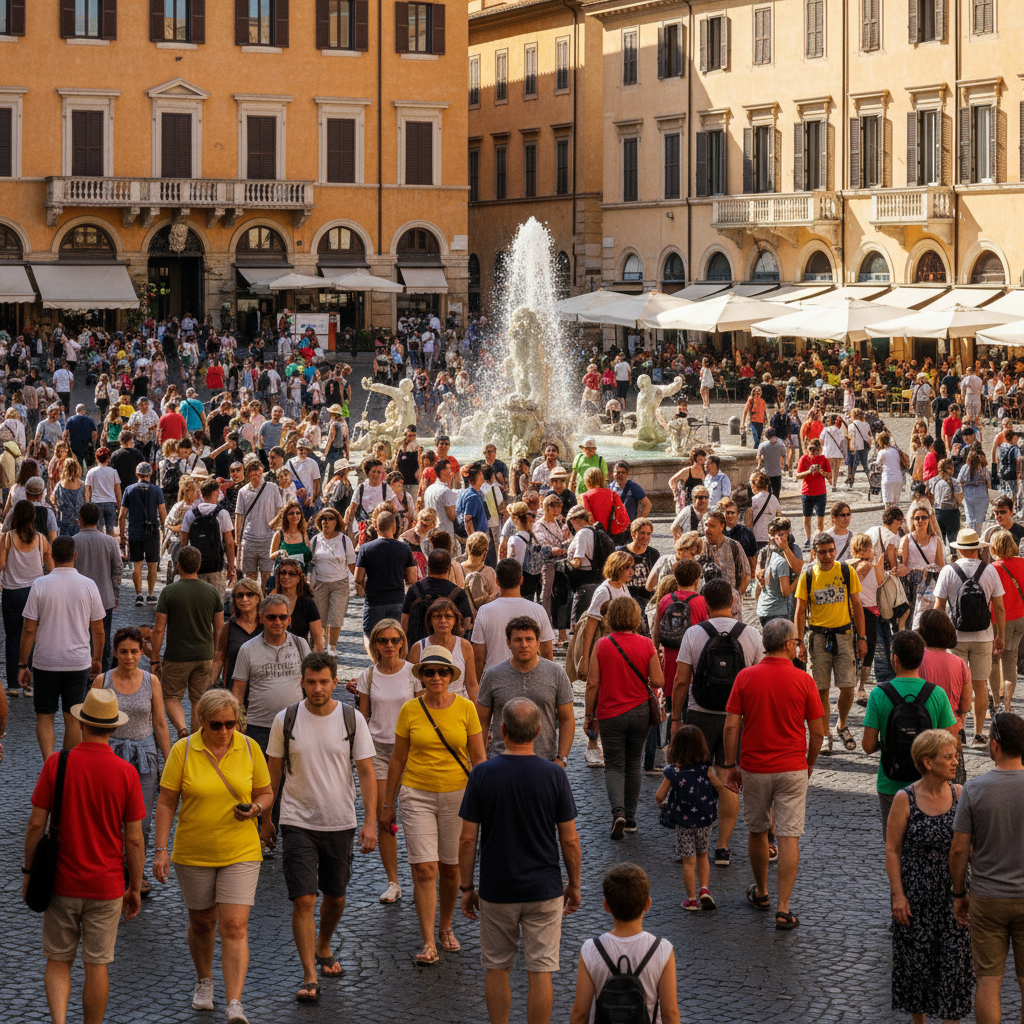
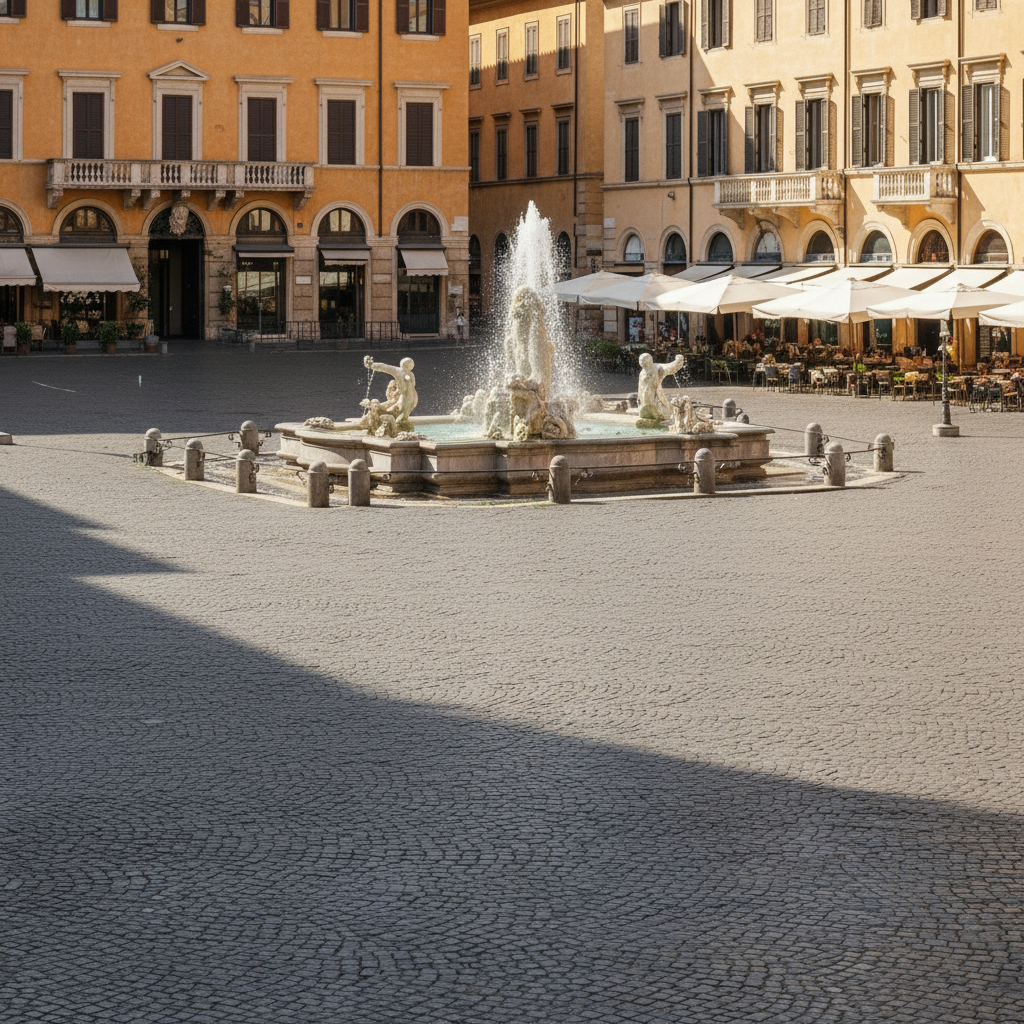
Clear crowded city square Remove all people from the crowded square to reveal the empty historic plaza 15s
Remove beach crowd Remove all beachgoers to create a pristine empty beach scene 20s
Remove museum crowd Remove all museum visitors to show the empty gallery space with just the artwork 20s

How it works

  1. Upload Your Crowded Photo

    Select a photo with crowds or large groups of people you want to remove. The AI works best when people are clearly separated from architectural elements and the background has visible patterns or structures to reconstruct. Photos taken from a stable position with good lighting produce optimal results.

    Expect: Your photo uploads instantly to the editor at full resolution. You'll see the crowded scene ready for processing without any compression or quality degradation.
  2. Mark All People in the Crowd

    Use the brush tool to paint over every person you want to remove from the scene. For large crowds, mark the entire group as one connected area. Include full bodies, shadows, and any belongings like bags or strollers. The AI will analyze visible background elements, architectural features, and ground patterns to reconstruct the empty space naturally.

    Copy one of these to get started:

    Remove crowd from monument Remove the entire crowd of people to show the monument in an empty, peaceful setting
    Clear crowded city square Remove all people from the crowded square to reveal the empty historic plaza
    Remove beach crowd Remove all beachgoers to create a pristine empty beach scene
    Remove museum crowd Remove all museum visitors to show the empty gallery space with just the artwork
    4 more prompts
    Clear crowded street scene Remove the entire crowd of pedestrians to show the empty urban street and sidewalks
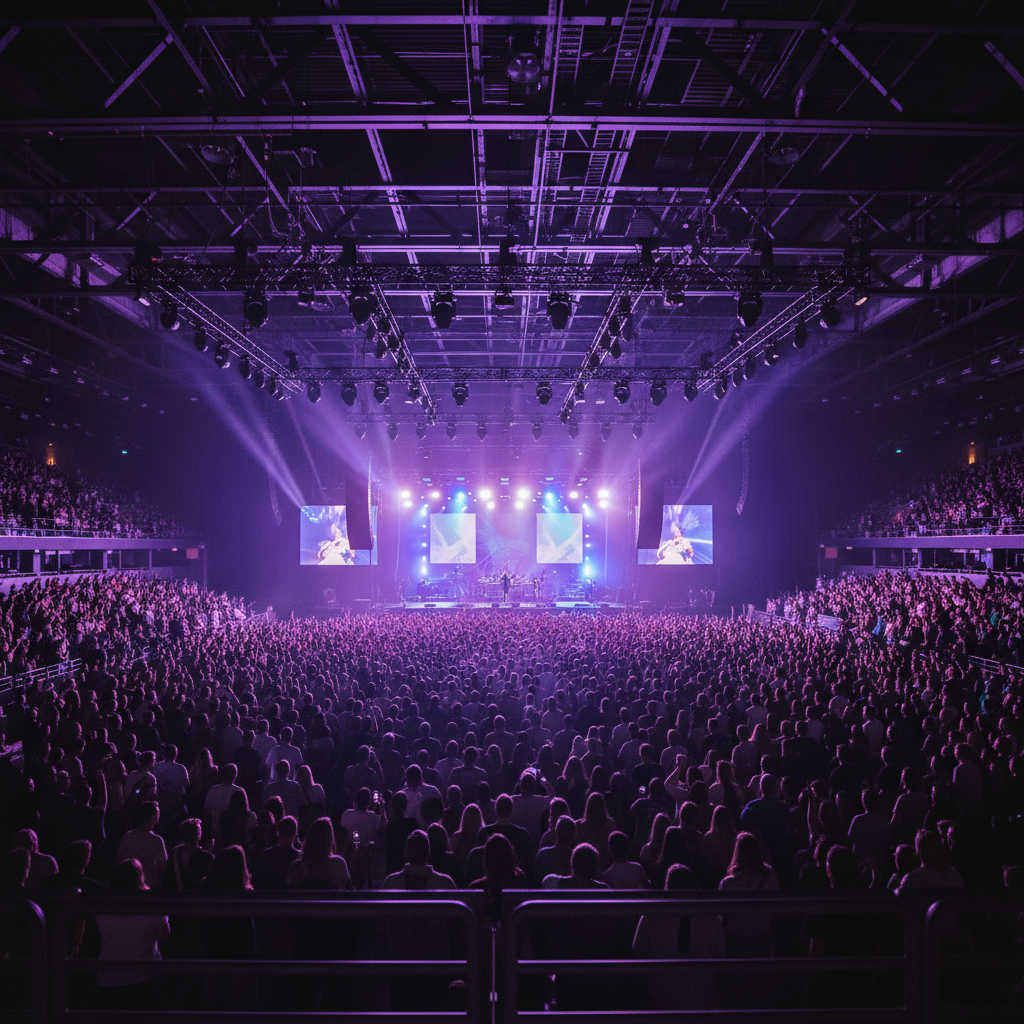
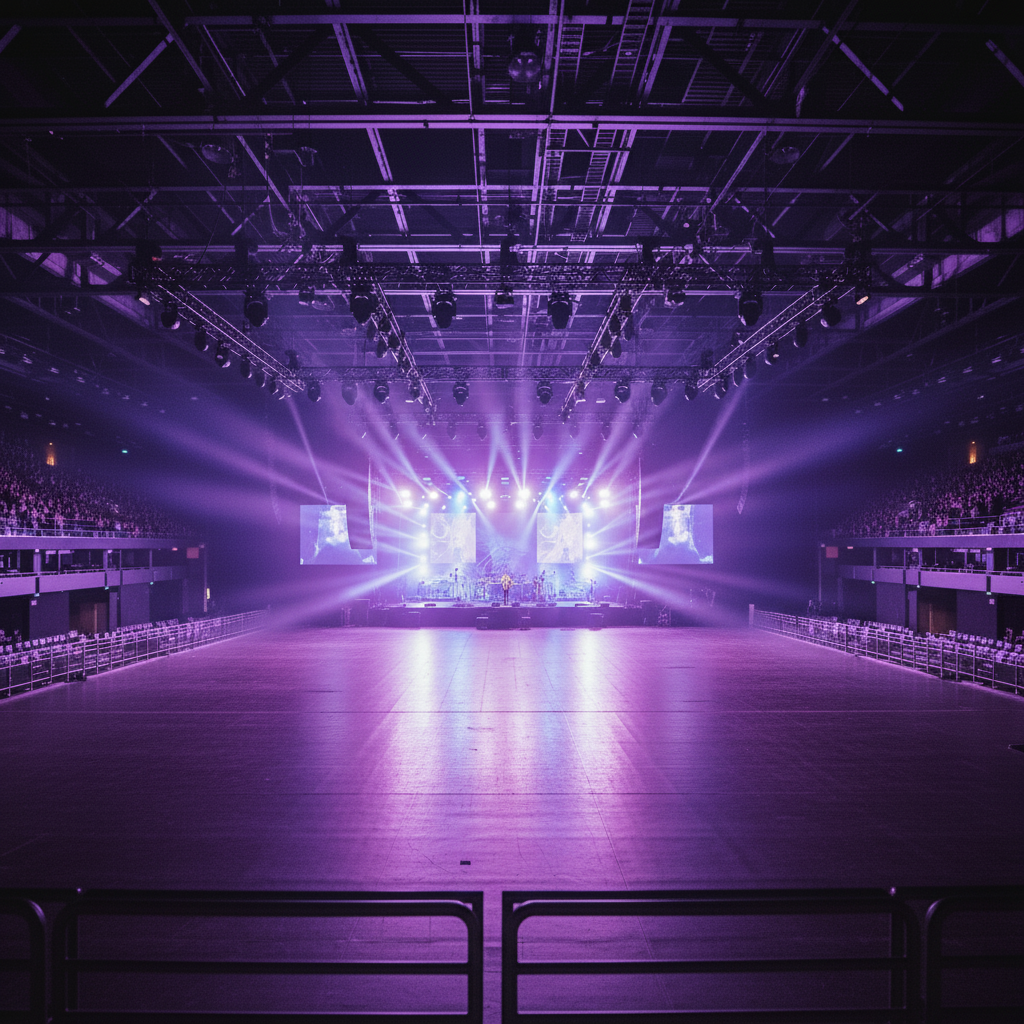
    Remove concert crowd Remove the concert crowd to show the empty venue and stage area
    Remove theme park crowd Remove all theme park visitors to reveal the empty main street and attractions
    Clear train station crowd Remove all travelers and commuters to show the empty train station concourse
  3. Generate Empty Scene

    Click Generate to let AI remove the crowd and reconstruct the background. The process analyzes surrounding architecture, textures, and perspective to create a seamless, people-free scene. Complex crowds may take 5-8 seconds to process.

  4. Refine if Needed

    Review the result and check for any remaining people or artifacts. If needed, mark any remaining individuals or problem areas and generate again for perfect results.

  5. Download Your Crowd-Free Photo

    Save your edited photo in full resolution with no watermark. Your image now shows the location empty and peaceful, perfect for showcasing the place itself without crowd distractions.

Try it free โ†“

AI Crowd Remover

Drop your photo here

or click to browse

Release to upload

Free โ€ข No signup

"This crowd tool is incredible. Just described what I wanted and it worked perfectly on the first try." @happy_user

See it in action

Before ai-crowd-remover edit
Before
->
After ai-crowd-remover edit
After

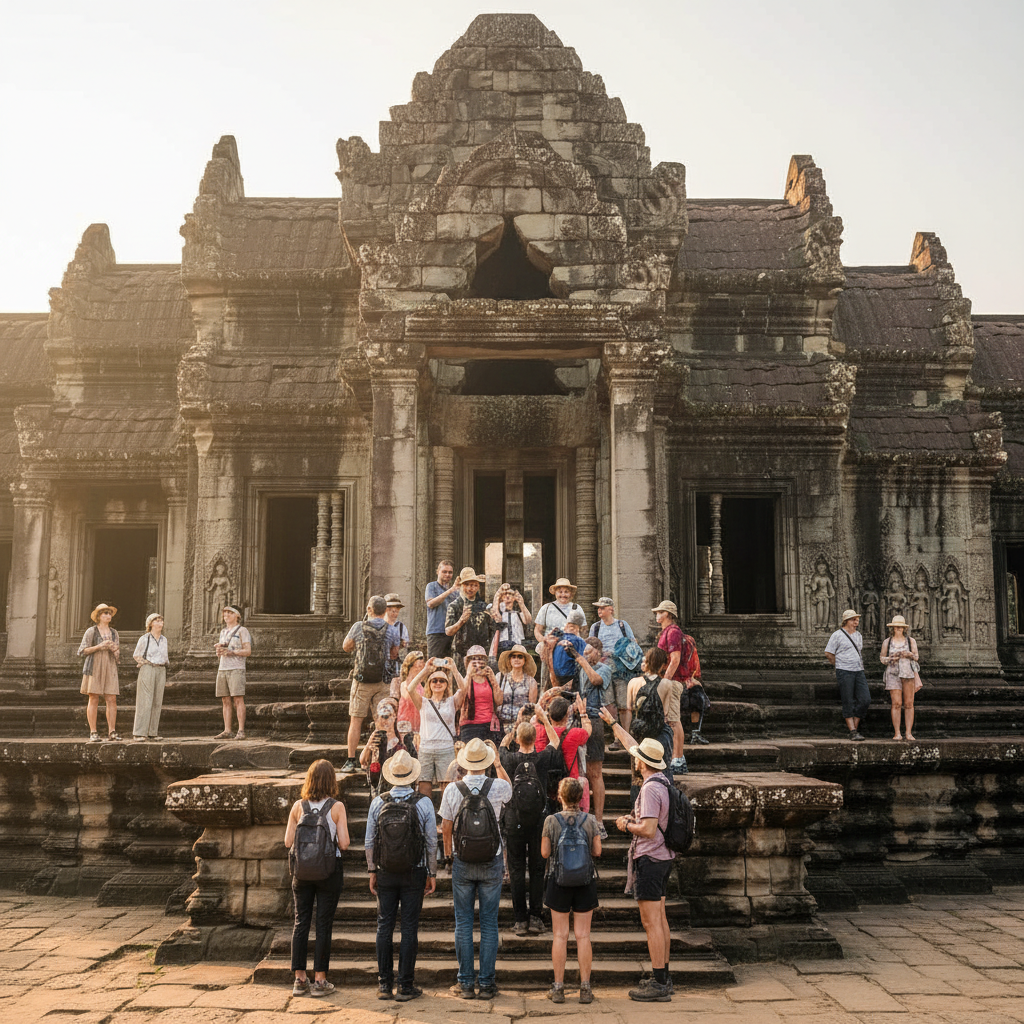
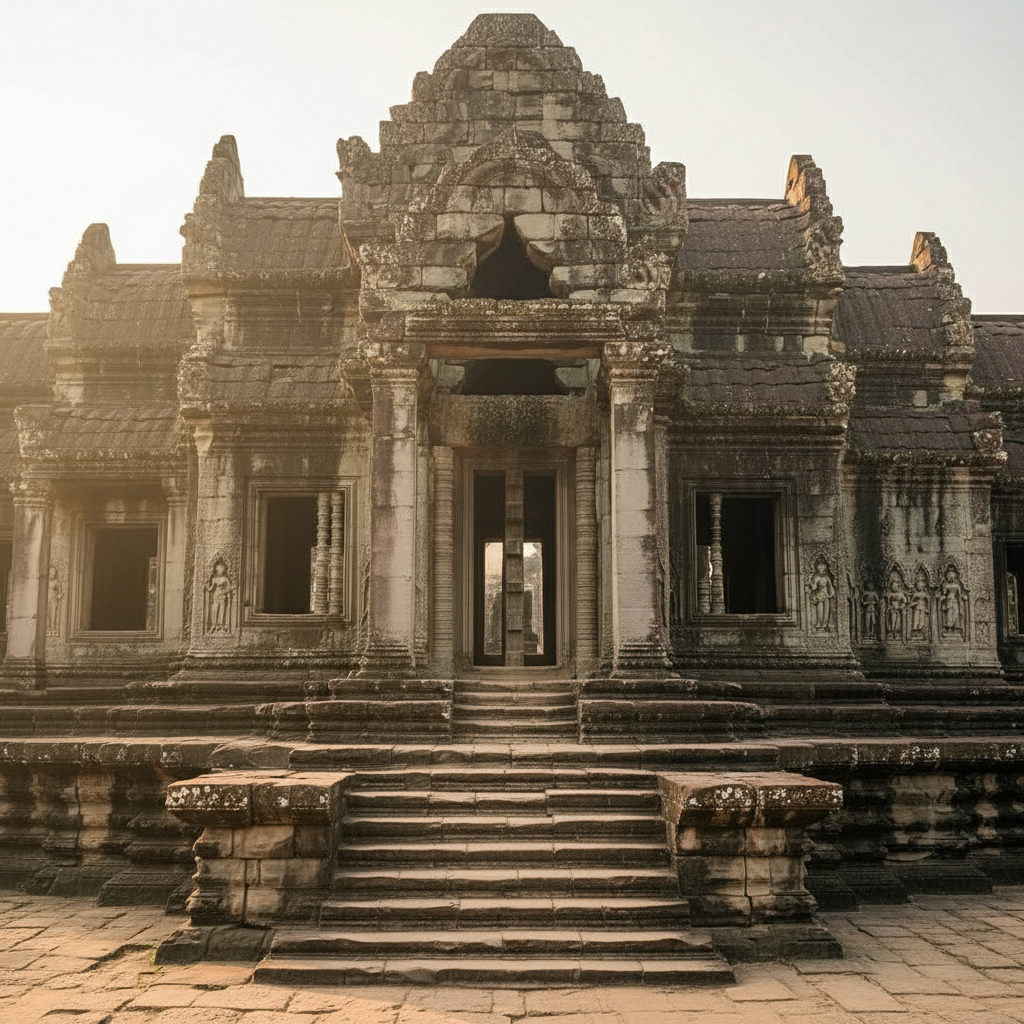
Tourist Attraction Clearing

Removed a crowd of 25 tourists from a historic monument, revealing the empty architectural space.
Prompt:
Before ai-crowd-remover edit
Before
->
After ai-crowd-remover edit
After

City Square Transformation

Eliminated 30+ people from a busy European plaza, creating a serene empty square for architectural photography.
Prompt:
Before ai-crowd-remover edit
Before
->
After ai-crowd-remover edit
After

Beach Scene Emptying

Cleared all beachgoers from a popular beach scene, showing pristine sand and ocean without people.

Prompt:
Before ai-crowd-remover edit
Before
->
After ai-crowd-remover edit
After

Museum Gallery Cleanup

Removed entire museum crowd to showcase gallery space and artwork without visitor distractions.

Prompt:
Advertisement

If something looks off

AI changed wrong area

Why: The AI interpreted the instruction differently than expected.

Try: When marking crowds, be precise about boundaries. Avoid marking architectural elements, signs, or ground features you want to keep. Mark only the people and their immediate shadows or belongings.
Some people still visible after removal

Why: The AI interpreted the instruction differently than expected.

Try: Large crowds are complex. After the first generation, check for any remaining individuals or partial removals, mark those specific areas, and generate again for complete crowd elimination.
Background looks blurry or unrealistic

Why: The AI interpreted the instruction differently than expected.

Try: Very large crowds covering complex backgrounds can be challenging. The AI reconstructs based on visible areas, so crowds covering unique architectural features may show some artifacts. Consider photos where background elements are partially visible.
Ground texture or pavement pattern broken

Why: The AI interpreted the instruction differently than expected.

Try: Mark entire bodies including feet and shadows. If the result shows disrupted ground patterns, it may be because the crowd covered too much of the reference pattern. Photos with repetitive ground textures work best.
Parts of removed people reappear as ghosting

Why: The AI interpreted the instruction differently than expected.

Try: Ensure you marked entire bodies thoroughly. Ghosting happens when parts of people weren't fully included in markings. Check edges carefully and mark complete figures from head to toe.
Removal works in some areas but not others

Why: The AI interpreted the instruction differently than expected.

Try: Process complex crowds in sections. Remove the largest group first, generate results, then mark and remove remaining smaller groups in a second pass for more consistent results.
Perspective or architecture looks distorted

Why: The AI interpreted the instruction differently than expected.

Try: The AI maintains perspective based on visible structural elements. If the crowd covered key architectural lines or features, reference information may be limited. Best results come from photos where buildings or structures are partially visible around the crowd.

Quick answers

Do I need to mark the crowd?

Yes, use the brush tool to paint over all people you want to remove. For large crowds, you can mark the entire group as one connected area rather than individually marking each person. Include full bodies and shadows.

Can I remove very large crowds of 50+ people?

Yes, the AI can handle large crowds, but very dense crowds covering most of the image may need multiple passes. For crowds of 50+ people, consider removing them in sections for best results.

What if people overlap or stand close together?

Mark the entire overlapping group as one connected area. The AI is designed to handle overlapping figures and will remove them all together while reconstructing the background behind them.

Will the background look natural after removing so many people?

The AI analyzes visible background elements like ground patterns, architecture, and textures to reconstruct empty space naturally. Photos where some background is visible around the crowd produce the most realistic results.

Can I remove crowds from indoor locations?

Absolutely. The tool works in both indoor and outdoor locations including museums, train stations, malls, concert venues, and any crowded indoor space.

Should I remove everyone at once or in groups?

For moderate crowds (10-30 people), you can usually mark and remove everyone at once. For very large crowds (40+ people), you may get better results removing them in 2-3 groups sequentially.

Ready to edit your photos?

Free to try. No signup required.

Try it free โ†’