Free โ€ข No signup Create Double exposure ยท Free

Create Double Exposure Photo Effects

Blend a portrait with a forest, cityscape, or texture for stunning artistic effects.
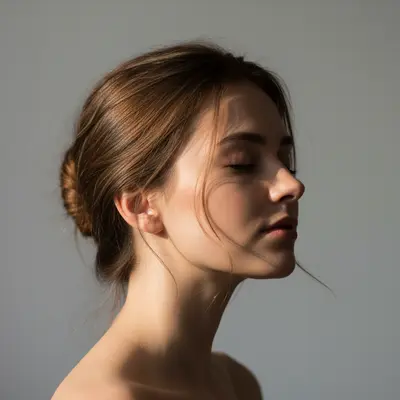
Portrait of woman with plain background
Before
โ†’
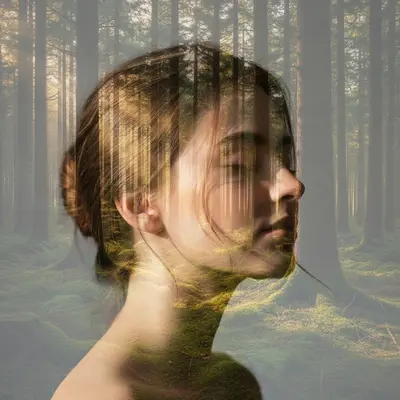
Artistic double exposure with forest inside portrait silhouette
After

Double Exposure Effect

Drop your photo here

or click to browse

Release to upload

Free โ€ข No signup

Advertisement
Popular use cases:
  • double exposure portrait
  • artistic photo blend
  • create double exposure online
  • portrait nature composite
  • silhouette double exposure
  • photo overlay effect

Cost
Free No signup required
Time
Instant results in 15-30 seconds
Works on
Any device - browser, phone, tablet, desktop
Powered by
AI-powered photo editing

How it works

  1. Upload your portrait

    Drop your portrait photo into EditThisPic. This becomes photo 1 and will be the 'container' for the double exposure effect. Portraits with clear silhouettes and simple backgrounds work best. JPG, PNG, WebP up to 7MB.

    Expect: Simple double exposure: 25-35 seconds. Complex blending with multiple layers: may need 2-3 refinements.
  2. Add the fill image

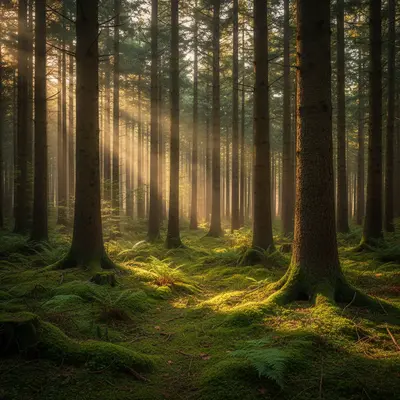
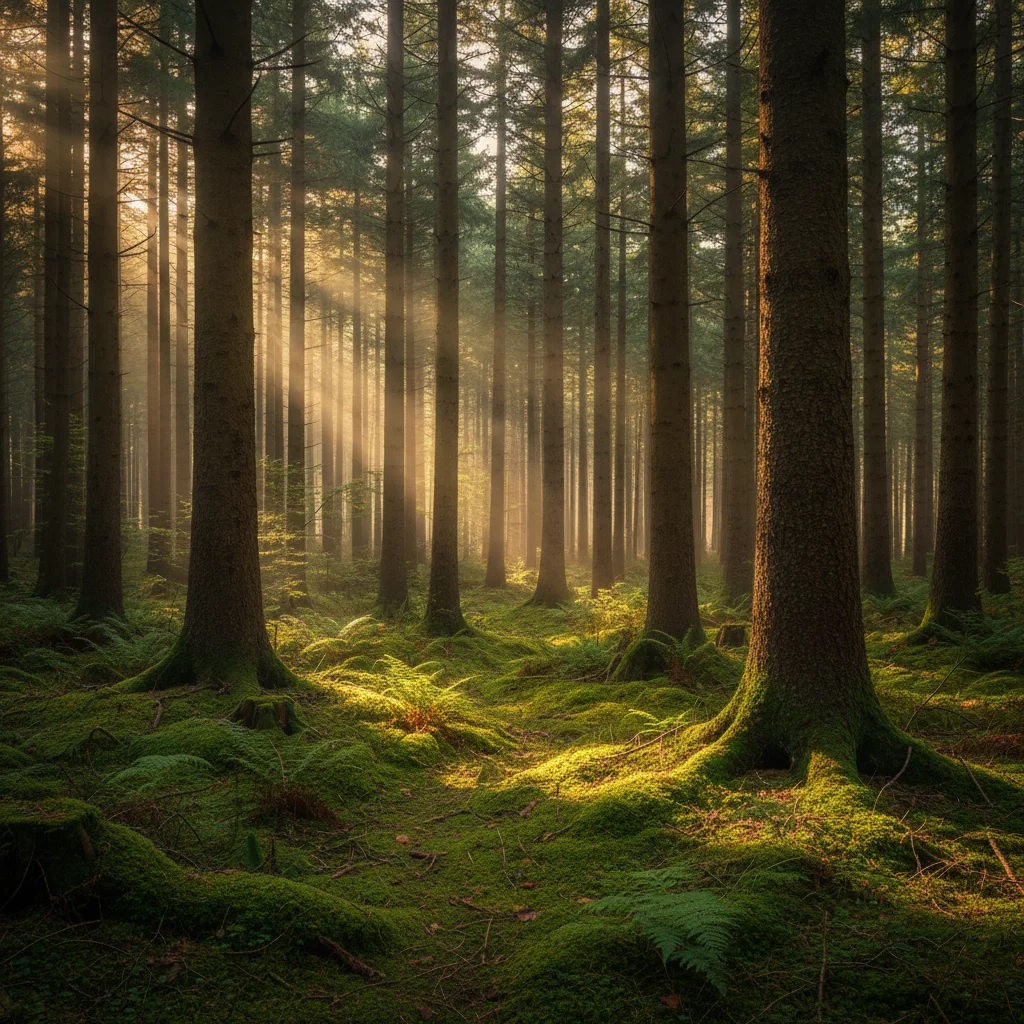
    Click '+ Add reference image' and upload the scene you want to blend in - a forest, cityscape, ocean, starry sky, or abstract texture. This becomes photo 2 and fills the portrait silhouette.

    Tip: High-contrast scenes (forests against sky, city lights at night) create the most striking effects.

    Copy one of these to get started:

    Portrait + forest/nature create a double exposure effect blending the portrait from photo 1 with the forest from photo 2, dreamy and ethereal
    Portrait + cityscape blend the city lights from photo 2 into the portrait silhouette from photo 1, dramatic double exposure effect
    Silhouette with landscape inside fill the portrait silhouette from photo 1 with the mountain landscape from photo 2, like looking through the person
    Subtle artistic overlay create a subtle double exposure blending photo 1 and photo 2, with photo 1 as the dominant image and photo 2 as a gentle texture
    3 more prompts
    Bold, high-contrast blend create a bold double exposure with strong contrast between the portrait in photo 1 and the abstract patterns from photo 2
    Ocean/water theme blend the ocean waves from photo 2 into the portrait from photo 1, flowing double exposure effect
    Starry sky/space theme create a cosmic double exposure blending the starry sky from photo 2 with the portrait from photo 1
  3. Describe the blend

    Type 'create a double exposure effect blending photo 1 and photo 2' or be more specific: 'blend the forest from photo 2 into the portrait silhouette from photo 1, artistic and dreamy.' Mention which photo should dominate if needed.

    Tip: Add mood words: 'dreamy,' 'ethereal,' 'dramatic,' 'moody' to guide the artistic style.

    Copy one of these to get started:

    Portrait + forest/nature create a double exposure effect blending the portrait from photo 1 with the forest from photo 2, dreamy and ethereal
    Portrait + cityscape blend the city lights from photo 2 into the portrait silhouette from photo 1, dramatic double exposure effect
    Silhouette with landscape inside fill the portrait silhouette from photo 1 with the mountain landscape from photo 2, like looking through the person
    Subtle artistic overlay create a subtle double exposure blending photo 1 and photo 2, with photo 1 as the dominant image and photo 2 as a gentle texture
    3 more prompts
    Bold, high-contrast blend create a bold double exposure with strong contrast between the portrait in photo 1 and the abstract patterns from photo 2
    Ocean/water theme blend the ocean waves from photo 2 into the portrait from photo 1, flowing double exposure effect
    Starry sky/space theme create a cosmic double exposure blending the starry sky from photo 2 with the portrait from photo 1
  4. Review and adjust

    Check that the blend looks artistic and balanced. If one image overpowers the other, try 'make photo 1 more visible' or 'increase the forest texture.' Experiment with different descriptions to find your style.

Try it free โ†“

Double Exposure Effect

Drop your photo here

or click to browse

Release to upload

Free โ€ข No signup

"Made an album cover for my friend's EP by blending his portrait with city lights. Looks like professional graphic design, took 30 seconds." @IndieArtist_Mike

See it in action

Portrait of woman with plain background
Before
->
Artistic double exposure with forest inside portrait silhouette
After

Portrait blended with forest

A portrait photo transformed with trees visible inside the silhouette, creating a nature-meets-human artistic effect.

Prompt: create a double exposure effect blending the portrait from photo 1 with the forest trees from photo 2, artistic and dreamy
Portrait of man in profile with dark background
Before
->
Dramatic double exposure with city lights inside silhouette
After

Portrait with city lights

Urban double exposure with night city lights filling a portrait silhouette for a moody, cinematic effect.

Prompt: blend the city lights from photo 2 into the portrait silhouette from photo 1, dramatic double exposure with the cityscape visible inside
Serene portrait with light background
Before
->
Ethereal double exposure with ocean waves inside portrait
After

Ocean wave blend

Serene double exposure combining a portrait with flowing ocean waves for an ethereal, water-themed effect.

Prompt: create a flowing double exposure blending the ocean from photo 2 with the portrait from photo 1, ethereal and calming
Advertisement

If something looks off

Portrait gets lost in the blend

Why: The second image (photo 2) is overpowering the portrait, making the face unrecognizable.

Try: create a double exposure with photo 1 as the dominant image - the portrait should be clearly visible with photo 2 as a subtle texture overlay

Tip: Use 'dominant image' and 'subtle' to control the balance between the two photos.

Blend looks like a simple overlay, not artistic

Why: The AI applied a basic transparency overlay instead of artistic double exposure blending.

Try: create an artistic double exposure effect where photo 2 fills the silhouette of the portrait in photo 1, like a movie poster or album cover

Tip: Reference 'movie poster' or 'album cover' to get more polished, professional double exposure styles.

Wrong areas are blending

Why: The AI isn't recognizing the silhouette boundaries correctly.

Try: blend photo 2 only inside the person's silhouette from photo 1, keeping the background separate

Tip: Portraits with clear silhouettes and simple backgrounds produce better results.

Effect looks too harsh or jarring

Why: The contrast between the two images is too strong for the desired effect.

Try: create a soft, dreamy double exposure blending photo 1 and photo 2, with smooth transitions between elements

Tip: Add 'soft,' 'dreamy,' or 'ethereal' for gentler, more artistic blends.

AI changed the wrong area or something I didn't want changed

Why: The AI couldn't determine exactly which area you meant from description alone.

Try: Tap a marker on the specific area you want to blend, then regenerate with the same prompt

Tip: Markers tell the AI 'I mean THIS area specifically.' Use them when the automatic detection isn't working.

Quick answers

How do I create a double exposure effect without Photoshop?

Upload your portrait to EditThisPic, click '+ Add reference image' to add a nature scene or texture, then type 'create a double exposure effect blending these photos.' The AI handles the artistic blending in about 30 seconds. No Photoshop skills needed - just describe what you want.

What photos work best for double exposure?

For photo 1 (the main image): portraits with clear silhouettes and simple backgrounds work best. For photo 2 (the fill): high-contrast scenes like forests against sky, city lights at night, or ocean/sky textures create the most striking effects. The contrast in photo 2 becomes the detail inside the portrait.

Is double exposure the same as photo blending?

Double exposure is one type of artistic blending where two images merge so one fills or overlays the other - like seeing a forest inside a portrait silhouette. General photo blending can also mean seamlessly combining elements (like adding a person to a group photo). EditThisPic does both.

Can I make the portrait more or less visible?

Yes! Add 'with photo 1 as the dominant image' to keep the portrait more visible, or 'with photo 2 more prominent' to emphasize the fill image. You can also try 'subtle blend' vs 'bold blend' to control intensity.

What's the difference between this and fixing accidental double exposure?

This page helps you CREATE artistic double exposure effects on purpose. If your camera glitched and created unwanted ghosting or double images you want to REMOVE, see our 'Fix Double Exposure Ghosting' page instead.

Ready to create double exposure art?

Free to try. No signup required.

Try it free โ†’