Free • No signup Combine Photos side by side · Free

Side-by-Side vs Blending: Which Do You Need?

"Combine photos" means different things. Let's find the right tool for what you actually need.
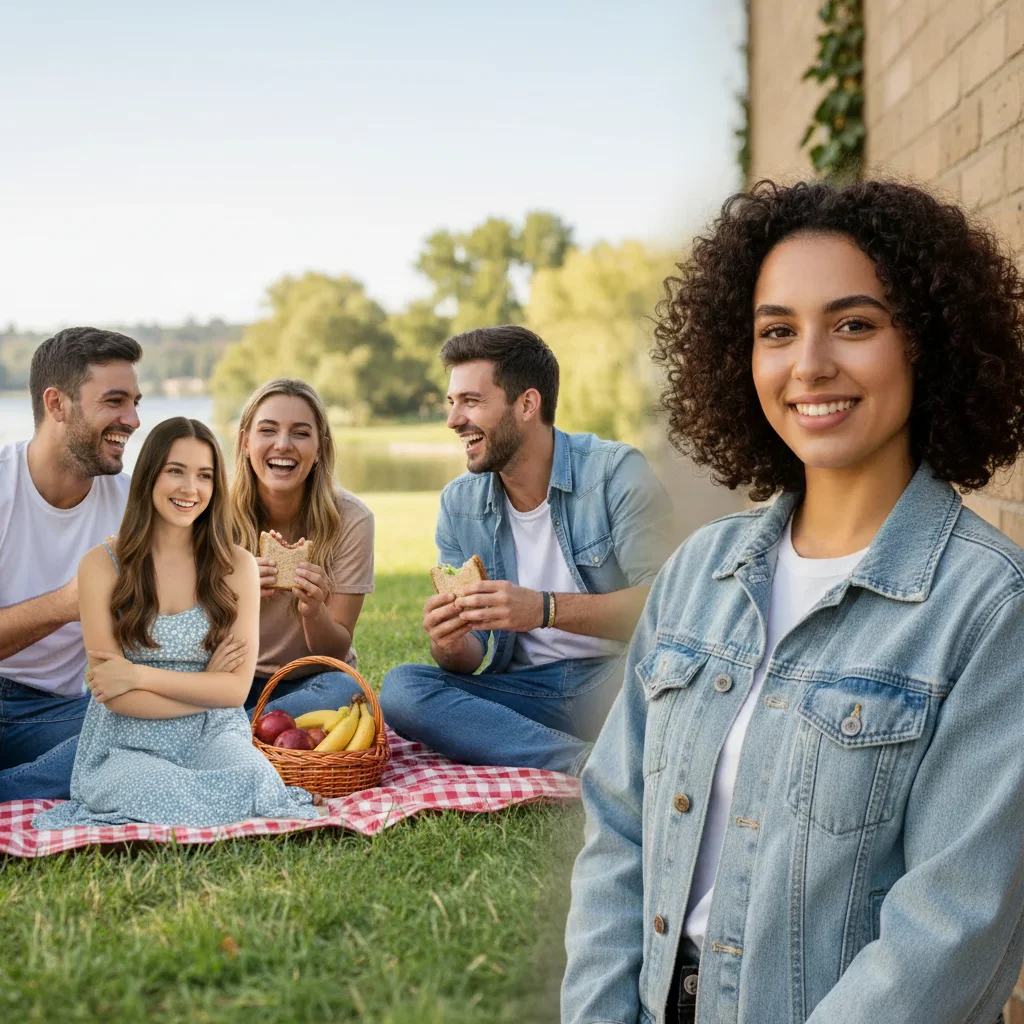
Group of friends at a picnic
Photo 1
+
Woman to add to the group photo
Photo 2
Combined photo with the woman added to the group
Result

Combine Photos Side by Side vs Blend Together | EditThisPic

Upload photo to combine photos side by side

Free • Results in 30 seconds • No signup

Release to upload

Free optionsNo signup neededRight tool for the job

Cost
Free No signup required
Time
Instant results in 15-30 seconds
Works on
Any device - browser, phone, tablet, desktop
Powered by
AI-powered photo editing

How it works

  1. Upload your main photo

    Upload the base photo — the scene you want the combined result to be set in. This is the background image. JPG, PNG, WebP up to 7MB.

  2. Add a reference photo

    Upload the second photo containing the person or element you want to blend in. The AI will extract the relevant subject from this reference image.

    Tip: Make sure the person or object in the reference photo is clearly visible and well-lit for best extraction results.

    Copy one of these to get started:

    Add missing person to group photo Add the person from the reference photo into the group, standing on the right side. Match the lighting and make it look natural.
    Combine two portraits into one scene Combine both photos into one image with both people standing side by side, matching the background and lighting from the main photo.
    Place product into lifestyle scene Place the product from the reference photo onto the table in the main photo. Add natural shadow and match the room lighting.
    Create double exposure effect Blend the portrait with the nature scene to create an artistic double exposure effect. Make the landscape visible through the person's silhouette.
    2 more prompts
    Swap background behind subject Take the person from the reference photo and place them into the beach scene. Match perspective and add a natural shadow on the sand.
    Combine pet and owner photos Add the dog from the reference photo next to the person in the main photo. Match the scale so the dog looks the right size, and add a shadow.
  3. Describe how to combine them

    Tell the AI exactly how to blend the photos: where to place the extracted subject, how to match lighting, and any adjustments needed. Be specific about position and scale.

    Tip: Mention lighting and perspective: 'place them on the right, match the outdoor lighting' gives much better results than just 'add them.'

    Copy one of these to get started:

    Add missing person to group photo Add the person from the reference photo into the group, standing on the right side. Match the lighting and make it look natural.
    Combine two portraits into one scene Combine both photos into one image with both people standing side by side, matching the background and lighting from the main photo.
    Place product into lifestyle scene Place the product from the reference photo onto the table in the main photo. Add natural shadow and match the room lighting.
    Create double exposure effect Blend the portrait with the nature scene to create an artistic double exposure effect. Make the landscape visible through the person's silhouette.
    2 more prompts
    Swap background behind subject Take the person from the reference photo and place them into the beach scene. Match perspective and add a natural shadow on the sand.
    Combine pet and owner photos Add the dog from the reference photo next to the person in the main photo. Match the scale so the dog looks the right size, and add a shadow.
  4. Download your combined image

    Review the blended result. If the lighting, shadows, or placement need tweaking, describe corrections and regenerate. Download when satisfied.

Try it free

Combine Photos Side by Side vs Blend Together | EditThisPic

Upload photo to combine photos side by side

Free • Results in 30 seconds • No signup

Release to upload

Free • No signup

"This saved me hours of work. The AI nailed it." via Twitter

See it in action

Group of friends at a picnic
Main Photo
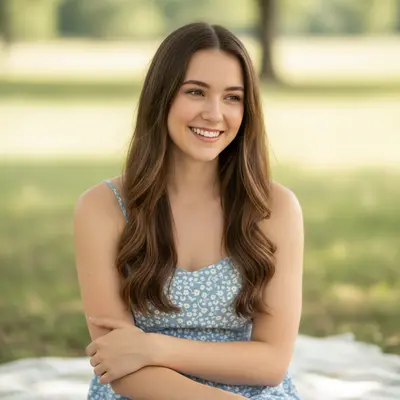
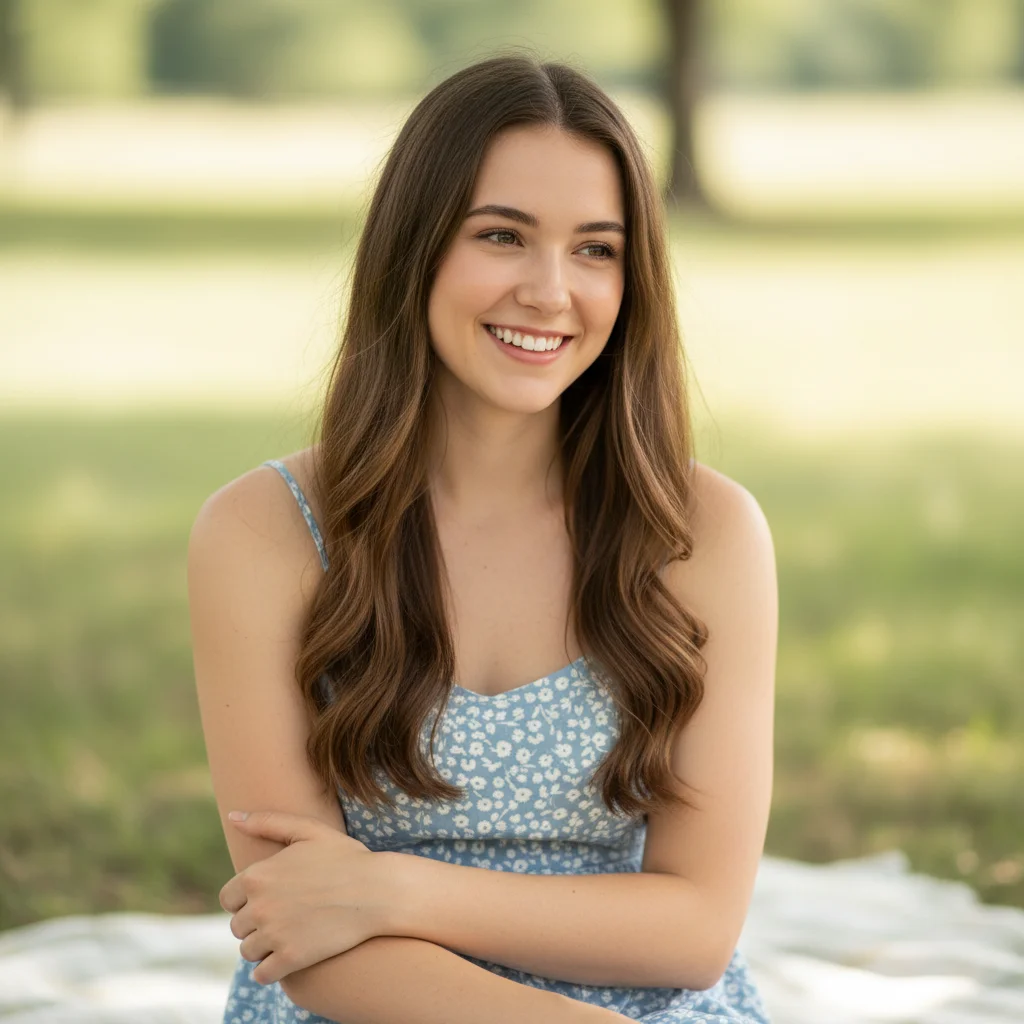
Woman to add to the group photo
Reference
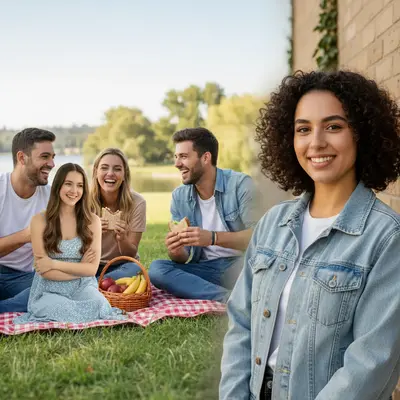
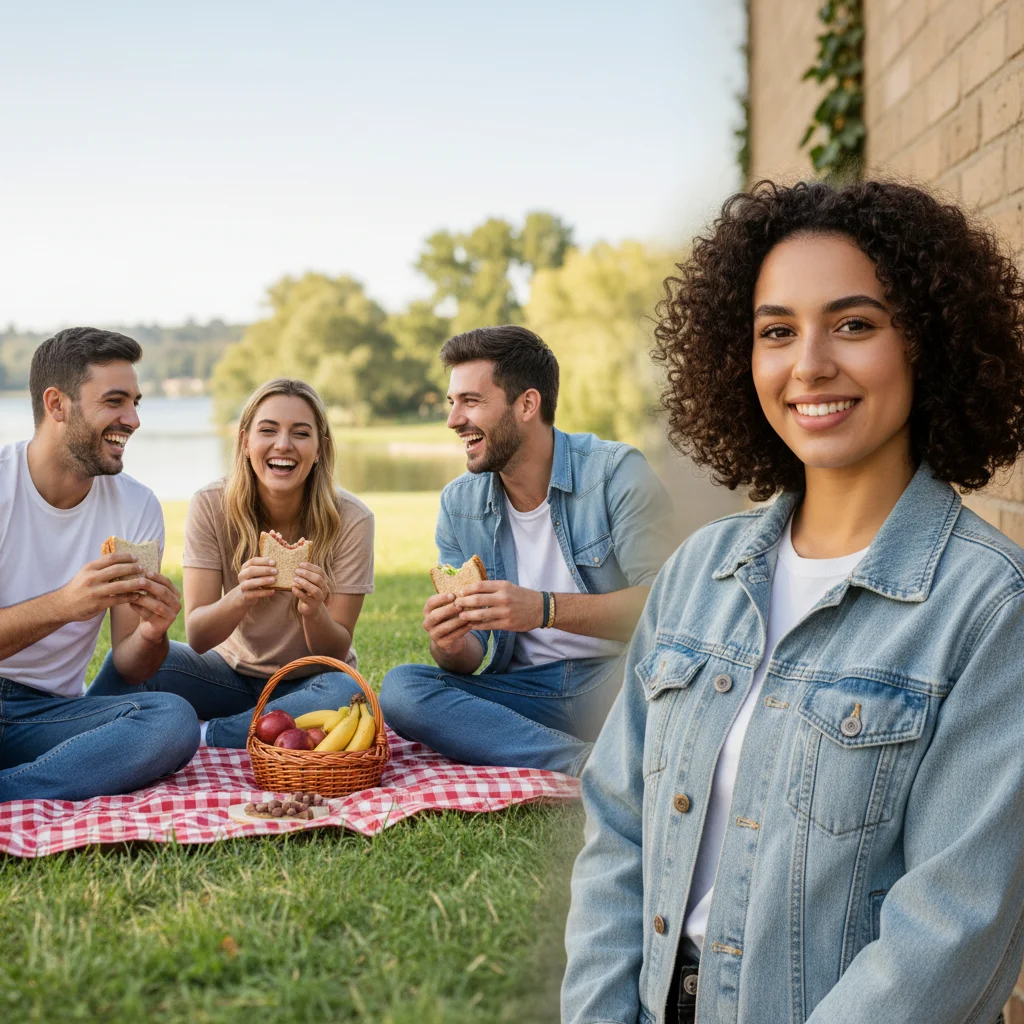
Combined photo with the woman added to the group
Result

Friends combined into group photo

Two separate photos combined into one seamless group photo. The AI matched lighting and perspective automatically.

Prompt: combine both photos into one group photo, match the lighting and make it look natural

Detailed Guides by Scenario

📷

Professional Use

Apply 'Side-by-Side vs Blending: Which Do You Need?' to images for professional projects — websites, marketing materials, client deliverables, and presentations.

Common Scenarios

  • Using 'Side-by-Side vs Blending: Which Do You Need?' for client work or commercial photography
  • Applying 'Side-by-Side vs Blending: Which Do You Need?' to product or marketing images for a business
  • Batch-processing multiple images with 'Side-by-Side vs Blending: Which Do You Need?' for a project deadline

Best Practices

  • Use the highest resolution source image available for professional-quality results
  • Be specific in your prompt about the exact 'Side-by-Side vs Blending: Which Do You Need?' effect you need
  • For consistency across multiple images, reuse the same prompt template
📷

Creative & Social Media

Use 'Side-by-Side vs Blending: Which Do You Need?' creatively for social media content, personal projects, and artistic expression.

Common Scenarios

  • Applying 'Side-by-Side vs Blending: Which Do You Need?' to a photo for a unique social media post
  • Using 'Side-by-Side vs Blending: Which Do You Need?' to create artistic variations of a favorite image
  • Experimenting with 'Side-by-Side vs Blending: Which Do You Need?' for a creative project or portfolio piece

Best Practices

  • Experiment freely — AI editing lets you try bold ideas with no risk to the original
  • For social content, pair the visual effect with a caption that references the transformation
  • Try the effect on different types of photos to find what looks most striking
📷

Personal Photos & Memories

Apply 'Side-by-Side vs Blending: Which Do You Need?' to personal photos to fix issues, enhance quality, or create something special from everyday images.

Common Scenarios

  • Using 'Side-by-Side vs Blending: Which Do You Need?' on family photos to improve or personalize them
  • Applying 'Side-by-Side vs Blending: Which Do You Need?' to vacation or event photos before printing or sharing
  • Trying 'Side-by-Side vs Blending: Which Do You Need?' on a selfie or portrait for profile or personal use

Best Practices

  • Always work on a copy — keep the original safe in case you want to try a different approach
  • Natural-looking results are almost always better than dramatic over-processing
  • If it doesn't look right the first time, rephrase your prompt with more specific details

If something looks off

Blended person looks pasted on, not natural

Why: The AI didn't match the lighting or color temperature between the two source photos.

Try: Match the lighting and color temperature of the added person to the main photo. Make the blend seamless.

Tip: Adding 'match the warm/cool lighting' to your initial prompt prevents this issue upfront.

Person is the wrong size relative to the scene

Why: The AI couldn't determine the correct scale from the reference photo's perspective.

Try: Resize the added person to match the scale of the other people in the photo. They should be about the same height.

Tip: Describe the expected size: 'same height as the person next to them' gives the AI a clear reference point.

Missing shadow under the blended subject

Why: The AI removed the original background but didn't generate a new shadow for the new scene.

Try: Add a natural shadow under the added person that matches the shadow direction in the main photo.

Tip: Always mention shadows in your initial prompt to avoid a second edit.

Edge artifacts or visible outline around blended subject

Why: The extraction from the reference photo left some edge pixels from the original background.

Try: Clean up the edges around the added person so they blend seamlessly into the background.

Tip: Reference photos with high contrast between subject and background give the cleanest extractions.

Quick answers

Can EditThisPic put photos side by side?

EditThisPic is built for seamless blending (extracting elements and merging them), not side-by-side layouts. For side-by-side, use Canva or PineTools - they're free and designed specifically for collages. EditThisPic would be overkill for simple layouts.

What's the best free tool for photo collages?

For collages and side-by-side layouts: Canva (best templates), PineTools (simplest), or your phone's built-in Photos app. For seamless blending where you extract a person from one photo and merge them into another: EditThisPic.

I want to add someone to a photo - which is that?

That's seamless blending, not side-by-side. You want EditThisPic. Upload your group photo, add a reference photo of the person, and describe where to place them. The AI extracts them and blends them in naturally.

I want a before/after comparison - which is that?

Before/after comparisons are side-by-side layouts. Use Canva or PineTools to place the two photos next to each other with a clear divider. They have templates specifically for this.

What if I'm not sure which I need?

Ask yourself: do you want to see both complete photos at once (side-by-side) or do you want elements from one photo inserted into another so it looks like one scene (blending)? The first is collage territory, the second is EditThisPic territory.

Is EditThisPic's AI photos side by side combiner really free?

Yes — you get 1 free edit per week, no account needed. For unlimited edits, plans start at $3.99/month.

What photo formats does the AI photos side by side combiner support?

JPG, PNG, WebP, and HEIC. Upload any common photo format and EditThisPic handles the rest.

How long does it take to combine photos side by side?

Usually 15-30 seconds. Upload your photo, describe what you want, and the AI delivers the result.

Need seamless blending?

EditThisPic merges photos so they look like one unified image. Free to try.