Free • No signup Fix Blurry photo · Free

Fix Blurry Photo

Turn blurry, out-of-focus photos into sharp, clear images with one command.

Blurry family birthday photo with soft undefined faces
Before
Same birthday photo now sharp with clear facial features visible
After

Fix Blurry Photo

Drop your photo here

or click to browse

Release to upload

Free • No signup

Advertisement
Popular use cases:
  • wedding photographers
  • family photos
  • product photography
  • real estate photos
  • travel photography
  • document scanning
  • video frames
  • old photo restoration

Cost
Free No signup required
Time
Instant results in 15-30 seconds
Works on
Any device - browser, phone, tablet, desktop
Powered by
AI-powered photo editing
Scenario Prompt Time
General blur fix fix the blur and make this photo sharp and clear 15s
Portrait sharpening sharpen the face and eyes to make them crystal clear 20s
Motion blur removal remove the motion blur and sharpen everything 25s

How it works

  1. Upload your blurry photo

    Drag your out-of-focus or motion-blurred image into EditThisPic. JPG, PNG, WebP up to 7MB. The AI works best on photos with mild to moderate blur from camera shake, missed focus, or slight movement.

    Expect: Simple fixes: 15-30 seconds. Heavy motion blur: may need 2-3 refinements.
  2. Describe what you want

    Type your instruction: 'fix the blur and make this photo sharp and clear' or 'sharpen this image and enhance the details.' Be specific about areas that matter most. No marking needed—the AI analyzes your entire image and identifies what needs fixing.

    Tip: Mention the subject for better results: 'sharpen the face and make the eyes clear' or 'fix the blur on the text so it's readable.'

    Copy one of these to get started:

    General blurry photo fix fix the blur and make this photo sharp and clear
    Portrait with soft focus face sharpen the face and eyes to make them crystal clear, keep the background soft
    Camera shake blur remove the motion blur and sharpen everything so it looks crisp
    Blurry text or document fix the blur and make the text sharp and readable
    4 more prompts
    Product photo with soft edges sharpen this product photo to show crisp edges and clear details
    Landscape with atmospheric blur fix the blur in the landscape and enhance details to make it sharper
    Old scanned photo that lost sharpness fix the blurriness in this old photo and restore the sharp details naturally
    Group photo where faces are blurry sharpen all the faces in this group photo so everyone is in focus
  3. Generate and review

    Check the sharpened result at full zoom. Look for restored edges, clearer text, and improved facial features. Compare fine details like hair, eyes, and textures with the original to verify the fix worked.

  4. Refine with markers if needed

    If some areas are still soft or the AI over-sharpened certain zones, tap markers on those specific spots and regenerate. This is optional—most blur fixes work without markers.

    Tip: Markers help when you want to sharpen only the subject while keeping a soft background, or to target specific blurry zones.
Try it free

Fix Blurry Photo

Drop your photo here

or click to browse

Release to upload

Free • No signup

"Saved my only photo of my grandma's 90th birthday. It was so blurry I thought it was ruined." @emily_r_photos

See it in action

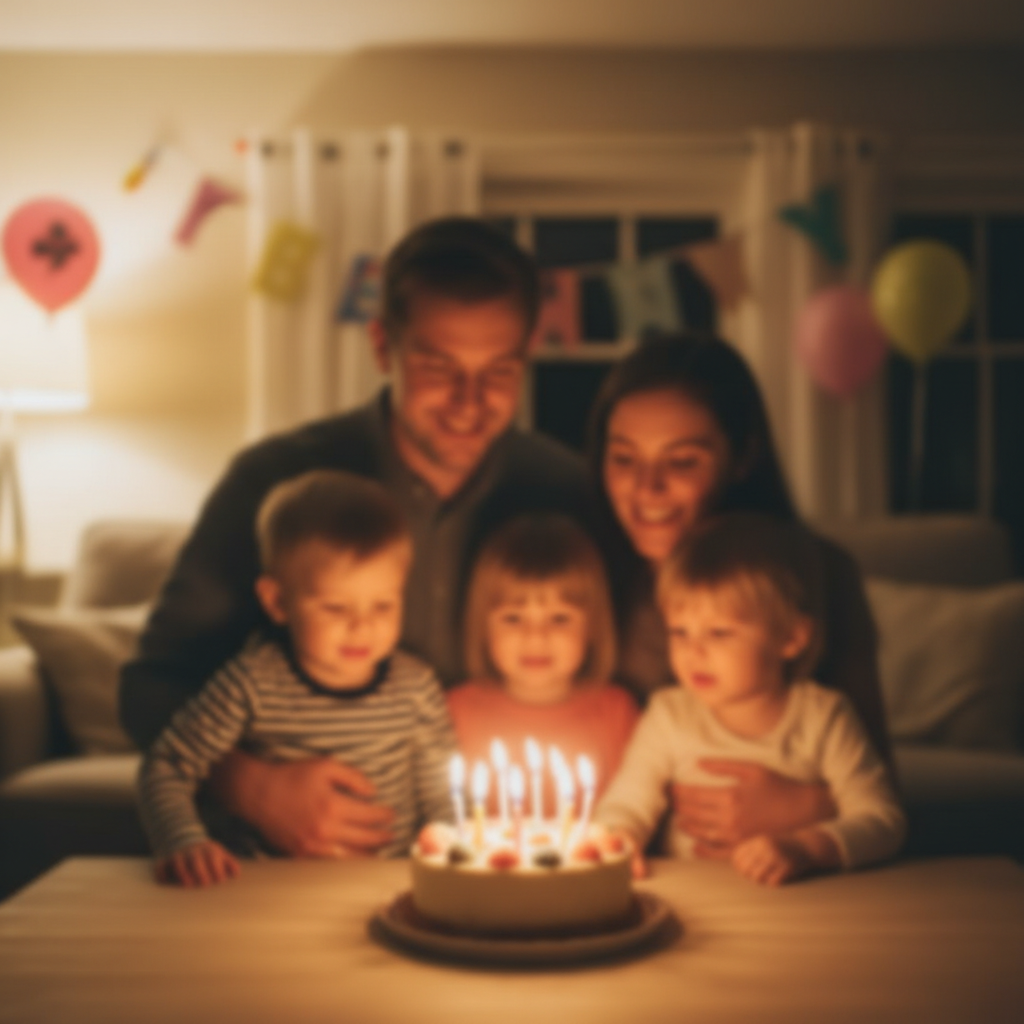
Blurry family birthday photo with soft undefined faces
Before
->
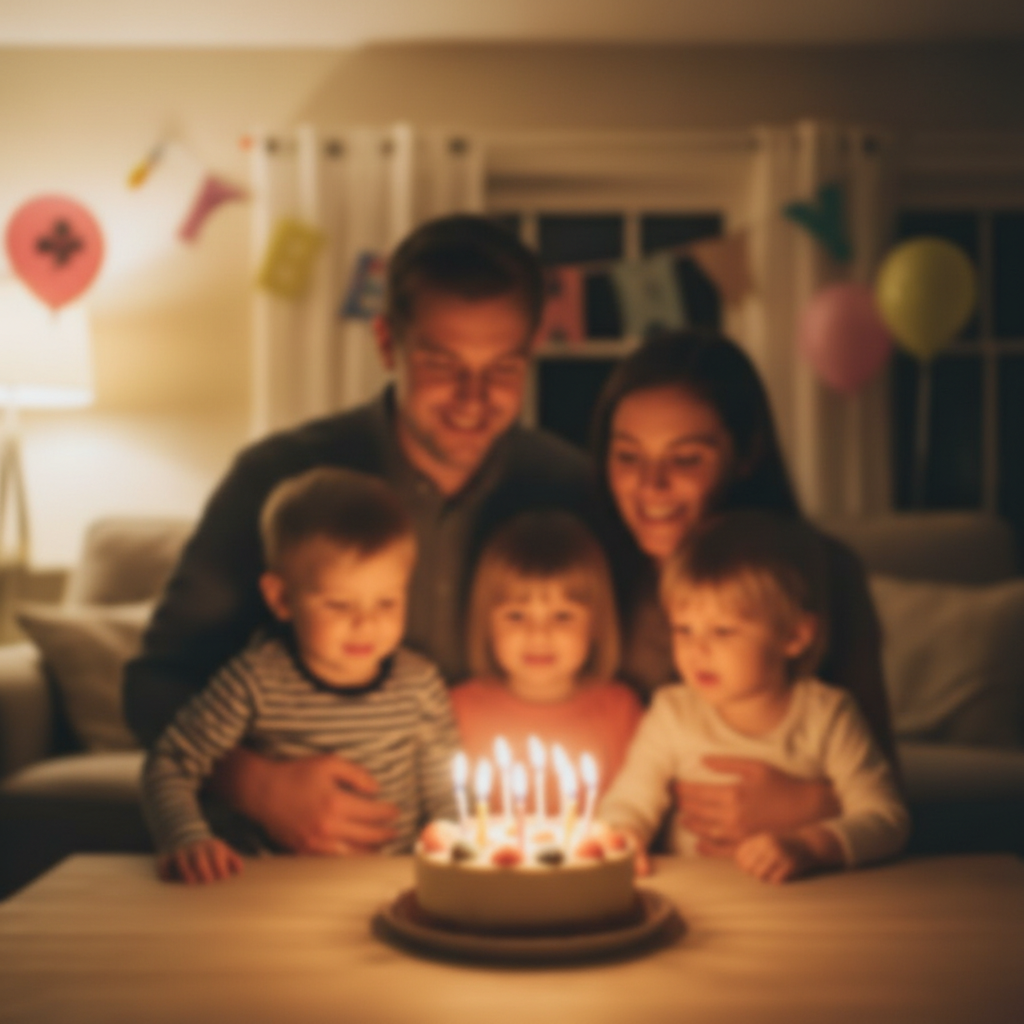
Same birthday photo now sharp with clear facial features visible
After

Family portrait saved from camera shake

A family photo at a birthday party came out blurry due to low light and camera movement. One command restored sharp faces and clear details.

Prompt: fix the blur and make this photo sharp and clear
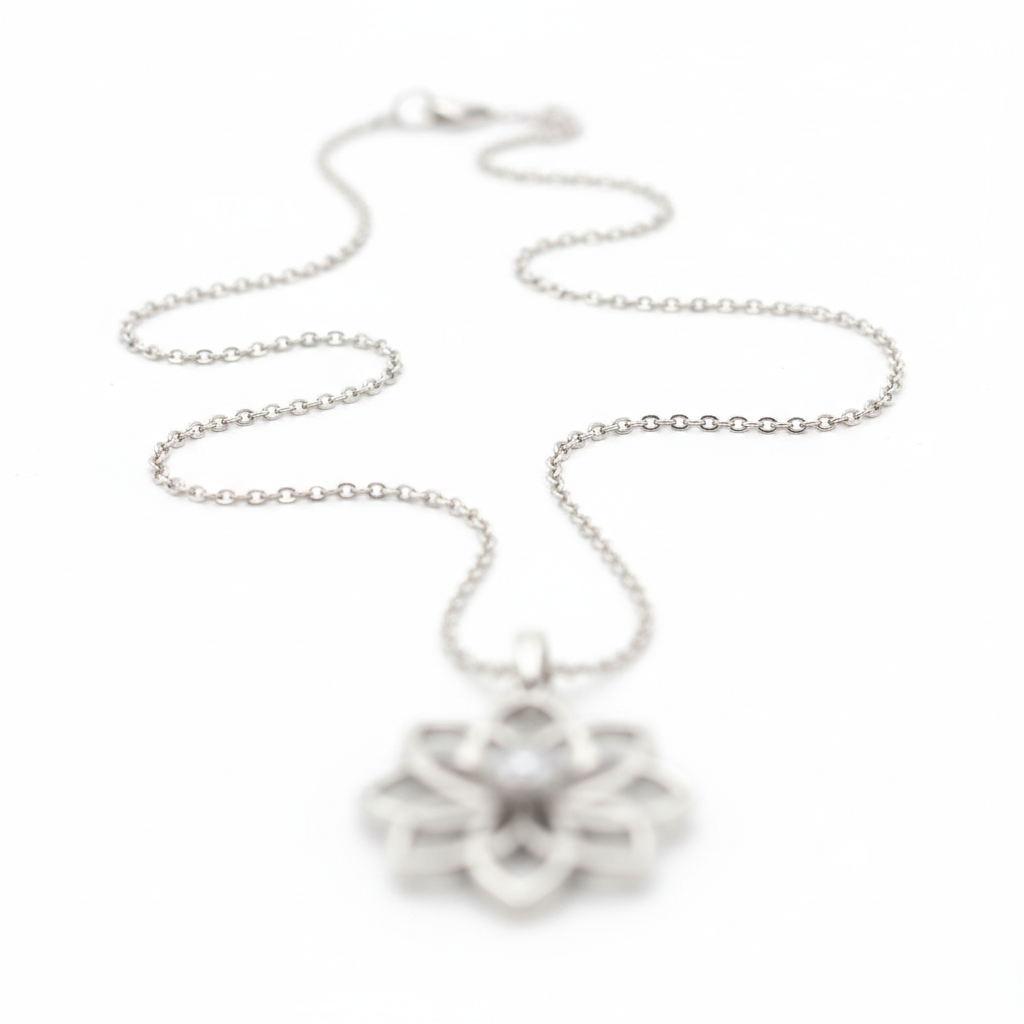
Soft focus jewelry photo with blurred pendant details
Before
->
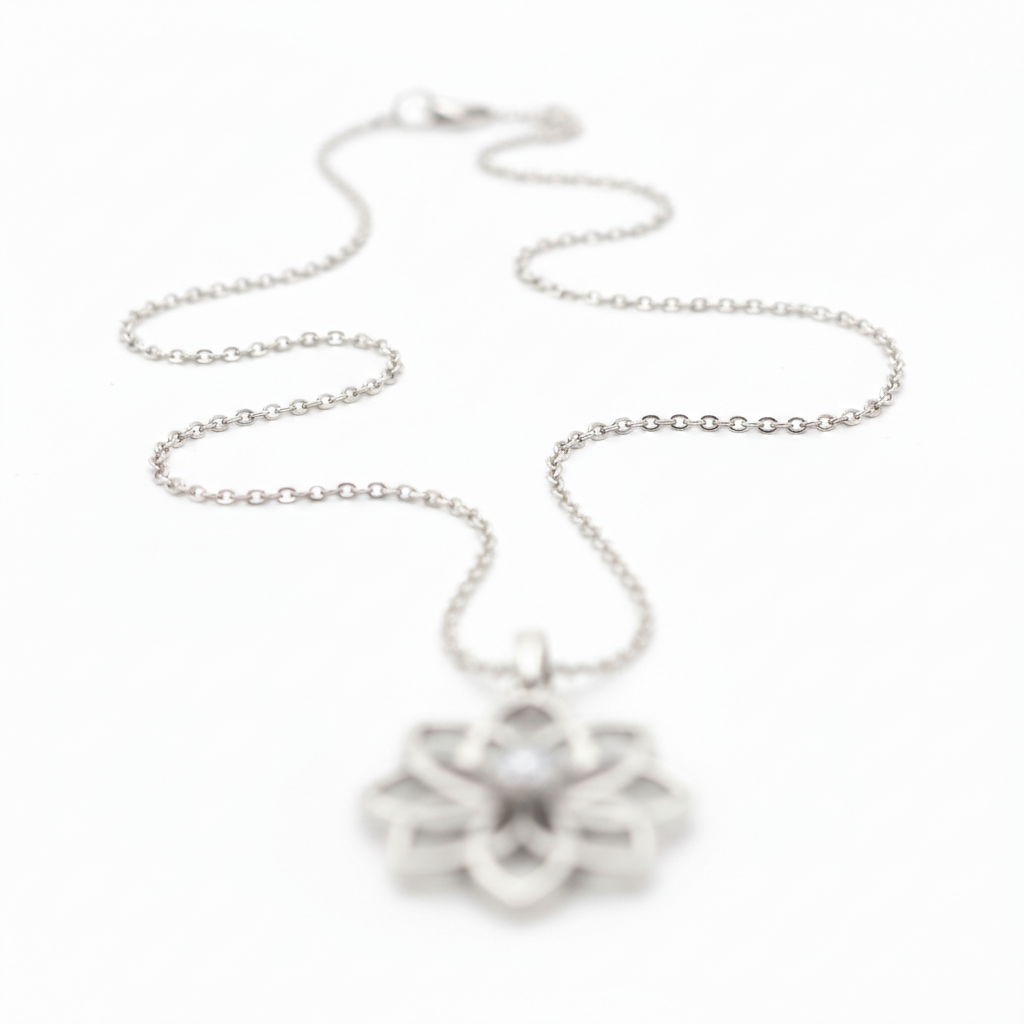
Sharp jewelry photo with crisp metalwork details visible
After

Product photo sharpened for listing

A handmade jewelry photo was too soft for an Etsy listing. Sharpening brought out the fine details in the metalwork.

Prompt: sharpen this product photo to show crisp edges and clear details
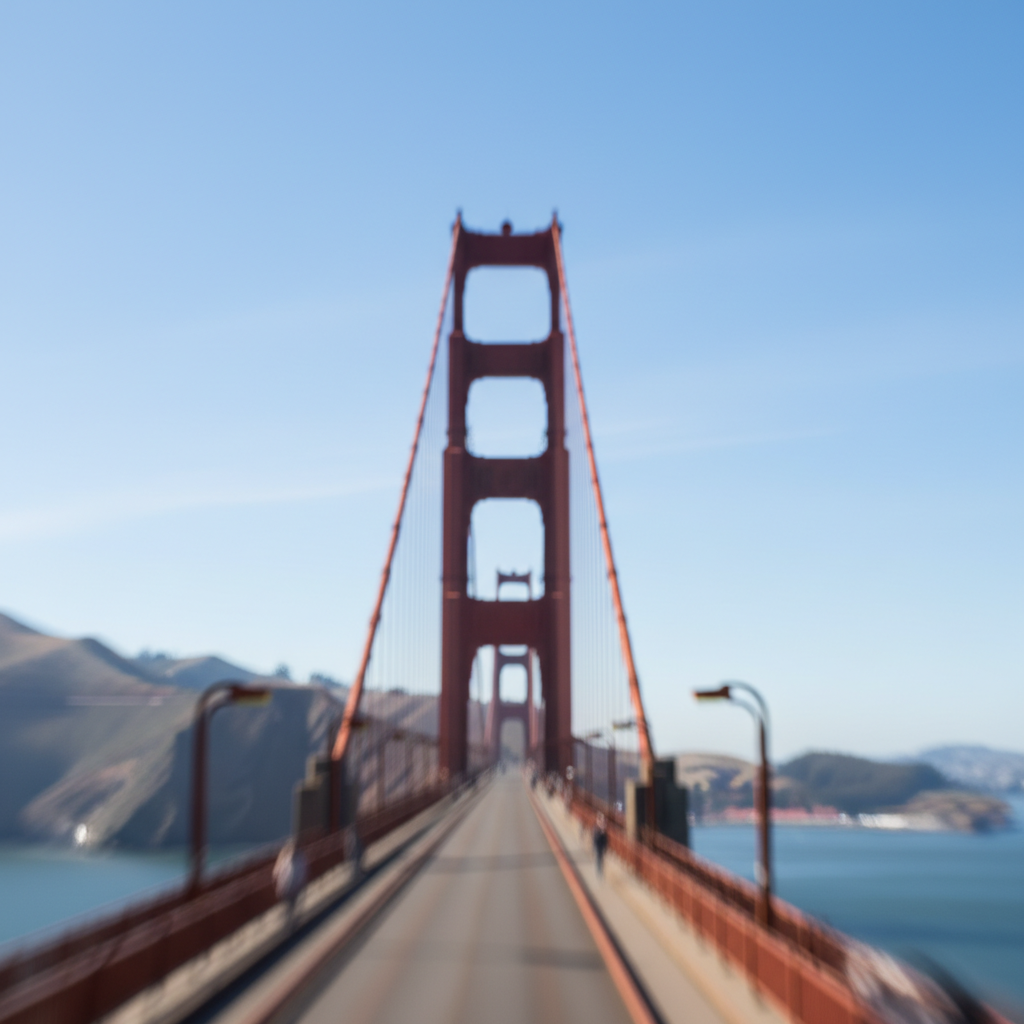
Motion-blurred photo of Golden Gate Bridge with streaky undefined details
Before
->
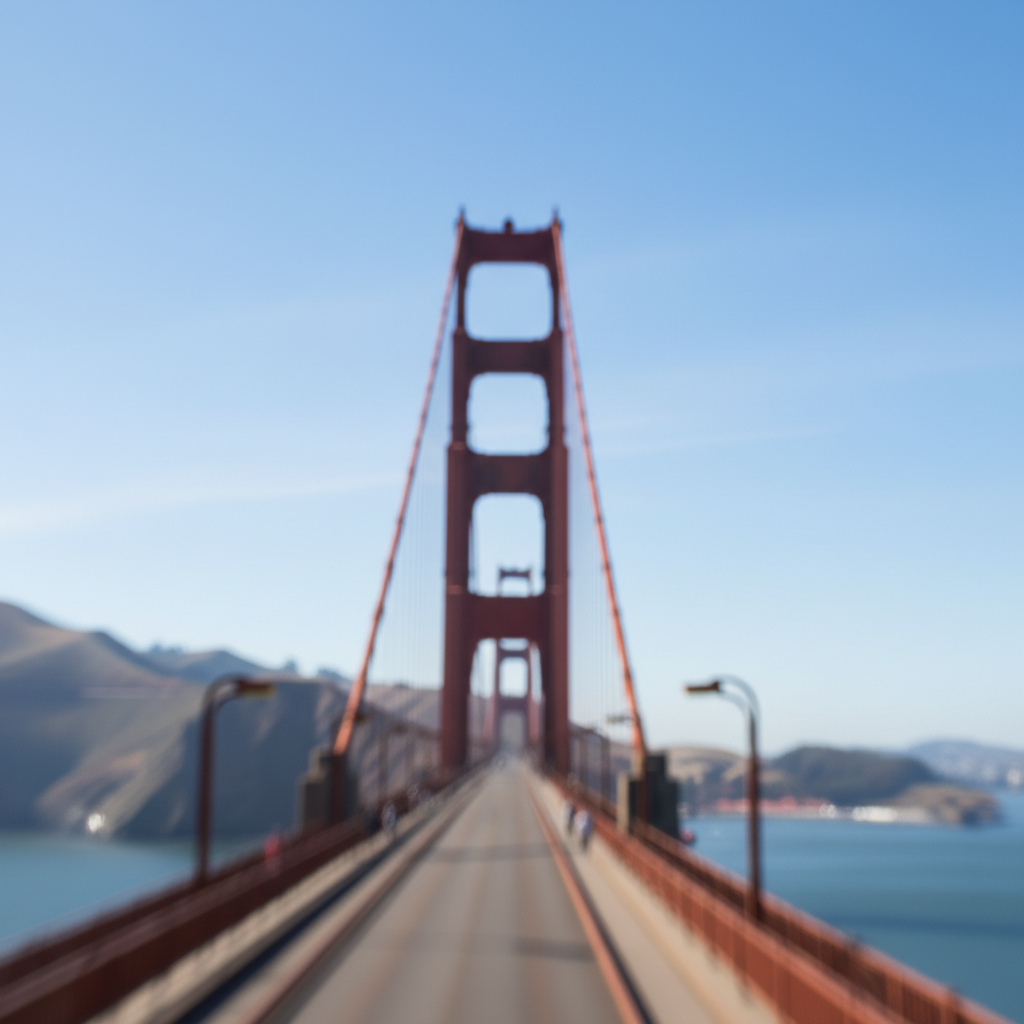
Sharp clear photo of Golden Gate Bridge with defined cables and tower
After

Vacation photo recovered from motion blur

A quick snapshot at a famous landmark was ruined by motion blur. The AI removed the shake and revealed the sharp scene underneath.

Prompt: remove the motion blur and sharpen everything so it looks crisp
Advertisement

If something looks off

Photo still looks soft after fixing

Why: Severe blur from extreme camera shake or completely missed focus may have destroyed too much detail for the AI to reconstruct.

Try: enhance and sharpen this photo as much as possible, restore all visible details

Tip: Try multiple passes: fix once, then run again on the result for cumulative improvement.

Sharpening created harsh edges or halos

Why: Over-sharpening can introduce artifacts around high-contrast edges. This happens when the AI applies too much enhancement.

Try: fix the blur naturally without harsh edges, keep it looking realistic

Tip: Adding 'naturally' or 'subtly' to your prompt prevents over-processing.

Background became too sharp and distracting

Why: The AI sharpened everything including areas that should stay soft, like portrait bokeh.

Try: sharpen only the subject in focus, keep the background soft and blurry

Tip: For portraits, specify 'sharpen the face' to target only the subject.

AI changed the wrong area or something I didn't want changed

Why: The AI couldn't determine exactly which area you meant from description alone. This happens with ambiguous requests.

Try: Tap a marker on the specific area you want to sharpen, then regenerate with the same prompt

Tip: Markers tell the AI 'I mean THIS area specifically.' Use them when description alone is ambiguous.

Noise or grain appeared after sharpening

Why: Sharpening can amplify existing image noise, especially in photos taken at high ISO.

Try: fix the blur and reduce noise to make it clean and sharp

Tip: Combining blur fix with noise reduction often produces cleaner results.

Text is still unreadable after fixing

Why: If the original blur was too severe, the AI cannot reconstruct letters that were completely lost.

Try: enhance and sharpen the text as much as possible to make it readable

Tip: Works best on slightly blurry text. Severely blurred text may need multiple enhancement passes.

Quick answers

Do I need to mark the blurry areas before describing?

No! Just describe what you want: 'fix the blur and make this photo sharp.' The AI analyzes your entire image and automatically identifies what needs sharpening. Only use markers if you want to sharpen specific areas while leaving others soft—like sharpening a face but keeping background bokeh.

How do I fix a blurry photo for free without signing up?

Upload your blurry photo to EditThisPic, type 'fix the blur and make this sharp,' and download the result. No account needed, no watermarks added. You get one free edit per week, which is enough to test whether it can save your photo.

Can AI really fix a blurry photo?

Yes, for mild to moderate blur. AI can reconstruct lost details by understanding what faces, text, and objects should look like. It works well on camera shake, slight motion blur, and soft focus. Extremely blurry photos where details are completely gone may not fully recover, but the AI can still improve them significantly.

What's the best free AI tool for fixing blurry photos?

EditThisPic is a strong option because you just describe the fix you want without learning complex tools. Unlike Photoshop's sharpening filters that add edge contrast, AI actually reconstructs missing detail. Try it free—upload your blurry photo and type what you want fixed.

Will fixing the blur make my photo look unnatural?

Not if you use natural phrasing. The AI is trained to enhance realistically. If you notice harsh edges or artificial-looking results, add 'naturally' to your prompt. The goal is to restore what the camera should have captured, not over-process the image.

Ready to fix your blurry photo?

Free to try. No signup required.

Try it free