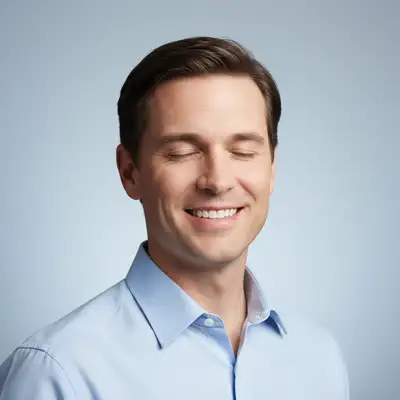
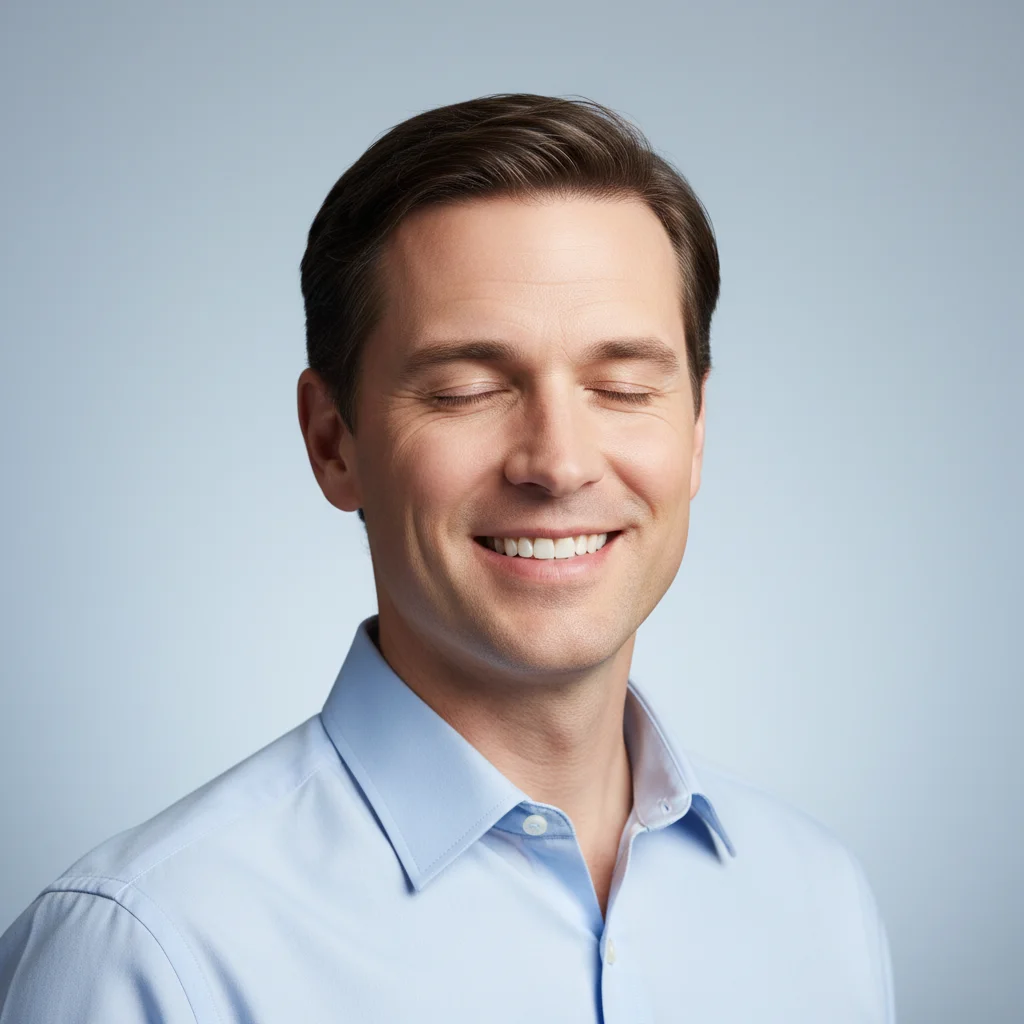
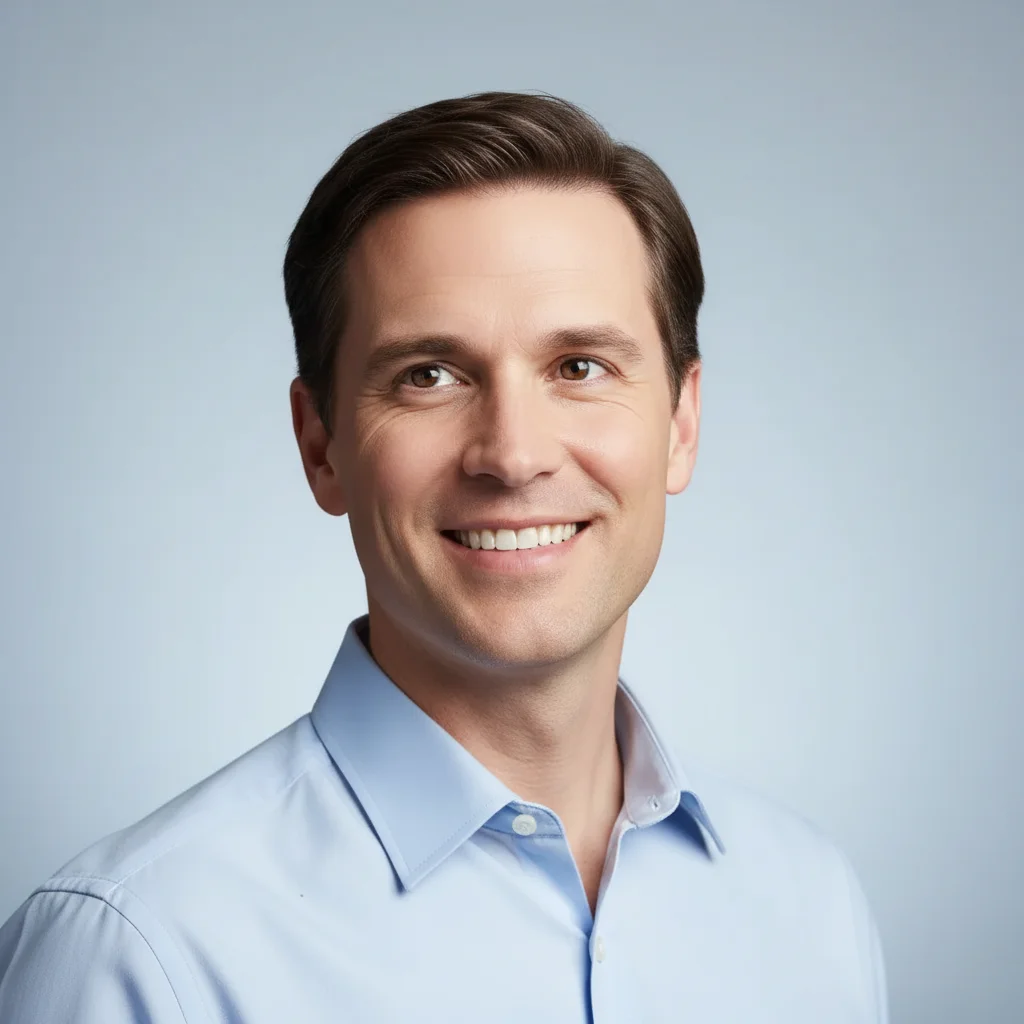
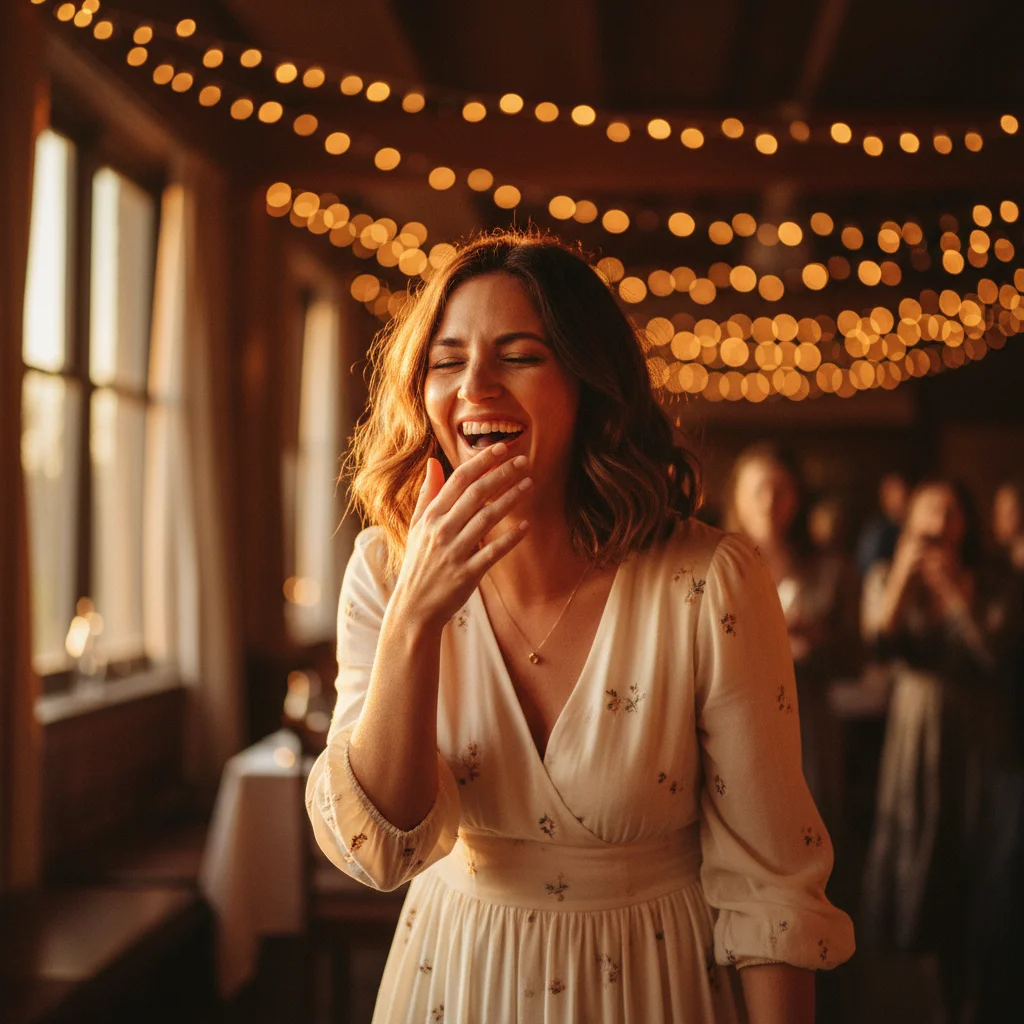
Do I need to mark my eyes before asking to open them?
No. Just type 'open the closed eyes' or 'make eyes open' and the AI finds and opens them automatically.
Will the opened eyes look realistic and natural?
Yes, when done well. The AI reconstructs eye shape, color, gaze direction, and lighting to match your face and the photo's context. Results work best on clear, well-lit headshots. For challenging angles or low-light photos, you may need refinement or Pro mode for better realism.
Can this work on photos where multiple people have eyes closed?
Yes. Processing each person separately usually gives better results in group shots.
What if my eyes were only half-closed or squinting, not fully shut?
The AI can still help. Try 'fully open the eyes and fix squint' or 'open eyes wider and more naturally.' This works for mid-blink shots, half-closed eyes, or uncomfortable squinting from bright sun.
Will this work for professional headshots for LinkedIn or resumes?
Yes. Use 'open eyes with professional, confident gaze looking at camera' to get a business-appropriate result. The key is ensuring eyes look natural, alert, and engaged—perfect for professional contexts where you need to look your best.
Is EditThisPic's AI closed eyes photo fixer really free?
Yes — you get 1 free edit per week, no account needed. Credit packs start at $4.99 for 10 edits.
Can I fix closed eyes photo on my phone?
Yes. EditThisPic works in any mobile browser — iPhone, Android, tablet. No app download needed.
What photo formats does the AI closed eyes photo fixer support?
JPG, PNG, WebP, and HEIC. Upload any common photo format and EditThisPic handles the rest.
How much does EditThisPic cost?
You get 1 free edit per week — no account needed. After that, one-time credit packs start at $4.99 for 10 edits, valid 12 months, no subscription. Power users who edit daily can pick Studio Membership, a monthly workspace at $49.99/mo for 300 edits. Purchased downloads are clean with no watermark.