Extend Image from Photo
Type 'extend this image to the right' and watch AI generate what should be there.

Just type what you need: 'extend this image to the right' or 'expand the image upward.' The AI analyzes your photo's edges and generates matching content in 20-40 seconds. Perfect for fitting social media aspect ratios, recovering cropped compositions, or adding breathing room. No selection tools needed—just describe which direction to extend. Free, no signup required.
How it works
Upload your photo
Drop your image into EditThisPic. JPG, PNG, and WebP up to 7MB work best. Photos with clear, consistent edges give the AI better context for what to generate beyond the frame.
Describe the extension you want
Type your instruction: 'extend this image to the right' or 'expand the image upward by about 30%.' Be clear about direction and amount. The AI reads your edges and generates content that matches seamlessly. No marking needed—just describe where you want more image.
Copy one of these to get started:
extend this image to the left and right equally to create a 16:9 landscape crop, keeping the background natural and consistent
expand the image upward to add more sky and headroom, matching the existing clouds and lighting
extend this image upward and downward to convert from square to 9:16 vertical format, continuing the scene naturally
extend the image downward to show more of the table surface and add breathing room below the product
3 more prompts
expand this landscape image upward significantly to fit a vertical print format, extending the sky with matching clouds and atmosphere
extend to the right to reveal more of the ocean and coastline, continuing the waves and water naturally
extend the left side to recover the person who was cropped, matching the existing lighting and background
Generate and review
Tap generate and examine where the original meets the extension. Check that textures continue naturally, lighting stays consistent, and no obvious seams appear. Zoom to 100% to verify the blend.
Refine or extend further if needed
If the extension doesn't match well, try being more specific about what should appear. You can also extend multiple times in different directions to build out your canvas progressively.
"Shot a portrait too tight. Typed 'extend left and right for landscape crop' and got exactly the extra room I needed for the magazine spread." @StudioLensPro
See it in action
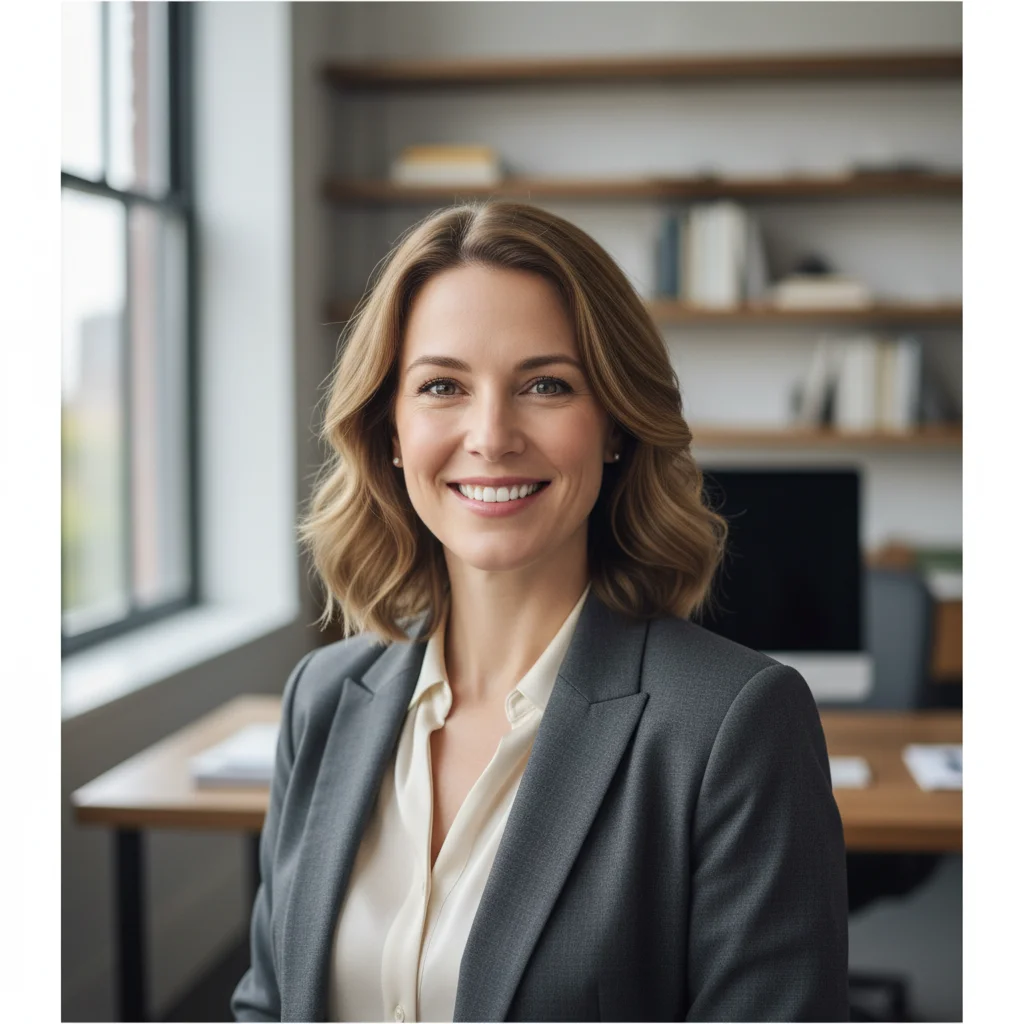
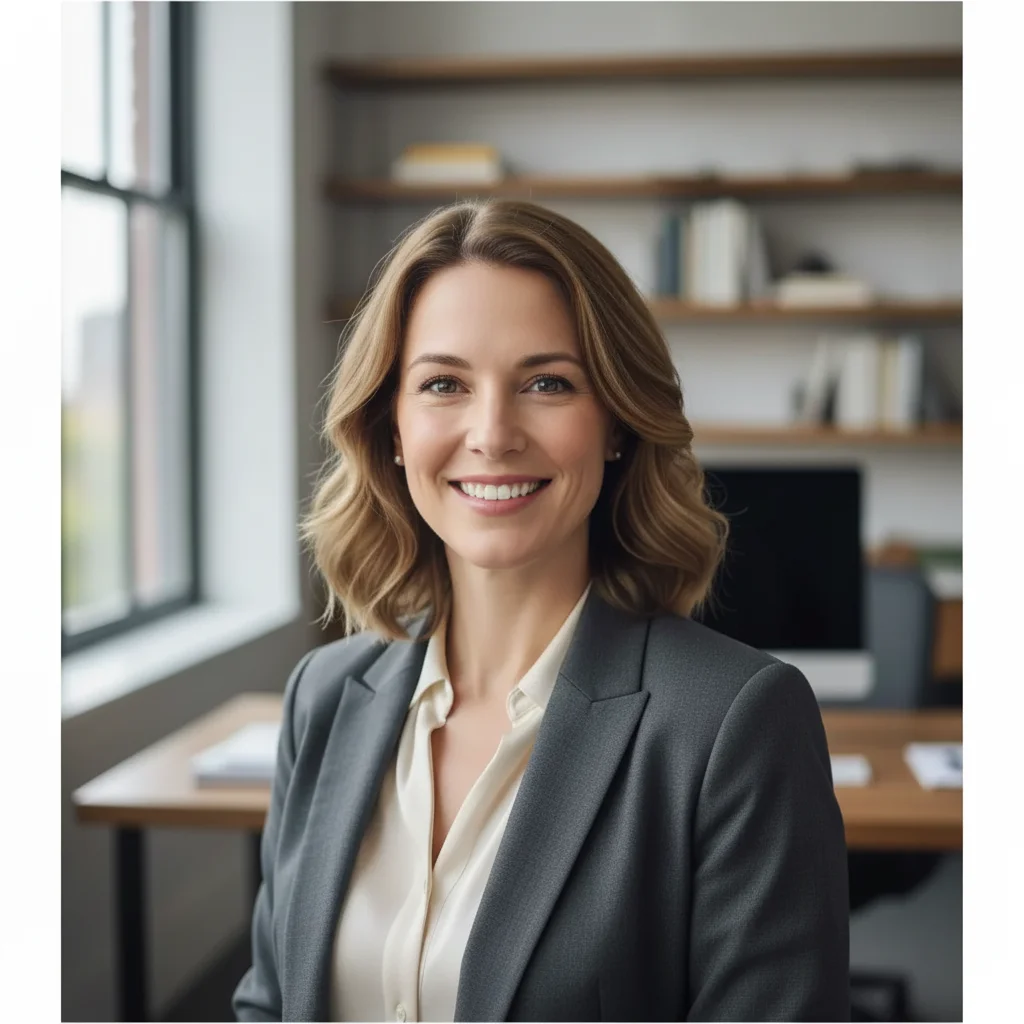
Portrait to landscape for social cover
Vertical headshot needed to become a LinkedIn banner. Extended both sides to create proper 16:9 ratio while keeping subject centered.
extend this image to the left and right equally to create a 16:9 landscape format, continuing the neutral office background naturally
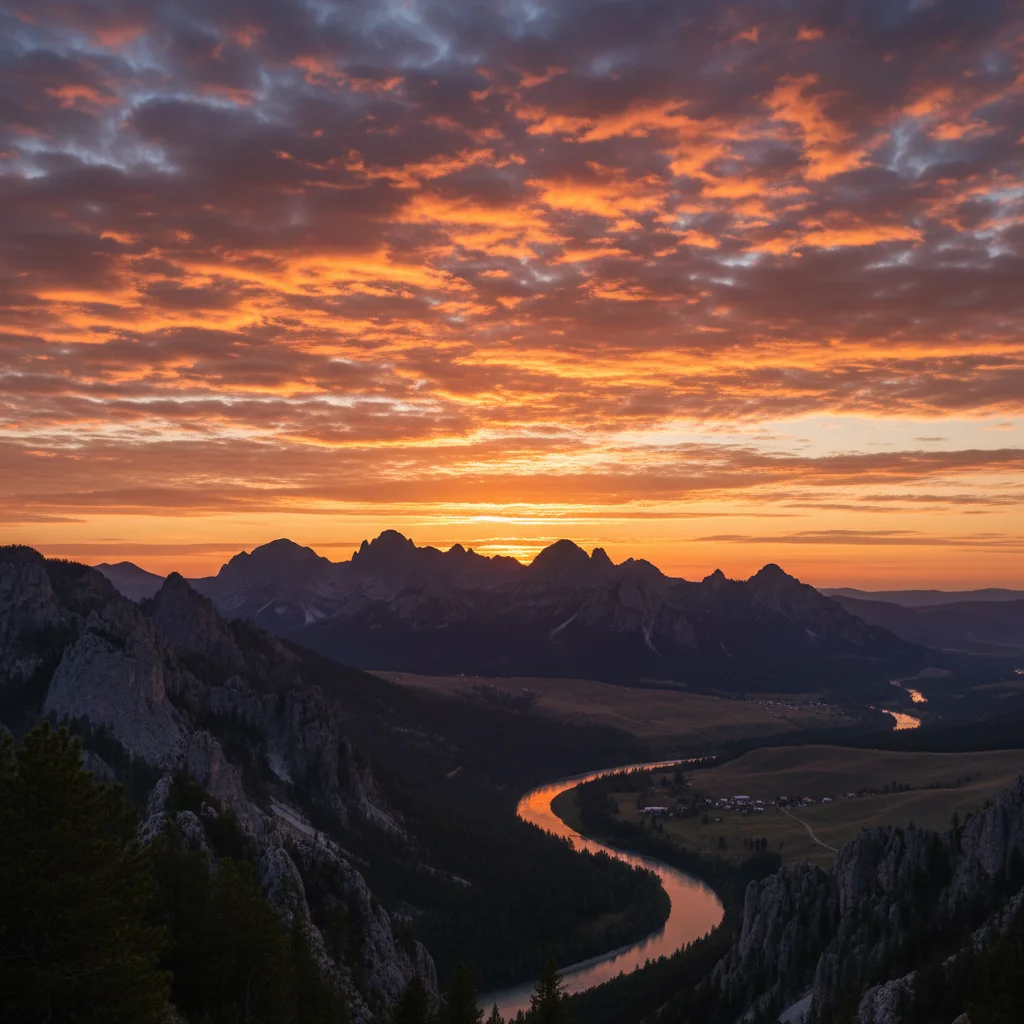
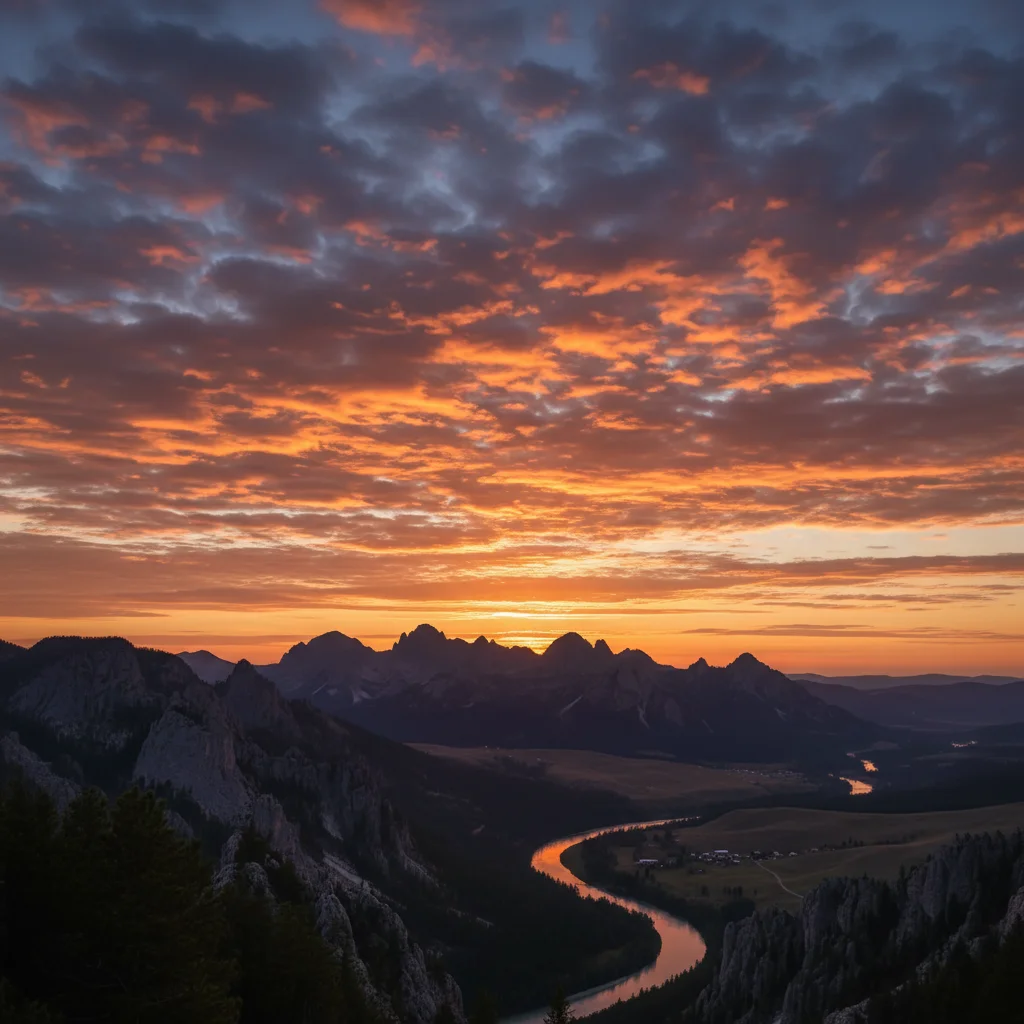
Adding sky for dramatic composition
Mountain landscape was cropped too low. Extended upward to add dramatic sky and improve the composition balance.
expand the image upward significantly to add more sky, matching the existing sunset colors and cloud formations
Square to vertical for Stories
Instagram post needed to become a Story. Extended up and down to convert from 1:1 to 9:16 while keeping the coffee shop scene natural.
extend this image upward and downward to convert from square to 9:16 vertical format, continuing the coffee shop interior naturally with matching warm lighting
If something looks off
AI changed the wrong area or generated in the wrong direction
Why: The AI misinterpreted which direction you meant, or 'extend' was ambiguous in context. This happens when the instruction isn't explicit about direction.
Tap a marker on the edge where you want extension, then regenerate with 'extend outward from this edge'
💡 Markers tell the AI 'I mean THIS edge specifically.' Use them when direction words alone are ambiguous.
Visible seam or line where original meets extension
Why: The AI generated content that doesn't perfectly match the lighting or texture at the edge. This is more common with complex textures or strong directional light.
extend this image to the [direction] with seamless blending, matching exact colors and lighting at the edge
💡 If seams persist, try extending less distance at a time. Smaller extensions blend more naturally.
Extended area has different lighting or color cast
Why: The AI analyzed the overall image but didn't match the specific edge conditions. Photos with gradients or changing light are harder to extend.
extend to the [direction] matching the exact color temperature and lighting intensity at the edge precisely
💡 Photos with even, flat lighting extend most successfully. Strong shadows or gradients are challenging.
Repeating patterns look wrong in the extension
Why: Patterns like bricks, tiles, or fabric require precise alignment. The AI generates plausible texture but may not align the grid perfectly.
extend to the [direction] carefully continuing the exact pattern alignment and spacing of the [bricks/tiles/pattern]
💡 For pattern-heavy images, extend in smaller increments and check alignment at each step.
Extension shows unrealistic or impossible content
Why: The AI inferred what might be beyond the frame but guessed wrong. This happens when edges don't give enough context.
extend to the [direction] showing [specific content you want], keeping it realistic and matching the scene
💡 Be explicit about what should appear. 'More beach' is better than letting the AI guess.
Quick answers
Do I need to mark the edges before describing the extension?
No! Just describe the direction: 'extend to the right' or 'expand upward.' The AI understands directional instructions without marking. Only use markers if the AI extends the wrong edge, which rarely happens when you're clear about direction.
How much can I extend an image in one go?
You can typically double an image's size in one direction, but results are better with moderate extensions (20-50%). For major expansions, extend in stages: add 30% to the right, review, then add more. This gives the AI better context at each step and produces more natural results.
Can I extend in multiple directions at once?
Yes, absolutely. Type 'extend left and right equally' or 'expand in all four directions to add a border.' The AI handles multi-directional extensions well, especially for symmetric expansions. For complex scenes, you might get better results extending one direction at a time.
Will the extended area match my image quality?
The AI generates content at your original image's resolution. High-resolution source images produce high-resolution extensions. If your original is 4000px wide and you extend right, the new pixels match that quality. Low-resolution sources will produce matching low-resolution extensions.
What if I need a specific final aspect ratio like 16:9?
Mention the target ratio directly: 'extend to create a 16:9 landscape aspect ratio' or 'expand to fit 9:16 vertical format.' The AI understands common aspect ratios and calculates how much extension each direction needs. You can also say 'extend right by about 30%' for proportional control.
Ready to extend your image?
Free to try. No signup required.