Do I need to mark around the subject?
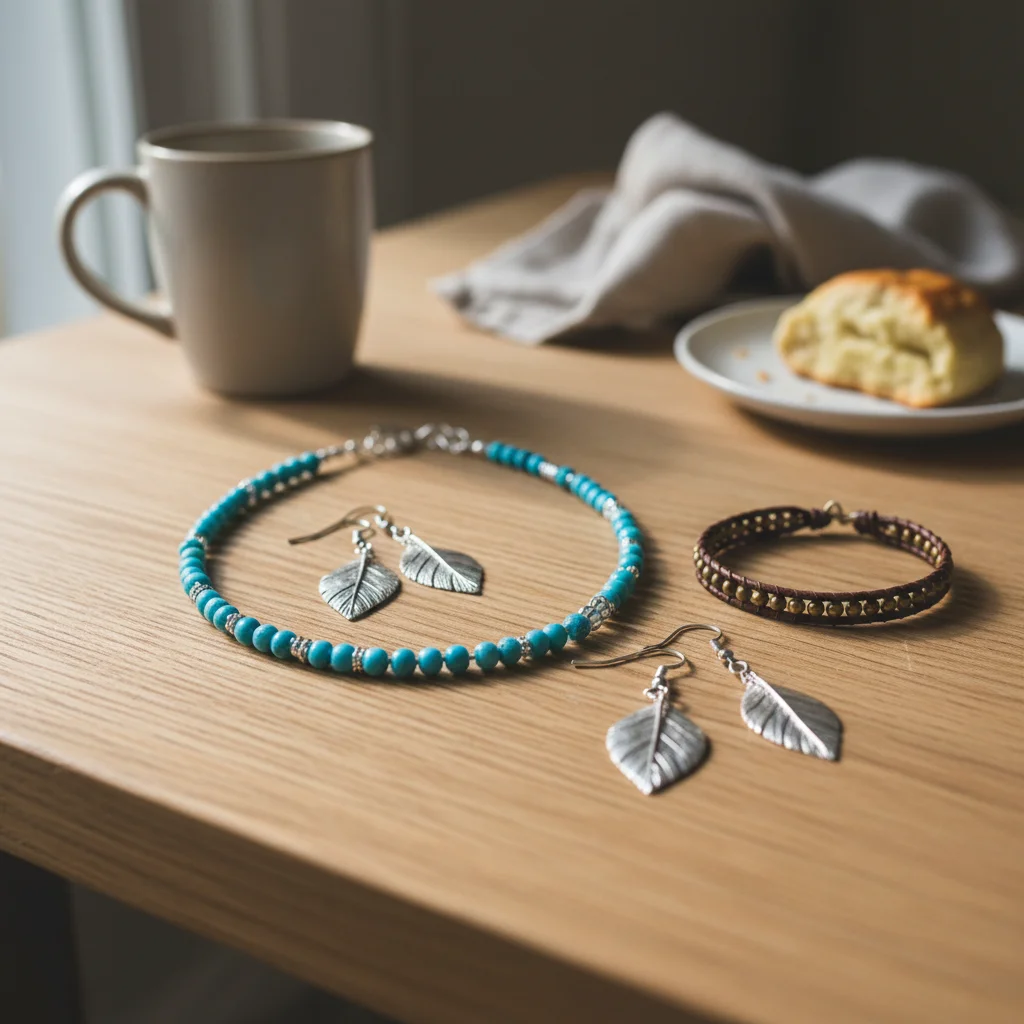
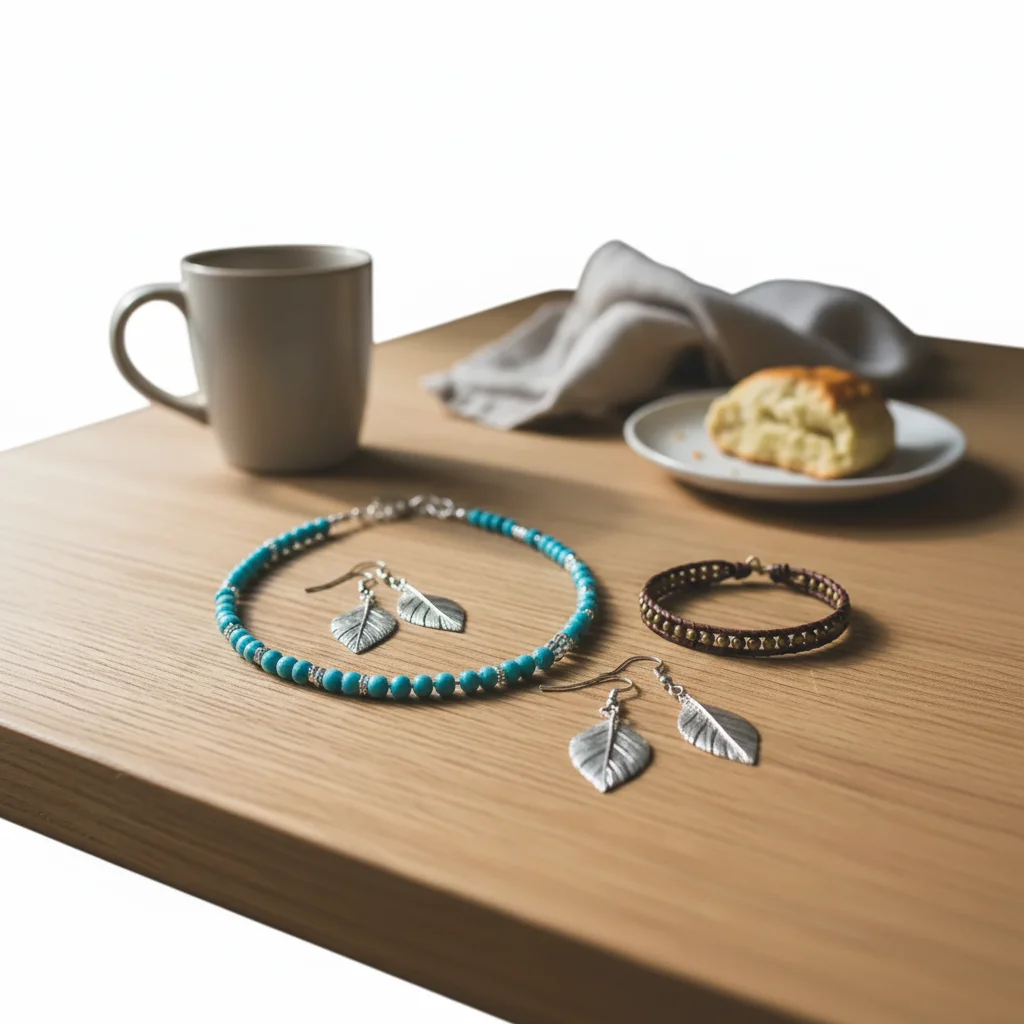
No. Just describe what you want: 'replace background with white' or 'make background transparent.' The AI automatically detects the subject and separates it from the background. Marking is only needed for edge cases where the AI gets confused.
How do I remove the background from a photo for free?
Upload your photo to EditThisPic and type 'replace background with white' or 'make background transparent.' The AI removes the background automatically in 15-30 seconds. No account or login required. Works on any device with a web browser.
Can I get a transparent PNG?
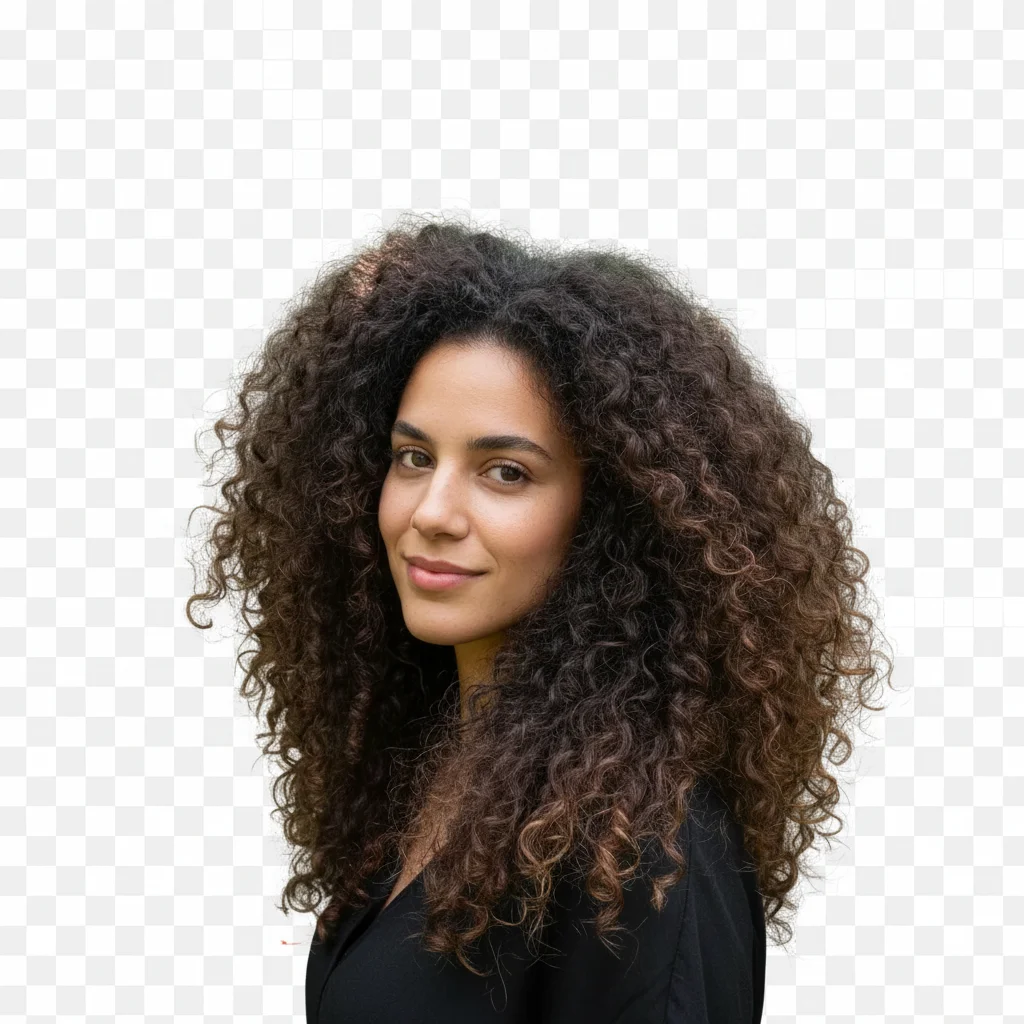
Yes. Type 'replace background with transparency' or 'make background transparent, preserving clean edges.' The result downloads as PNG with the alpha channel preserved, ready to use in Canva, Figma, Photoshop, or any design tool.
How do I get a white background?
Type 'replace background with pure white studio backdrop' or 'replace background with clean white, shadow-free.' For Amazon-compliant product photos, add 'pure white #FFFFFF' to ensure it meets marketplace requirements.
Will it work on hair and complex edges?
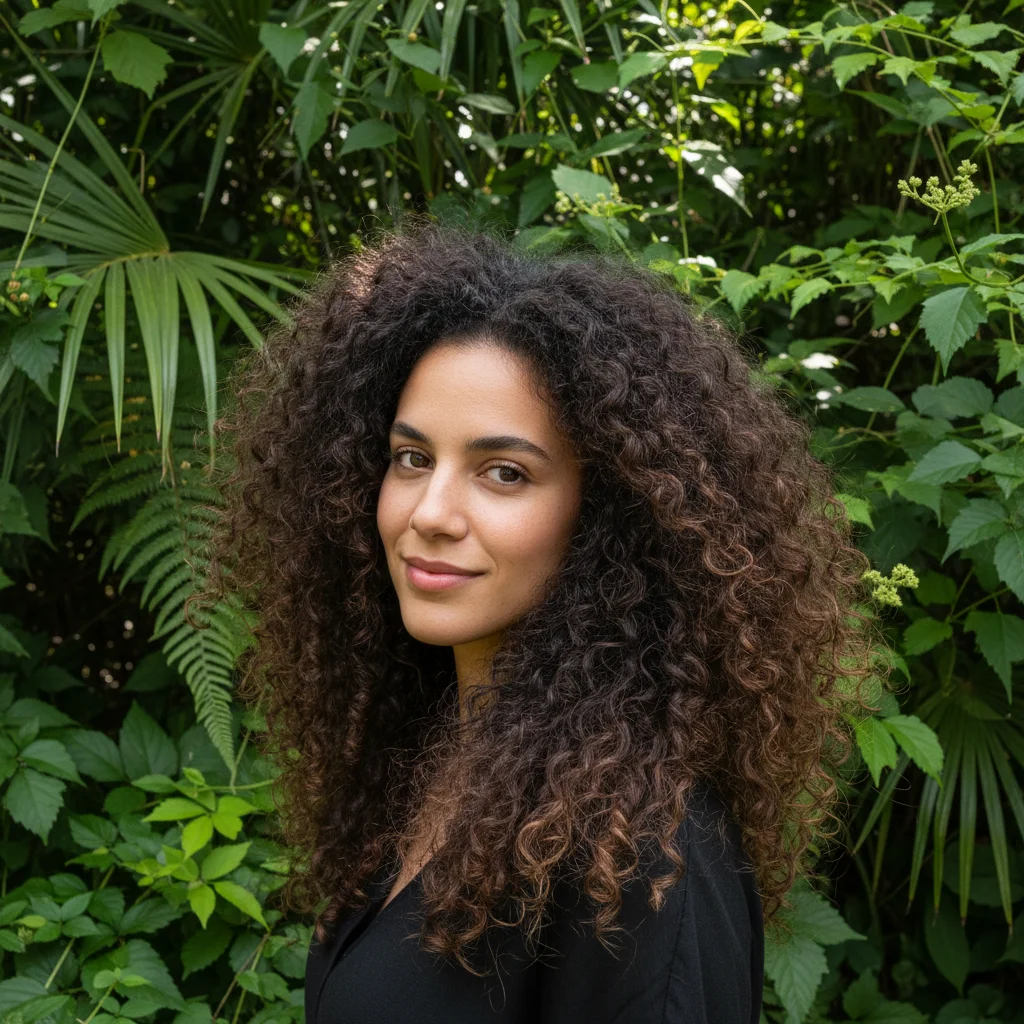
Yes, but complex hair is the hardest case. Add 'preserving all hair strands and flyaway details with no color fringing' to your prompt. Curly hair, flyaways, and fur all work - they just may need refinement. Always zoom to 100% to check edge quality.
Is this good enough for Amazon product photos?
Yes. EditThisPic can produce Amazon-compliant white backgrounds. Use 'replace background with pure white seamless studio backdrop' and verify the result is truly white by checking in an image editor. Amazon requires pure white (#FFFFFF) for main product images.
Can I add a new background after removing?
Yes. Either describe the new background directly ('replace background with beach scene') or get a transparent PNG first, then composite in your design tool. EditThisPic can put any background you describe - solid colors, gradients, blurs, or scenes.
What file formats are supported?
Upload JPG, PNG, or WebP up to 7MB. Results download as PNG (to preserve transparency if requested) or JPG. Higher resolution photos give better edge quality, especially around hair and fine details.
Is the quality good enough for printing?
Yes, if your source photo is high enough resolution. EditThisPic doesn't reduce resolution - if you upload a 4000x3000 image, you get a 4000x3000 result. Edge quality depends on the source photo and complexity of the cutout.
How is this different from remove.bg?
EditThisPic uses the same AI technology but lets you describe exactly what you want in one step. Instead of remove background, then add background, you just say 'replace background with gray gradient' and it's done. Free to preview, with clean paid downloads.
Can I remove background from multiple photos?
Yes, but one at a time currently. Each photo takes 15-30 seconds. Many users process batches of product photos this way. You get one free edit per week; for volume work, credit packs start at $4.99 for 10 edits.
Does it work on passport/ID photos?
Yes, but check your country's specific requirements. Many require white or light gray backgrounds. Type 'replace background with pure white, suitable for passport photo' and verify the result meets your country's specifications before submission.
What is the best free tool to remove backgrounds from photos?
EditThisPic is a free AI background remover that works in your browser with no account or watermark. Type 'replace background with white' or 'make background transparent' and get results in 15 seconds. Unlike remove.bg, you can describe any replacement background in one step.
How do I remove the background from a photo without Photoshop?
Use EditThisPic instead of Photoshop's pen tool or magic wand. Upload your photo and type 'replace background with white' or 'make background transparent.' The AI handles the entire cutout automatically, including complex edges like hair and fur. No software to install.
Can I cut out a person from a photo and make the background transparent?
Yes. Upload the photo to EditThisPic and type 'replace background with transparency, preserving clean crisp edges.' The AI separates the person from the background and gives you a PNG with transparent background. Works on hair, clothing, and fine details.
How much does EditThisPic cost?
You get 1 free edit per week — no account needed. After that, one-time credit packs start at $4.99 for 10 edits, valid 12 months, no subscription. Power users who edit daily can pick Studio Membership, a monthly workspace at $49.99/mo for 300 edits. Purchased downloads are clean with no watermark.