Remove Clutter from Photo
Clean up messy backgrounds by removing distracting objects and visual noise.

Type 'remove the clutter on the desk and show a clean surface' or 'clean up the background by removing the random objects' and EditThisPic's AI declutters your photo in 20-40 seconds. Perfect for real estate staging, product photography, and cleaner social media posts. AI fills empty space naturally. Free to try, no account needed.
How it works
Upload your photo
Drop your image into EditThisPic. JPG, PNG, WebP up to 7MB. Works on rooms, desks, countertops, and any cluttered scene you want to clean up.
Describe what clutter to remove
Type your instruction: 'remove the clutter on the desk and show clean surface' or 'clean up the background by removing the scattered items.' Be specific about which items to remove if you want to keep some. No marking needed for general decluttering.
Copy one of these to get started:
remove the clutter on the desk and show a clean organized surface
remove the personal items and clutter from the room, show a staged clean space
clear the kitchen counter of clutter and show clean countertop
remove all clutter from the desk except the laptop and plant, clean surface elsewhere
3 more prompts
clean up the cluttered background behind me, remove distracting objects
remove the items scattered on the floor and show clean flooring
remove all background clutter and create a clean minimalist setting for the product
Review the result
Check that unwanted items are gone and the surface looks naturally empty. Verify that items you wanted to keep are still there and the fill blends with surrounding areas.
Refine with markers if needed
If some clutter remains or the AI removed something you wanted to keep, tap markers on specific items for a targeted follow-up edit. Sometimes complex scenes need multiple passes.
"Turned my messy home office into a Pinterest-worthy workspace photo. The AI removed everything I asked and made it look naturally clean." @home_office_goals
See it in action
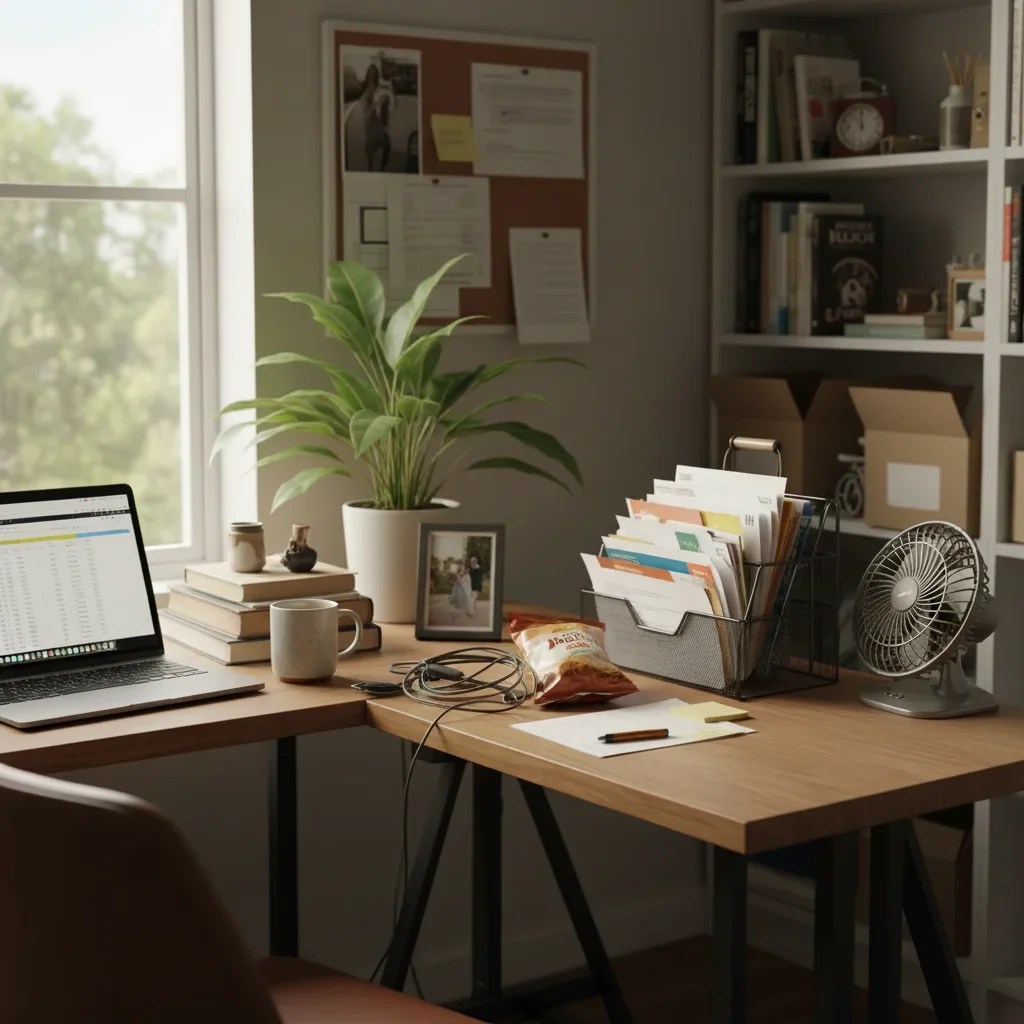
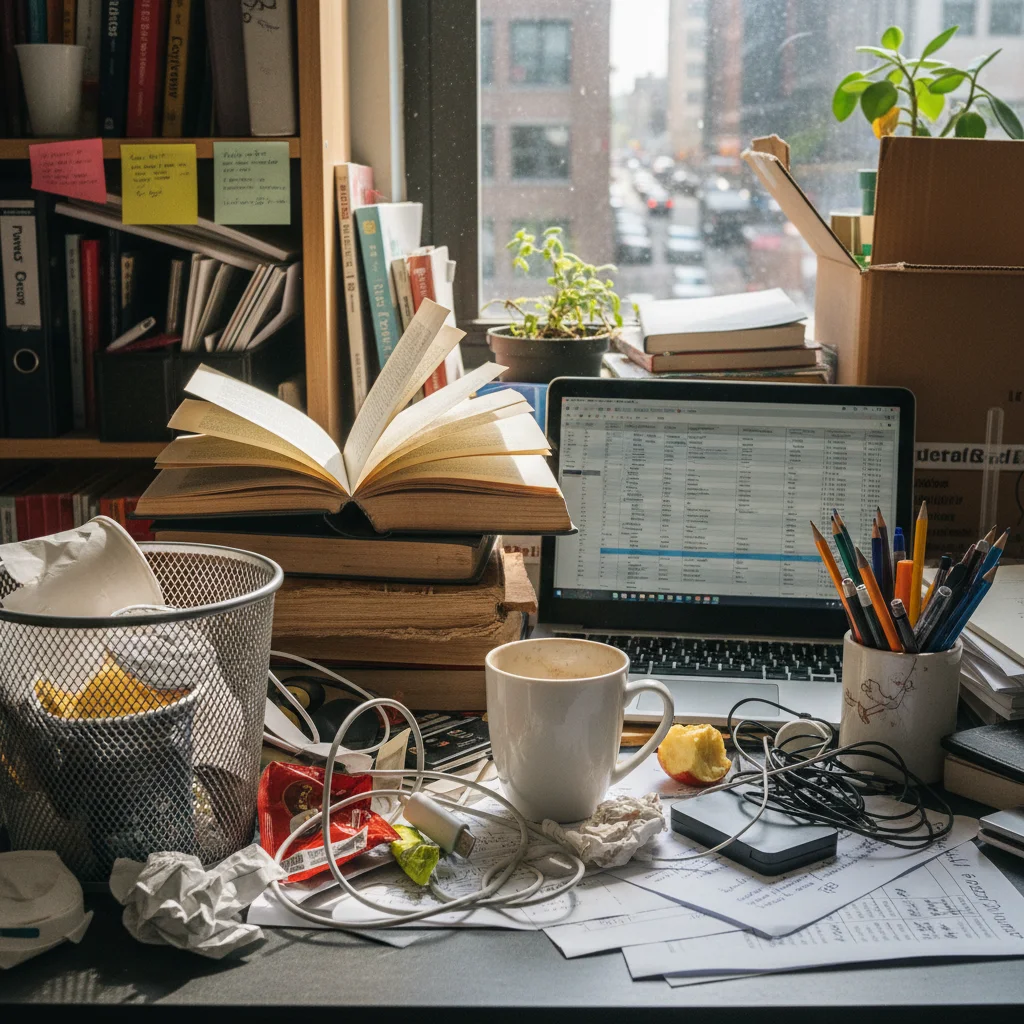
Home office desk decluttered
Messy work desk cleaned up for a professional social media post. Papers, cables, and random items removed.
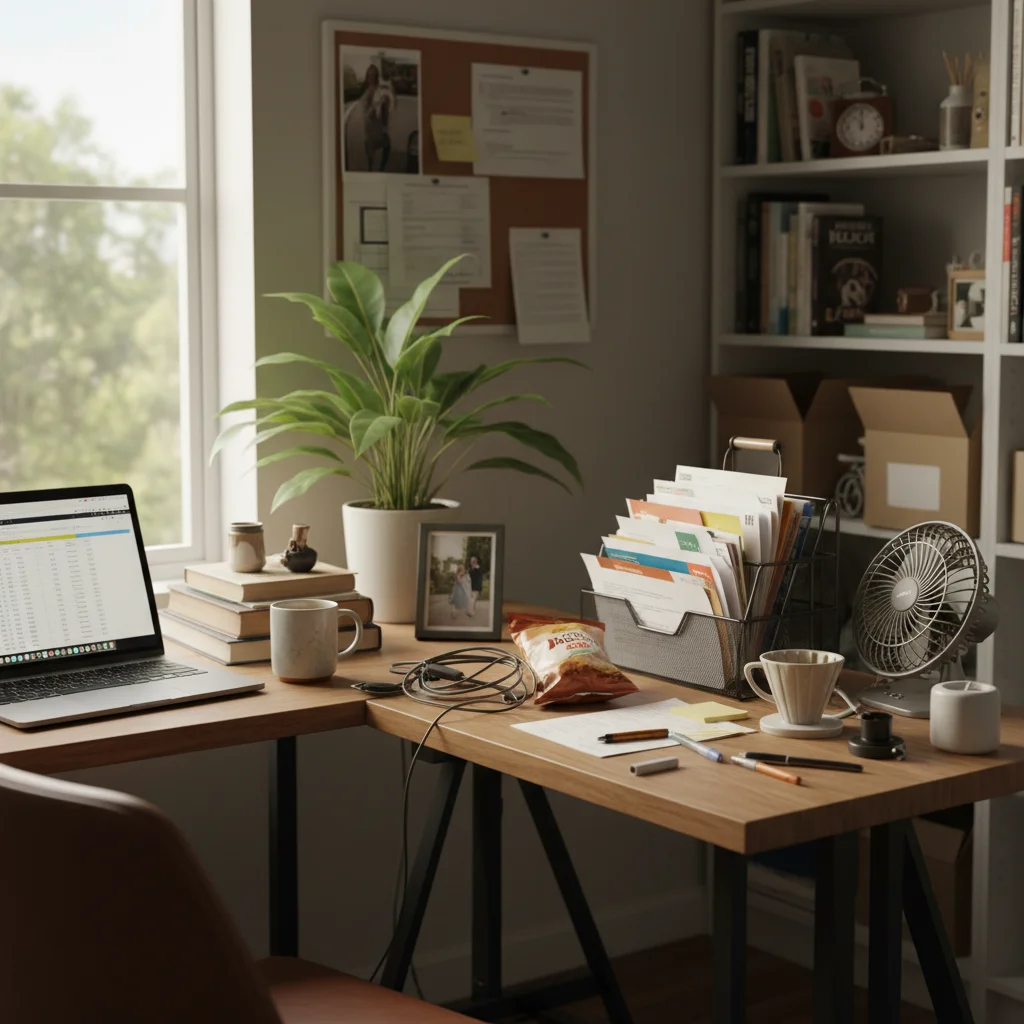
remove the clutter on the desk and show a clean organized surface
Kitchen ready for listing
Busy kitchen counter cleared for real estate photos. Personal items and appliances removed for that staged look.
clear the kitchen counter of clutter and show clean countertop
Living room floor cleared
Kids' toys and scattered items removed from the living room floor for a cleaner family photo backdrop.
remove the items scattered on the floor and show clean flooring
If something looks off
AI removed something I wanted to keep
Why: The AI interpreted 'clutter' to include items you considered important or decorative.
Undo and specify: 'remove clutter but keep the plant and lamp'
💡 Explicitly list items to keep in your prompt to prevent accidental removal.
Some clutter still visible
Why: The AI didn't recognize all items as clutter, especially small or partially hidden objects.
Tap markers on remaining items and say 'remove these remaining objects'
💡 Multiple passes work well for heavily cluttered scenes.
Fill doesn't match the surface texture
Why: The AI-generated surface is slightly different from the original desk, counter, or floor.
blend the cleared areas to match the surrounding surface texture and color
💡 Describing the surface helps: 'show clean white desk' or 'match the wood grain pattern'.
AI couldn't tell what was clutter vs important
Why: Clutter is subjective. The AI had to guess what you considered unwanted.
Tap markers on specific items you want removed, then regenerate
💡 Markers give you precise control over exactly which items to remove.
Large cluttered area looks patchy after removal
Why: Removing many items at once required the AI to generate a lot of new surface area.
smooth out the cleared area and create uniform surface appearance
💡 For heavy decluttering, try removing items in stages for cleaner results.
Quick answers
Do I need to mark the clutter before describing?
No! Just describe what you want: 'remove the clutter from the desk' or 'clean up the background.' The AI understands general decluttering requests. Use markers when you want to remove specific items while keeping others nearby, or when the AI misses something on the first try.
How does AI know what counts as clutter?
The AI looks for smaller, scattered items that appear out of place. For more control, be specific: 'remove the papers and cables' or 'keep the laptop, remove everything else.' You can always use markers to target exact items.
Can I remove clutter but keep certain things?
Absolutely! Add exceptions to your prompt: 'remove desk clutter but keep the computer and plant.' Or use markers to tap only the specific items you want removed while leaving others untouched.
Does it work for real estate photo staging?
Yes, it's perfect for virtual staging. Use prompts like 'remove personal items and clutter for real estate listing' to create that minimalist, staged look buyers expect.
What if there's a lot of clutter?
Heavily cluttered scenes may need 2-3 passes. Start with the largest or most obvious items, then refine. The AI handles complex decluttering but may need guidance for perfect results.
Ready to declutter your photos?
Free to try. No signup required.