Free โ€ข No signup Remove Braces ยท Free

AI Braces Remover

Just describe what you want and AI handles the braces editing.
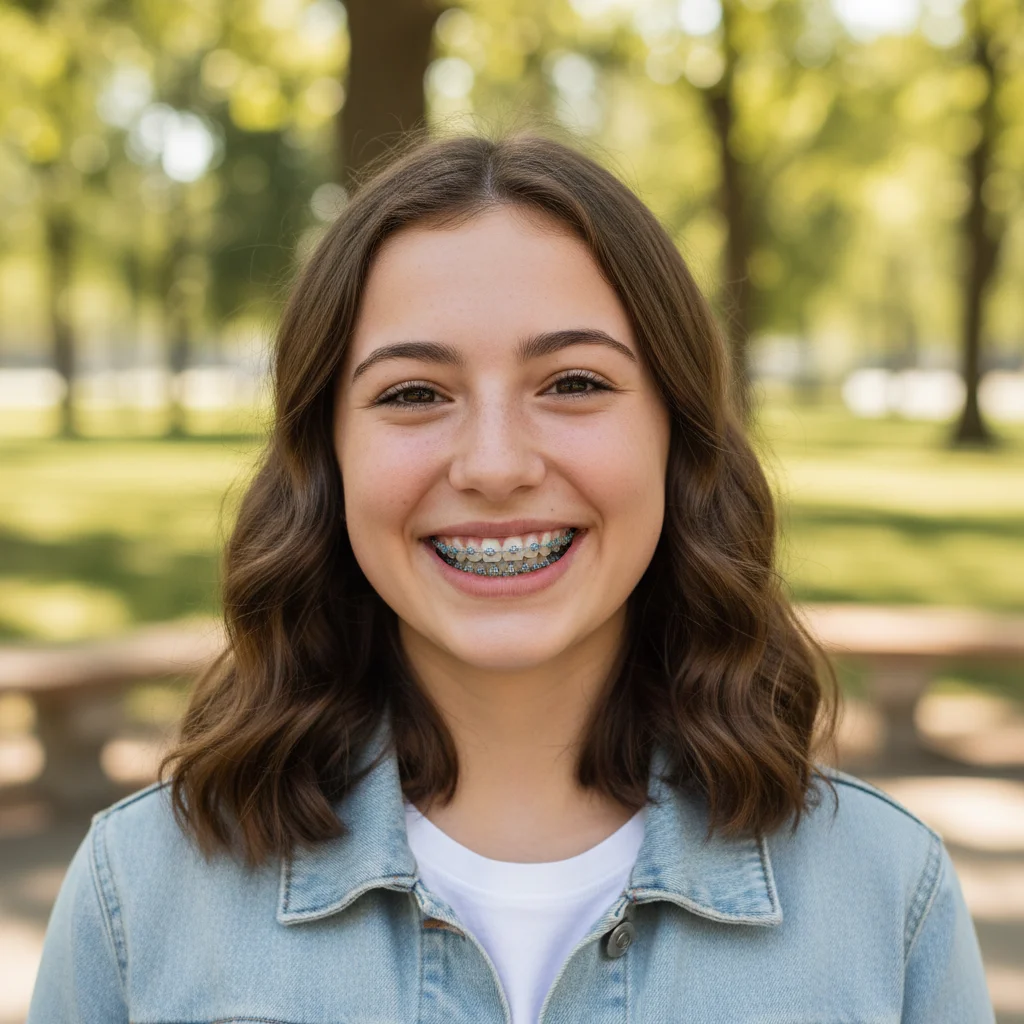
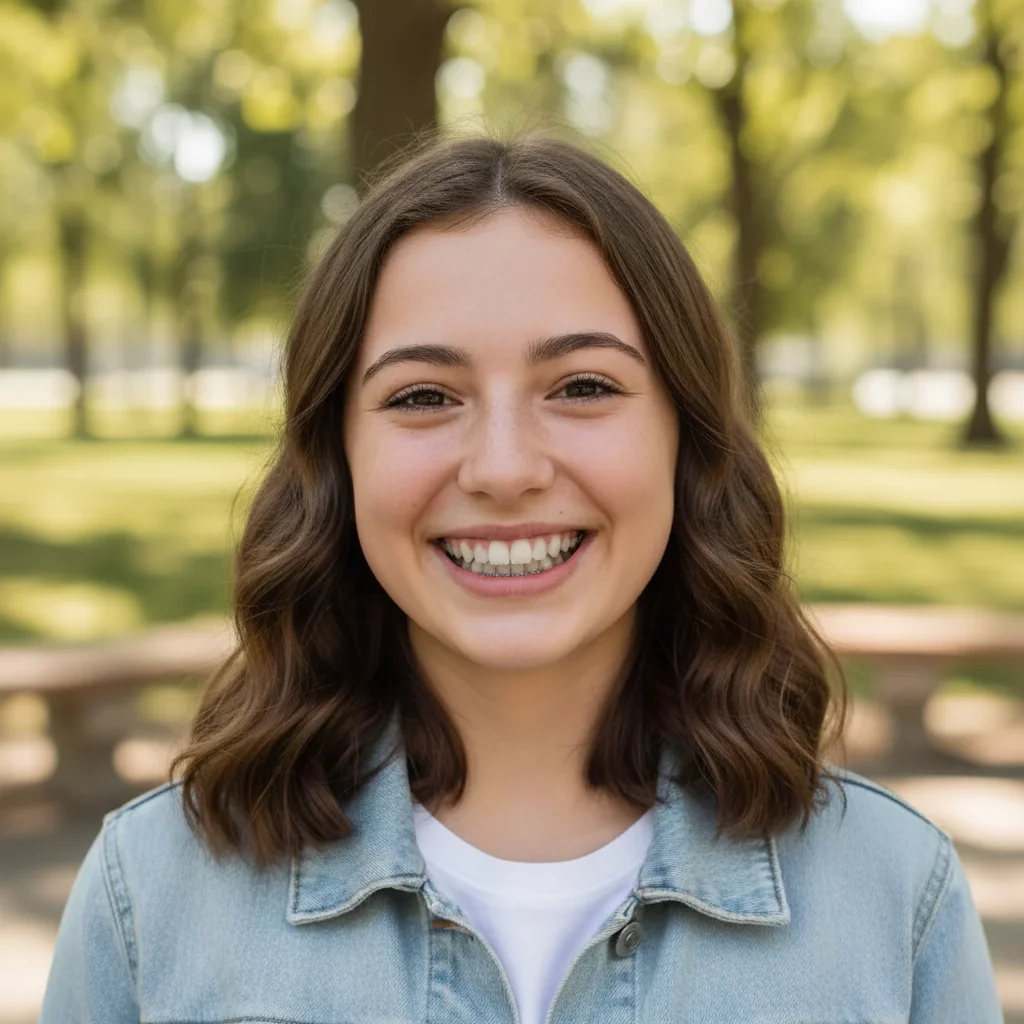
Before ai-braces-remover edit
Before
โ†’
After ai-braces-remover edit
After

AI Braces Remover

Drop your photo here

or click to browse

Release to upload

Free โ€ข No signup

Advertisement
Popular use cases:
  • social media photos
  • professional headshots
  • product photography
  • personal photos

Cost
Free No signup required
Time
Instant results in 15-30 seconds
Works on
Any device - browser, phone, tablet, desktop
Powered by
AI-powered photo editing
Scenario Prompt Time
Remove metal braces Remove all metal braces including brackets, wires, and bands to reveal natural teeth beneath 15s
Remove upper braces only Remove the upper braces completely while leaving the natural lower teeth unchanged 15s
Remove braces with colored bands Remove all braces including colored rubber bands to show natural teeth color and shape 20s
Remove clear ceramic braces Remove ceramic braces and wires to reveal the natural teeth underneath 20s

How it works

  1. Upload Your Photo

    Choose a photo where your braces are clearly visible, preferably with your mouth open in a smile. Front-facing photos with good lighting produce the most realistic braces-free results.

    Expect: Your photo loads instantly in the editor at full resolution. You'll see the original image with braces, ready for removal without any quality loss.
  2. Mark the Braces

    Use the brush tool to carefully paint over all visible braces including metal brackets, wires, and bands. Mark both upper and lower braces if you have both. The AI will reconstruct your natural teeth beneath the orthodontic hardware.

    Copy one of these to get started:

    Remove metal braces Remove all metal braces including brackets, wires, and bands to reveal natural teeth beneath
    Remove upper braces only Remove the upper braces completely while leaving the natural lower teeth unchanged
    Remove braces with colored bands Remove all braces including colored rubber bands to show natural teeth color and shape
    Remove clear ceramic braces Remove ceramic braces and wires to reveal the natural teeth underneath
    3 more prompts
    Remove braces from wide smile Remove all visible braces from the wide smile to show natural tooth alignment
    Remove braces from closed smile Remove partially visible braces to create a natural braces-free closed smile
    Remove braces and whiten teeth Remove all braces and reveal naturally white teeth beneath with improved appearance
  3. Generate Braces-Free Smile

    Click Generate to let AI remove the braces and reveal your natural teeth. The process analyzes tooth shape, color, and alignment to create a realistic braces-free appearance.

  4. Download Your Braces-Free Photo

    Save your edited photo showing your smile without braces. The full-resolution image has no watermark and displays natural-looking teeth.

Try it free โ†“

AI Braces Remover

Drop your photo here

or click to browse

Release to upload

Free โ€ข No signup

"This braces tool is incredible. Just described what I wanted and it worked perfectly on the first try." @happy_user

See it in action

Before ai-braces-remover edit
Before
->
After ai-braces-remover edit
After

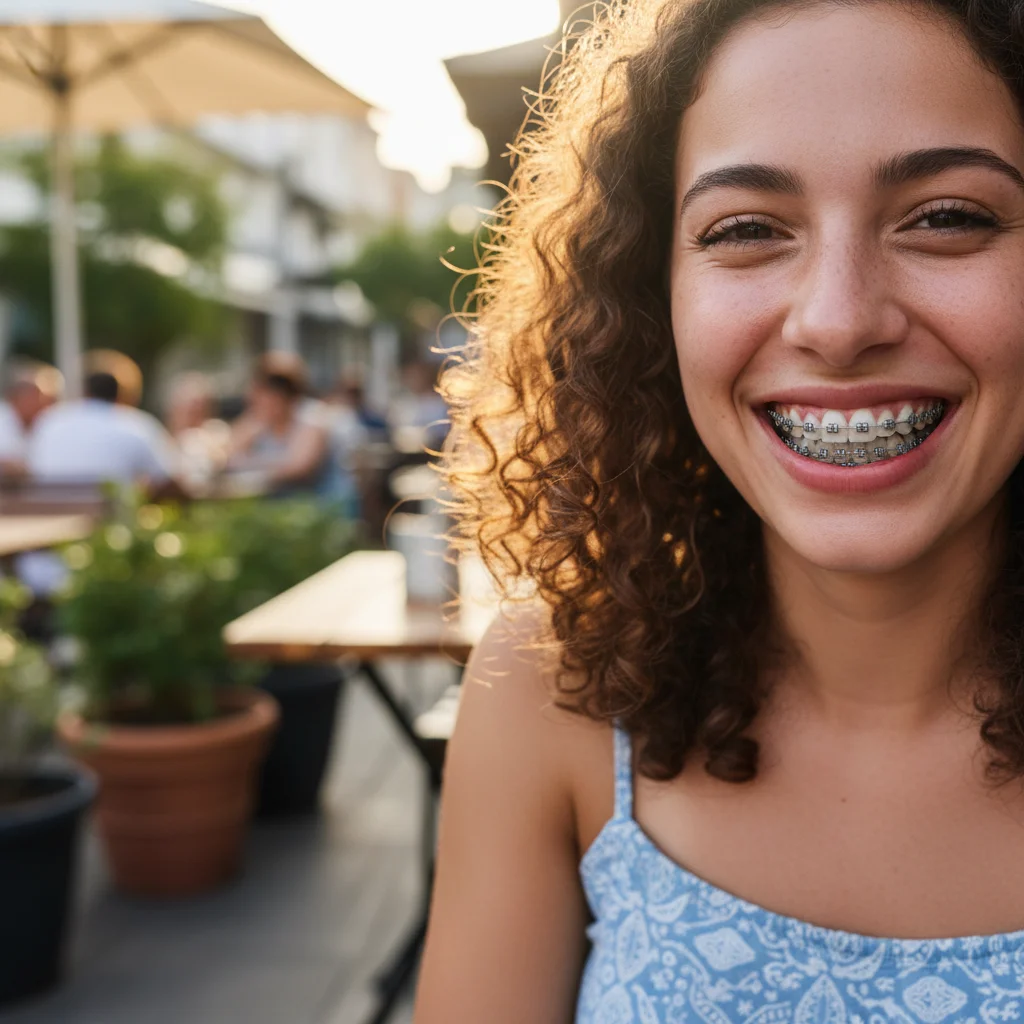
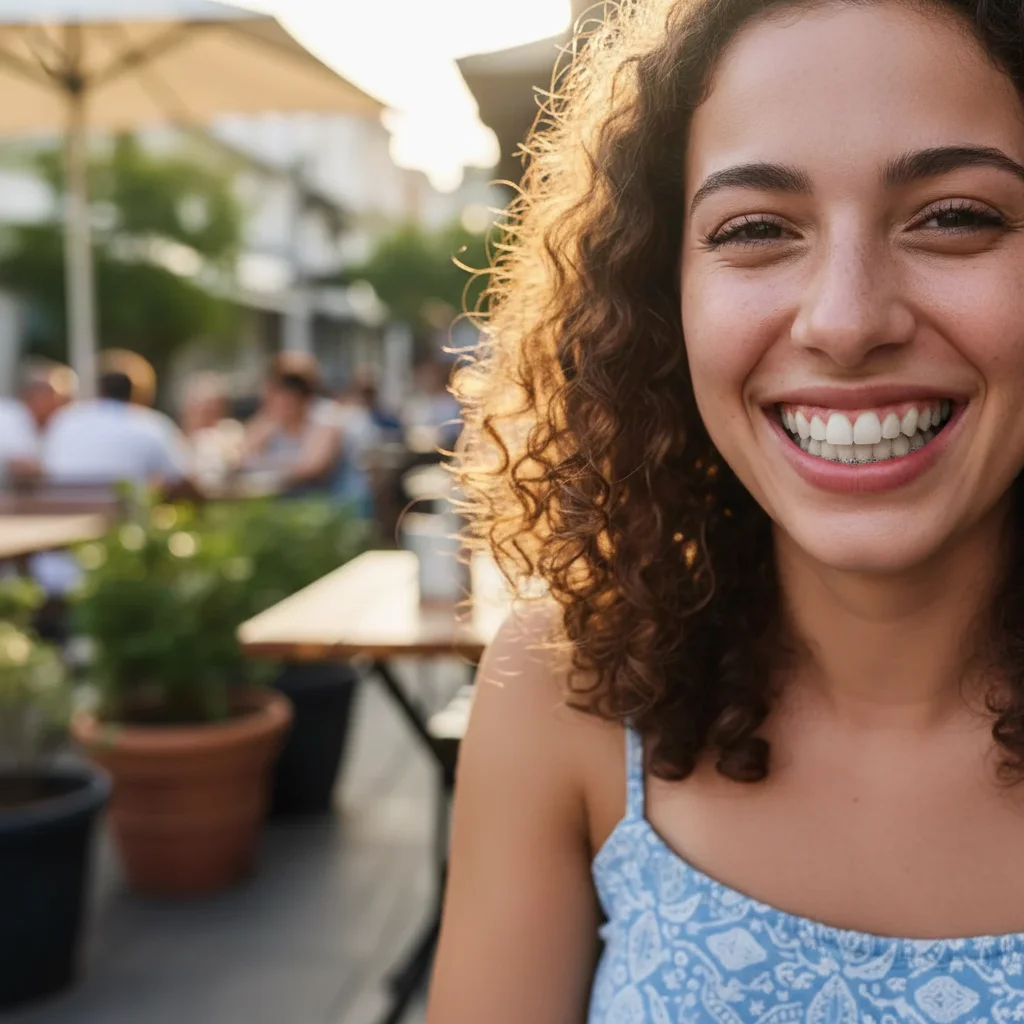
Metal Braces Removal

Removed full metal braces from a teenage smile, revealing natural teeth beneath with realistic results.
Prompt:
Before ai-braces-remover edit
Before
->
After ai-braces-remover edit
After

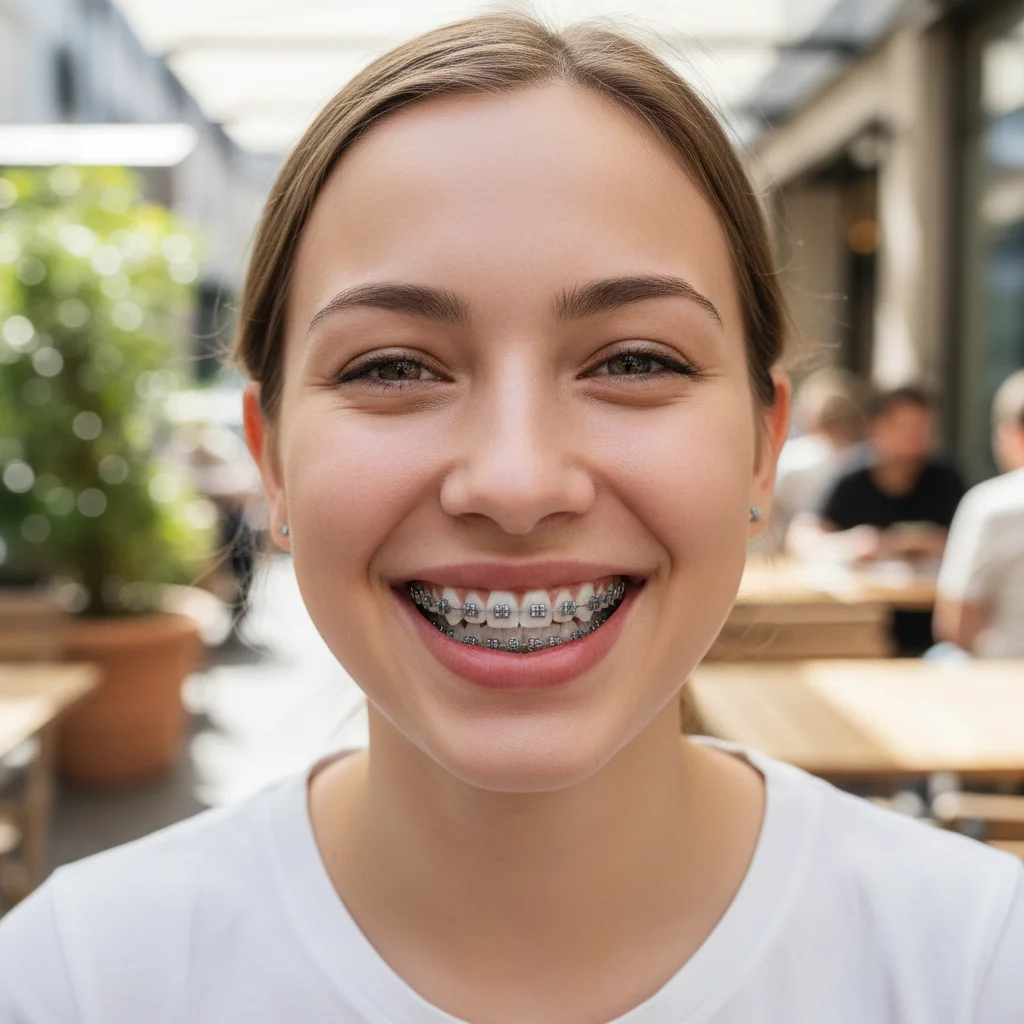
Ceramic Braces Elimination

Cleared tooth-colored ceramic braces for a professional headshot with natural-looking teeth.
Prompt:
Before ai-braces-remover edit
Before
->
After ai-braces-remover edit
After

Colorful Bands Removal

Removed braces with bright colored rubber bands to show clean, natural teeth for a graduation photo.

Prompt:
Advertisement

If something looks off

AI changed wrong area

Why: The AI interpreted the instruction differently than expected.

Try: Mark only the metal brackets, wires, and bands. Avoid marking the gums, lips, or tongue. The AI needs to see the boundaries of the orthodontic hardware clearly.
Teeth look unnatural or fake

Why: The AI interpreted the instruction differently than expected.

Try: This happens when the original photo doesn't show enough tooth structure. Photos where you can see the tooth shape beneath the braces produce more realistic results. Try a photo with a wider smile.
Only some braces removed

Why: The AI interpreted the instruction differently than expected.

Try: Ensure you marked all visible braces including brackets on side teeth, wires, and bands. Missing areas won't be processed. Mark thoroughly across the entire smile.
Tooth color doesn't match

Why: The AI interpreted the instruction differently than expected.

Try: The AI estimates tooth color from visible areas. If your teeth appear discolored under braces, the result reflects that. Consider using our AI Teeth Whitener after braces removal for enhanced results.
Gaps or alignment issues visible

Why: The AI interpreted the instruction differently than expected.

Try: The AI shows teeth as they are under the braces, including current alignment. If teeth haven't fully straightened yet, the result will reflect their current position, not the final orthodontic result.
Wires still visible after removal

Why: The AI interpreted the instruction differently than expected.

Try: Thin wires can be missed. After generating, check for any remaining wire segments, mark them specifically, and generate again for complete removal.

Quick answers

Do I need to mark the braces?

Yes, paint over all visible braces using the brush tool. This includes brackets, wires, bands, and any rubber bands. The AI will reconstruct your natural teeth based on what's visible beneath and around the hardware.

Will it show what my teeth will look like after treatment?

The AI shows your teeth as they currently are beneath the braces, not the final orthodontic result. If your teeth are still moving into alignment, the result reflects their current position, not what they'll look like when treatment is complete.

Does it work on colored or clear braces?

Yes, the AI removes all types of braces including traditional metal, ceramic, clear, and braces with colored rubber bands. Simply mark any visible orthodontic hardware.

Can I whiten my teeth after removing braces?

Absolutely. After using this tool to remove braces, you can use our AI Teeth Whitener on the result to brighten your smile even more.

Why do my teeth still look slightly crooked?

If you're mid-treatment, your teeth may not be fully aligned yet. The AI shows current tooth position under the braces, not the final aligned result after orthodontic treatment completes.

Ready to edit your photos?

Free to try. No signup required.

Try it free โ†’