Free • No signup Remove Mole · Free

AI Mole Remover

Just describe which mole to remove and AI handles the editing.

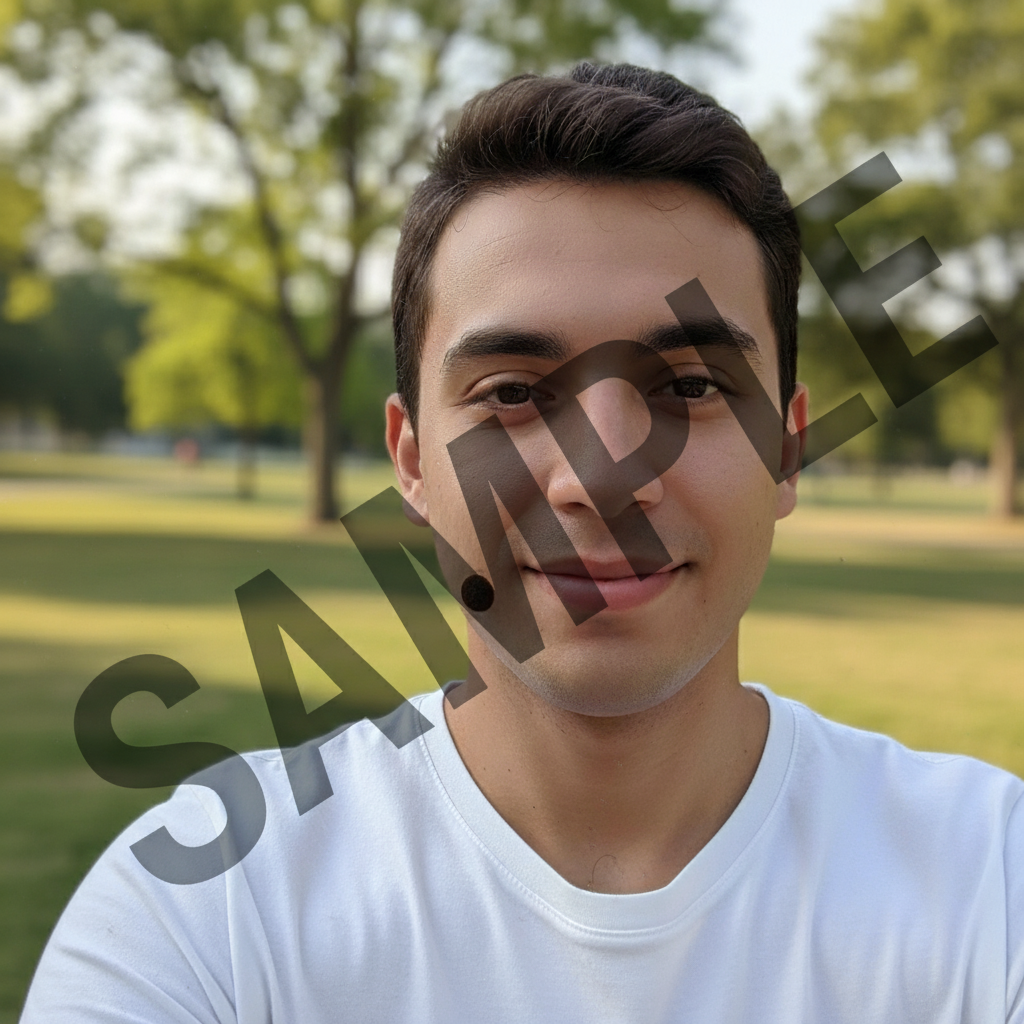
Portrait with visible mole on left cheek
Before
Portrait with mole removed, natural skin texture preserved
After

Remove Mole from Photo

Drop your photo here

or click to browse

Release to upload

Free • No signup

Advertisement
Popular use cases:
  • professional headshots
  • dating profile photos
  • social media selfies
  • LinkedIn profiles
  • before-after skin comparison

Cost
Free No signup required
Time
Instant results in 15-30 seconds
Works on
Any device - browser, phone, tablet, desktop
Powered by
AI-powered photo editing
Scenario Prompt Time
Single facial mole remove the mole on my left cheek 15s
Beauty mark remove the beauty mark above my upper lip 15s
Nose mole remove the mole on the right side of my nose and match the skin texture 20s

How it works

  1. Upload your photo

    Drop your portrait into EditThisPic. JPG, PNG, WebP up to 7MB. For best results, use well-lit photos where the mole is clearly visible.

    Expect: Simple edits (single mole): 15-30 seconds. Complex scenes (multiple moles or specific targeting): may need markers for precision.
  2. Describe what you want

    Type your instruction: 'remove the mole on my left cheek' or 'remove the beauty mark above my lip.' Be specific about location if you have multiple moles. No marking needed—the AI understands facial features and positions.

    Tip: Use clear location terms: 'left cheek,' 'right of nose,' 'above eyebrow' to help the AI identify the correct mole.

    Copy one of these to get started:

    Single facial mole remove the mole on my left cheek
    Beauty mark near mouth remove the beauty mark above my upper lip
    Mole on nose remove the mole on the right side of my nose and match the skin texture
    Forehead mole remove the dark mole on my forehead near the hairline
    1 more prompts
    Neck mole remove the raised mole on the left side of my neck
  3. Generate and review

    Click Generate and watch the AI remove the mole while preserving your natural skin texture and tone. Zoom in to check the result blends naturally with surrounding skin.

  4. Refine with markers if needed

    If you have multiple similar moles and the AI removed the wrong one, tap a marker on the specific mole you want removed and regenerate. This is optional—most single mole removals work without markers.

    Tip: Markers are for precision when you have multiple moles. Try without them first if you only have one.
Try it free

Remove Mole from Photo

Drop your photo here

or click to browse

Release to upload

Free • No signup

"I wanted to see how I'd look without my mole. Typed what I wanted and it was gone in seconds. Natural result." @skincare_curious

See it in action

Portrait with visible mole on left cheek
Before
->
Portrait with mole removed, natural skin texture preserved
After

Cheek Mole Removal

Removed a prominent mole from the left cheek while preserving natural skin texture and tone for a professional headshot.

Prompt: remove the mole on my left cheek
Portrait with beauty mark on right side of nose
Before
->
Portrait with beauty mark removed, natural nose texture
After

Nose Beauty Mark Removal

Removed a small beauty mark from the side of the nose for a client who wanted to see how they'd look without it.

Prompt: remove the beauty mark on the right side of my nose
Advertisement

If something looks off

AI removed the wrong mole or changed multiple areas

Why: The AI couldn't determine exactly which mole you meant from description alone. This happens when you have multiple moles close together.

Try: Tap a marker on the specific mole you want removed, then regenerate with the same prompt

Tip: Markers tell the AI 'I mean THIS one specifically.' Use them when you have multiple moles in similar areas.

Removed area looks too smooth or fake

Why: The AI over-smoothed the skin texture while removing the mole, creating an unnatural appearance.

Try: Add 'preserve the natural skin texture and pores' to your prompt and regenerate

Tip: Being explicit about preserving texture helps maintain a natural look, especially on textured skin areas.

Skin tone doesn't match around the removed mole

Why: Uneven lighting or shadows in the photo make it difficult for the AI to match surrounding skin tone perfectly.

Try: Try 'match the surrounding skin tone exactly' or use a photo with more even lighting

Tip: Photos with soft, even lighting produce the most natural skin tone matching.

Shadow or discoloration remains where mole was

Why: Raised moles cast shadows, and the AI may not fully remove the shadow along with the mole.

Try: Add 'remove the mole and any shadow it creates' to your prompt and regenerate

Tip: For raised moles, explicitly mention shadow removal for cleaner results.

Quick answers

Do I need to mark the mole before describing it?

No! For a single mole, just describe its location: 'remove the mole on my left cheek.' The AI understands facial features and positions. Only use markers when you have multiple similar moles and need to specify exactly which one to remove.

How do I remove a mole from a photo for free?

Upload your photo to EditThisPic, type 'remove the mole on [location]' where [location] is the specific area like 'left cheek' or 'nose,' and the AI handles the removal in 15-30 seconds. Free, no account required, no watermark on your edited photo.

Will the AI preserve my natural skin texture?

Yes. EditThisPic's AI analyzes the skin texture surrounding the mole and recreates it naturally. For best results, mention 'preserve natural skin texture' in your prompt, especially for areas with visible pores or texture.

What's the difference between removing a mole and removing a scar?

Moles are raised or pigmented spots on the skin surface. Scars often involve texture changes or indentations. For acne scars or textured scarring, use our AI Scar Remover tool which is optimized for those types of skin imperfections.

Ready to remove your mole?

Free to try. No signup required.

Try it free