Free • No signup Remove Freckles · Free

AI Freckle Remover

Just describe what you want and AI removes freckles naturally.
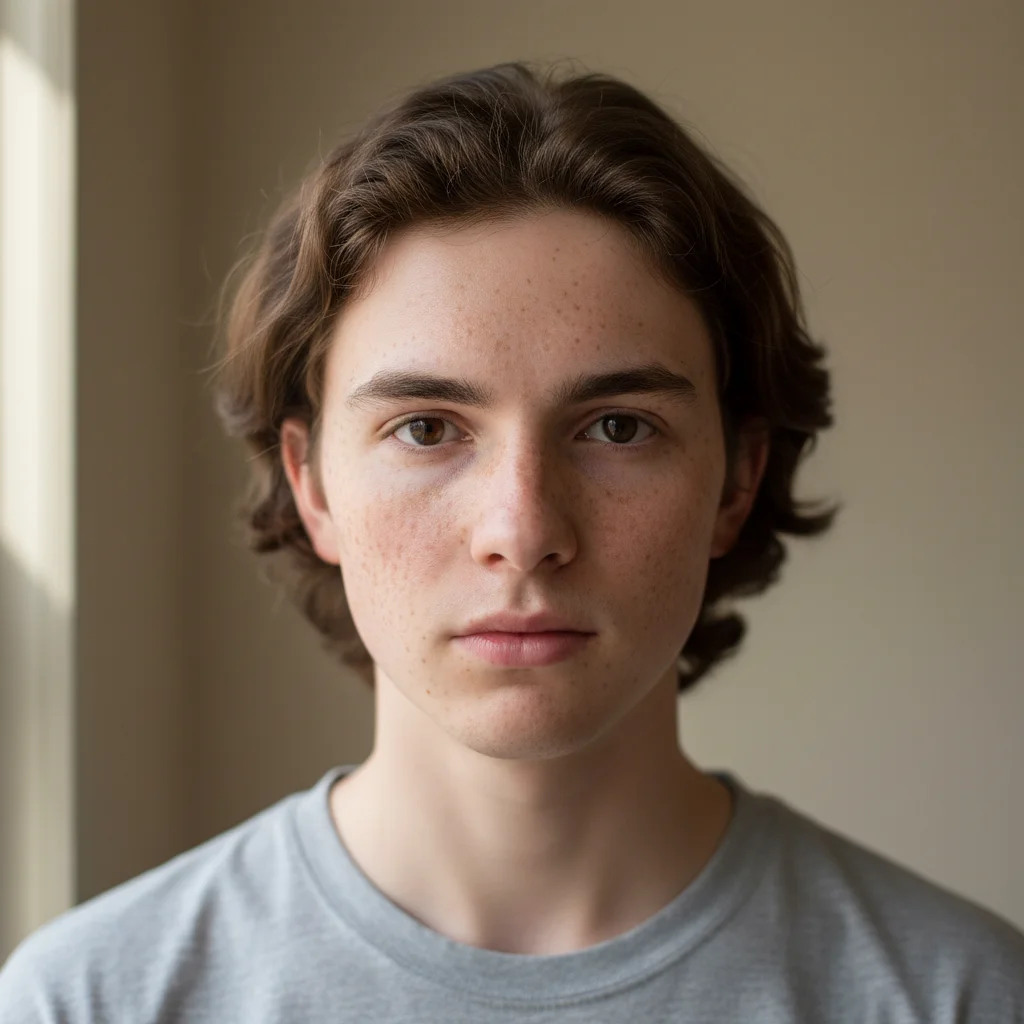
Portrait with freckles across nose and cheeks
Before
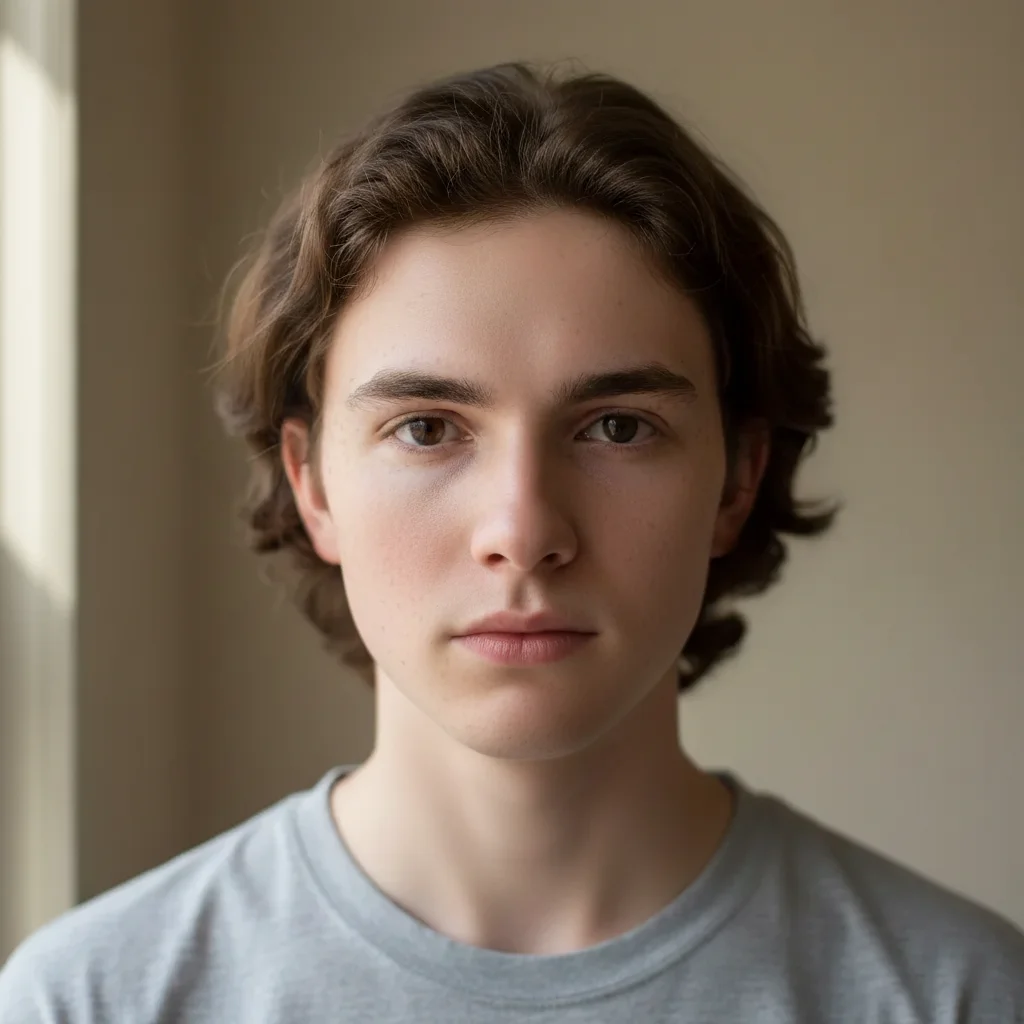
Portrait with freckles removed, smooth natural skin
After

Remove Freckles from Photo

Drop your photo here

or click to browse

Release to upload

Free • No signup

Advertisement
Popular use cases:
  • professional headshots
  • portrait photography
  • LinkedIn photos
  • resume photos
  • modeling portfolios

Cost
Free No signup required
Time
Instant results in 15-30 seconds
Works on
Any device - browser, phone, tablet, desktop
Powered by
AI-powered photo editing
Scenario Prompt Time
Remove all freckles remove freckles from the face while preserving natural skin texture 15s
Remove nose/cheek freckles remove freckles from the nose and cheeks, keep the rest of the face unchanged 15s
Lighten freckles lighten freckles across the face to make them less noticeable 20s

How it works

  1. Upload your photo

    Drop your portrait into EditThisPic. Works best with clear, well-lit face photos showing the freckles you want removed. JPG, PNG, WebP up to 7MB.

    Expect: Simple freckle removal: 15-20 seconds. Dense or dark freckles may need one refinement.
  2. Describe what you want

    Type your instruction: 'remove freckles from the face' or 'remove freckles from the nose and cheeks only.' Be specific about which areas to clear. No marking needed—the AI understands facial features and freckle patterns.

    Tip: Add 'while preserving natural skin texture' to maintain realistic pore and skin detail

    Copy one of these to get started:

    Remove all facial freckles remove freckles from the face while preserving natural skin texture
    Remove nose and cheek freckles only remove freckles from the nose and cheeks, keep the rest of the face unchanged
    Lighten freckles instead of removing lighten freckles across the face to make them less noticeable, not completely removed
    Remove dark freckles only remove the darker freckles from the face while keeping lighter ones
    2 more prompts
    Remove forehead freckles remove freckles from the forehead area only
    Complete freckle clearing with texture preservation remove all freckles and sun spots from the entire face while maintaining natural skin pores and texture
  3. Generate and review

    Click Generate and watch AI remove freckles while preserving natural skin texture and tone. Zoom in to check that skin looks realistic, not airbrushed or smoothed.

  4. Refine with markers if needed

    If some freckles remain or you want to remove specific freckles only, tap markers on those spots and regenerate. This is optional—most edits work without markers.

    Tip: Markers are for precision refinement, not required. Try without them first.
Try it free

Remove Freckles from Photo

Drop your photo here

or click to browse

Release to upload

Free • No signup

"Needed freckle-free headshots for work. Described it and the AI removed them perfectly without making my skin look fake." @mike_p

See it in action

Portrait with freckles across nose and cheeks
Before
->
Portrait with freckles removed, smooth natural skin
After

Complete facial freckle removal

Removed all freckles from the face while maintaining natural skin texture and tone for a professional headshot.

Prompt: remove freckles from the face while preserving natural skin texture
Portrait with freckles on nose and cheeks
Before
->
Portrait with central freckles removed
After

Nose and cheek freckle removal

Cleared freckles from the central face area only, leaving other features untouched.

Prompt: remove freckles from the nose and cheeks, keep the rest of the face unchanged
Advertisement

If something looks off

AI changed the wrong area or removed things I didn't want removed

Why: The AI couldn't determine exactly which areas you meant from description alone. This happens with ambiguous requests.

Try: Tap markers on the specific freckles you want to remove, then regenerate with the same prompt

Tip: Markers tell the AI 'I mean THESE freckles specifically.' Use them when description alone is ambiguous.

Skin looks too smooth or airbrushed after freckle removal

Why: AI removed texture along with freckles, creating an unnatural look.

Try: Add 'while preserving natural skin pores and texture' to your prompt
Some freckles are still visible

Why: The AI may have interpreted light freckles as natural skin variation.

Try: Generate again with 'remove all freckles and brown spots' for more thorough clearing

Tip: For stubborn freckles, try a second generation on the result

Skin tone looks patchy or uneven

Why: Freckle removal exposed underlying skin tone variations.

Try: Add 'and even out skin tone' to your prompt: 'remove freckles and even out skin tone'

Quick answers

Do I need to mark the freckles before describing what I want removed?

No! Just describe what you want: 'remove freckles from the face' or 'remove freckles from the nose.' The AI understands facial features and freckle patterns. Only use markers when you need precision—like removing specific freckles while keeping others, or refining after your first attempt.

How do I remove freckles from a photo for free?

Upload your photo to EditThisPic and type 'remove freckles from the face while preserving natural skin texture.' The AI removes freckles in 15-20 seconds while keeping your skin looking natural. Completely free, no signup required.

Will my skin look natural or fake after removing freckles?

When you include 'while preserving natural skin texture' in your prompt, the AI maintains skin pores, texture, and realistic tone. The result looks like naturally clear skin, not airbrushed or smoothed.

Can I remove only some freckles and keep others?

Yes. Either describe which ones: 'remove darker freckles only' or 'remove freckles from the nose only.' For very specific selection, use markers to tap the exact freckles you want removed.

Ready to remove freckles from your photo?

Free to try. No signup required.

Try it free