Beautify a Photo Online — AI Enhancement, No Filters, No Photoshop
Last updated
Name the one retouch you want — lighting, a blemish, tired eyes — and AI applies just that in 15–30 seconds.
Drop your photo here
"Beautify this photo: soft natural lighting effect, subtle healthy skin glow, very gentle blemish removal, keep completely natural and true to how I look"
Free to try · no sign-up · photos are never shared
Release to upload
What Photo Beautification Actually Does
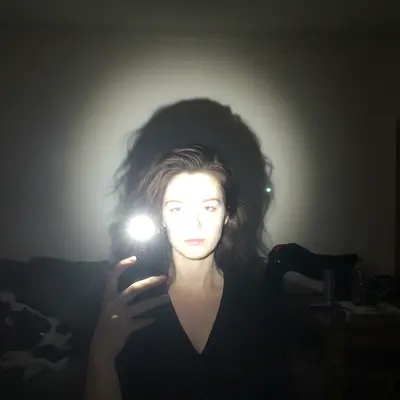
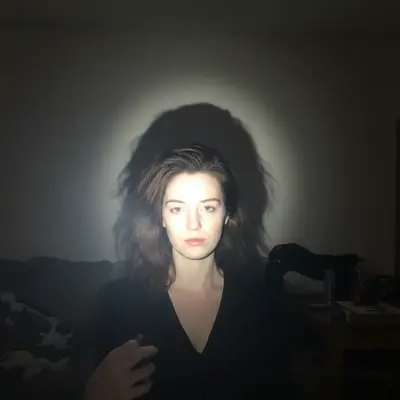
Filters change the look of everything in the frame equally. EditThisPic understands what's in the photo — face, skin, lighting, background — and can improve them individually based on what you describe. The result looks like better photography, not like you applied a filter. You can be specific: 'soft studio lighting effect, subtle skin glow, keep completely natural.'
Tools for Photo Beautification
AI Face Enhancer
Complete portrait beautification in one step
Improve Lighting
Replace harsh or flat lighting with flattering soft light
Remove Blemishes
Clean up skin without losing natural texture
Smooth Skin
Subtle skin smoothing while keeping it looking real
Enhance Photo
Overall quality enhancement — sharpness, color, detail
How to Beautify a Photo Online
-
Pick the photo you want to beautify
Any portrait, selfie, or photo of a person works. The photo should have the subject's face visible and reasonably in focus — editing can enhance beauty but can't rescue a severely blurry image.
Simple beautification (lighting + skin): 20-25 seconds. Full portrait transformation: 25-35 seconds.Photos with the face taking up most of the frame get the best beautification results. Distant full-body shots have less face detail to work with. -
Describe what 'beautiful' means for this photo
Upload and describe the enhancement: 'soft studio lighting, healthy skin glow, very subtle blemish removal, keep looking like me.' The more specific, the better. Vague prompts like 'make it beautiful' get average results.
Add 'completely natural looking' or 'keep looking like myself' to prevent over-processing. The goal is 'best version of me', not 'someone else.' -
Check naturalness before downloading
Does it still look like you? Are skin tones warm and realistic? Does the lighting look like it could be from a real light source? If something looks fake, add 'keep more natural' to a follow-up prompt.
-
Download your beautified photo
Download the result. If you want multiple variations (different lighting, different retouch level), run 2-3 versions with slightly different prompts and pick the best.
Running 2-3 quick variations costs 2-3 credits but helps you find the sweet spot between 'enhanced enough' and 'over-processed.'
Copy-Paste Prompts to Beautify Photos
Beautify this photo: soft natural lighting effect, subtle healthy skin glow, very gentle blemish removal, keep completely natural and true to how I look
This is the everyday all-purpose prompt — works on 80% of portrait photos
Instagram-worthy portrait enhancement: warm soft lighting, healthy skin radiance, bright clear eyes, very subtle retouch — looks real not filtered
'Looks real not filtered' prevents the AI from applying a heavy preset look
Replace the harsh overhead lighting with soft studio-quality fill light — remove raccoon shadows under eyes, even out skin tone, keep warm natural look
Naming the exact problem ('raccoon shadows under eyes') gets more precise results
Enhance this outdoor portrait: warm golden light quality, subtle skin glow, brighten face slightly if shadowed, keep the natural outdoor feel
'Warm golden light quality' is reliable shorthand for flattering outdoor light
Show 4 more prompts
Make this look like a professionally lit headshot: even soft lighting, clean skin texture, natural color balance, professional but approachable
'Professional but approachable' keeps it from looking too corporate or cold
Correct the indoor yellow/orange lighting to neutral daylight. Even out the skin tone, keep warm but not yellow, make the subject look freshly lit
Indoor photos often have a color cast from bulb lighting — 'neutral daylight' is the target
Gently brighten this dim evening photo, enhance the face lighting naturally, reduce the noise/grain in the skin areas, keep the warm evening atmosphere
Specify 'keep the warm evening atmosphere' if you don't want it to look like a daytime photo
Add a healthy luminous skin glow: enhance complexion radiance, soft catchlights in the eyes, bright but not washed out, natural dewy skin finish
'Catchlights in the eyes' adds that sparkle that makes eyes look alive and engaging
| Edit Type | Prompt | Time | |
|---|---|---|---|
| Natural glow | soft light, healthy glow, natural-looking |
20s | Try This → |
| Fix harsh flash | replace flash with soft studio fill light |
25s | Try This → |
| Fix indoor color | correct yellow/green cast, warm natural skin tones |
20s | Try This → |
| Quick blemish fix | remove visible blemishes, keep skin texture real |
15s | Try This → |
Real Examples
Harsh flash to studio glow
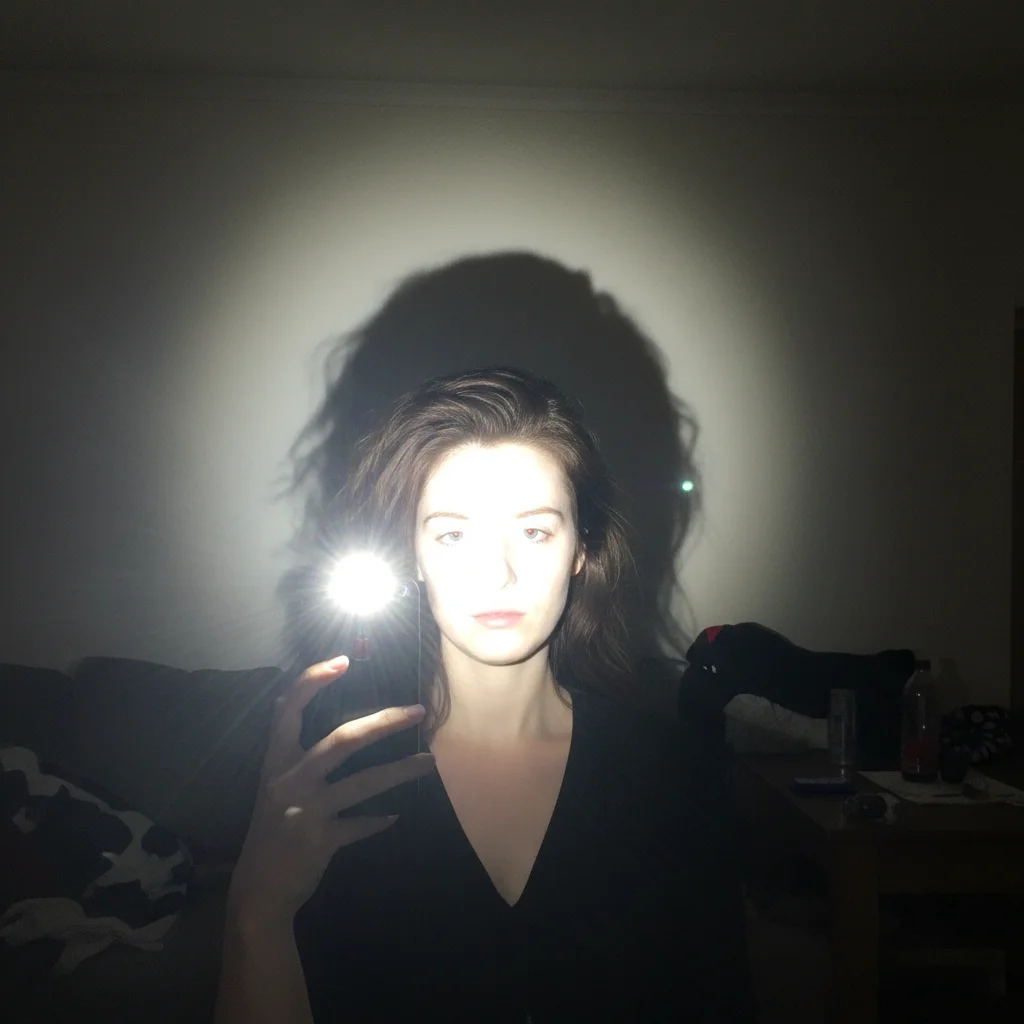
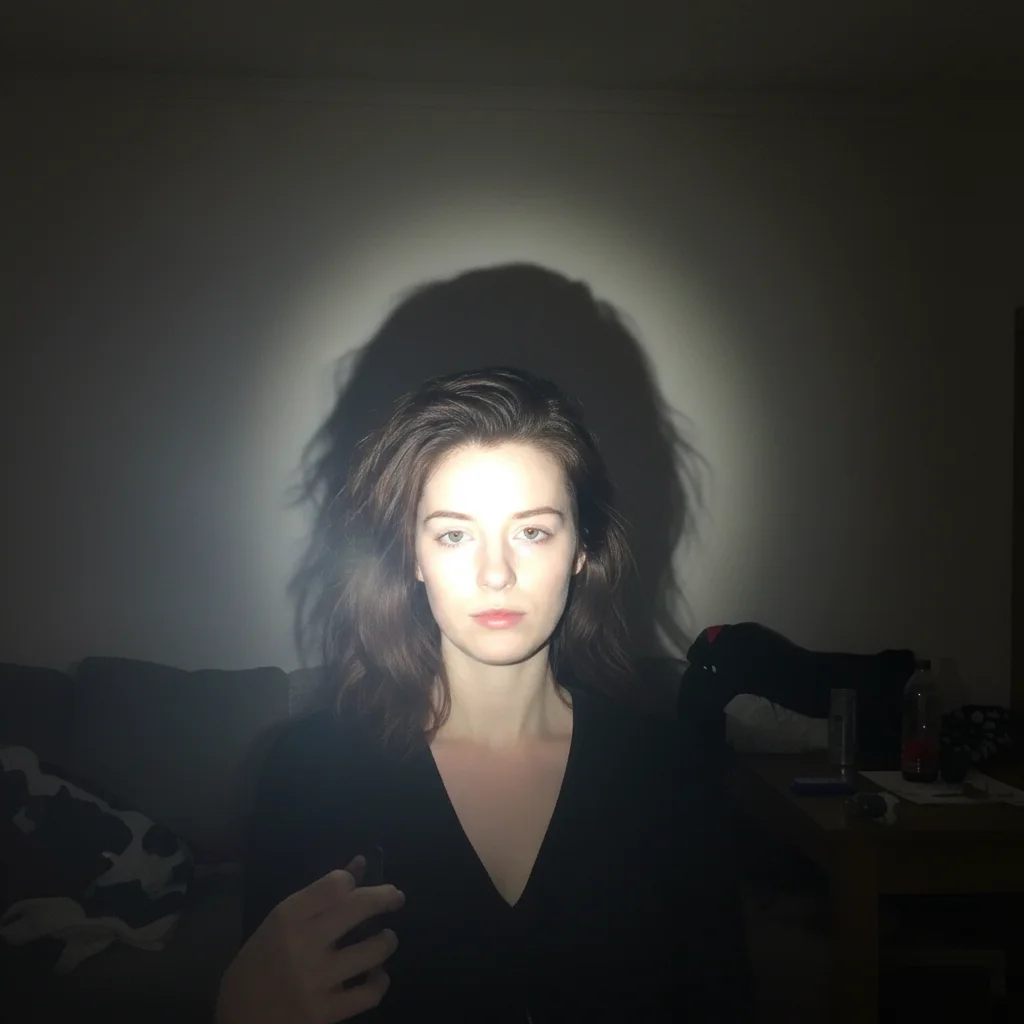
Direct phone flash flattens everything and washes out skin. This transforms it to a soft studio-quality portrait that still looks completely real.
replace harsh direct flash with soft studio fill light: even skin tones, remove flash shadows on wall behind me, natural healthy skin glow, keep looking like myself


Office fluorescent to warm portrait
Fluorescent office lighting gives everyone a greenish tint and unflattering shadows. This brings the skin tones to warm and natural.
correct the green fluorescent office lighting: warm up skin tones to natural healthy color, soften harsh overhead shadows under eyes and chin, keep professional appearance
When Things Go Wrong
Skin looks airbrushed or plastic
Why: Smoothing effects were applied too heavily, removing natural skin texture.
beautify with extremely subtle skin work — keep ALL natural skin texture and pores visible, only remove the most obvious blemishes, no smoothing whatsoever
'No smoothing whatsoever' and 'keep all skin texture' are strong enough to prevent even subtle over-smoothing.
Face looks different, doesn't look like me
Why: Strong enhancement requests can alter facial proportions or features.
enhance the photo ONLY through lighting and color changes — do not change face shape, features, or skin tone at all. Only fix the light quality.
When you only want lighting improved, say exactly that. 'Only fix the light quality' prevents any face-level changes.
Eyes look glassy or unnatural
Why: Eye brightening was applied too aggressively, making eyes look artificially lit.
reduce the eye brightening effect — eyes should look clear and alive but not glowing or artificially brightened
'Clear and alive but not glowing' is the right target for natural-looking eye enhancement.
Lighting looks fake, like a CGI render
Why: Studio-style light prompts can sometimes produce overly perfect, non-photographic light.
make the lighting look like natural window light or golden-hour outdoor sun — photographic, not studio-perfect, should look like a really well-shot phone photo
Reference photographic light types (window, golden hour, overcast) rather than studio terms for more natural results.
Frequently Asked Questions
What does beautifying a photo actually do?
Photo beautification improves the elements that affect how attractive a portrait looks: lighting quality, skin clarity, color balance, and overall radiance. EditThisPic enhances these by analyzing the actual photo and applying targeted changes — not by applying a one-size-fits-all filter.
Can I beautify a photo for free without an account?
Yes. EditThisPic beautifies photos with a free preview edit — no account, no app download. You get 1 free edit per week. Credit packs start at $4.99 for 10 edits if you need to beautify multiple photos regularly.
How is this different from an Instagram filter?
Filters apply the same effect to everything in the image equally. EditThisPic understands the photo — it knows the difference between a face, skin, lighting, and background — and can improve them independently based on what you describe. The result looks like better photography rather than like you applied an effect.
Will the photo still look like me?
Yes, as long as you ask for natural results. Use phrases like 'keep looking like myself', 'completely natural-looking', and 'no airbrushed look' in your prompts. These instructions prevent over-processing and keep the result recognizable and authentic.
Can AI beautify a selfie taken on a phone?
Yes. Phone selfies are one of the most common inputs. The AI handles harsh flash, unflattering angles, and indoor lighting well. The output looks like a photo taken with better lighting and camera, not like an AI generation.
How do I beautify a photo without making it look fake?
Use these prompt phrases: 'keep completely natural-looking', 'maintain skin texture', 'no airbrushing', 'looks like a well-lit photo, not edited'. The more specifically you describe wanting natural results, the more the AI respects those constraints.
Can I beautify a group photo?
Yes, though individual portrait photos get the most targeted results. For group photos, keep prompts focused on overall improvements like 'improve lighting quality and color balance' rather than face-specific retouching, which is harder to control evenly across multiple faces.
Can beautification fix bad lighting in a photo?
Yes — this is the most impactful thing photo beautification can do. Harsh flash, dim indoor lighting, green fluorescent tints, and yellow incandescent casts can all be corrected. Better lighting makes people look dramatically more attractive without altering their appearance.
Popular use cases
Ready to beautify your photo?
Free to try. No signup. No filters — actual AI enhancement.
Beautify a Photo