Free • No signup Open Editor

Smooth Skin from Photo

Type what you want. Skin smoothing that looks natural, not plastic.
Type 'smooth the skin while keeping natural texture' and EditThisPic's AI softens skin in 15-20 seconds. No manual brushing, no selecting areas. Works on any visible skin—arms, shoulders, hands, not just faces. Keeps pores and texture for a natural look. Free, no signup needed.

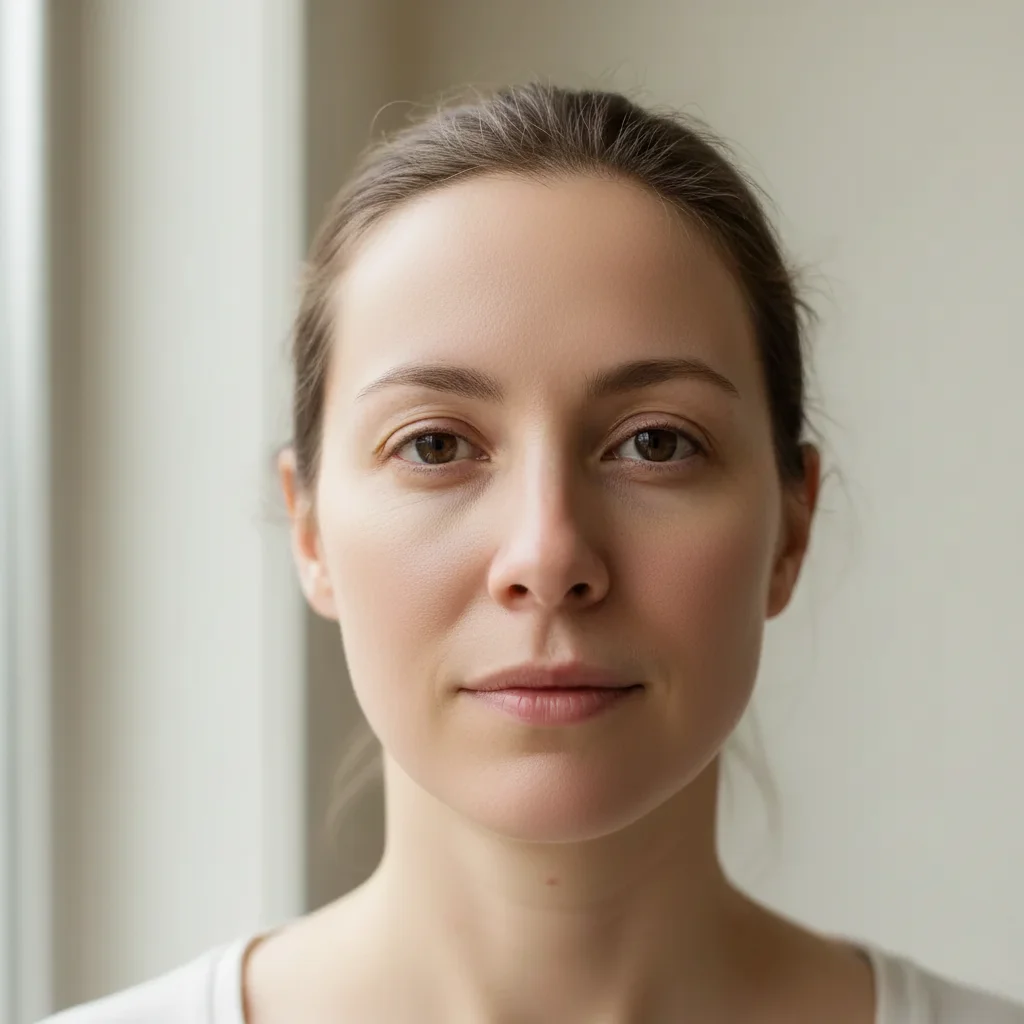
Portrait with visible skin texture and minor imperfections
Before
Same portrait with naturally smoothed skin
After

How it works

1

Upload your photo

Drop your image into EditThisPic. JPG, PNG, and WebP up to 7MB. Higher resolution photos give better results for subtle skin texture work.

⏱ Simple portraits: 15-20 seconds. Full body with multiple skin areas: may need 2 refinements.
2

Describe your skin smoothing

Type what you want: 'smooth the skin while keeping natural texture' or 'soften skin texture on arms and shoulders.' Be specific about which areas and how natural you want it. The AI understands—no selecting or brushing needed.

💡 Add 'keep pores visible' or 'maintain natural skin texture' to avoid the plastic look that ruins retouching.

Copy one of these to get started:

Portrait with natural results smooth the skin while keeping natural texture and visible pores, subtle retouching only
Fashion photo with visible arms/shoulders soften skin texture on all visible skin including arms, shoulders, and back while maintaining natural appearance
Beauty portrait needing more polish smooth the skin with medium intensity, reduce pore visibility while keeping some natural texture
Full body shot for modeling portfolio even out skin tone and smooth skin texture across all exposed areas, keep natural skin glow
2 more prompts
Hands and arms close-up soften skin texture on hands and arms, reduce visible veins and age spots while keeping skin realistic
High-fashion editorial look smooth skin to editorial beauty standard, soft porcelain finish but keep subtle skin texture visible
3

Generate and review

Tap generate and zoom to 100% to check the result. Look at skin texture—does it still look like real skin? Check that hair, eyes, and clothing weren't affected.

4

Refine with markers if needed

If some skin areas were missed or other areas were accidentally smoothed, tap markers on those spots and regenerate. Most skin smoothing works without markers.

💡 Markers help when you want different smoothing levels on different areas—like more on arms, less on face.
Try it free
"Finally a skin smoother that doesn't make everyone look like a wax figure. Just typed what I wanted and it actually looked real." @BeautyRetoucher_Kim

See it in action

Portrait with visible skin texture and minor imperfections
Before
Same portrait with naturally smoothed skin
After

Natural portrait retouch

Portrait photo with visible skin texture on face and neck. One prompt smoothed everything while keeping it looking real.

Prompt: smooth the skin while keeping natural texture and visible pores, subtle retouching only
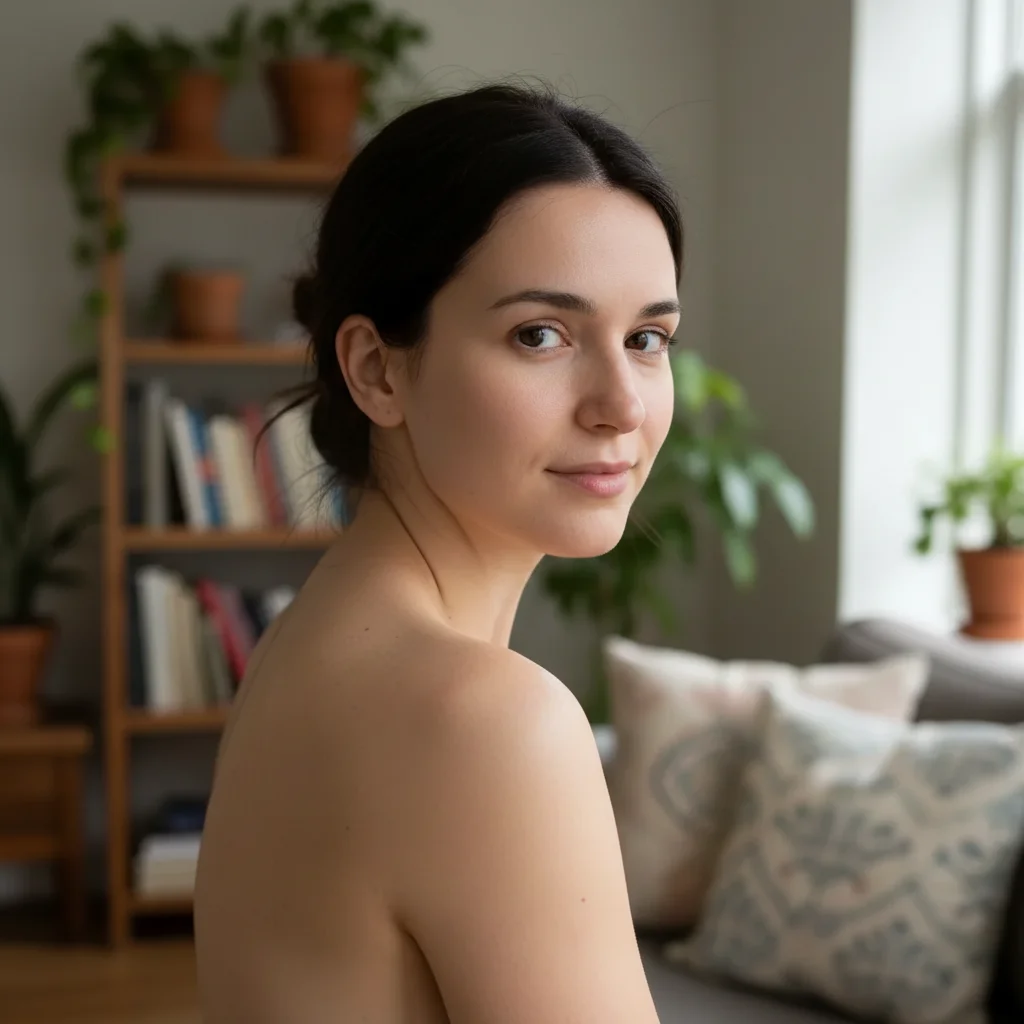
Fashion photo with visible skin texture on shoulders and arms
Before
Same photo with all visible skin smoothed naturally
After

Fashion photo with exposed shoulders

Model shot with arms and shoulders visible. Smoothed all visible skin areas, not just the face.

Prompt: soften skin texture on all visible skin including arms, shoulders, and back while maintaining natural appearance

If something looks off

AI changed the wrong area or something I didn't want changed

Why: The AI couldn't determine exactly which skin areas you meant. This happens when description alone is ambiguous or when clothing is similar to skin tone.

Try: Tap a marker on the specific skin area you want smoothed, then regenerate with the same prompt

💡 Markers tell the AI 'I mean THIS skin area specifically.' Use them when you want selective smoothing.

Skin looks plastic or artificial

Why: The smoothing was too aggressive, removing all natural texture. This happens when the prompt doesn't specify keeping texture.

Try: smooth the skin subtly while maintaining natural pores and skin texture, keep it realistic

💡 Always include 'natural texture' or 'visible pores' in your prompt to avoid the wax figure look.

Only face was smoothed, not arms or shoulders

Why: The AI defaulted to face-only processing. Without explicit instruction, it assumed 'skin' meant face.

Try: soften skin texture on ALL visible skin including face, neck, arms, shoulders, and hands

💡 Be explicit about body parts. 'All visible skin' is the key phrase for full-body smoothing.

Hair or eyebrows got blurred

Why: The smoothing accidentally affected areas near skin. Hair close to the face is sometimes caught in the processing.

Try: smooth skin only, preserve all hair detail, eyebrows, and eyelashes completely sharp

💡 If hair still gets affected, tap markers on the hair areas you want protected and regenerate.

Quick answers

Do I need to select the skin areas first?

No—just describe what you want. 'Smooth the skin' or 'soften skin texture' works without any selection. The AI recognizes skin automatically. Only use markers if you need precision, like smoothing arms but not face, or if the AI missed an area.

How is this different from face smoothing tools?

Most tools only smooth the face. EditThisPic smooths any visible skin—arms, shoulders, hands, legs, back. Just specify which areas in your prompt: 'soften skin on arms and shoulders' or 'smooth all visible skin.' You control exactly what gets retouched.

How do I avoid the fake plastic look?

Add 'keep natural texture' or 'maintain visible pores' to your prompt. The plastic look happens when all skin texture is removed. Try 'smooth skin while keeping natural texture and subtle pores' for results that look retouched but still real.

Can I apply different smoothing to different areas?

Yes—use markers for selective control. Tap markers on areas that need more smoothing and describe what you want: 'apply stronger smoothing to marked areas.' Or run separate passes, smoothing face first with subtle settings, then arms with more intensity.

Ready to smooth your skin?

Free to try. No signup required.

Try it free