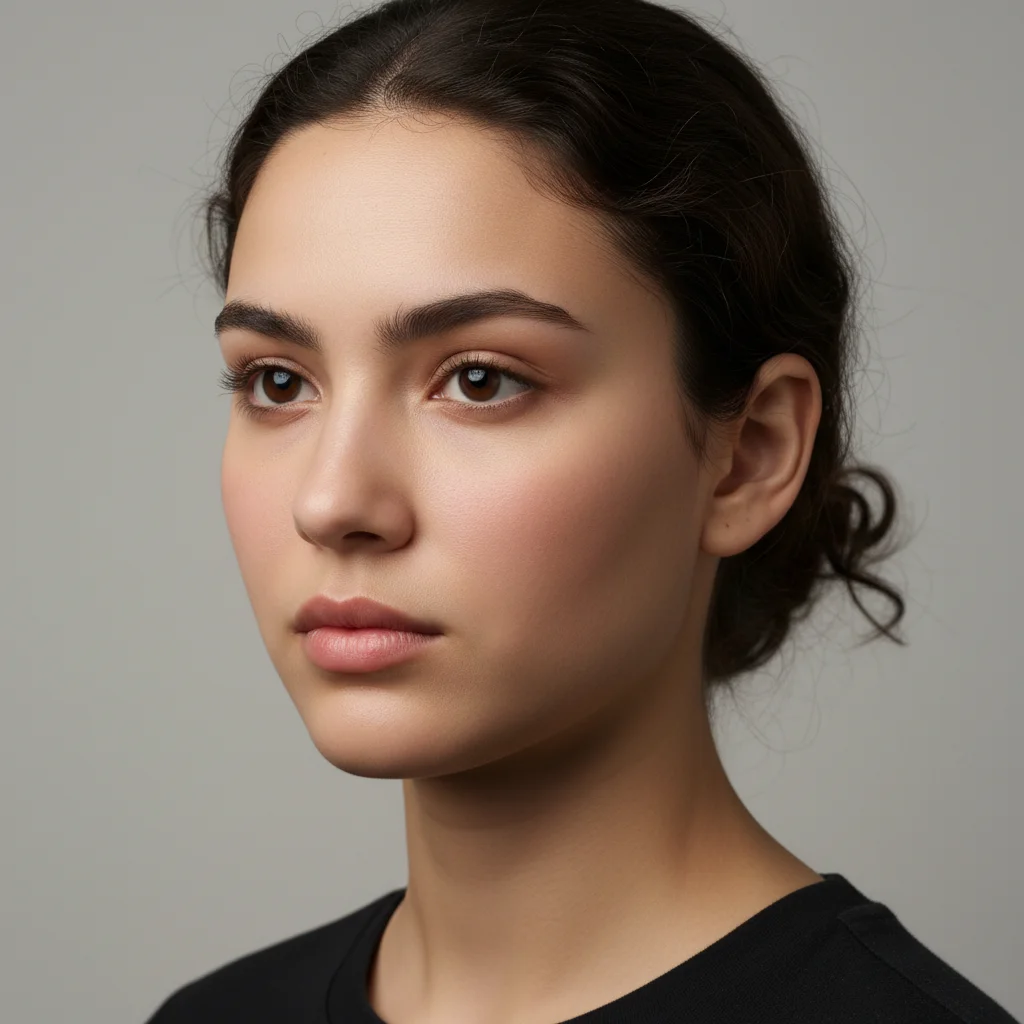
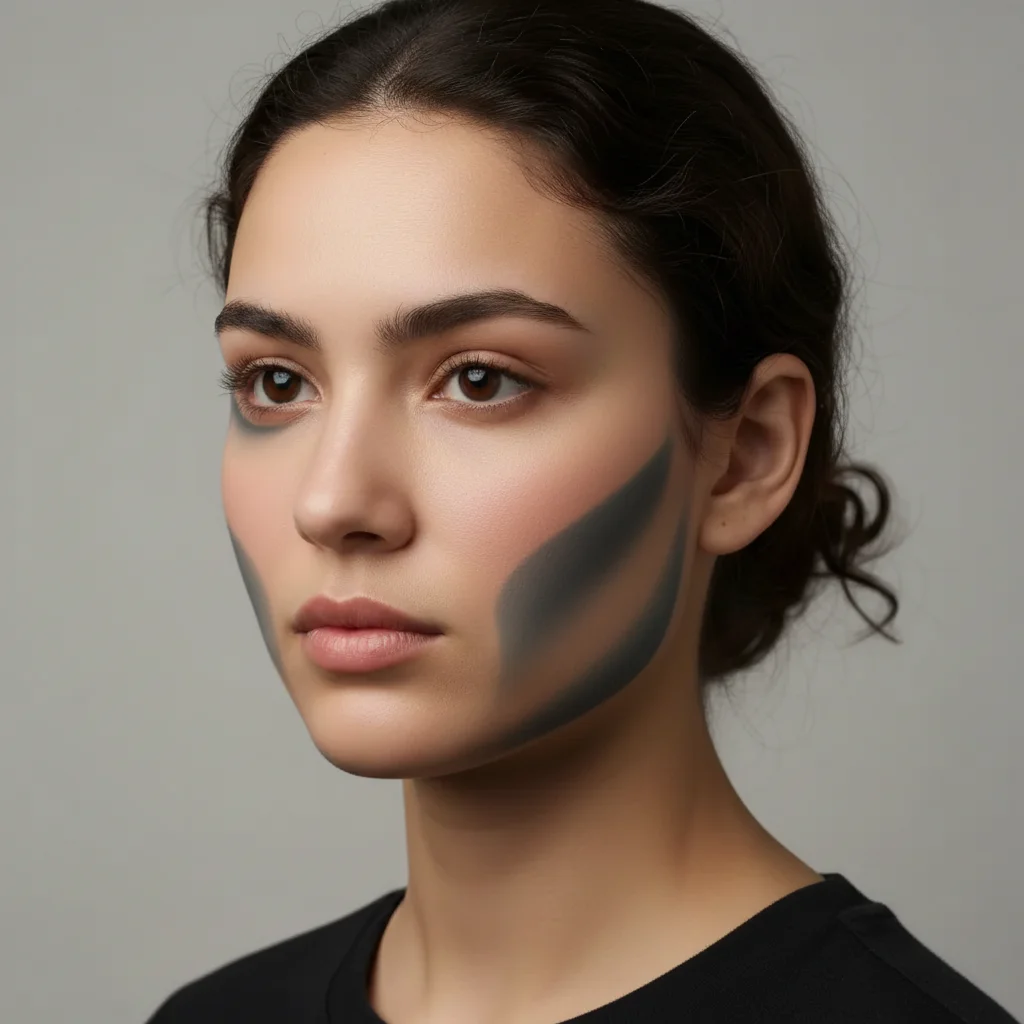
Free • No signup Remove Facial shine and oil · Free

AI Shine Remover

Before
Before
After
After

Free AI Shine Remover

Drop your photo here

or click to browse

Release to upload

Free • No signup

Advertisement
Popular use cases:
  • professional headshots
  • selfies
  • dating profile photos
  • LinkedIn photos
  • event photography
  • wedding photos
  • corporate portraits
  • social media photos
  • passport photos
  • resume headshots

Cost
Free No signup required
Time
Instant results in 15-30 seconds
Works on
Any device - browser, phone, tablet, desktop
Powered by
AI-powered photo editing
Scenario Prompt Time
General shine removal 15-30s
T-zone only 15-30s
Professional photo 15-30s
Preserve makeup 15-30s

How it works

  1. Upload your photo

    Choose any photo with facial shine you want to remove. Works with selfies, professional headshots, event photos, or any portrait. The AI handles shine from lighting, natural skin oil, or makeup.

    Expect: Simple change: 20-30 seconds. Results are immediate and natural-looking.
  2. Describe what you want

    Simply type 'remove shine from face' or 'reduce oily look on forehead and nose.' You can be general ('remove all shine') or specific ('remove shine from nose only'). The AI understands natural language and automatically identifies and mattifies shiny areas without requiring you to mark anything.

    Tip: Be specific about areas if only certain parts are shiny: 'remove shine from forehead' or 'mattify T-zone.' For subtle corrections, try 'slightly reduce shine' to keep some natural skin texture.

    Copy one of these to get started:

    remove Remove shine from face
    remove Remove oily look from forehead and nose
    remove Mattify shiny areas on face
    remove Remove shine from T-zone, keep natural skin texture
    4 more prompts
    remove Reduce facial shine slightly for professional headshot
    remove Remove shine from nose and forehead only
    remove Mattify entire face without removing natural highlights
    remove Remove shine from face but keep dewy cheek highlights
  3. Review the result

    Check that shine is removed while skin still looks natural and not overly matte. Ensure skin texture, freckles, and natural features remain intact. If too matte or still shiny, adjust your prompt and regenerate.

  4. Download Your Polished Photo

    Save your shine-free image in high resolution. The result has no watermarks and is ready for social media, professional use, dating profiles, or personal albums.

Try it free

Free AI Shine Remover

Drop your photo here

or click to browse

Release to upload

Free • No signup

See it in action

Before
Before
->
After
After

Professional Headshot Fix

Remove shine from face for professional look

Prompt:
Before
Before
->
After
After

Outdoor Photo Enhancement

Mattify shiny areas on forehead, nose, and chin

Prompt:
Before
Before
->
After
After

Event Photo Correction

Remove shine from T-zone but keep natural skin texture and cheek highlights

Prompt:
Advertisement

If something looks off

AI changed the wrong area or something I didn't want changed

Why: The AI couldn't determine exactly which area you meant from description alone.

Try: Tap a marker on the specific shiny area you want to fix, then regenerate with the same prompt

Tip: Markers tell the AI 'I mean THIS one specifically.' Use them when you only want to remove shine from one specific area like just the nose or just the forehead.

Face looks too flat or overly matte after shine removal

Why: The AI removed too much natural dimension along with the shine.

Try: Try 'reduce shine but keep natural highlights' or 'slightly mattify face'

Tip: Some shine is natural and gives dimension. Use words like 'reduce' or 'slightly' instead of 'remove completely' for more realistic results.

Skin texture looks blurred or artificial

Why: Aggressive shine removal can sometimes blur pores and natural skin texture.

Try: Add 'keep skin texture' or 'preserve pores and details' to your prompt

Tip: Specify that you want to maintain natural skin texture when removing shine. This keeps the result looking real rather than overly edited.

Some shiny spots still visible after processing

Why: Very bright highlights or small shiny spots might need more specific targeting.

Try: Try 'remove all shine from face' or mark the remaining shiny spots specifically

Tip: For stubborn shine spots, run the edit once to remove most shine, then target remaining spots with a second edit and markers.

Makeup or blush was removed along with shine

Why: The AI might have interpreted makeup highlights as unwanted shine.

Try: Use 'remove oily shine only, keep makeup' or mark only the shiny areas

Tip: Be specific about removing 'oil' or 'grease' rather than just 'shine' if you want to preserve intentional makeup highlights.

Result looks different in different lighting

Why: Shine removal works with the existing lighting in your photo.

Try: This is normal—the edit removes shine based on your photo's lighting conditions

Tip: For best results, start with a photo taken in soft, diffused lighting rather than harsh direct light or flash.

Quick answers

Do I need to mark the shiny areas before describing what I want?

No! Just describe what you want in plain English. The AI automatically detects and removes shine from the face. Only add markers if you want to target one very specific small area, or if you want to preserve certain highlights while removing others.

Will removing shine make my face look unnatural or flat?

Not if you use the right prompts. The AI is designed to remove excess oil and shine while preserving natural skin dimension. Use prompts like 'reduce shine but keep natural highlights' for the most realistic results. Avoid asking to remove all shine completely if you want a natural look.

Can I remove shine from just my forehead or nose?

Yes, absolutely. Just specify the area in your prompt: 'remove shine from forehead only' or 'mattify nose and forehead.' The AI will target only the areas you mention.

What causes facial shine in photos?

Facial shine in photos comes from natural skin oils, sweat, makeup products, or lighting conditions. Flash photography and bright overhead lights especially highlight shine on the T-zone (forehead, nose, chin). It's very common and easy to fix with AI editing.

Does this work with both men's and women's photos?

Yes, shine removal works equally well regardless of gender. The AI detects and removes shine based on light reflection patterns, not gender-specific features. It works on all skin types and tones.

Will this remove my intentional makeup highlighter?

It might if you use very general prompts. To preserve makeup highlights, be specific: 'remove oily shine but keep makeup highlights' or 'mattify T-zone only, preserve cheek highlights.' You can also mark specific shine areas to avoid removing intentional makeup.

Can I remove shine from group photos?

Yes, but you'll need to be specific about whose shine to remove. Use prompts like 'remove shine from person on left' or use markers to indicate which person. For multiple people, you may need separate edits for each person.

Ready to remove facial shine?

Free to try. No signup required.

Try it free