Free • No signup Remove Sweat · Free

AI Sweat Remover

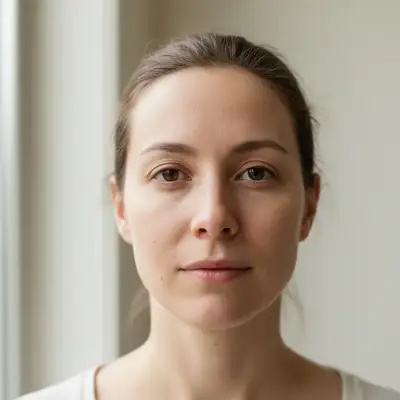
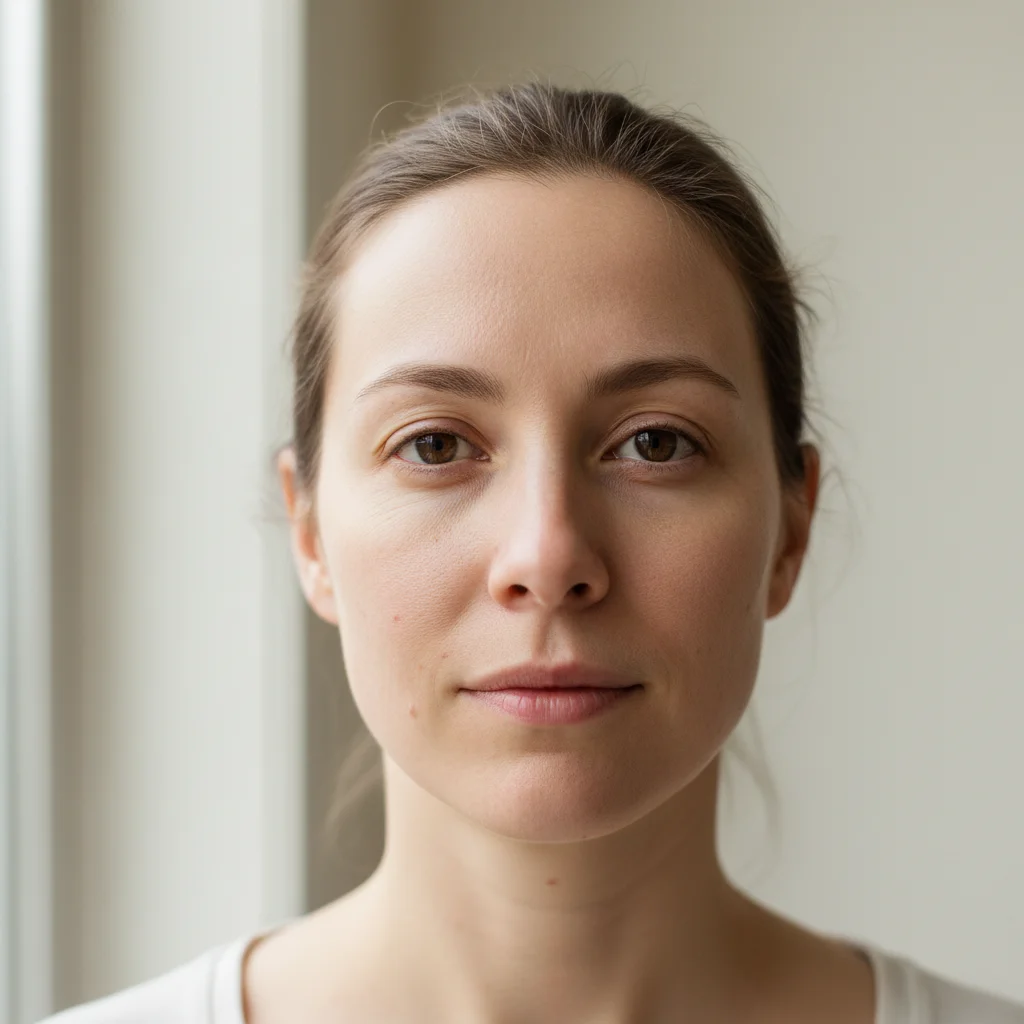
Before
Before
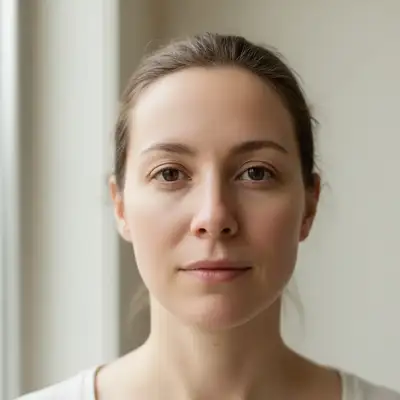
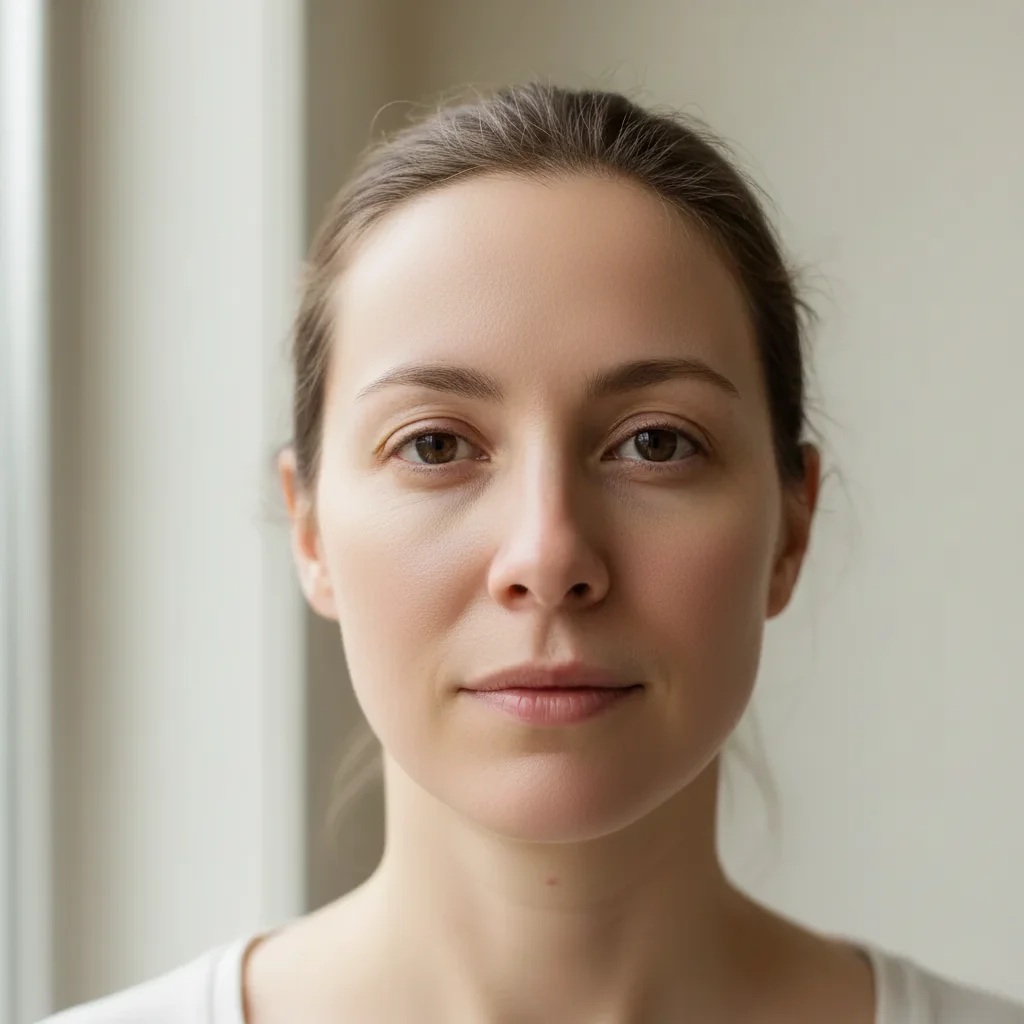
After
After

Free AI Sweat Remover

Drop your photo here

or click to browse

Release to upload

Free • No signup

Advertisement
Popular use cases:
  • gym photos
  • workout selfies
  • fitness photos
  • sports photography
  • outdoor event photos
  • summer photos
  • athletic photos
  • exercise documentation
  • progress photos
  • professional sports images

Cost
Free No signup required
Time
Instant results in 15-30 seconds
Works on
Any device - browser, phone, tablet, desktop
Powered by
AI-powered photo editing
Scenario Prompt Time
General sweat removal 15-30s
Clothing sweat stains 15-30s
Facial sweat 15-30s
Preserve texture 15-30s

How it works

  1. Upload your photo

    Choose any photo with visible sweat you want to remove. Works with gym photos, outdoor photos, sports pictures, event photos, or any image where sweat is visible on clothing, skin, or hair.

    Expect: Simple change: 20-30 seconds. Sweat removal is quick and results look natural immediately.
  2. Describe what you want

    Simply type 'remove sweat' or be specific like 'remove sweat stains from underarms' or 'remove sweat from face and forehead.' You can be general ('remove all visible sweat') or target specific areas ('remove sweat from shirt only'). The AI understands natural language and removes sweat automatically without requiring markers.

    Tip: For best results, specify both the type of sweat (droplets, stains, patches) and location ('remove sweat patches from gray t-shirt' or 'remove sweat droplets from face'). This helps the AI distinguish sweat from shadows or fabric patterns.

    Copy one of these to get started:

    remove Remove sweat from photo
    remove Remove sweat stains from shirt underarms
    remove Remove sweat droplets from face and forehead
    remove Remove sweat patches from gray t-shirt
    4 more prompts
    remove Remove all visible sweat from clothing and skin
    remove Remove sweat stains from back and underarms, keep fabric texture
    remove Remove sweat from workout photo but keep natural skin glow
    remove Remove sweat patches from chest area only
  3. Review the result

    Check that sweat is removed while clothing texture, skin tone, and fabric patterns remain natural. Ensure no shadows or details were accidentally removed. If any sweat remains or the edit looks unnatural, refine your prompt and regenerate.

  4. Download Your Clean Photo

    Save your sweat-free image in high resolution. The result has no watermarks and is ready for social media, professional portfolios, fitness posts, or personal use.

Try it free

Free AI Sweat Remover

Drop your photo here

or click to browse

Release to upload

Free • No signup

See it in action

Before
Before
->
After
After

Gym Photo Enhancement

Remove sweat from shirt and face

Prompt:
Before
Before
->
After
After

Outdoor Event Photo

Remove sweat stains from underarms and collar area

Prompt:
Before
Before
->
After
After

Sports Photo Cleanup

Remove all visible sweat from jersey and skin, keep jersey texture and number

Prompt:
Advertisement

If something looks off

AI changed the wrong area or something I didn't want changed

Why: The AI couldn't determine exactly which area you meant from description alone, or mistook shadows for sweat.

Try: Tap a marker on the specific sweat stain you want removed, then regenerate with the same prompt

Tip: Markers tell the AI 'I mean THIS one specifically.' Use them when sweat stains are near shadows or fabric patterns that might be confused with sweat.

Fabric texture looks blurred where sweat was removed

Why: The AI removed texture along with the sweat stain.

Try: Add 'preserve fabric texture' or 'keep clothing detail' to your prompt

Tip: Specify the fabric type if known: 'remove sweat from cotton t-shirt, preserve weave texture' helps the AI maintain realistic fabric appearance.

Some sweat stains remain visible

Why: Very dark or large sweat stains may need more specific targeting.

Try: Try 'remove all sweat stains completely' or mark the remaining stains specifically

Tip: For stubborn large sweat patches, try running the removal twice—once for general sweat, then again targeting remaining visible areas with markers.

Area looks lighter or darker than surrounding fabric

Why: Sweat removal created a color mismatch with the original fabric tone.

Try: Use 'remove sweat and match surrounding fabric color' in your prompt

Tip: This is more common with dark or patterned clothing. Specify 'blend naturally with surrounding area' for better color matching.

Natural shadows or wrinkles were removed along with sweat

Why: The AI interpreted shadows in clothing folds as sweat stains.

Try: Be more specific: 'remove wet sweat stains only, keep shadows and wrinkles'

Tip: Use descriptive words like 'wet patches' or 'moisture stains' rather than just 'dark areas' to help AI distinguish sweat from shadows.

Facial sweat removed but face looks too dry or matte

Why: Removing all moisture removed natural skin dimension too.

Try: Try 'remove sweat droplets but keep natural skin texture' or 'remove excess moisture only'

Tip: Some skin moisture is natural. Target 'sweat droplets' or 'beads of sweat' rather than all facial moisture for more realistic results.

Quick answers

Do I need to mark the sweat stains before describing what I want?

No! Just describe what you want in plain English. The AI automatically detects and removes visible sweat from clothing and skin. Only add markers if you want to target one specific sweat stain, or if the photo has patterns or shadows that might be confused with sweat.

Will removing sweat look natural on my clothing?

Yes, when done properly. The AI preserves fabric texture, patterns, and natural shadows while removing sweat stains. For best results, mention the fabric type or add 'preserve texture' to your prompt. Results look most natural on solid-colored clothing.

Can I remove sweat from specific areas only?

Absolutely. Just specify in your prompt: 'remove sweat from underarms only' or 'remove sweat from face but not clothing.' The AI will target only the areas you mention.

Does this work on all clothing colors?

Yes, but results vary by fabric color. Sweat stains are most visible (and easiest to remove) on gray, light blue, and other mid-toned colors. Very dark or very light clothing may show more subtle improvements. The AI works on all colors but visibility depends on the original stain contrast.

What's the difference between sweat droplets and sweat stains?

Sweat droplets are visible beads of moisture on skin, while sweat stains are darker wet patches on clothing fabric. Both can be removed, but you'll get better results if you specify which type: 'remove sweat droplets from skin' or 'remove sweat stains from shirt.'

Can this remove old dried sweat stains?

This tool is designed for visible sweat in photos (wet sweat patches that show up darker on fabric). It works best on fresh sweat visible in the image. For permanently discolored fabric from old dried sweat, the results depend on how the stain appears in the photo.

Will this work on workout or gym photos?

Yes, this is perfect for gym photos, fitness progress pictures, and workout selfies. Many users remove sweat to make their gym photos more presentable for social media or fitness portfolios while keeping the authentic workout environment.

Ready to remove sweat from your photos?

Free to try. No signup required.

Try it free